







If you see a yellow exclamation mark next to PCI Encryption/Decryption Controller in Device Manager, you’re likely dealing with a missing, corrupted, or outdated chipset driver. This issue is especially common after a clean Windows installation, motherboard upgrade, BIOS update, or when Windows fails to install the correct chipset drivers.
In this guide, we’ve put together 3 easy ways for you to update the PCI encryption/decryption controller driver on Windows 11/10/8/7.
- What is a PCI Encryption/Decryption Controller
- Update the driver automatically (recommended)
- Update the driver via Device Manager
- Download and install the driver from the manufacturer
What is a PCI Encryption/Decryption Controller?
The PCI Encryption/Decryption Controller is a motherboard chipset component that handles hardware-level security, encryption, and communication between Windows and the platform security processor (PSP).
If the chipset driver is missing, corrupted, or outdated, Windows may fail to recognize the hardware, showing a yellow warning icon in Device Manager. In most cases, your PC will still work normally, but some security-related features and chipset functions may not operate correctly.
Option 1 – Update the driver automatically (recommended)
If you don’t have the time, patience, or technical knowledge to install the device drivers, we recommend using Driver Easy. It’s a powerful tool that detects, downloads, and installs any driver updates that your computer needs.
Driver Easy will automatically recognize your system and find the correct drivers for it. If multiple chipset and motherboard-related drivers are missing, this can be especially useful and time-saving. You don’t need to know exactly what system your computer is running, and you don’t need to worry about downloading the wrong driver or making a mistake when installing. Driver Easy handles it all.
You can update your drivers automatically with the Driver Easy Pro version. It takes just 2 clicks, and you get hassle-free driver updates and full technical support. If you’re not ready to purchase the Pro version yet, Driver Easy provides a 7-day trial at no cost, allowing you to explore all the Pro features. No charges will occur until after your 7-day trial period ends.
- Download and install Driver Easy.
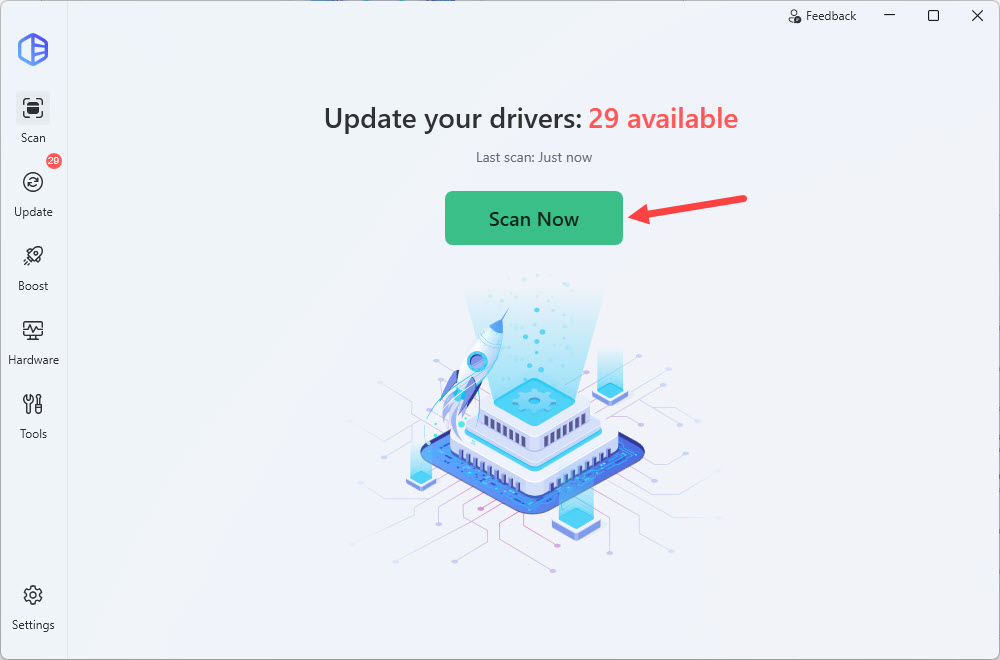
- Run Driver Easy and click the Scan Now button. Driver Easy will then scan your computer and detect any problem drivers.
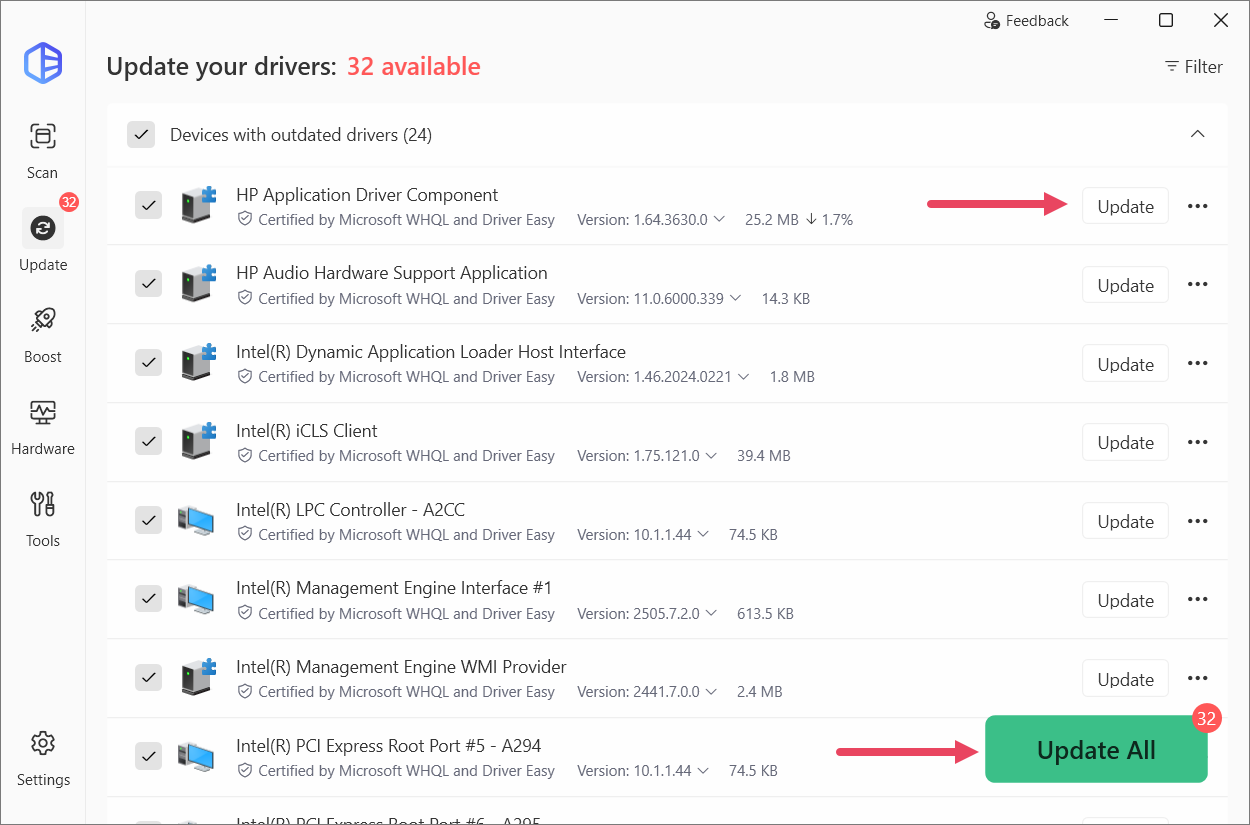
- Click the Activate & Update button next to the flagged device to automatically download and install the correct version of this driver. Or click Update All to automatically download and install the correct version of all the drivers that are missing or out of date on your system.
- Restart your computer for the change to take effect.
If you need assistance, please contact Driver Easy’s support team at support@drivereasy.com.
If you want to update the driver on your own instead of using a driver updater, check out the next option.
Option 2 – Update the driver via Device Manager
An easy way to update the PCI encryption/decryption controller driver is to use the Windows Device Manager. Here are the steps:
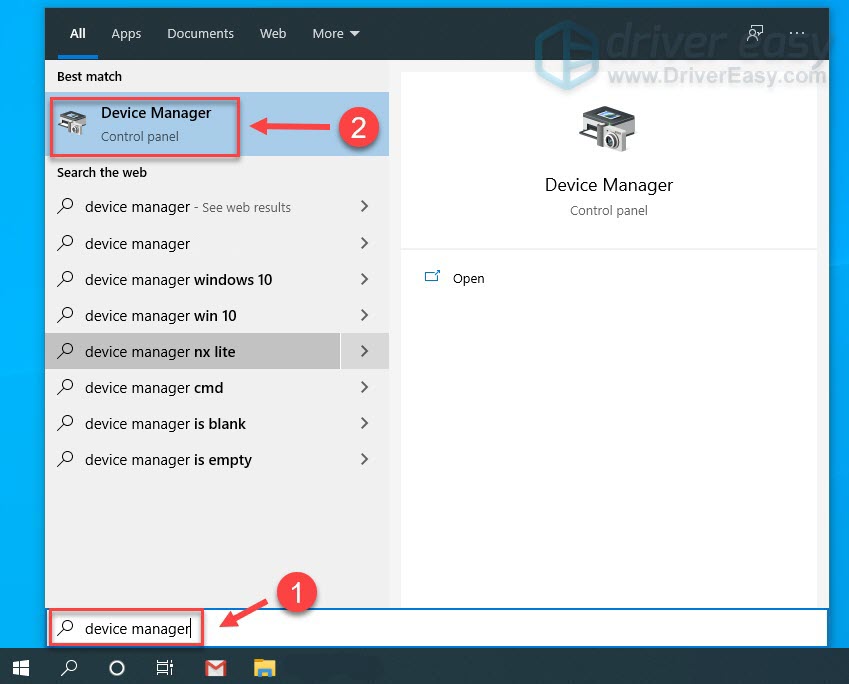
- Type device manager in the search box and click Device Manager.
- Double-click Other devices (or Unknown devices) to expand the list.
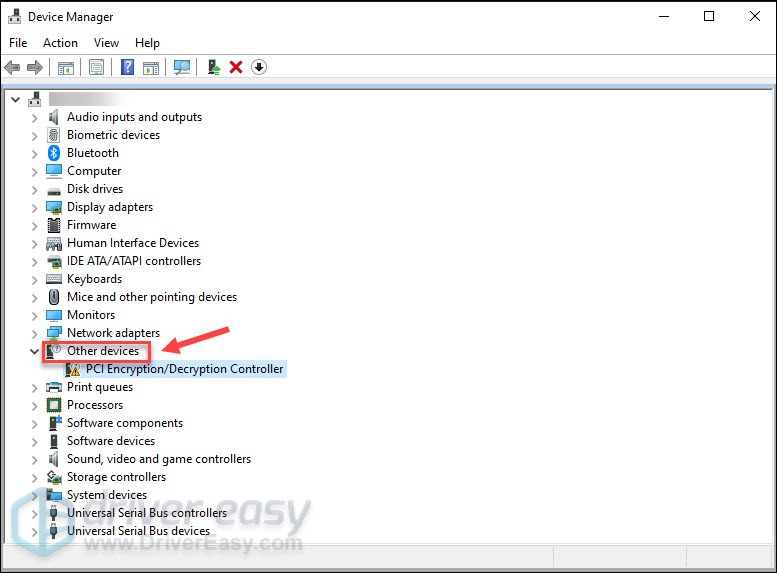
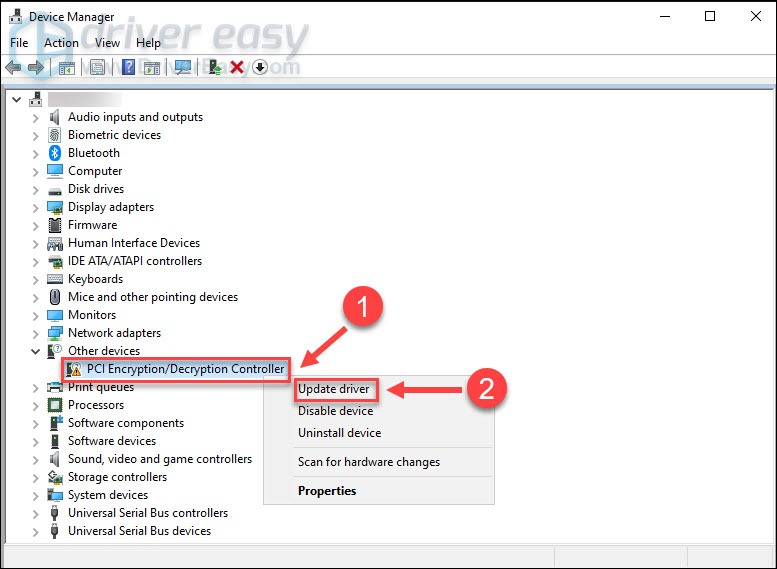
- Right-click the PCI Encryption/Decryption Controller, and click Update driver.
- Click Search automatically for updated driver software.
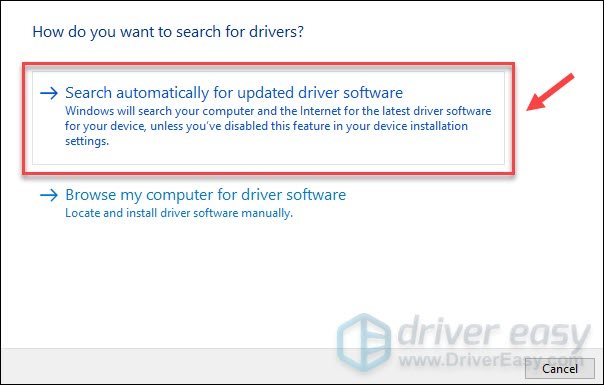
Windows will directly download and install the available new updates. Once done, reboot your computer to fully implement the changes.
Device Manager only checks Microsoft’s driver catalog. In many cases, it may display ‘The best drivers for your device are already installed.’ even when the correct chipset driver is missing. If that happens, continue to the next method below.
Option 3 – Download and install the driver from the manufacturer
The PCI encryption/decryption controller is built into the motherboard. So, to fix its driver issue, you need to get the latest chipset driver for your motherboard.
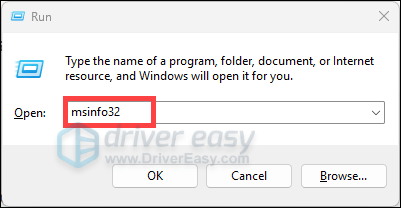
First, you’ll need to identify your motherboard model. On your keyboard, press the Windows logo key + R to open the Run command. Then type in msinfo32 and press Enter.
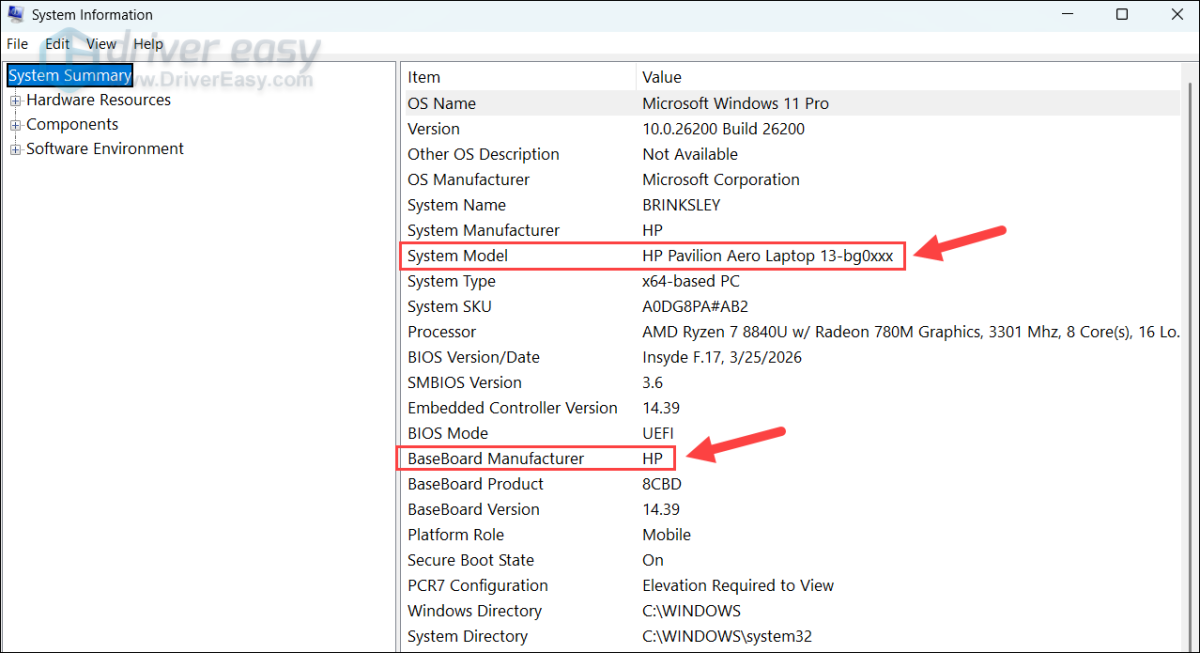
Make a note of the System Model and BaseBoard Manufacturer.
Then go to the manufacturer’s driver download website:
Search for your computer model, find the latest chipset driver corresponding to your Windows version (for example, Windows 11, 64-bit), and download it manually. Once downloaded, double-click the file and follow the on-screen instructions to install the driver.
Hopefully this post helps you solve the PCI encryption/decryption driver issues. If you have any suggestions or questions, you’re welcome to leave a comment below.

