






Nothing is more frustrating than eagerly launching Assassin’s Creed Shadows, only to encounter crashes, launch failures, or performance issues like freezing.
In recent months, PC players across Steam, Ubisoft Connect, and Reddit have reported Assassin’s Creed Shadows crashing on launch or at certain graphical settings, or the game stutters and disk spikes after the 1.1.12 patch. Some players have re-downloaded 100+ GB builds three times and still hit the crashes.
In this guide, we’ll walk you through the most effective fixes reported by players and verified during our troubleshooting, so you can get back to enjoying the game without interruptions.
Try these fixes
You may not need to try every fix. Simply walk through the list until you find the one that does the trick.
- Verify the integrity of game files
- Update your graphics drivers
- Disable unnecessary background applications
- Turn off Hardware Accelerated GPU scheduling
- Disable cloud save synchronization and use local saves
- Update the SSD firmware
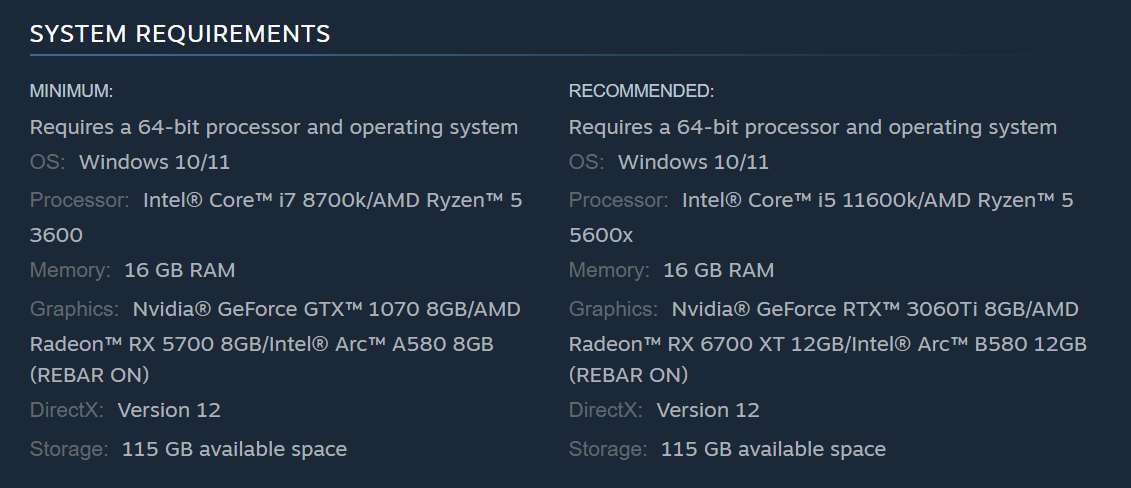
Before you start: make sure your PC meets the game’s minimum requirements. The minimum system requirements ensure that your rig can handle it, while the recommended system requirements guarantee that you can enjoy optimal performance and are less likely to encounter performance issues such as stuttering and lagging during your Assassin’s Creed Shadows gameplay.
Fix 1 – Verify the integrity of game files
Corrupted or missing game files are a common culprit behind crashes, launch failures, and performance issues in Assassin’s Creed Shadows. When game files become damaged—whether due to incomplete downloads, updates, or unexpected interruptions—the game may struggle to run properly. Fortunately, verifying the integrity of game files is a straightforward process that can help identify and repair these issues.
Most game platforms, like Steam and Ubisoft Connect, have built-in tools to scan and restore game files. Here’s how to do it:
On Steam
- Restart your computer and launch Steam.
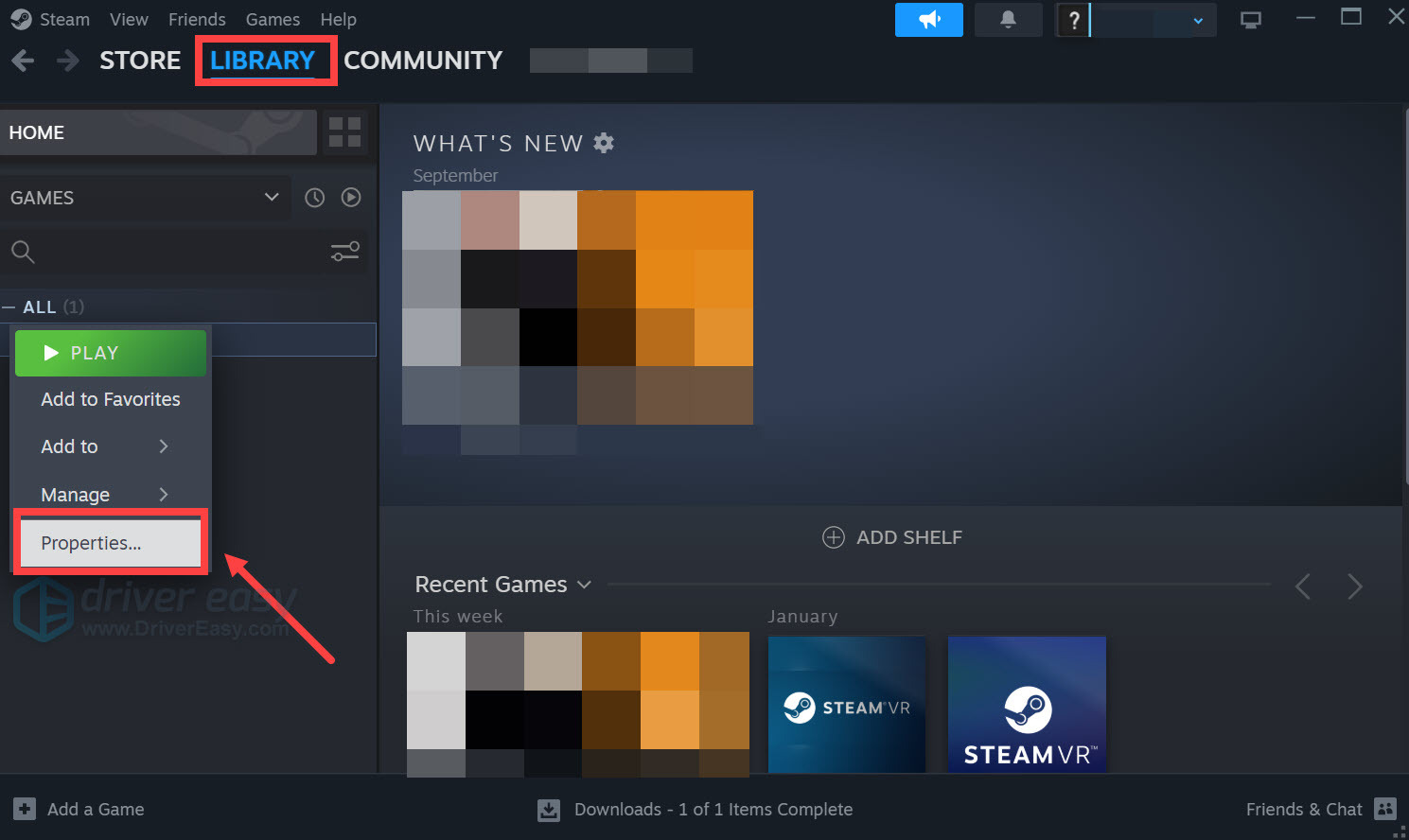
- Under LIBRARY, right-click your game title and select Properties… from the drop-down menu.
- Select the Installed Files tab and click the Verify integrity of game files button.
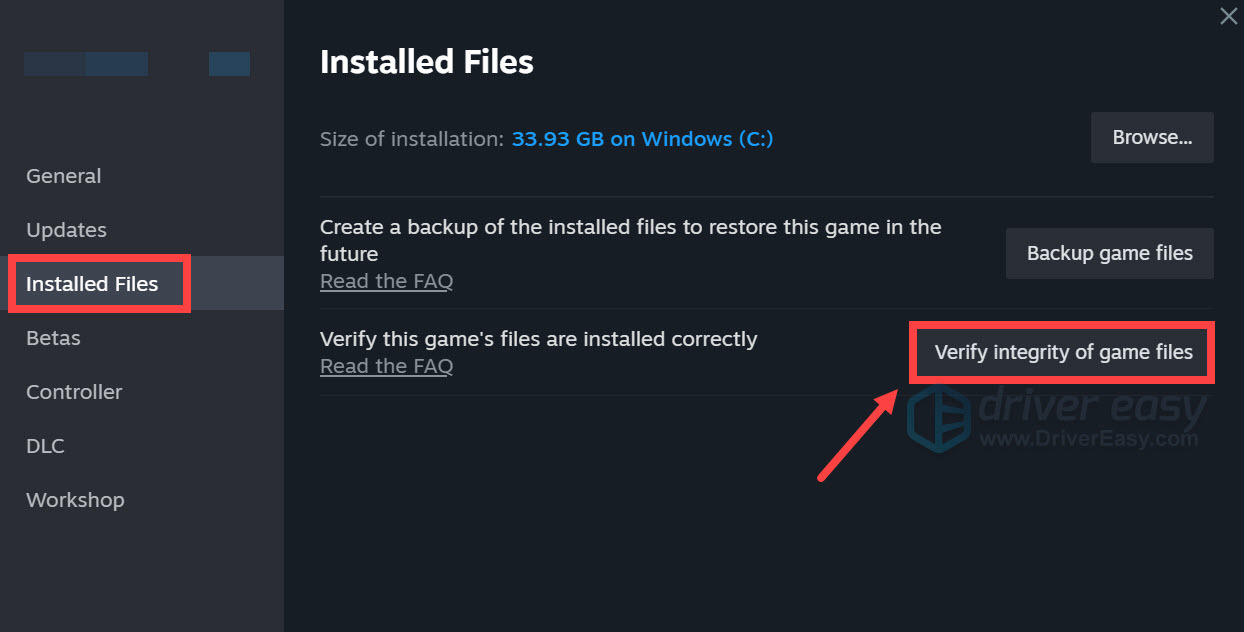
- Steam will verify the game’s files, and this process may take several minutes.
On Ubisoft Connect
- Open Ubisoft Connect and go to the Library tab.
- Find Assassin’s Creed Shadows. Next to the Play button, select the button with the three dots and choose Manage > Verify files.
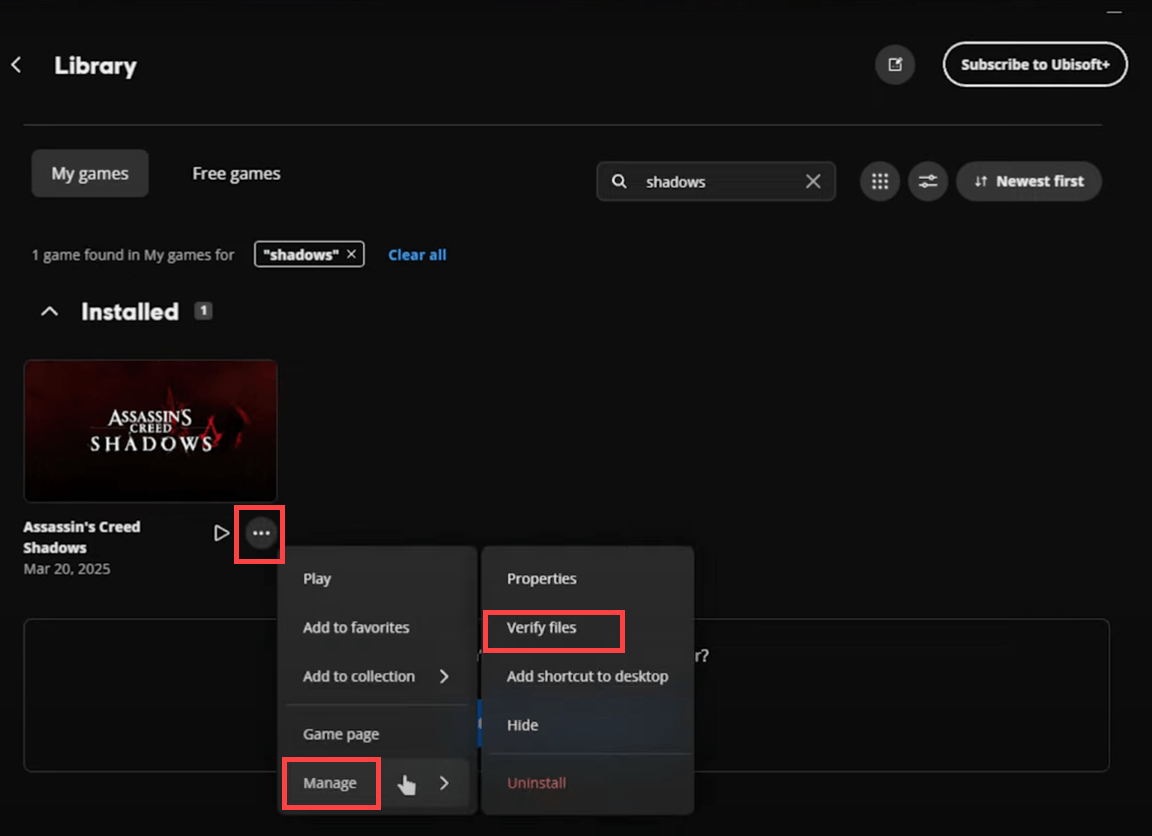
- Ubisoft Connect will start the process of downloading and restoring any missing or corrupted files.
If your issues persist after verifying files, move on to the next fix.
Fix 2 – Update your graphics drivers
Outdated or corrupted graphics drivers can lead to crashing and other performance issues. It’s recommended to update your graphics driver on a regular basis. Besides, when a new title or patch comes out, graphics card manufacturers usually release optimized game-ready drivers. These updates can significantly improve performance and compatibility issues.
There are mainly two options to update graphics drivers:
Option 1 – Manually update your graphics drivers
Depending on your graphics card brand, go to the corresponding website to find, download, and install the latest graphics driver for your system:
Option 2 – Automatically update your graphics driver
If you’re not comfortable manually updating drivers or prefer a simpler solution, a driver updater like Driver Easy can help you automate the process. Driver Easy automatically scans your PC for missing, outdated, or faulty drivers, then downloads the correct versions directly from the hardware manufacturers.
- Download and install Driver Easy.
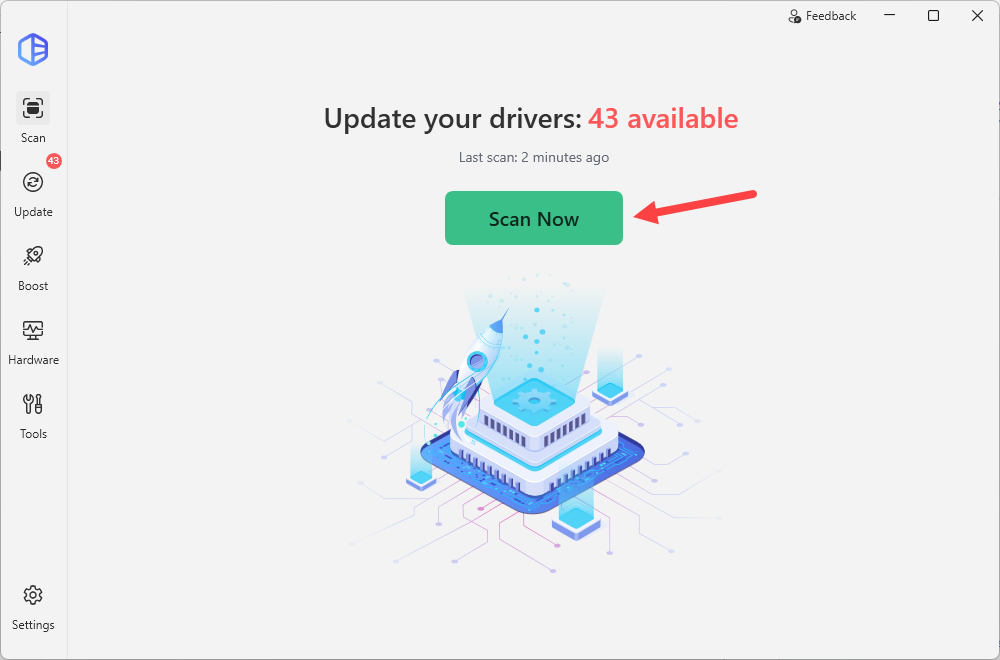
- Launch Driver Easy and click Scan Now. Driver Easy will scan your computer and list any hardware with missing, outdated, or mismatched drivers.
- Click Update All to download and install new drivers automatically, or click Activate & Update next to your graphics card if you only want to update your GPU driver.
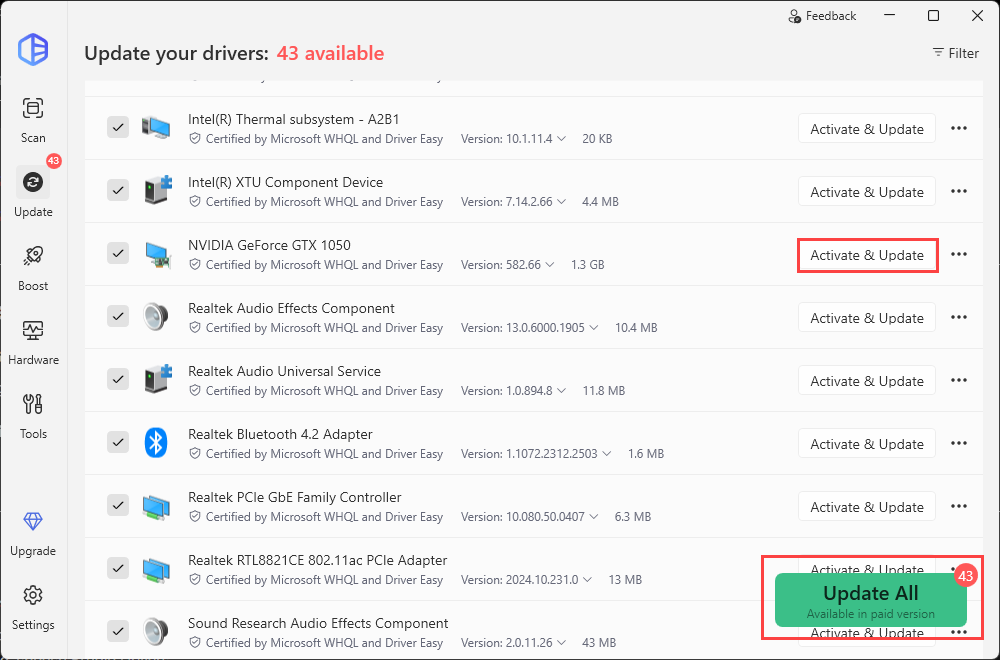
Updating drivers requires either the Pro version or the 7-day Free Trial, both of which include automatic driver updates and advanced technical features. If you’re not ready to subscribe, you can try all Pro benefits during the trial period with no upfront charge.
If installing the latest graphics driver doesn’t solve the problem, or the crashes began after a recent driver update, you can also click the three-dot button next to the GPU driver and select View all driver versions to download and install an earlier driver, making it easy to test different driver versions.
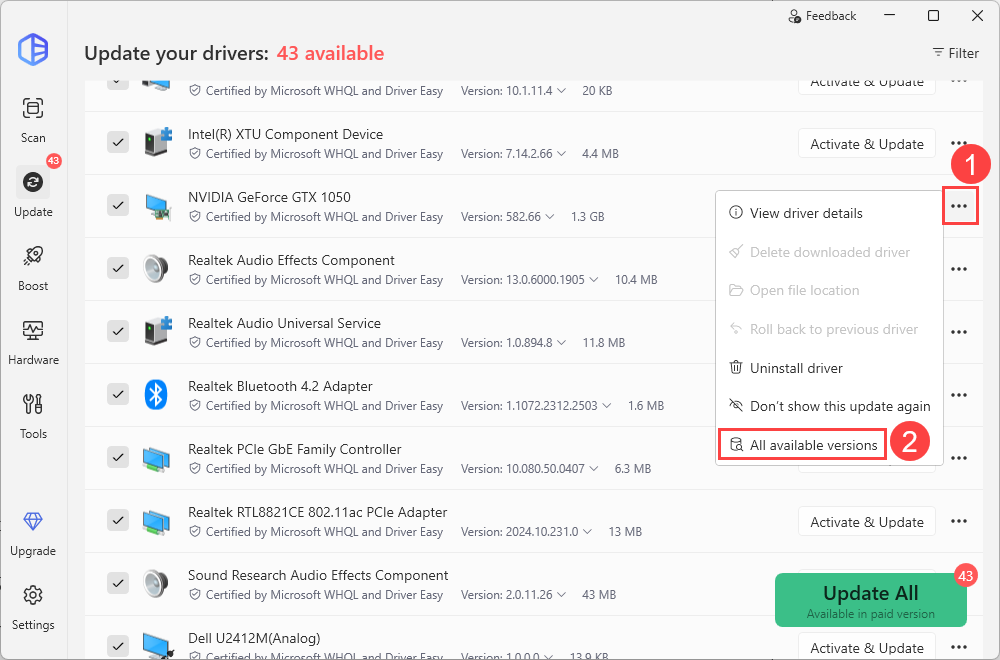
Driver Easy can also update essential game runtime components such as the Microsoft Visual C++ Redistributables, which are essential for AC Shadows to launch correctly. Updating them may help you resolve the crashes that occur immediately after the Ubisoft logo or during startup.
Fix 3 – Disable unnecessary background applications
Running multiple programs in the background while gaming can lead to crashes. This is because games are resource-intensive, and having numerous background processes can drain critical CPU, GPU, and RAM resources needed for smooth gameplay. Furthermore, certain software, such as RGB control applications or Razer Synapse, is known in some cases to interfere with specific game titles, causing instability or crashes.
To avoid these issues, we recommend closing any unnecessary applications before launching Assassin’s Creed Shadows, including: Steam Overlay, Ubisoft Connect Overlay, Discord Overlay, Xbox Game Bar, NVIDIA App Overlay, AMD Software Overlay, MSI Afterburner, RivaTuner Statistics Server (RTSS), Razer Cortex, etc.
- On your keyboard, press Ctrl + Shift + Esc to open the Task Manager.
- Go to the Processes tab. Look for any non-essential or resource-intensive programs. Right-click on each of them and select End task.
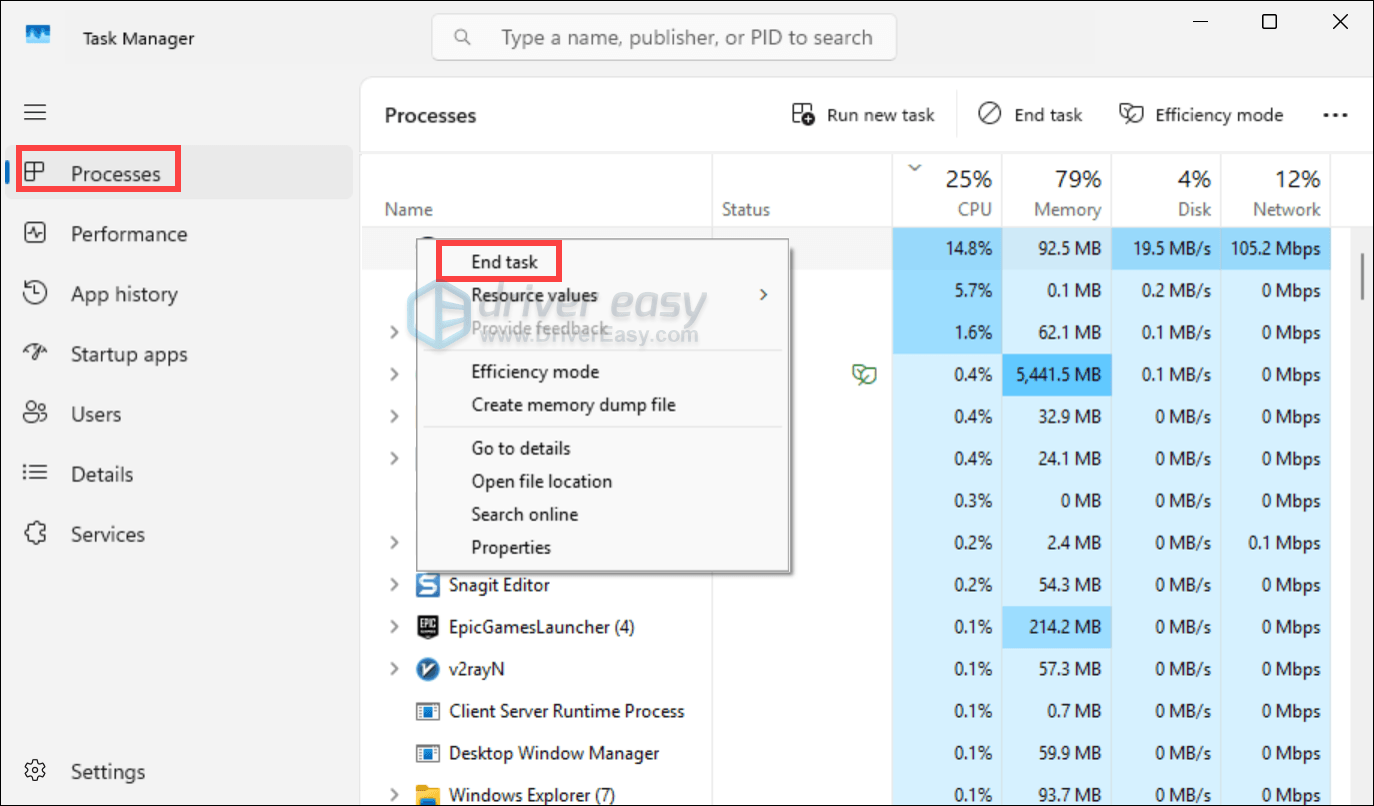
Then launch your game and test the gameplay. If this doesn’t work either, don’t be upset! Try the next fix below!
Fix 4 – Turn off Hardware Accelerated GPU scheduling
If Assassin’s Creed Shadows is crashing, failing to launch, or experiencing performance issues, Hardware-accelerated GPU Scheduling (HAGS) might be the culprit. Introduced in Windows 10 (version 2004) and available in Windows 11, this feature allows your GPU to manage its video memory more efficiently. While it can improve performance in some cases, it may also cause instability or compatibility issues with certain games.
On Windows 11
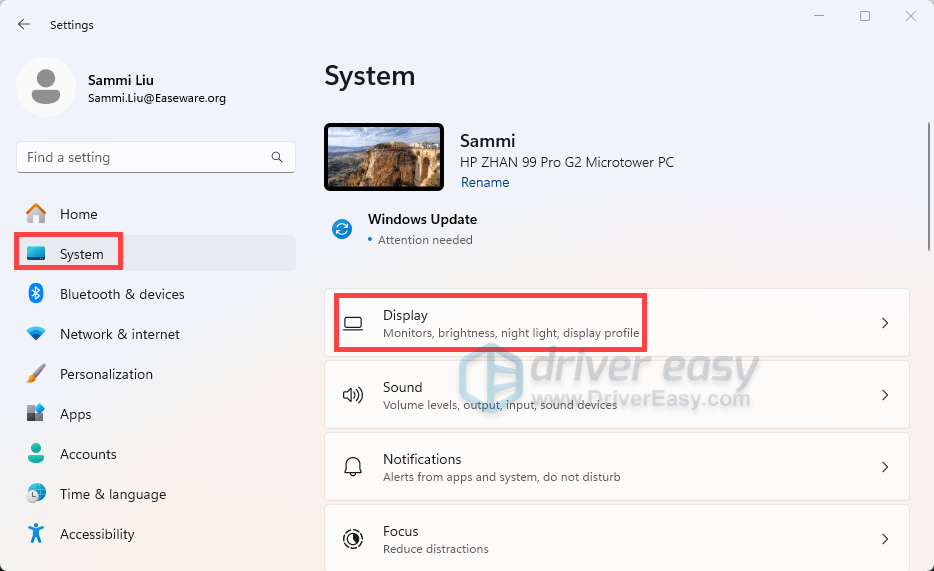
- On your keyboard, press the Windows logo key + I to open Settings.
- Go to System > Display.
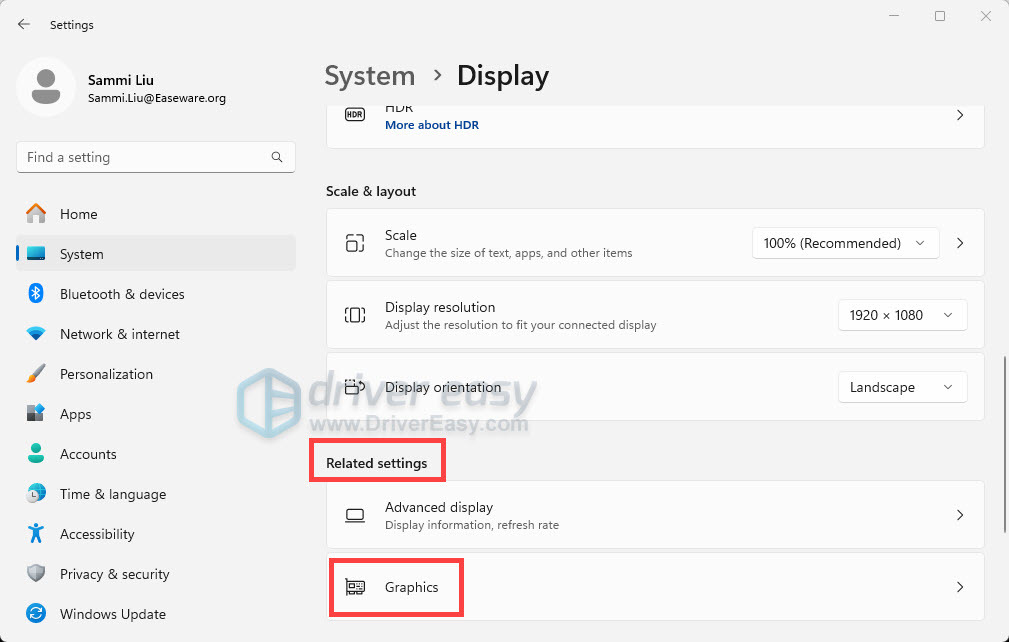
- From the Related settings list, click on Graphics.
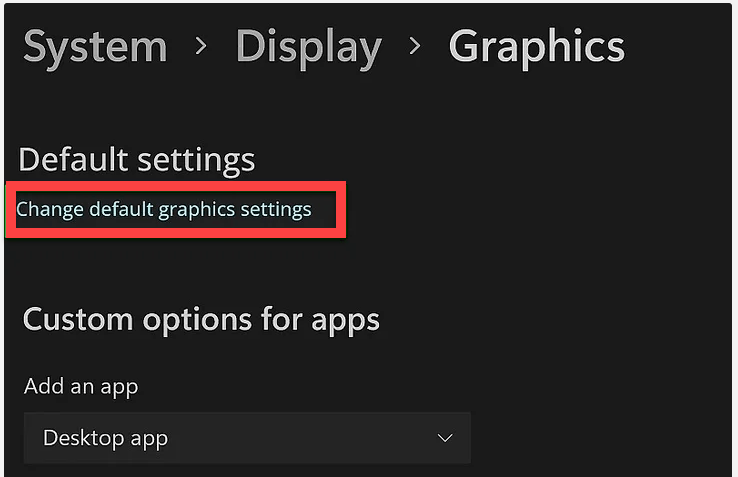
- Click Change default graphics settings.
- Toggle off Hardware-accelerated GPU scheduling.
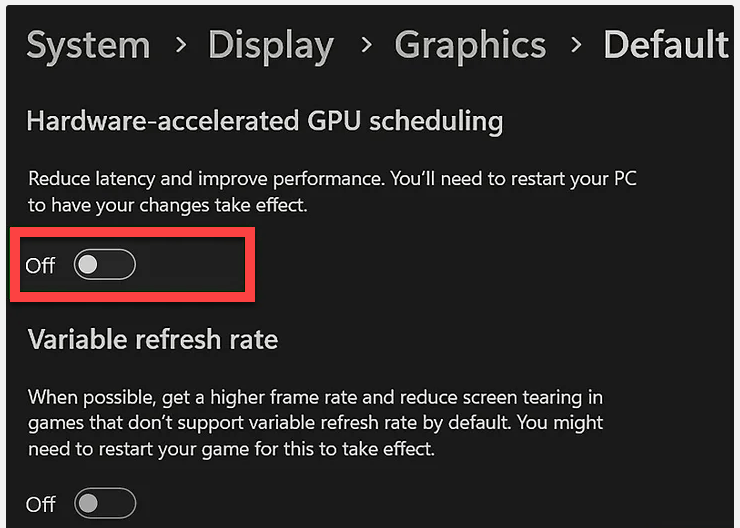
- Restart your computer.
On Windows 10
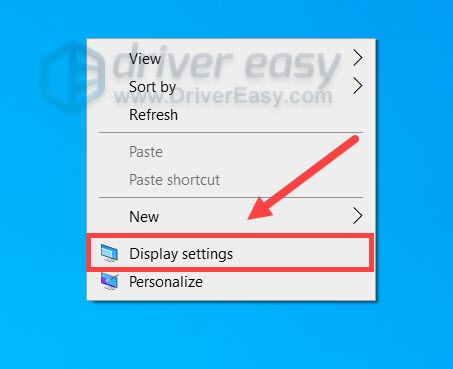
- In the empty area of your desktop, right-click and select Display settings.
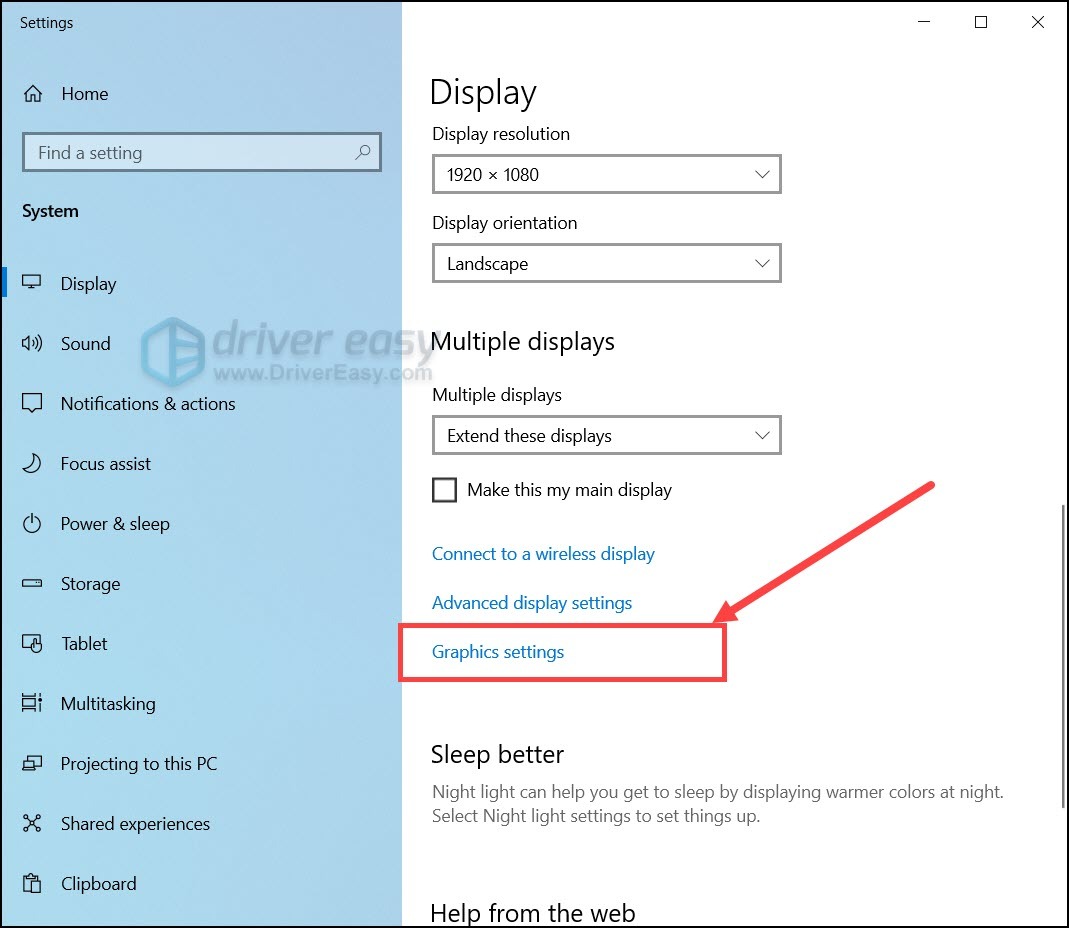
- Under the Multiple displays section, click Graphics settings.
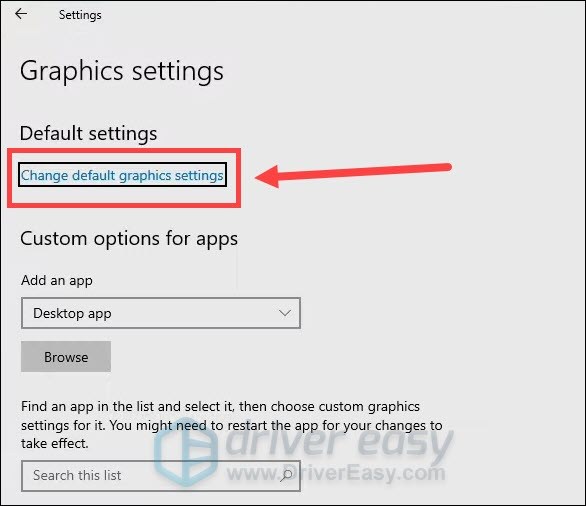
- Under the Default settings section, click Change default graphics settings.
- Turn off Hardware-accelerated GPU scheduling.
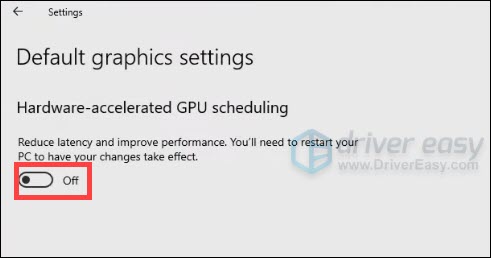
- Reboot your PC.
Note: If you don’t see the HAGS option, it could be because:
- Your GPU doesn’t support HAGS (common with older or integrated GPUs).
- Your GPU drivers are outdated. Update them from the manufacturer’s website (NVIDIA, AMD, or Intel) to use Driver Easy to help you with that.
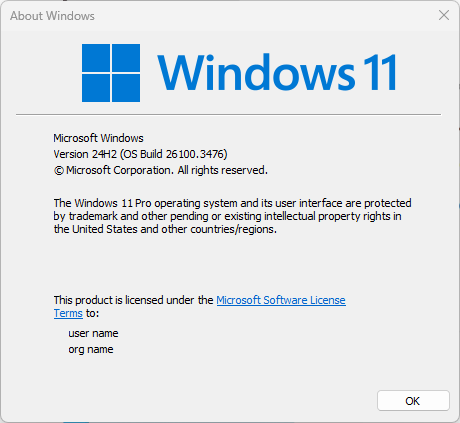
- You’re using an older version of Windows. HAGS is only available in Windows 10 (version 2004 or later) and Windows 11. You can check your Windows version using the winver command. Simply press the Windows logo key + R to open the Run box, then type winver and hit Enter.
Fix 5 – Disable cloud save synchronization and use local saves
Disabling cloud synchronization may help resolve crashes in Assassin’s Creed Shadows by preventing potential issues with cloud save files. When the game syncs with the cloud, corrupted or conflicting save data can cause instability. By turning off cloud sync, the game relies solely on local save files, which may be more stable and less prone to such problems.
Here’s a step-by-step guide to implement this method:
Step 1: Disable cloud save synchronization
For Steam
- From the Steam LIBRARY, right-click your game and select Properties….
- Under the General tab, toggle off the option Keep game’s saves in the Steam cloud.
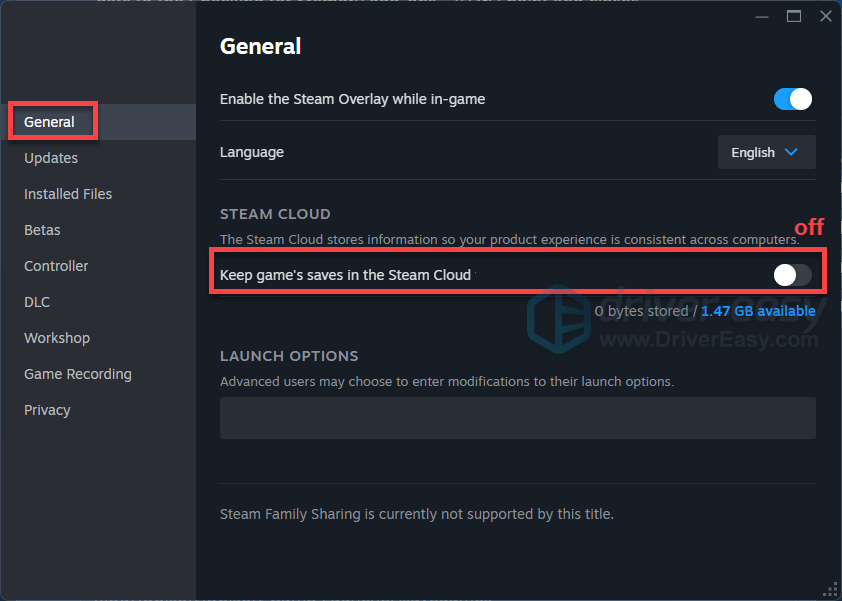
- Restart the launcher and test your gameplay.
For Ubisoft Connect
- Launch Ubisoft Connect PC.
- In the top left corner, select your profile and go to the Settings tab.
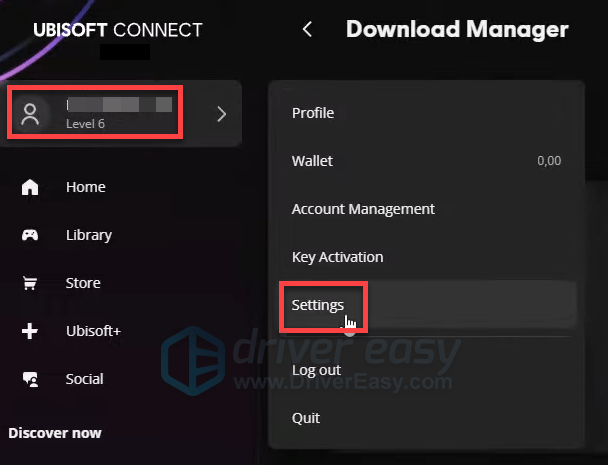
- In the Generale section, next to Enable cloud save synchronization for supported games, untick the box. Then close the window.
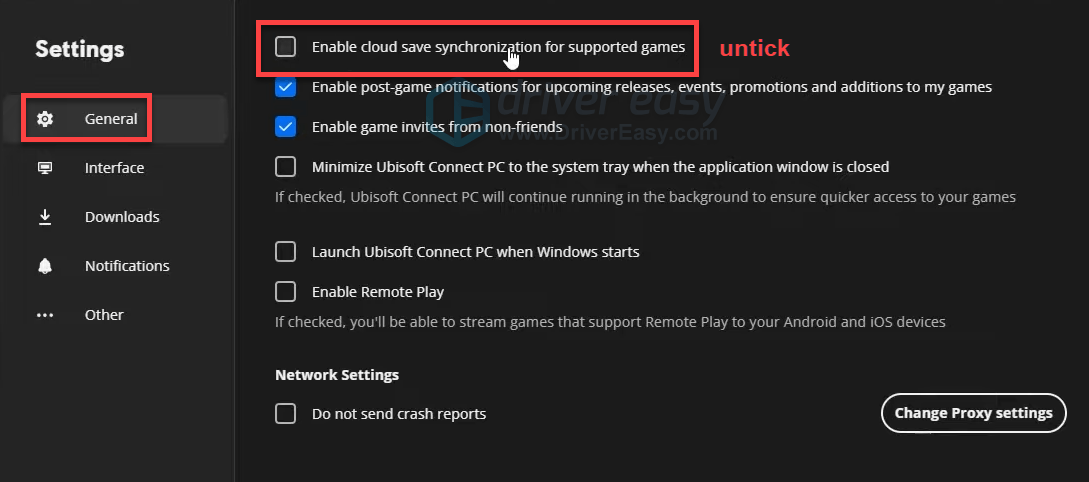
- Relaunch Ubisoft Connect and open Assassin’s Creed Shadows to test the gameplay.
Step 2: Manually delete cloud saves
If disabling cloud sync doesn’t resolve the issues, consider deleting existing cloud save files to allow the game to create fresh local saves.
- Ubisoft Connect: C:\Program Files (x86)\Ubisoft\Ubisoft Game Launcher\savegames
- Steam: C:\Program Files (x86)\Steam\userdata\YourSteamID\
Step 3: Launch the game with a fresh local save
- Disconnect your PC from the internet to ensure the game uses local saves.
- Launch Assassin’s Creed Shadows and play until the game creates a new save (usually after a few minutes of gameplay).
- Exit the game and reconnect to the internet.
- Re-enable cloud synchronization by reversing the steps in Step 1.
- Launch the game again; if prompted, choose to use the local save.
This method has been effective for some players experiencing similar issues. However, if the problem persists, consider reaching out to Ubisoft Support for further assistance.
Fix 6 – Update the SSD firmware
This fix is less common but worth trying if you notice: textures loading very slowly, delayed audio, severe stuttering, unusually high disk usage, or crashes while streaming new areas.
- Press Ctrl + Shift + Esc to open Task Manager. Open the Performance tab and note your SSD model.
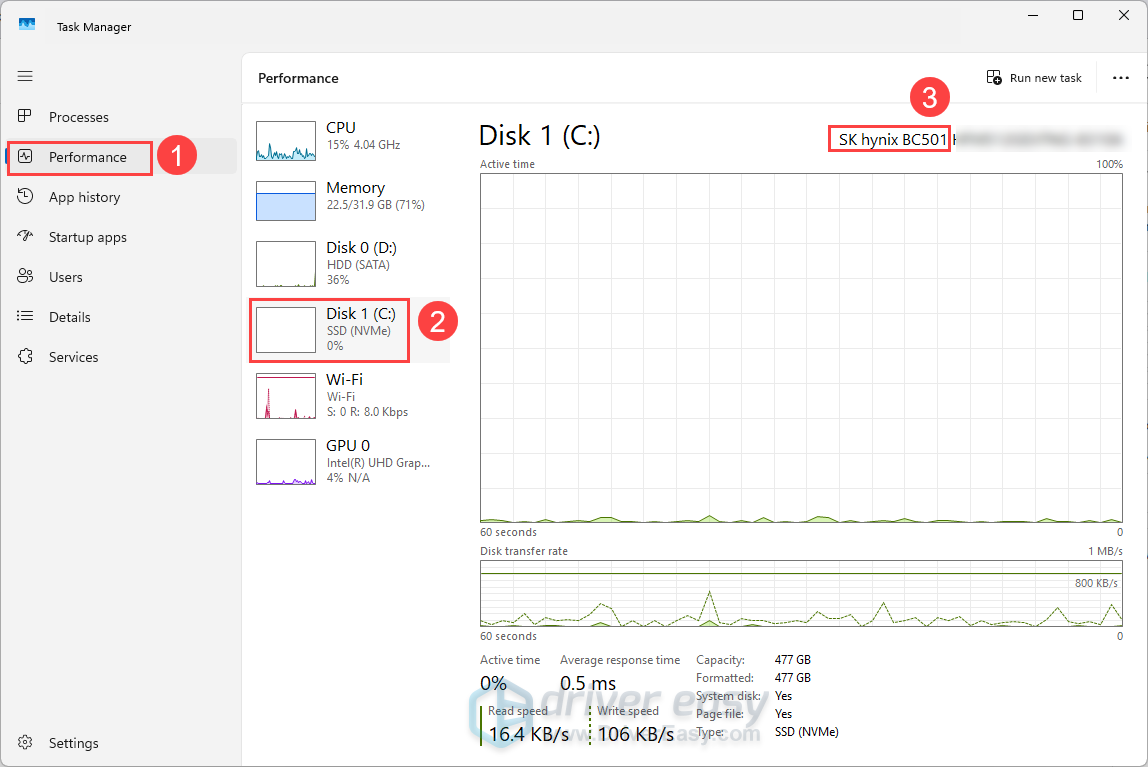
- Download your SSD manufacturer’s management utility, such as Samsung Magician, WD Dashboard, or Crucial Storage Executive.
- Check for available firmware updates. Install the update and restart your computer.
That wraps up our guide to troubleshooting Assassin’s Creed Shadows crashing or not launching! In most cases, Assassin’s Creed Shadows crashing is caused by corrupted game files, graphics driver problems, damaged runtime components, or software conflicts rather than faulty hardware.
If the game is still crashing after trying every fix, you can report the problem through Ubisoft’s Bug Reporter. Include details such as your hardware, Windows version, graphics driver version, and when the crash occurs, which will help Ubisoft identify and resolve game-specific issues more quickly.
Crashes, launch failures, and performance issues in Assassin’s Creed Shadows can be caused by outdated graphics drivers. Tools like Driver Easy can simplify the process of updating drivers, ensuring your system is optimized for Assassin’s Creed Shadows.
✓ Automatically detect all missing, outdated or mismatched drivers
✓ One click to update all drivers
✓ All drivers certified
✓ No internet? – Scan offline then download the right network driver on another PC
✓ Safe restore: roll back to the previously installed driver
And much more…