






You finally get Modern Warfare 4 installed, hit Play, and expect to jump into the campaign or your first match. Instead, the game freezes during launch, crashes back to the desktop, or closes without showing an error message. Sometimes, Steam even switches straight back to Play, leaving you wondering what went wrong.
You’re not alone. If Modern Warfare 4 is crashing on PC, don’t rush to reinstall the game or change a bunch of graphics settings. In this guide, we’ll walk you through 6 quick fixes for commonly reported issues, from constant crashes, launch failures, and errors like 0x00001338 and 0xC0000005 to freezes at specific campaign checkpoints.
6 fixes for CoD Modern Warfare 4 crashing/not launching
You don’t need to try every method. Start with a few quick checks, including verifying the game files, before moving on to graphics drivers and more advanced troubleshooting.
- Run the game launcher as administrator
- Verify the integrity of game files
- Troubleshoot errors 0x00001338 and 0xC0000005
- Update or roll back your graphics driver
- Clear the DirectX shader cache
- Reset your graphics settings to default
Fix 1: Run the game launcher as administrator
If Modern Warfare 4 closes immediately after launch without displaying an error, check whether the launcher has the permissions it needs. Running a launcher as administrator can help in certain permission-related situations.
- If you’re using Steam or Battle.net, right-click its icon in the system tray and select Exit. If you can’t find the icon, close the launcher from its own window.
- Right-click your Steam or Battle.net shortcut and select Run as administrator.
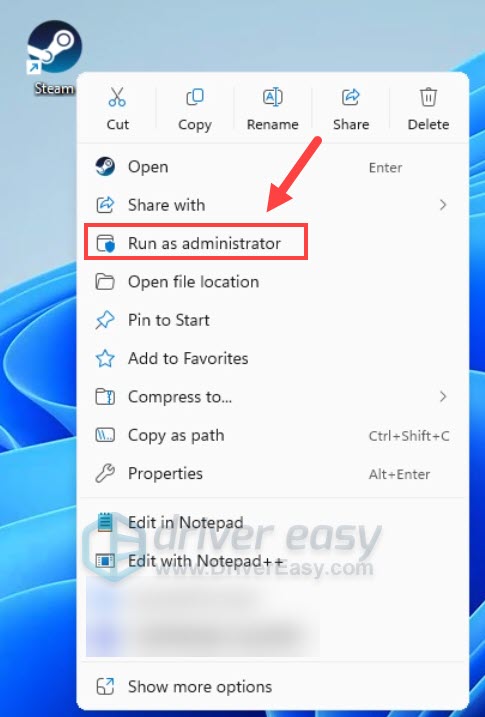
- Launch Modern Warfare 4 through the game launcher.
- If this resolves the issue consistently, you can test a persistent administrator setting through Properties > Compatibility > Run this program as an administrator.
If the game still closes immediately, continue to Fix 2.
Fix 2: Verify the integrity of game files
If Modern Warfare 4 crashes during launch, freezes while loading a mission, or displays unexpected errors, some game files may be missing or corrupted. Verifying the installation can detect and repair certain file-related problems without requiring you to reinstall the entire game.
The exact steps depend on your launcher.
Steam
- Launch Steam.
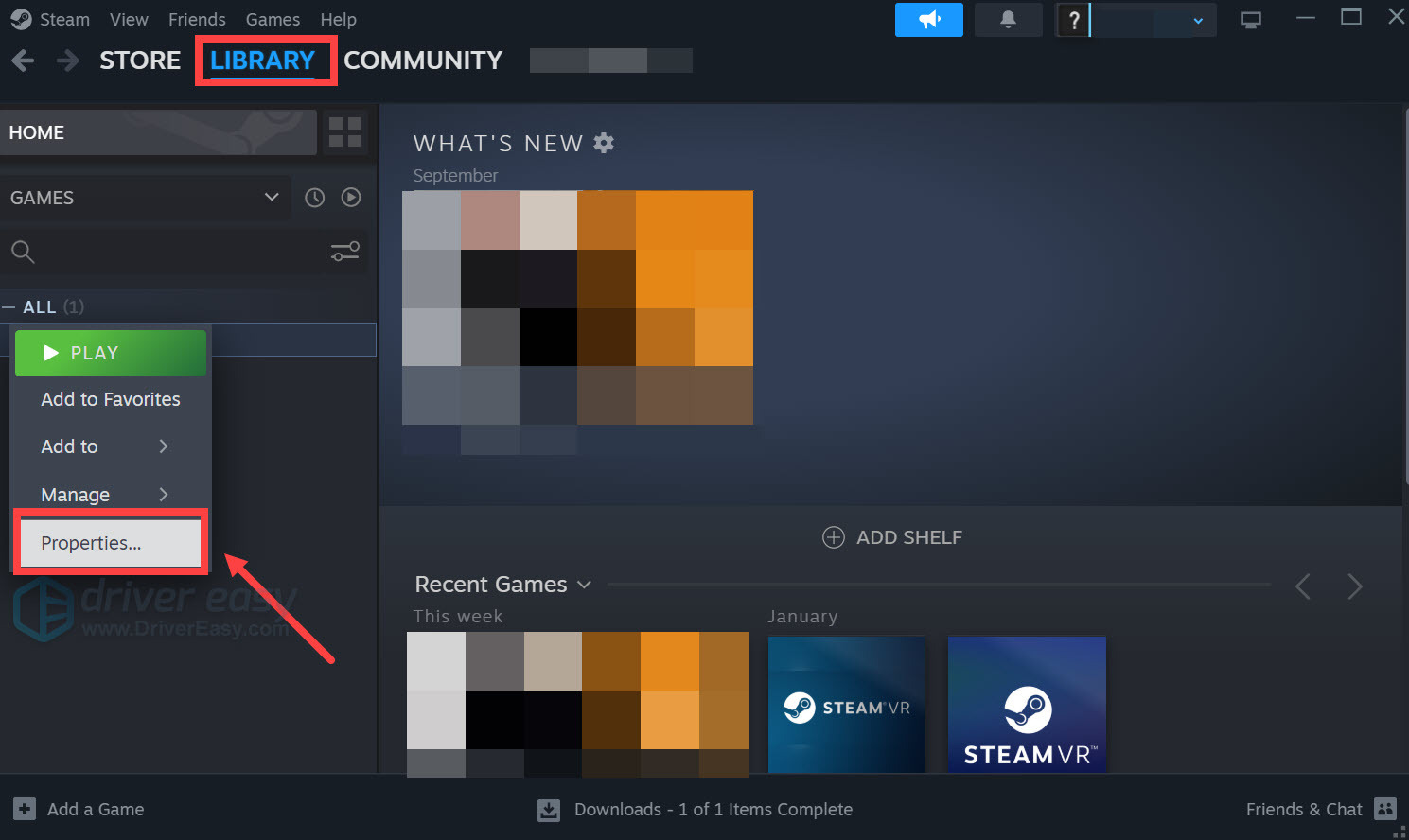
- In the LIBRARY, right-click your game and select Properties from the drop-down menu.
- Select the Installed Files tab and click the Verified integrity of game files button.
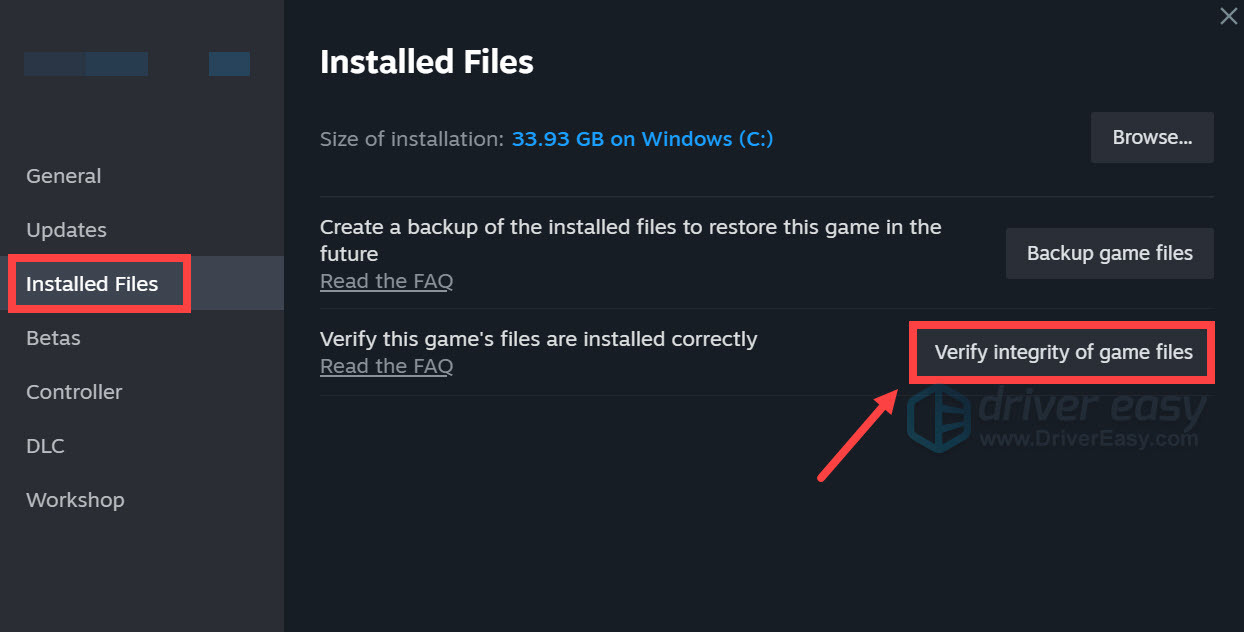
- Steam will verify the game’s files – this process may take several minutes.
Battle.net
- Open the Battle.net client on your computer and select Modern Warfare 4.
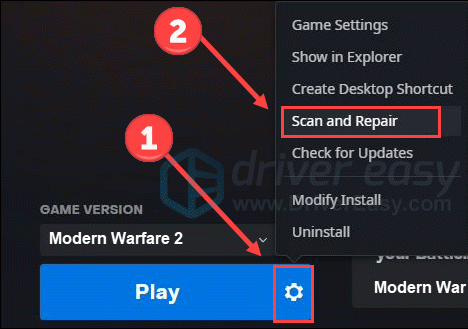
- Click the gear icon next to the Play button and then select Scan and Repair.
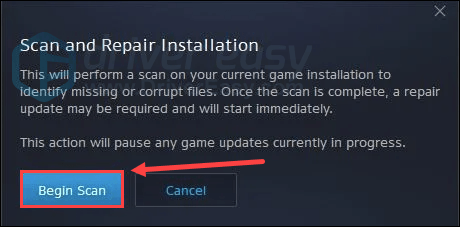
- Click Begin Scan.
- Wait for the process to finish. Once done, relaunch the game and see how it works.
Fix 3: Troubleshoot errors 0x00001338 and 0xC0000005
If your crash began after a Windows security change, a driver update, or a system configuration change, investigate that connection first. The following steps cover a reported workaround involving Windows security features, but changing these settings isn’t a guaranteed fix.
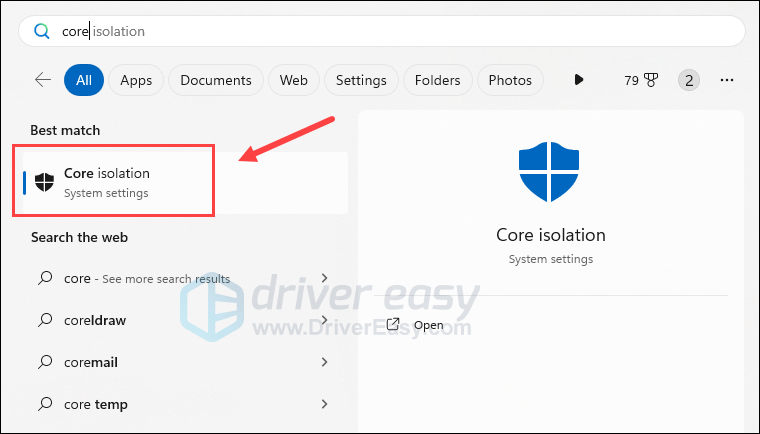
- On your keyboard, press the Windows key and type core isolation, then select Core Isolation from the list.
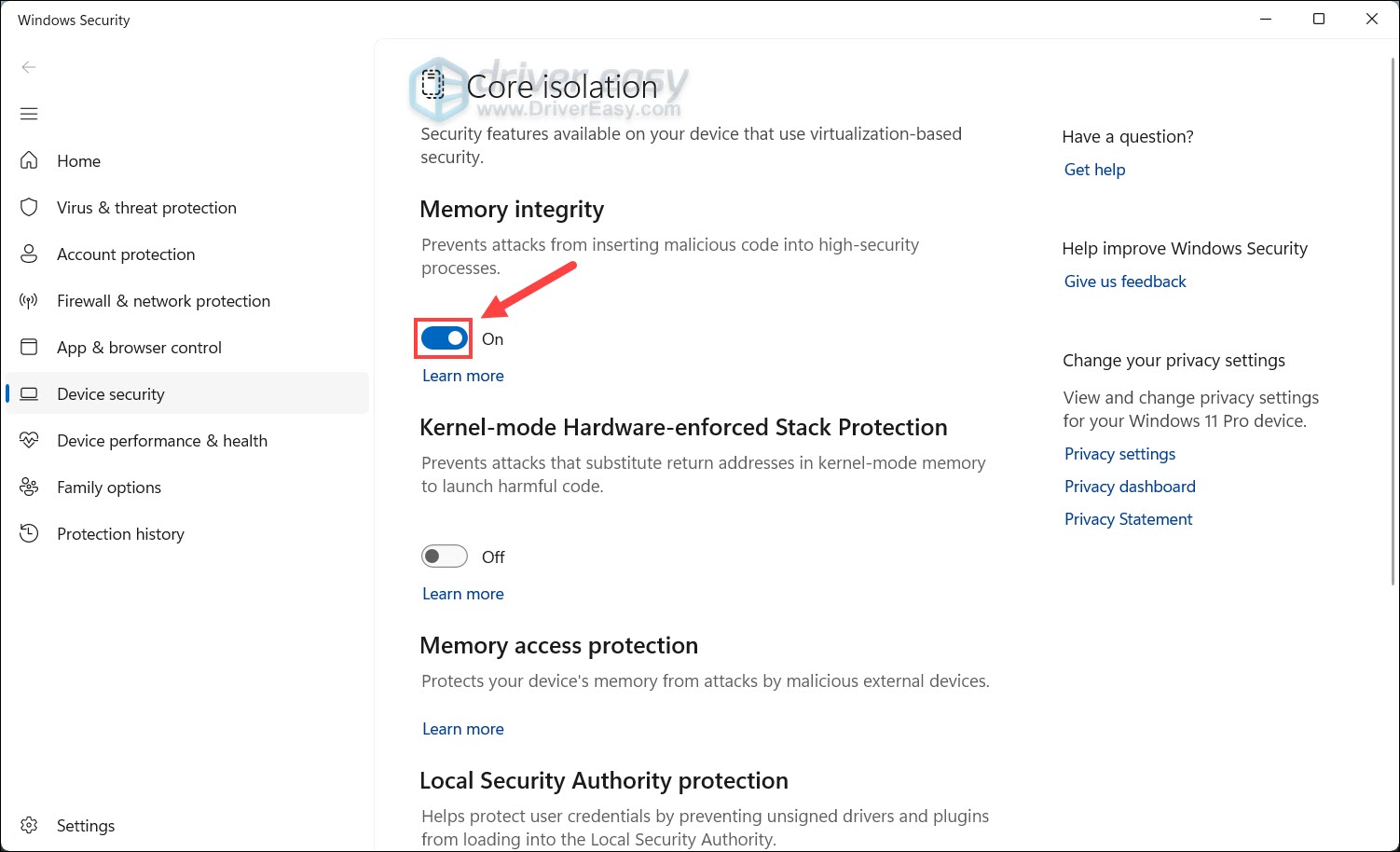
- Check the current state of Memory integrity. If Memory Integrity is already enabled, leave it enabled while testing other fixes. If it is disabled, turn it on.
- Restart your computer
Launch Modern Warfare 4 to test. If the game still fails, restore any unnecessary configuration changes and continue troubleshooting.
Fix 4: Update or roll back your graphics driver
Graphics-driver problems can cause crashes, rendering failures, and DirectX errors. Whenever you’re encountering game crashes, especially with new titles, checking your graphics driver is a good step.
You can update your graphics driver manually by visiting the official website of your GPU manufacturer: AMD, NVIDIA, or Intel, and download the latest driver package for your Windows system. If you also want to check for outdated drivers for other devices and optimize your entire system’s performance in one go, let Driver Easy do the job for you.
Driver Easy can scan your hardware, identify missing or outdated drivers, and help you find compatible driver versions. Its driver backup and recovery features allow you to restore a previous driver when a new version causes problems, making it easier to test different versions and find one that works more reliably with your system.
- Download and install Driver Easy.
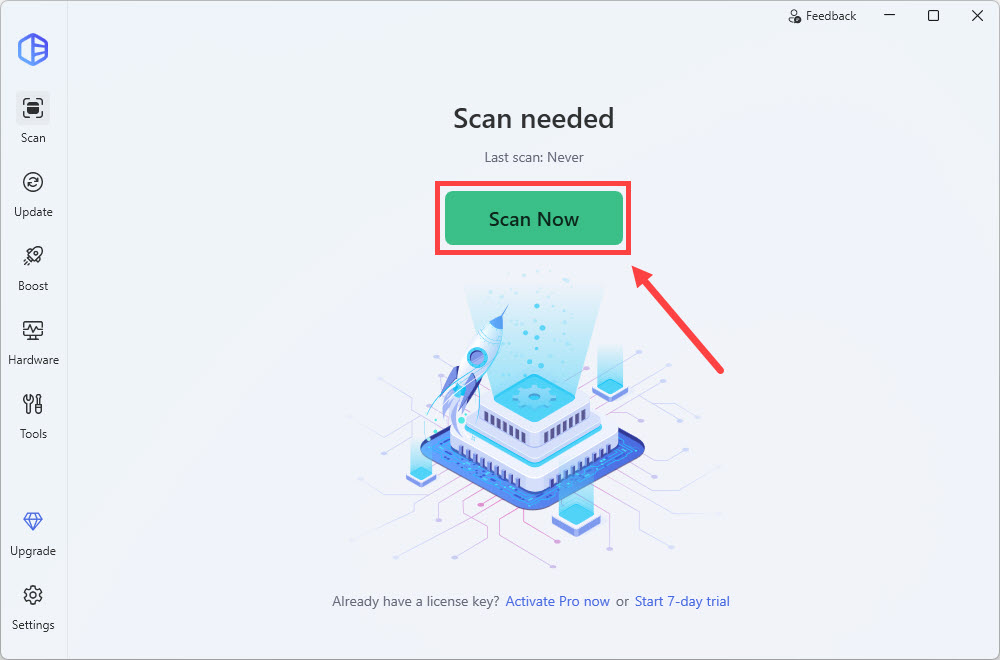
- Run Driver Easy and click the Scan Now button. Driver Easy will then scan your computer and detect any problem drivers.
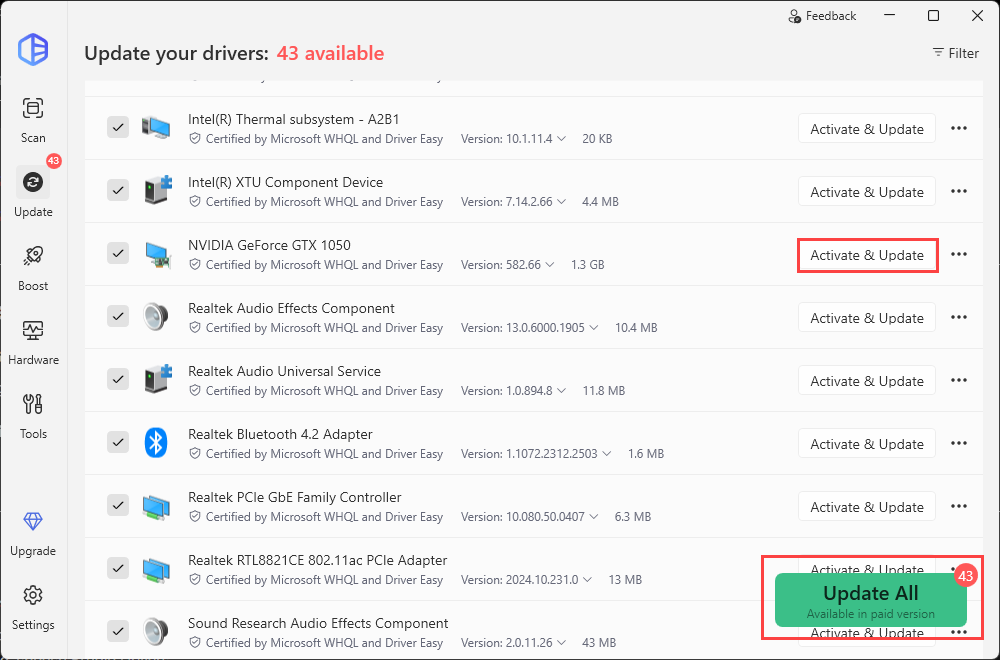
- Click the Activate & Update button next to the flagged GPU to automatically download and install the correct version of this driver. Or click Update All to automatically download and install the correct version of all the drivers that are missing or out of date on your system.
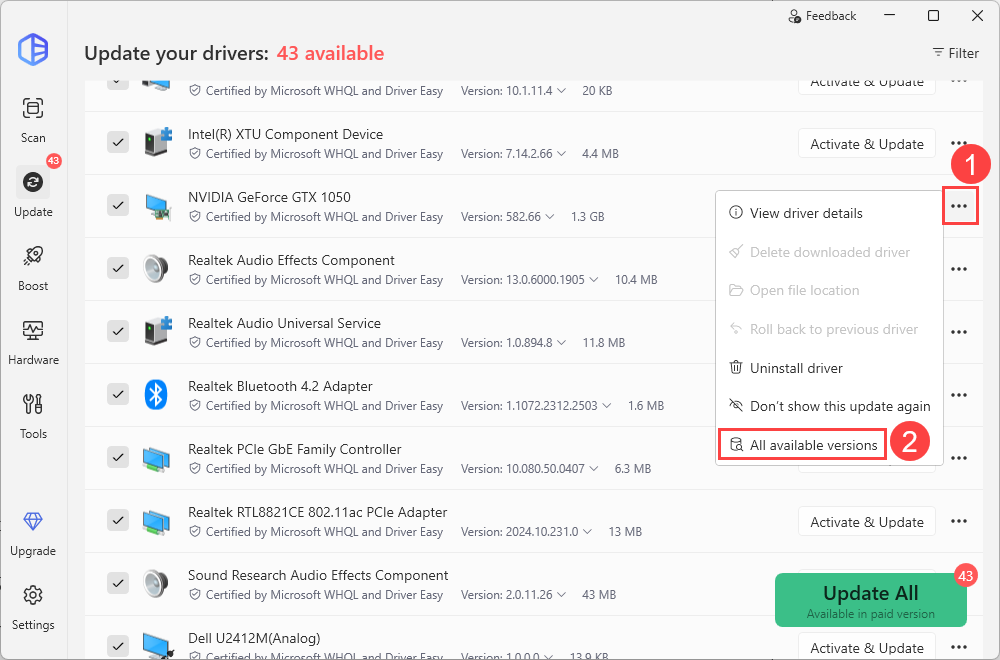
If the crash began after a graphics-driver update, testing the previous stable version may be more useful than installing another new release. For example, some AMD users reported the crash problem with AMD driver versions 26.8.1 and 26.7.1, and reverting to an older version may resolve the issue.
You can do this in one click on Driver Easy. Just click the three-dot button next to it and select All available versions. Then choose a previous version from the list and click Install.
If a normal rollback fails, consider performing a clean removal. You can follow this guide for detailed instructions: How to Reinstall GPU Drivers With DDU.
If dealing with your graphics driver doesn’t do the trick, you can also test if the unstable factory overclock is the cause. Here’s how:
- Open NVIDIA Control Panel.
- Select Help > Debug Mode, if the option is available.
- Launch Modern Warfare 4 and reproduce the crash.
Debug Mode can help determine whether factory overclocking is involved. It isn’t a driver update, and it won’t resolve every graphics-related crash.
If nothing changes, return to your normal configuration and investigate other causes.
Fix 5: Clear the DirectX shader cache
If Modern Warfare 4 freezes or stutters before displaying a DirectX error, clearing the shader cache is a reasonable troubleshooting step. Games and graphics drivers use shader caches to avoid repeatedly compiling certain graphics programs. A stale or corrupted cache can contribute to rendering problems.
Step 1: Clear DirectX shader cache
1. Type disk into the Windows search bar and select Disk Cleanup.
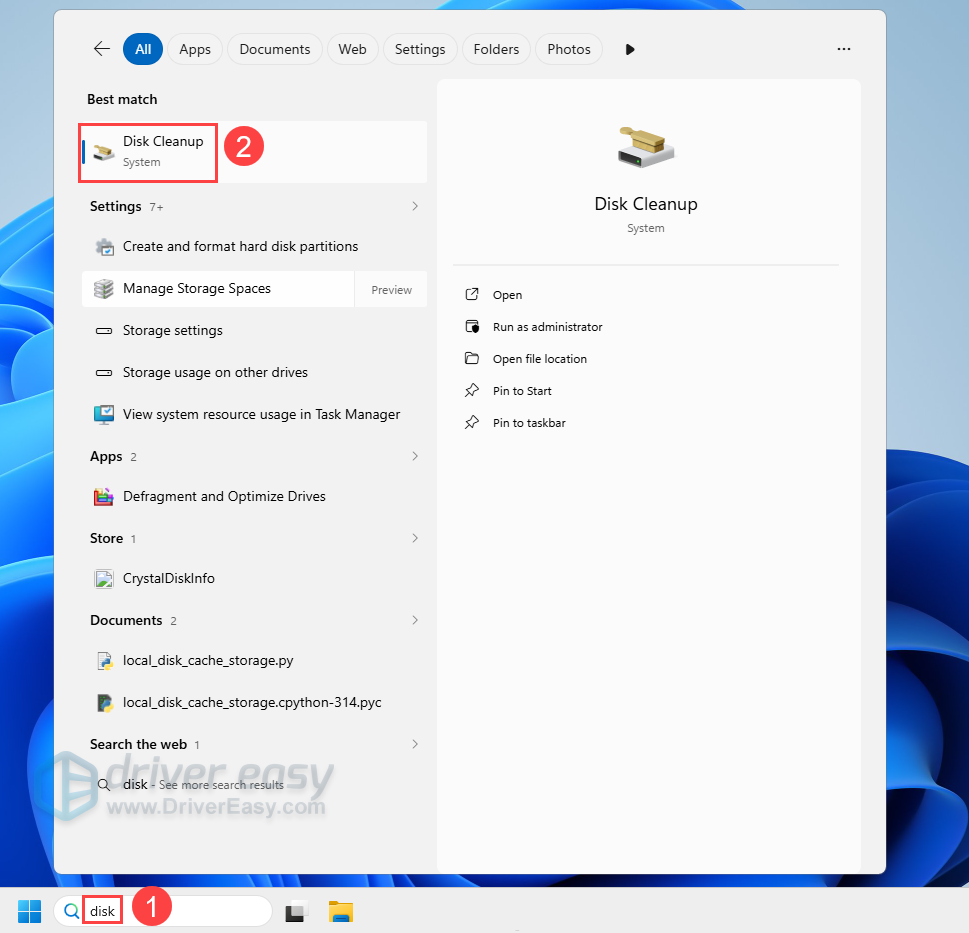
2. Select your primary system drive (usually C:).
3. Check the box for DirectX Shader Cache. You can leave others unchecked. Then click OK.
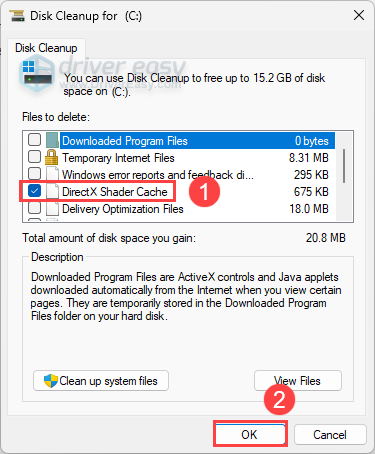
4. Click Delete Files to confirm.
Step 2: Clear Steam shader cache
1. Navigate to your Steam folder, which is usually C:\Program Files (x86)\Steam\steamapps\shadercache\).
2. Open the 730 (CS2’s app ID) folder and delete all the files inside it (do not delete the folder itself).
Step 3: Clear your GPU shader cache
For NVIDIA users
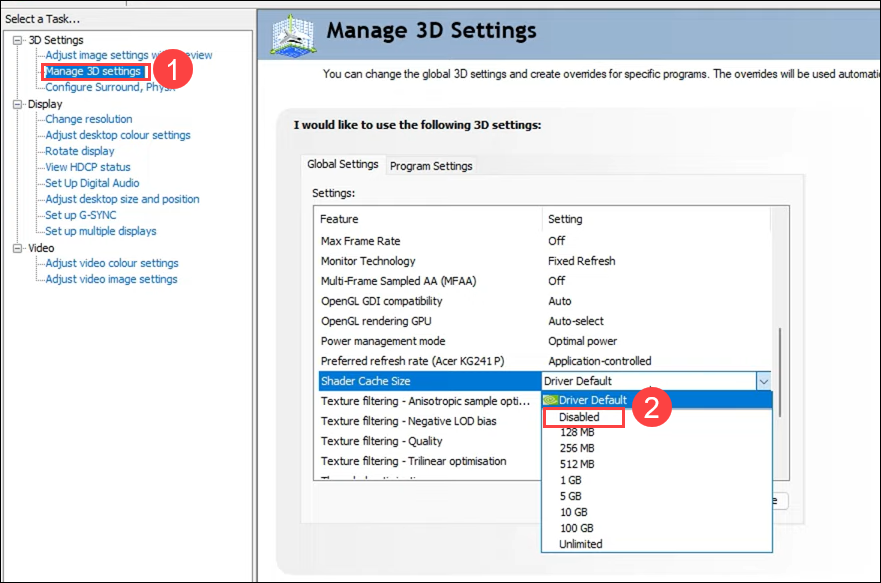
1. Open the NVIDIA Control Panel or the NVIDIA app, go to Manage 3D Settings, find Shader Cache, set it to Disabled, and click Apply.
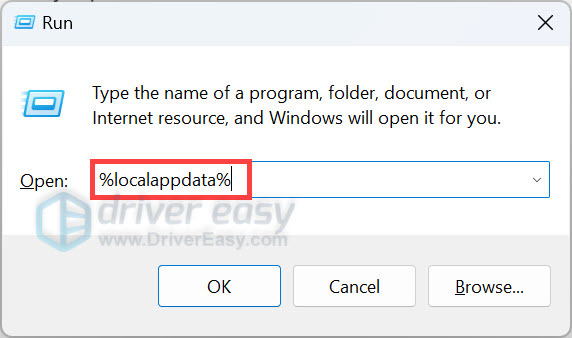
2. On your keyboard, press the Windows logo key and R to open the Run dialog. Type %localappdata% and hit Enter.
3. Open the NVIDIA folder. Open the DXCache and GLCache (if available) folders, and delete all the files inside them.
4. Go back to the NVIDIA Control Panel and re-enable the Shader Cache (Driver Default/On).
For AMD users
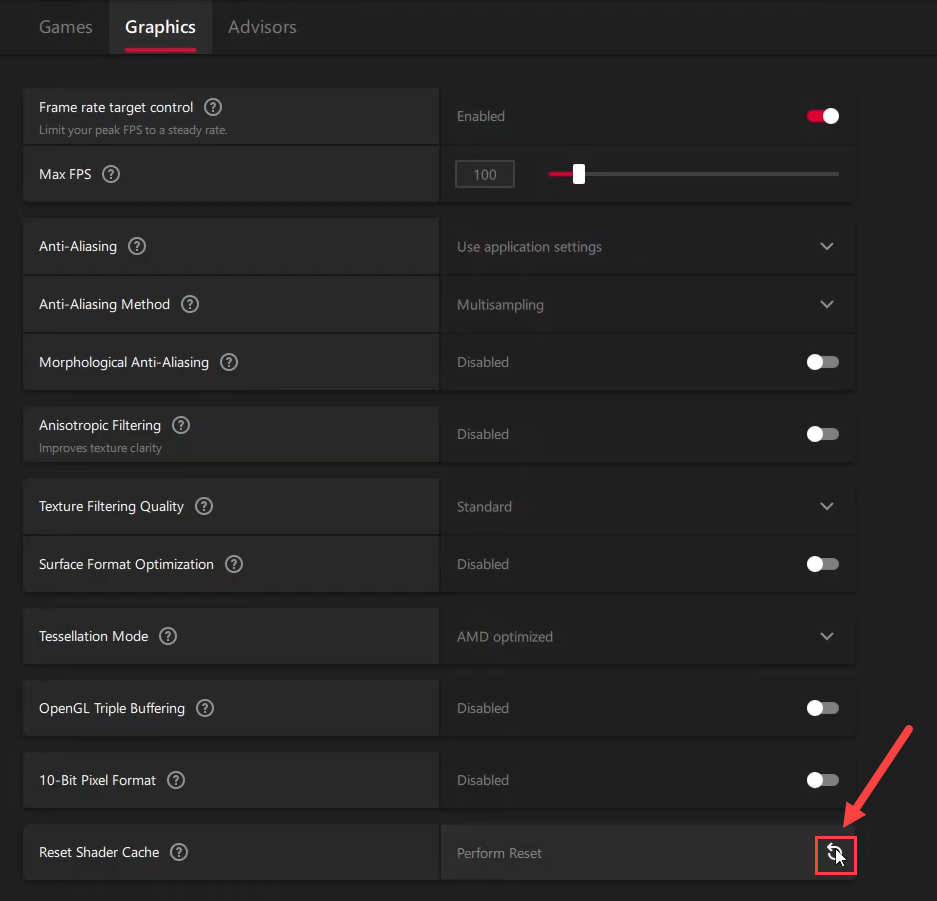
1. Open your AMD Software: Adrenalin Edition. Then go to Gaming > Graphics.
2. Click the Reset button next to Perform Reset, and click OK to confirm.
Restart your PC after deleting the shader cache. The next time you launch CS2, the shader cache will be rebuilt automatically. The first launch may take a little longer than usual, which is expected. If the crashes still happen, check out the next solution.
Check whether the freeze recurs and whether a DirectX error appears. If the problem persists, continue with the next fix below.
Fix 6: Reset your graphics settings to default
If the game started crashing after you changed resolution, upscaling, display mode, or other graphics settings, restore the defaults before trying more advanced changes.
Aggressive or incompatible settings can contribute to instability on some systems. But note that lowering the resolution or changing a particular setting won’t necessarily cause or fix every crash.
- Launch Modern Warfare 4 and open its graphics settings, if the game remains open long enough.
- Select Reset to Default or Restore Defaults, if available.
- Apply the changes and restart the game if prompted.
- If the game crashes before you can access the menu, look for the game’s documented configuration-reset option before manually changing files. If you need to preserve a configuration file, make a backup before modifying or moving it.
If Modern Warfare 4 keeps crashing on PC, the most useful next step is to identify when the crash occurs and test a targeted fix. A silent launch failure, an access-violation error, and a campaign crash at the same checkpoint may not have the same cause.
Hopefully this post helps. If you have any questions or suggestions, feel free to leave a comment below.