






WARDOGS keeps crashing on PC? Does it crash on startup, during shader compilation, or after you change a graphics setting? Or does it freeze on the loading screen? You’re not alone. Many players have reported all of these symptoms.
In this guide, we’ve put together some player-tested fixes from community reports. Because WARDOGS is still in Early Access, not every crash has the same cause. This guide starts with the safest and most broadly applicable fixes, then moves into fixes for specific crash patterns.
How to Fix WARDOGS Crashing on Windows
You don’t need to try all 9 fixes. Just work your way down the list until you find the one that does the trick.
- Verify game files
- Update or roll back your GPU driver
- Turn off Hardware-Accelerated GPU Scheduling (HAGS)
- Repair the Easy Anti-Cheat installation
- Disable the inpoutx64 driver
- Uninstall Windows Update KB5121003
- Disable overlays and background utilities
- Check RAM usage and your pagefile
- Temporarily disable XMP/EXPO/DOCP
If your entire PC reboots or shows a BSOD rather than simply closing WARDOGS, jump to Fix 5 and Fix 6 first. Those fixes target the kernel-level Windows/driver issues that have been reported with WARDOGS.
Fix 1: Verify game files
If WARDOGS crashes during startup, shader compilation, or immediately after the anti-cheat screen, start here.
A damaged or incomplete file can prevent the game or its anti-cheat components from loading correctly, and Steam can replace missing or corrupted files without requiring a full reinstall.
- Launch Steam.
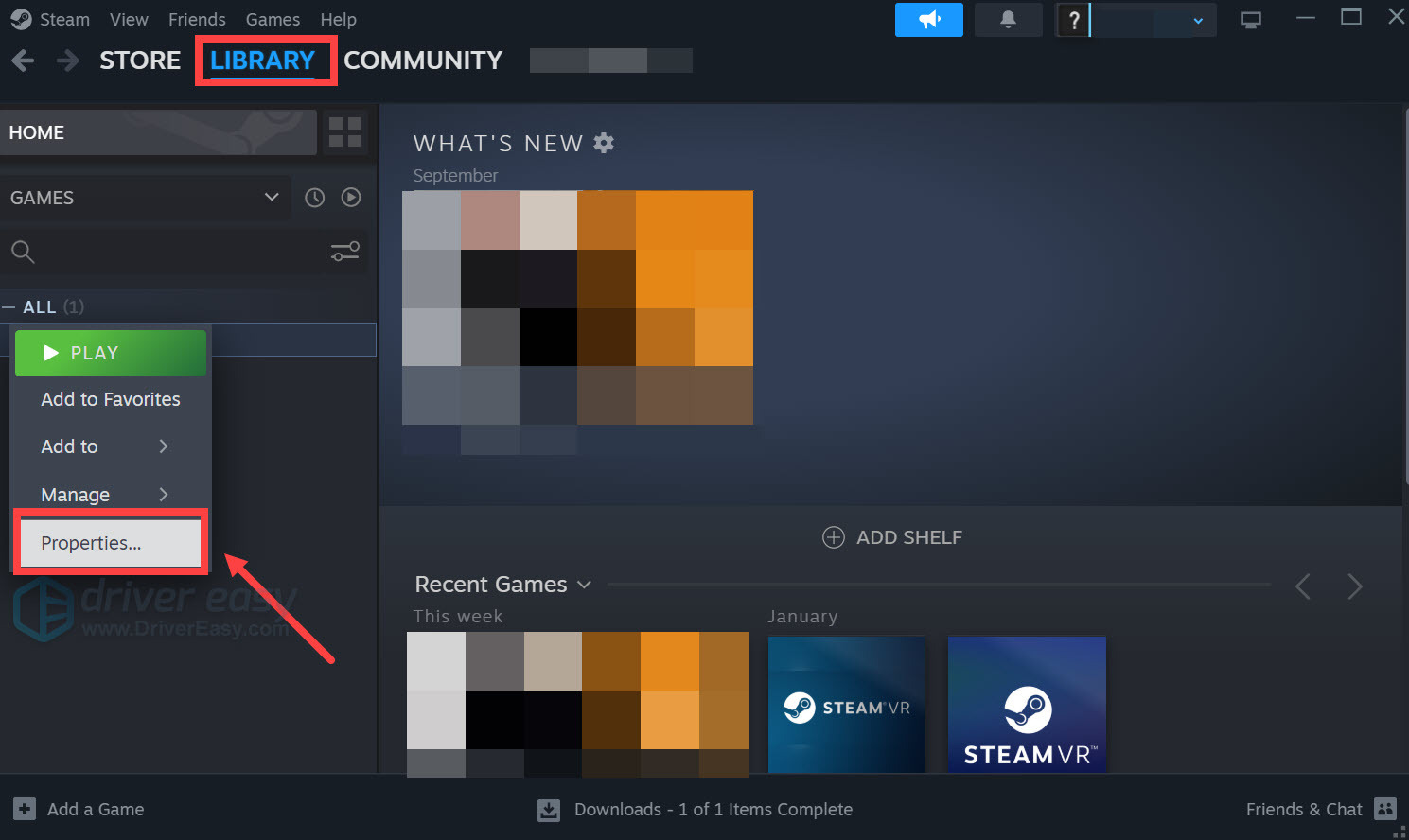
- In the LIBRARY, right-click your game and select Properties from the drop-down menu.
- Select the Installed Files tab and click the Verified integrity of game files button.
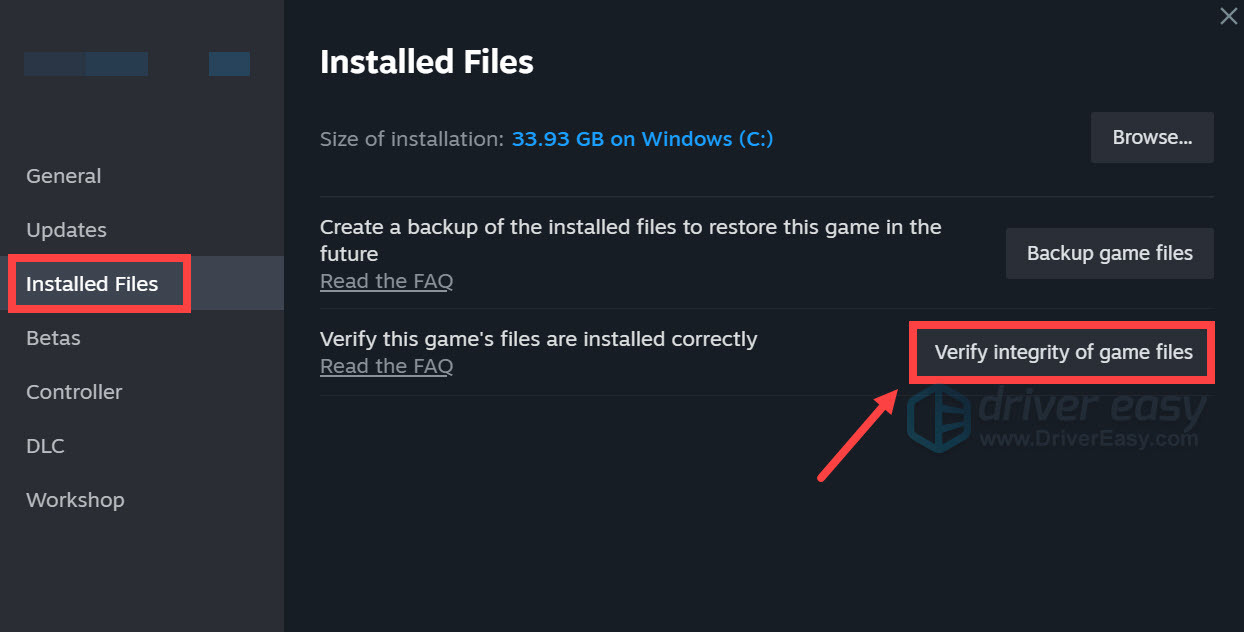
- Steam will verify the game’s files – this process may take several minutes.
Launch WARDOGS and see how it works. If the crashes or performance issues persist, move on to the next fix below.
Fix 2: Update or roll back your GPU driver
The driver controls how the game communicates with the GPU, so an outdated or incompatible driver can fail when WARDOGS initializes its rendering pipeline or compiles shaders.
This is particularly worth checking if you’re using an older NVIDIA GPU. Driver-related crashes have been reported across different GPU models, but the driver version that works best can vary from system to system. You can download the latest driver directly from your GPU manufacturer: NVIDIA, AMD, or Intel.
If you’d rather avoid searching for drivers manually, or you also need to keep other critical device drivers up to date in one place, Driver Easy can make the process easier. It automatically detects your hardware and Windows version and finds the appropriate official drivers, so you don’t have to search multiple manufacturer websites or worry about choosing the wrong driver version.
- Download and install Driver Easy.
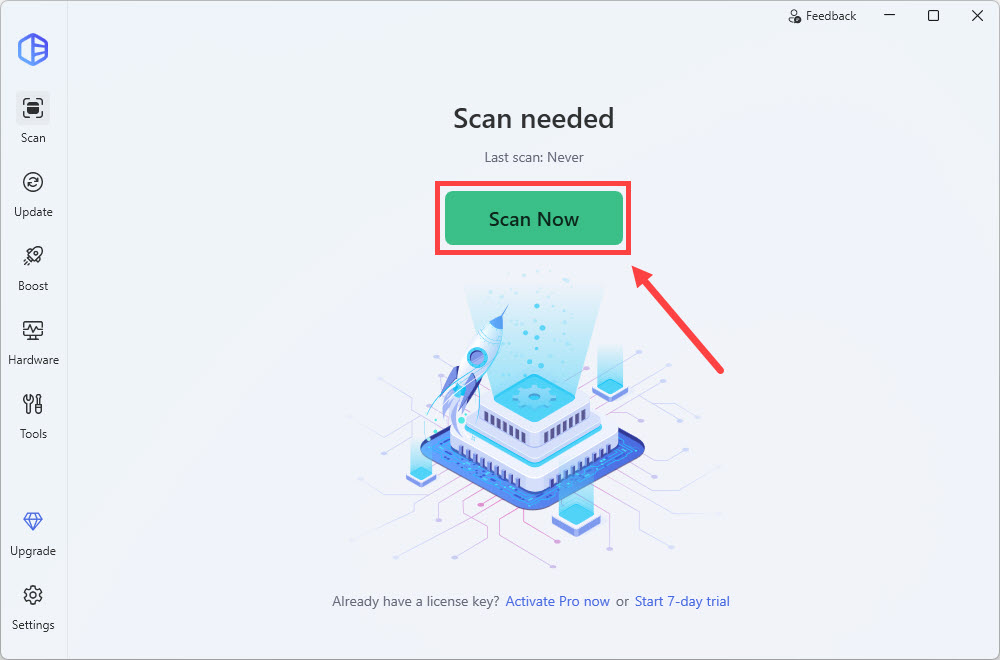
- Run Driver Easy and click the Scan Now button. Driver Easy will then scan your computer and detect any problem drivers.
- Click the Activate & Update button next to the flagged GPU to automatically download and install the correct version of this driver. Or click Update All to automatically download and install the correct version of all the drivers that are missing or out of date on your system.
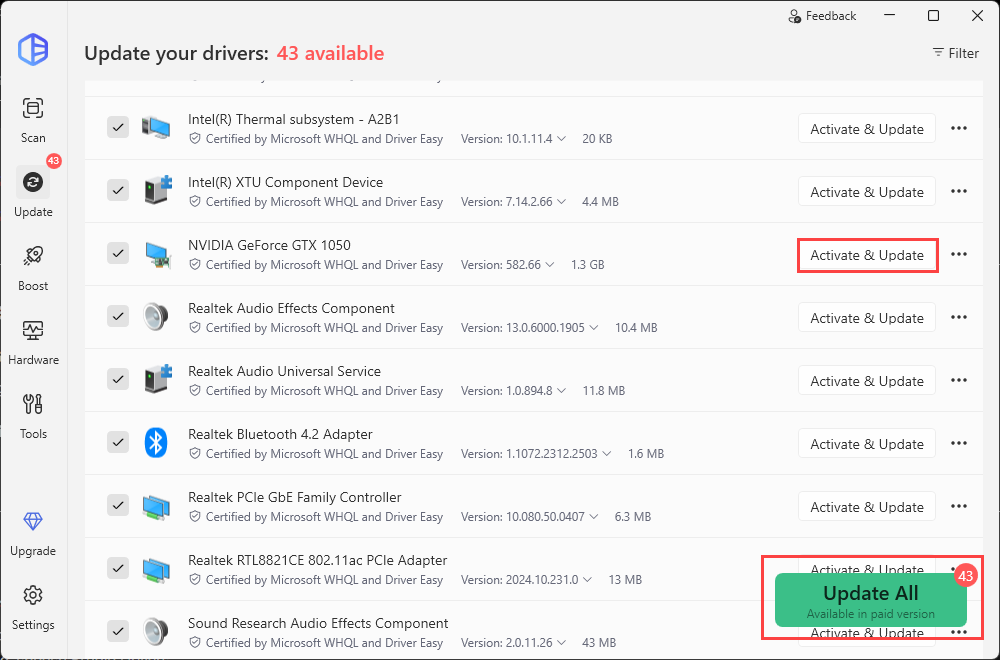
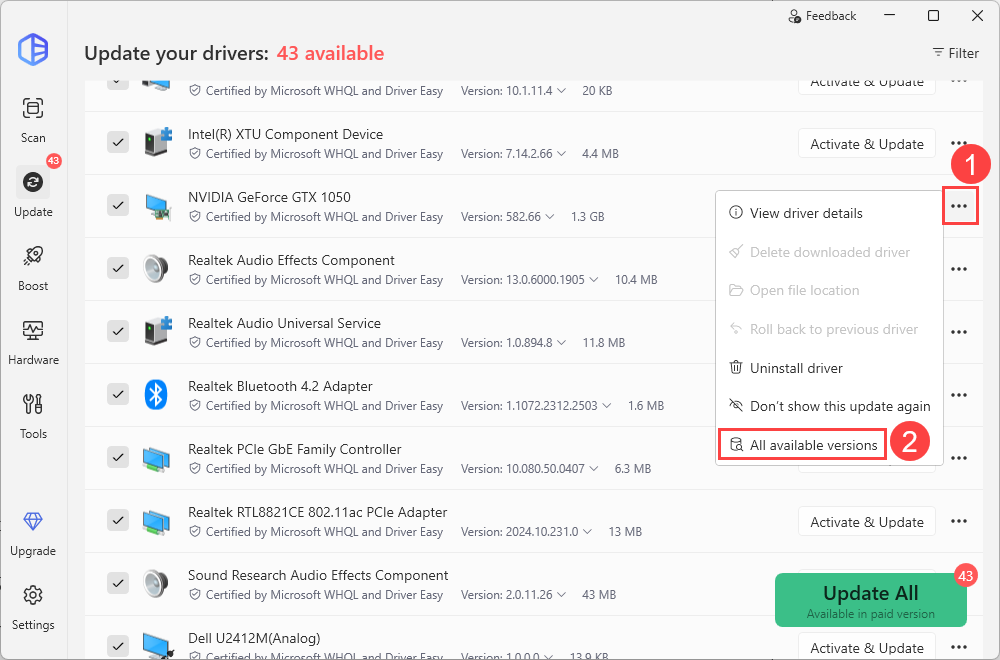
Some users with older NVIDIA 10-series cards have reported better stability after reverting to NVIDIA 537.58. So if updating your GPU driver doesn’t solve the problem, try rolling back to an older version. You can do this easily in Driver Easy. Simply click the three-dot button next to it and select All available versions. Then choose a previous version from the list and click Install.
Fix 3: Turn off Hardware-Accelerated GPU Scheduling (HAGS)
If WARDOGS crashes or freezes while compiling shaders or starting the game, try disabling Hardware-accelerated GPU scheduling (HAGS). HAGS changes how Windows schedules GPU work, so disabling it can change the interaction between Windows, the graphics driver, and WARDOGS during shader compilation.
- Press the Windows logo key + I on your keyboard to open the Windows Settings menu.
- Select System and click Display.
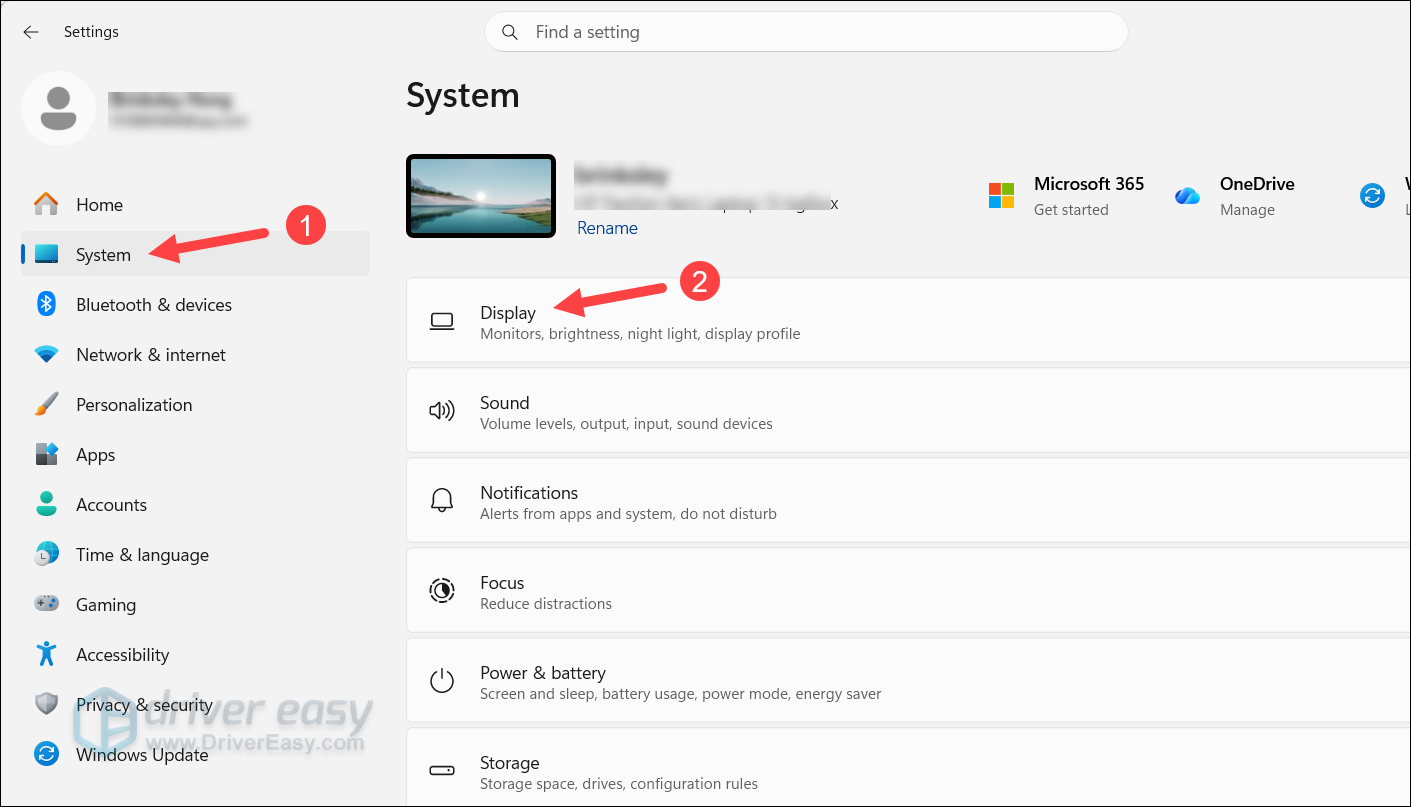
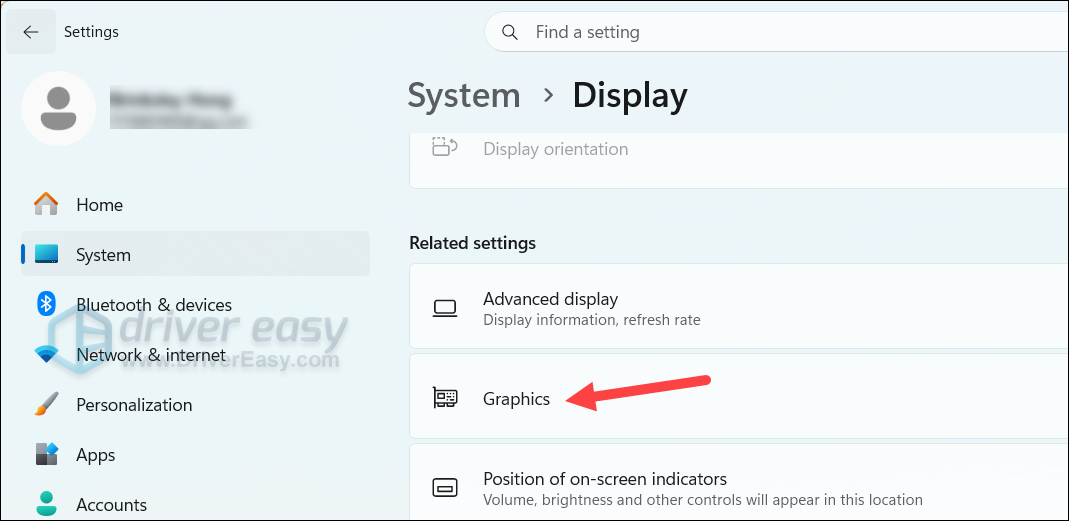
- Scroll down and click Graphics.
- Expand Advanced graphics settings and turn Hardware-accelerated GPU scheduling off.
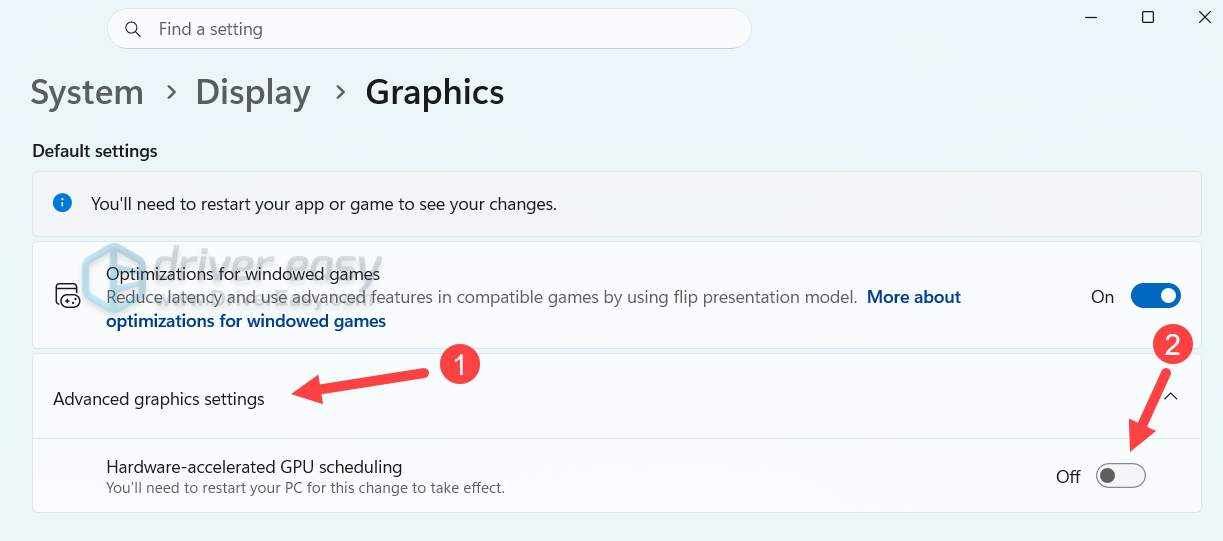
Restart your PC to apply the changes. If WARDOGS still crashes, try the next method.
Fix 4: Repair the Easy Anti-Cheat installation
If the anti-cheat installation is incomplete or corrupted, the game may fail during its protected startup sequence before normal gameplay begins.
- Close WARDOGS and Steam completely.
- Open C:\Program Files (x86)\.
- If an EasyAntiCheat or EasyAntiCheat_EOS folder is present, remove the relevant folder.
- Go to your WARDOGS installation folder.
(Open Steam, right-click WARDOGS, select Manage, and click Local files > Browse.)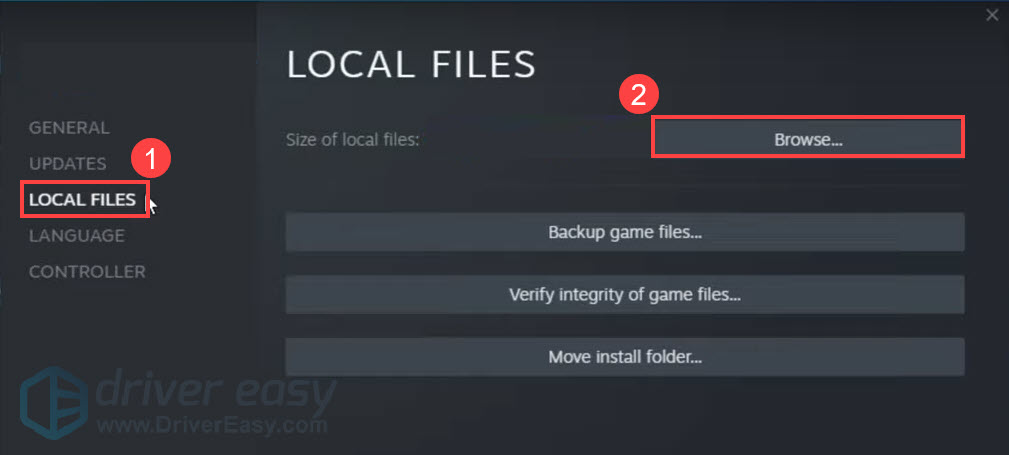
- If the game contains an Easy Anti-Cheat folder, remove that copy as well.
- Restart your PC.
- Follow Fix 1 to verify the integrity of game files again.
Test if WARDOGS passes the anti-cheat initialization stage and reaches the main menu. If not, check out the next fix.
Fix 5: Disable the inpoutx64 driver
Microsoft documented a Windows 11 gaming issue involving certain RGB/peripheral components that install drivers or software components related to inpoutx64. You can simply disable the driver to remove the low-level component that may be conflicting with the updated Windows kernel or the game’s protected components.
You’ll need to check whether inpoutx64 is installed on your PC.
- Type cmd into the Windows search box, locate Command Prompt, and select Run as administrator.
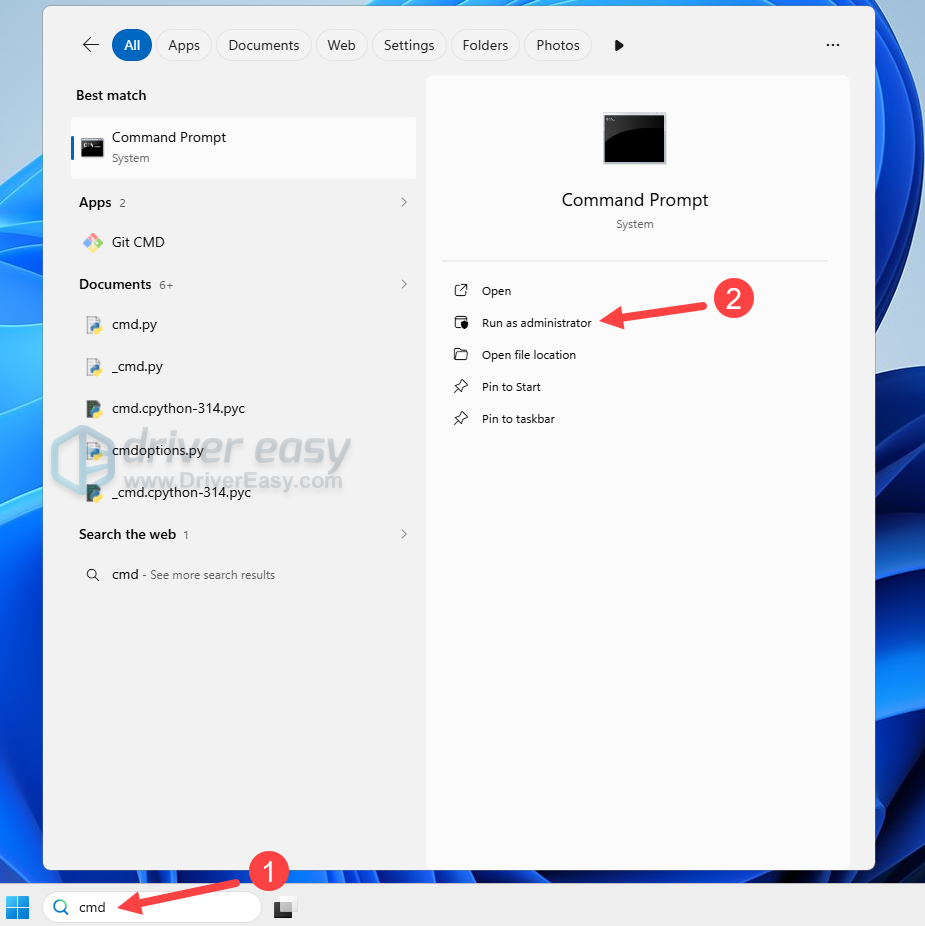
- Type (or copy & paste) the following command:
sc.exe query inpoutx64
If Windows says that the specified service does not exist, simply jump to Fix 6.
If the service exists, run sc.exe config inpoutx64 start= disabled in the Command Prompt and press Enter.
Restart your PC to test the game. If the crashes don’t stop, make sure to restore the service. Open Command Prompt as administrator, copy and paste sc.exe config inpoutx64 start= auto, and press Enter.
Fix 6: Uninstall Windows Update KB5121003
The Windows 11 update KB5121003 has been associated with gaming issues and system instability on systems with certain RGB or peripheral software that installs components related to inpoutx64. If you installed this update and WARDOGS started causing full-PC reboots or crashes, uninstalling KB5121003 may work as a temporary workaround.
- Press the Windows key + I to open Settings.
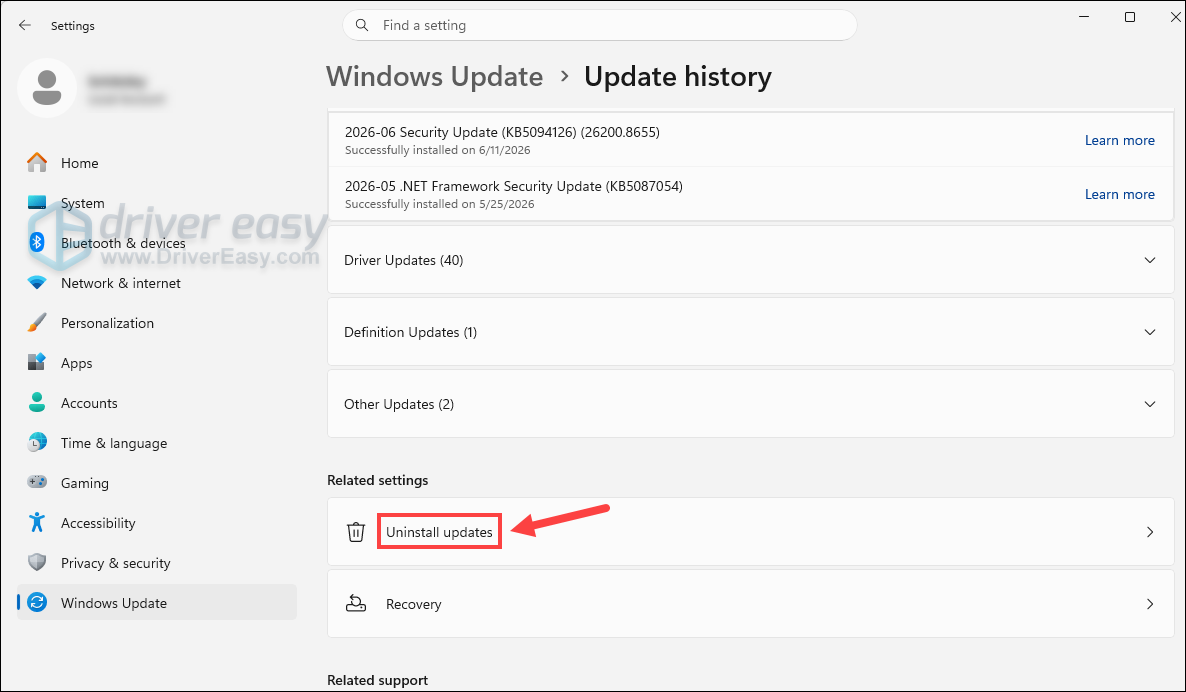
- Go to Windows Update > Update history.
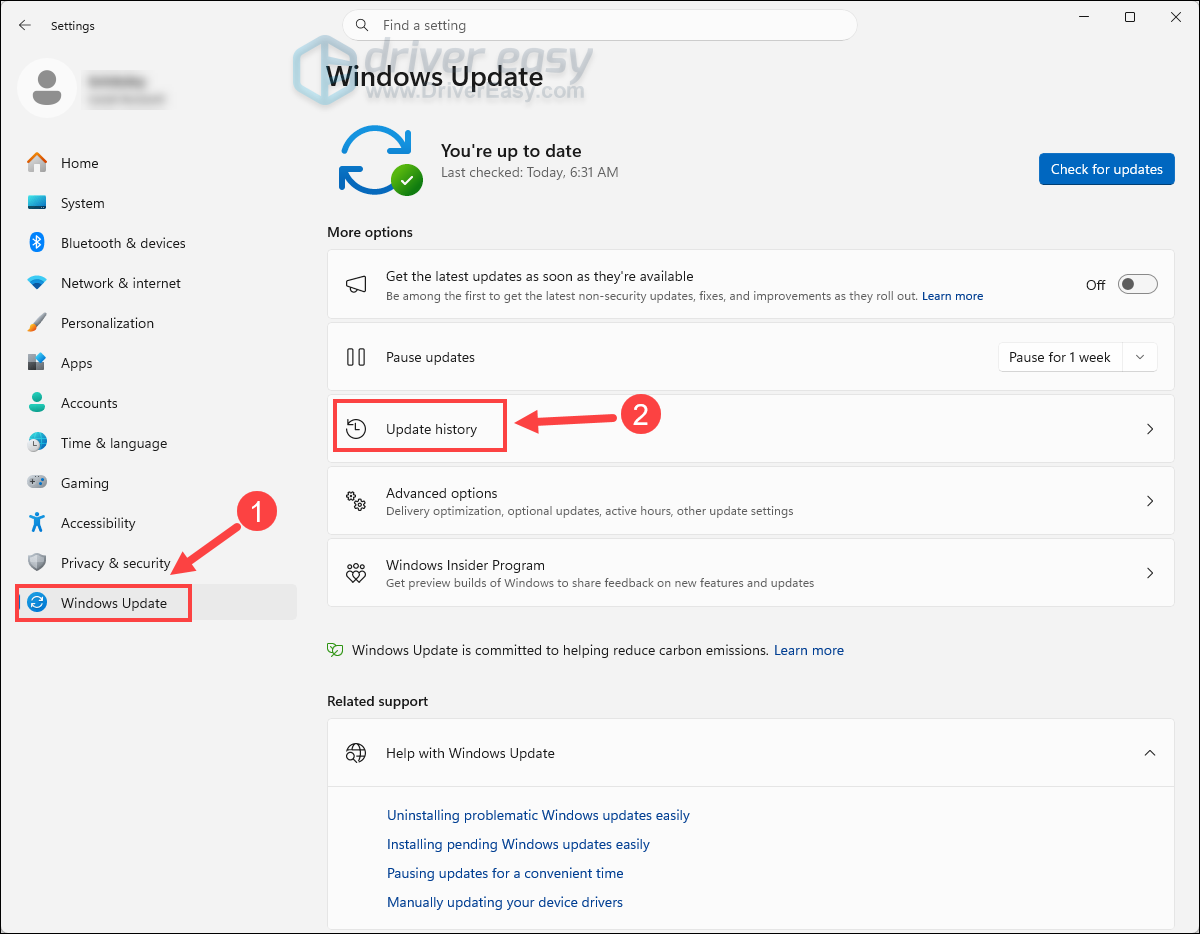
- Select Uninstall updates.
- Click Uninstall next to KB5121003.
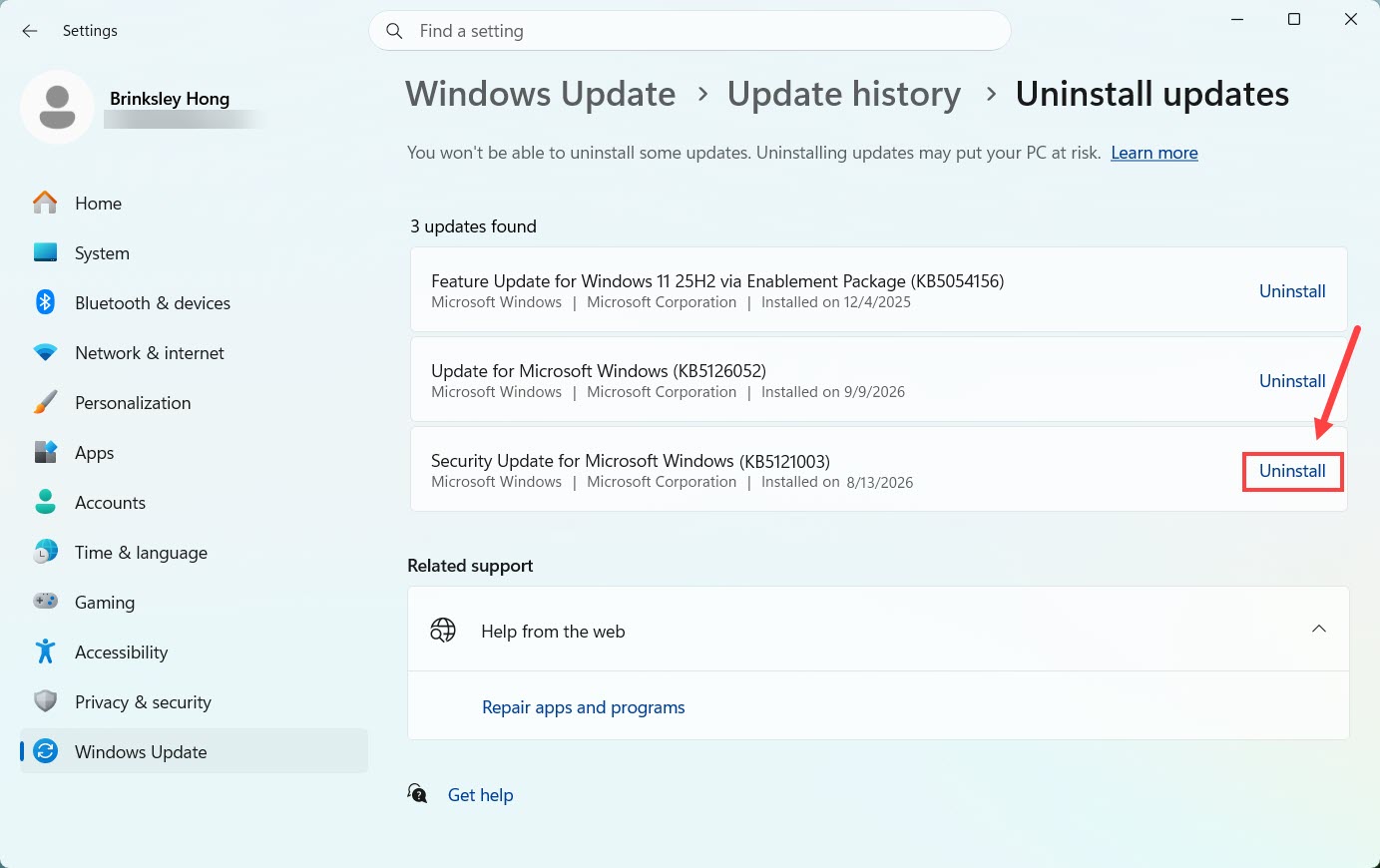
Restart your PC and launch the game. If the PC remains stable where it previously rebooted, the update/driver combination is likely involved.
Fix 7: Disable overlays and background utilities
Overlays and hardware-monitoring utilities can inject or monitor processes at a low level. That’s particularly relevant for a game using anti-cheat protection, where third-party hooks may conflict with protected processes or drivers.
For a stable gaming experience, temporarily close:
- Discord overlay
- Steam Overlay
- NVIDIA/AMD overlay
- MSI Afterburner
- RivaTuner Statistics Server
- OBS
- RGB and hardware-monitoring utilities
Relaunch the game to test its performance. If the issues remain, try the next method.
Fix 8: Check RAM usage and your pagefile
If you see very high RAM/VRAM usage before crashes, check the Windows pagefile and memory configuration. When available physical memory becomes scarce, Windows relies more heavily on the pagefile to move less-active data out of RAM. If you’ve disabled the pagefile or made it unusually small, a memory-heavy game has less room to handle large allocations.
First, check your RAM usage.
- Start WARDOGS.
- Press Ctrl + Shift + Esc on your keyboard to open Task Manager.
- Select the Performance tab and monitor the Memory usage while gaming.
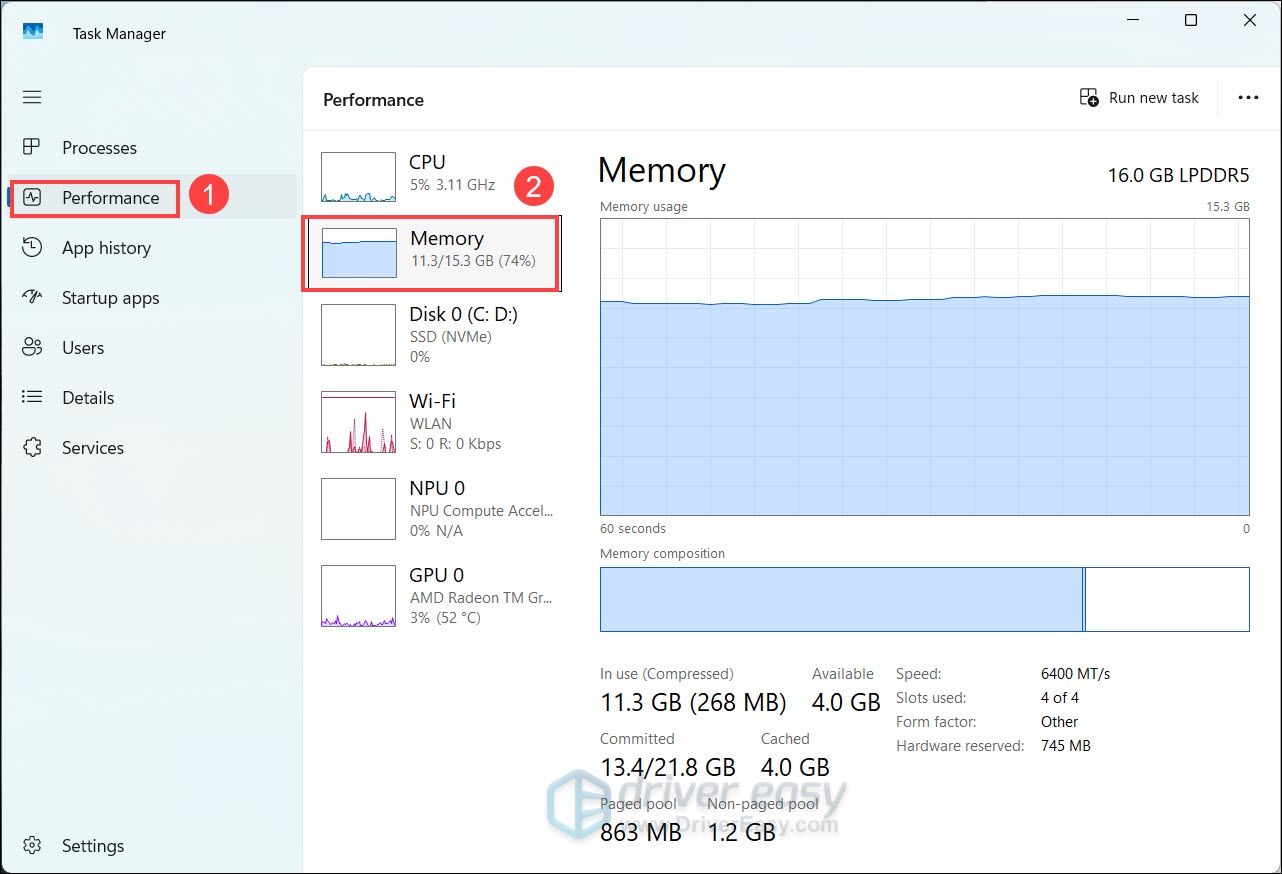
- If RAM usage approaches 100%, close unnecessary applications and test again.
Also, make sure the page file is enabled.
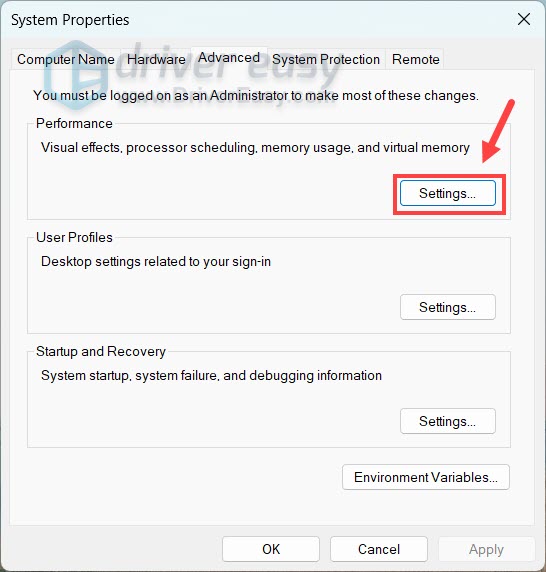
- Type advanced system into the Windows search box and select View advanced system settings.
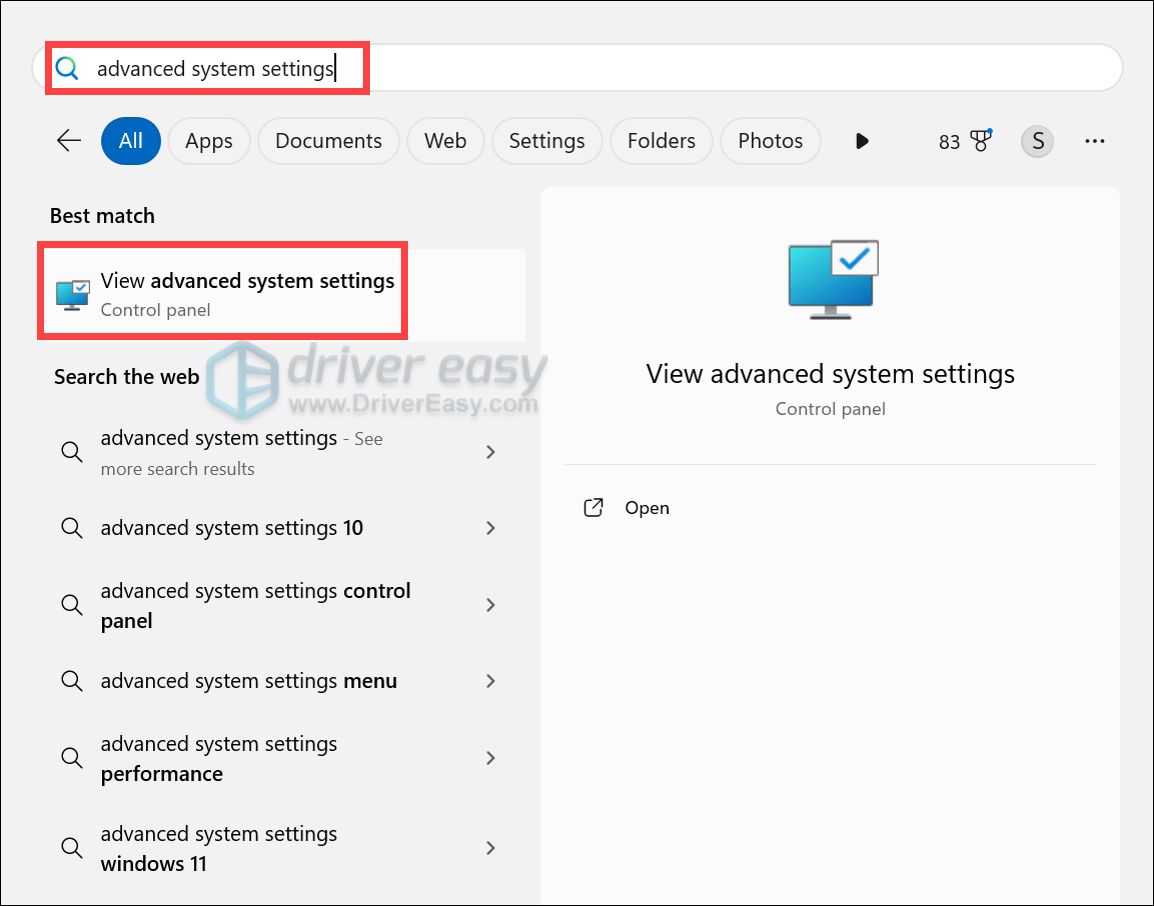
- In the Advanced tab, click Settings under the Performance section.
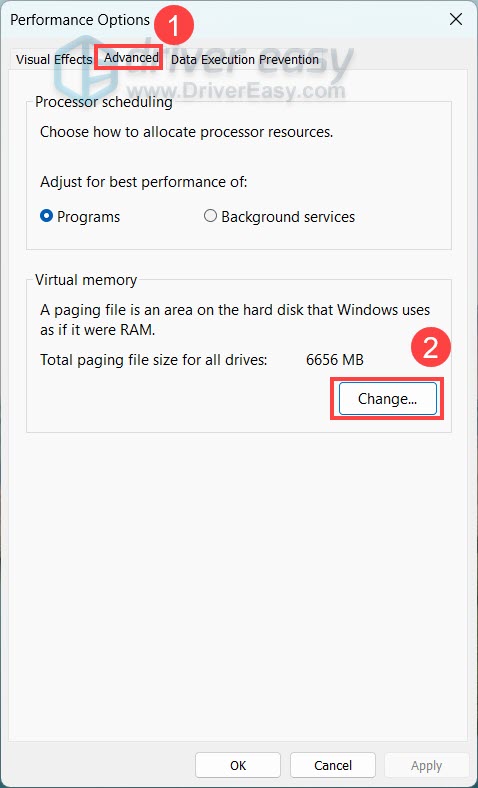
- Select the Advanced tab and click Change.
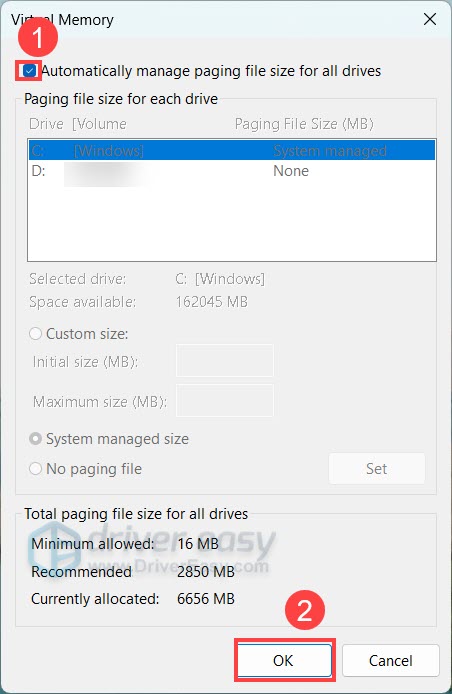
- Tick the box for Automatically manage paging file size for all drives and click OK.
Restart Windows after changing the setting and test the game. If the crash still occurs, continue with the next method.
Fix 9: Temporarily disable XMP/EXPO/DOCP
Memory profiles such as XMP, EXPO, or DOCP increase memory speed and change timings. They are normally safe when your hardware supports them, but an aggressive or marginally stable memory configuration can become unstable under a particular game’s workload.
When investigating crash dumps, you can try disabling XMP/DOCP. This requires changing BIOS/UEFI settings. If you’re not comfortable working in BIOS, just skip this fix.
- Shut down your PC completely.
- Restart your PC and enter BIOS by repeatedly pressing the hotkey, which may vary by computer brand:
Asus: F2
Dell: F2
HP: Esc or F10
Lenovo: F1 - If you’re in EZ Mode, press F7 to enter Advanced mode.
- Locate the Overclock/Tweaker menu, which may vary depending on your motherboard’s manufacturer and BIOS/UEFI version.
ASUS: Ai Tweaker tab
MSI: Left sidebar OC (Overclocking) menu
Gigabyte: M.I.T. / Tweaker page
ASRock: Tweaker / OC tab - Disable memory overclock profile:
ASUS: Find AI Overclock Tuner, set to Disabled (preferred) or Auto.
Intel boards: Locate Extreme Memory Profile (XMP), set to Disabled.
AMD Ryzen boards: Locate EXPO / A-XMP, set to Disabled. - Press F10 to save the changes.
If you’re on an Intel CPU, also try enabling Intel AES-NI in BIOS. Go to Advanced > CPU and Chipset Configuration and set Intel AES-NI to Enabled. AES-NI provides hardware instructions for AES encryption, and this setting has been reported to resolve this specific WARDOGS crash scenario.
If none of these fixes work, don’t keep changing system settings at random. The problem may be an anti-cheat compatibility issue rather than a normal game configuration problem. Report the crash information to the developers.
So that’s all for WARDOGS crashing on a Windows computer. If you have any questions or suggestions, feel free to leave a comment below.