







Star Wars: Zero Company is launched, but some PC players are already reporting crashes, stuttering, black screens, and unusually poor performance – even on high-end hardware. The crash can happen during shader compilation, gameplay, or after entering a mission.
This guide covers the most practical fixes many players confirmed for Star Wars: Zero Company crashing on PC, and also what to do if the game still crashes after you’ve tried the standard fixes.
How to Fix Star Wars: Zero Company Crashing on PC
Here are five simple fixes for Star Wars: Zero Company launch-day crashes, based on player reports. You don’t need to try them all; work your way down the list until you find one that resolves the problem, or jump directly to any fixes you haven’t tried yet.
- Switch launch options
- Verify the game files
- Update your graphics driver
- Adjust in-game graphics settings
- Return your CPU and RAM to stable settings
Fix 1: Switch launch options
If Star Wars: Zero Company crashes with a GPU crash dump error, try launching the game with a different DirectX version. Switching between DirectX 12 (DX12) and DirectX 11 (DX11) can help if the crash is related to the current rendering API or how the game is interacting with your graphics driver. Here’s how:
On Steam
- Open Steam and go to the Library.
- Right-click Star Wars: Zero Company and select Properties.
- In the Launch Options field, type -dx12 to force the game to use DirectX 11. You can also try -dx11 if -dx12 doesn’t resolve the issue.
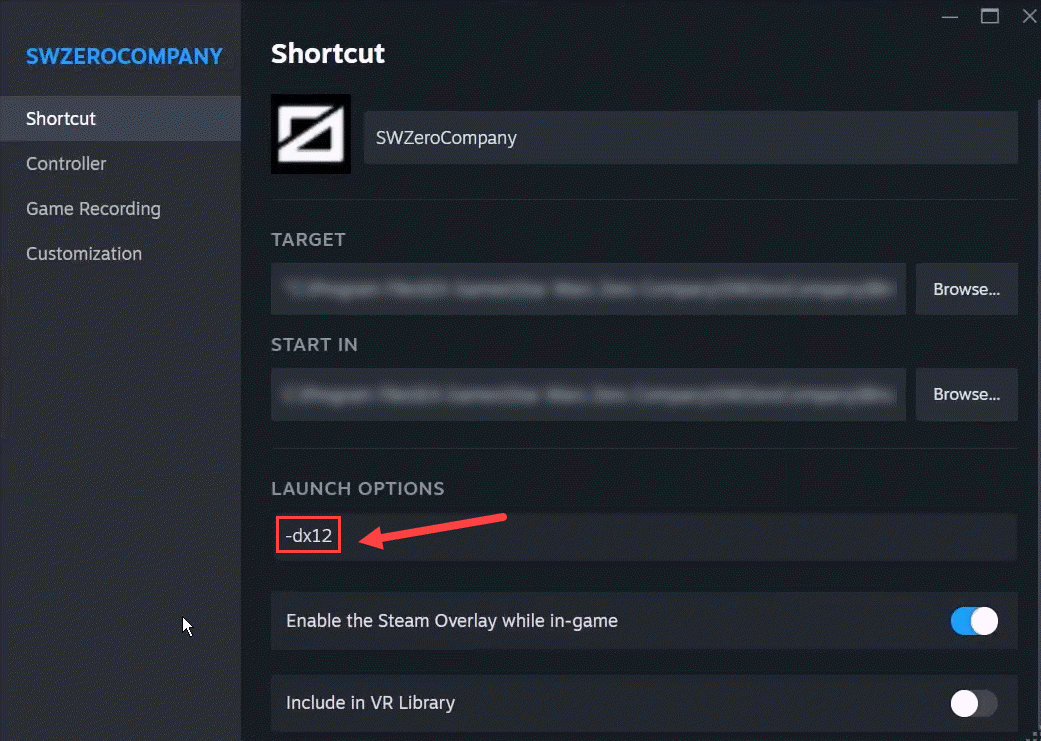
On EA app
- Open the EA app and go to the Installed games. Select Star Wars: Zero Company.
- Click Manage > View properties.
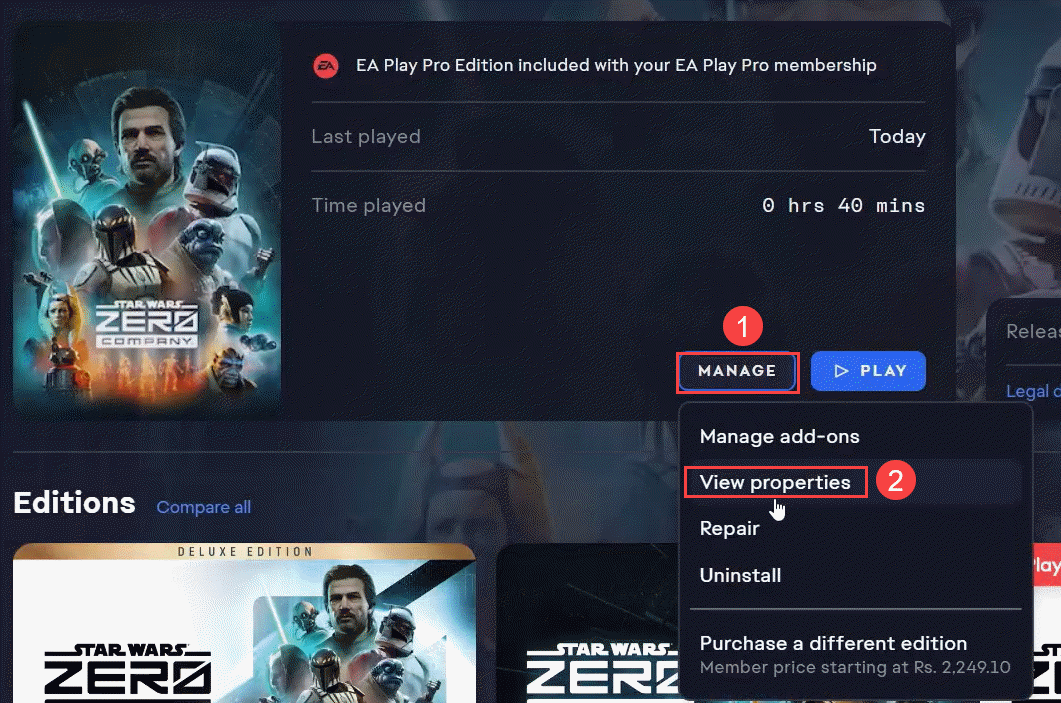
- In Advanced launch options, type in -dx12 and click SAVE. You can also try -dx11 if -dx12 doesn’t resolve the issue.
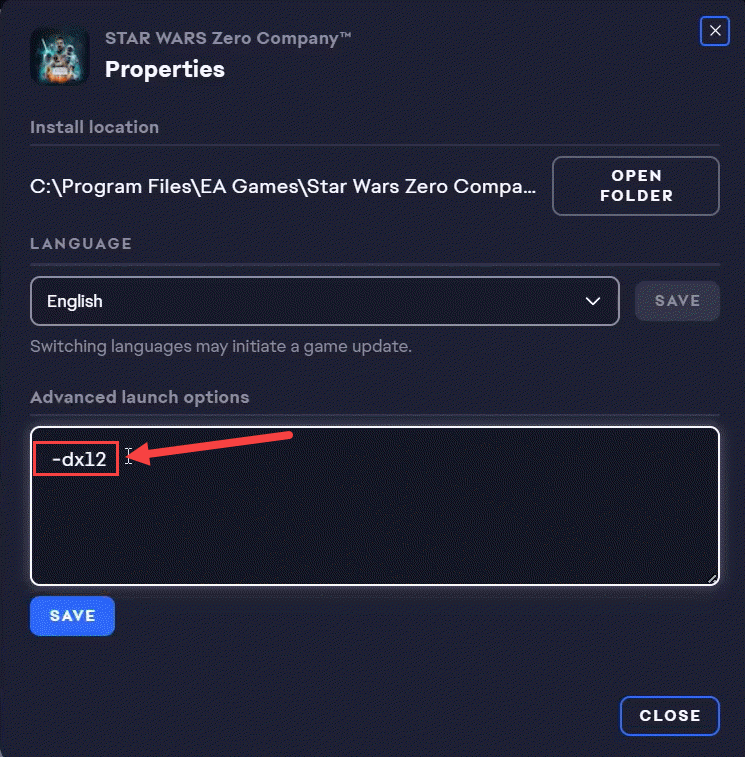
Don’t use both launch options at the same time. Test one, then remove it before testing the other. If using both options doesn’t help, simply remove the launch option and continue to other fixes below.
Fix 2: Verify the game files
A damaged or incomplete game file can cause startup crashes, missing assets, or crashes during loading.
On Steam
- Open Steam.
- Go to the Library. Right-click Star Wars: Zero Company and select Properties.
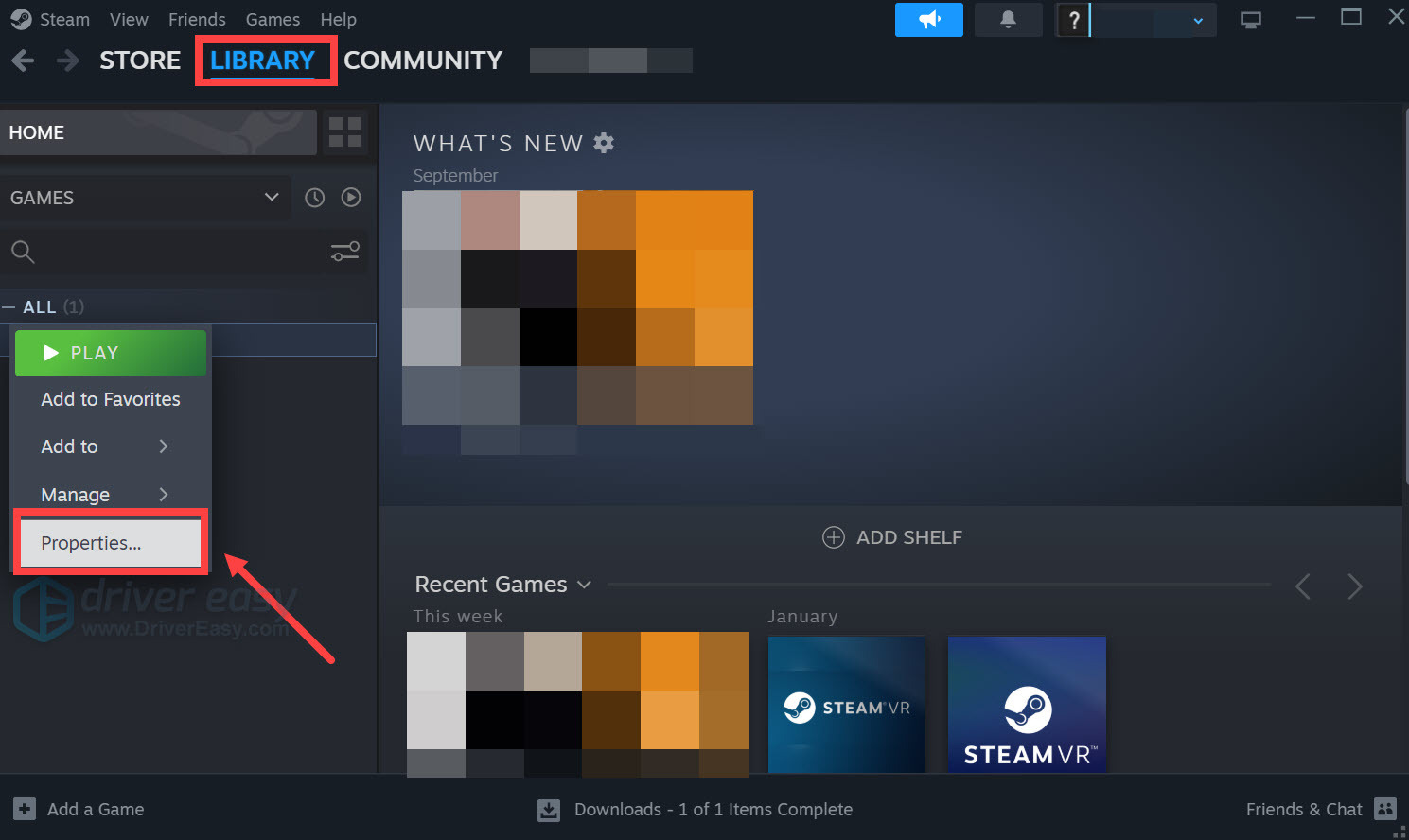
- Select Installed Files. Click Verify integrity of game files.
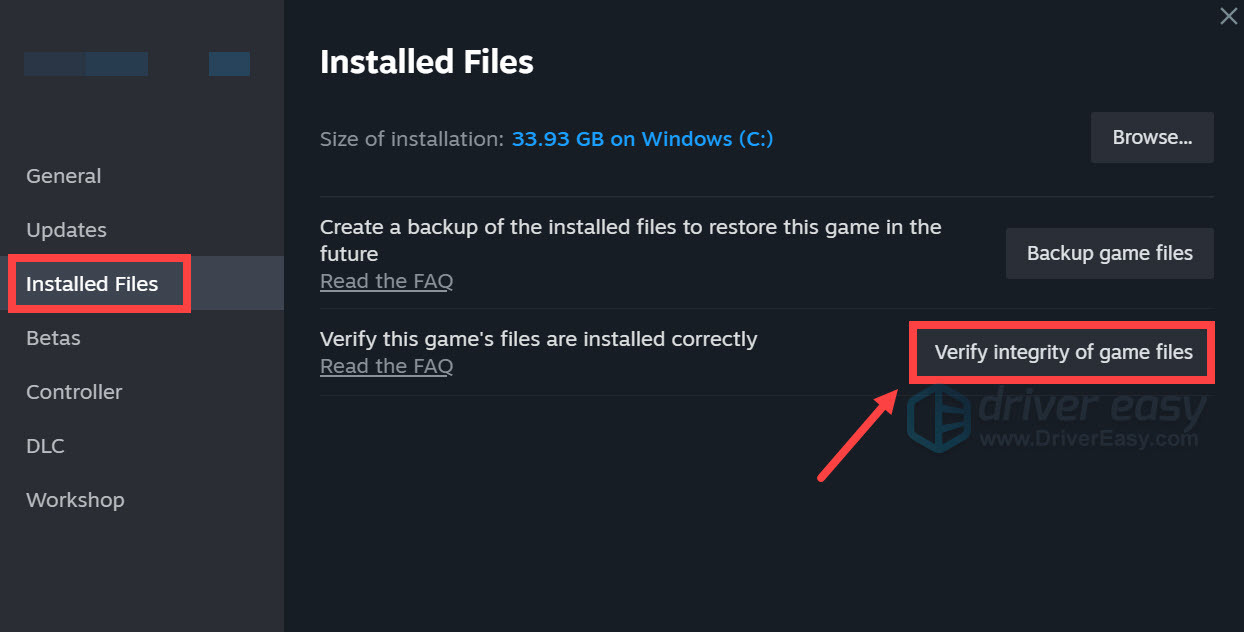
- Wait for Steam to complete the scan.
- Restart Steam and launch the game again.
On EA app
- Open the EA app and go to Installed games.
- Select Star Wars: Zero Company.
- Click Manage > Repair.
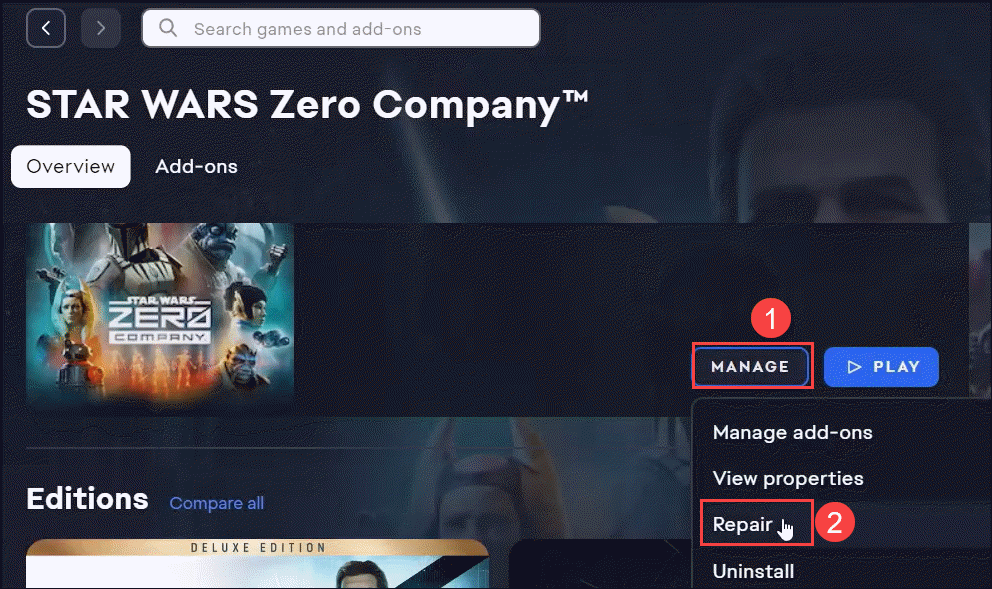
- Wait for the process to complete and relaunch the game.
If the game still crashes at exactly the same point after verification, move on rather than repeatedly verifying the files.
Fix 3: Update your graphics driver
A corrupted or incompatible graphics driver can cause game crashes, black screens, rendering problems, and system instability. When playing a new game, it’s always recommended to update your graphics driver to the latest version.
You can visit your GPU manufacturer’s website (NVIDIA, AMD, or Intel) and install the latest recommended driver optimized for Star Wars Zero Company, or use Driver Easy to update all your device drivers automatically.
NVIDIA Game Ready Driver 617.42
AMD Adrenalin Edition 26.8.1
Intel Arc Graphics Driver 32.0.101.9034
These drivers are now available in Driver Easy for one-click update!
Driver Easy can detect your system and find the correct latest official drivers for your hardware, including your graphics card, chipset, audio, and more, so you won’t have to keep searching for drivers online or worry about downloading counterfeit drivers or making a mistake during installation.
- Download and install Driver Easy.
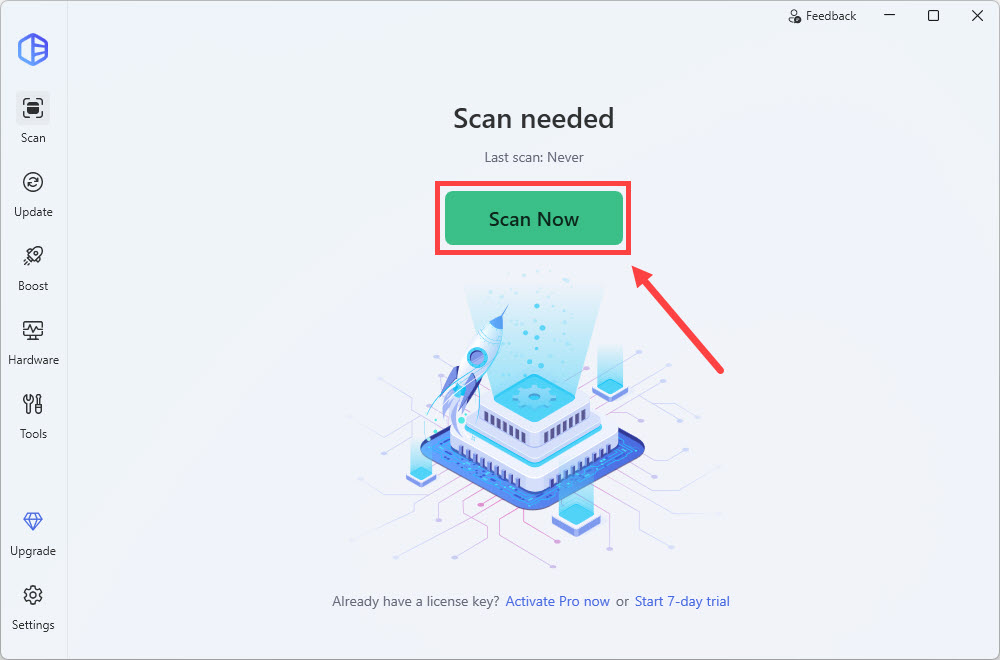
- Run Driver Easy and click the Scan Now button. Driver Easy will then scan your computer and detect any problem drivers.
- Click the Activate & Update button next to the flagged GPU to automatically download and install the correct version of this driver. Or click Update All to automatically download and install the correct version of all the drivers that are missing or out of date on your system.
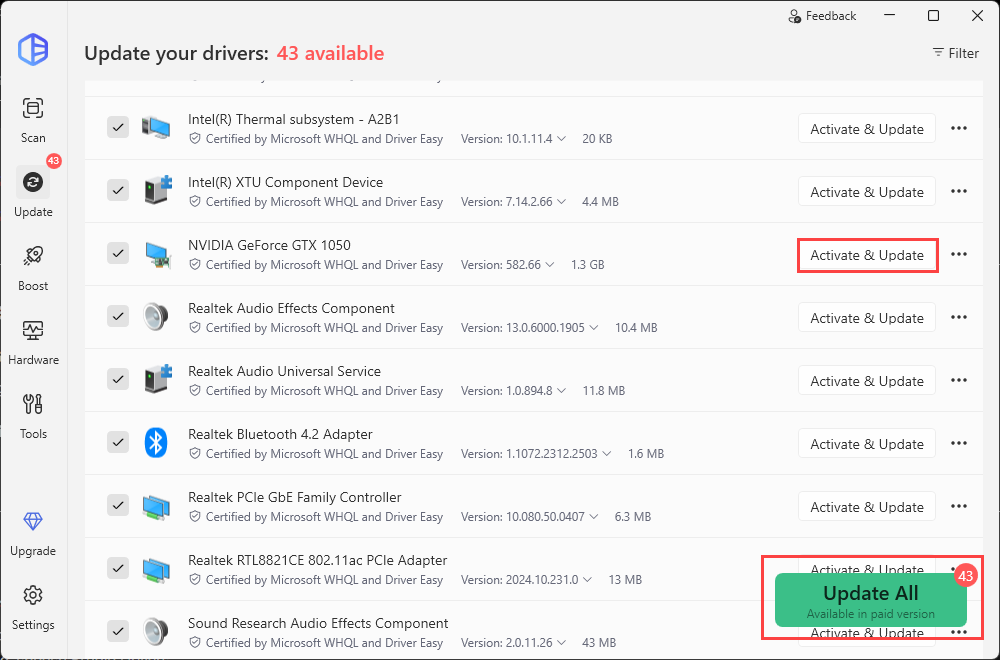
You can also roll back your graphics driver in Driver Easy when the latest driver causes stability or performance issues. Simply click the three-dot button next to it and select All available versions. Then choose a previous version from the list and click Install.
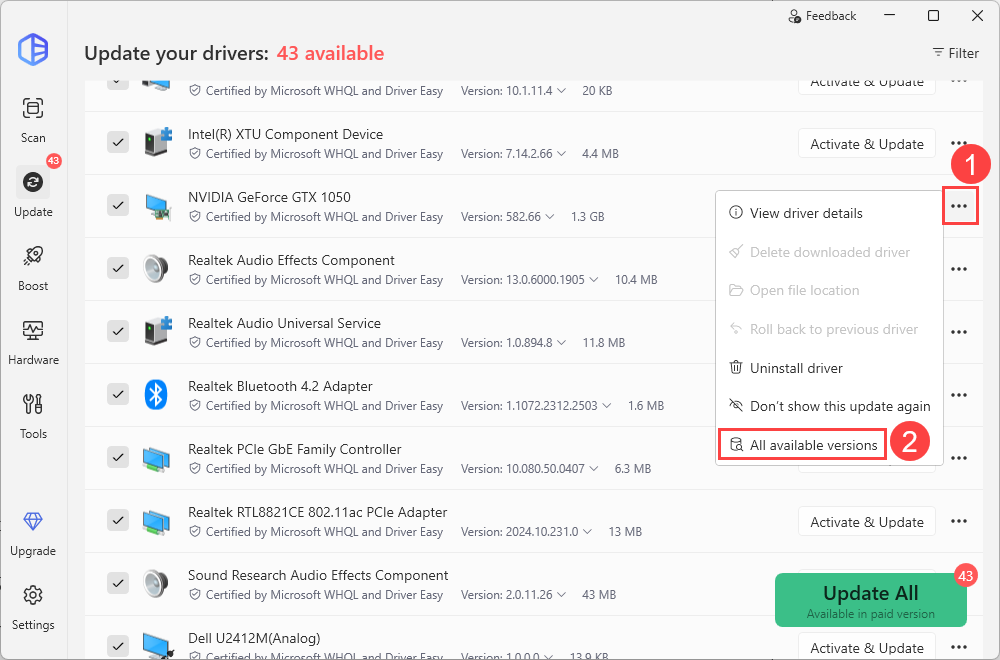
You’ll be prompted to upgrade to Driver Easy Pro when you update the driver. The Pro version provides high-speed driver installations and a variety of advanced features plus full support. Not sure if it’s worth it? You can try all the Pro features through the 7-day free trial.
After updating, restart your computer to apply the changes.
Fix 4: Adjust in-game graphics settings
If Star Wars: Zero Company launches but crashes, freezes, stutters, or runs with unusually high GPU usage during gameplay, try lowering or disabling some of the more demanding graphics settings.
Here are some settings to tweak:
- Turn Off Environment Geometry Detail. This is one of the most useful settings to test. Some players have reported significant FPS gains and smoother frame pacing after disabling it.
- Disable Frame Generation. If you’re experiencing crashes, severe stuttering, or inconsistent frame pacing, temporarily turn off Frame Generation and test the game without it.
- Lower Post Processing. This may specifically resolve the white flashing, excessive visual effects, or other rendering issues
- Try a different Upscaling mode. Depending on your GPU, test a different upscaler:
NVIDIA GPU: Try DLSS
AMD GPU: Try FSR
Intel GPU: Try XeSS. Any supported GPU: You can also test TSR - Lower the Upscaling Quality. If you’re still experiencing low FPS or GPU memory pressure, switch from Quality to Balanced to see whether stability improves.
- Test different resolution options. Lower your resolution temporarily to determine whether the crash or performance problem is related to rendering load.
- Lower other settings such as Reflections, Textures, Effect Quality, and Shadow Quality.
Change only one or two settings at a time and test the game. This makes it easier to identify which setting actually helped. If the game becomes stable or stuttering is reduced, keep the setting changed and test the next one.
If adjusting the graphics settings doesn’t improve the crashes or performance problems, move on to the next fix.
Fix 5: Return your CPU and RAM to stable settings
If you’ve enabled CPU overclocking, undervolting, XMP, EXPO, or other memory tuning, temporarily return the system to its default settings.
A game crash can sometimes expose marginal system instability that other applications don’t trigger.
- Restart your PC and enter the BIOS/UEFI.
- Temporarily restore CPU and RAM settings to their default or manufacturer-recommended values.
- Save the changes and boot into Windows.
- Launch Star Wars: Zero Company again.
If you’re using an Intel 13th- or 14th-generation desktop CPU, also make sure your motherboard BIOS is up to date and includes the latest CPU stability/microcode updates provided by the motherboard manufacturer.
Conclusion
Try the community-tested fixes above to solve your Star Wars: Zero Company crashing on PC. If none of the steps change the crash behavior, record the crash details and report them to the developer, then consider your refund options if you’re still within the standard eligibility window.
Found another workaround or running into a different bug? Let us know in the comments, and we’ll test and add the best fixes to the guide!