






Gears of War: E-Day crashing on PC? You’re not alone. Whether the game freezes during shader compilation, crashes right after the anti-cheat screen, or suddenly closes to the desktop mid-match, many beta players are running into the same frustrating issues – even on high-end rigs.
We’ve put together 7 quick fixes for Gears of War: E-Day Multiplayer Beta crashing, ranked by what beta players report actually working. Check out now…
Does your PC meet the system requirements?
Before troubleshooting software, make sure your PC meets the game’s minimum requirements. Running below the minimum specifications can lead to crashes, severe stuttering, or failed shader compilation.
| Minimum | Recommended | |
| OS | Windows 10 (64-bit) | Windows 11 (64-bit) |
| CPU | AMD Ryzen 5 2600X / Intel i7‑6850K / i5‑10400 | AMD Ryzen 5 5600 / Intel i5-11600K |
| Memory | 12 GB RAM | 16 GB RAM |
| GPU | Hardware Ray Tracing capable GPU required. NVIDIA GeForce RTX 5050 / NVIDIA GeForce RTX 2060 / AMD Radeon RX 6600 / Radeon RX 9060 | NVIDIA GeForce RTX 5060 / NVIDIA GeForce RTX 3060ti / AMD Radeon RX 6700 XT / Radeon RX 9060 XT |
| Storage | 130 GB SSD | 130 GB SSD |
| DirectX | DirectX 12 | DirectX 12 |
If your PC exceeds the recommended specifications but the game still crashes, you’re probably dealing with a software conflict or a beta-related issue rather than insufficient hardware.
How to Fix Gears of War: E-Day Crashing
Here are 7 fixes for Gears of War E-Day crashing. You don’t need to try everything. Work through them one at a time until you find the one that does the trick.
- Close unnecessary background apps
- Update the graphics driver
- Repair game files (and Easy Anti-Cheat)
- Lower graphics settings
- Move the game to SSD (or another SSD)
- Wait through the anti-cheat screen
- Fix for LowLevelFatalError: GDK runtime is not available
Fix 1 – Close unnecessary background apps
Some third-party programs have occasionally been reported to interfere with shader compilation, anti-cheat initialization, or gameplay, resulting in freezes or crashes on some systems. So before you launch Gears of War: E-Day beta, try to close these applications.
- Overlay & recording software: Discord Overlay, Steam Overlay, Xbox Game Bar, NVIDIA Overlay, AMD Software Overlay, and OBS Studio.
🔔 Recording with older versions of OBS will cause the game to crash. Please ensure you are running v29.0.0+. - Hardware monitoring & RGB utilities: MSI Afterburner, RivaTuner Statistics Server (RTSS), SteelSeries GG, Logitech G HUB, Razer Synapse, and Corsair iCUE.
- Antivirus software like Norton, Malwarebytes, or Bitdefender. You can also add the game folder to their exclusion list so the game can launch properly.
- Audio-related software.
Restart Gears of War: E-Day to see if the crashes or errors disappear.
Fix 2 – Update the graphics driver
If the game still crashes after you’ve closed all background applications, the next thing to check is your graphics driver. Because Gears of War: E-Day is still in beta, newer driver releases often include game-specific optimizations and bug fixes that can improve stability. Conversely, if the crashes started immediately after a driver update, rolling back to an earlier version may also help.
Major GPU manufacturers have already released drivers with support and optimizations for Gears of War: E-Day. To update manually, visit their official website (NVIDIA or AMD), download the latest driver for your graphics card and Windows version, then run the installer and follow the on-screen instructions.
If you don’t have the time or patience to search for and install graphics drivers manually, you can use Driver Easy.
Driver Easy automatically scans your PC, detects outdated or incompatible drivers, and installs the correct versions directly from official sources. It also lets you back up and roll back drivers with just a few clicks, making it easy to switch to a driver version that’s more stable for your game.
- Download and install Driver Easy.
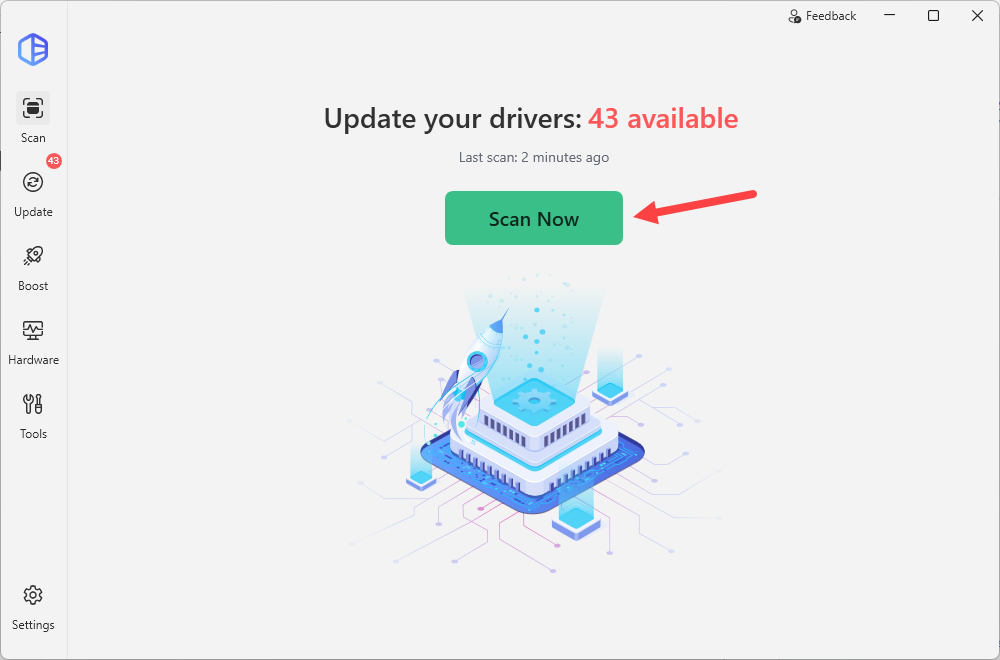
- Launch Driver Easy and click Scan Now.
- Click the Activate & Update button next to your graphics card to update it or click Update All to install all recommended drivers.
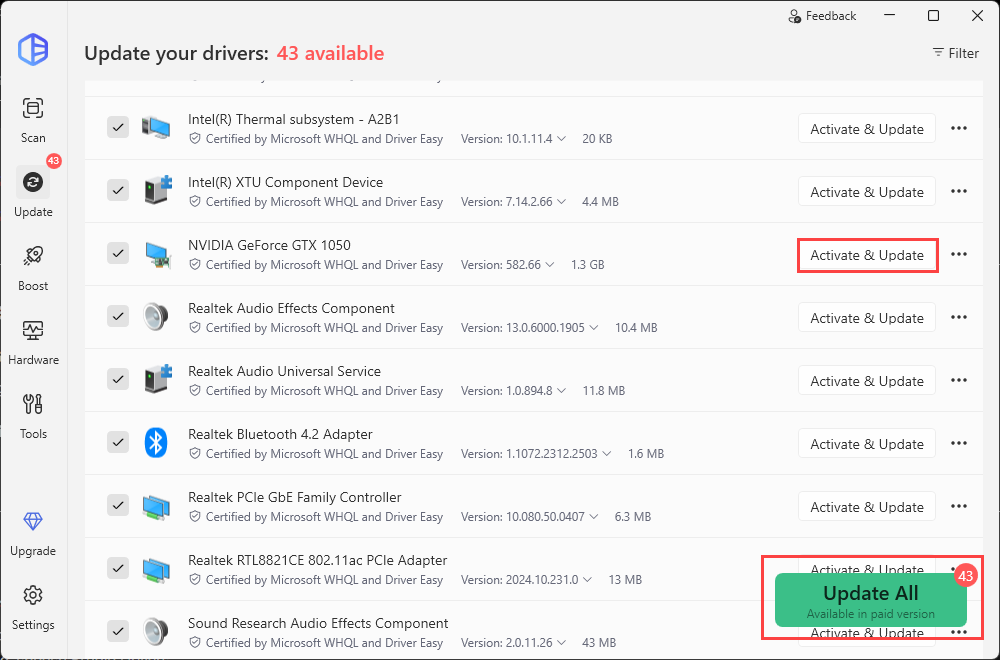
Updating drivers requires either the Pro version or the 7-day Free Trial, both of which include high-speed driver updates and advanced technical features plus full support. If you’re not ready to subscribe, you can try all Pro benefits during the trial period with no upfront charge.
⚠️If you suspect leftover driver files are causing conflicts, you can clean reinstall the graphics driver using Display Driver Uninstaller (DDU).
Restart your PC after the driver is updated and launch Gears of War: E-Day to test.
Fix 3 – Repair game files (and Easy Anti-Cheat)
If the game always crashes at the same point – for example, during shader compilation or while loading into a match – a corrupted or missing game file may be the cause.
Since the beta receives frequent updates, interrupted downloads or incomplete patches can occasionally leave damaged files behind. You can verify the game files to replace files that are missing or corrupted.
Steam
- Open Steam.
- Right-click Gears of War: E-Day and select Properties.
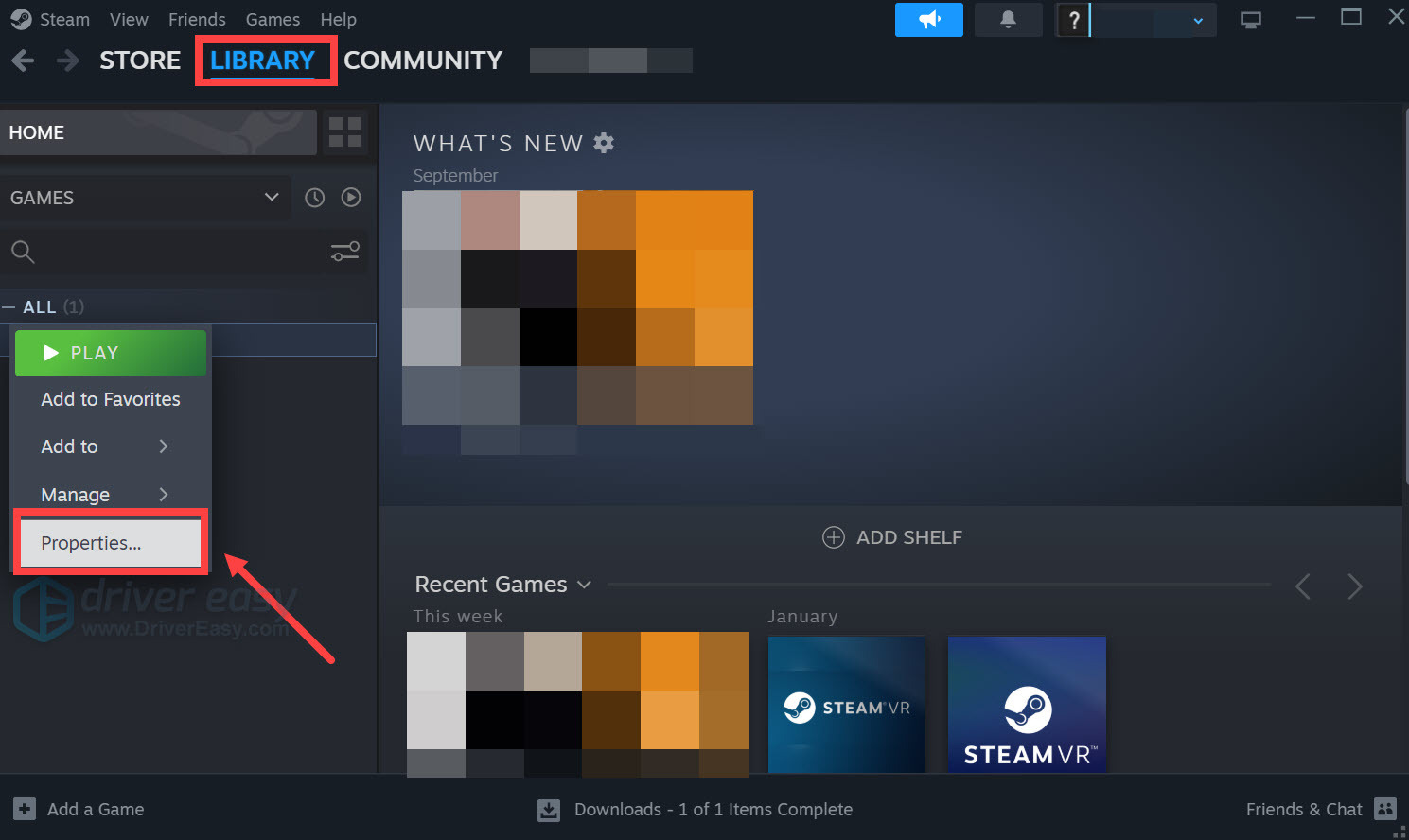
- Open Installed Files, and click Verify integrity of game files.
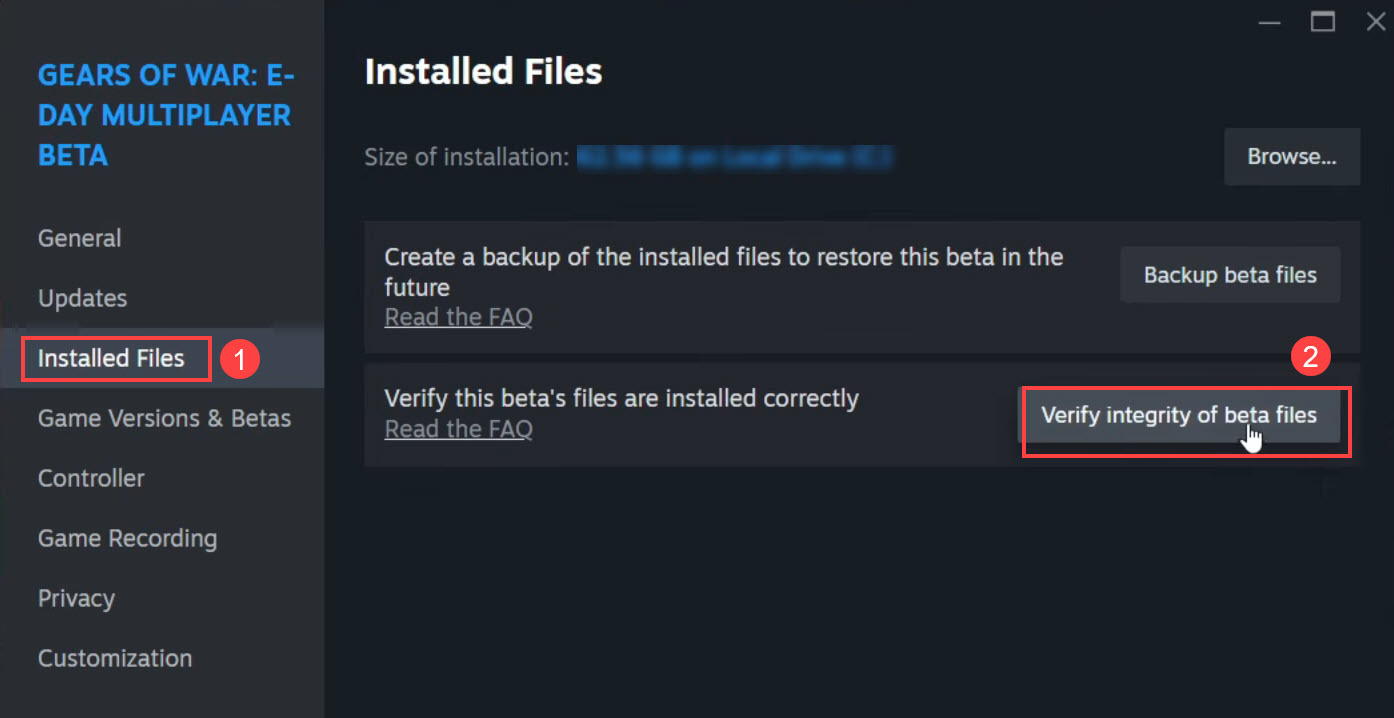
- Wait for Steam to finish scanning and repairing any damaged files.
Xbox App
- Open the Xbox App.
- Click Gears of War: E-Day. Select ⋯ (More options) > Manage.
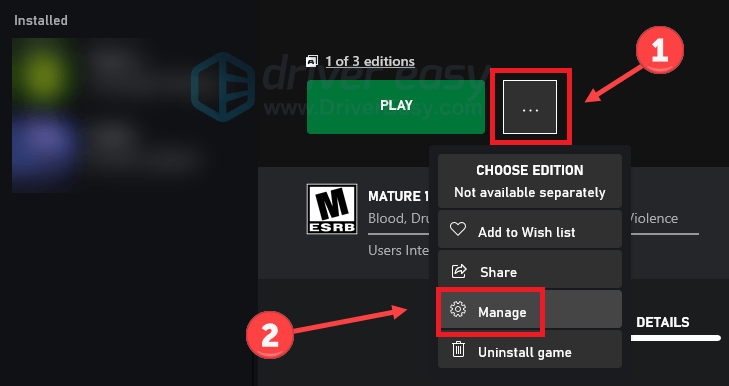
- Open the Files tab, and click Verify and repair.
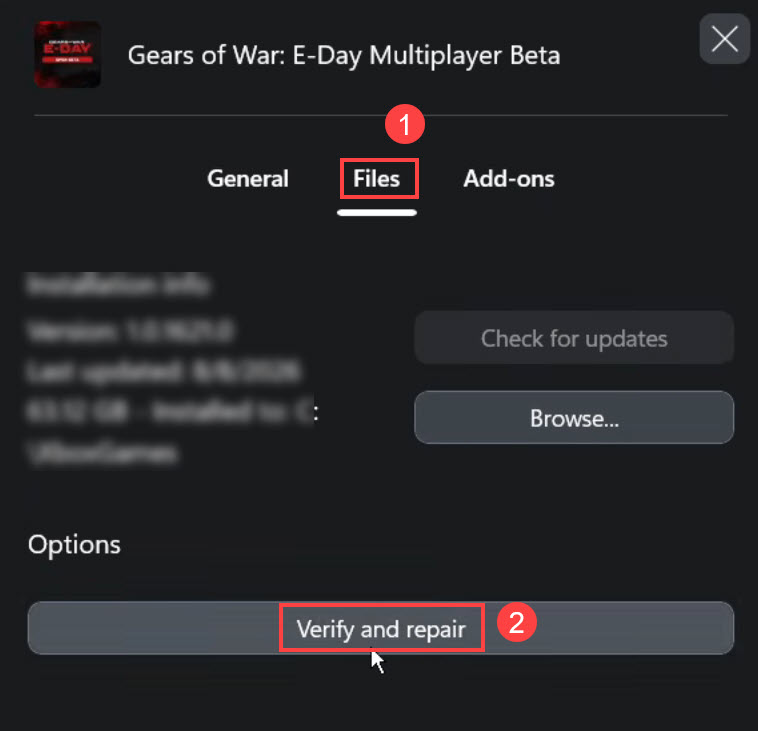
If you’re using the Microsoft Store/Xbox version, you can also repair the game through Windows:
- On your keyboard, press the Windows key + I to open Settings.
- Navigate to Apps > Installed apps.
- Locate Gears of War: E-Day, click the three-dot button (⋯) next to it, and select Advanced options.
- Scroll down and click Repair.
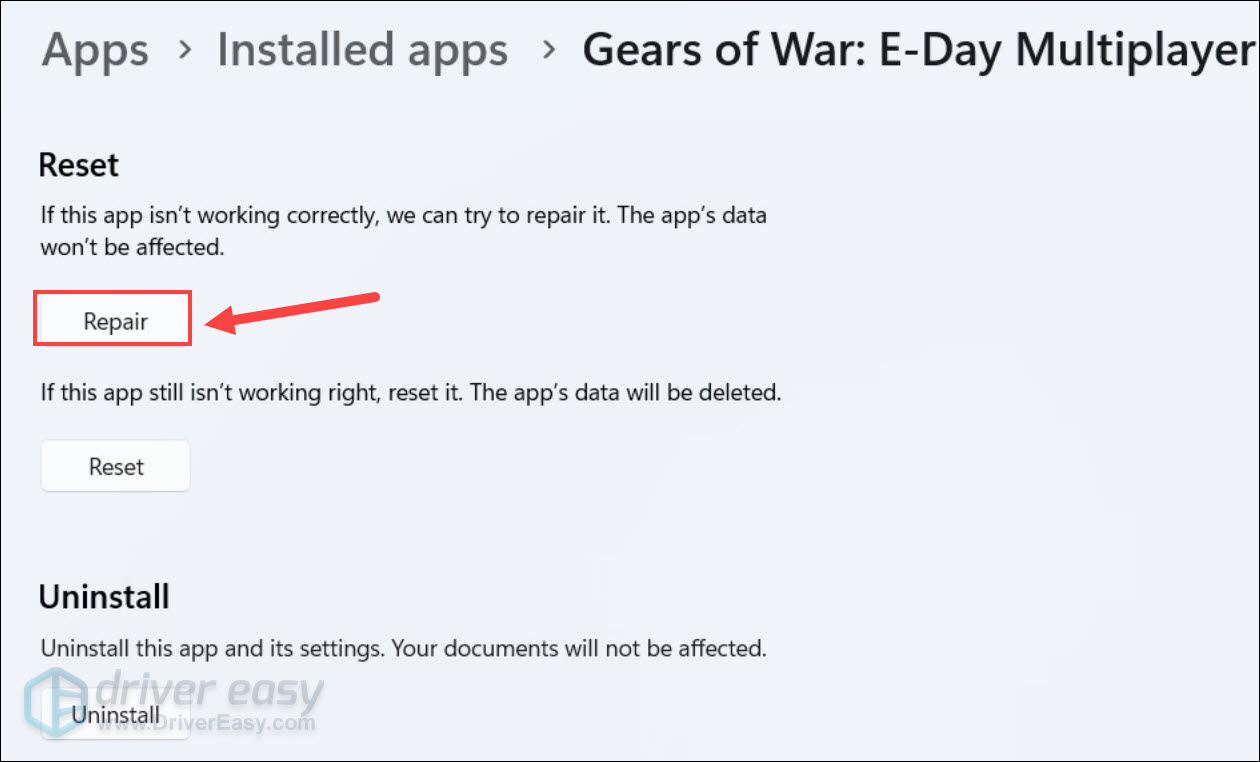
If Repair doesn’t help, try Reset. This reinstalls the app’s files but typically doesn’t remove your cloud saves.
Optional: Repair Easy Anti-Cheat
If the game crashes immediately after launch or hangs during anti-cheat initialization, repairing Easy Anti-Cheat may help.
- Open the game’s installation folder.
- Open the EasyAntiCheat folder and run the Easy Anti-Cheat installer.
- Select Repair Service (if available).
Launch the game again to see if it progresses beyond the point where it previously crashed. If not, try the next method below.
Fix 4 – Lower graphics settings
Graphics settings rarely cause crashes by themselves, but if the game stutters heavily just before freezing or crashing, reducing GPU workload can usually improve stability.
Launch the game and adjust the in-game settings as follows to see it work:
- Set Textures to Medium.
- Set Shadows to Low.
- Set Effects to Low.
- Set Post-processing to Low.
- Turn VSync Off.
- Switch from Exclusive Fullscreen to Borderless Windowed.
- If available, enable DLSS Quality (NVIDIA) or FSR Quality (AMD).
These changes reduce GPU load while maintaining good image quality on most modern systems. Keep in mind that lowering graphics settings won’t fix crashes caused by software conflicts or corrupted files, but simply removes one possible source of instability.
Fix 5 – Move the game to SSD (or another SSD)
Although less common, storage performance can contribute to loading-related crashes, especially during shader compilation or when streaming large game assets.
If the game is installed on a traditional hard drive, consider moving it to an SSD. Even if you’re already using an SSD, trying a different drive may help if the current drive is experiencing performance issues.
Steam
- Launch Steam. Click Steam in the top left corner and choose Settings.
- Select the Storage tab in the left pane.
- Click the drive dropdown menu at the top and select Add Drive to choose your SSD and create a new Steam library folder there.
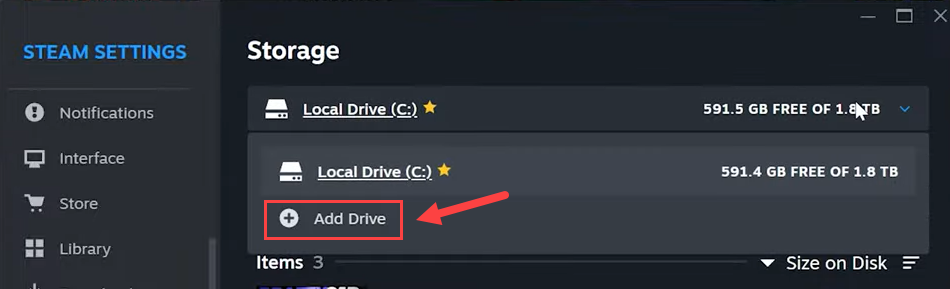
- Check the boxes next to the game and click the Move button.
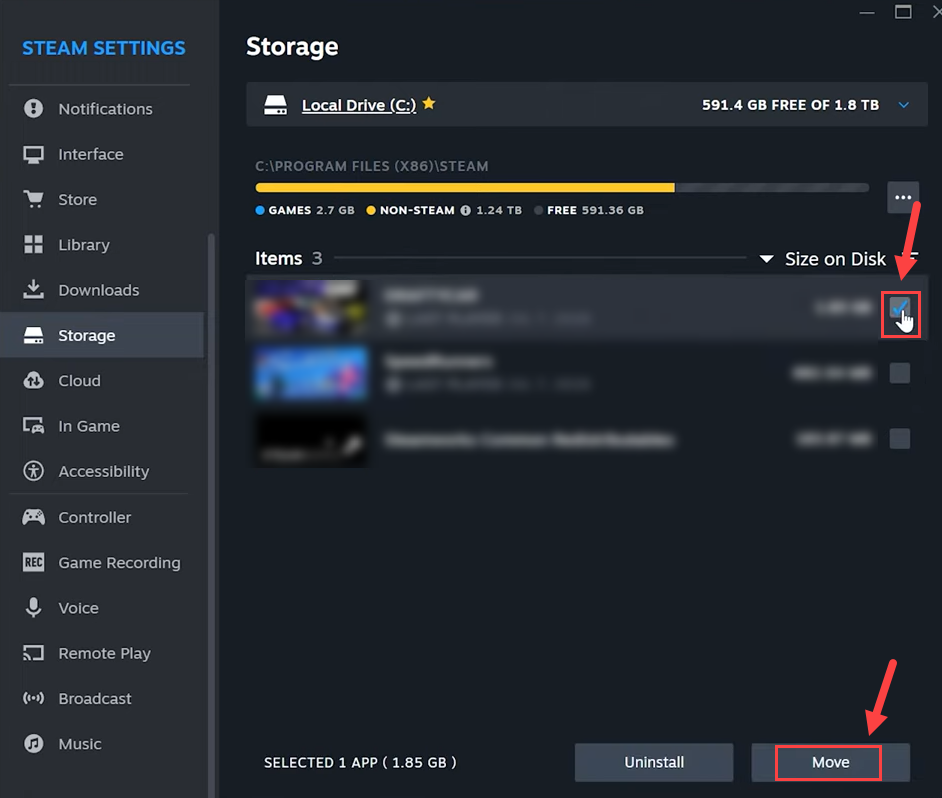
- Choose your main SSD as the destination, and click Move to transfer the files.
Xbox App
The Xbox App currently doesn’t support moving every game between drives. You can uninstall the game, reinstall it, and choose a different SSD during installation.
After moving the game, launch it and allow shader compilation to complete without interruption.
If loading becomes smoother and crashes during map loading disappear, your original storage device may have been contributing to the problem.
Fix 6 – Wait through the anti-cheat screen
Many players mistake the anti-cheat loading screen for a crash.
In reality, the game may still be initializing anti-cheat services or building shader caches in the background. Depending on your hardware and storage speed, this process can take several minutes during the beta.
- Launch the game. Wait at least 2–3 minutes on the anti-cheat screen.
- Press Ctrl + Shift + Esc to open Task Manager.
- Check whether Gears of War: E-Day is still using CPU or disk resources.
If the game remains not responding or shows no CPU or disk activity for more than five minutes, you can force-close the game.
Fix for GDK runtime is not available error
If you are playing Gears of War: E-Day via Xbox Game Pass for PC and experiencing crashes right after the Easy Anti-Cheat (EAC) window with a LowLevelFatalError: GDK runtime is not available error, the cause may be the game’s included DirectStorage files. You can remove them to see if that resolves the problem.
- Open your game installation folder: Xbox Games > Eday > Content > FairlightConcept > Binaries > WinGDK.
- Locate dstoragecore.dll and move it out of the folder (drag it to your Desktop as a backup).
- Launch GOWEDay.exe inside the same folder. You may see a black screen or a “bootstrap failed” prompt.
- Go back one folder to Xbox Games > Eday > Content and run start_protected_game.exe.
The game should now boot up and compile shaders properly.
If the steps above still don’t help, move both dstoragecore.dll and dstorage.dll out of the folder. Then verify the game files and launch the game directly from the Xbox App.
Conclusion
If Gears of War: E-Day keeps crashing on your PC, these fixes are worth trying—but keep in mind that no single solution works for every system. During the beta, players have reported different results with the fixes.
If you’ve already worked through the fixes above and the game still crashes, you can simply wait for upcoming beta patches or report your crash details to help the developers identify remaining issues. The game remains unplayable and you no longer want to wait? Consider requesting a refund through your purchase platform according to its refund policy.
If you have any questions or suggestions, feel free to drop us a comment below.