







Does Halloween: The Game crash on launch, freeze during a story challenge, or suddenly close to the desktop? You’re not alone. Early players have reported several different crash patterns, including crashes during story events and random mid-game crashes.
If you’re encountering Halloween: The Game crashing, don’t worry. Below are seven fixes and workarounds, ordered from the easiest and most targeted solutions to more advanced troubleshooting steps.
7 fixes for Halloween: The Game crashing and not launching
You don’t have to try them all. Simply work from the top down until you find the one that resolves the problem
- Force the game to launch with DirectX 11
- Update or reinstall your graphics driver
- Disable Intel AI Boost / NPU temporarily
- Disable Steam and other overlays
- Verify the game files
- Adjust display modes
- Repair Anti-Cheat
Fix 1: Force the game to launch with DirectX 11
If Halloween: The Game crashes during launch or during a story event, this is one of the first workarounds worth trying.
The game normally uses DirectX 12. Launching it with -dx11 forces it to use DirectX 11 instead, which may help if the crash is related to the DX12 rendering path.
On Steam
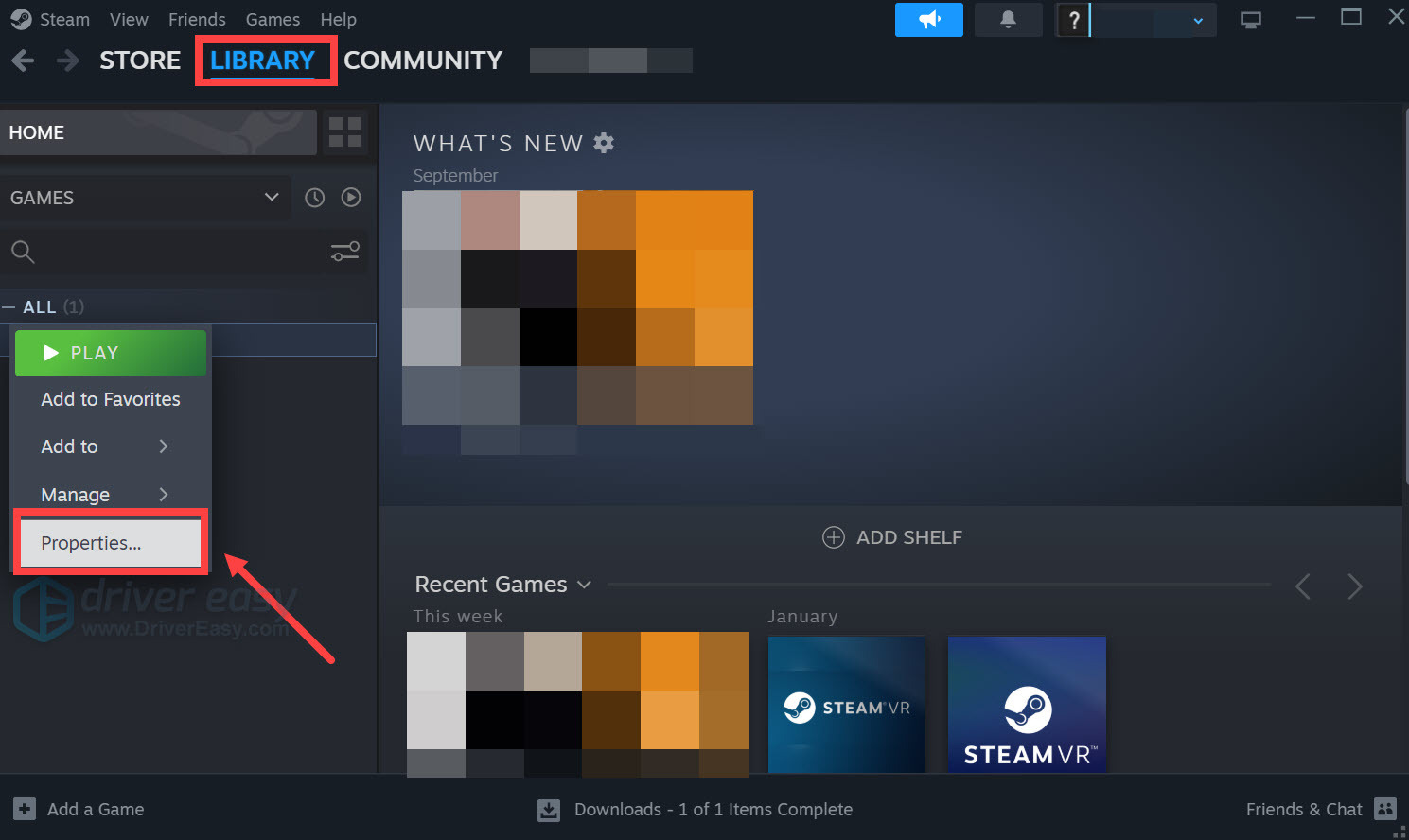
- Launch Steam. In the LIBRARY, right-click your game and select Properties from the drop-down menu.
- Under the launch options, add -dx11. Then save and try to launch the game to see if it still crashes.
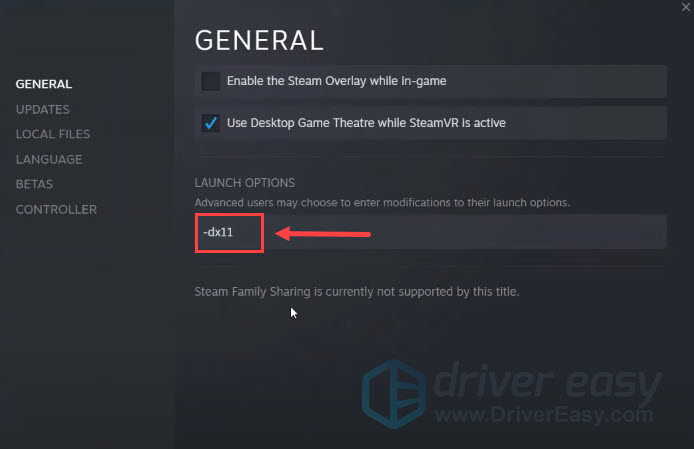
- If the crashing problem remains, try to change the command to -dx12 and see if it helps.
On the Epic Games Launcher
- Open the Epic Games Launcher.
- Find Halloween: The Game in your Library. Click the three dots next to the game. Select Manage.

- Enable Launch Options and enter -dx11.

- If the DirectX 11 launch option doesn’t resolve the crashing problem , try to change the command to -dx12 and see if it helps.
Fix 2: Update or reinstall your graphics driver
A corrupted, outdated, or incompatible graphics driver can cause crashes in newly released games. This is especially worth checking if the game crashes immediately on launch or the problem started after a Windows or GPU driver update.
Other system drivers, including chipset, audio, and network drivers, can also affect game stability in some configurations. If your graphics driver is already up to date, updating these critical drivers can help rule out other driver-related causes and improve overall system compatibility.
Option 1: Update the driver automatically
If you don’t have the time and patience to hunt down multiple device drivers manually or check for newer drivers regularly, Driver Easy can handle it all. Driver Easy is a trusted and powerful driver updater that can scan your entire computer and update any outdated or missing drivers. It gets the latest drivers directly from manufacturers and ensures they’re safe and stable through a rigorous testing process.
It takes just two clicks to update drivers with Driver Easy:
- Download and install Driver Easy.
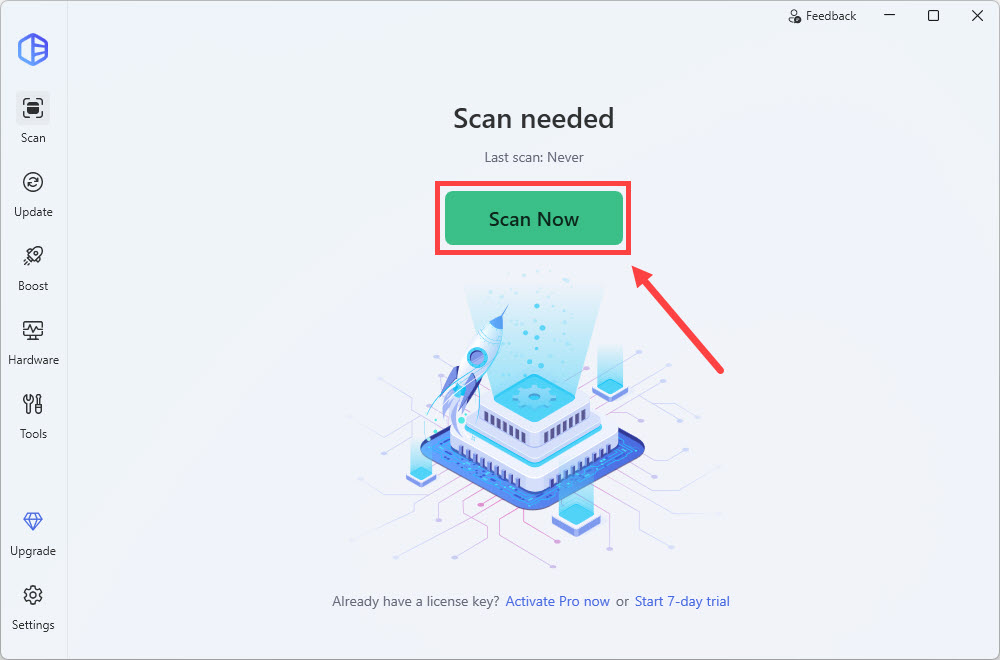
- Run Driver Easy and click the Scan Now button. Driver Easy will then scan your computer and detect any problem drivers.
- Click the Activate & Update button next to the flagged GPU to automatically download and install the correct version of this driver. Or click Update All to automatically download and install the correct version of all the drivers that are missing or out of date on your system.
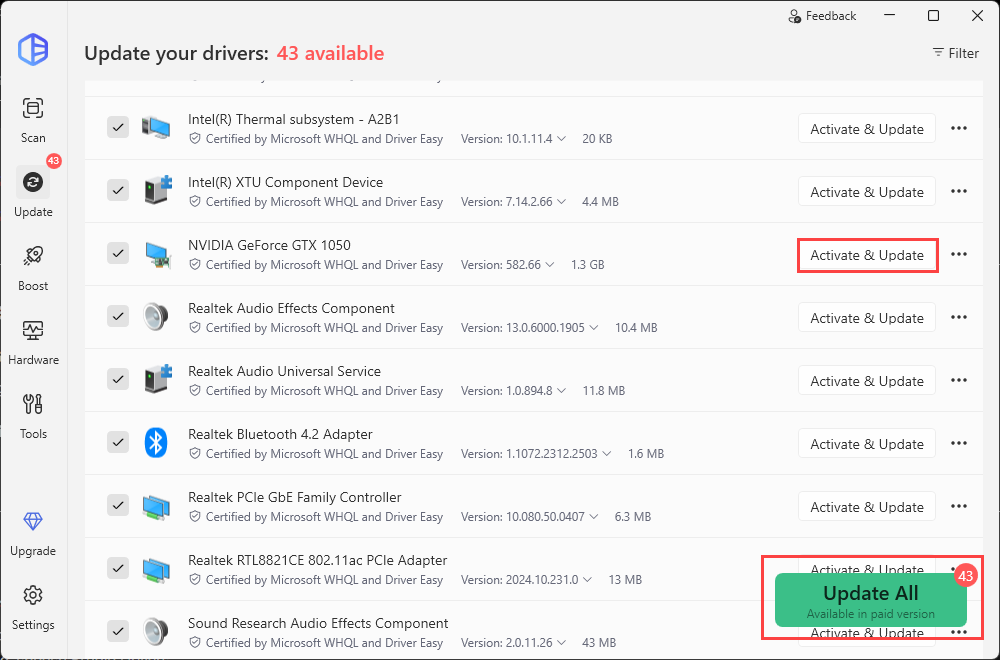
You’ll be prompted to upgrade to Driver Easy Pro to unlock the full set of premium features. It includes automatic driver updates, easy driver backup and rollback, plus full technical support. You’ll also access the Game Boost mode and System Clean tool to help optimize your PC.
Not sure if Pro is right for you? Simply start a 7-day free trial and see how Driver Easy fits your needs. You can cancel anytime during the trial period.
Restart your computer after the driver update and test the game again.
Option 2: Install the driver manually
You can also download the latest graphics driver directly from your GPU manufacturer’s website.
Latest GPU drivers for the game:
- NVIDIA (Game Ready Driver 621.01).
- AMD (AMD Software: Adrenalin Edition 26.10.1 Driver).
- Intel (Arc Graphics Driver 32.0.101.9150).
If a normal driver update doesn’t help and you suspect the existing installation is corrupted, you can perform a clean driver installation with Display Driver Uninstaller (DDU).
Launch the game and see if the game now reaches the main menu and remains stable during the section that previously crashed. If not, try the next fix below.
Fix 3: Disable Intel AI Boost / NPU temporarily
Some Intel Core Ultra laptop users have reported that disabling the Intel AI Boost NPU helped with game crashes. This is a community-reported workaround, rather than a confirmed fix from IllFonic, so it is worth trying mainly if you’re using an Intel processor with an NPU and the game crashes immediately after launch.
- Press the Windows key + X on your keyboard and select Device Manager.

- Expand Neural processors. Right-click Intel AI Boost and click Disable device.

Depending on your laptop manufacturer and Windows configuration, the device may have a slightly different name. If you don’t see Neural processors or Intel AI Boost, move on to the next fix.
Fix 4: Disable Steam and other overlays
Game overlays can occasionally interfere with games, especially when a newly released title is still receiving compatibility fixes. You can try disabling the overlay to see if that mitigates the crashes.
Here’s how to do that on Steam:
- Open Steam and go to the Library tab.
- Right-click Halloween: The Game, and select Properties.
- On the General tab, turn off Enable Steam Overlay while in-game.
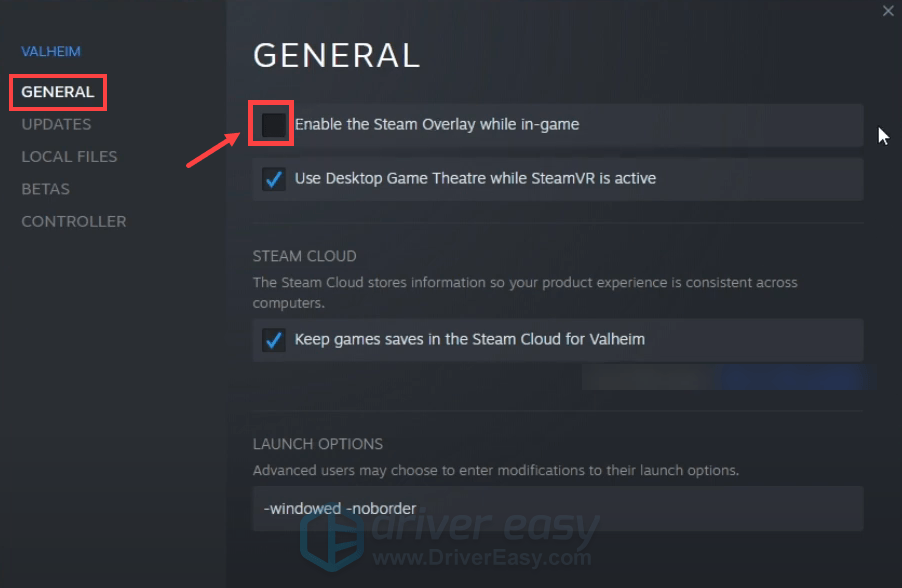
You can also temporarily disable other overlays, such as the NVIDIA overlay, AMD overlay, or Discord overlay. If you’re using OBS or another recording tool, close it before testing.
Relaunch the game to test. If the crash no longer occurs, re-enable your overlays one at a time to identify which one is causing the conflict. If turning off all the overlays still doesn’t help, try the next method.
Fix 5: Verify the game files
Missing, corrupted, or incomplete shader installation files often cause immediate crashes on launch or map loading screens. You can try repairing the game files to fix missing or damaged assets instead of a full redownload or installation.
On Steam
- Launch Steam.
- In the LIBRARY, right-click your game and select Properties from the drop-down menu.
- Select the Installed Files tab and click the Verified integrity of game files button.
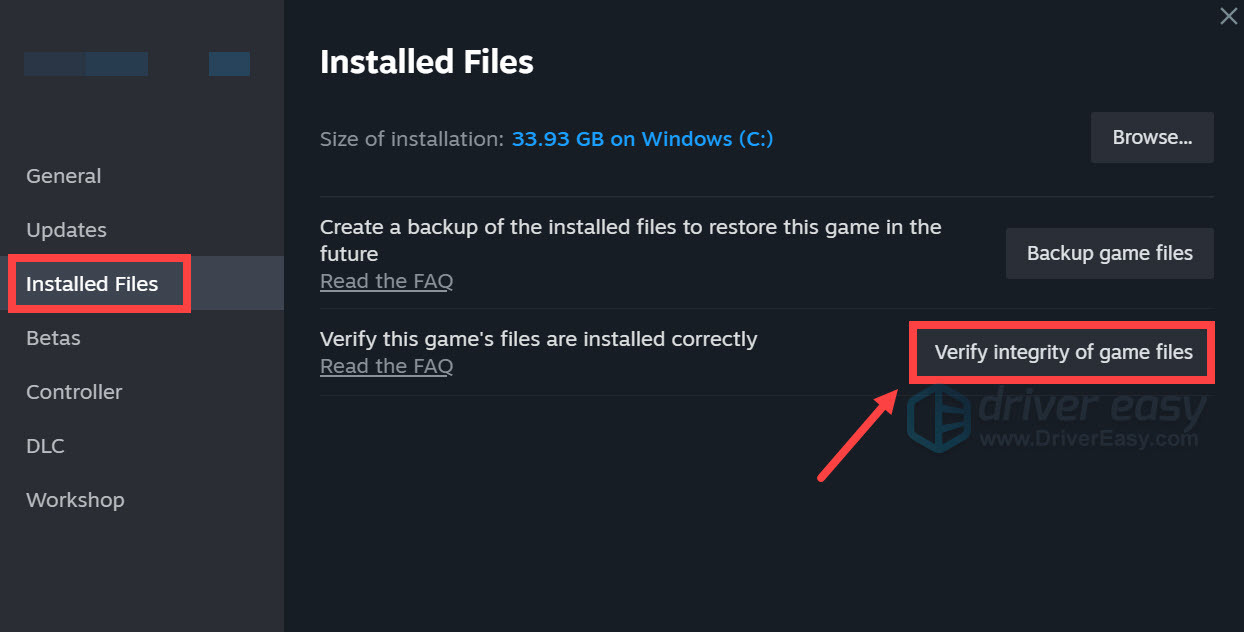
- Steam will verify the game’s files – this process may take several minutes.
On Epic Games Launcher
- Open the Epic Games Launcher and navigate to the Library tab.
- Click the three dots (…) below Halloween: The Game and select Manage.
- Click Verify.
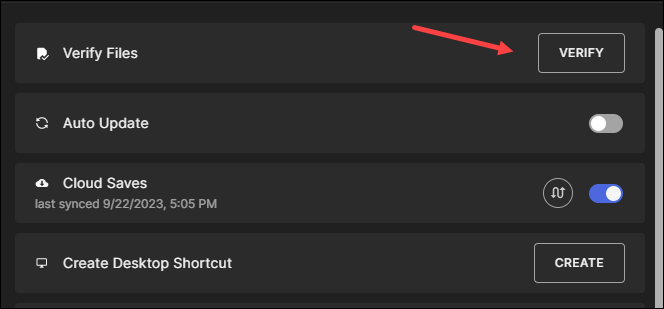
Relaunch the game after the validation scan finishes and see if it loads without crashing now.
Fix 6: Adjust display modes
Some players have reported crashes when using a fullscreen resolution lower than their monitor’s native resolution. For example, if your monitor is 4K, avoid forcing a lower resolution such as 2560×1440 while using exclusive fullscreen.
Use your monitor’s native resolution in fullscreen, and try switching to Borderless Windowed mode. Restart the game and see how these settings work. If the game becomes stable, keep the working display configuration until a future patch addresses the issue.
Fix 7: Repair Anti-Cheat
If Halloween: The Game displays an Easy Anti-Cheat error, particularly error 30005, repairing the anti-cheat installation may help.
- Open the game’s installation folder.
- Run the EasyAntiCheat setup program.
- Select Halloween The Game from the list and click Repair Service.
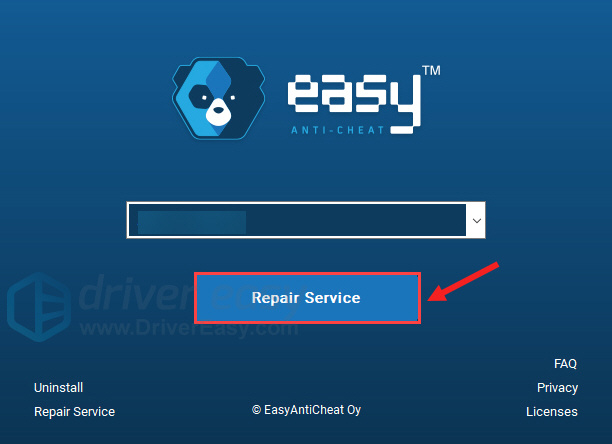
- Wait for the process to complete and restart the game.
Launch the game and check whether the Easy Anti-Cheat error or crash still occurs.
Fixes that may not help
Before spending hours reinstalling everything, keep in mind that not every common troubleshooting step is relevant to every crash.
Based on early player reports, these fixes have not consistently resolved the reported crashes:
- Reinstalling the entire game
- Reinstalling the EA App
- Moving the game to another drive
- Disabling Windows Firewall
- Performing a full Windows reset
That doesn’t mean these steps can never help. A corrupted installation, for example, can cause crashes in some cases. However, they’re much more disruptive than the targeted fixes above, so try them later if the simpler troubleshooting steps don’t work.
So that’s 7 practical fixes for Halloween: The Game crashing and not launching. Because the game is still in its early post-launch period, a future hotfix may also resolve crashes that cannot currently be reproduced or fixed locally.
Did you encounter other performance issues or specific errors? Feel free to leave a comment below.