






If PlayStation Remote Play won’t launch, won’t sign in, can’t find your console, or keeps disconnecting on your Windows PC, you’re not alone. This can be caused by anything from a broken Windows component to an outdated graphics driver or a network issue. Fortunately, most Remote Play problems can be fixed in a few minutes. This post put together 10 proven fixes for the PS Remote Play not working issue, starting with the quick checks and moving on to more advanced troubleshooting steps.
Check PSN status first
Before trying anything complicated, you’ll need to make sure PlayStation Network is online. Just visit the official PlayStation Network Status page and check the service status.
If any major services are experiencing outages, Remote Play may fail to authenticate or connect until the server is up and running.
Try these fixes
If the problem is not on the server’s side, you can dig deeper with the fixes below. You don’t have to try them all. Just work your way down the list until you find the one that does the trick.
Fix 1 – Restart your PS5/PS4 and PC
It sounds obvious, but temporary network sessions, authentication tokens, and background services can occasionally become stuck. Simply restart your PS5/PS4 and your Windows computer, and try Remote Play again.
Fix 2 – Enable Remote Play on PS5/PS4
If your console’s permissions were reset by a system software update, you’ll need to enable it.
On PS5: Navigate to Settings > System > Remote Play and ensure Enable Remote Play is toggled on.
On PS4: Navigate to Settings > Remote Play Connection Settings and check the box for Enable Remote Play.
You’ll also need to allow the Windows PC to wake your console from a sleep state. Here’s how to configure the settings:
On the PS5 or PS4, go to Settings > System > Power Saving > Features Available in Rest Mode. Turn on Stay Connected to the Internet and Enable Turning On PS5 from Network.
Fix 3 – Clean reinstall PS Remote Play
If the Remote Play won’t launch or crashes immediately, consider performing a clean reinstall of the application.
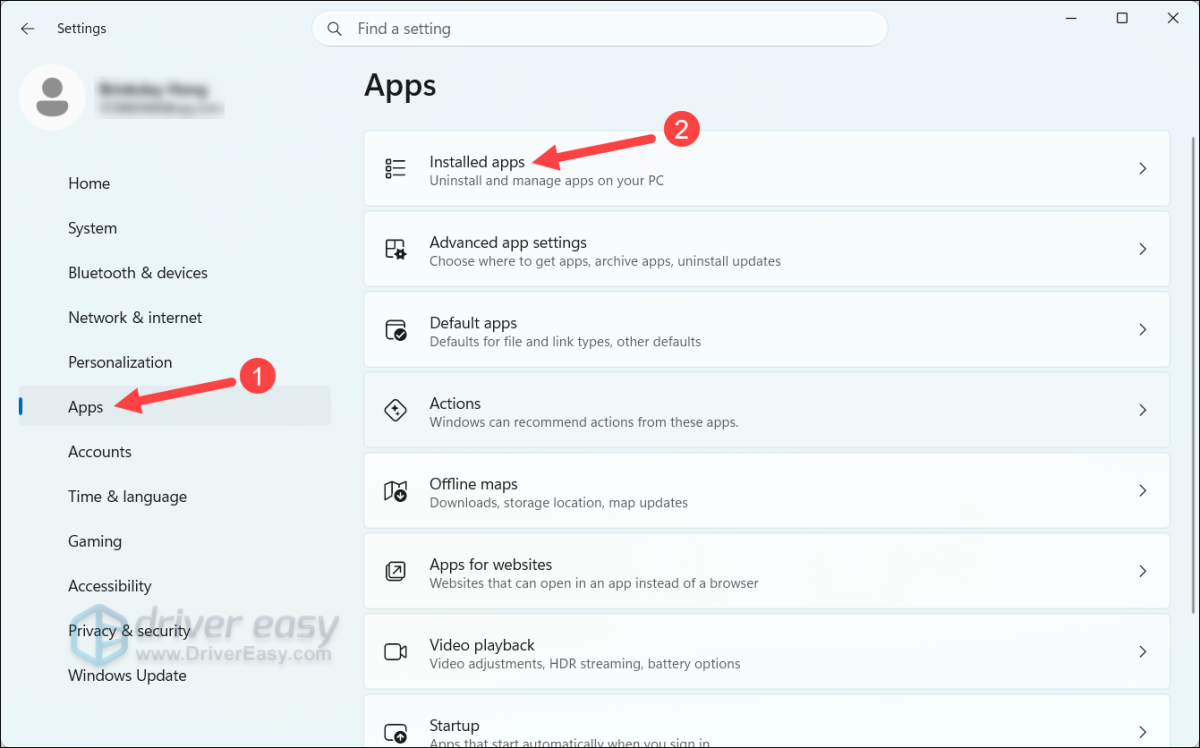
1. On your keyboard, press the Windows logo key and I to open Settings.
2. Select App, and click Installed apps.
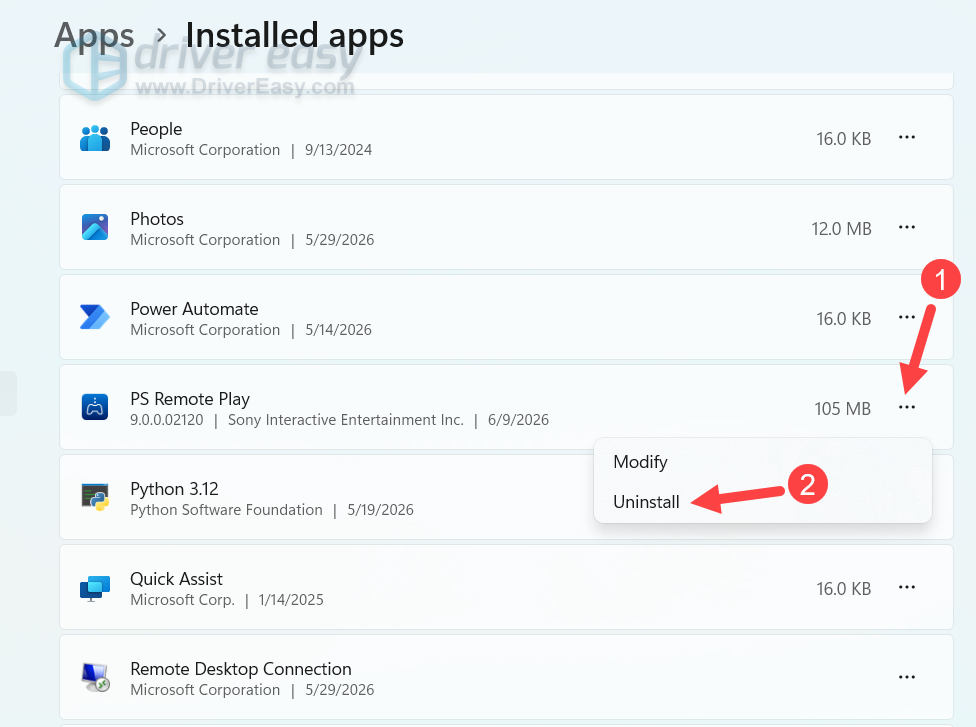
3. Scroll to find PlayStation, click the three-dot button next to it, and click Uninstall.
4. Delete the directory: C:\Program Files (x86)\Sony\PS Remote Play.
5. On your keyboard, press the Windows key and R, type the path: %localappdata%\Sony Corporation into the Run dialog box, and press Enter.
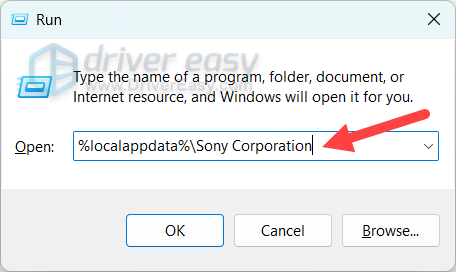
6. Delete the PS Remote Play folder to completely remove the application cache.
7. Download and install the latest PS Remote Play from the official website.
Once done, check if the application works as expected.
Fix 4 – Link a device for Remote Play manually
The auto-detect feature in Remote Play uses mDNS (multicast DNS) to find your console on the local network. If your router blocks mDNS, you’re on a different subnet, or you have VLANs configured, auto-detect will fail. You can try linking the device for Remote Play manually.
On PS5: Go to Settings > System > Remote Play > Link Device. An 8-digit code appears on screen.
On PS4: Go to Settings > Remote Play Connection Settings > Add Device.
Enter that code into the Remote Play app on your computer when prompted. This bypasses auto-detect entirely.
Fix 5 – Install the latest Visual C++ Redistributables
Missing or broken Visual C++ runtime files are one of the major causes of application crashes on the Windows system. To fix it, you can manually install the Visual C++ package as follows.
1. Visit the official Microsoft Visual C++ Redistributable download page, and scroll to the latest supported redistributable version.
2. Download both the x86 and x64 packages.

3. Run and install the executables.
Once the components are installed, start Remote Play to test.
Fix 6 – Install Windows Media Feature Pack
PS Remote Play relies on Windows Media Foundation to decode video streams. If Windows Media components are missing, the app may fail to launch or stream, or display a black screen. Here’s how to install and enable the Windows Media Feature:
1. On your keyboard, press the Windows logo key and I at the same time to open Settings.
2. Navigate to the System tab and scroll down to click Optional features.
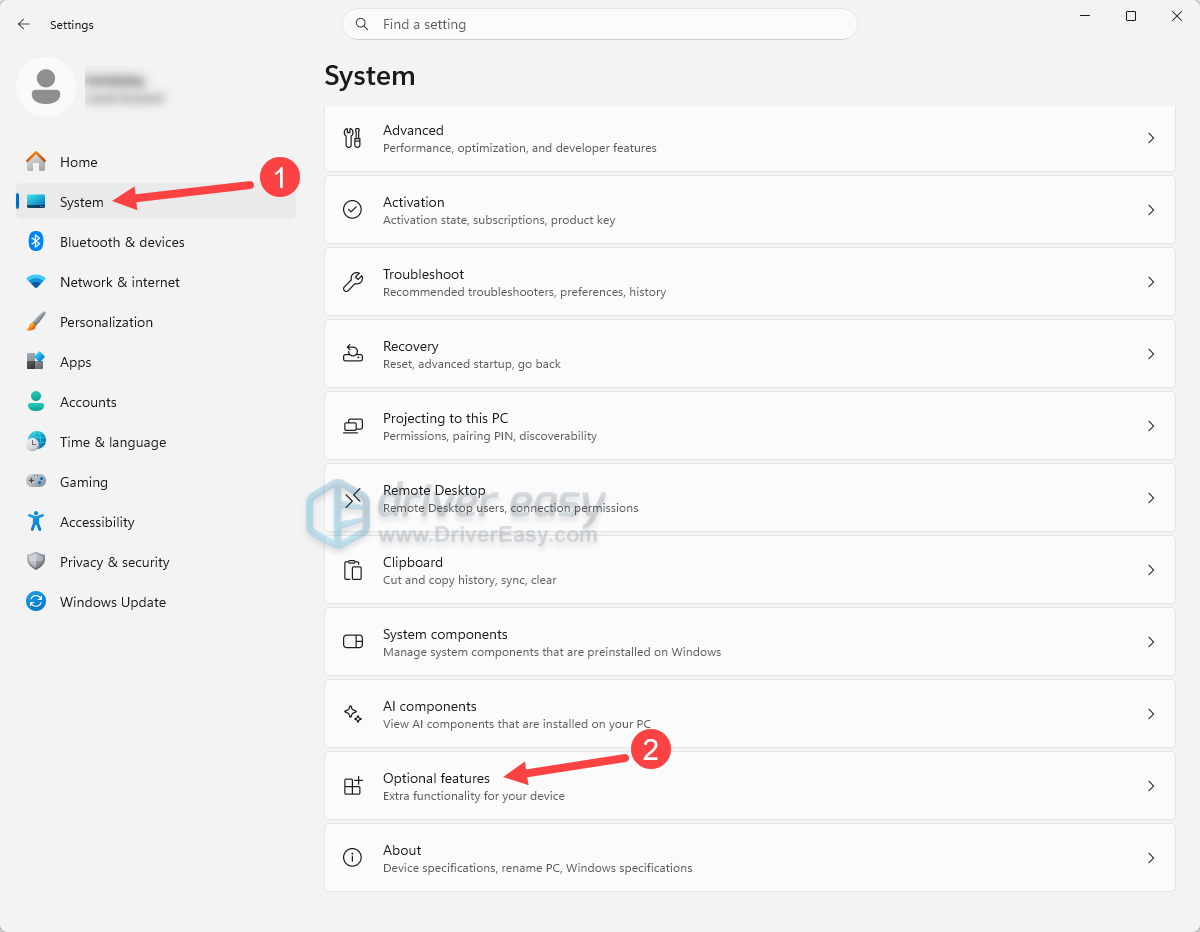
3. Click View features. Click Yes when you’re prompted to allow Settings to make changes to your PC.
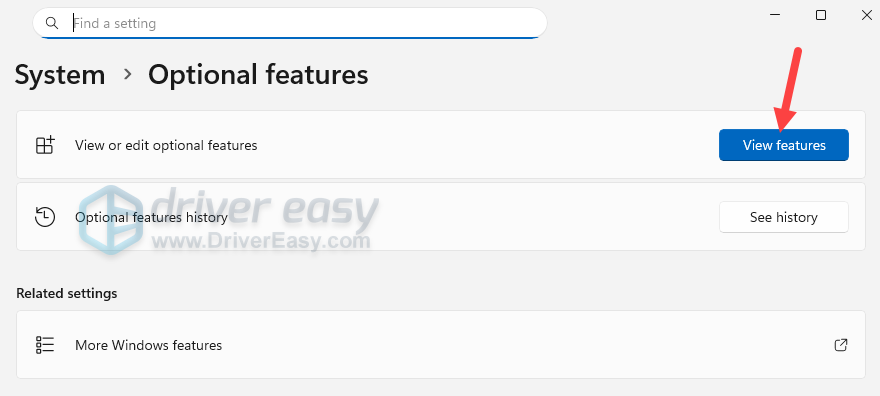
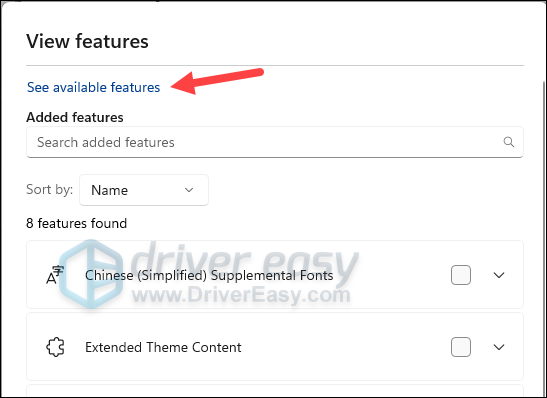
4. Click See available features.
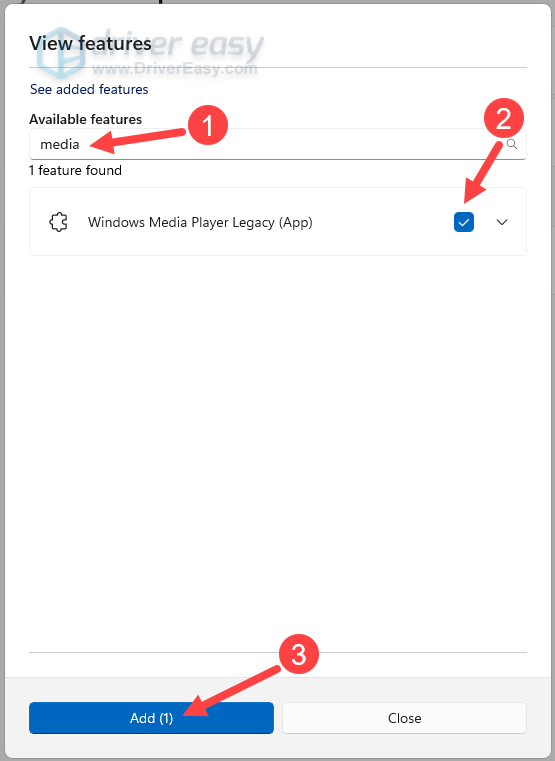
5. Type media into the search bar, tick the box next to Windows Media Player Legacy (App), and click Add. Then wait for the installation to complete.
6. Press the Windows logo key and I to open Settings again.
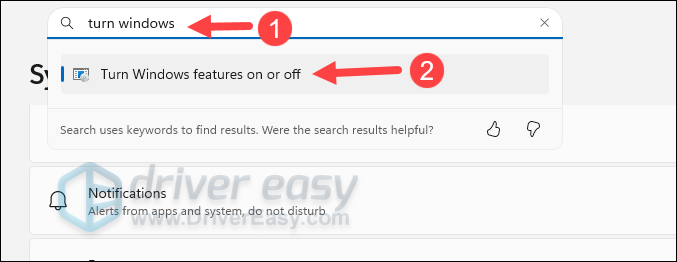
7. Enter turn windows features in the search bar at the top, and click Turn Windows features on or off.
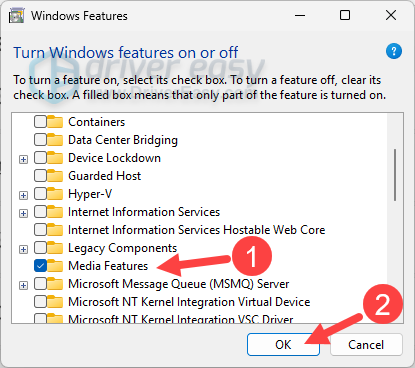
8. Tick Media Features and click OK.
Restart your computer to apply the changes and test the PS Remote Play.
Fix 7 – Update the graphics driver
If Remote Play launches but shows black screens or freezing screens, it might be related to your graphics driver. PS5 Remote Play uses HEVC (H.265) video streaming, which relies heavily on your GPU’s hardware video decoder.
A corrupted or outdated graphics driver can prevent proper decoding, leaving Remote Play malfunctioning. To update your graphics driver, you can do that manually: Visit the GPU manufacturer’s website: NVIDIA, AMD, or Intel, download the latest graphics driver corresponding to your GPU model and Windows version.
Or you can automatically update the graphics driver with Driver Easy. It automatically scans your entire computer, detects every outdated or corrupted driver, and downloads the correct, certified updates directly from the official manufacturers. With just two clicks, it updates your graphics driver alongside your motherboard chipset and audio drivers, giving you enhanced PC performance.
1. Download and install Driver Easy.
2. Run Driver Easy and click the Scan Now button. Driver Easy will then scan your computer and detect any problem drivers.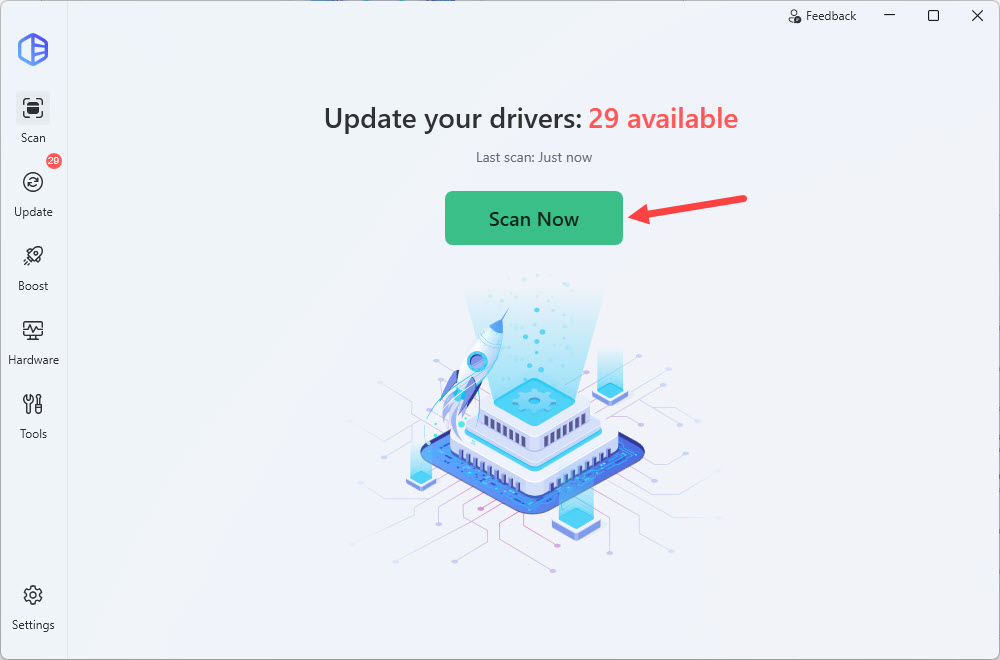
3. Click the Update button next to the flagged device to automatically download and install the correct version of this driver. Or click Update All to automatically download and install the correct version of all the drivers that are missing or out of date on your system.
You’ll need the Pro version for this – when you select Update All, you’ll get a prompt to upgrade. If you’re not prepared to purchase the Pro version yet, Driver Easy provides a 7-day trial at no cost, granting access to all Pro features like fast downloads, easy installation, and full technical support. No charges will occur until after your 7-day trial period ends.)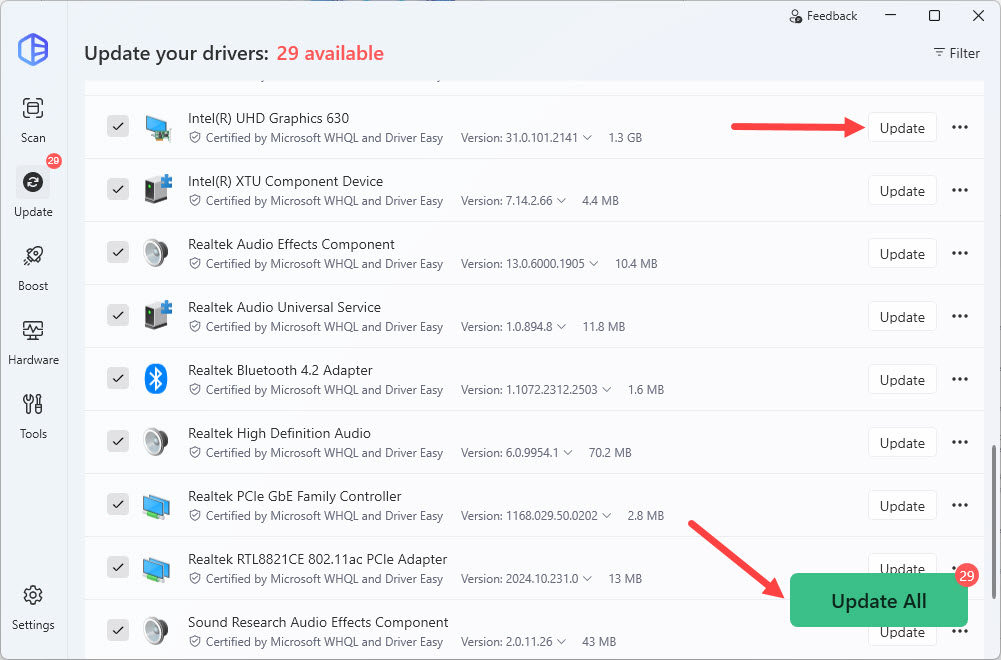
Restart your computer for the change to take effect. Launch Remote Play to see if it runs smoothly.
Fix 8 – Check the NAT type
NAT stands for Network Address Translation. It indicates how easily your console can communicate with game servers and other players’ consoles. The PS4/PS5 should work best on NAT Type 1 (Open) and NAT Type 2 (Moderate). When PS4/PS5 is working on the NAT Type 3 – the most strict level of network accessibility, it might cause issues while gaming.
Type 1 (Open): Your PS4/PS5 directly connects to the Internet.
Type 2 (Moderate): Your PS4/PS5 connects to the Internet with a router.
Type 3 (Strict): Your router is highly restrictive, blocking many incoming and outgoing traffic. This can prevent Remote Play from working, triggering connection failures with multiplayer mode and voice chat.
To view the NAT type, check Settings on your console. Select Network > View Connection Status. If it’s Type 3, try changing it to Type 2 or Type 1 to improve the device’s network status. Also, note down the IP address. If your PS is currently on Type 1 and Type 2, there’s no need to change the NAT type; jump to the next fix.
You can’t directly change the NAT type in your console’s settings, but instead, need to do it through the router settings.
1. Take a look at the back of your router, and you should find an IP address, username, and password.
2. Open your browser on PC or mobile phone, then type the IP address in your browser, and press Enter.
3. Go to Advanced > Forwarding, and set the UPnP Status to Enabled.
5. Click Apply/Save to save your settings.
6. Back to the router settings, go to a section like Port Forwarding, Virtual Servers, applications, where you can forward ports. Add new ports as follows. Make sure to assign your console’s IP address to each of these ports.
- TCP: 80, 443, 3478, 3479, 3480
- UDP: 3478, 3479
Apply the settings and restart your router. Check the NAT type on your console, and it should be changed to Type 1 now. Test the PS Remote Play. If the problem persists, move on to the next solution.
Fix 9 – Disable VPN and proxies
Remote Play relies on direct peer-to-peer UDP connections. If you’re using a VPN or proxy, the connections might be wrapped in an encrypted tunnel that the Remote Play protocol doesn’t handle.
To identify the cause, simply disable the VPN software as well as the proxies you’re using before launching Remote Play.
Fix 10 – Disable IPv6 on the PC
If the application connects and then drops after 30 to 90 seconds of streaming, and the same thing happens after you reconnect, these patterns might indicate an IPv6 routing issue. You can disable IPv6 on your Windows PC and test.
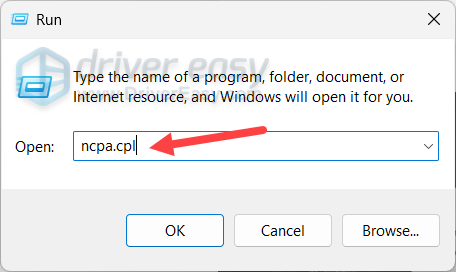
1. On your keyboard, press the Windows key and R at the same time to open the Run box.
2. Enter ncpa.cpl and press Enter.
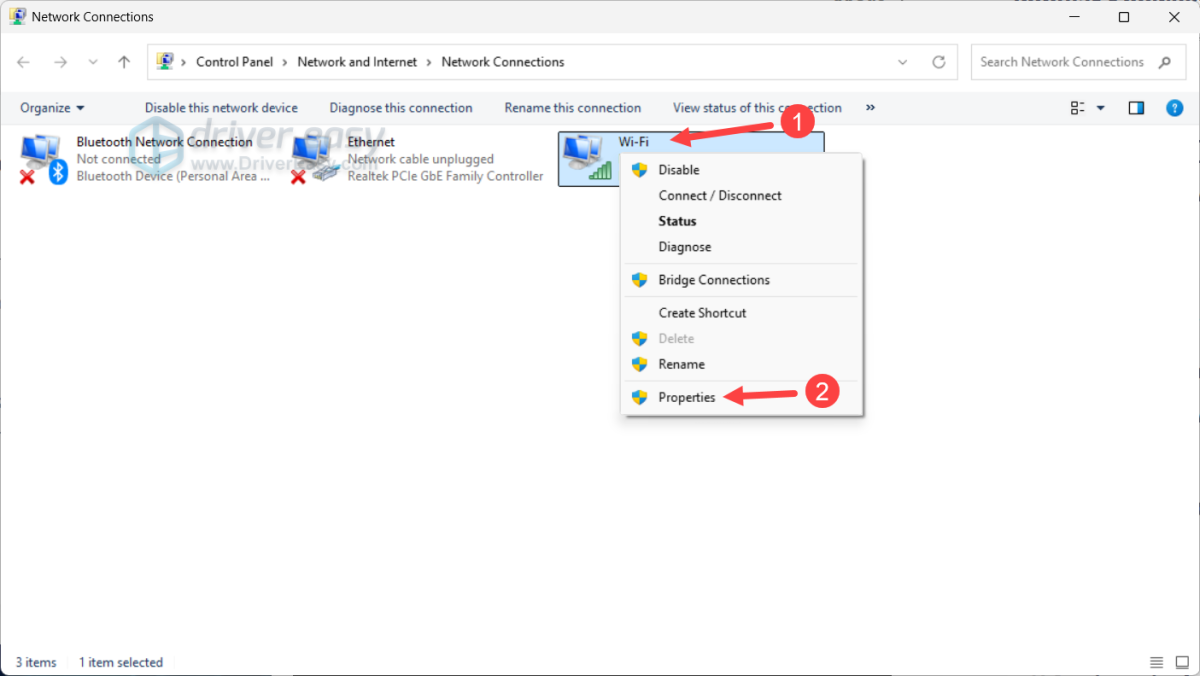
3. Right-click the network adapter you’re using and select Properties.
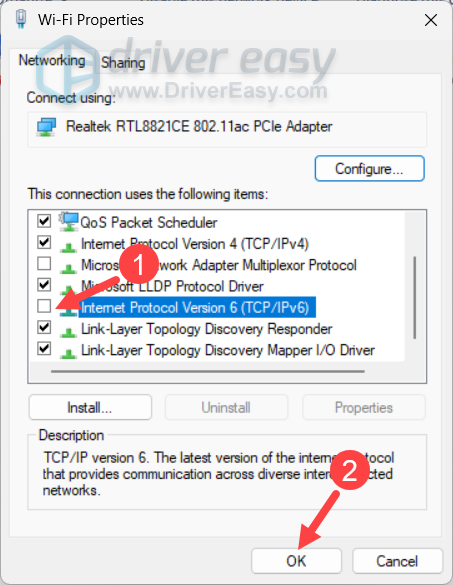
4. Scroll down and uncheck Internet Protocol Version 6 (TCP/IPv6). Click OK.
Restart the Remote Play app. This change won’t break anything else on your PC. IPv4 handles everything Remote Play needs. If this method doesn’t resolve the issue, you can enable IPv6 again.
If you’ve tried all the fixes above but Remote Play still crashes on launch, won’t connect, or drops the stream every few minutes, consider trying Chiaki-ng. It’s an open-source Remote Play client that runs on Windows, Linux, Steam Deck, and Android, which, as many users reported, is more stable than Sony’s official applications.
Found any effective solutions to fix the PS Remote Play? Feel free to share it in the comments below.