






The release of Assassin’s Creed Black Flag Resynced brings Edward Kenway’s classic pirate adventure into a stunning, modern engine environment. However, many players reported that the game is unplayable, either crashing with a DX12 0x887A0006 error or stuttering badly, even on a high-end PC. If you’re experiencing a similar issue, don’t worry. This guide walks through the most effective troubleshooting steps.
Make sure your PC meets the minimum requirements
Before we dig into the fix, let’s rule out the obvious. The Resynced remaster is more demanding than the 2013 original. To play the game, your hardware should meet these requirements:
| Minimum | Recommended | |
| Operating system | Windows 10 (64-bit), Windows 11 | Windows 10 (64-bit), Windows 11 |
| Processor | AMD Ryzen 5 3600 @ 3.6 GHz, Intel Core i7-8700K @ 3.7 GHz, or better | AMD Ryzen 5 3600 @ 3.6 GHz, Intel Core i5-10600K @ 4.1 GHz, or better |
| RAM | 16 GB | 16 GB |
| Video card | AMD Radeon RX 5500 XT (8 GB), Intel ARC A580 (8 GB), NVIDIA GeForce GTX 1660 (6 GB), or better | AMD Radeon RX 6600 XT (8 GB), Intel ARC B580 (12 GB), NVIDIA GeForce RTX 3060 (12 GB), or better |
| Storage | 65 GB available (SSD required) | 65 GB available (SSD required) |
| DirectX version | DirectX 12 | DirectX 12 |
If your specs fall below these, the crash might be hardware-related. Your system is struggling to keep up with the DX12 renderer. If you meet or exceed them (and most modern gaming PCs do), the problem is software. Keep reading the fixes below.
How to fix AC Black Flag Resynced crashing
You don’t need to reinstall Windows or the game. You don’t need new hardware. Here are X fixes for the AC Black Flag Resynced crashing or stuttering. Just work your way down the list until you find the one that does the trick.
- Clear shader cache
- Update your graphics driver
- Verify the game files
- Run the game and launcher as an administrator
- Adjust the CPU affinity (to fix game stuttering)
Fix 1 – Clear shader cache
Outdated, fragmented, or corrupt shader files are the primary triggers for the DirectX crashes. You can simply clear the cache data to rebuild the shaders. Here’s how:
- On your keyboard, press the Windows logo key and R to invoke the Run command box.
- Enter %userprofile%\Documents and press Enter.
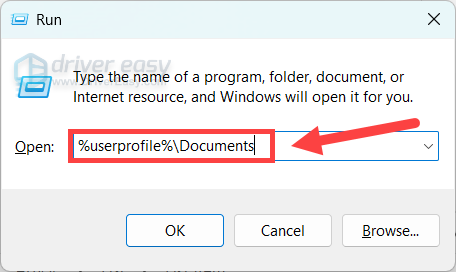
- Open the Assassin’s Creed Black Flag Resynced folder, and delete the cache folder.
You’ll also need to delete the GPU shader cache:
For NVIDIA users
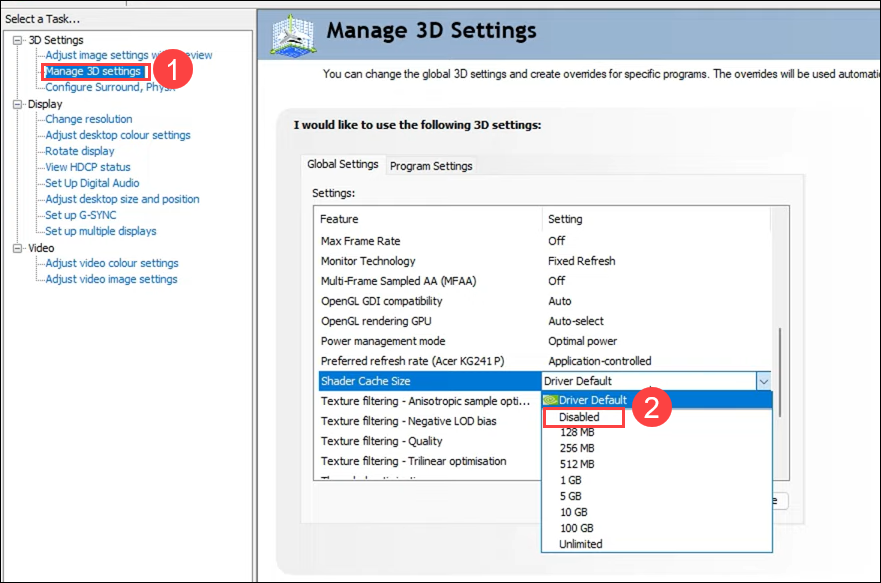
1. Open the NVIDIA Control Panel or the NVIDIA app, go to Manage 3D Settings, find Shader Cache, set it to Disabled, and click Apply.
2. On your keyboard, press the Windows logo key and R to open the Run dialog. Type %localappdata% and hit Enter.
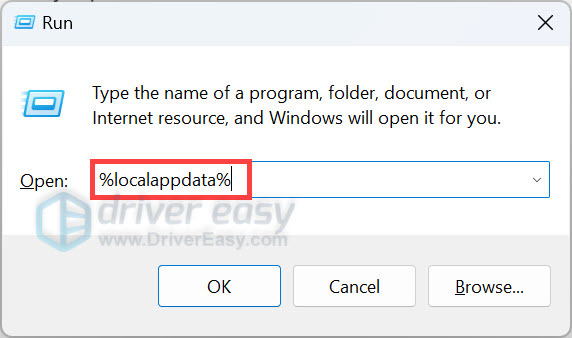
3. Open the NVIDIA folder. Open the DXCache and GLCache (if available) folders, and delete all the files inside them.
4. Go back to the NVIDIA Control Panel and re-enable the Shader Cache (Driver Default/On).
For AMD users
1. Open your AMD Software: Adrenalin Edition. Then go to Gaming > Graphics.
2. Click the Reset button next to Perform Reset, and click OK to confirm.
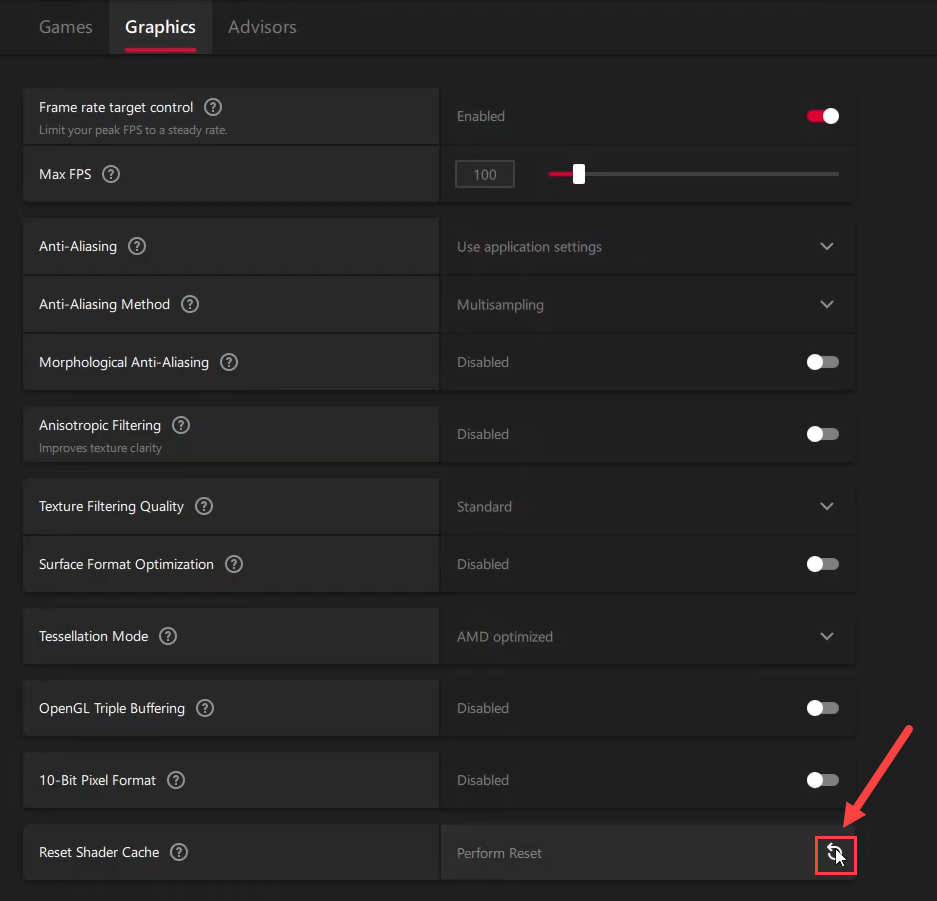
Restart your PC after deleting the shader cache. The next time you launch AC Black Flag Resynced, the shader cache will be rebuilt automatically. The first launch may take a little longer than usual, which is expected. If the crashes still happen, check out the next solution.
Check if the game can run smoothly now. If not, move on to the next fix.
Fix 2 – Update your graphics driver
The very first thing to troubleshoot a game crash is to check your GPU driver. Outdated or incompatible drivers are one of the most common causes of gaming problems. Make sure you’re running the latest GPU driver for the best game stability and performance.
Graphics card manufacturers like NVIDIA, AMD, and Intel regularly release “Game Ready” drivers specifically optimized for new titles like AC Black Flag Resynced. You can usually download them from their official website and install the driver manually.
NVIDIA Game Ready Driver 617.42
AMD Adrenalin Edition 26.8.1
Intel Arc Graphics Driver 32.0.101.9034
These drivers are now available in Driver Easy for one-click update!
If you don’t have the time and patience to hunt down the correct drivers or install them on your own, you can try Driver Easy. Driver Easy is a trusted and powerful driver updater that can scan your entire computer and update any outdated or missing drivers. It gets the latest graphics driver directly from manufacturers and ensures they’re safe and stable through a rigorous testing process.
Besides, it updates not just your graphics card, but every single piece of hardware. Here’s how to use it:
- Download and install Driver Easy.
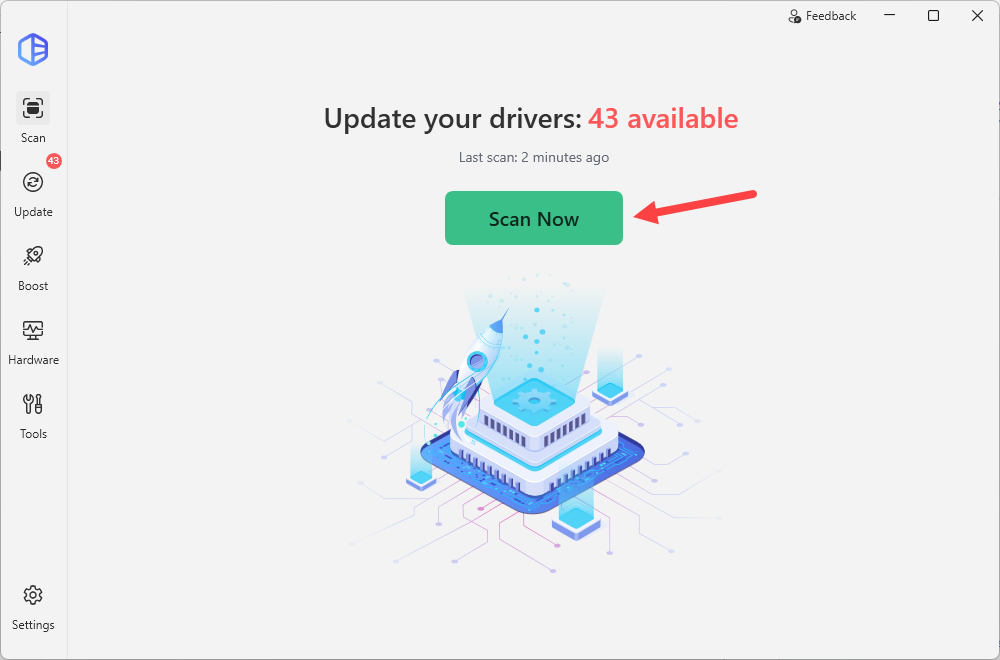
- Run Driver Easy and click the Scan Now button. Driver Easy will then scan your computer and detect any problem drivers.
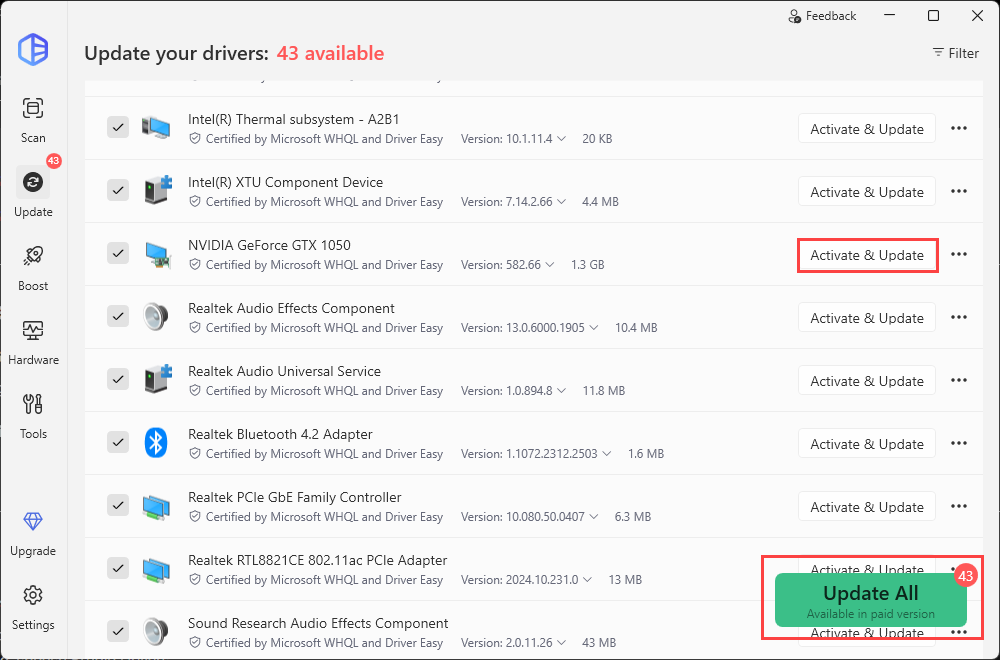
- Click the Activate & Update button to update your graphics driver, or click Update All to automatically install the correct version of all the drivers that are missing or out of date on your system.
Fix 3 – Verify the game files
Corrupted or incomplete game files can cause random crashes, especially after patches or interrupted downloads. An effective fix is to verify the game files directly via your game launcher.
On Steam
- Launch Steam. In the LIBRARY, right-click on your game and select Properties from the drop-down menu.
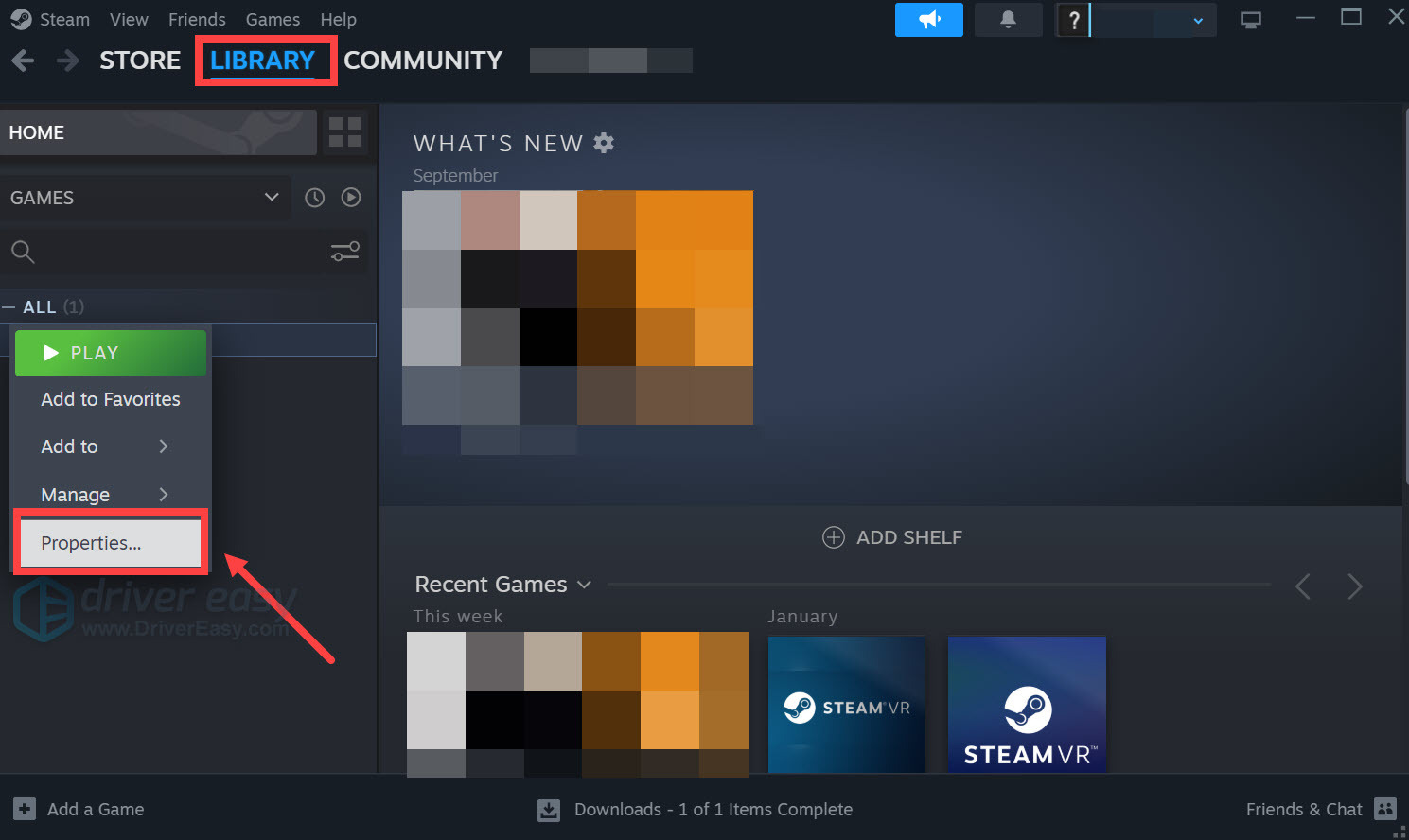
- Select the Installed Files tab and click Verify integrity of game files.
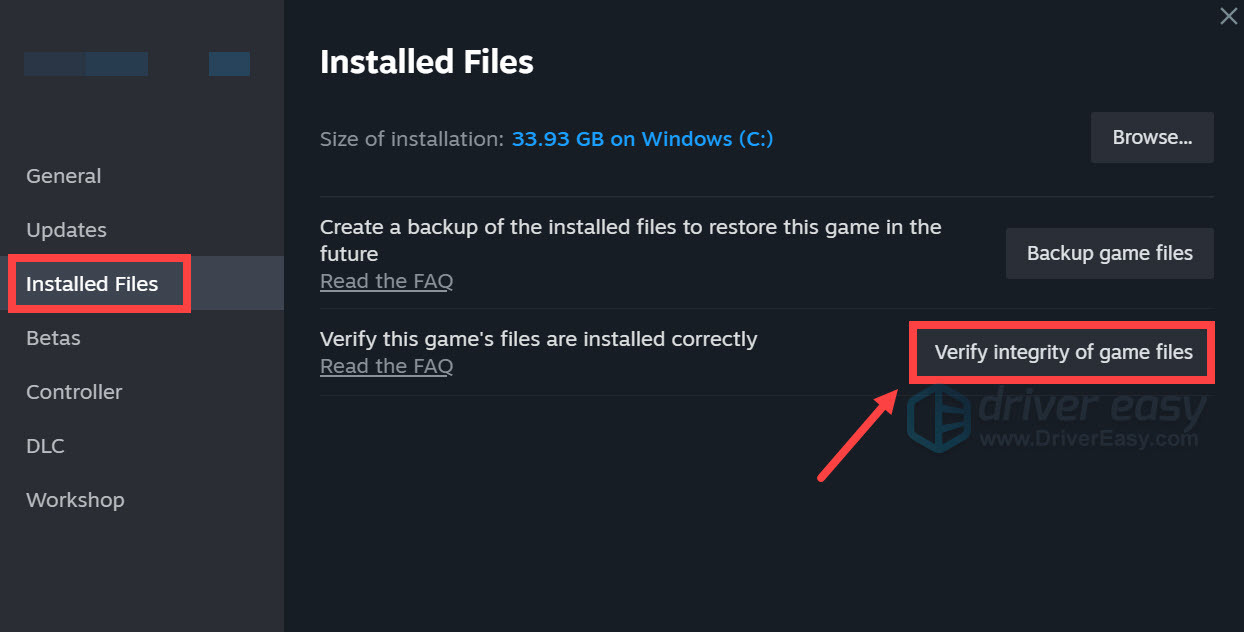
- Steam will verify if any game files are missing or corrupted.
On Ubisoft Connect
- Open Ubisoft Connect and locate Assassin’s Creed Black Flag Resynced under the Games tab.
- Select Properties, then Verify files under Local files.
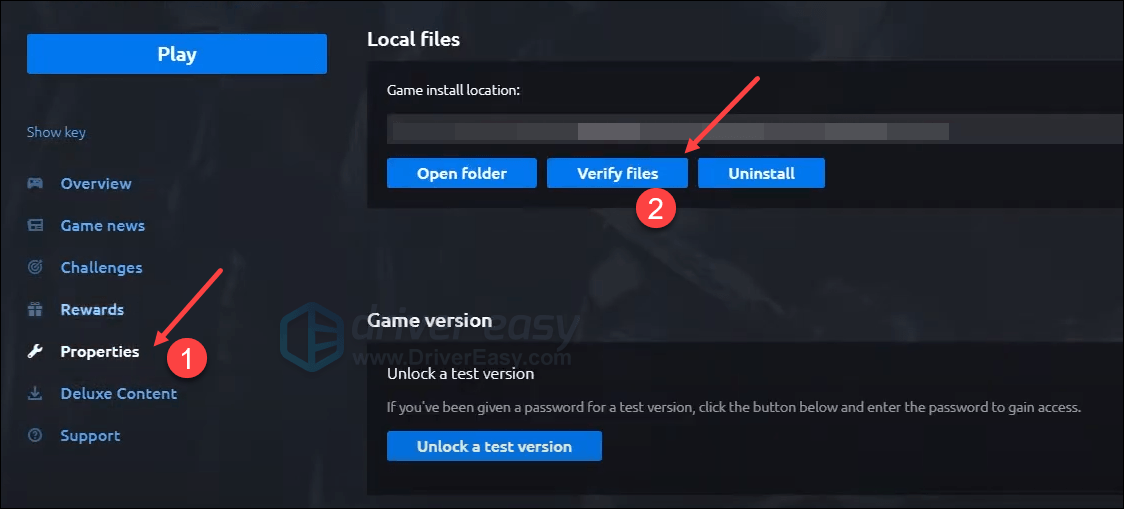
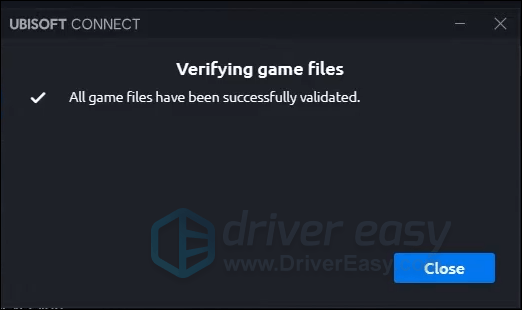
- If prompted, select Repair. Ubisoft Connect will then download and restore any missing or corrupted files.
Fix 4 – Run the game and launcher as an administrator
In some cases, Windows permissions can prevent the game or launcher from accessing certain files or folders it needs during startup. Running both applications as an administrator may help avoid these permission-related issues.
- Open your game installation folder.
- Right-click ACBlackFlagResynced.exe and select Properties.
- Go to the Compatibility tab, and check Run this program as an administrator.
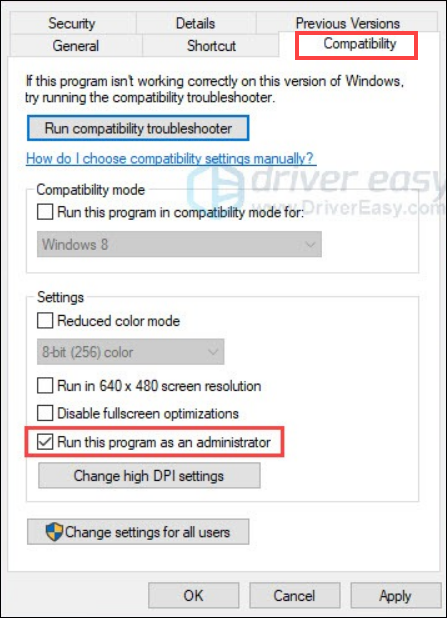
- Click Apply, then OK.
Also do the same for your game launcher (such as UbisoftConnect.exe or Steam.exe), then launch the game and check whether the crash still occurs.
Fix 5 – Change CPU affinity (to fix game stutters)
If the game doesn’t crash but suffers from frequent micro-stutters or frame-time spikes, especially in dense areas, you can try changing the game’s CPU affinity using a third-party utility like Process Lasso.
- Download and install Process Lasso.
- Launch Assassin’s Creed Black Flag Resynced and leave it running. Then open Process Lasso.
- Locate the game’s executable in the process list.
- Right-click it and choose CPU Affinity.
- First, clear all CPU selections, then enable only the CPUs marked with an “E” (for example, CPU 16E, CPU 17E, etc.).
Apply the change and test the game for several minutes. If the stuttering doesn’t improve—or performance becomes worse—restore the default affinity and try the opposite configuration by enabling only the CPUs without the “E” suffix.
If you’ve completed every step above and the game still crashes, the issue may be related to a bug in the current game version rather than your PC. In that case, it’s recommended that you contact the official support for further assistance, or simply wait for a future game patch if the issue is widespread.
Have any questions or suggestions? Feel free to drop your comment below.