






After years since the game landed, many players still complain that Cyberpunk 2077 keeps crashing on PC. It can happen at launch, while loading a save, or several minutes into gameplay. You may see a flatline error, a “GPU Crash for unknown reasons!” message, a frozen screen, or simply a crash back to the desktop.
If you’re getting frustrated by the same problem, don’t worry. This post will walk you through 9 fixes for Cyberpunk 2077 crashing on PC.
Fixes to try:
Work through the fixes in order. You don’t need to try all nine if an earlier solution resolves the problem.
- Reset the user settings file
- Update your graphics driver
- Verify the integrity of game files
- Disable in-game overlay
- Close unnecessary programs
- Troubleshoot the REDlauncher
- Adjust in-game settings
- Stop overclocking
- Reinstall Cyberpunk 2077
Before you proceed to the steps below, please make sure your setup meets the current game system requirements.
Fix 1- Reset the user settings file
If Cyberpunk 2077 started crashing after you changed graphics or control settings, you can simply try resetting the UserSettings.json file.
- On your keyboard, press the Windows key + R to open the Run command.
- Paste %userprofile%\AppData\Local\CD Projekt Red\Cyberpunk 2077 and press Enter.
- Find UserSettings.json.
- Copy the file to your Desktop as a backup.
- Delete the original UserSettings.json. This may restore some game settings to their defaults.
Launch Cyberpunk 2077 again, and the game should recreate the settings file when it starts. It will tell you user settings data appears to be corrupted and will be replaced with default settings. Just click OK to confirm. Then see if the game runs without crashes. If not, move on to the second fix.
Fix 2 – Update your graphics driver
Cyberpunk 2077 crashing is most likely caused by an outdated or faulty graphics driver. The latest games or new patches usually come up with compatibility issues. To ensure a smooth gaming experience, you should keep your graphics driver up-to-date all the time.
There are mainly two ways for you to update the graphics driver:
Option 1 – Manually – Graphics card manufacturers will roll out graphics drivers optimized for the latest titles on a regular basis. You can download the most recent correct driver from their websites (AMD or NVIDIA) and install it manually.
Option 2 – Automatically (Recommended) – If you don’t have the time, patience or computer skills to update your video driver manually, you can, instead, do it automatically with Driver Easy. Driver Easy will automatically recognize your system and find the correct drivers for your exact GPU and your Windows version, and it will download and install them correctly:
- Download and install Driver Easy.
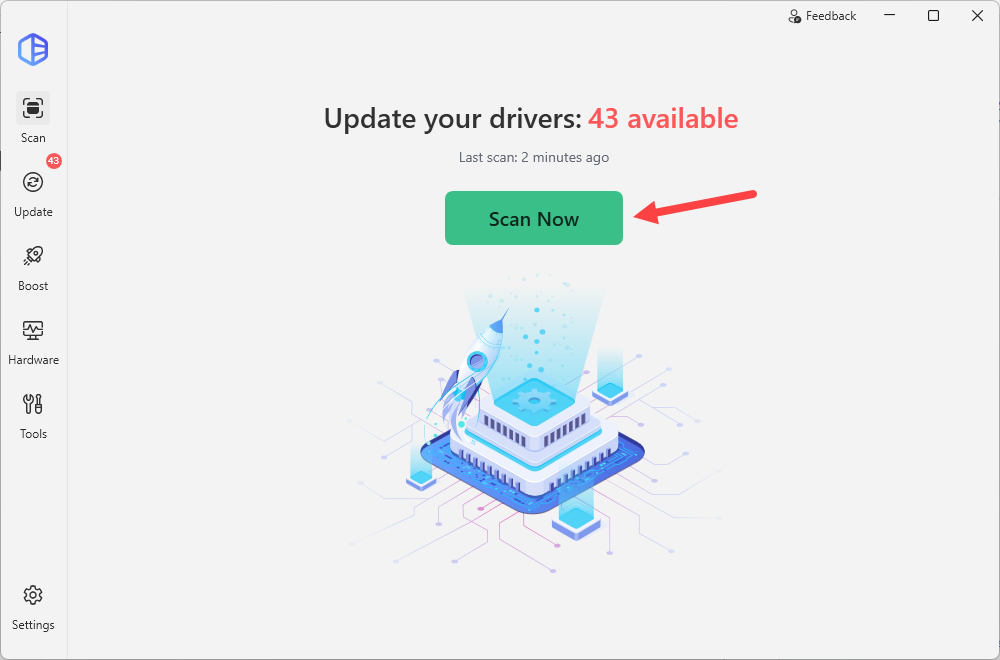
- Run Driver Easy and click the Scan Now button. Driver Easy will then scan your computer and detect any problem drivers.
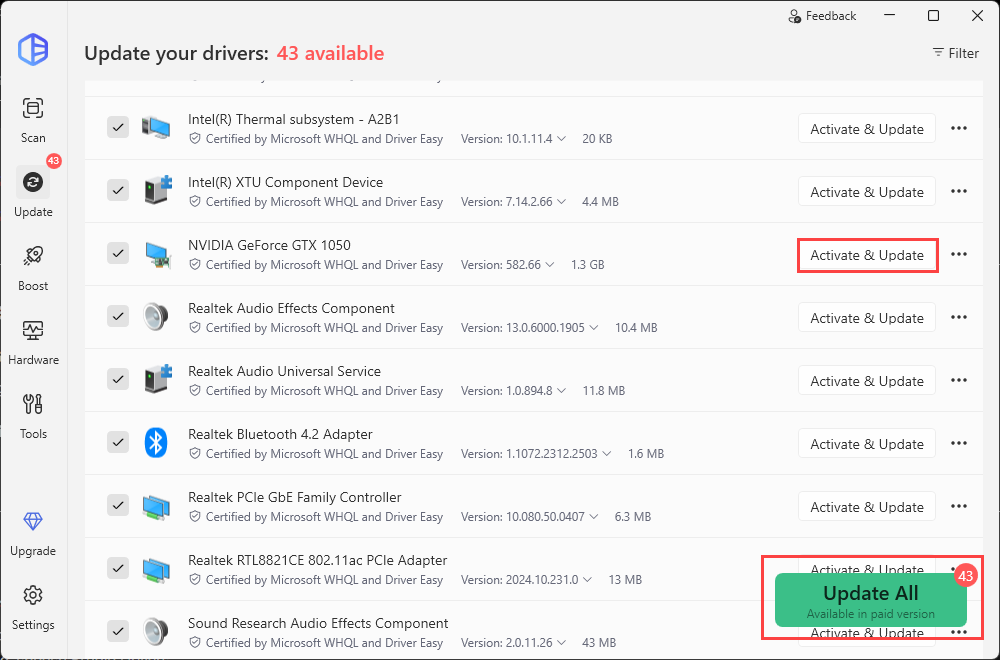
- Click the Activate & Update button next to the flagged graphics driver to automatically update the correct version of that driver. Or click Update All to automatically download and install the correct version of all the drivers that are missing or out of date on your system.
Driver Easy Pro provides you with hassle-free driver installations as well as full technical features and support. You’ll be prompted to upgrade when you install the drivers. If you’re not ready to buy the Pro version, you can start a 7-day free trial to unlock all the premium features.
If you need assistance, please contact Driver Easy’s support team at support@drivereasy.com.
How does your game work with the newly-installed graphics driver? If it crashes again, head towards the second fix below.
Fix 3 – Verify the integrity of game files
Validating the game files is a necessary step whenever game crashes occur. Select your gaming platform (Steam, GOG or Epic Games Launcher), and follow the steps to repair missing or corrupted game files.
On Steam
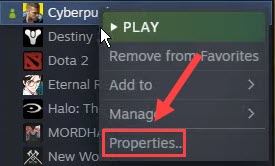
- Open your Steam client and go to the Library tab. Right-click Cyberpunk 2077 from the game list and click Properties.
- Select the Local Files tab and click Verify Integrity of Game Files.
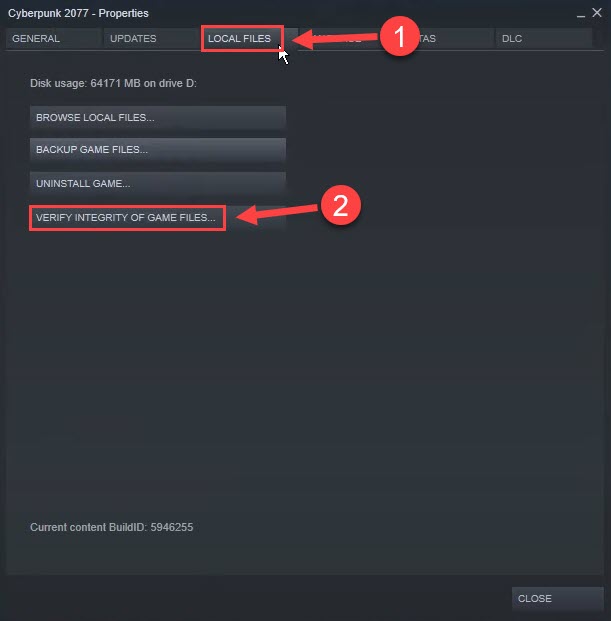
Relaunch Cyberpunk 2077 to test. If it still fails to work, try Fix 4.
On GOG
- Launch GOG Galaxy and select Cyberpunk 2077 from the Library section.
- Click the settings icon next to the Play button. Then, click Manage installation > Verify / Repair.
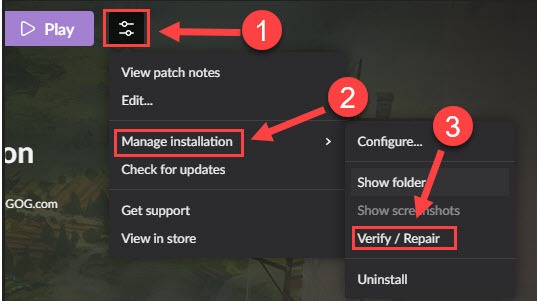
Wait for the process to complete and check whether you can play the game normally now. If not, proceed to Fix 4.
On Epic Games Launcher
- Run the Epic Games Launcher, and navigate to the Library tab in the left pane.
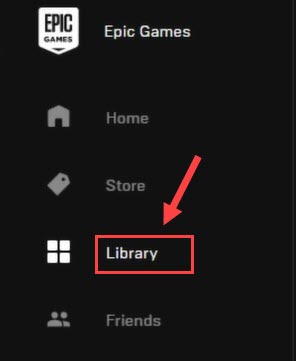
- Click the Cyberpunk 2077 tile and click the icons with three dots next to it. Then, click Verify.

Test the game after the process finishes. If crashing persists, check out the next method below.
Fix 4 – Disable in-game overlay
According to many players, the in-game overlay will cause Cyberpunk 2077 to crash, especially if you’re playing on GOG. You can simply turn off this feature to see if the game performance improves.
- Open GOG Galaxy and select the Library tab.
- Click the gear icon in the bottom left corner.
- On the pop-up window, untick In-Game Overlay and click Ok.
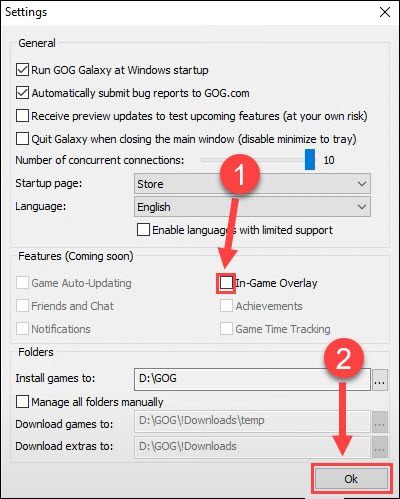
If you’re playing the game on Steam and also hope to disable the overlay, right-click Cyberpunk 2077 from the game list and select Properties. Then, untick Enable the Steam Overlay while in-game.
You may also disable overlays from applications such as Discord, Steam, NVIDIA app, AMD Software: Adrenalin Edition, and Xbox Game Bar.
If this fix doesn’t help your case, keep reading other solutions below.
Fix 5 – Close unnecessary programs
Other non-essential programs running in the background may take up many system resources required for Cyberpunk 2077 to work properly.
In particular, overlays and hardware-monitoring utilities and antivirus/anti-malware programs can sometimes conflict with games or the graphics drivers.
So before you start gaming, make sure to shut down all unneeded programs.
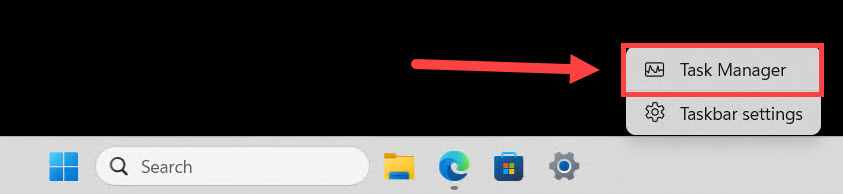
- Right-click any empty area on the taskbar and click Task Manager.
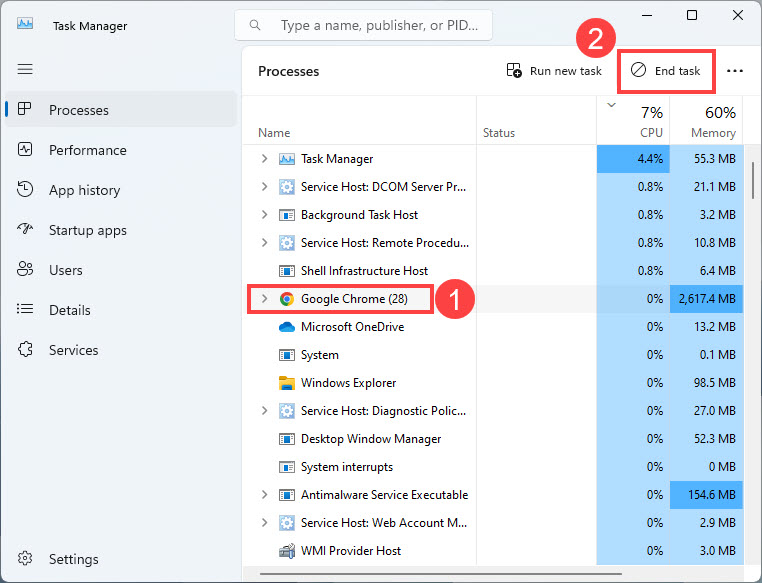
- Select the resource-hungry applications and click End task to close them one by one.
Run the game and see how things go. If this trick can’t get your game back on track either, there are a few more fixes to try.
Fix 6 – Troubleshoot the REDlauncher
If Cyberpunk 2077 crashes or fails before the game reaches the main menu, the launcher itself may be corrupted. You can delete its temporary files to force a clean reinstall.
- Press the Windows key + R to open the Run box.
- Type %localappdata%\Programs\CD Projekt Red\ and press Enter.
- Delete the REDlauncher folder.
Launch the game to see if the problem is solved.
Fix 7 – Adjust in-game settings
If you’re able to launch Cyberpunk 2077 and access the menu, lowering certain in-game graphics settings can reduce the stress on your GPU and thus mitigate crashing. Many players also suggested disabling Ray Tracing, as this option may undermine the gameplay.
If you recently changed one setting and the crashes began immediately afterward, revert that change first.
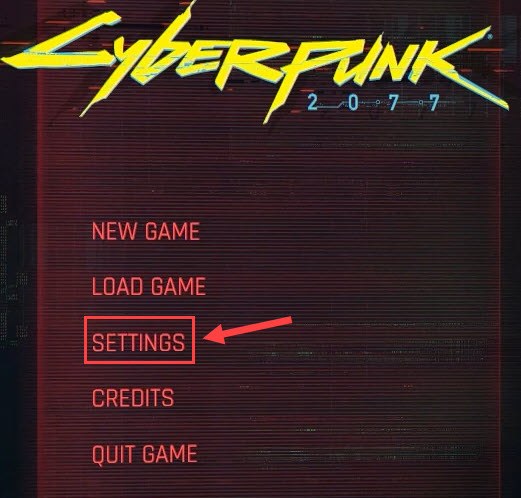
- Run Cyberpunk 2077 and click the Settings menu.
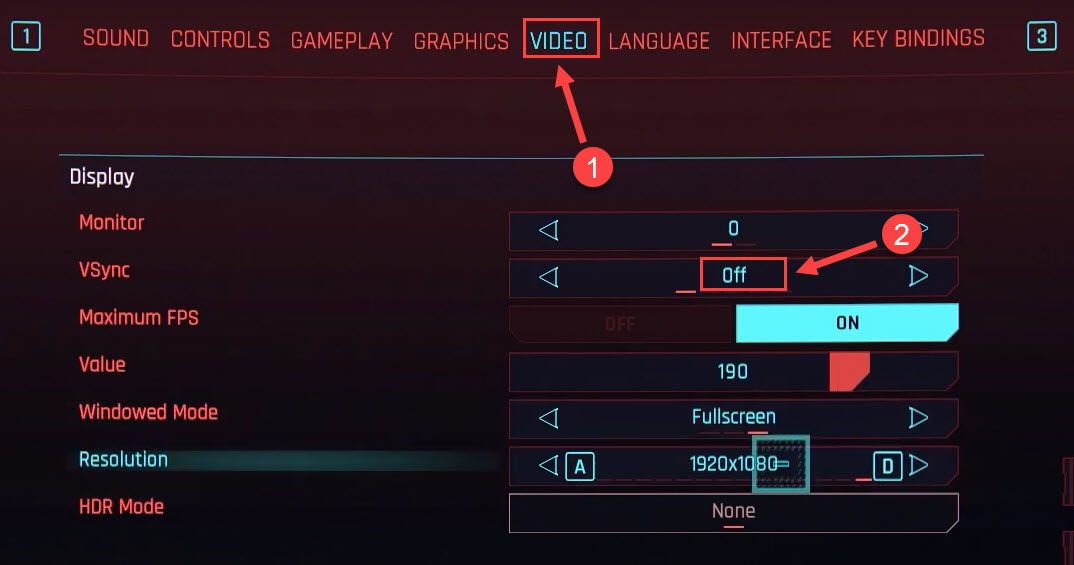
- Select the Video tab. Then, turn off VSync.
- Navigate to the Graphics tab and set the options under the Advanced section to Low or Medium.
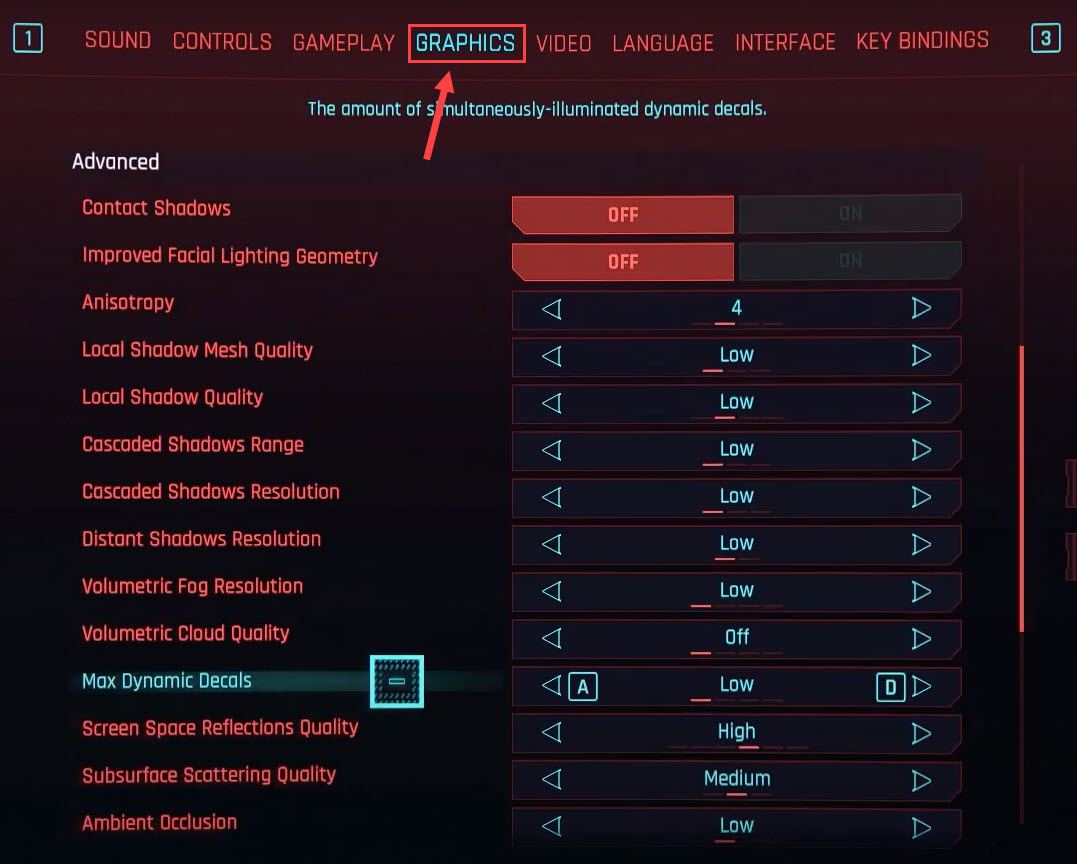
- Scroll down to turn off Ray Tracing.

Also disable Frame Generation temporarily and lower the overall graphics preset. If your GPU has limited VRAM, reduce the texture quality as well.
Restart Cyberpunk 2077 and test its performance. If the crashes just won’t stop, move on to the last fix.
Fix 8 – Stop overclocking
Overclocking your CPU and GPU can give a boost in game performance but at the cost of system stability. Try turning off overclocking utilities like MSI Afterburner and setting the clock speed back to the default. If the crashes go away, then great! But if not, take a look at the next fix.
Fix 9 – Reinstall Cyberpunk 2077
A fresh reinstallation can effectively solve the stubborn issues during your previous installation. This should be a last resort if all the solutions above don’t work. You also need to delete all the remaining game files after the game is uninstalled. Before proceeding, make sure to back up your saves.
- Back up your saves from %userprofile%\Saved Games\CD Projekt Red\Cyberpunk 2077.
- Uninstall Cyberpunk 2077 from Steam, GOG Galaxy, or Epic Games.
- Delete the Cyberpunk 2077 installation folder as well as the relevant REDEngine and CD Projekt Red folders from %userprofile%\AppData\Local\.
- Restart your PC.
- Reinstall Cyberpunk 2077 on an SSD.
- Launch the clean installation without mods.
Start a new game or load a backed-up save and play without mods. If the clean installation is stable, restore your saves first, then add mods one at a time.
That’s all for Cyberpunk 2077 crashing on PC. The fixes above give you a safer and more efficient path from the most common software causes to the more drastic tweaks. If you have any questions or suggestions, feel free to leave a comment below.

