







You finally launch Halo: Campaign Evolved, eager to jump into the campaign. The splash screen appears, shaders begin compiling, and then…Crash.
Maybe the game closes during the login screen with a GPU Crash Dump error. Or perhaps it loads successfully but crashes to the desktop halfway through a mission.
Since launch, many PC players have reported Halo: Campaign Evolved crashes. The issue has appeared on both NVIDIA and AMD graphics cards, even on systems that run other demanding games without problems. In this guide, we’ll walk you through 4 quick & effective fixes for Halo: Campaign Evolved crashing on PC.
Make sure your PC meets the game’s requirements
Before trying the fixes below, make sure your PC meets the game’s minimum requirements. If your PC already exceeds the recommended specifications and other games run normally, the crashes are likely caused by software rather than faulty hardware.
Below are 4 fixes to try. We’ll start with the ones most commonly reported by the community.
Fix 1. Update (or roll back) your graphics driver
Difficulty: Easy
Success rate: ★★★★★
Based on launch-week community reports, graphics drivers appear to be the biggest factor behind Halo: Campaign Evolved crashes. So to fix the game crashes, the very first thing is dealing with your graphics driver, either updating it or rolling it back (when the newest version doesn’t solve your problem).
There are mainly two ways for you to update the graphics driver:
Option 1: Update your driver manually
Visit your GPU manufacturer’s website and install the latest recommended driver optimized for Halo: Campaign Evolved.
- NVIDIA (Update to the latest 621.01 version).
- AMD (Choose AMD Software: Adrenalin Edition 26.10.1 Driver).
- Intel (Update to the latest driver version 32.0.101.9150).
If you’re troubleshooting repeated crashes, consider performing a clean installation rather than installing over your existing driver.
Option 2: Update your driver automatically (Recommended)
If you don’t have the time or confidence to update drivers manually, you can do it automatically with Driver Easy.
Driver Easy automatically detects your system and finds the correct official drivers for your hardware, so you won’t have to keep searching for drivers online or worry about downloading counterfeit drivers or making a mistake during installation.
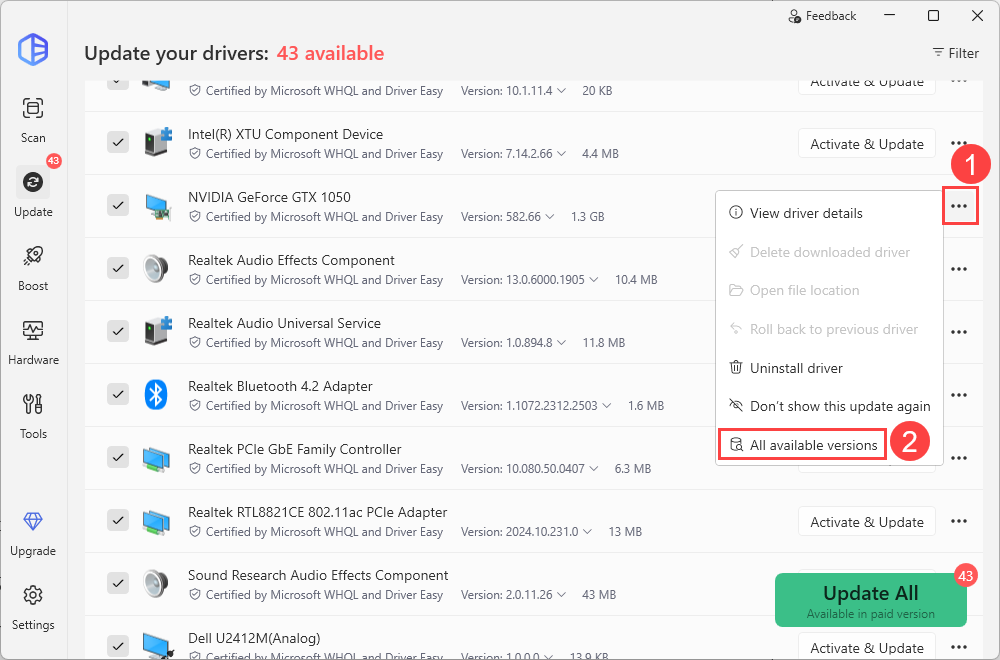
Driver Easy also allows you to roll back to any available driver versions in just one click.
1) Download and install Driver Easy.
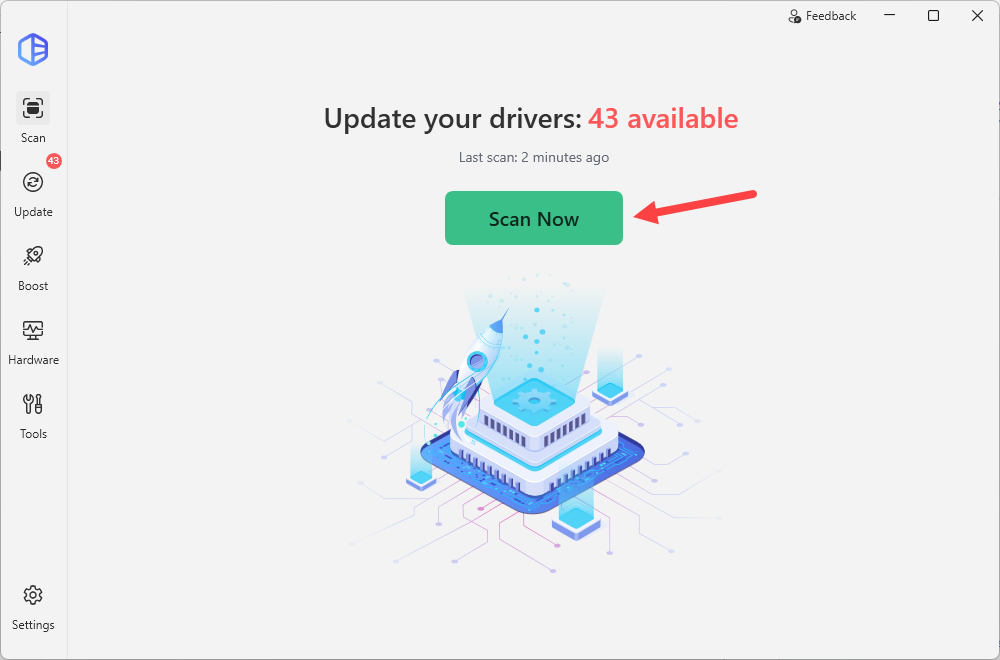
2) Launch Driver Easy and click Scan Now.
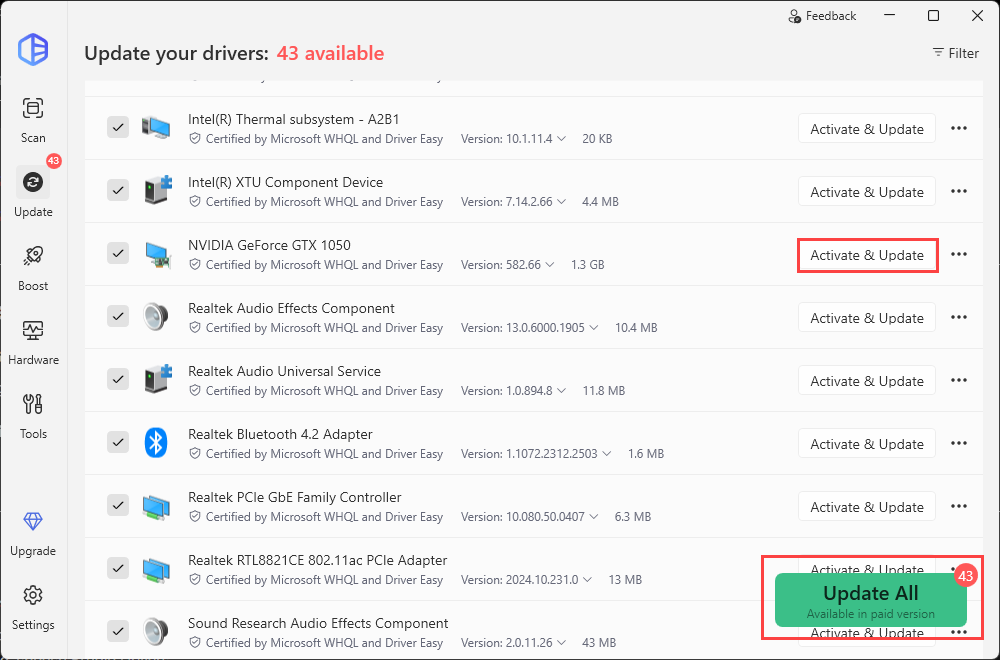
3) Click Activate & Update next to your graphics card, or click Update All to install all recommended drivers.
To roll back your graphics driver, click the three-dot button next to it and select All available versions. Simply choose a previous version from the list and click Install.
You’ll be prompted to upgrade to Driver Easy Pro when you update the driver. The Pro version provides high-speed driver installations and comes with a variety of advanced features. Not sure if it’s worth it? You can try all the Pro features through our 7-day free trial.
Restart your PC after installing the driver. Then launch Halo: Campaign Evolved to see how it works.
Fix 2. Remove the Artbook DLC
Difficulty: Easy
Success rate: ★★★★☆
This may seem like an unusual fix, but some players have reported that disabling the optional Premium Artbook DLC helped them get past crashes occurring during the login screen.
The exact reason is not confirmed yet. However, because the Artbook DLC is optional and does not contain gameplay content, disabling it is a safe troubleshooting step. This won’t affect campaign progress or gameplay content either.
You can always enable it again later if it does not affect stability.
1) Open Steam and go to your Library.
2) From the game list, right-click Halo: Campaign Evolved and select Properties.
3) Select DLC in the left menu.
4) Find Premium Artbook. Uncheck the box next to it.
5) Close the window and restart Steam.
Steam will automatically remove the DLC files if they are currently installed. Once completed, check if your game can launch smoothly.
Fix 3. Verify the integrity of game files
Difficulty: Easy
Success rate: ★★★☆☆
Corrupted or incomplete files are one of the major reasons for unexpected crashes. You can always use Steam’s built-in tool to check your installation and replace damaged files.
1) Open Steam and go to the Library.
2) Right-click Halo: Campaign Evolved. Select Properties.
3) Navigate to the Installed Files tab and click Verify integrity of game files.
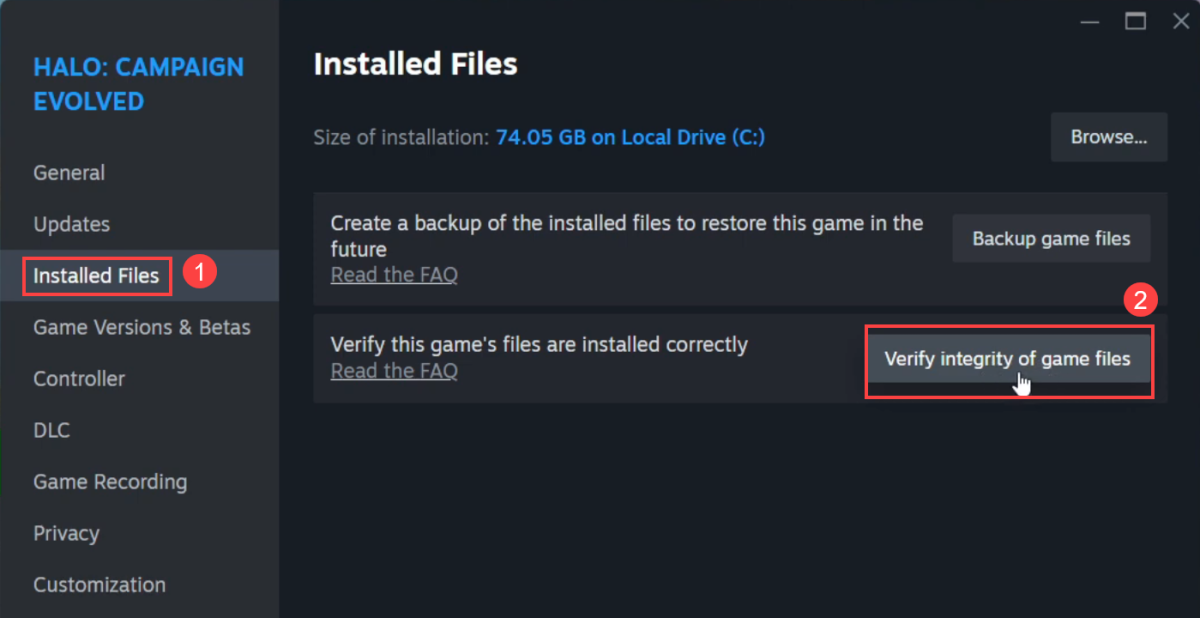
Wait for Steam to complete the scan, which should take 2-3 minutes. Steam will automatically download any missing or corrupted files. You can then restart Halo Campaign: Evolved to test its performance.
Fix 4. Optimize Windows and game settings
Difficulty: Medium
Success rate: ★★☆☆☆
If the game launches but you still experience stuttering, inconsistent performance, or occasional crashes, try these Windows-level optimizations. Apply them one at a time. Changing multiple settings together makes it difficult to identify which fix actually helped.
5.1 Disable Hardware-Accelerated GPU Scheduling (HAGS)
Hardware-Accelerated GPU Scheduling changes how Windows manages GPU workloads. While it can improve performance in some games, it may occasionally create compatibility issues with certain DirectX titles. Here’s how to disable it:
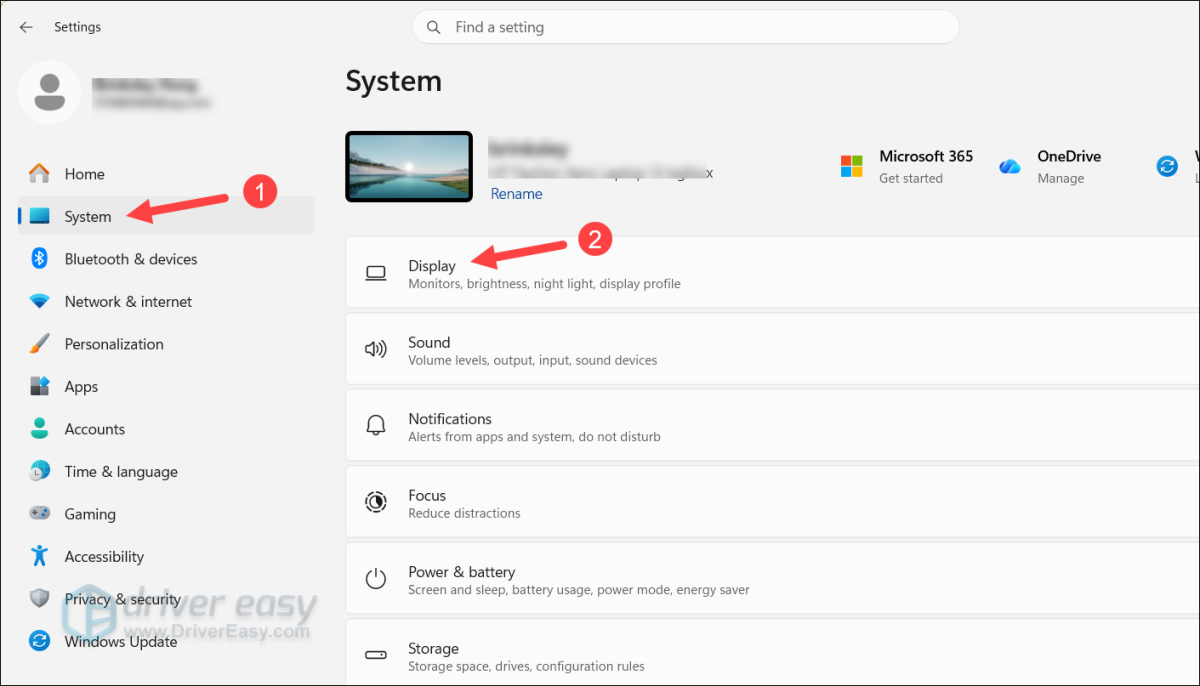
1) Press the Windows logo key + I on your keyboard to open the Windows Settings menu.
2) Select System and click Display.
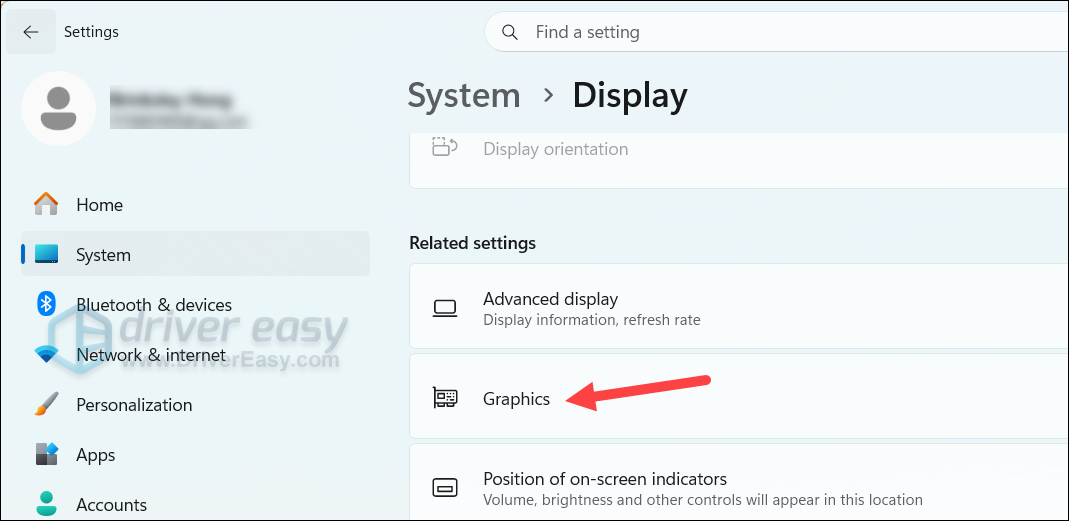
3) Scroll down and click Graphics.
4) Expand Advanced graphics settings and turn Hardware-accelerated GPU scheduling off.
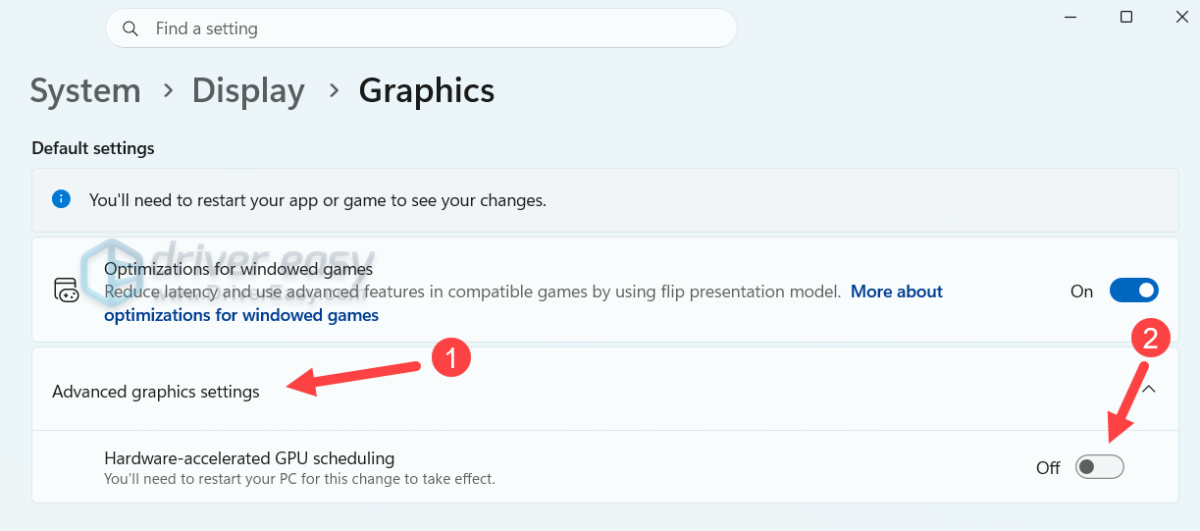
Restart your PC to apply the changes. Launch Halo: Campaign Evolved and test the same scenario that previously caused the crash. If it’s still unstable, read on…
5.2 Increase the game’s priority
Some players reported smoother gameplay after increasing the game’s process priority in Windows Task Manager.
Windows uses process priority to decide how much CPU scheduling attention an application receives. Setting Halo: Campaign Evolved to a higher priority may help reduce stuttering or frame-time spikes on some systems.
1) Launch Halo: Campaign Evolved.
2) Press Ctrl + Shift + Esc at the same time to open Task Manager.
3) Go to the Details tab.
4) Find the Halo Campaign: Evolved executable. Right-click it and select Set priority > Real-time.
5) Click Change priority to confirm.
Test the game and check whether random desktop crashes continue. If this fix doesn’t work, set the priority back to Normal and try the next method.
5.3 Turn off Narrate Screens
Some players reported that Halo: Campaign Evolved unexpectedly started reading menu items aloud during startup, even though Windows Narrator was disabled. If you’re encountering the same issue, the likely cause is the game’s built-in accessibility feature: Narrate Screens. You can try disabling it to see if that improves game stability.
1) Launch the game and open the Settings menu.
2) Go to Accessibility.
3) Uncheck Narrate Screens.
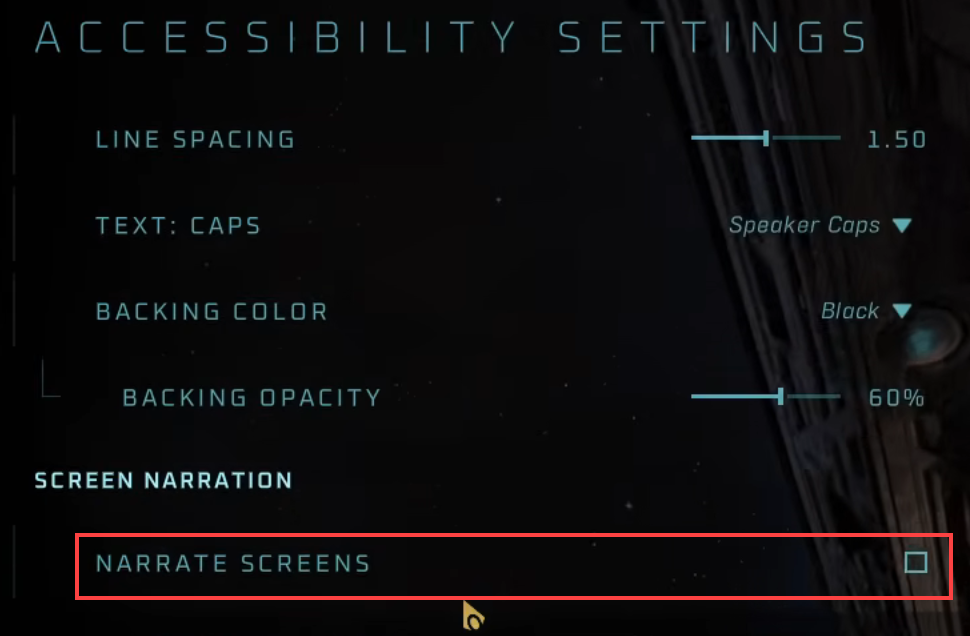
Restart Halo: Campaign Evolved and go through the login process to see if it crashes or triggers any errors. If so, try the next solution below.
5.4 Turn off V-Sync
V-Sync synchronizes your game’s frame rate with your monitor’s refresh rate to prevent screen tearing.
However, in some games, V-Sync can introduce additional frame pacing issues or increase GPU latency. If Halo: Campaign Evolved is crashing during gameplay or feels unstable despite normal temperatures and hardware tests, disabling V-Sync is worth trying.
Launch the game, go to Video Settings, and uncheck VSYNC to disable it.
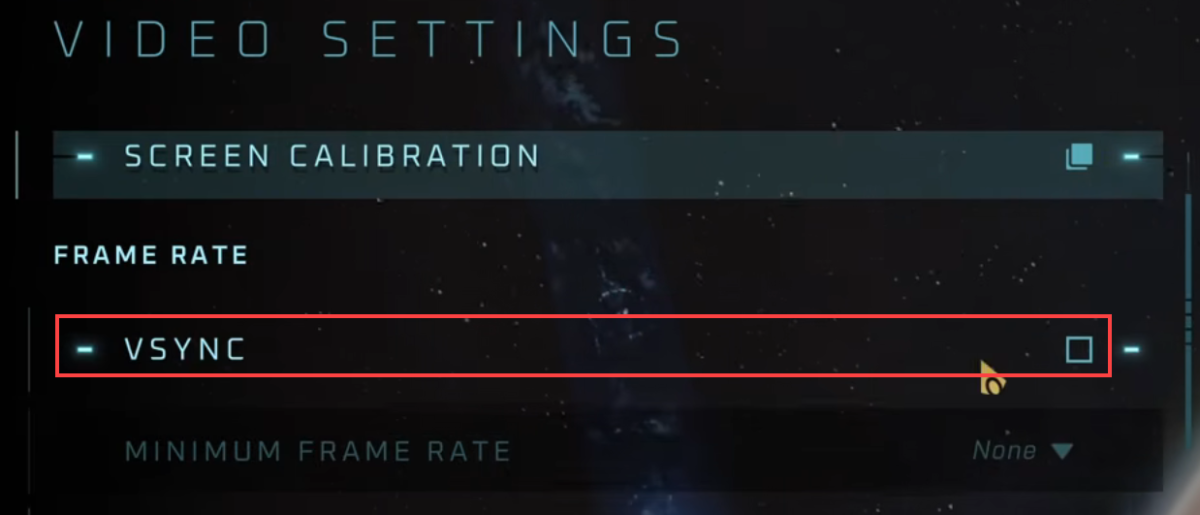
If you use NVIDIA or AMD Software, make sure to check whether V-Sync is being forced through your GPU driver panel.
5.5 Lower the in-game graphics settings
If Halo: Campaign Evolved crashes during intense scenes, your GPU may be running into VRAM pressure. To reduce memory usage, you can try lowering the game’s graphics settings, such as Effects Quality, Lighting Quality, and Texture Quality, etc.
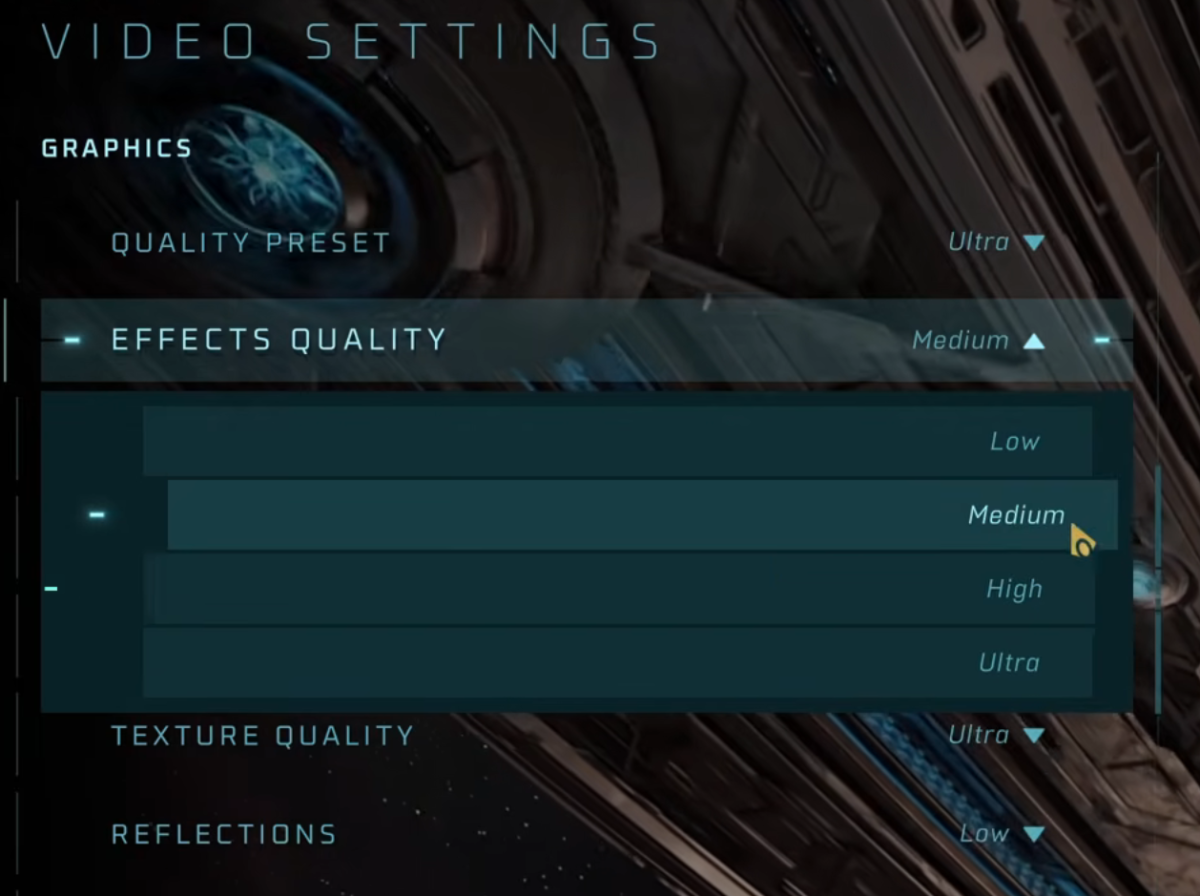
If the crash disappears after lowering settings, increase individual options gradually to find the unstable setting.
5.6 Tweak the upscaling settings
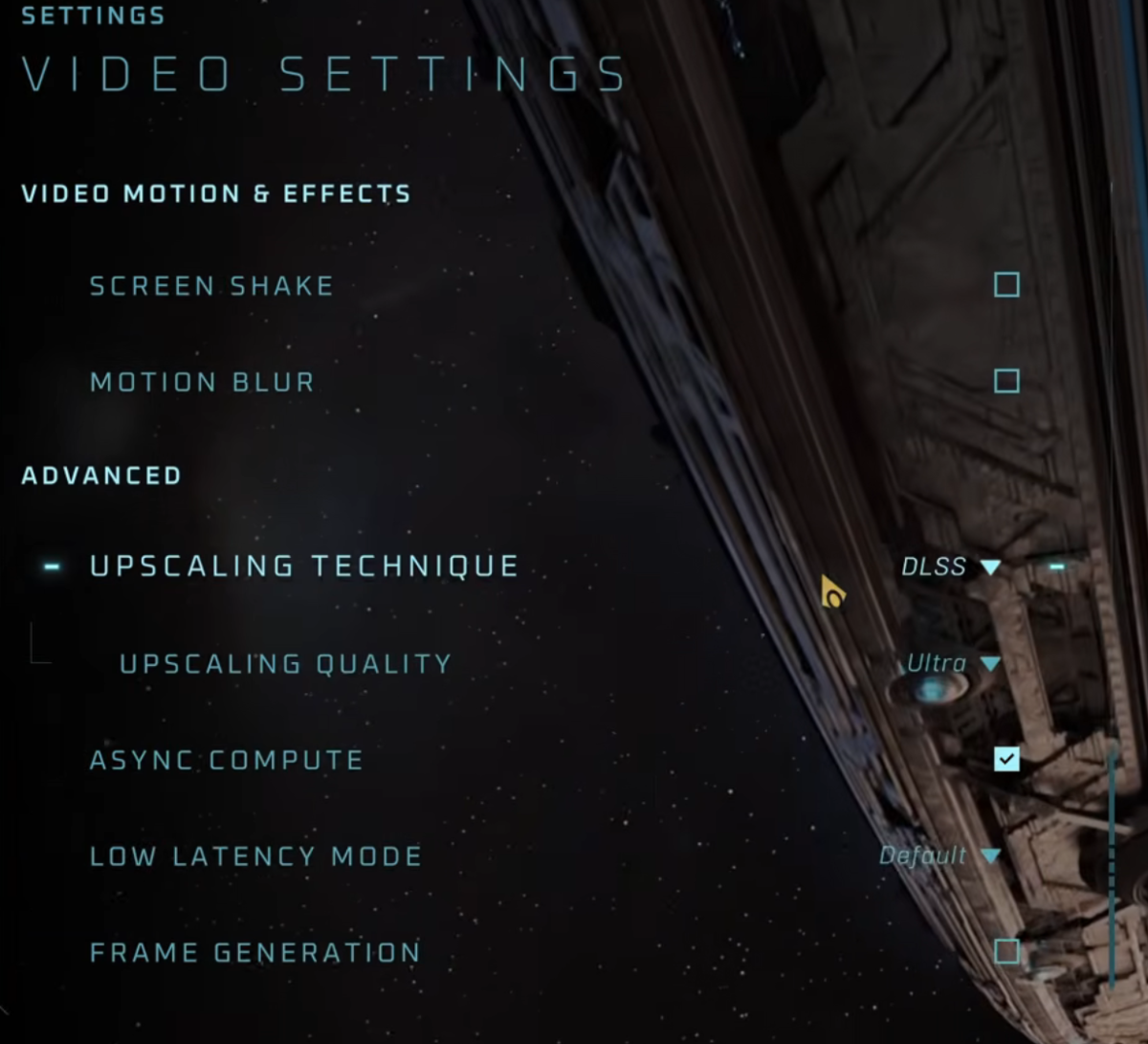
Halo Studios has identified several known issues related to upscaling and Frame Generation settings that can cause graphical glitches or make the game appear frozen. If you’re using these features, adjusting them may improve stability.
For the upscaling technique, if you’re using XeSS, it’s recommended that you disable Frame Generation and remove the in-game maximum frame rate limit. Or you can opt for FSR or DLSS with Frame Generation enabled.
If you’re using DLSS with the Low upscaling quality, you may notice visual grain, haze, or oversized lens flares. Try increasing the DLSS quality (for example, from Low to Medium or High) to see if the performance is improved.
Halo: Campaign Evolved crashing on PC can be frustrating, especially when your hardware runs every other game without problems. You can always start with the graphics driver fix and move through more advanced workarounds or tweaks.
The game was released recently, and PC crash reports are still developing. Fixes in this guide are based on early player reports, troubleshooting discussions, and currently available workarounds. Some solutions may work for certain hardware configurations but not others. We will update this guide when more fixes are reported to do the trick.