






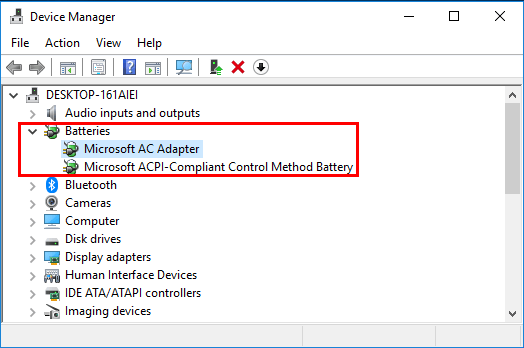
It’s always important to update your battery driver to make sure your laptop battery is working in proper condition and prevent issues like plugged in not charging etc. In this post, we’re showing you 2 easy ways to get the latest battery driver.
To update battery driver in Windows
Option 1: Automatically (Recommended) – This is the quickest and easiest option. It’s all done with just a couple of mouse clicks – easy even if you’re a computer newbie.
OR
Option 2 – Manually – You’ll need some computer skills and patience to update your drivers this way, because you need to find exactly the right the driver online, download it and install it step by step.
Option 1: Update your battery driver automatically (Recommended)
If you don’t have the time, patience or computer skills to update the battery driver manually, you can do it automatically with Driver Easy.
Driver Easy will automatically recognize your system and find the correct drivers for it. You don’t need to know exactly what system your computer is running, you don’t need to risk downloading and installing the wrong driver, and you don’t need to worry about making a mistake when installing. Driver Easy handles it all.
With Driver Easy Pro, updating your drivers automatically takes just 2 clicks. Here’s how:
1) Download and Install Driver Easy.
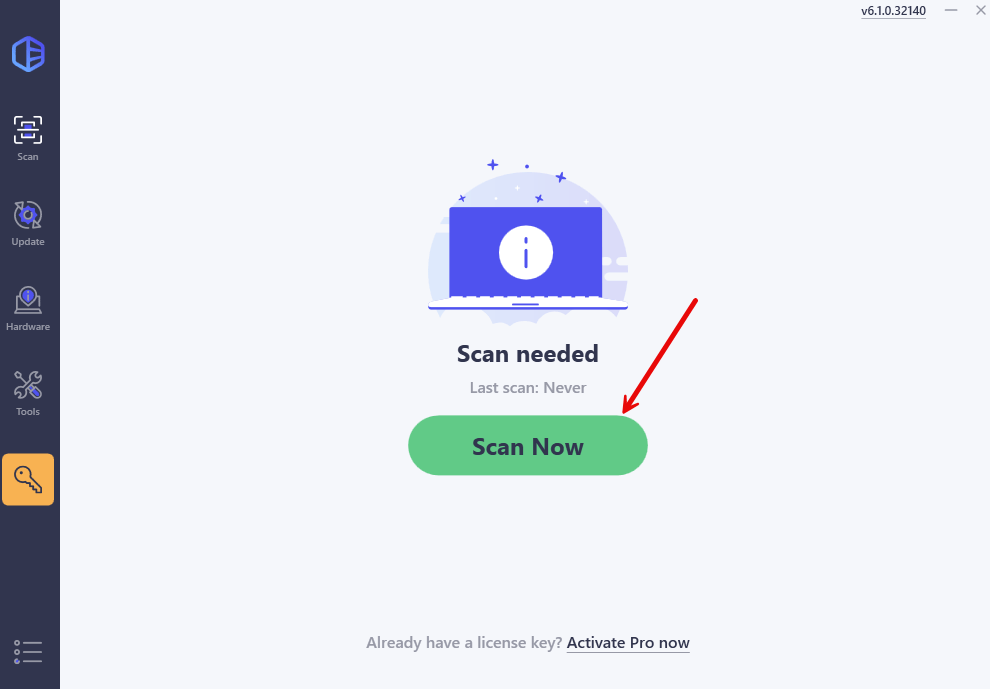
2) Run Driver Easy and click the Scan Now button. Driver Easy will then scan your computer and detect any problematic drivers.
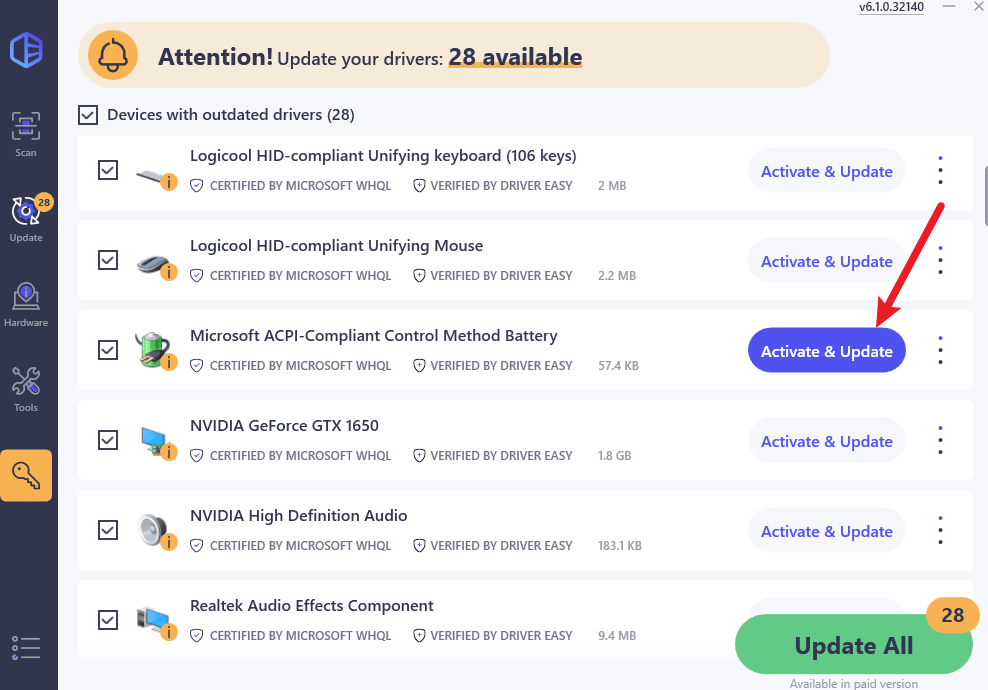
3) Click the Activate & Update button next to the flagged device to automatically download and install the correct version of this driver. Or click Update All to automatically download and install the correct version of all the drivers that are missing or out of date on your system (this requires the Pro version – you’ll be prompted to upgrade when you click Update All).
Option 2: Update your battery driver manually
To update your battery driver manually, you’ll need to go to the manufacturer’s official website, find the drivers corresponding with your specific flavor of Windows version (for example, Windows 32-bit) and download the driver manually.
Once you’ve downloaded the correct battery driver for your system, double-click on the downloaded file and follow the on-screen instructions to install the driver.
Finally, don’t forget to restart your computer for the changes to take effect.
Now congrats – you’ve already installed the latest battery driver on your Windows 11, 10, 8.1, and 7 PC. Feel free to drop us a comment if you have any further questions. ?
