






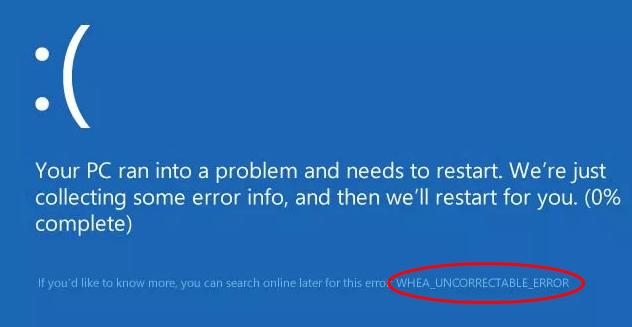
The WHEA_UNCORRECTABLE_ERROR (Stop Code: 0x00000124) is a Windows Blue Screen of Death (BSOD), which means that Windows detected a serious hardware error that it could not recover from. It can be triggered by unstable CPU, GPU, or RAM settings, overheating, failing hardware, and, in some cases, problematic drivers.
In this guide, we’ll walk through the most likely causes first, starting with the easiest and most effective fixes.
5 methods to fix WHEA_UNCORRECTABLE_ERROR
You don’t have to try them all. Just work your way down the list until you find the one that does the trick.
- Disable overclocking in BIOS/UEFI
- Test your RAM
- Check CPU temperature and other hardware
- Update or roll back problematic drivers
- Install the latest Windows updates
Fix 1 – Disable overclocking in BIOS/UEFI
If you’ve overclocked your CPU, GPU, or RAM, unstable frequency or voltage settings can trigger WHEA_UNCORRECTABLE_ERROR. Try to return the overclocked settings to their defaults to fix the issue. Here’s how:
If you can boot into Windows
- Press the Windows key + I to open Settings.
- Go to System > Recovery.
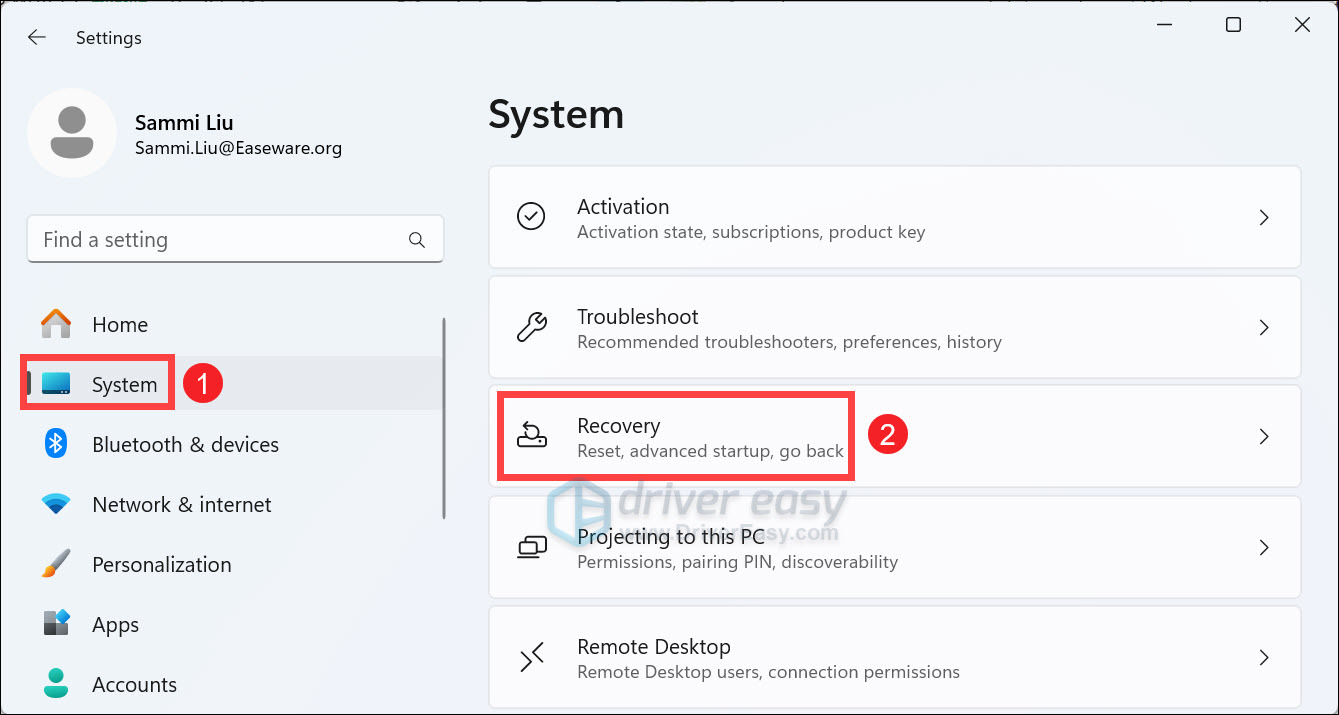
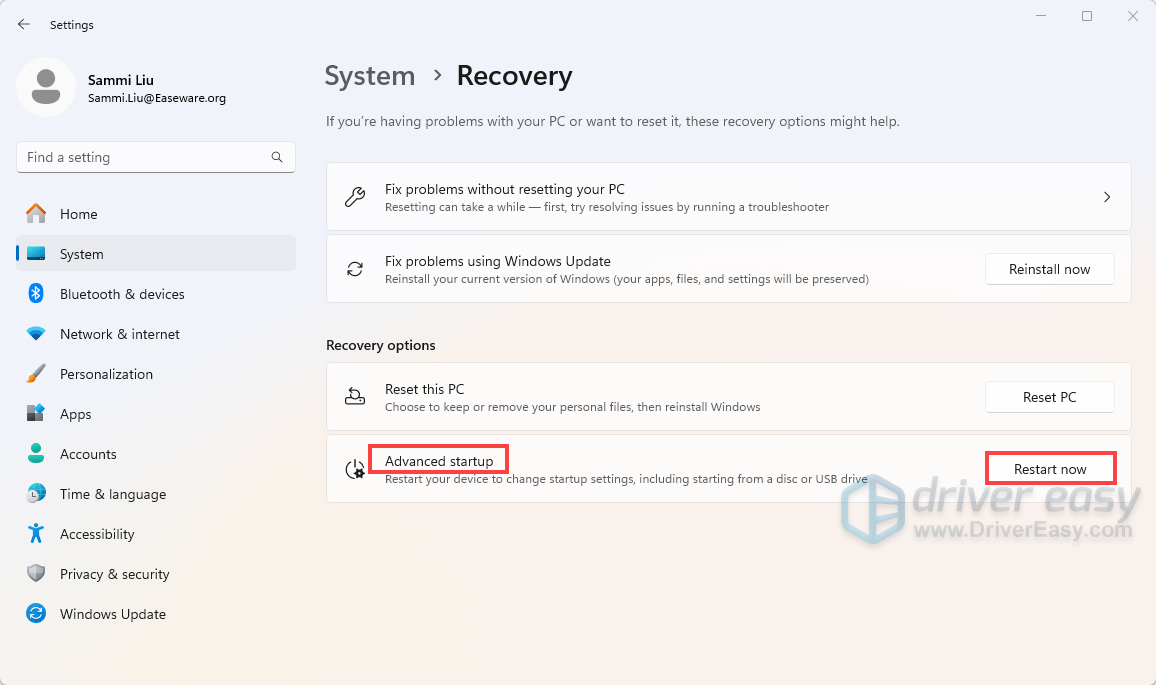
- Under Recovery options, find Advanced startup and click Restart now.
- After your PC restarts, select Troubleshoot > Advanced options > UEFI Firmware Settings > Restart.
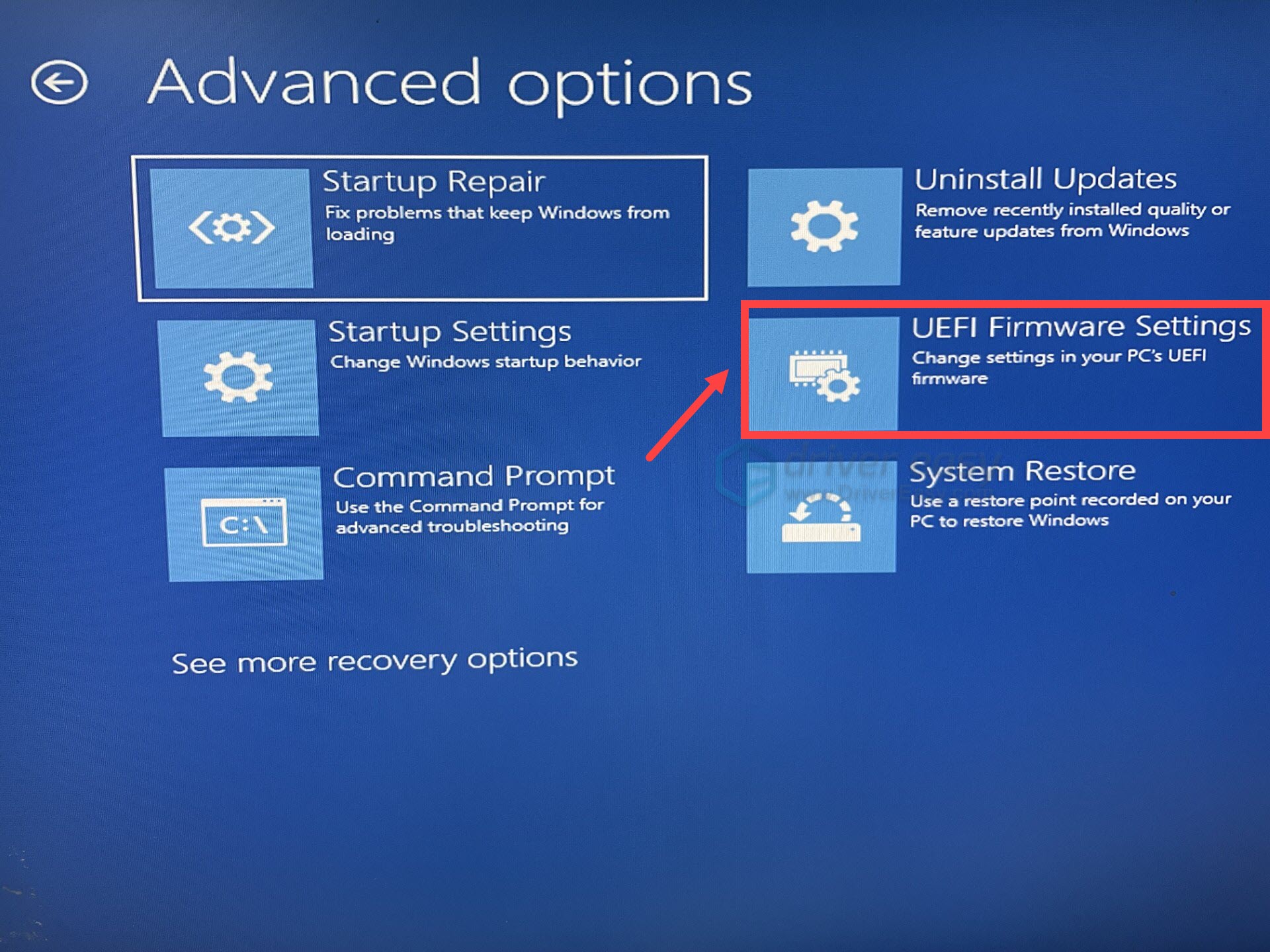
- Your PC should restart and enter the BIOS/UEFI interface.
- Disable manual CPU, GPU, or memory overclocking and return the relevant settings to their default or Auto values.
- If you’ve enabled XMP or EXPO, temporarily disable it as well.
- Save your changes and exit BIOS/UEFI.
The exact location and name of these options vary between manufacturers. You may see settings such as CPU Ratio, CPU Voltage, XMP, EXPO, AI Overclocking, Game Boost, or similar options.
Restart Windows and see if your computer works normally. If you never overclocked your system and XMP/EXPO is already disabled, move on to the next fix.
If you can’t boot into Windows normally
If Windows fails to start several times, it may automatically enter WinRE.
- From the screen, select Troubleshoot > Advanced options > UEFI Firmware Settings > Restart.
- Your PC should restart and open the BIOS/UEFI interface.
- Disable CPU, GPU, and memory overclocking.
If you’re stuck in a BSOD restart loop and Windows doesn’t automatically enter WinRE, you can usually trigger it by interrupting the startup process several times.
Turn on your PC and, when the Windows logo appears, hold the power button to turn the PC off. Repeat this process three times and Windows will enter Automatic Repair. Once you’re in WinRE, follow the steps above to enter the BIOS/UEFI interface to disable overclocking.
Fix 2 – Test your RAM
Unstable or defective RAM can also cause WHEA_UNCORRECTABLE_ERROR. This is particularly worth checking if the BSOD started after enabling XMP/EXPO, installing new memory, or changing memory settings.
You can use the built-in Windows Memory Diagnostic tool to perform a basic memory test.
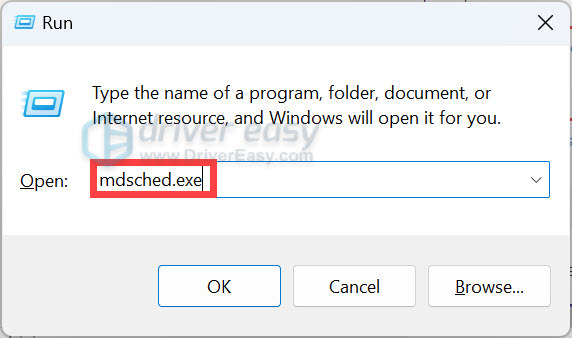
- Press the Windows key + R to open the Run dialog.
- Type in mdsched.exe and press Enter.
- Select Restart now and check for problems (recommended).
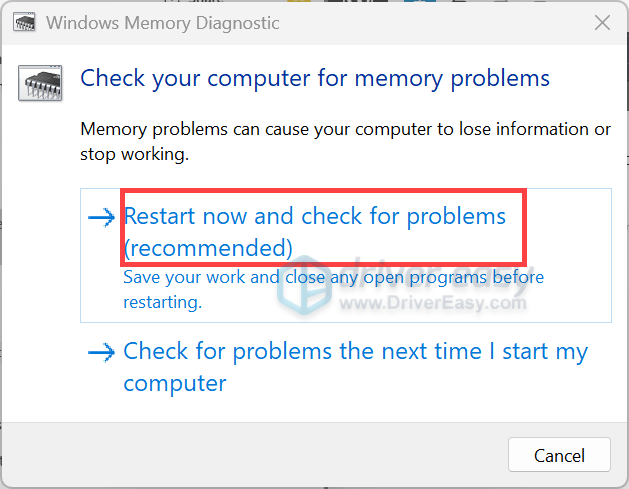
- Windows will restart and run the memory test.
After testing the RAM, boot back into Windows and monitor the system performance. If the issue persists, try the next fix below.
Fix 3 – Check CPU temperature and other hardware
If disabling overclocking and testing the RAM didn’t help, the next step is to check for other hardware-related problems, which may involve the CPU, GPU, motherboard, storage devices, power supply, or cooling system.
Check for overheating
High temperatures can make an otherwise stable system unstable, especially during gaming or other demanding workloads. You can use a hardware monitoring utility like HWiNFO64 to inspect the idle and load temperatures of your CPU and GPU.
If the CPU and GPU temperatures under load become unusually high (>95°C), check whether:
- CPU and GPU fans are working normally.
- The PC has adequate airflow.
- Dust isn’t blocking the heatsinks or air vents.
- The CPU cooler is properly installed.+
- The GPU is properly seated.
If the error started after installing new hardware, make sure the new component is properly installed and compatible with your system.
After checking the cooling system and hardware connections, restart the PC and reproduce the workload that previously caused the BSOD. If WHEA_UNCORRECTABLE_ERROR continues, move on to the software side of troubleshooting.
Fix 4 – Update or roll back problematic drivers
A problematic or incompatible driver can sometimes contribute to WHEA_UNCORRECTABLE_ERROR, especially if the BSOD started shortly after a driver update or hardware change.
Step 1: Check your recent driver updates
Windows keeps a record of recently installed driver updates. Checking this list can help you determine whether the BSOD started around the same time as a particular driver update.
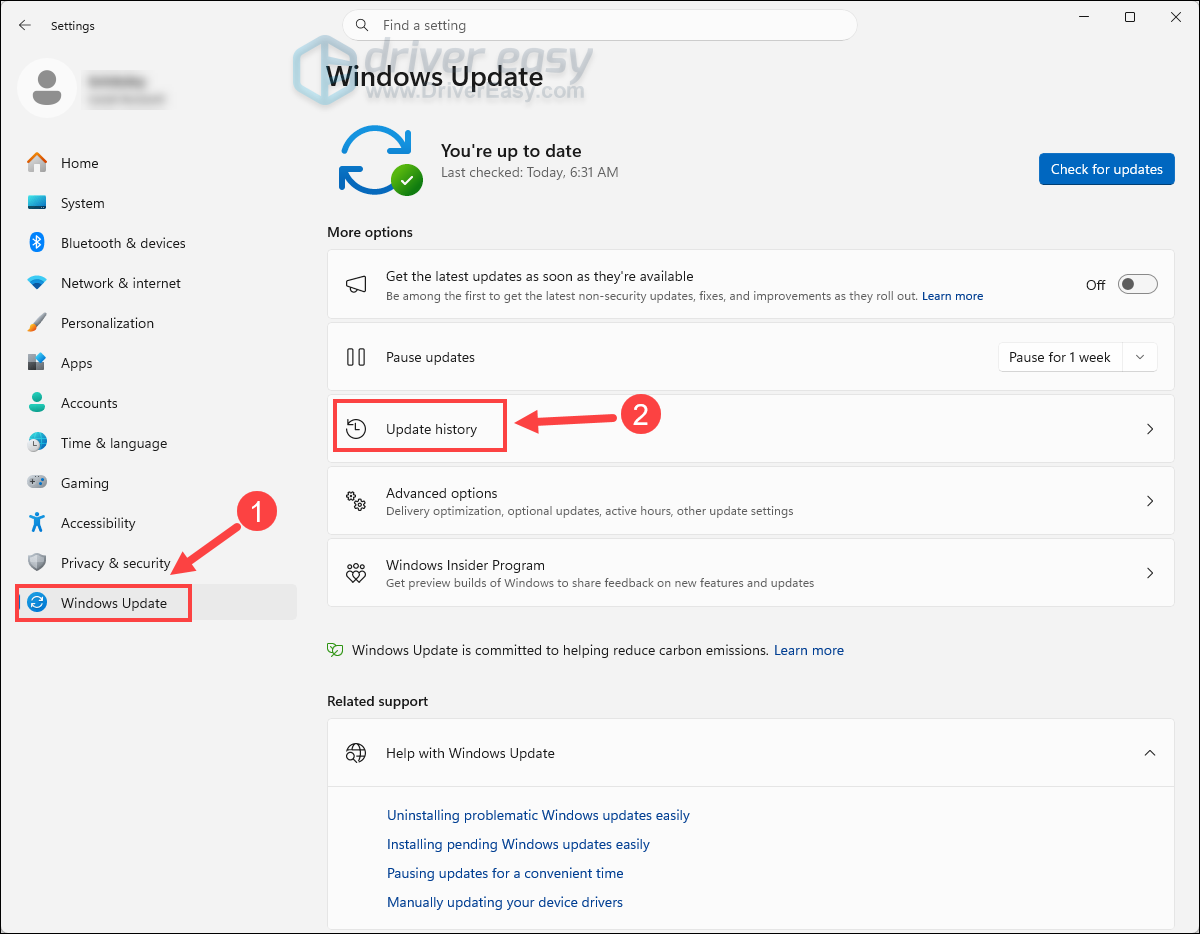
- Press the Windows key + I to open Settings.
- Go to Windows Update > Update history.
- Expand Driver updates.
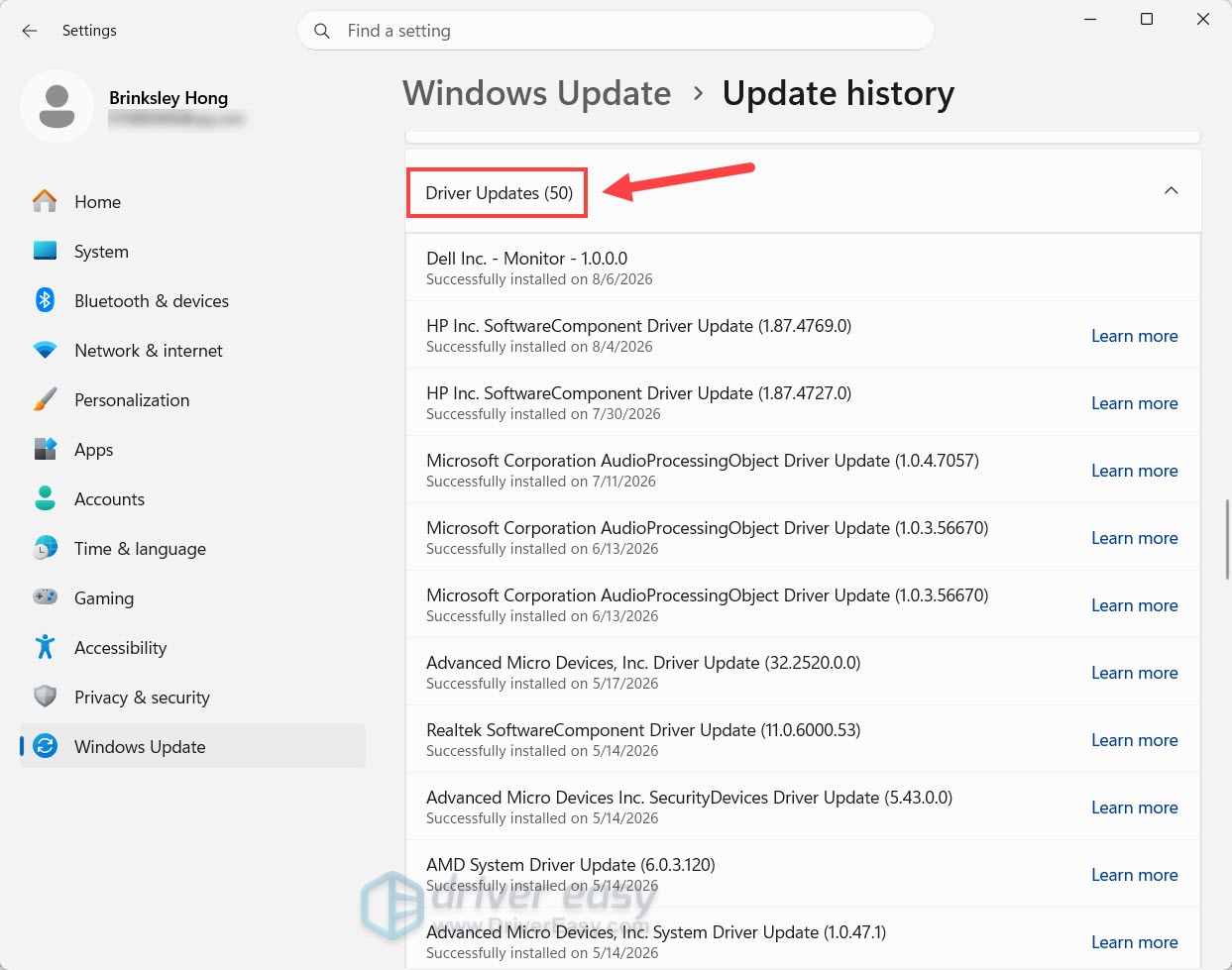
- Review the recently installed drivers and their installation dates.
Pay particular attention to drivers that were installed shortly before WHEA_UNCORRECTABLE_ERROR started. If the BSOD started immediately after a particular driver was updated, try rolling back that driver first.
If you haven’t installed or updated any drivers recently, continue with the other fixes.
Step 2: Roll back or uninstall the driver
If you identified a driver that was recently updated, you can try returning it to the previous version.
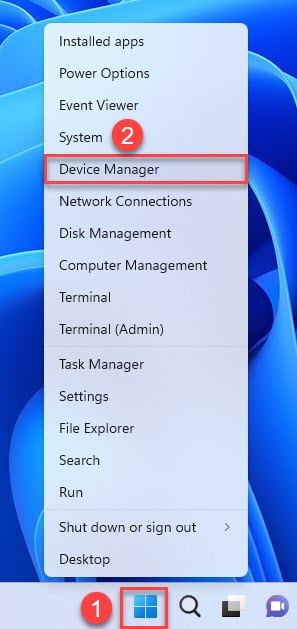
- Right-click the Start button and select Device Manager.
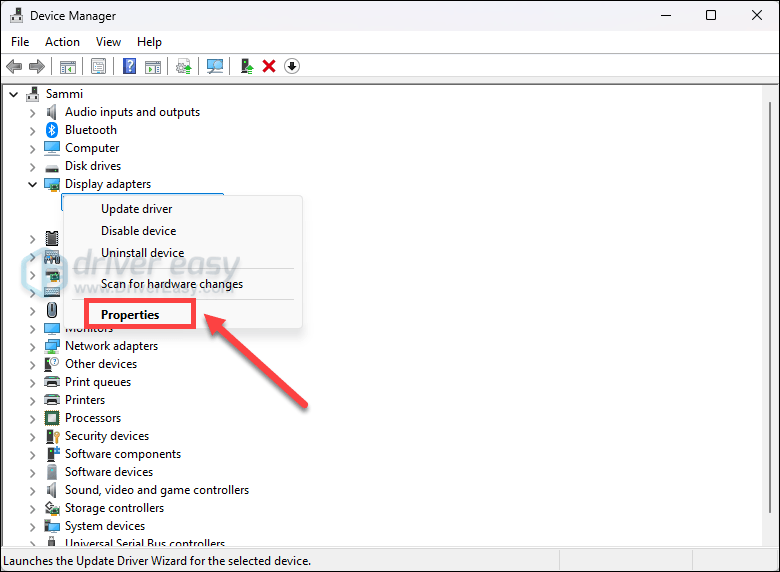
- Find the device associated with the suspected driver. Right-click the device to open Properties.
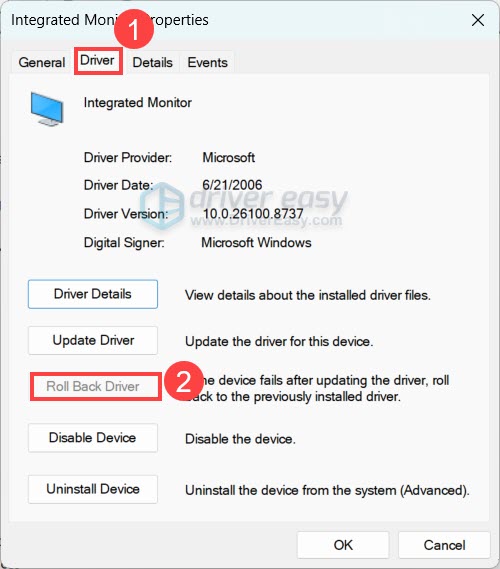
- Open the Driver tab. Click Roll Back Driver if the option is available.
If the Roll Back Driver option is unavailable, click Uninstall Device. Don’t worry, Windows may automatically reinstall a compatible driver after the restart.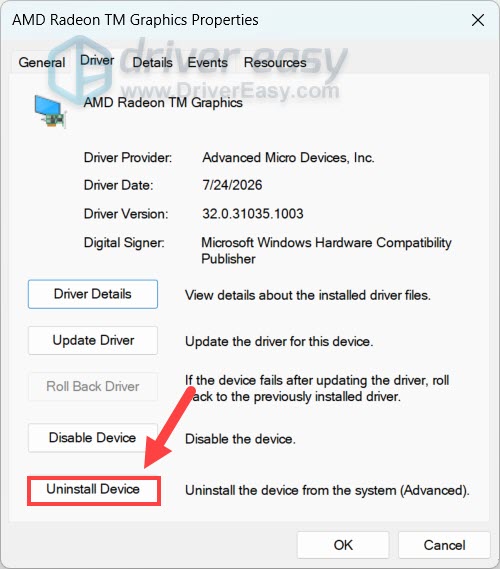
- Follow the on-screen instructions to complete.
- Restart your PC.
Step 3: If you can’t boot into Windows, roll back or uninstall the driver in Safe Mode
If WHEA_UNCORRECTABLE_ERROR causes a BSOD during normal startup, you can troubleshoot the driver from Safe Mode.
Windows automatically opens Automatic Repair or displays the Choose an option screen when it can’t boot normally.
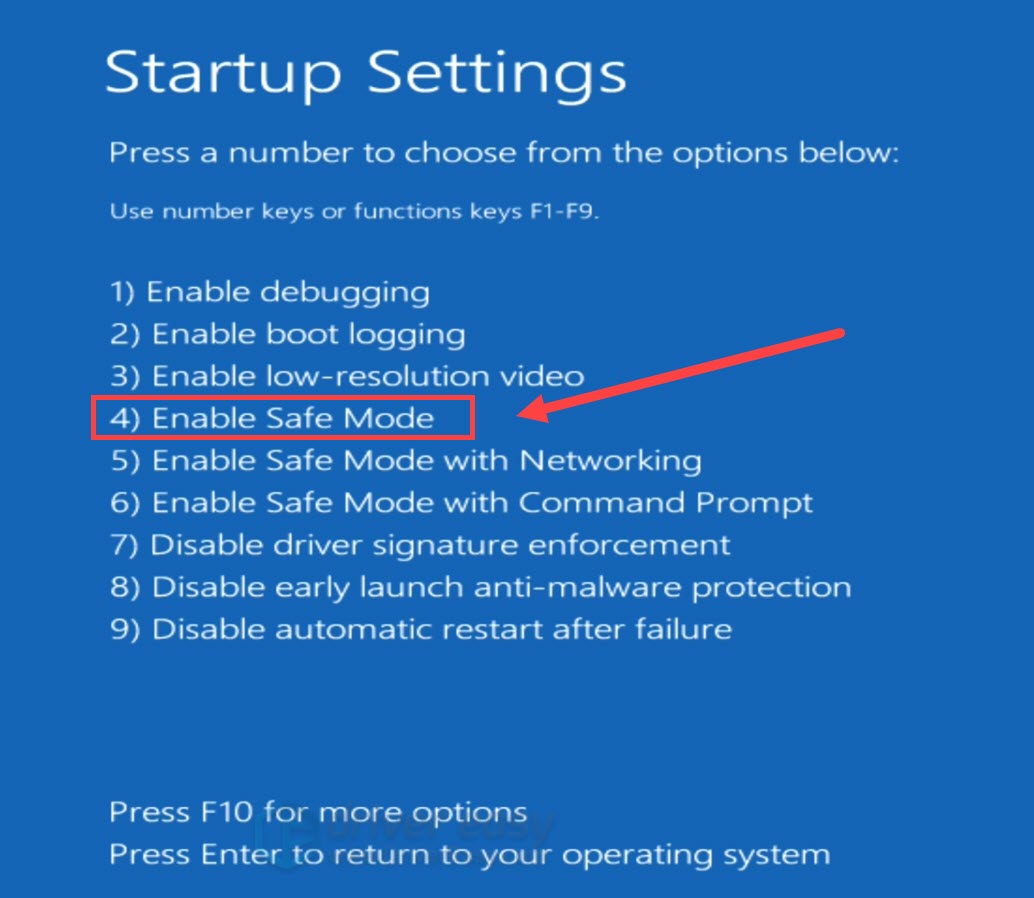
- Select Troubleshoot > Advanced options > Startup Settings.
- Click Restart.
- After the PC restarts, press 4 or F4 to enter Safe Mode. If you need Internet access, press 5 or F5 to enter Safe Mode with Networking.
If the system becomes stable after rolling back or uninstalling the suspected driver, the newer driver version or recent driver change may have been contributing to the instability.
You can check for a newer driver version from the PC or hardware manufacturers, as a later release may include fixes for compatibility issues or known bugs. Alternatively, Driver Easy can automatically scan for and update your drivers. Its advanced features help you easily restore, uninstall, or select a specific driver version when troubleshooting driver-related issues.
Fix 5 – Install the latest Windows updates
If you’ve ruled out overclocking, RAM problems, overheating, and obvious hardware or driver issues, make sure your Windows computer is fully updated. Microsoft regularly releases Windows updates that include bug fixes, compatibility improvements, and updated system components.
- Press the Windows key + I to open Settings.
- Select Windows Update. Click Check for updates.
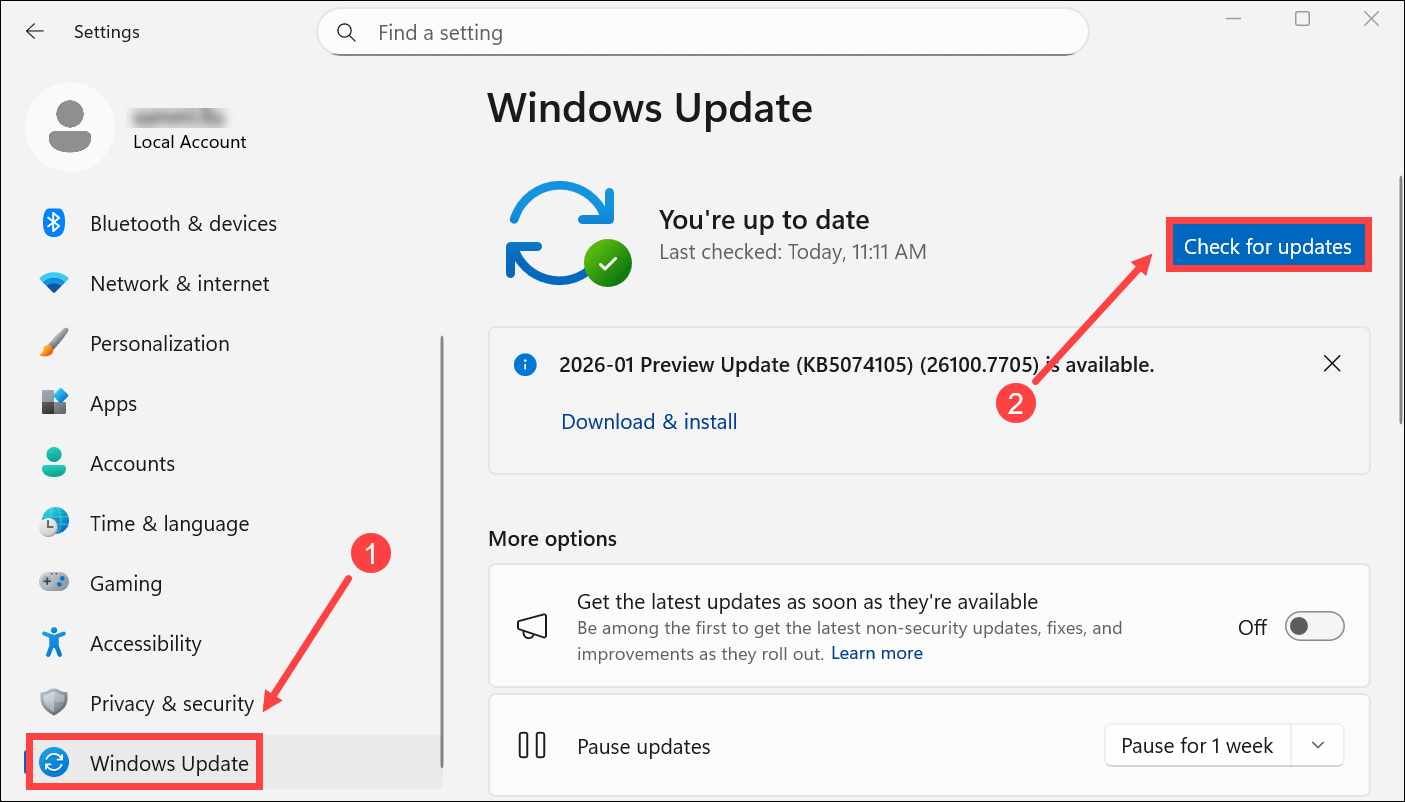
- Install any available updates and restart your PC.
The WHEA_UNCORRECTABLE_ERROR on Windows 11/10 usually points to a hardware stability problem rather than a simple Windows error. If you’ve recently overclocked your CPU, GPU, or RAM, or enabled XMP/EXPO, start by returning those settings to their defaults. Then test your RAM, check temperatures and other hardware, troubleshoot drivers, and finally make sure your Windows is up to date.
Hopefully this post helps. If you have any questions or suggestions, feel free to leave a comment below.

