






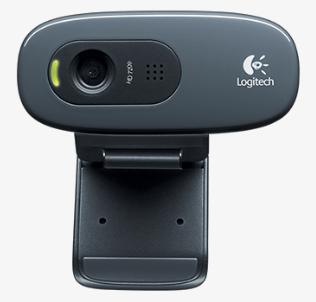
The Logitech HD Webcam C270 is a reliable plug-and-play webcam, but a missing, corrupted, or outdated driver or outdated system files after a Windows update can cause it to stop working.
Here are the two best ways to update or download the Logitech C270 driver on Windows, easily and quickly.
How to download or update the Logitech C270 driver
Method 1: Download software from Logitech
If you want access to camera control tools (like brightness, contrast, and digital zoom settings), you can download the official Logitech camera software manually.
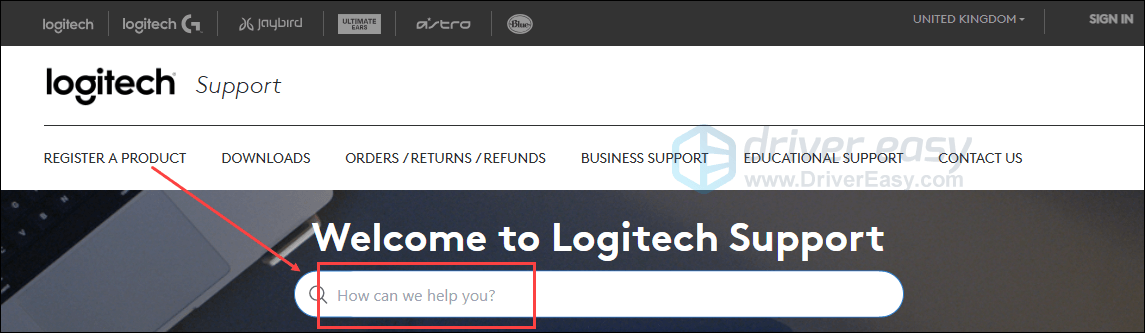
1) Open the Logitech support website.
2) Enter the device model (HD Webcam C270) in the search box, and press Enter.
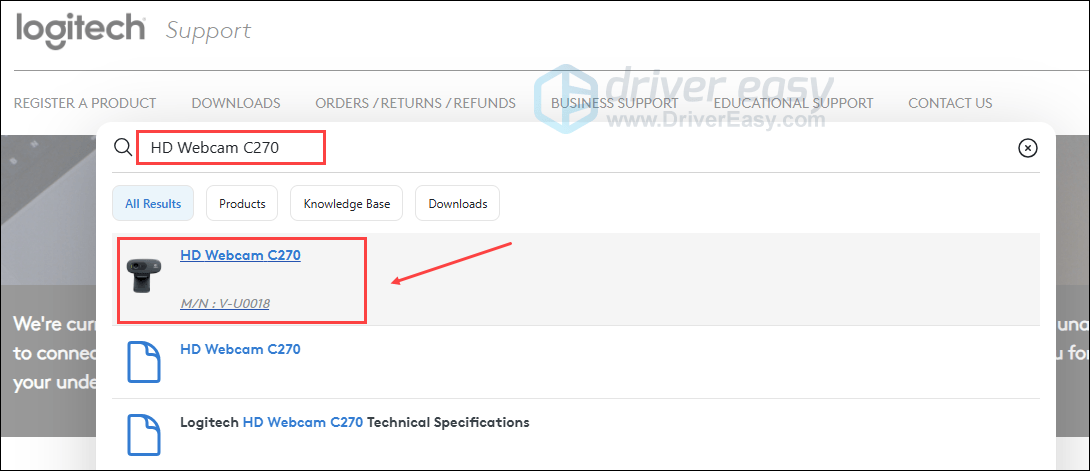
3) In the search results, click HD Webcam C270.
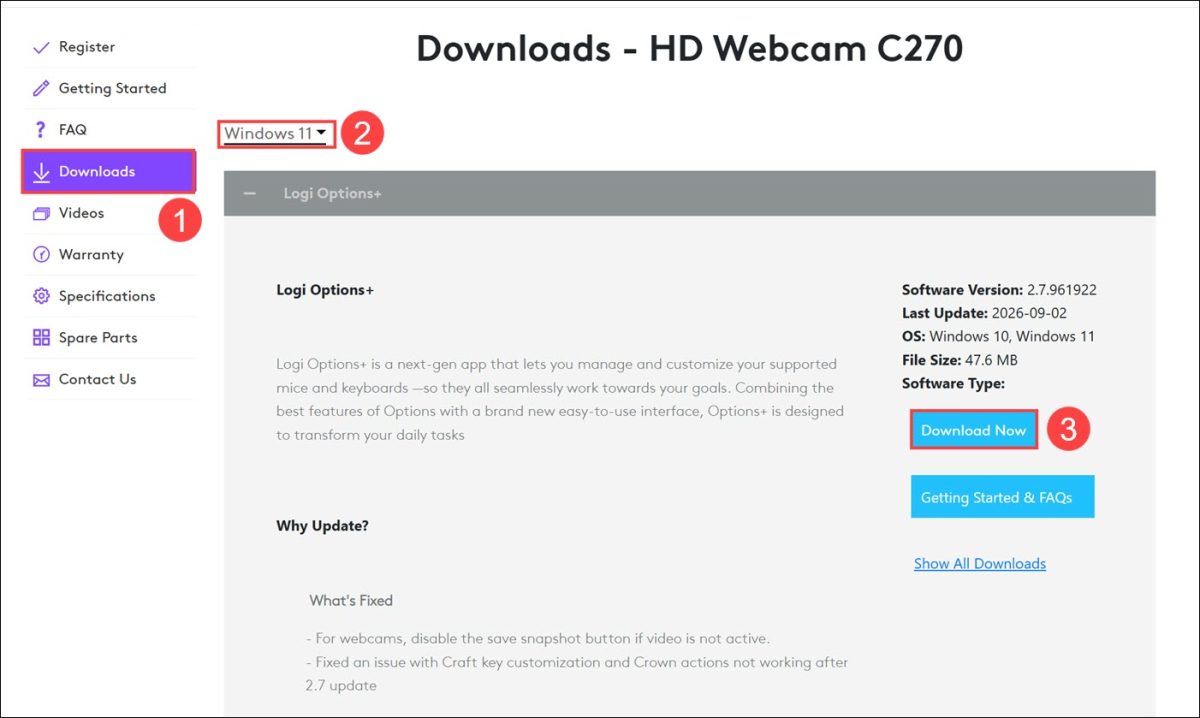
4) Go to the Downloads tab, then select your computer operating system and click Download Now.
5) Follow the instructions to download and install the software on your computer.
Open the Logitech software, and it should detect your device and let you adjust video settings, and your driver and configuration software are fully operational.
Fix 2: Update the Logitech driver automatically – All-in-one solution
If you don’t want to install heavy vendor software suites like Logitech Options just for a basic webcam, or if you prefer managing all your device drivers (graphics, audio, motherboard, and peripherals) in one central place without downloading separate update tools for every brand, give Driver Easy a try.
Driver Easy will automatically recognize your system and find the correct drivers for it. You don’t need to keep looking for newer drivers, or risk downloading incorrect files or making mistakes during installation. Besides, Driver Easy allows you to easily uninstall or roll back a driver or test different driver versions, which can be helpful if the driver causes an issue or isn’t perfectly compatible with your computer.
1) Download and install Driver Easy.
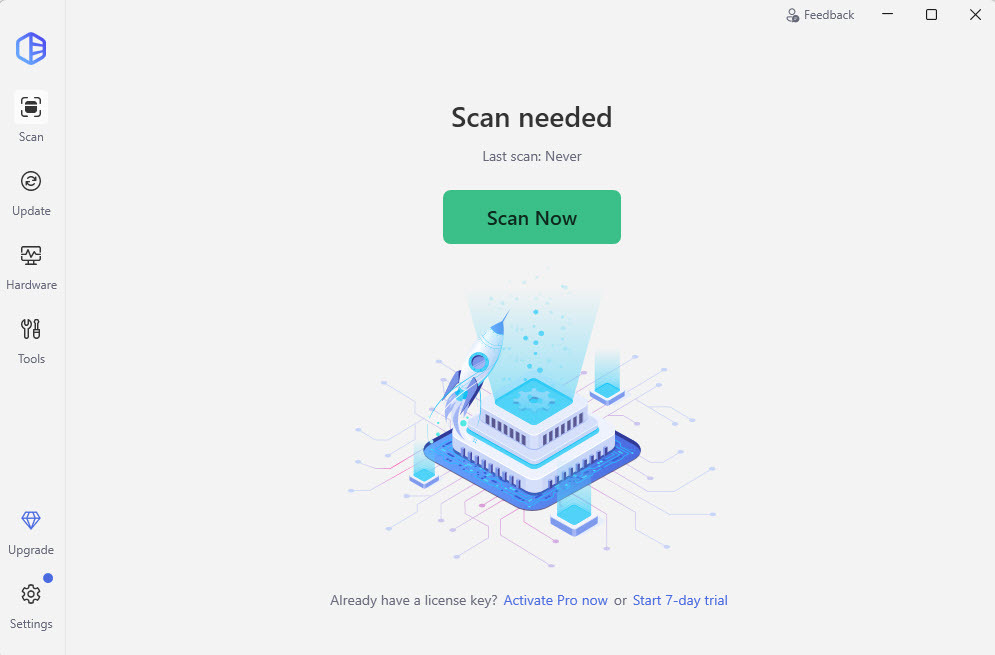
2) Run Driver Easy and click the Scan Now button. Driver Easy will then scan your computer and detect any problem drivers.
3) Click the Activate & Update button next to the flagged Logitech device to automatically download the correct version of the driver. Or click Update All to automatically download and install the correct version of all the drivers that are missing or out of date on your system.
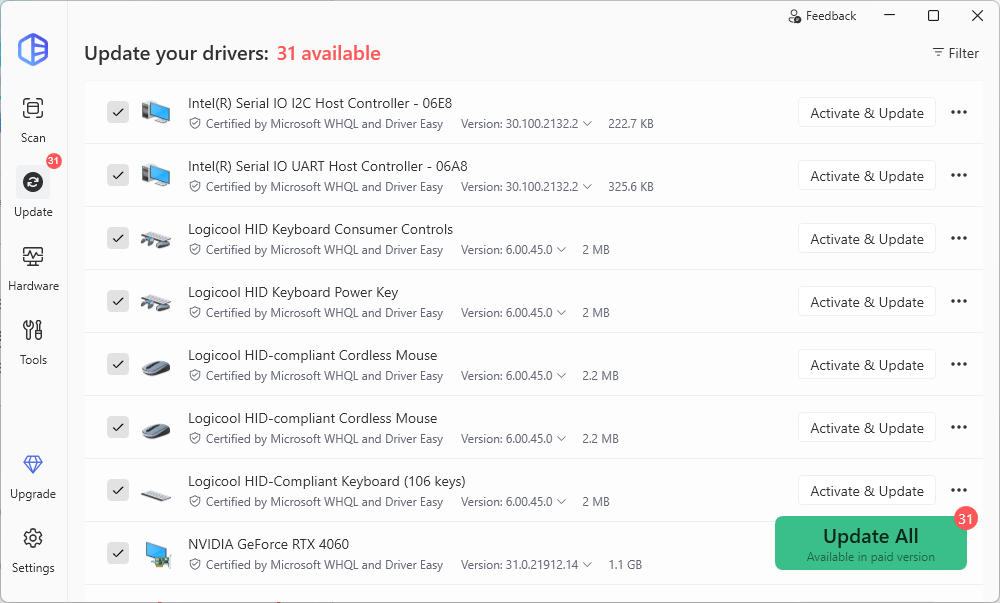
You’ll be prompted to start a 7-day free trial or upgrade to Driver Easy Pro. Either option will automatically download and install the latest drivers for you. It also includes easy driver backup and rollback, advanced tools like Game Boost and System Clean, plus full technical support. If you go Pro now, you’ll get a 50% OFF discount!
4) Restart your computer to take effect.
More troubleshooting steps:
If your Logitech C270 still doesn’t work after updating the driver, try these steps:
- Test the webcam on another device: Plug the C270 into another PC to confirm whether the issue is on the hardware’s side or specific to your system configuration.
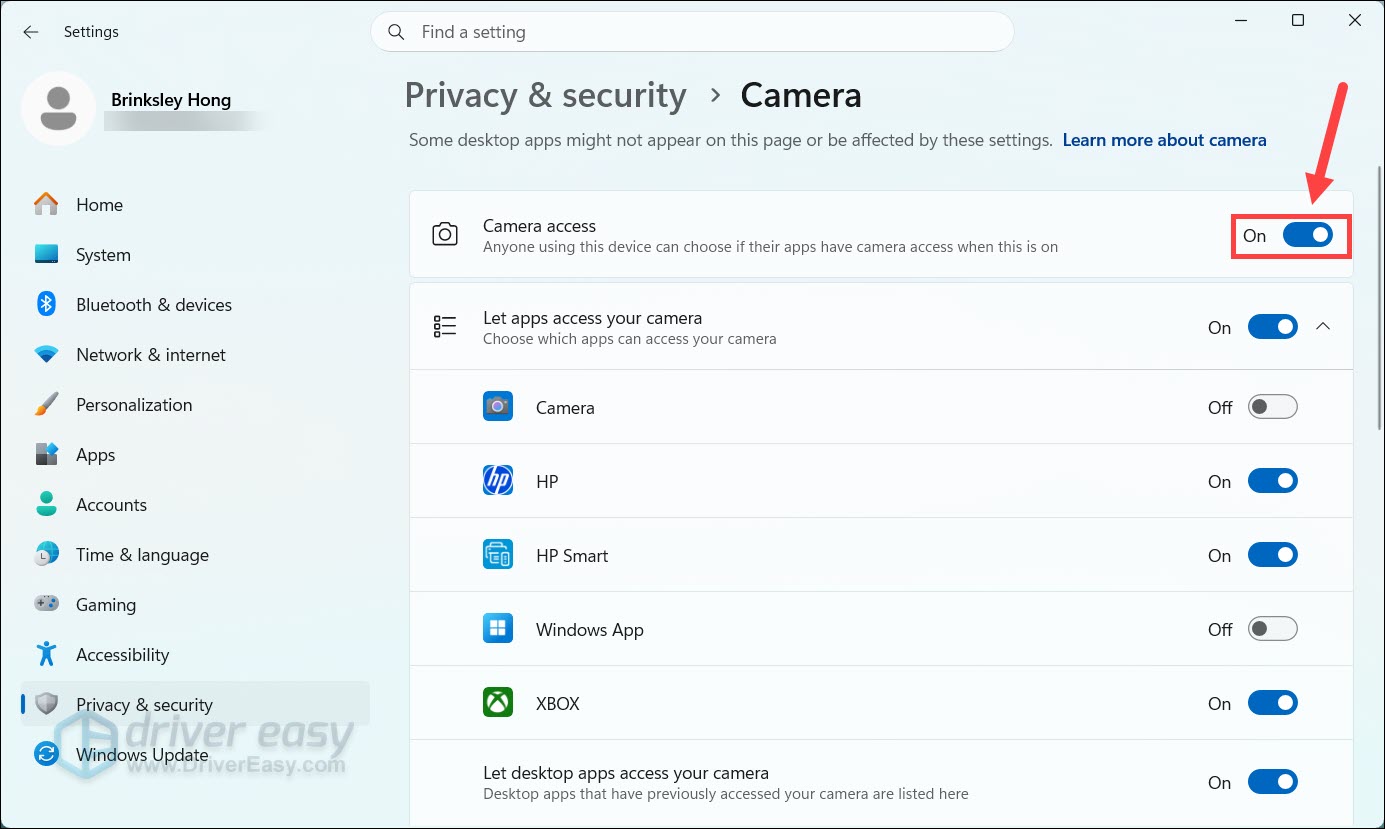
- Check your computer’s privacy settings: Go to Settings > Privacy & security > Camera and ensure Camera access and Let apps access your camera are toggled On.
- Switch USB Ports: Plug the webcam directly into a USB port on your computer’s motherboard (back panel of a desktop) rather than an unpowered external USB hub.
With the updated driver in place, your Logitech C270 should be back to delivering smooth, clear video for your next meeting, online class, or Discord hangout.
If your camera is still acting up—whether it’s stuck on a black screen, showing a blurry feed, or throwing a frustrating device error, leave a comment below with your Windows version and what you’ve tried so far. If you used Driver Easy and ran into a snag, you can also reach out directly to support@drivereasy.com (remember to attach the link to this guide), and our tech team will jump in to help you sort it out.

