






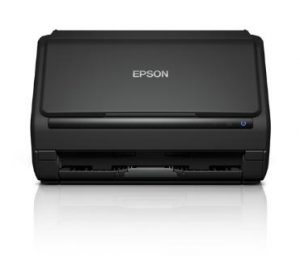
Keeping the driver up to date is important for your Epson ES-400 scanner. This ensures that your scanner is running properly. To get the latest driver for your Epson scanner, there are mainly two options: manually or automatically.
In this guide, we’ll walk through both options, step by step.
Option 1: Download and install the Epson ES-400 driver manually
You can download the latest Epson ES-400 scanner driver directly from Epson’s official support page. Here are the steps.
- First, visit the official website of Epson.
- From the top menu, click SEARCH.

- In the pop-up input area, type or paste ES-400 and press Enter.
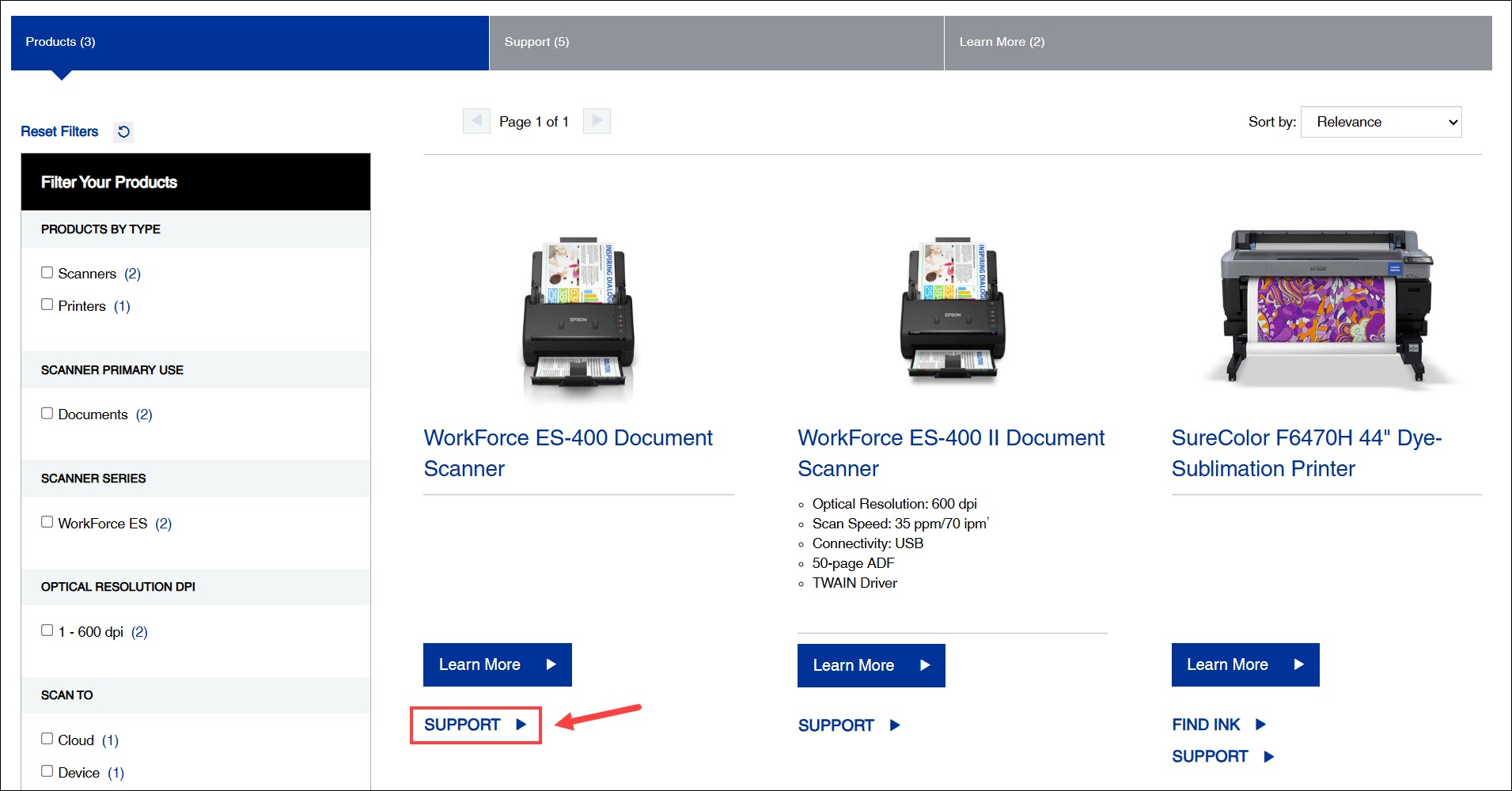
- In the search results, locate your scanner and click SUPPORT.
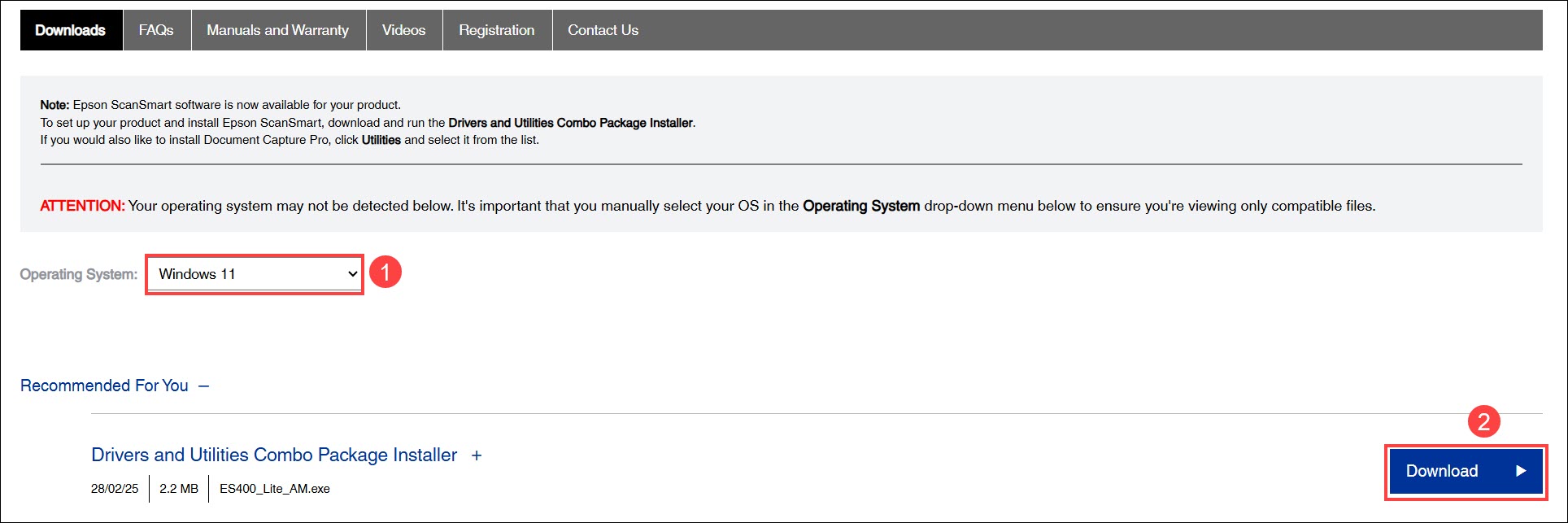
- Click the box next to Operating System and select your version of Windows. Then click GO and wait for the page to refresh. Next, under the Drivers section, download the recommended driver.
- Once you’ve downloaded the driver installer, open it and follow the on-screen instructions to proceed.
Option 2: Download and install the Epson ES-400 driver automatically
If you don’t want to search for the correct driver manually or you want to update multiple drivers to improve your entire system’s performance, you can use Driver Easy to manage your device drivers without hassle.
Driver Easy automatically recognizes your system and checks your entire PC for missing, outdated, or corrupted drivers. You don’t need to know exactly what system your computer is running; you don’t need to risk downloading and installing the wrong driver, and you don’t need to worry about making a mistake when installing. Updating driver is as easy as two clicks:
- Download and install Driver Easy.
- Run Driver Easy and click the Scan Now button. Driver Easy will then scan your computer and detect any problem drivers.

- Click the Activate & Update button next to your Epson ES-400 scanner to download the correct version of its driver, then you can manually install it. Or click the Update All button at the bottom right to automatically update all the drivers.
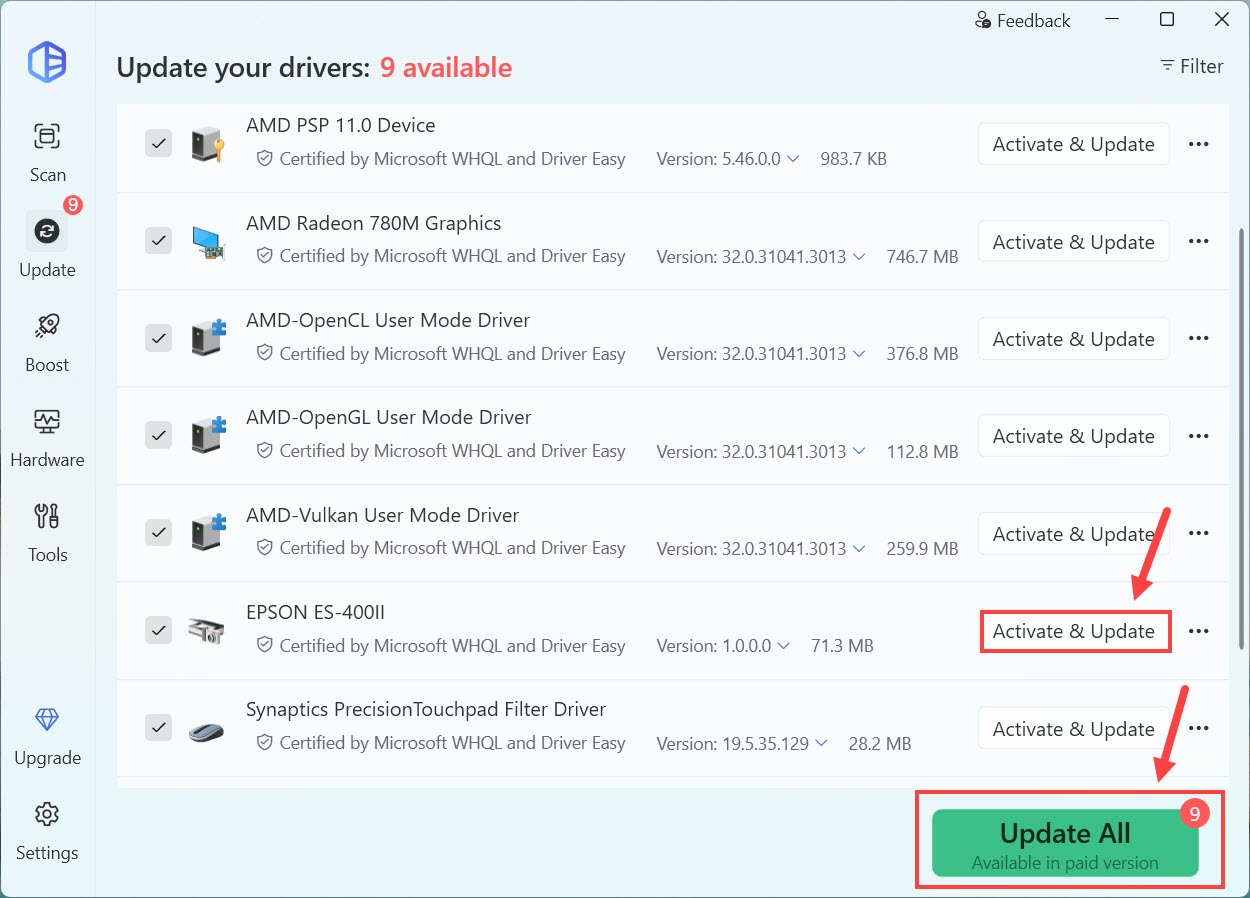
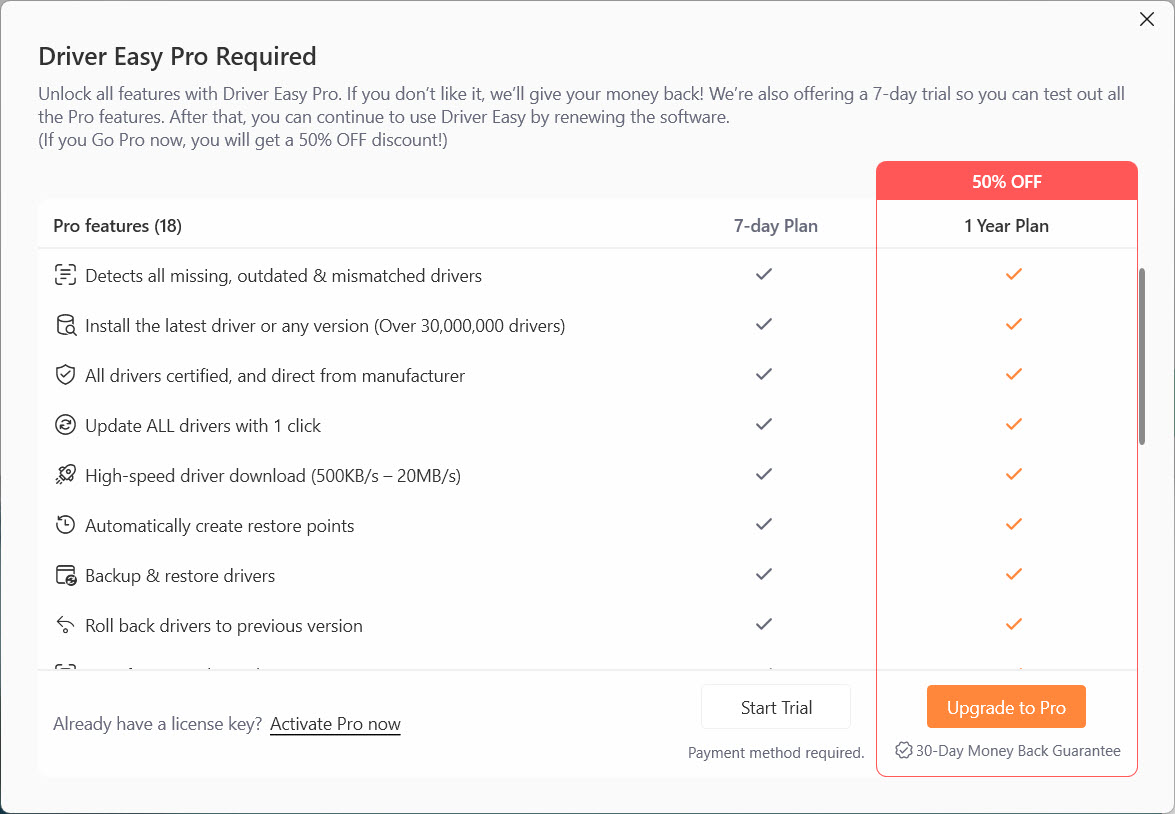
You’ll be prompted to start a 7-day free trial or upgrade to Driver Easy Pro. Either option will automatically download and install the latest drivers for you. It also includes easy driver backup and rollback, advanced tools like Game Boost and System Clean, plus full technical support.
If the scanner is still not detected after updating the driver, check the USB connection and make sure the scanner is powered on. You can also restart Windows and try scanning again.
That’s all the tips for updating your Epson scanner xx driver. If you have any problems or suggestions, feel free to leave a comment below.