






You just installed or updated Windows 11, and suddenly the Wi-Fi icon in the system tray is gone. You click it — nothing. Open Device Manager, and there it is: a yellow triangle on “Network Controller.”
You’re not alone. In many cases, the problem is an outdated, corrupted, or incompatible MediaTek Wi-Fi driver. In this guide, we’ll show you how to update your MediaTek Wi-Fi driver on Windows step by step, whether your adapter is missing, showing a yellow warning icon, or constantly disconnecting.
Use another computer: Download the driver files on another PC, copy them to a USB flash drive, then transfer them to the affected computer.
Use USB tethering: Connect an Android or iPhone with a USB cable, enable USB Tethering in your phone’s settings, and temporarily use your mobile data or Wi-Fi connection to download the required files.
How to install a MediaTek Wi-Fi driver
There are mainly two options to update your driver: manual or automatic. The manual route requires some time and patience – you’ll need to search for the latest driver package online and install it correctly. If you prefer a simpler and quicker approach, use Driver Easy to automatically update all the missing or outdated drivers on your computer.
Option 1 – Install the MediaTek Wi-Fi driver manually
We recommend downloading the driver from your computer manufacturer’s official support website, as OEM drivers are tested specifically for your hardware model.
Search by your exact computer model and look for the Wi-Fi / wireless driver that corresponds to your Windows version (like Windows 11, 64-bit).
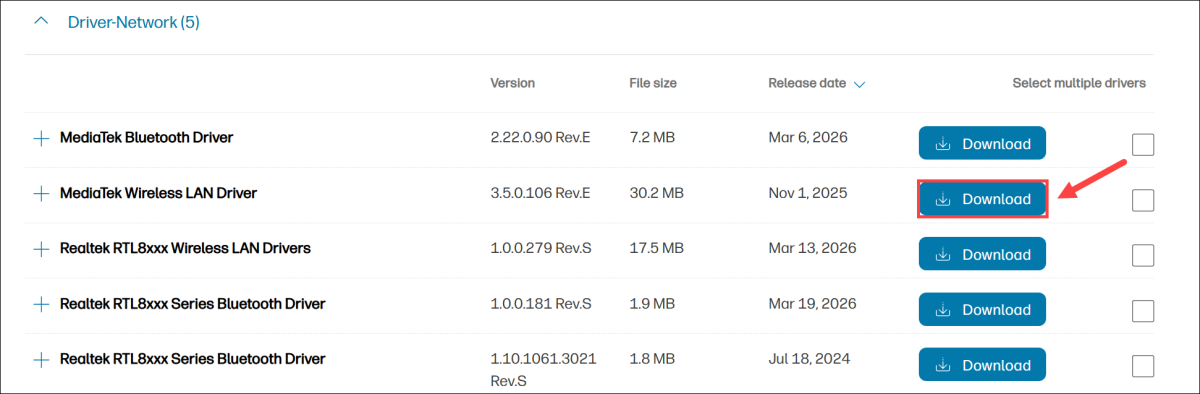
Download the driver pack. They’re commonly provided as an executable (.exe) installer, although some manufacturers distribute ZIP archives containing the driver files. Once downloaded, double-click the .exe file and follow the on-screen instructions to install the MediaTek driver.
What if you can’t install the driver file directly?
Some driver packages simply extract the driver files instead of installing them automatically and may contain drivers for multiple MediaTek Wi-Fi chips, such as MediaTek 7902, 7920, 7925, etc. In that case, you’ll need to install the driver manually in Device Manager.
1. On your keyboard, press the Windows logo key + R at the same time to open the Run command box.
2. Type devmgmt.msc and click OK.

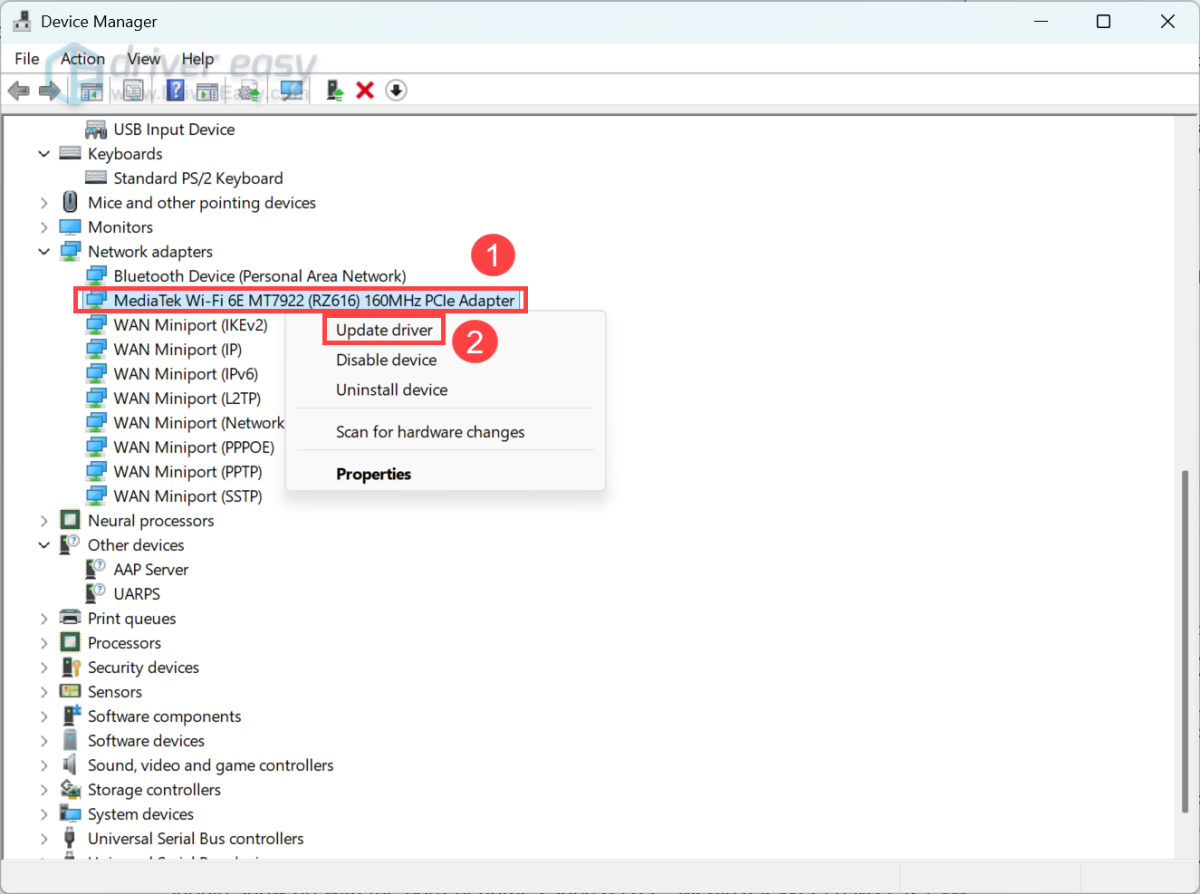
3. Expand Network adapters and locate your MediaTek network adapter.
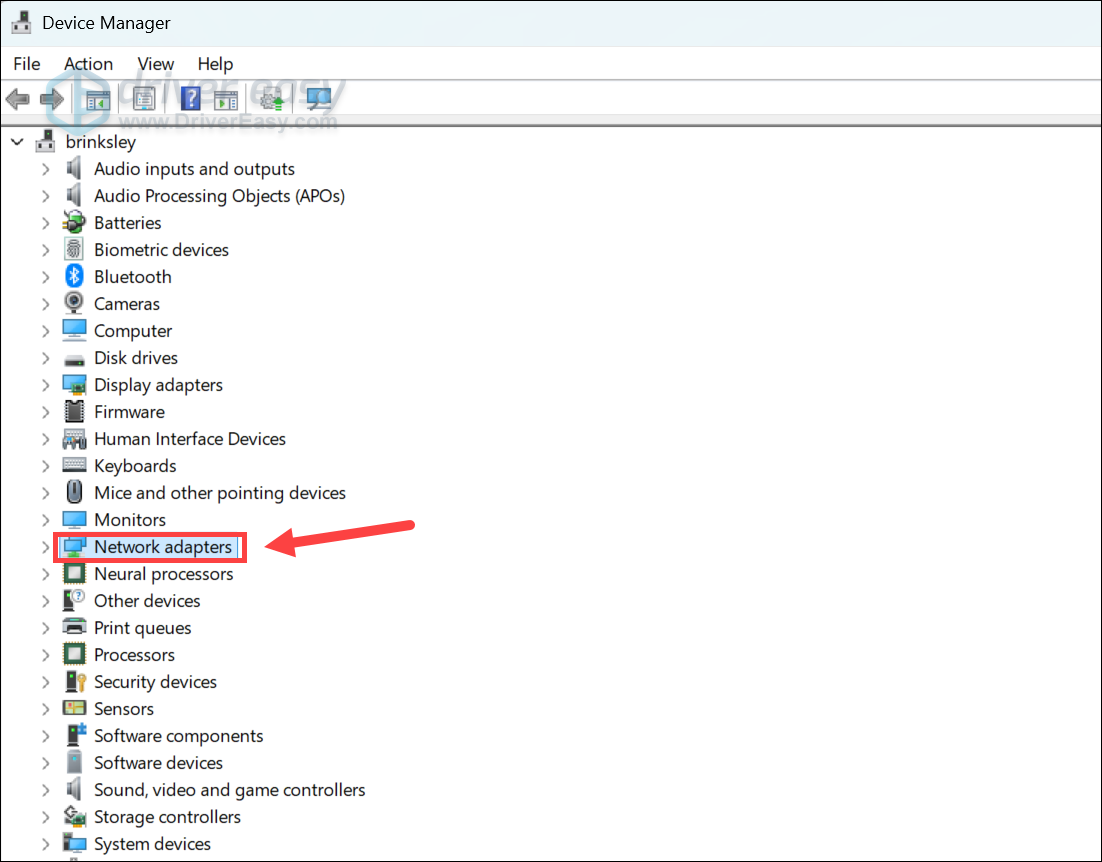
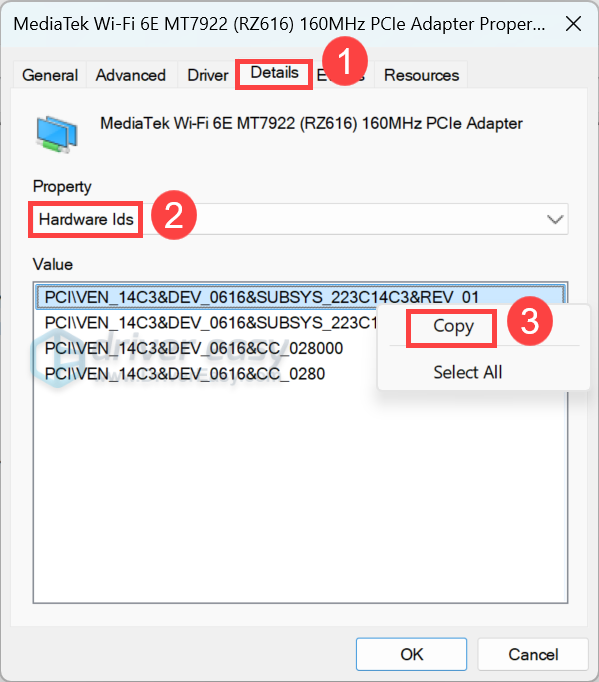
If you’re not sure about which MediaTek Wi-Fi card you’re using, right-click the MediaTek adapter and select Properties. Go to Details, select Hardware IDs, copy the value, and then search it online to see what device it is.
4. Right-click the MediaTek network adapter and select Update driver.
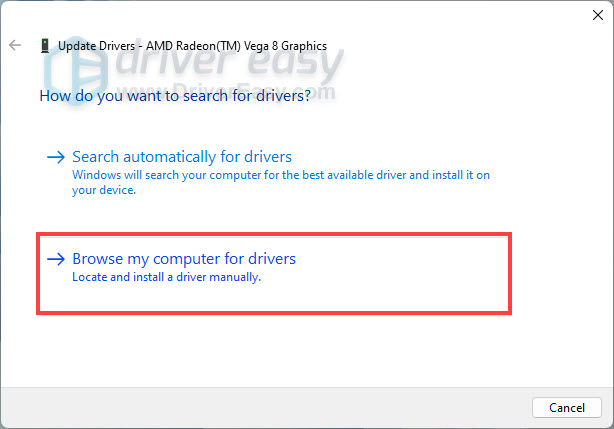
5. Choose Browse my computer for drivers.
6. Click Browse and select the folder where you extracted the driver pack. Check Include subfolders. Then, click Next.
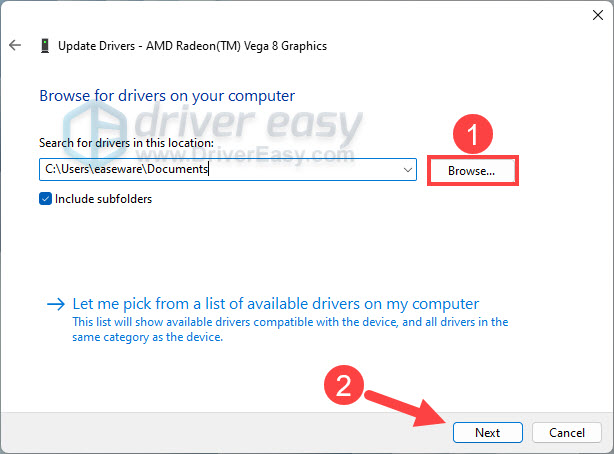
Windows will search the folder for a matching driver file and install the driver. The process usually completes within a minute. After the correct driver is installed successfully, the warning icon should disappear, and the adapter should appear under Network adapters.
Option 2 – Automatically update MediaTek driver with Driver Easy
If you don’t have the time, patience, or computer skills to manually hunt down the MediaTek driver package, there’s a simpler route.
Driver Easy automatically scans your system, detects outdated, missing, or incompatible drivers, and downloads the correct MediaTek Wi-Fi driver for your computer. You don’t have to identify what driver to download; you don’t have to keep hunting online or worry about making mistakes when installing the driver.
With Driver Easy, updating your MediaTek Wi-Fi driver takes just 2 clicks. It can also update your graphics, chipset, Bluetooth, audio, and other device drivers at the same time.
1. Download and install Driver Easy.
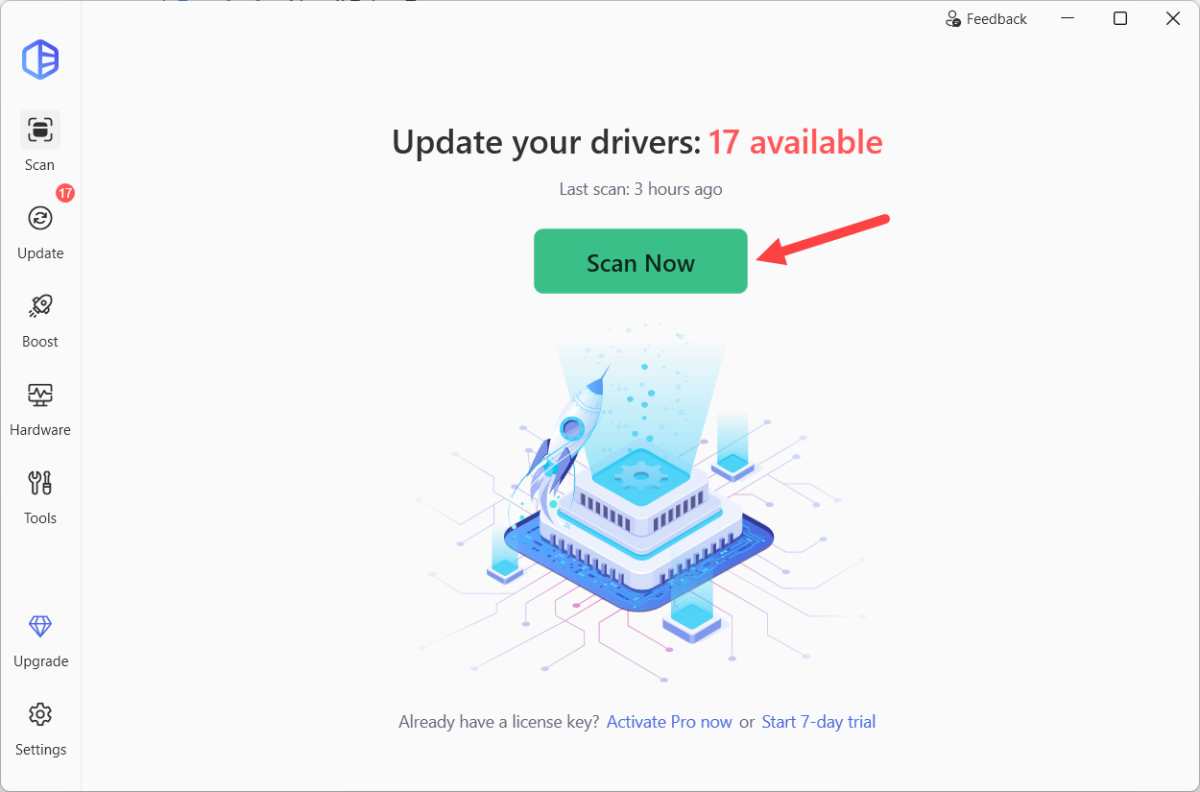
2. Click the Scan Now button. Driver Easy will detect all problem drivers instantly.
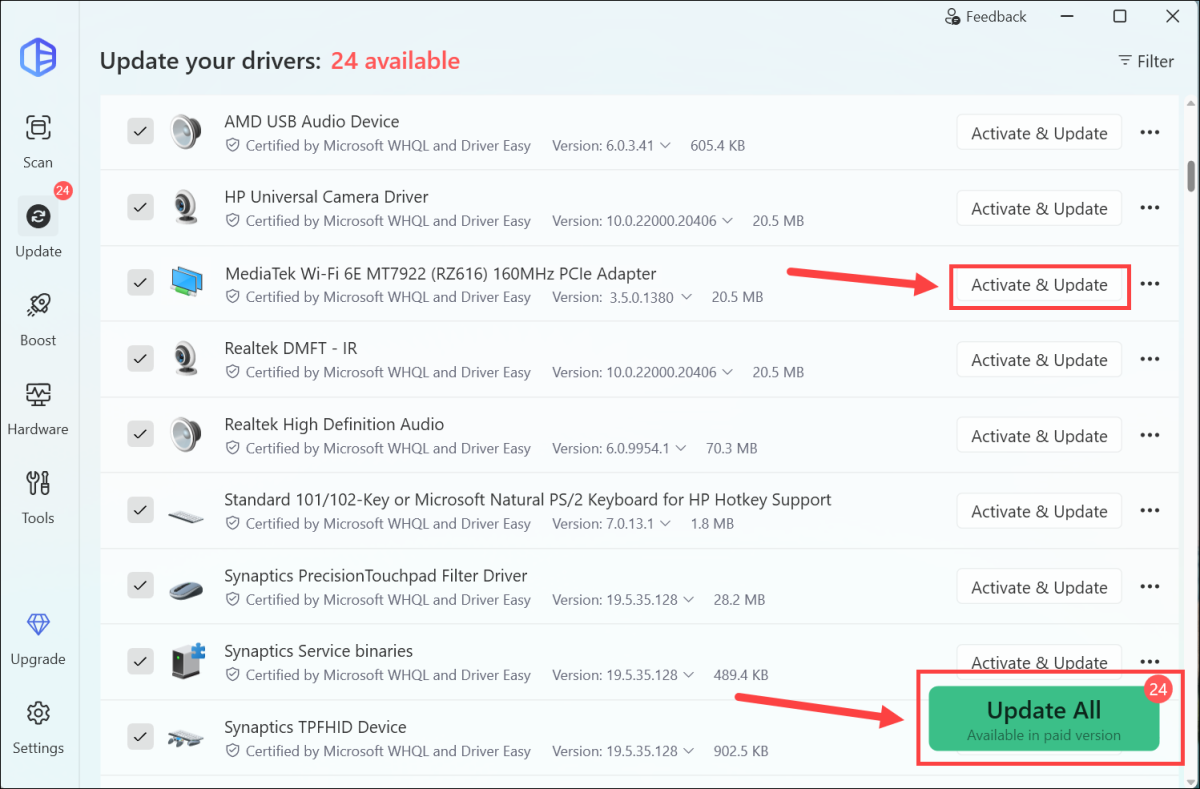
3. Click the Activate & Update button next to the MediaTek Wi-Fi adapter driver. Or click the Update All button to download and install all drivers automatically, direct from the manufacturer.
(This requires the Pro version, which comes with full automated updates and backup features. You’ll be prompted to upgrade when you click Update All. You can opt for the free trial to try all Pro features in 7 days, or you can go Pro now with a discount on us.)
In most cases, fixing a MediaTek Wi-Fi driver issue is simply a matter of installing the correct driver. If your computer still can’t detect the adapter after updating the driver, the problem may be related to your BIOS, Windows installation, or the wireless hardware itself.
Have any questions or suggestions? Or do you encounter other MediaTek Wi-Fi issues? Feel free to leave a comment below.