






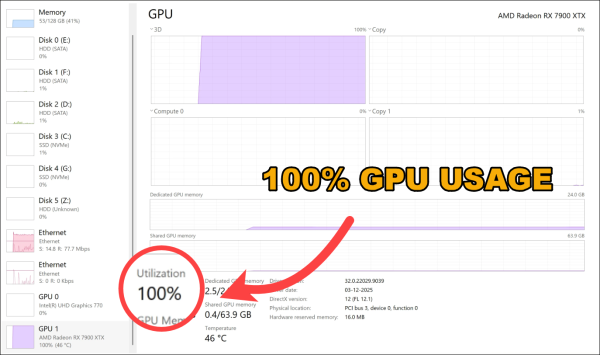
Your GPU usage spikes to 100% when you’re playing your favorite modern game, like Cyberpunk 2077 or Elden Ring? For many PC users, seeing your graphics card maxed out can be worrisome. You might worry that your expensive graphics card is burning out, overheating, or drastically shortening its lifespan.
In this guide, we’ll break down what 100% GPU usage actually means, when it is healthy, when it actually signals a problem, and how to fix it to eliminate game crashes or stutters.
Is 100% GPU usage bad?
The short answer: No. In most cases, 100% GPU usage is normal and expected.
When you launch a graphically demanding AAA game, GPU at 100% means your graphics card is working at full capacity to deliver the highest possible frame rates (FPS) and visual quality. Modern graphics cards are designed to operate under heavy workloads for long gaming sessions. And unlike mechanical components, GPUs do not wear out simply because they are working hard.
When it comes to the health of your hardware, what matters is actually the temperature. While your GPU running at 100 is fine, excessive heat (90°C) can be damaging to the card.
Here’s a quick reference guide to monitor your GPU’s health:
| Idle | 30°C–50°C | Normal when browsing or resting on the desktop. |
| Under load (gaming) | 65°C–80°C | Safe zone for peak gaming performance. |
| Throttling | 90°C | Caution. The GPU will slow itself down (thermal throttle) to cool off. |
| Critical Damage Risk | 95°C+ | Danger zone. Shut down the system to prevent permanent damage. |
3 warning signs when 100% GPU usage is a problem
While a fully utilized GPU is ideal during a heavy gaming session, 100% GPU usage sometimes indicates your system is struggling or bugged. Here are 3 major red flags you should look out for:
1. Your apps freeze or crash while gaming
Are your apps like Discord, constantly freezing, lagging, or crashing while you play a game? When a game chokes your GPU to true 100% saturation, there is literally zero processing power for the rest of your operating system to run. Secondary apps that rely on hardware acceleration get starved of resources and will constantly crash.
2. High GPU usage when idle on the desktop
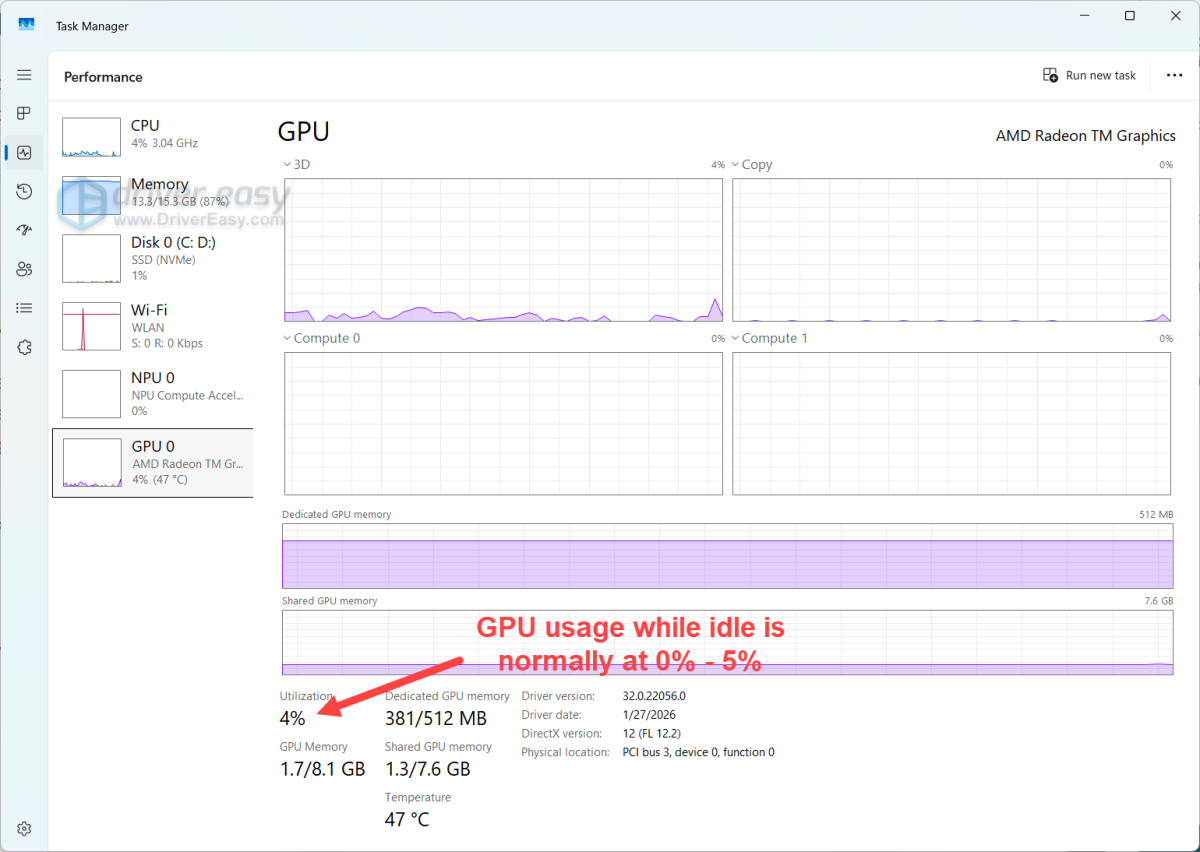
If you don’t open any apps, the GPU usage should be close to 0% (usually between 1% and 5%). If it’s locked at 100% while idle, the Windows Task Manager may be glitching and showing incorrect metrics, like a GPU running at 100% load while sitting at a cool 30°C.
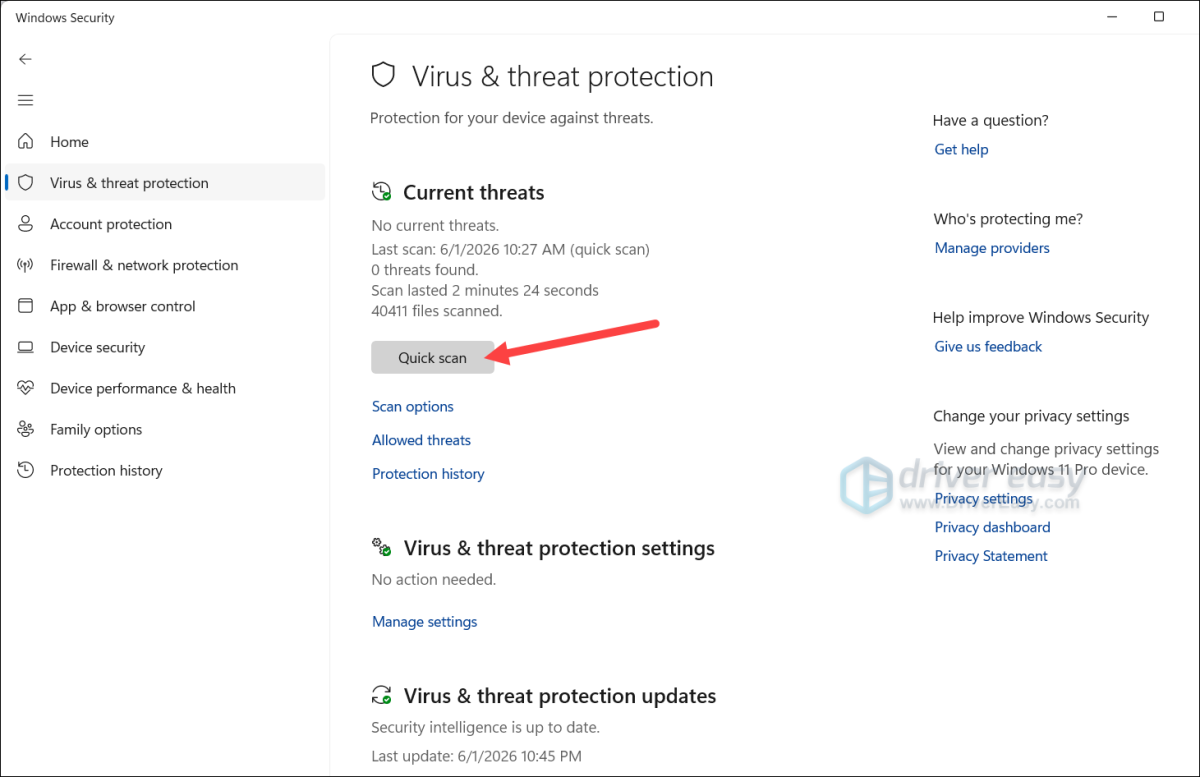
Besides, malicious software hidden on your PC may use your graphics card to mine cryptocurrency for hackers. This software is often programmed to run only when you walk away from your keyboard, and it will automatically shut down the moment you open Task Manager to hide its tracks. To catch these hidden antiviruses, you can run a full system scan using Windows Defender or a trusted anti-malware tool.
3. Your game has low FPS despite 100% Usage
If your game turns into a slideshow (e.g., capped at a miserable 20 FPS) while your GPU spikes to 100%, your card is working at maximum capacity but struggling to output frames. This is usually caused by overly demanding graphics settings, incorrect PC power plans, or a corrupted graphics driver.
❓What if the GPU usage is low, but the game stutters?
If your GPU usage is sitting low at 50% – 60%, but your game feels incredibly choppy with constant micro-freezes, you’re experiencing the CPU bottleneck. That happens when your processor cannot send instructions fast enough to keep up with your graphics card.
To fix it, you can simply reduce the CPU-intensive options in the game settings, like object draw distance and crowd density. Or consider upgrading your CPU/motherboard for smooth performance.
How to fix and optimize your GPU
If your high GPU usage is causing game stability issues or system stutters, here are some quick and easy fixes to troubleshoot:
1. Update your graphics drivers
If your PC is stuck at GPU 100% usage along with performance issues like low FPS, the problem may not be your hardware. More often than not, it is a communication breakdown between your game and an outdated graphics driver.
Think of your graphics driver as a translator between your Windows operating system and your GPU hardware. When your graphics driver is missing, corrupted, or outdated, it sends broken instructions, confusing the system and causing your GPU to lock up at maximum load for no reason.
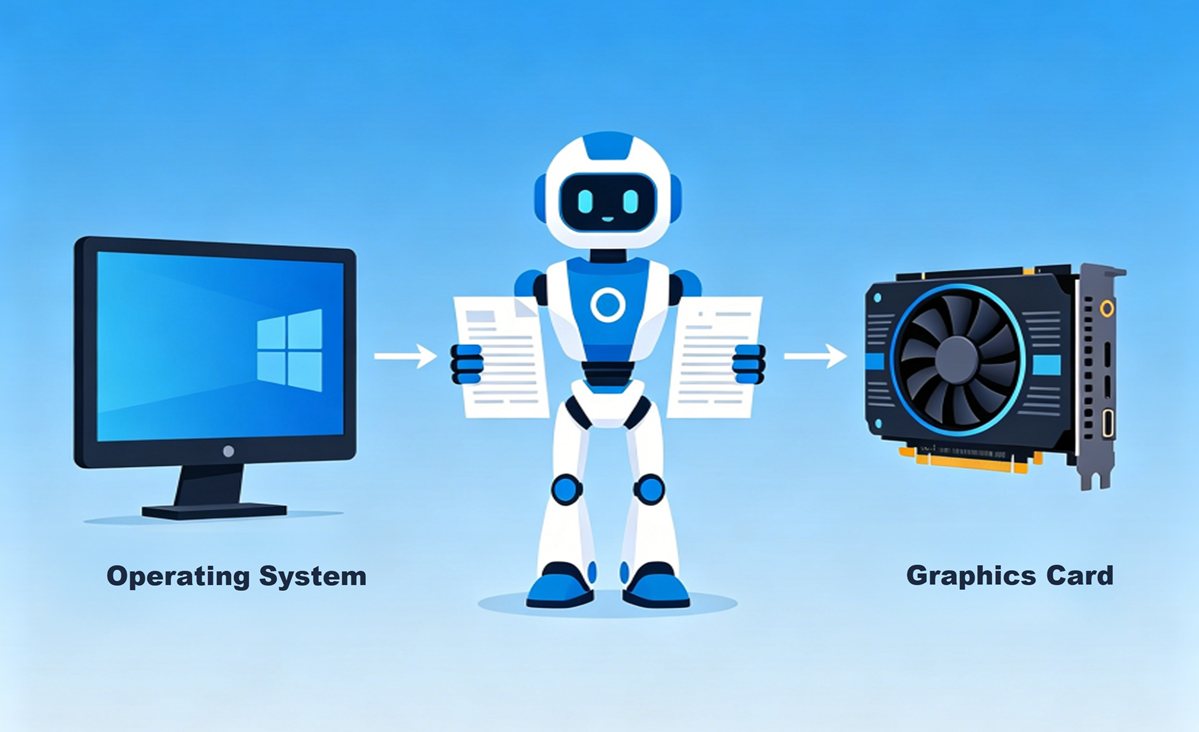
Keeping your graphics drivers updated ensures your GPU handles your tasks and demanding game engines efficiently.
Option 1 – Automatically (Quick & Hassle-Free)
If you don’t want to waste time searching through a manufacturer’s website or risk downloading the wrong file, the easiest and safest option is to use a dedicated driver update tool like Driver Easy.
Driver Easy automatically scans your entire computer, detects every outdated or corrupted driver, and downloads the correct, certified updates directly from the official manufacturers. With just one click, it updates your graphics driver alongside your motherboard chipset and audio drivers, wiping out the software conflicts causing your high GPU usage.
1. Download and install Driver Easy.
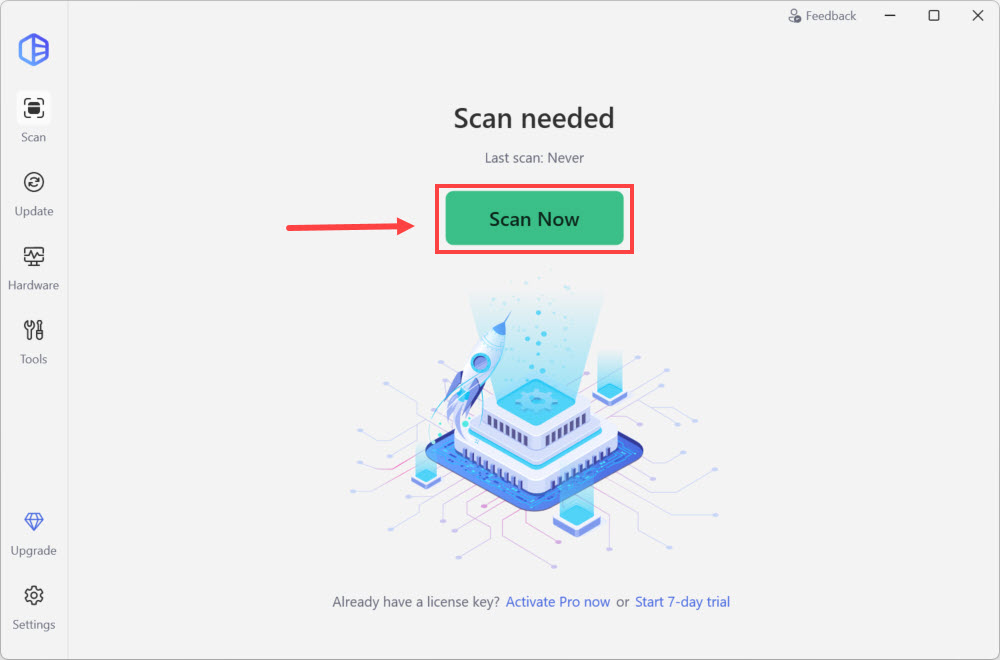
2. Run Driver Easy and click the Scan Now button. Driver Easy will then scan your computer and detect any problem drivers.
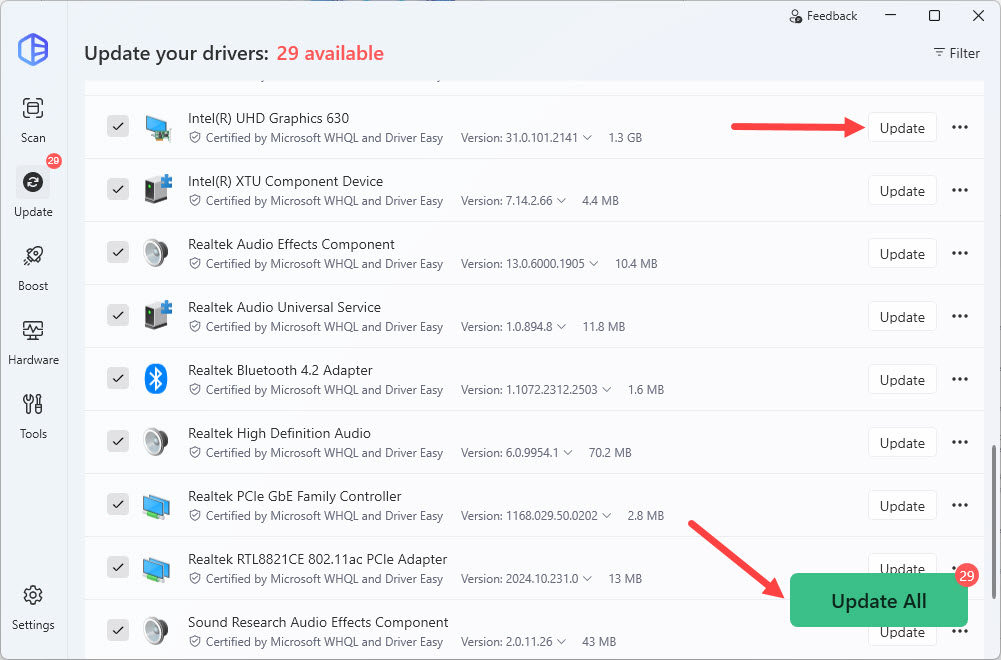
3. Click Update next to the flagged device to automatically download and install the correct version of this driver. Or click Update All to automatically download and install the correct version of all the drivers that are missing or out of date on your system.
Option 2 – Manually (For experienced users)
If you prefer a hands-on approach and know your exact system specifications, you can update your driver manually:
1. Visit the official download page of your GPU manufacturer.
2. Select your specific graphics card series, product model, and operating system。
3. Download the latest driver package.
4. Run the installer file (.exe file) and follow the on-screen instructions to install the driver.
2. Tweak your in-game settings and framerates
The quickest way to relieve a stressed GPU is to stop making it work harder than it needs to.
- Cap FPS correctly. Many players leave their in-game FPS “uncapped.” If you have a 60Hz or 144Hz monitor, your screen cannot physically show more than 60 or 144 frames per second. Running at an uncapped 200+ FPS forces your GPU to sit at 100% usage rendering “invisible frames” you cannot see. You can just cap your game frame rate to match your monitor’s refresh rate.
- Lower heavy visual settings. Dropping demanding settings like Anti-Aliasing, shadows, Ray Tracing, and lowering your resolution (e.g., from 4K to 1440p) will directly reduce the workload on your GPU.
- Turn on upscaling. Enable upscaling features like NVIDIA DLSS or AMD FSR in your game’s menu. These tools render the game at a lower resolution internally and upscale it using AI, instantly giving you a huge FPS boost while lowering the strain on your GPU.
3. Close unnecessary background apps
Sometimes your game isn’t the problem, but other apps that are stealing your graphics card’s processing power behind the scenes.
- Turn off Hardware Acceleration: Apps like Google Chrome, Discord, Spotify, and Steam use “Hardware Acceleration” to offload text and video rendering to your GPU. Go into the settings of these specific apps and disable Hardware Acceleration so 100% of your GPU power goes straight to your game.
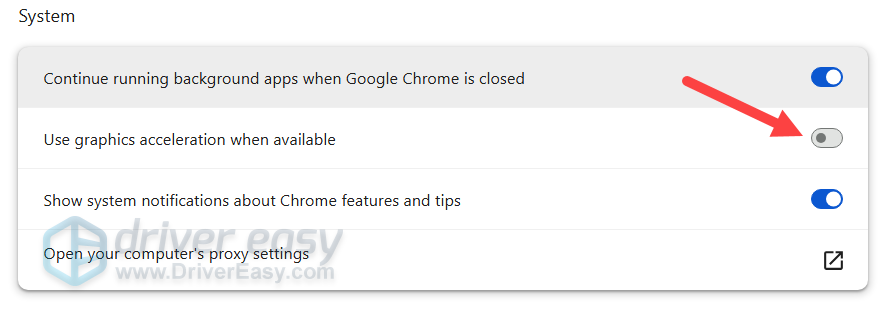
Turn off graphics acceleration in Chrome settings - Disable unnecessary overlays: Disable background recording, screen capture, and unnecessary overlays (like Xbox Game Bar or Discord overlay) to improve multitasking smoothness.
Conclusion
To conclude, GPU 100% usage is completely normal. If you are playing an intensive video game and your temperatures are safe, a 100% load means you are getting maximum value out of your hardware purchase.
However, if high usage appears with other symptoms such asd sextremely high temperatures or terrible FPS, it is usually a software power bug or a telemetry glitch. By updating your graphics driver, tweaking your graphics settings, and keeping your temperatures under control, you can enjoy a smooth gaming experience.