






Has your Windows 10 or Windows 11 PC suddenly become slow on startup? Maybe you’re stuck at the spinning dots, waiting forever to reach the sign-in screen, or your desktop remains unusable long after you’ve logged in.
This is usually related to a software or driver issue, and most of them can be fixed without reinstalling Windows. In this guide, we’ve put together 7 proven methods to help you get your Windows 11/10 starting quickly again.
How to fix Windows 10/11 slow boot?
Follow the solutions below in order. The list is arranged from the quickest and most effective fixes to more advanced troubleshooting, so you can restore fast startup without unnecessary work.
- Disable unnecessary startup apps
- Disable Fast Startup
- Repair corrupted Windows system files
- Update your device drivers
- Check your SSD or HDD health
- Perform a clean boot
- Reinstall Windows (Last resort)
Method 1: Disable unnecessary startup apps
One of the most common reasons Windows boots slowly is having too many applications launch automatically when you sign in.
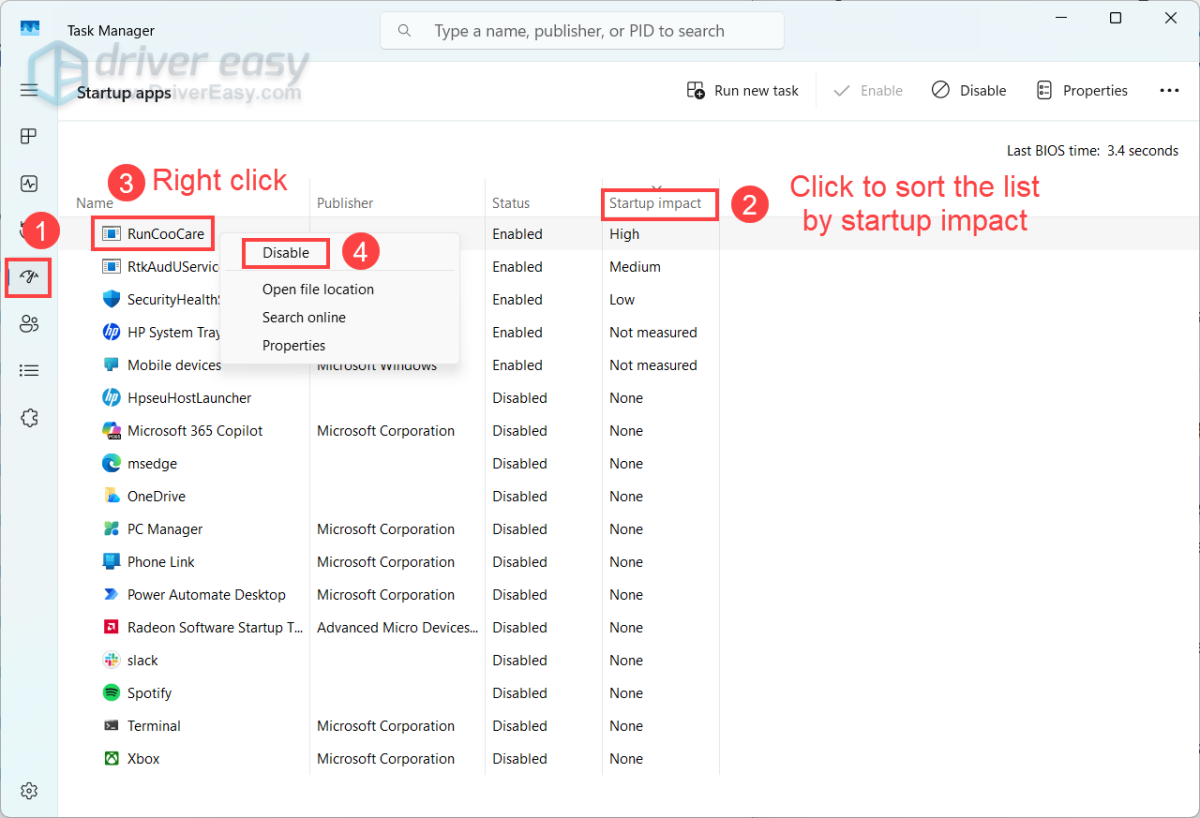
1) On your keyboard, press Ctrl + Shift + Esc at the same time to open Task Manager.
2) Select the Startup apps tab (from the left pane on Windows 11) or Startup tab (from the top pane on Windows 10).
3) Click Startup impact to sort the list. Right-click any unnecessary processes, especially those with high startup impact, and select Disable.
Reboot your Windows 10/11 device and check to see if it boots quickly. If you’re still experiencing a slow boot, you can move on to our next method.
Method 2: Disable Fast Startup
Fast Startup is enabled by default in Windows. It works similarly to Hibernation by saving part of the Windows kernel session to disk, allowing Windows to boot more quickly the next time you turn on your PC.
However, on some systems, Fast Startup can actually cause slower boot times or other startup issues, and you can just disable it.
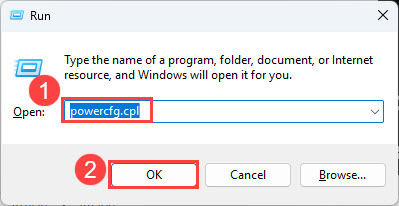
1) On your keyboard, press the Windows logo key and R to invoke the Run dialog box. Then type powercfg.cpl, and click OK.
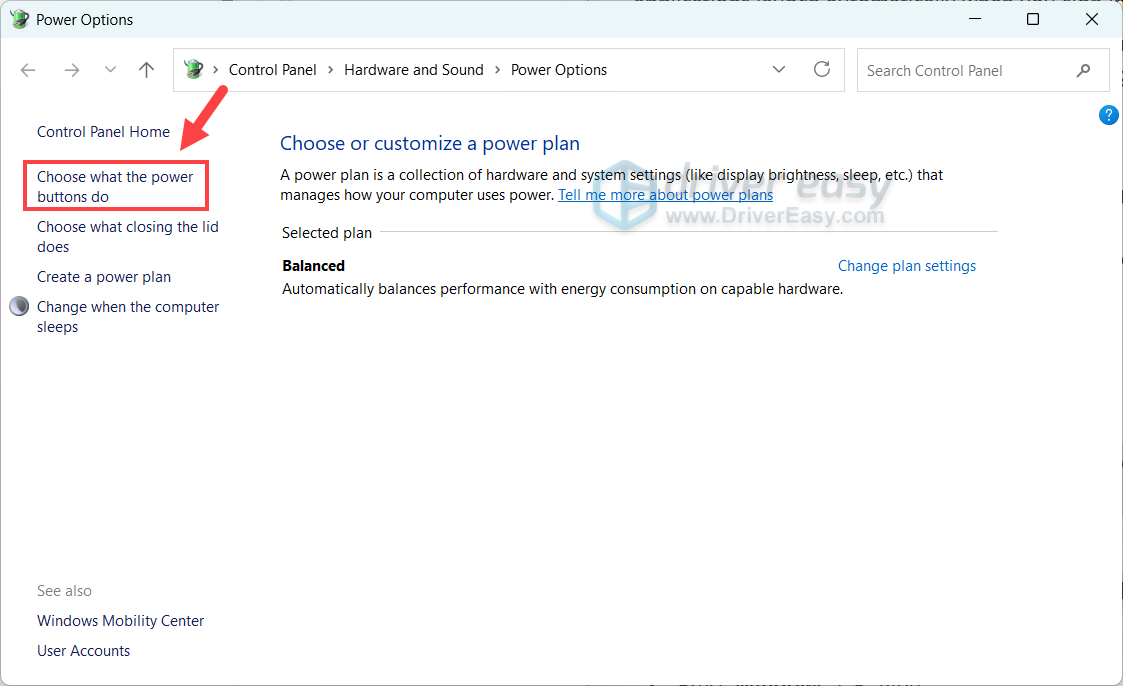
2) Click Choose what the power button does.
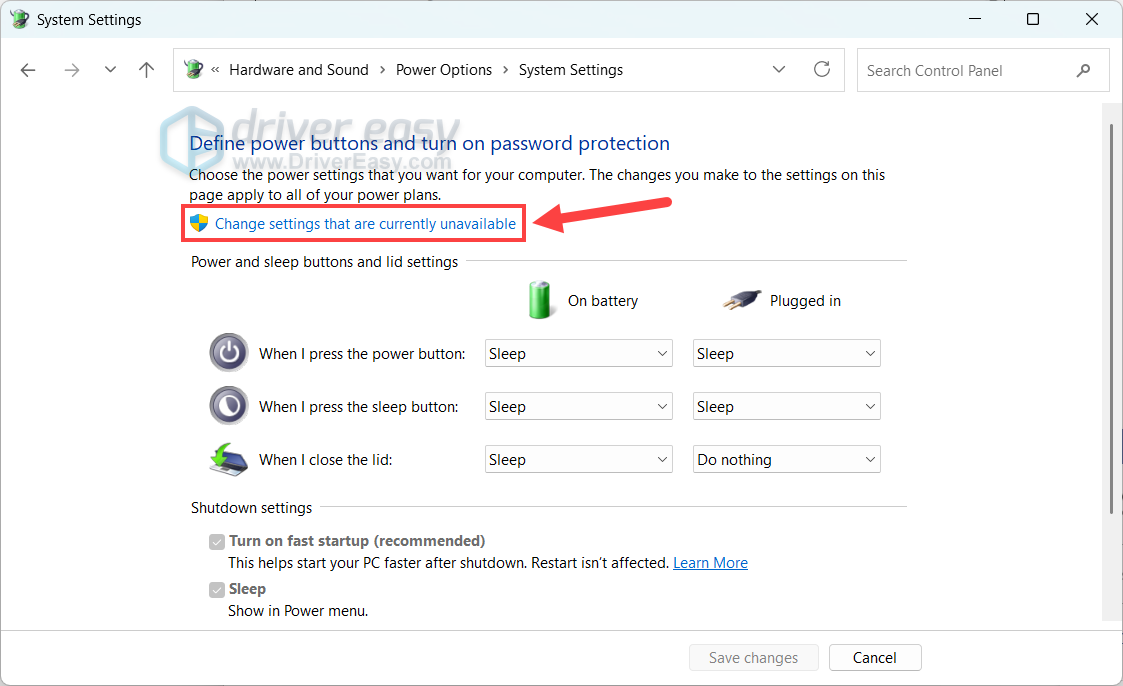
3) Click Change settings that are currently unavailable. If the fast startup option is missing, you’ll need to turn on the Hibernate feature first.
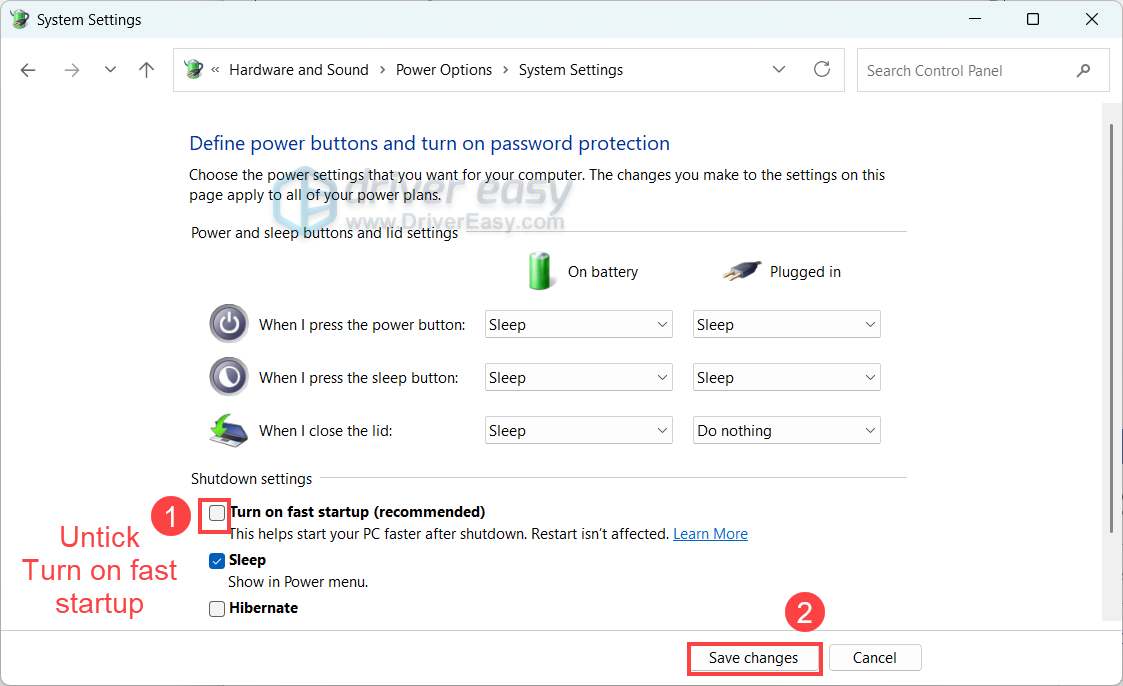
4) Untick Turn on fast startup (recommended). Then click Save Changes.
If the Fast Startup option is missing…
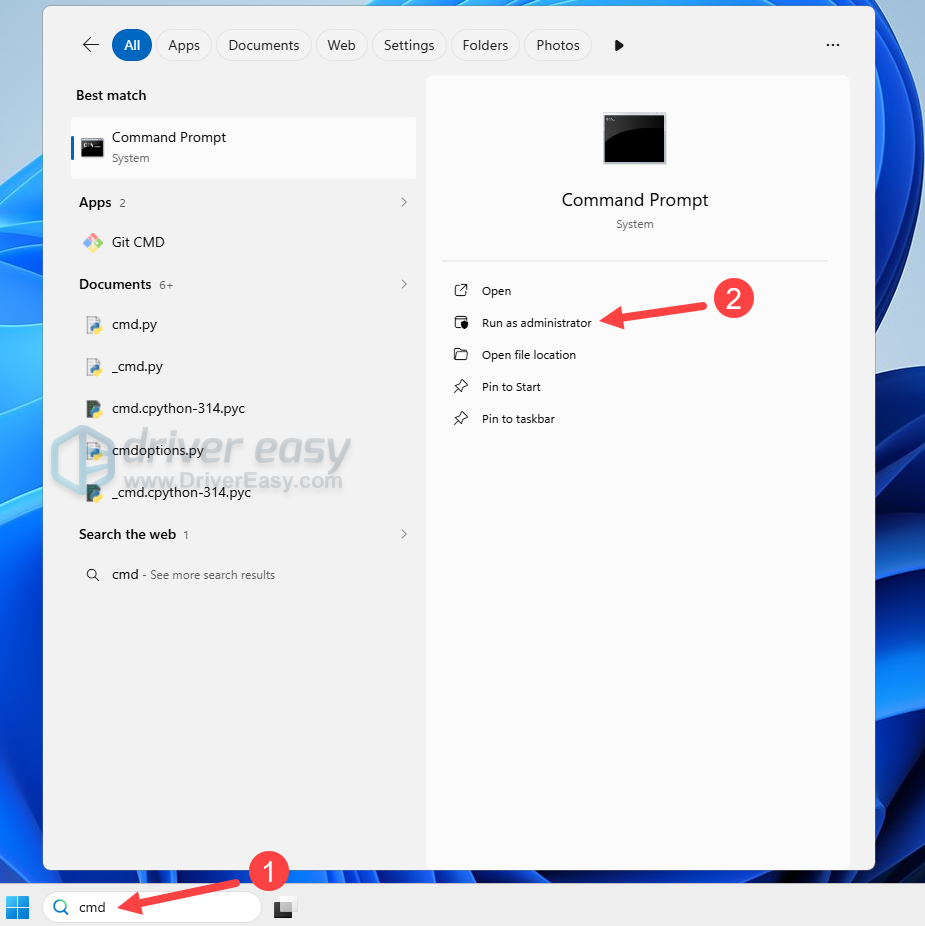
1) Type cmd into the Windows search bar, and click Run as administrator.
2) Enter the prompt below and press Enter.
powercfg /hibernate on
Once the option is available, follow the steps above to disable Fast Startup.
If your computer still takes a long time to boot even after disabling Fast Startup, you can turn it back on and try the next fix.
Method 3: Repair corrupted Windows system files
Corrupted Windows system files can significantly increase boot time. Windows includes built-in tools that automatically scan for and repair these files.
1) Type cmd into the Windows search bar, and click Run as administrator.
2) Enter the following command one at a time and press Enter after each command.
sfc /scannow
DISM /Online /Cleanup-Image /RestoreHealth
Once the process completes, restart your PC and check whether boot time has improved.
Method 4: Update your device drivers
If a driver is outdated, corrupted, or incompatible (for example, after a Windows update), Windows may take longer to initialize the affected hardware. In some cases, it may repeatedly retry loading the driver or wait for the device to respond, which can significantly increase startup time. Besides slow boot, faulty drivers can also cause sluggish performance, freezes, blue screens, or hardware devices that don’t work properly.
You can update drivers manually by downloading the latest versions from your PC or motherboard manufacturer’s official website.
If you’re updating drivers manually, prioritize them in this order: storage drivers, chipset drivers, graphics drivers, and network drivers. These drivers are loaded early in the boot process. Keeping them up to date can often improve both startup speed and overall system stability.
If you’re not confident playing around with drivers manually, or if you want to save some time, you can use Driver Easy to do it automatically.
1) Download and install Driver Easy.
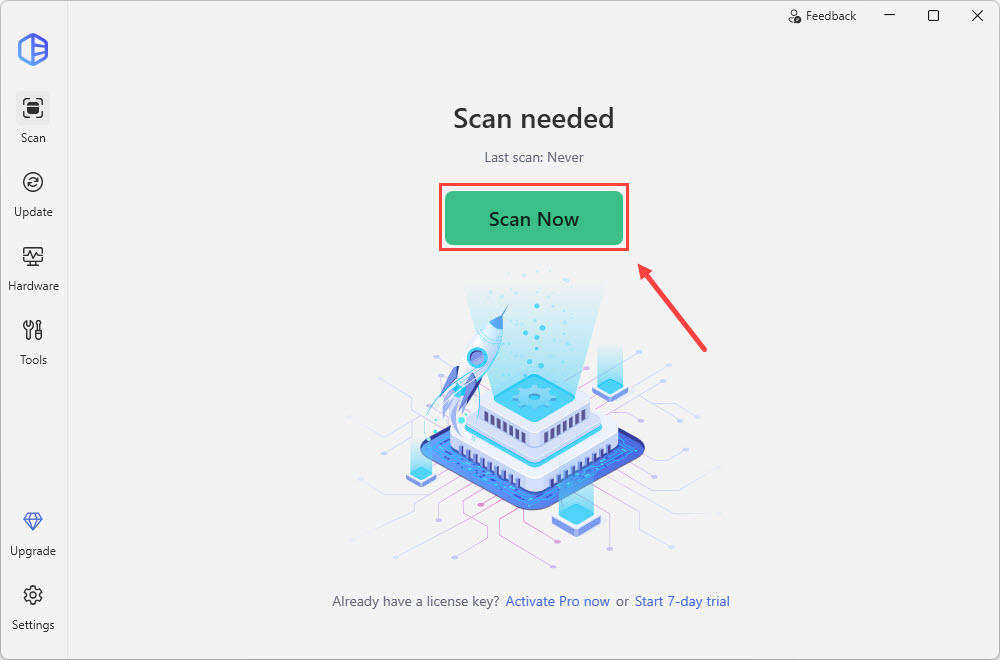
2) Run Driver Easy and click the Scan Now button. Driver Easy will then scan your computer and detect any problem drivers. Your sound driver is no exception.
3) Click Update All to automatically download and install the correct version of all the drivers that are missing or out of date on your system. This requires the Pro version. Driver Easy Pro version provides automatic driver updates as well as advanced technical features and support. You can sign up for a 7-day trial to try it completely for FREE!
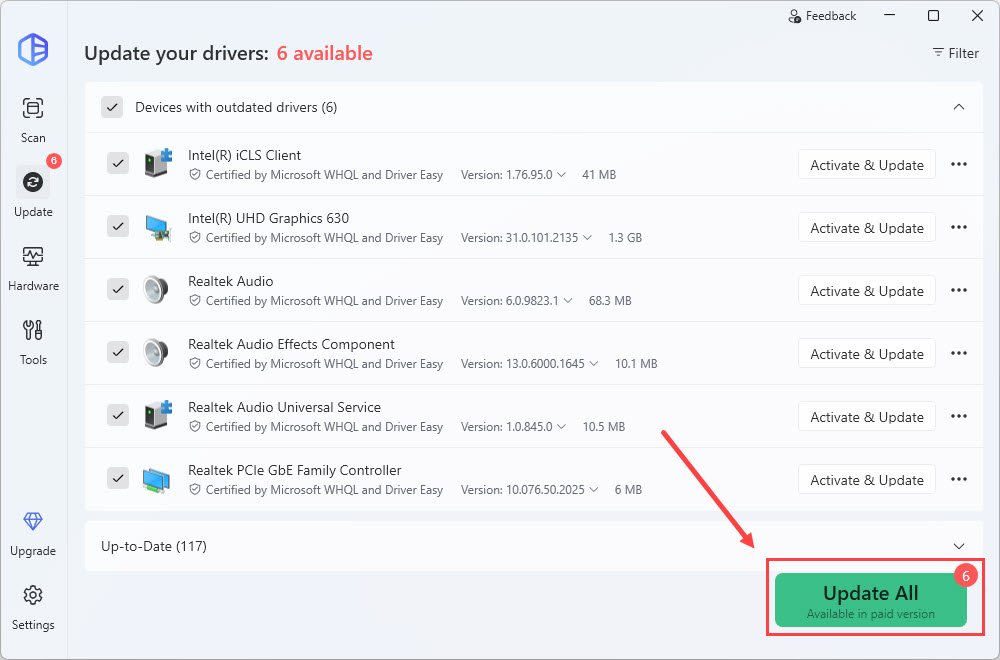
4) Reboot your Windows 10/11 computer and check to see if it boots quickly.
Method 5: Check your SSD or HDD health
If your computer has become progressively slower over time, your storage drive may be developing hardware issues.
1) On your keyboard, press the Windows key + E at the same time to open File Explorer.
2) From the left pane, right-click your system drive (C:), and select Properties.
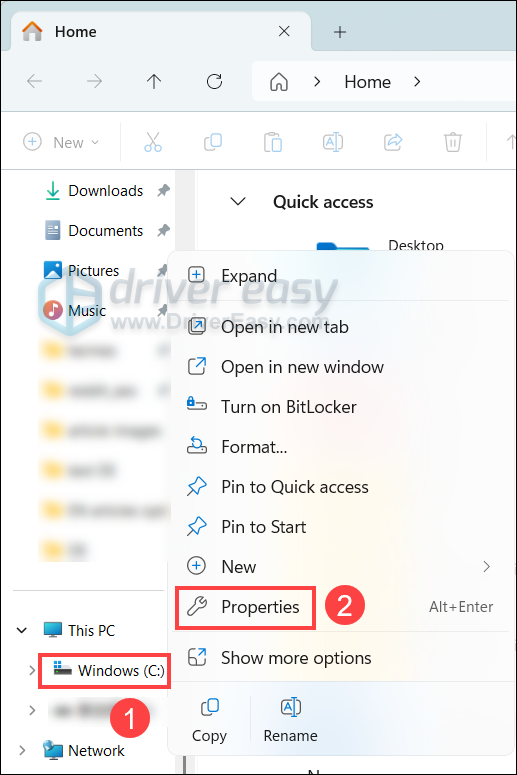
3) Go to the Tools tab, and click Check under Error checking.
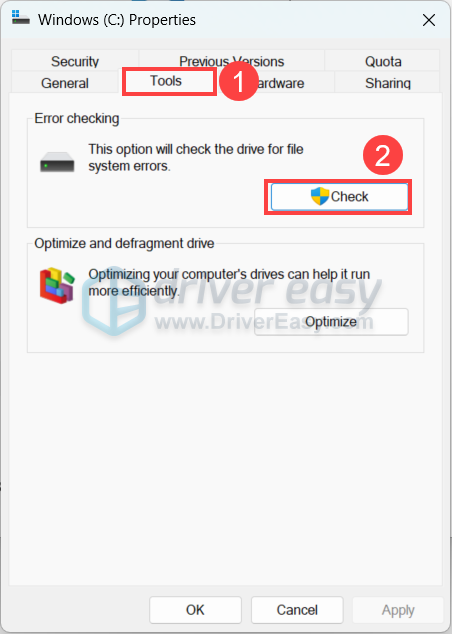
If Windows reports drive errors, allow it to repair them. If your drive continues to show errors or SMART warnings, consider replacing it. A failing HDD or SSD is one of the most common causes of extremely slow startup.
Method 6: Perform a clean boot
Third-party software can sometimes interfere with Windows during startup. Performing a clean boot starts Windows with only essential Microsoft services, making it easier to determine whether a non-Microsoft program is causing the issue.
1) On your keyboard, press the Windows key + R at the same time to open the Run command box.
2) Type in msconfig and press Enter.
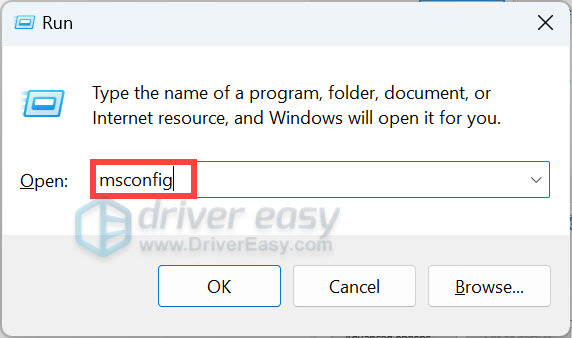
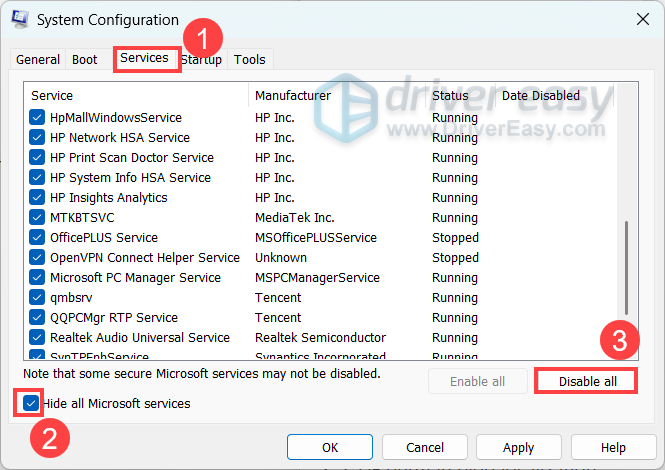
3) Go to the Services tab, check Hide all Microsoft services, and click Disable all.
4) Go to the Startup tab. Click Open Task Manager.
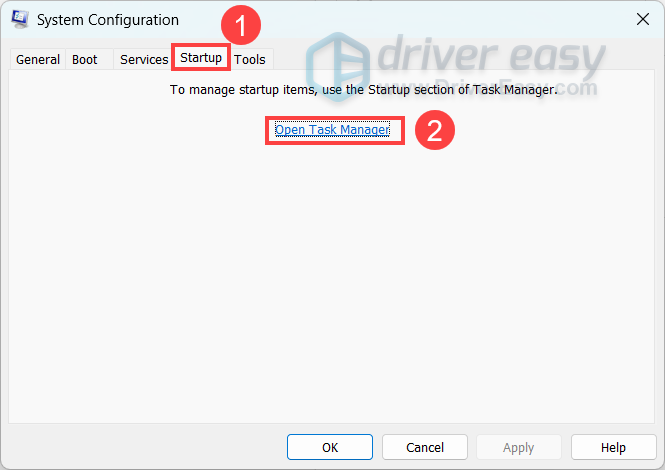
5) Right-click any non-essential startup apps, and click Disable.
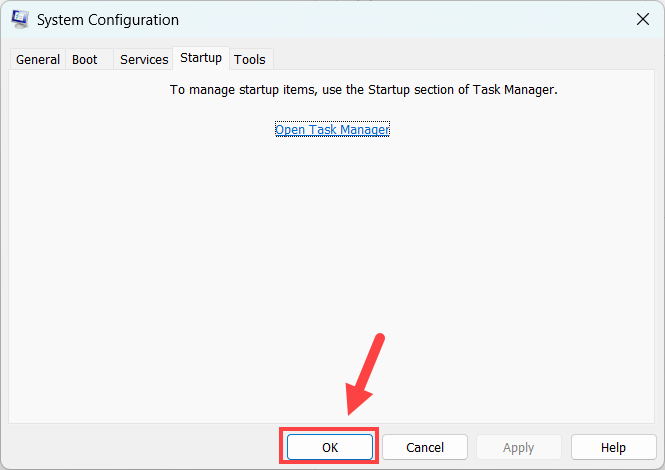
6) Close the Task Manager, go back to the system configuration tool, and click OK.
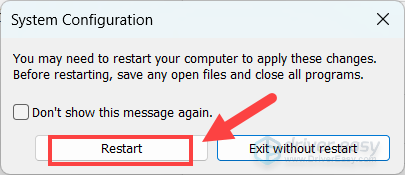
7) Click Restart.
If startup is still slow, the issue is probably not caused by a third-party startup program. Move on to the next fix.
If startup is much faster, one or more disabled services or startup apps are likely responsible. To find the culprit:
1) Open msconfig again and re-enable a few services at a time (for example, 3–5 services).
2) Restart your PC and check whether startup becomes slow again.
3) If startup remains normal, enable another small group of services and restart. Once the slow boot returns, you’ll know the problematic service is in the group you just enabled.
4) Disable all services in that group again, then re-enable them one by one, restarting after each change until you identify the exact program or service causing the slowdown.
Once you’ve found the problematic application, consider updating it, reinstalling it, or uninstalling it if you no longer need it.
Method 7: Reinstall Windows (Last resort)
If none of the solutions above work, your Windows installation may be severely corrupted, and you may consider reinstalling Windows.
You can then perform a clean installation using Microsoft’s Media Creation Tool or Windows installation media. After reinstalling Windows, install the latest Windows updates and hardware drivers before restoring your applications.
A slow boot doesn’t always mean your computer needs replacing. In most cases, the issue can be resolved by disabling unnecessary startup apps, turning off Fast Startup, repairing Windows system files, or updating your drivers.
Work through the fixes in order, restarting your PC after each one. If startup is still slow after trying every solution, it’s worth checking your storage drive or performing a clean installation of Windows as a last resort.

