






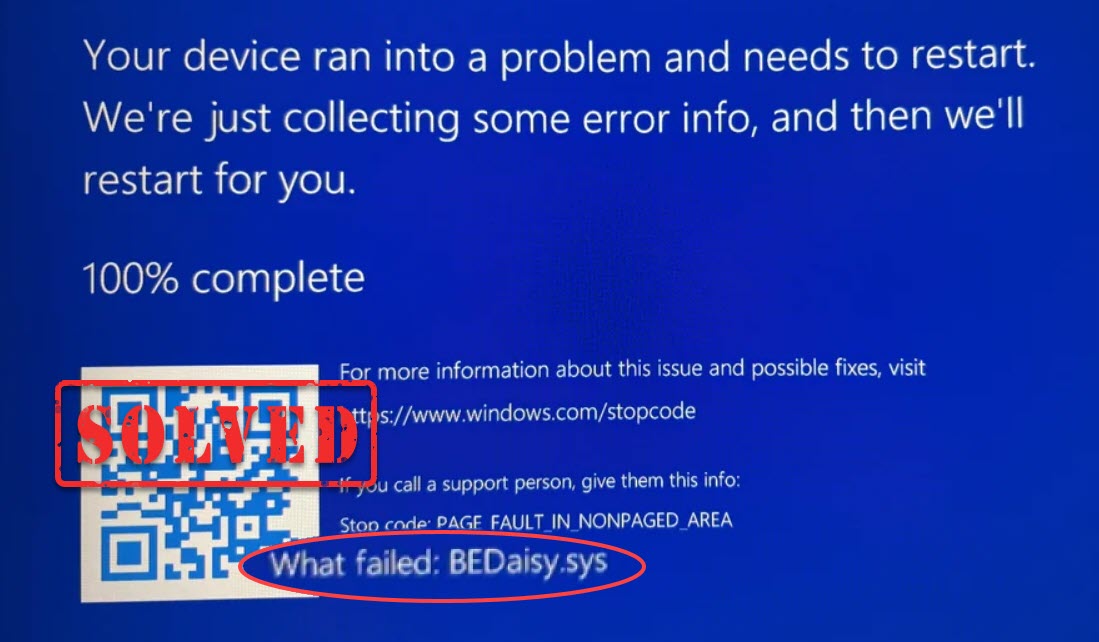
Your game launches, BattlEye starts loading, and then a blue screen appears. You may see an error that mentions BEDaisy.sys, alongside a stop code: PAGE_FAULT_IN_NONPAGED_AREA.
This crash error usually means something went wrong at the Windows kernel level while BattlEye was initializing or running. But don’t worry. In this guide, we’ll walk you through 8 solutions for the BEDaisy.sys crash.
7 ways to fix the BEDaisy.sys crash on Windows
The solutions below start with the easiest one and move to more advanced tricks. You don’t have to try them all; just work your way down the list until you find the one that resolves your problem.
- Repair and reinstall BattlEye
- Run the game and BattlEye as administrator
- Check for the most recent Windows Update
- Remove conflicting software
- Update or reinstall the conflicting USB and audio drivers
- Temporarily turn off Memory Integrity
- Disable XMP/EXPO
Fix 1: Repair and reinstall BattlEye
A corrupted or incomplete BattlEye installation can sometimes trigger BEDaisy.sys crashes when the anti-cheat driver loads. Reinstalling BattlEye is a good first step, especially if the crash started after a game update or an interrupted installation.
1. Go to your game’s installation directory (e.g., Steam\steamapps\common\Rainbow Six Siege) and open the BattlEye folder.
2. Right-click UninstallBE.bat and select Run as administrator. Follow the on-screen instructions.
3. Restart your PC.
4. Return to the game’s BattlEye folder, right-click InstallBE.bat, and select Run as administrator.
Launch your game. BattlEye should perform a fresh installation.
If your game, such as Rainbow Six Siege, also uses Ubisoft Anti-Cheat alongside BattlEye, make sure to repair Ubisoft Anti-Cheat as well.
Go to the game’s installation folder (e.g., C:\Program Files (x86)\Ubisoft\Ubisoft Game Launcher\games) and open the Sentinel folder. Right-click UbisoftAntiCheatInstaller.exe and select Run as administrator. On the screen, choose Repair.
Fix 2: Run the game and BattlEye as administrator
If the game runs without admin rights, Windows blocks its anti-cheat driver from accessing system memory—triggering sudden crashes and memory errors like 0xC0000005.
1. Open your game’s installation folder via Steam: Right-click the game from the list and select Manage > Browse local files.
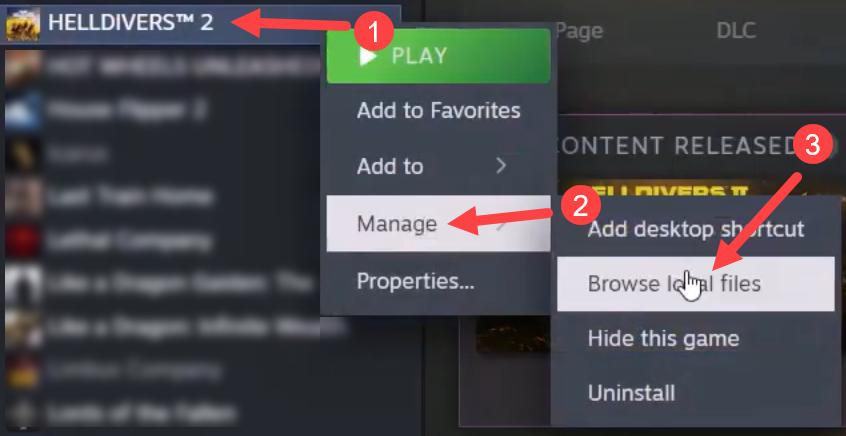
2. Right-click the game executable file (for example, RainbowSix.exe, RainbowSix_BE.exe, and RainbowSixHelper.exe) and select Properties. Depending on the game and launcher, you may find additional executables under the game’s installation or launcher folders.
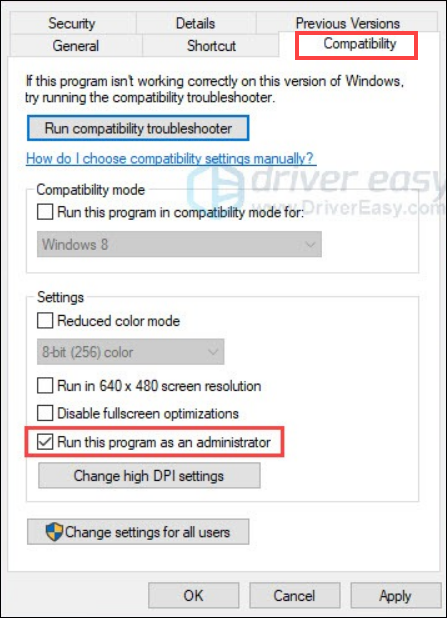
3. Go to the Compatibility tab, tick Run this program as an administrator, and click OK to apply the changes.
Launch the game and see how it works now. If the crashes don’t stop, check out the next fix below.
Fix 3: Check for the most recent Windows Update
If the BEDaisy.sys crash started immediately after Windows installed an update, temporarily rolling back that update can help determine whether the update is involved. To uninstall a Windows update:
1. Press the Windows key + I to open Settings.
2. Go to Windows Update > Update history.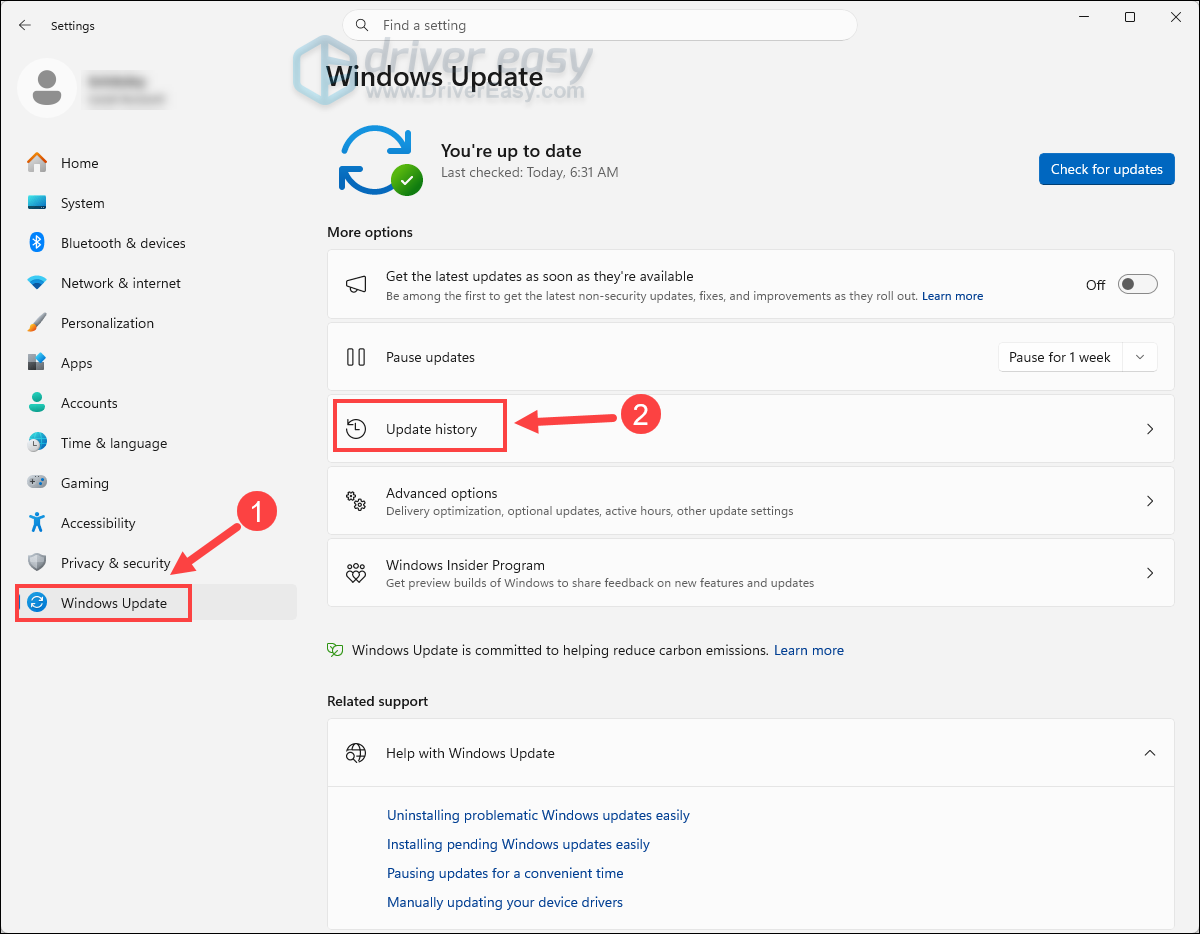
3. Select Uninstall updates.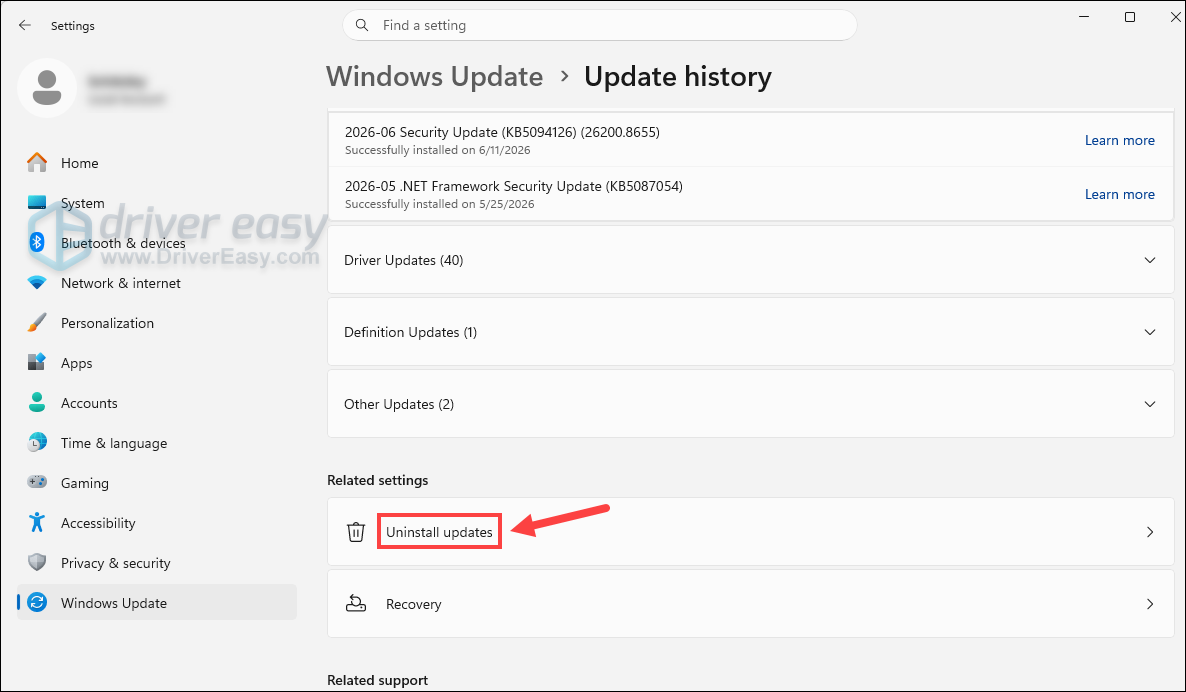
4. Click Uninstall next to your most recent update.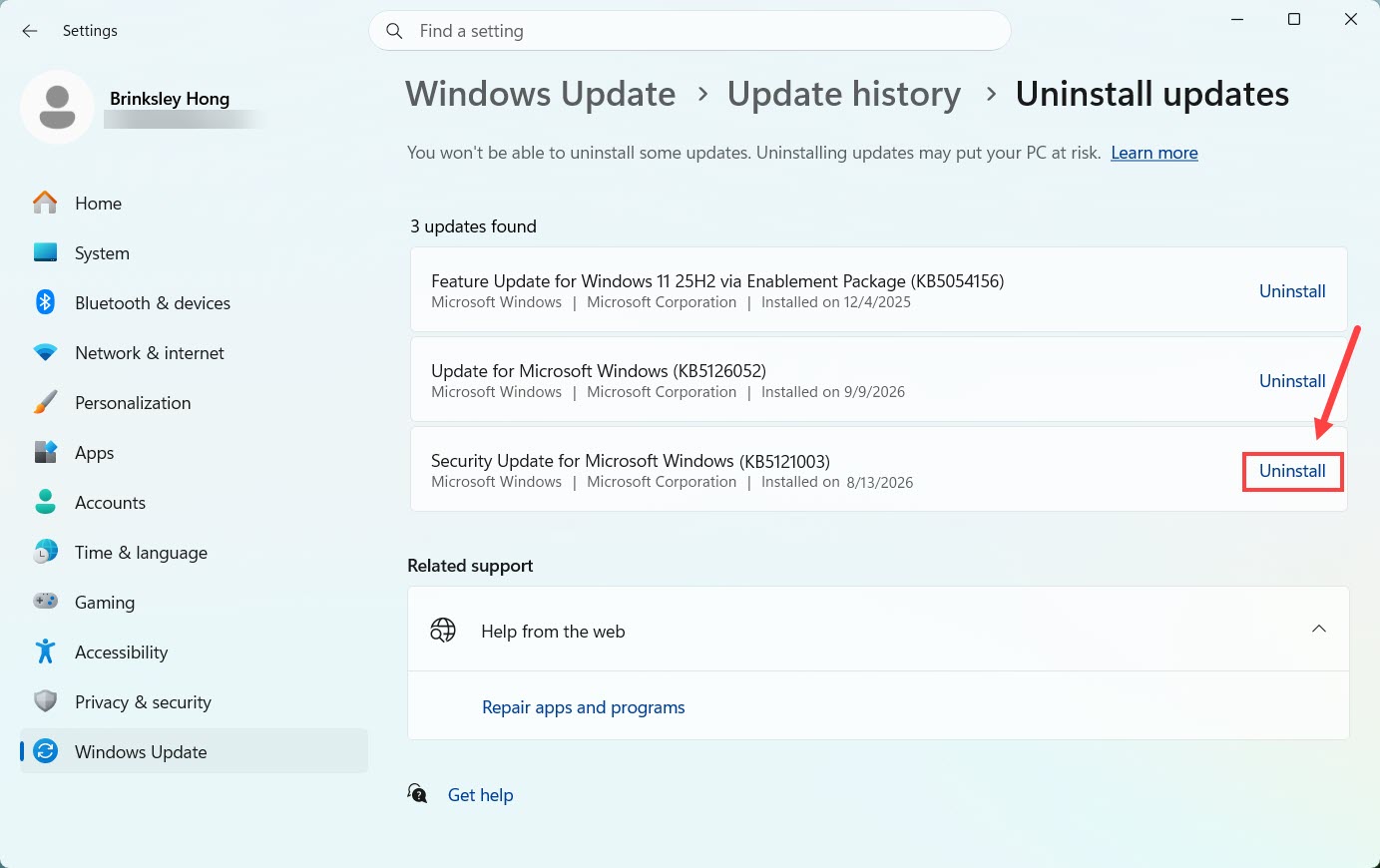
Restart your PC and test the game again. If the BSOD disappears after the rollback, the Windows update may have been contributing to the problem. You can simply wait for a newer Windows build or patch. But if this method doesn’t help, look at the next one below
Fix 4: Remove conflicting software
Some programs install their own low-level drivers. In certain configurations, these drivers can conflict with BattlEye. If you have recently installed another anti-cheat, hardware-monitoring utility, RGB controller, VPN, virtual audio software, or similar system-level software, temporarily uninstall it to check if that’s the cause.
For example, Riot Vanguard is another kernel-level anti-cheat. If you have Vanguard installed and the BEDaisy.sys crash began around the same time, try removing Vanguard temporarily.
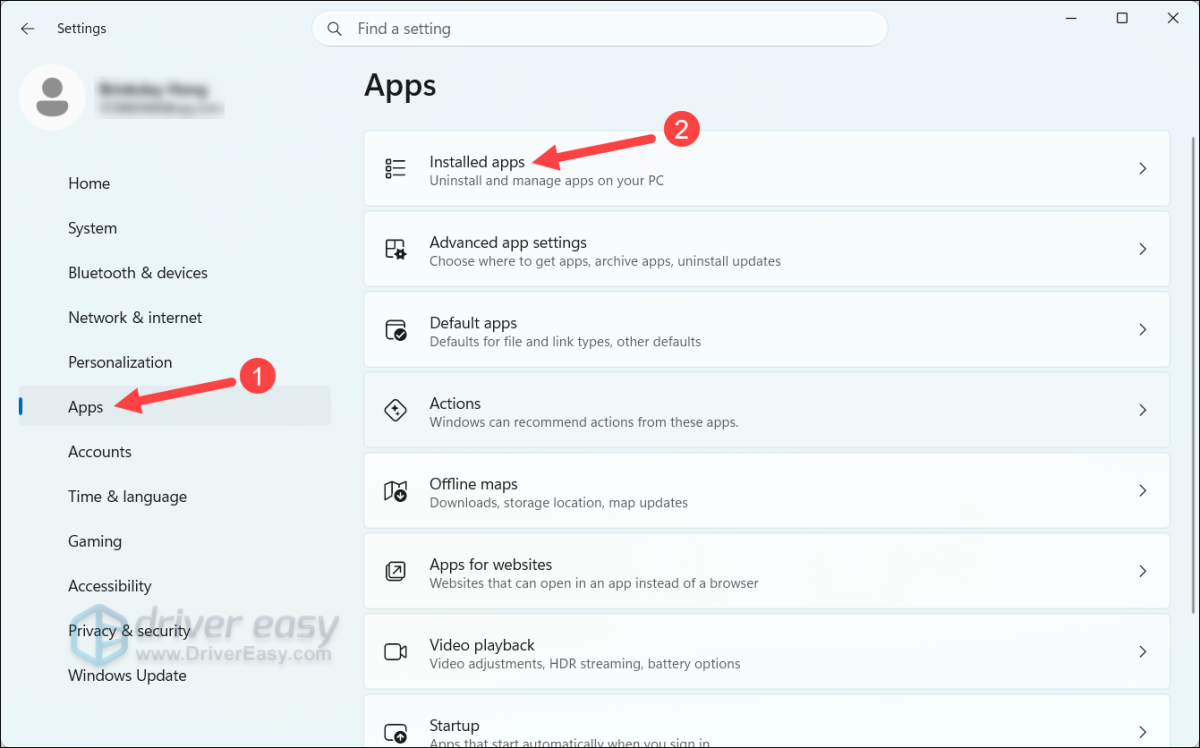
1. Press the Windows key + I to open Settings. Go to Apps > Installed apps.
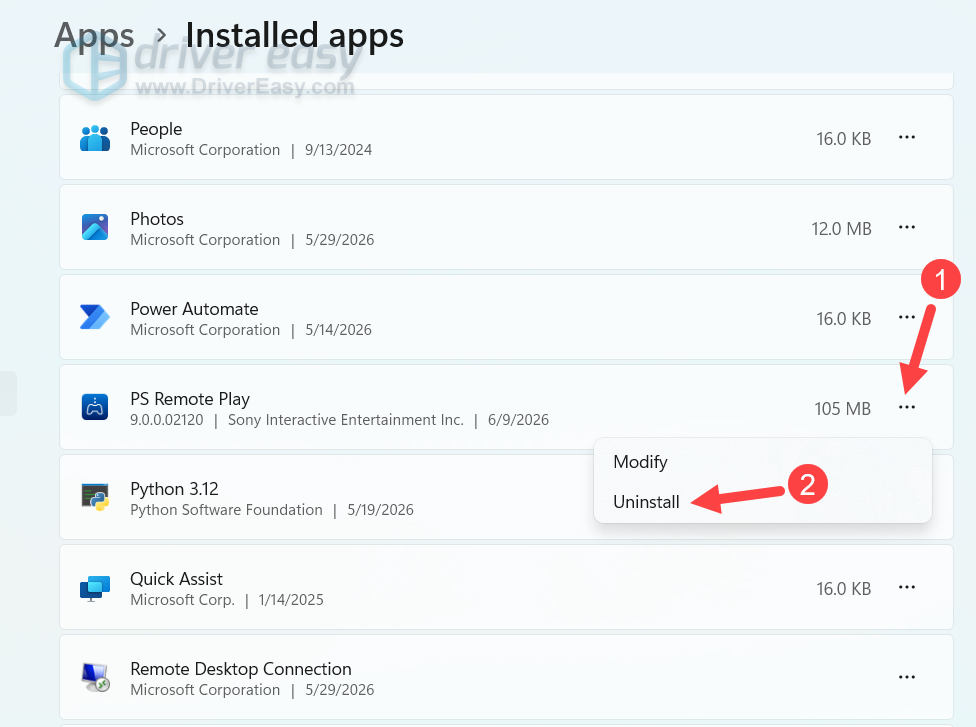
2. Find the possible conflicting program, click the three-dot button next to it, and select Uninstall.
Restart your PC. Then launch the BattlEye-protected game and test it.
Fix 5: Update or reinstall the conflicting USB and audio drivers
Outdated drivers, especially for USB audio interfaces or virtual headsets, are one of the most common causes of this crash. Because audio drivers run at the kernel level alongside BattlEye, memory conflict between them may force Windows to trigger a BSOD.
To fix this, try to check your system for missing or outdated drivers. Below we’ll show you two options: manual or automatic.
Option 1: Reinstall the driver via Device Manager
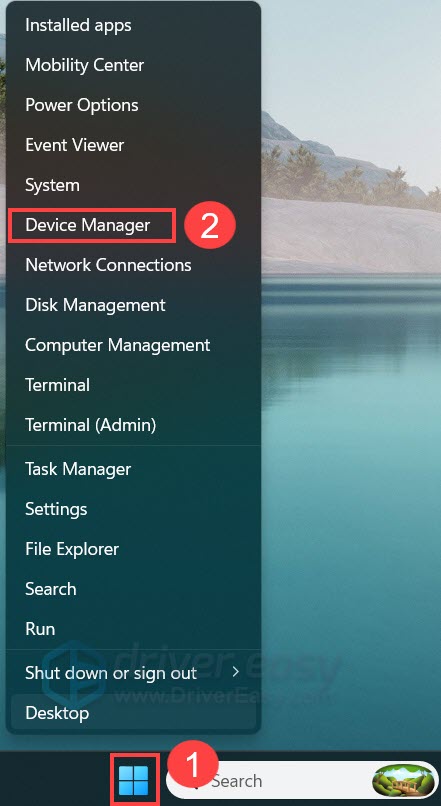
1. Right-click the Start Button and select Device Manager.
2. Expand both Sound, video and game controllers and Audio inputs and outputs.
3. Look for virtual audio software (like VB-Audio Virtual Cable or Razer Surround) or recently added audio gear. Right-click the suspect device, choose Uninstall device.
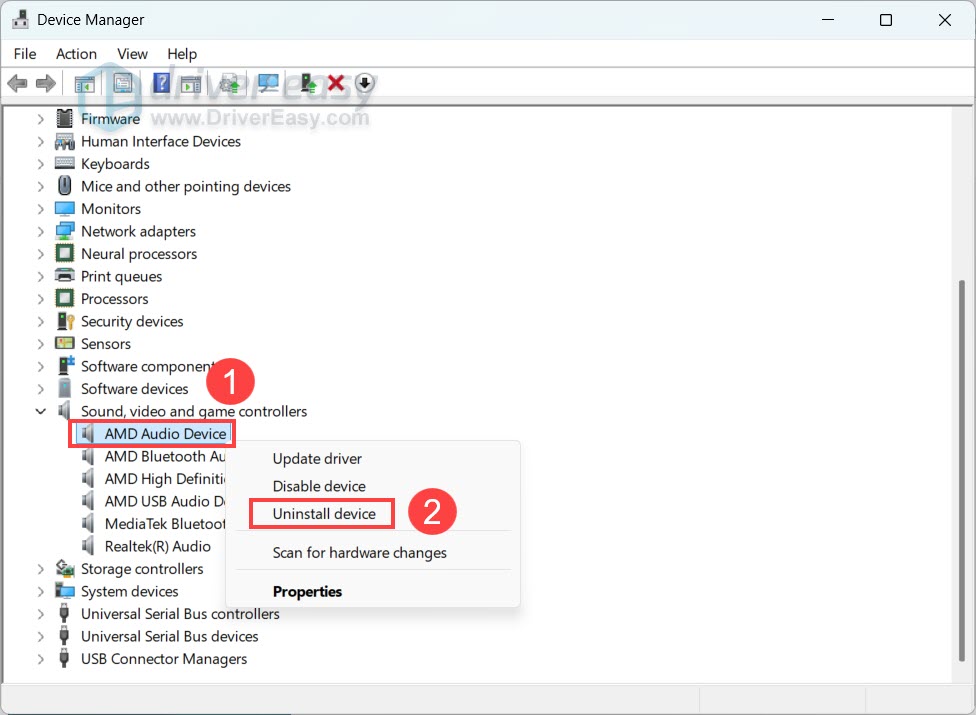
4. Check the box for Delete the driver software for this device (if visible), and click Uninstall.
Restart your computer, and Windows should automatically reinstall that driver.
Option 2: Update all drivers automatically with Driver Easy
If you don’t have the time, patience, or skills to locate the faulty driver or update them manually, using an automatic driver updater like Driver Easy is much faster and far less frustrating.
Driver Easy will automatically recognize your system and find the correct drivers for it. Instead of manually guessing which device is colliding with BattlEye, you get a clean breakdown of every outdated, corrupted, or mismatched driver on your PC, along with a one-click fix to update them safely.
1. Download and install Driver Easy.
2. Run Driver Easy and click the Scan Now button. Driver Easy will then scan your computer and detect any problem drivers.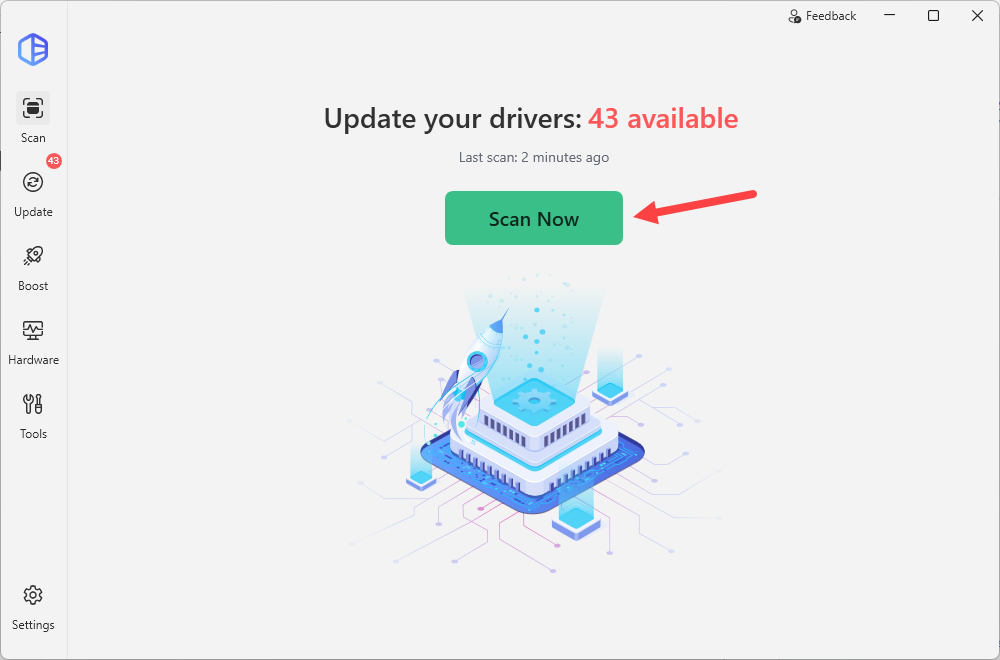
3. Click the Activate & Update button next to the flagged device to automatically download and install the correct version of this driver. Or click Update All to automatically download and install the correct version of all the drivers that are missing or out of date on your system. 
(You’ll need the Pro version for this. Driver Easy Pro provides automatic driver updates plus advanced technical features and full support. If you’re not prepared to purchase the Pro version yet, you can start a 7-day free trial to try all Pro features first!)
After updating, restart your computer for the changes to take effect.
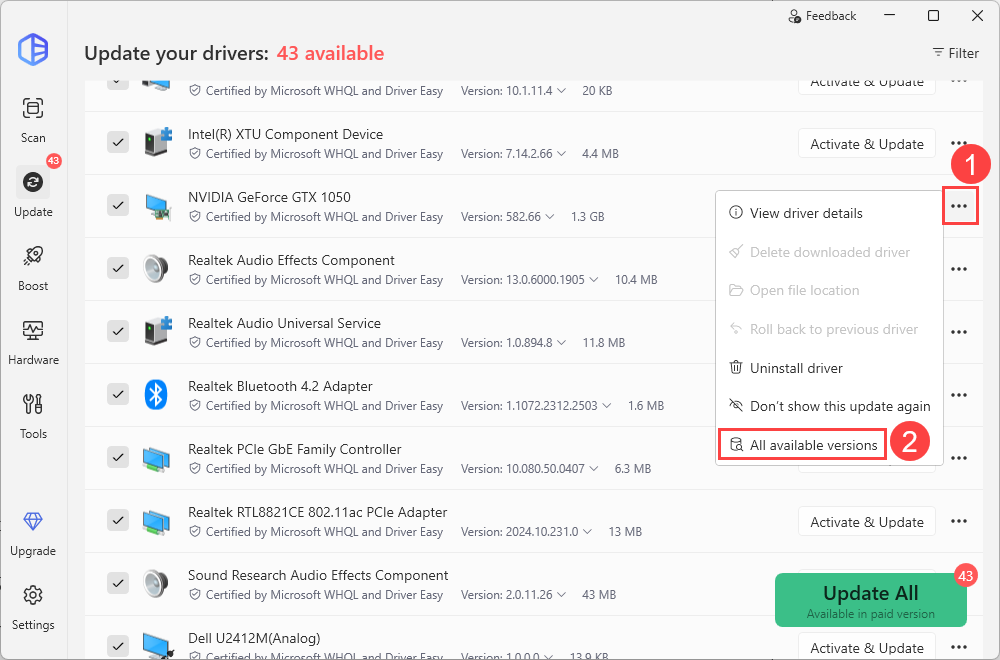
If the problem started immediately after a driver update, try rolling back the driver. You can do this through Device Manager or with Driver Easy. With Driver Easy, you can also choose from available driver versions and install an earlier version that may be more stable on your system.
Fix 6: Temporarily turn off Memory Integrity
Memory Integrity is a built-in Windows security feature designed to block untrusted software. However, it can sometimes block BattlEye from working, causing an instant blue screen. Temporarily switching it off helps us confirm if this safety feature is what’s blocking your game.
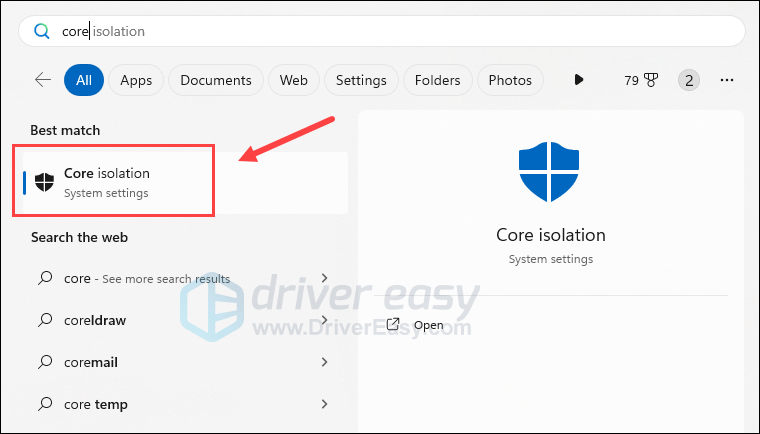
1. On your keyboard, press the Windows key and type core isolation, then select Core Isolation from the list.
2. Toggle off Memory integrity.
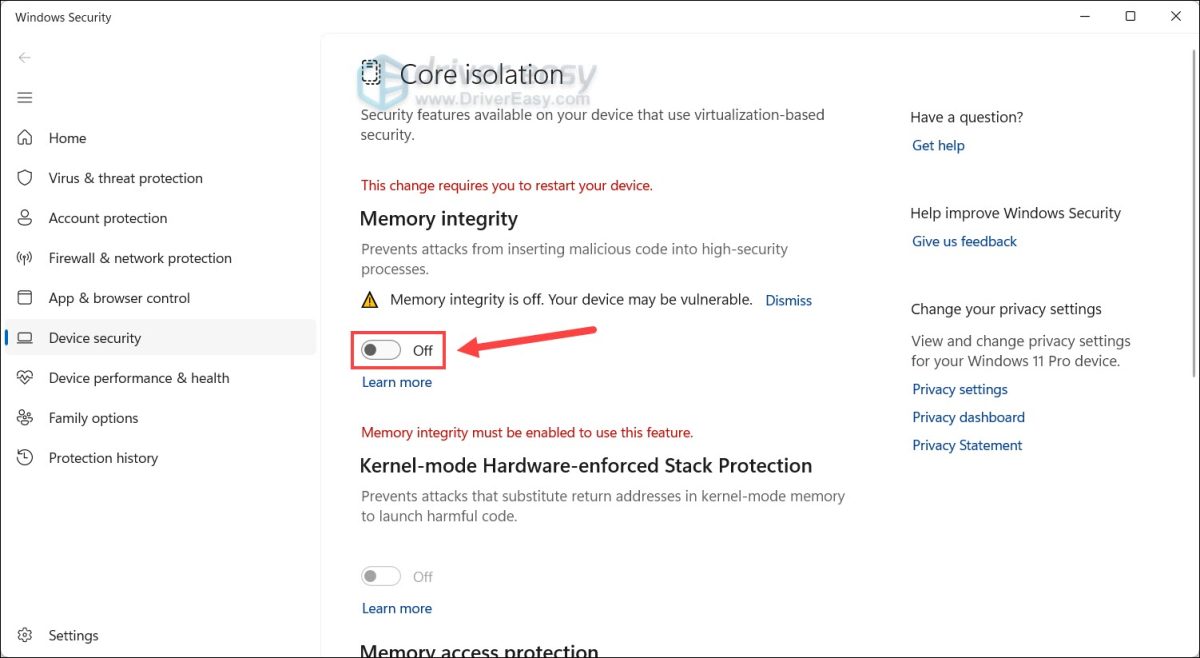
Restart your computer and test the issue. If the BEDaisy.sys BSOD disappears, an incompatible driver or security-feature interaction may be involved. In that case, check Windows and hardware manufacturers for updated drivers rather than permanently disabling Memory Integrity.
If turning this off does not fix your crash, turn it back On and try the next fix.
Fix 7: Disable XMP/EXPO
Features like XMP (Intel) or EXPO (AMD) are automatic “one-click” RAM boosts built into your BIOS. While they usually work fine, they can occasionally cause micro-glitches in your memory timings and crash your system, especially under certain workloads.
1. Shut down your PC completely.
2. Restart your PC and enter BIOS by repeatedly pressing the hotkey, which may vary by computer brand:
Asus: F2
Dell: F2
HP: Esc or F10
Lenovo: F1
If you’re in EZ Mode, press F7 to enter Advanced mode.
3. Locate the Overclock/Tweaker menu, which may vary depending on your motherboard’s manufacturer and BIOS/UEFI version.
ASUS: Ai Tweaker tab
MSI: Left sidebar OC (Overclocking) menu
Gigabyte: M.I.T. / Tweaker page
ASRock: Tweaker / OC tab
4. Disable memory overclock profile:
ASUS: Find Ai Overclock Tuner, set to Disabled (preferred) or Auto.
Intel boards: Locate Extreme Memory Profile (XMP), set to Disabled.
AMD Ryzen boards: Locate EXPO / A-XMP, set to Disabled.
5. Press F10 to save the changes and restart Windows.
If the fixes above don’t work…
If you’ve worked through all eight fixes above and Windows is still throwing a BEDaisy.sys blue screen, at this point, the issue is almost certainly not BattlEye itself; BattlEye is simply the first kernel program catching a deeper, hidden instability in your overall system.
Check if your PC experiences minor stutters, sudden app closes, or other blue screens outside of your game. If it does, run through these broader system diagnostics:
1. Repair Windows System Files using SFC & DISM
Open PowerShell or Command Prompt as Administrator, type sfc /scannow, and press Enter. If Windows finds corrupted system files, run dism /online /cleanup-image /restorehealth next to automatically repair the Windows component store.
2. Run Deep Memory and Storage Health Checks
– RAM: Press Windows + S, search for Windows Memory Diagnostic, and choose Restart now and check for problems (or use MemTest86 via USB for a deep overnight test).
– SSD/HDD: Download a free utility like CrystalDiskInfo to check your drive’s S.M.A.R.T. health and ensure bad storage sectors aren’t corrupting system page files.
3. Monitor CPU & GPU temperatures under heavy load
Use tools like HWiNFO64 or MSI Afterburner to log CPU and GPU temperatures. Extreme thermal spikes (such as CPUs hitting 90°C+ or GPU memory hotspotting) can force memory controller glitches when kernel drivers load.
4. Disconnect peripherals
Unplug extra USB devices (external hubs, secondary audio interfaces, RGB controllers).
5. Check for BIOS/UEFI updates
If your motherboard manufacturer (ASUS, MSI, Gigabyte, ASRock) lists a BIOS update that explicitly addresses “system stability,” “memory compatibility,” or “CPU microcode updates,” updating your BIOS following their official instructions can resolve underlying system bugs.
BattlEye runs at the Windows kernel level, so a problem involving another driver, Windows update, background program, BattlEye installation, or unstable system settings can cause a BEDaisy.sys crash. If the PC continues to crash outside BattlEye games as well, you may need to troubleshoot the memory, storage, temperatures, and overall system stability.
Hopefully this post solved your issue. If you have any questions or suggestions, feel free to leave a comment below.