






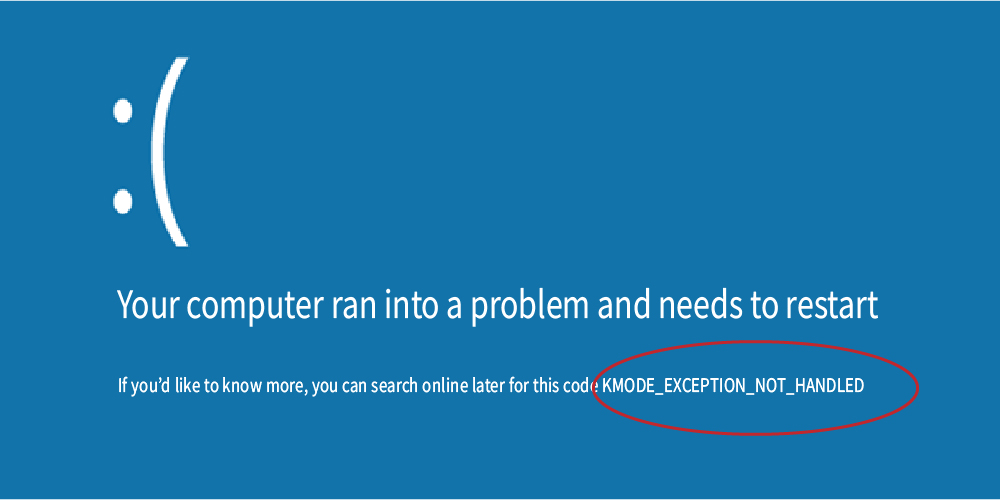
Seeing a blue screen with the KMODE_EXCEPTION_NOT_HANDLED error can be frustrating, especially when it appears unexpectedly while you’re starting or using your PC.
This BSOD usually indicates that Windows encountered an exception that a kernel-mode driver or other system component failed to handle. In many cases, an incompatible or faulty driver is the culprit, but recently installed software, Windows changes, or hardware problems can also trigger the error.
In this article, we’ll show you how to fix this issue step by step.
4 fixes for Kmode_Exception_Not_Handled
You don’t necessarily need to try all of them. Work your way down the list until you find the one that resolves the problem.
- Update or roll back faulty drivers
- Uninstall recently installed software
- Repair corrupted Windows system files
- Check for hardware compatibility
Before getting started, think about what changed immediately before the problem appeared. Did you install a new device or hardware component? Did you install or update a device driver or install a new program? Did you update Windows?
If the problem started immediately after one of these changes, reversing that change is often the quickest way to test the cause.
If your computer can’t boot
If the blue screen prevents your computer from booting normally, you’ll need to start it in Safe Mode before troubleshooting.
- First, enter the Windows Recovery Environment (WinRE) when booting your computer. Different computer brands use specific keys:
– ASUS: While the computer isn’t powered on yet, press and hold the F9 key, then press the Power button. If F9 doesn’t work, use F12.
– HP: Repeatedly tap F11 during boot.
– Acer: Press Alt and F10 at the same time after powering on your computer.
– Dell: Tap F12 repeatedly during boot.
– Lenovo: Press F11 repeatedly during boot.
– MSI: Press F3 repeatedly during the boot process. - Go to Troubleshoot > Advanced options > Startup Settings > Restart.
- Press 4 or F4 to enter Safe Mode.
1. Update or roll back faulty drivers
Faulty, outdated, or incompatible device drivers are among the first things worth checking when you encounter a KMODE_EXCEPTION_NOT_HANDLED BSOD. To fix the error, try updating your device drivers, especially for your graphics card, chipset and motherboard, network adapter, audio device, and storage controller. If the BSOD started after a driver update, however, try rolling the driver back to the previous version instead.
Manual driver update – You can update your drivers manually by going to your PC manufacturer’s website. Search for your exact computer model, and download all the available driver packages that are compatible with your Windows version and install them one by one.
Automatic driver update – If you don’t want to identify and install each driver manually, you can use Driver Easy to scan your PC and find the appropriate drivers for your hardware. Beyond just updating drivers, it allows you to manage your drivers – including backup, rollback, and uninstall – from one convenient place.
You can update your drivers automatically with either the 7 days free trial or the Pro version of Driver Easy. It takes just 2 clicks, and you get full support and a 30-day money-back guarantee with the Pro version:
1) Download and install Driver Easy.
2) Run Driver Easy and click the Scan Now button. Driver Easy will then scan your computer and detect any problem drivers.
3) Click the Activate & Update button next to the flagged device to automatically download and install the correct version of this driver. Or click Update All to automatically download and install the correct version of all the drivers that are missing or out of date on your system.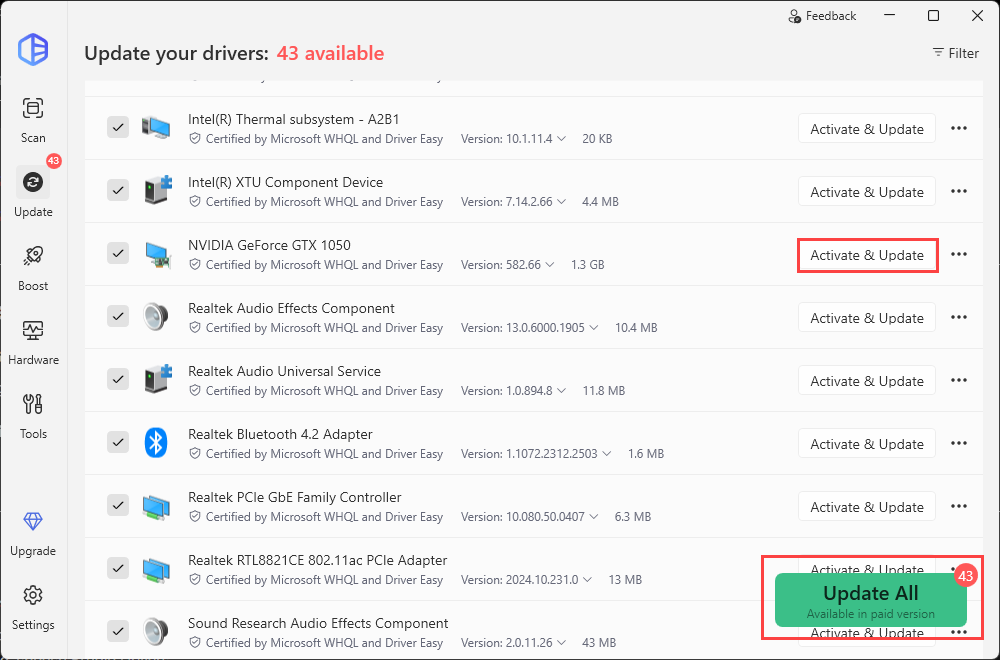
4) Restart your computer for the change to take effect.
2. Uninstall recently installed software
If updating or rolling back your drivers doesn’t help, check whether a recently installed program or driver is causing the conflict. This is especially worth trying if the BSOD started shortly after installing system utilities, security software, hardware-control software, or other programs that install low-level drivers.
To remove the suspected faulty programs, follow the steps below:
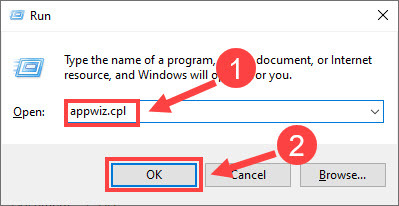
1) On your keyboard, press the Windows logo key and R at the same time to open the Run command.
2) Type appwiz.cpl and press Enter.
3) Click the program that you suspect to be the culprit and click Uninstall.

4) When you finish uninstalling the programs, restart your computer and see if the error appears again.
3. Repair corrupted Windows system files
If the problem isn’t caused by a driver or recently installed software, check for corrupted Windows system files. You can use Windows built-in tools to scan and repair system file problems.
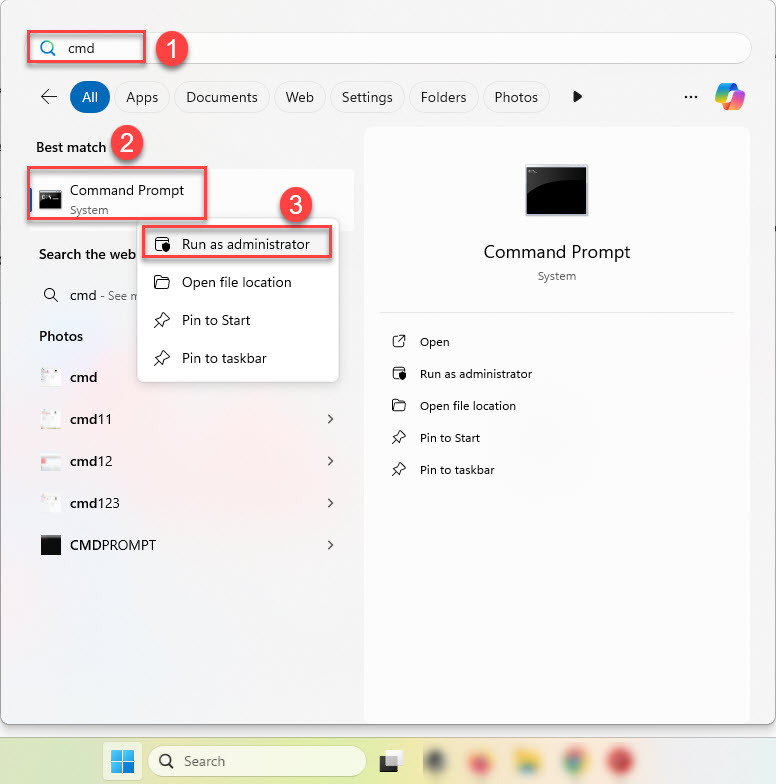
1) Press the Windows key and type cmd. Right-click Command Prompt and select Run as administrator.
2) Enter this command: sfc /scannow and press Enter.
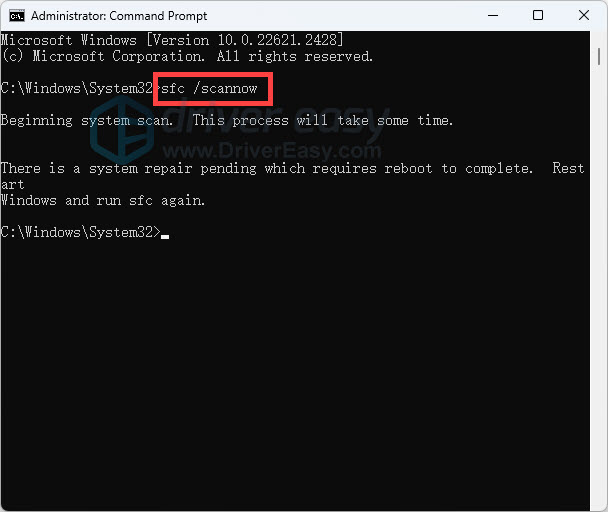
3) Wait until the scan reaches 100%.
Restart your computer and check whether the KMODE_EXCEPTION_NOT_HANDLED error has been resolved. If SFC reports that it couldn’t repair some files, you can also use the Deployment Image Servicing and Management (DISM) tool before running SFC again:
Run Command Prompt as administrator, type this command DISM /Online /Cleanup-Image /RestoreHealth and press Enter.

Restart Windows when you’re done and check whether the BSOD returns.
4. Check for hardware compatibility
If the Kmode_Exception_Not_Handled error frequently occurs after you upgraded or replaced your gig, such as RAM, a graphics card, or a storage drive, the hardware may be involved.
If you recently installed new hardware, shut down the PC and, where practical, remove the newly added component temporarily. Then restart Windows and check whether the BSOD still occurs.
You should also check the hardware manufacturer’s documentation to make sure the component is compatible with your motherboard and Windows version.
So here are 4 simple fixes for the Kmode_Exception_Not_Handled error. Please feel free to leave a comment below if you have any questions or suggestions.
