







Safe Mode is a way to run Windows in its most basic form. It uses only absolutely essential files and drivers.
For example, in Safe Mode, your screen will display only 16 colors and a very low resolution, and you won’t be able to print documents or hear audio. It also won’t load many programs in the background.
Safe Mode is designed to help you troubleshoot computer problems.
Sometimes Windows will automatically start in Safe Mode (e.g., if it has a problem loading normally). But most of the time you’ll need to start it in Safe Mode manually (e.g., if you get a blue screen error every time you start Windows).
This article explains how to manually start Windows 11 & 10 in Safe Mode.
5 ways to start Windows in Safe Mode
If your computer won’t boot, is stuck on a black screen, or in a boot loop, try Method 1 and Method 2. If you can reach the login screen, try Method 3. And if you can access the desktop, try Method 4. Want to enter Safe Mode on every restart? Jump to Method 5.
- Use OEM Recovery Hotkeys
- Force Automatic Repair
- Use the Shift + Restart shortcut
- Boot via Windows Settings
- Set Persistent Safe Mode
Method 1: Use OEM Recovery Hotkeys
If your computer cannot boot normally, you don’t always need to force a shutdown. Most PC manufacturers build a hotkey enabling you to jump right into the Windows Recovery Environment (WinRE) to opt for Safe Mode.
1) Turn your computer off completely.
2) Press the Power button to turn it on.
3) Immediately press your brand’s specific recovery key repeatedly (about twice per second) as soon as the screen lights up:
- HP & Lenovo: Press F11
- Dell & Alienware: Press F12
- Acer: Hold Alt and tap F10
- ASUS: Press F9 or F11
- MSI: Press F11
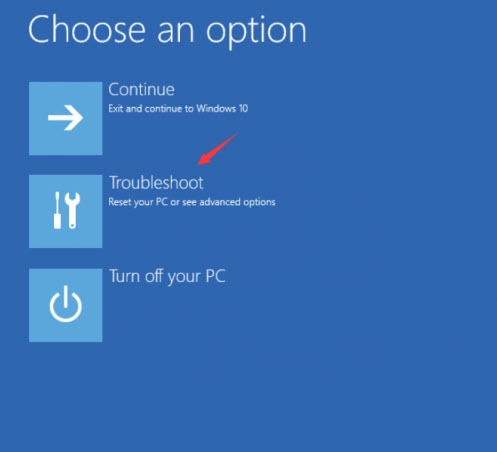
4) You’ll land on the blue Choose an option screen. Click Troubleshoot.
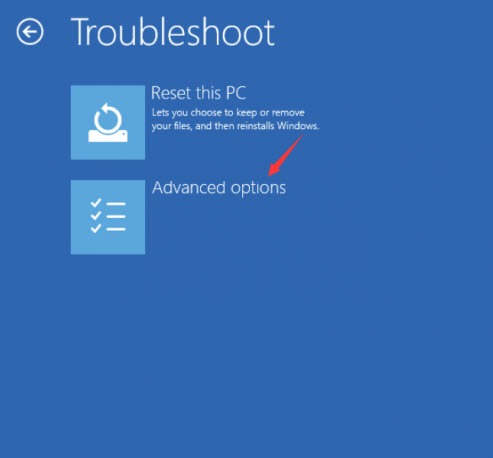
5) Click Advanced options.
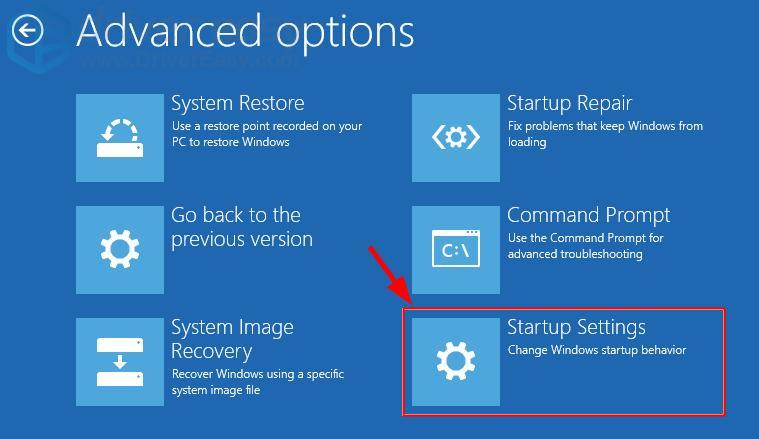
6) Click Startup Settings.
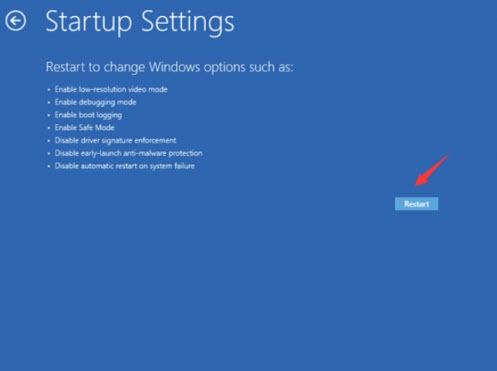
7) Click Restart.
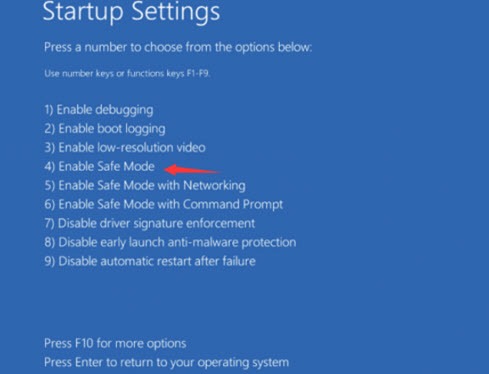
8) On your keyboard, press the number 4 or F4 key to enter Safe Mode without internet access or the number 5 or F5 key to enter Safe Mode with internet access:
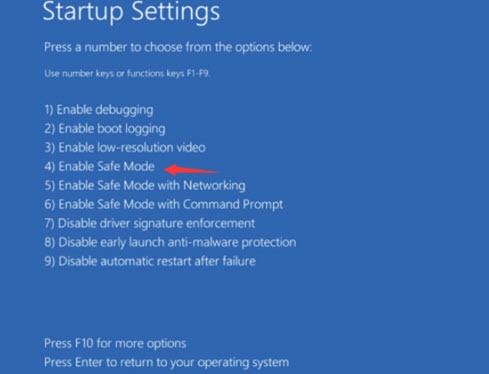
On Windows 7, you could press the F8 key as your computer was booting to access the Advanced Boot Options menu. From there, you could access Safe Mode.
Method 2: Force Automatic Repair
You can also force automatic repair to launch Windows in the Windows Recovery Environment.
1) Ensure your computer is off.
2) Press the power button to turn on your PC, and when you see the small spinning circle of dots that indicates Windows is starting, press and hold the power button until your PC shuts down. You’ll have to hold it for 4-5 seconds.
Do this again, and then again. After you’ve done it 3 times, start your computer again and let it run. It should now go into Automatic Repair mode:

3) Wait for Windows to diagnose your PC:

4) Click Advanced Options:

5) Click Troubleshoot:
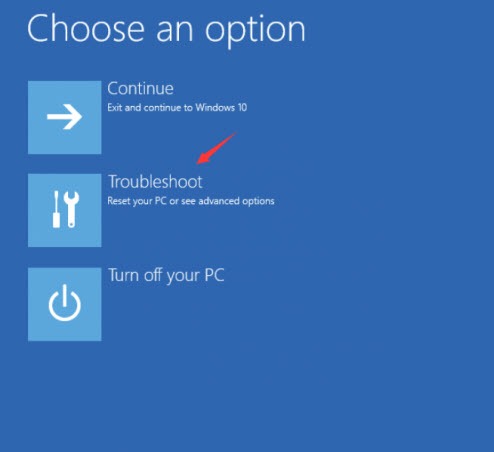
6) Click Advanced options:
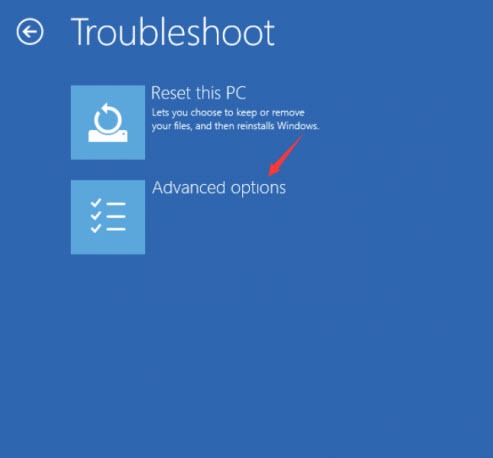
7) Click Startup Settings:
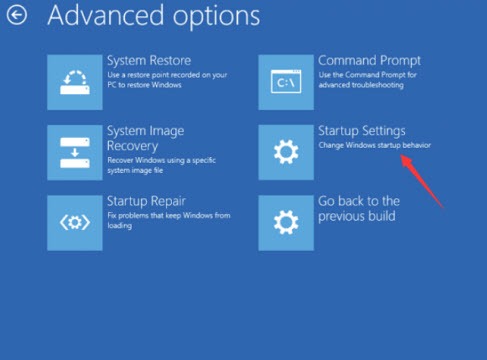
8) Click Restart.
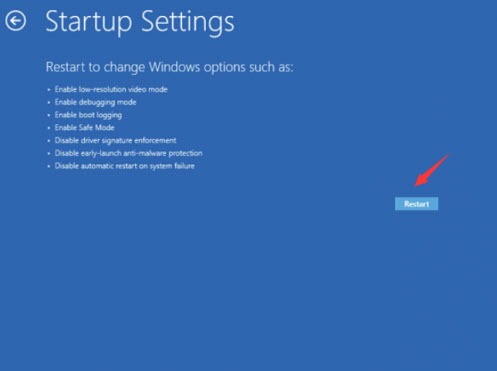
Your computer will restart and present a list of different startup options.
9) On your keyboard, press the number 4 or F4 key to enter Safe Mode without internet access or the number 5 or F5 key to enter Safe Mode with internet access:
Method 3: Use the Shift + Restart shortcut
If you can reach the sign-in screen or you’re fully logged into Windows, you can use this easy shortcut to start Safe Mode.
1) On your keyboard, hold down the Shift key.
2) While holding down the Shift key, click the power button at the bottom right of the screen, then select Restart. (Depending on your login status, you might need to click Restart Anyways when prompted.)

The Windows RE (Recovery environment) screen will then display.
3) Click Troubleshoot:
4) Click Advanced options:
5) Click Startup Settings:
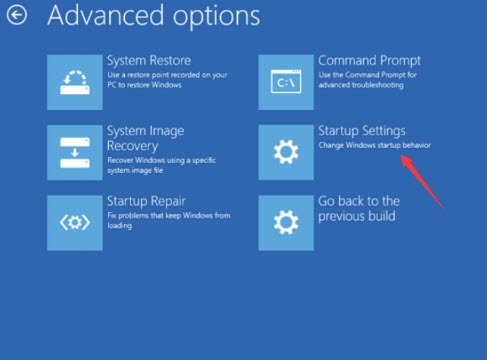
6) Click Restart.
Your computer will then restart and another screen opens showing a lot of different startup options.
7) On your keyboard, press the number 4 key to enter Safe Mode without internet access or the number 5 key to enter Safe Mode with internet access:
Your PC will reboot. If the screen resolution looks a bit lower and you see “Safe Mode” written on the screen corners, you’re in!
Method 4: Boot via Windows Settings
If you’re logged into your desktop and prefer a regular menu path, you can start Safe Mode in the Windows Settings.
1) Press the Windows key + I to open Settings.
2) Go to System > Recovery. If you’re on Windows 10, go to Update & Security > Recovery.
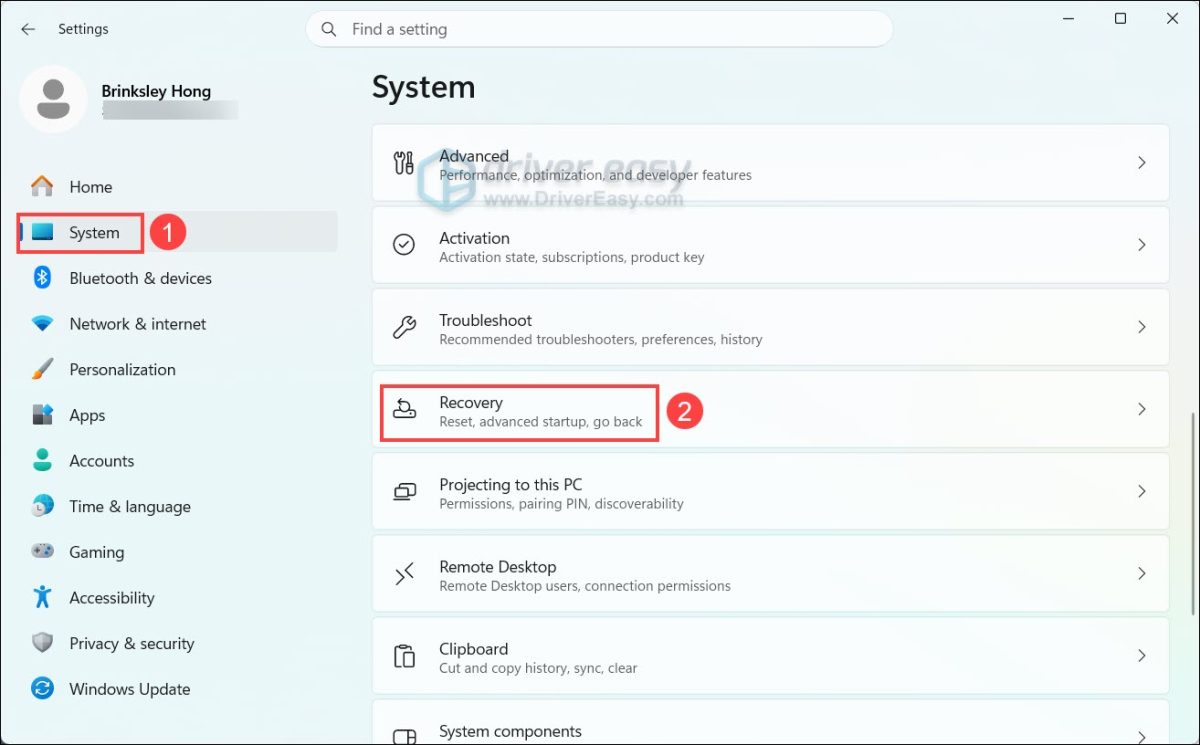
3) Click Restart now next to Advanced startup.
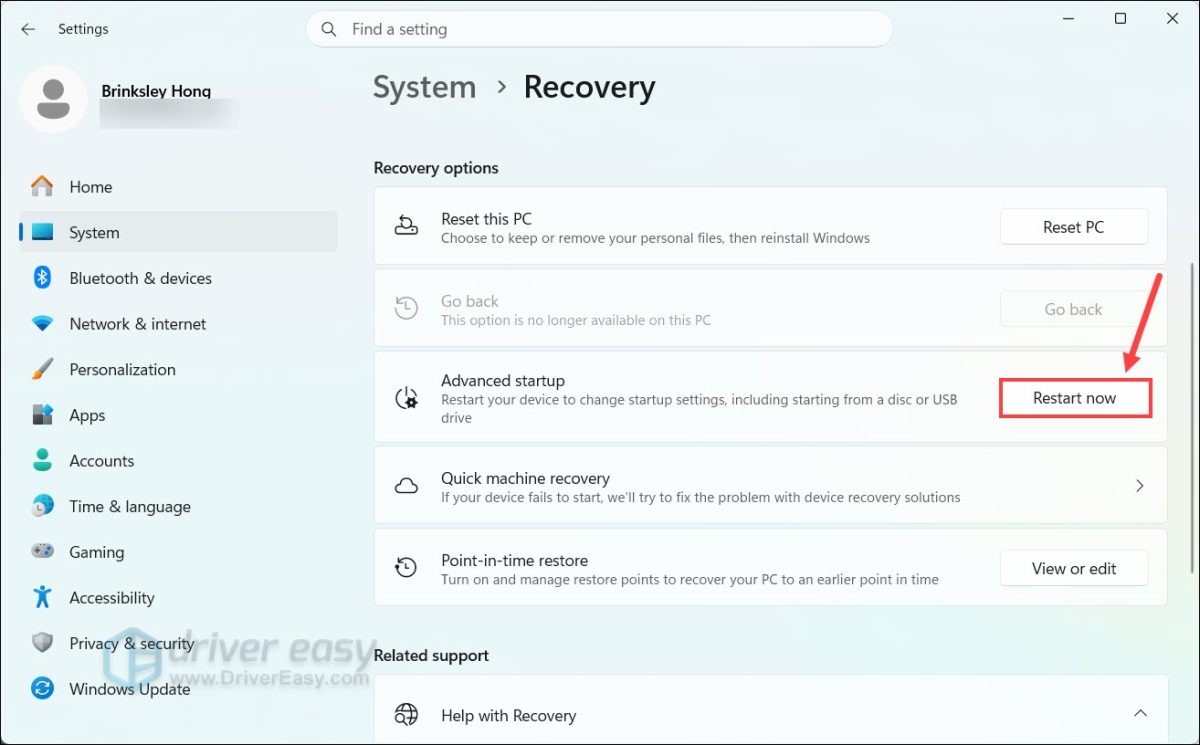
Your PC will reboot into the blue Windows Recovery screen. From there, navigate to Troubleshoot > Advanced options > Startup Settings > Restart, then press 4 or 5 to boot into Safe Mode.
Method 5: Set Persistent Safe Mode
IMPORTANT: If you follow these instructions, Windows will start in Safe Mode every time it restarts, until you undo your changes.
If you’re able to launch Windows normally, you can boot into Safe Mode using the System Configuration tool:
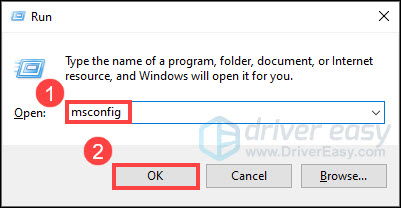
1) On your keyboard, press Win+R together to invoke the Run box. Type or paste msconfig, then click OK:
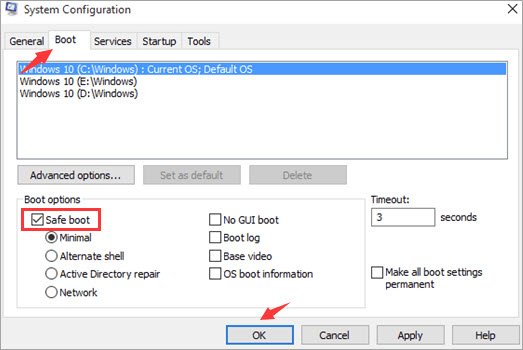
2) Select the Boot tab, then check Safe boot and click OK.
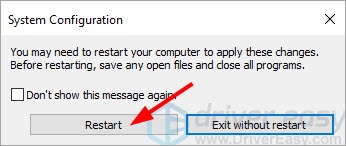
3) When you’re prompted to restart your computer to apply these changes, click Restart and you’ll boot into Safe Mode.
To turn off Safe Mode and go back to normal mode
When you want to return Windows to normal mode, you just have to undo your changes:
1) On your keyboard, press Win+R together to invoke the Run box. Type or paste msconfig, then click OK:
2) Select the Boot tab, then UNcheck Safe boot and click OK.
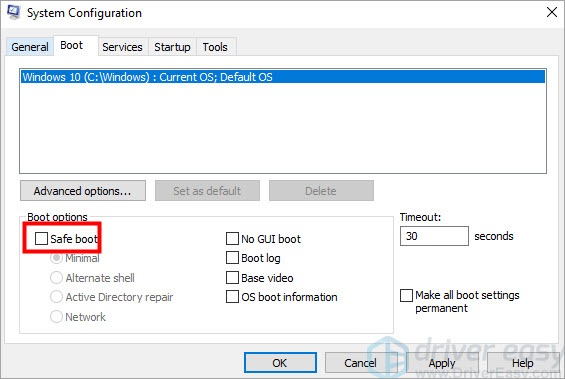
3) When you’re prompted to restart your computer to apply these changes, click Restart and you’ll boot into normal mode.
What to Do Once You’re in Safe Mode
Once your desktop loads up in Safe Mode, here are three quick troubleshooting steps to run:
- Roll back problematic updates/drivers: Go to Device Manager to uninstall recently updated graphics or network drivers that might be causing crashes.
- Run a System File check: Open Command Prompt as Administrator and run
sfc /scannowto let Windows repair any corrupted system files. - Scan for malware: Run your antivirus tool. Safe Mode keeps malicious background scripts from launching, making malware removal significantly easier.
Can’t solve the problem? Try updating your drivers.
If you couldn’t solve your computer problem in Safe Mode but you can still run Windows normally, give Driver Easy a try.
Many computer problems are caused by outdated device drivers. So updating your drivers should always be one of the first fixes you try.
Driver Easy will automatically update all your device drivers to the latest correct version with just a couple of clicks. It will automatically recognize your system and find the correct drivers for it. You don’t need to know exactly what system your computer is running, you don’t need to risk downloading and installing the wrong driver, and you don’t need to worry about making a mistake when installing.
1) Download and install Driver Easy.
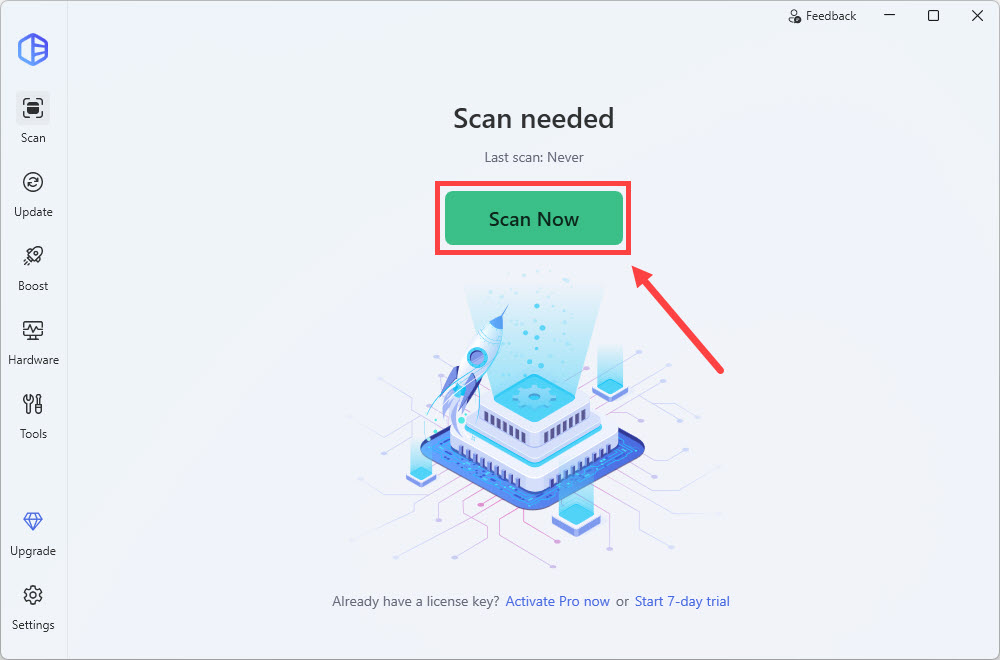
2) Run Driver Easy and clickthe Scan Now button. Driver Easy will then scan your computer and detect any problem drivers.
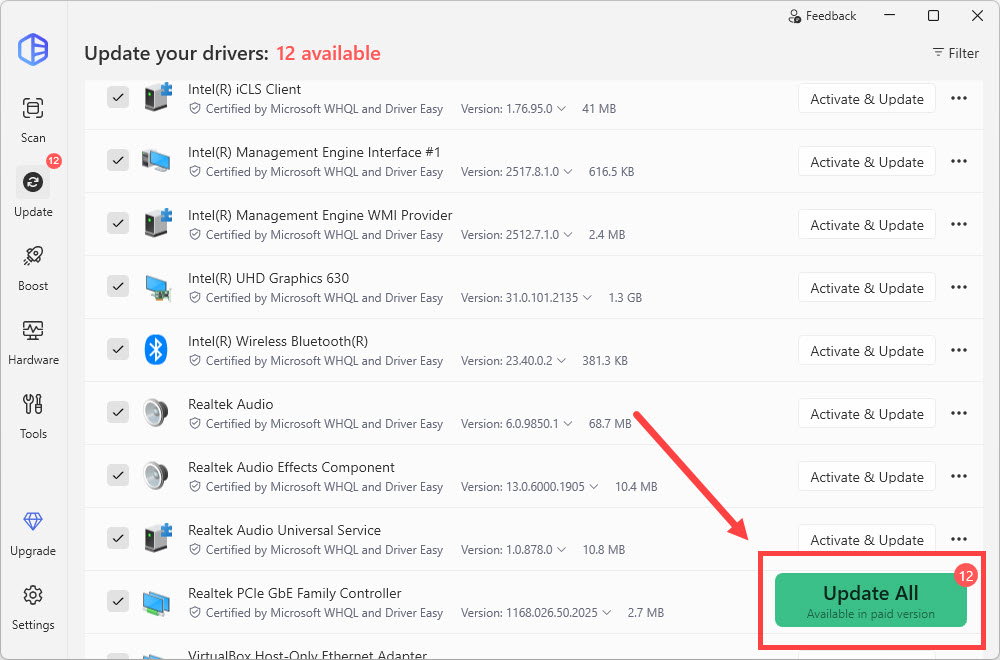
3) Click Update All to automatically download and install the correct version of all the drivers that are missing or out of date on your system (You need a Pro version to update drivers – you’ll be prompted to subscribe when you click Update. If you’re not sure if Driver Easy fits your needs, it offers a 7-day free trial where you can test out all the Pro features. The billing will not start until the trial period is over).
So that’s all for starting Safe Mode on Windows. If you have any questions or suggestions, or you don’t know how to troubleshoot after entering Safe Mode, feel free to leave a comment below. We’d be glad to help.

