





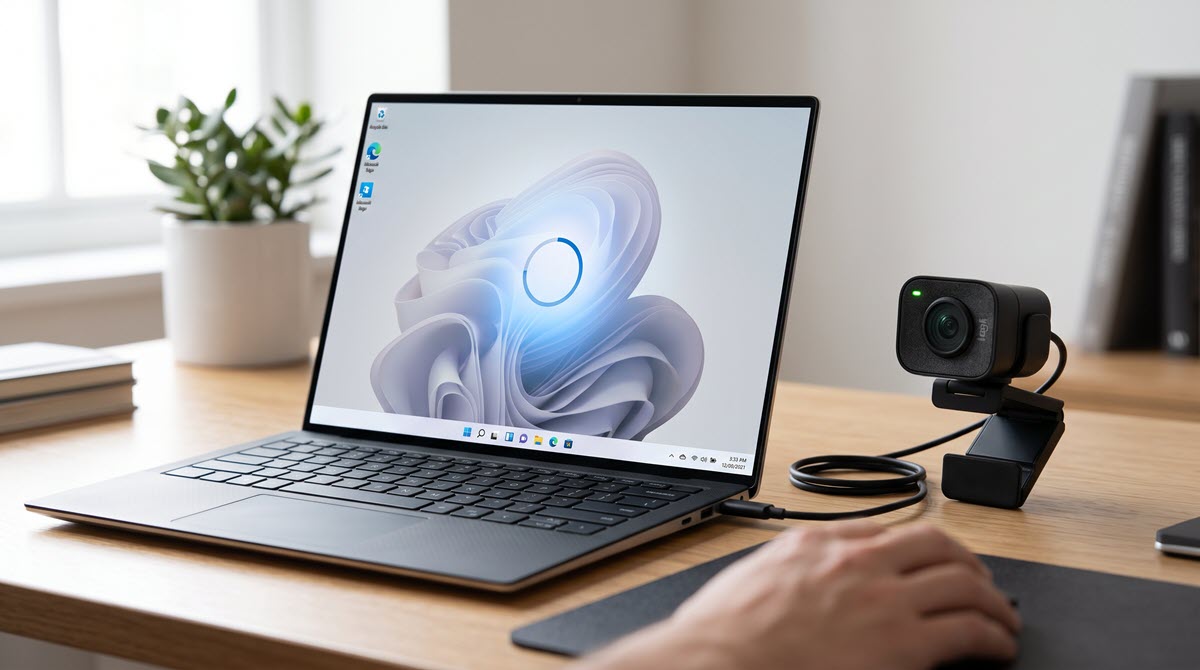

If your camera isn’t working properly on Windows, an outdated, missing, or incompatible camera driver may be the cause. Updating the driver can help Windows recognize your camera and keep it running properly.
This guide shows you how to download and install camera drivers on Windows 11, Windows 10, Windows 8, and Windows 7.
3 ways to update your camera driver
You can update your camera driver manually or automatically:
- Update the camera driver in Device Manager
- Get drivers from the manufacturer
- Update your device drivers automatically
Method 1: Update the camera driver in Device Manager
For many cameras, especially built-in laptop webcams, Windows already has a compatible driver available. You can use Device Manager to check for a driver update before searching for one manually.
- Right-click the Windows Start button and select Device Manager.
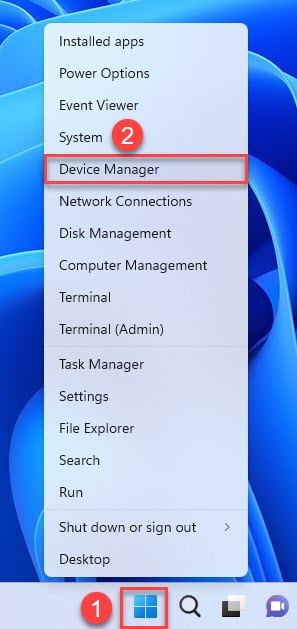
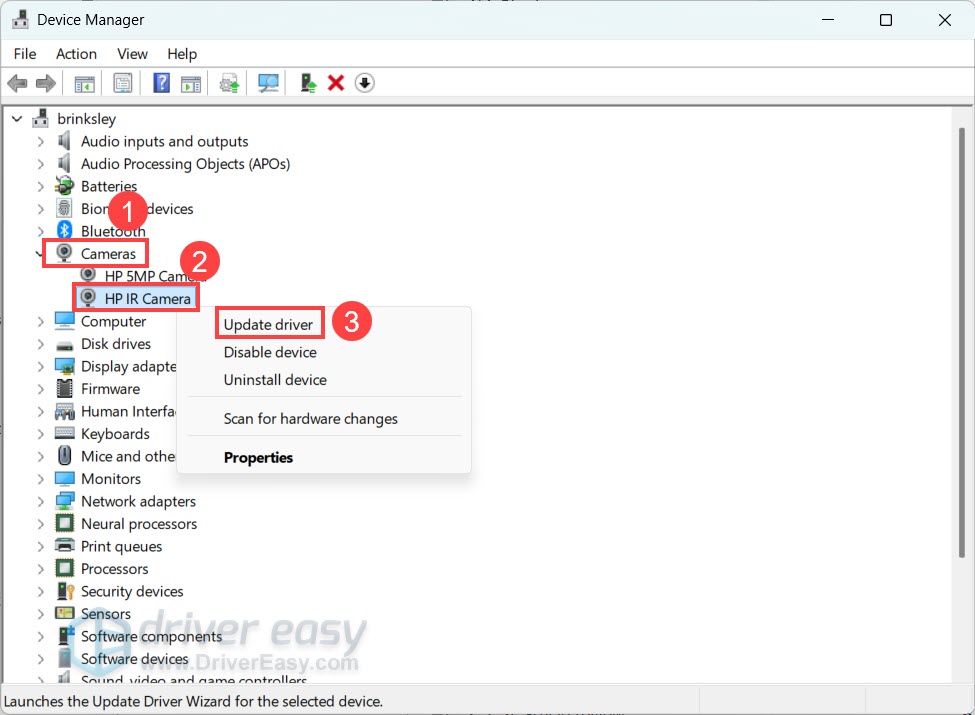
- Expand Cameras. Depending on your Windows version and camera, it may also appear under Imaging devices or another device category. Then, right-click your camera and select Update driver.
- Select Search automatically for drivers.
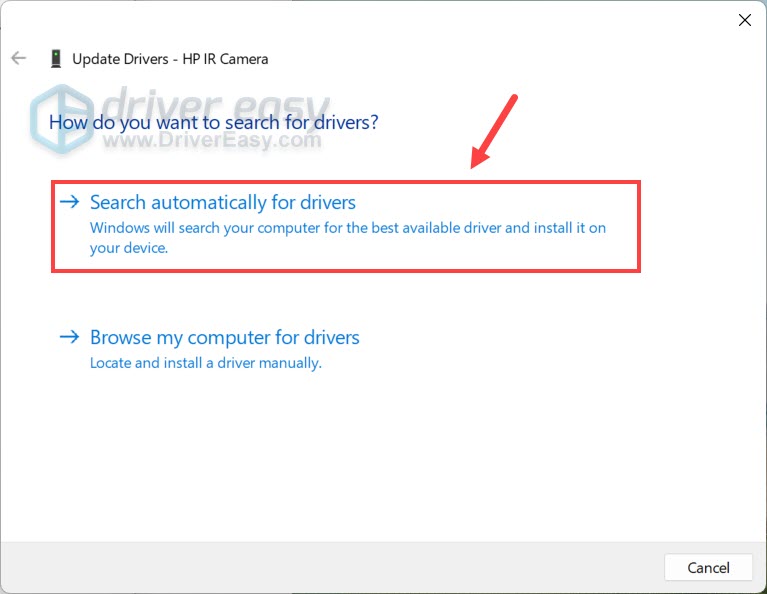
- If Windows finds a compatible driver, it will install the driver automatically.
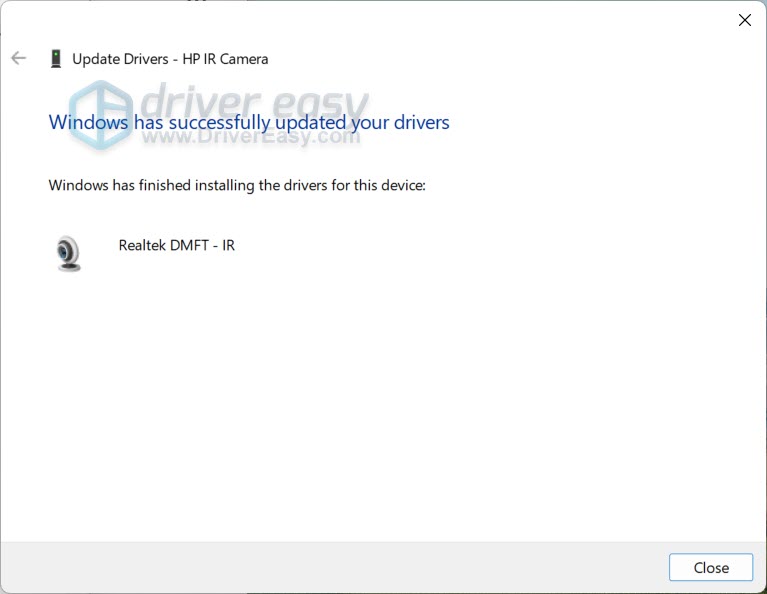
- Restart your computer if prompted.
After updating the driver, open the Camera app or another app that uses your webcam and check whether the camera works normally.
If Windows still doesn’t detect or properly operate your camera, try downloading a driver from the manufacturer’s website.
Method 2: Get drivers from the hardware manufacturer
If Device Manager can’t find a suitable driver, check the official support website for your camera or computer manufacturer.
The correct source depends on the type of camera you’re using:
- Built-in laptop webcam: Check your laptop manufacturer’s support website, such as Dell, HP, Lenovo, ASUS, or Acer, using your laptop model or serial/model information.
- External webcam: Check the webcam manufacturer’s official website, such as Logitech, and search for your exact model.
- Go to the official support website of your camera or computer manufacturer.
- Search for your camera model or computer model.
- Find the latest camera or webcam driver that matches your Windows version.
🔔 If you don’t find a separate camera or webcam driver, your camera may use a built-in Windows driver or receive its driver through Windows Update. In this case, you can try Method 1 or Method 3 instead. - Download the driver and open the downloaded installation file. Then follow the on-screen instructions to complete the installation.
- Restart your computer if prompted.
After restarting, open the Camera app or another app that uses your webcam and check whether the camera works normally. If you can’t find the correct driver manually, check out the next method, which would be a lot easier.
Method 3: Update your device drivers automatically
If you don’t have the time or technical knowledge to search for and install the correct camera driver manually, you can update it automatically with Driver Easy.
Driver Easy can automatically identify your hardware and Windows system, find compatible drivers, and help you download and install them without requiring you to search through multiple manufacturer support pages. Updating your device drivers takes just 2 clicks:
- Download and install Driver Easy.
- Run Driver Easy and click the Scan Now button. Driver Easy will then scan your computer and detect any problematic drivers.

- Click the Activate & Update button next to the flagged audio device to automatically download and install the correct version of this driver. Or click Update All to automatically download and install the correct version of all the drivers that are missing or out of date on your system.
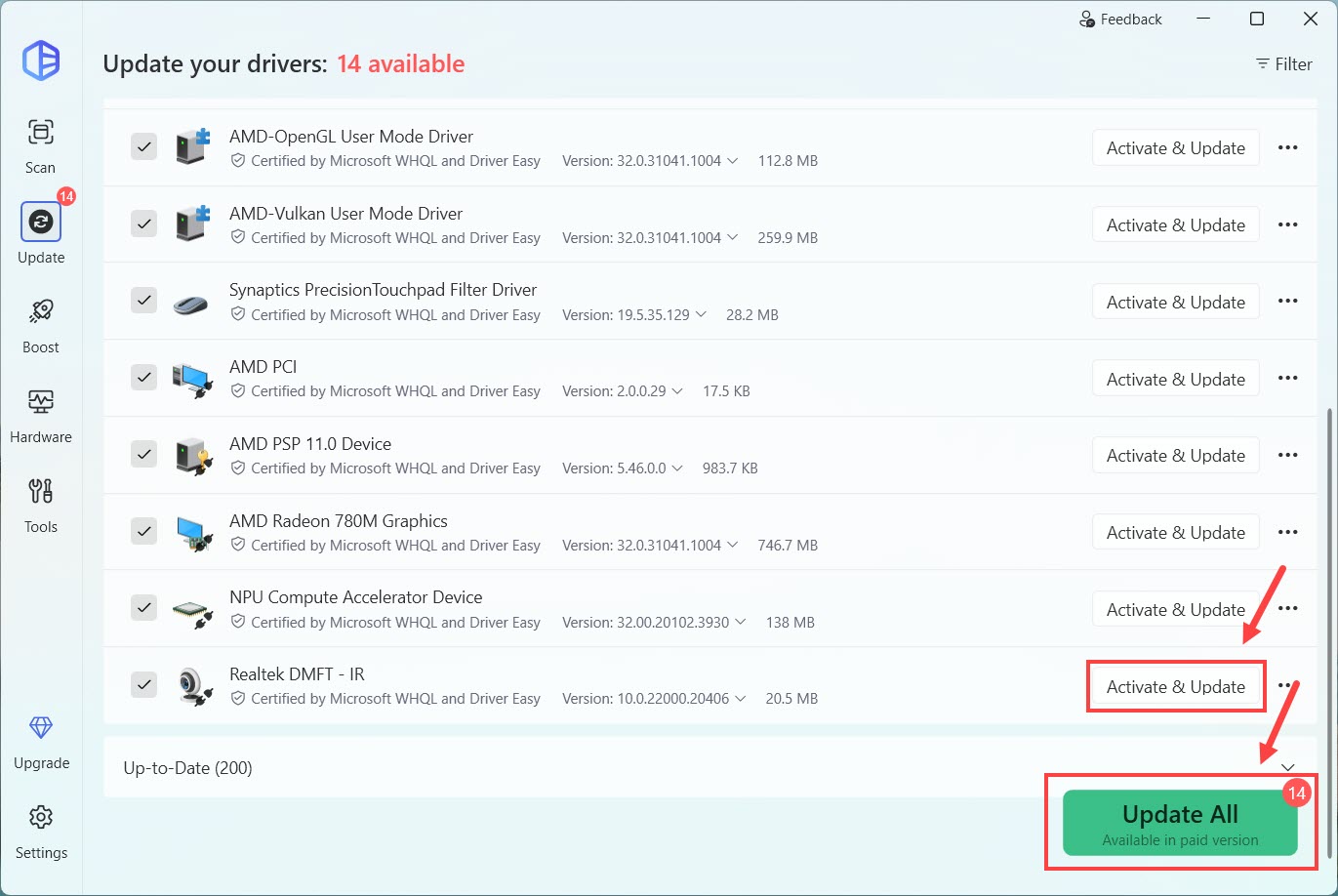
You’ll be prompted to upgrade to Driver East Pro. The Pro version includes high-speed driver downloads and installation, driver backup and rollback features, and full technical support. You can also start a 7-day free trial to try the Pro features at no upfront cost.
Restart your computer for the changes to take effect, and check whether the camera is detected and works normally.
To update your camera driver, start with Windows’ built-in Device Manager. If Windows can’t find a suitable or newer driver, check the official website of your camera or laptop manufacturer, or simply use Driver Easy to identify and install all compatible device drivers in one place.
If you have any questions, suggestions, or other camera-related problems, feel free to leave a comment below.

