






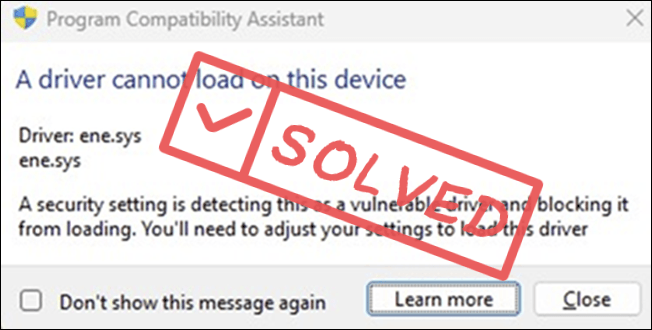
Seeing the A driver cannot load on this device error for the ene.sys driver in Windows 11? You may also see a message like A security setting is detecting this as a vulnerable driver and blocking it from loading. You’ll need to adjust your settings to load this driver.
This usually means Windows 11’s security features are preventing the ene.sys driver from loading because the driver is considered vulnerable or incompatible with current security requirements. But don’t worry, this issue is usually not hard to resolve. In this article, we’ve put together some proven fixes that will help you fix the ene.sys driver cannot load on this device error.
6 fixes for the ene.sys driver cannot load error
You don’t need to try all the fixes below. Work your way down the list until you find the one that resolves the problem.
- Update or reinstall the ene.sys driver
- Update or reinstall the RGB control software
- Uninstall the latest Windows update
- Use the manufacturer’s ene.sys removal tool (for MSI notebook users)
- Temporarily disable the Microsoft Vulnerable Driver Blocklist
- Rename the ene.sys file
1. Update or reinstall the ene.sys driver
The ene.sys driver may be outdated, corrupted, or incompatible with the current version of Windows 11. If Windows is blocking the driver because of a security or compatibility issue, installing a newer driver may replace the blocked version with a compatible one.
Option 1: Update the driver through Windows Updates
You can check Windows Update for a newer driver:
- Press Windows + I to open Settings.
- Go to Windows Update and click Install any available updates.
- Restart your computer.
Option 2: Automatically update the ene.sys driver
If you don’t know which device is using ene.sys, or you simply want an easier way to check for the correct driver, Driver Easy can scan your computer and identify missing, outdated, or problematic drivers. It takes just two clicks:
- Download and install Driver Easy.
- Run Driver Easy and click Scan Now. Driver Easy will scan your computer and detect problem drivers.

- Click Activate & Update next to the flagged device to update its driver, or click Update All to install all the missing or outdated drivers on your system.
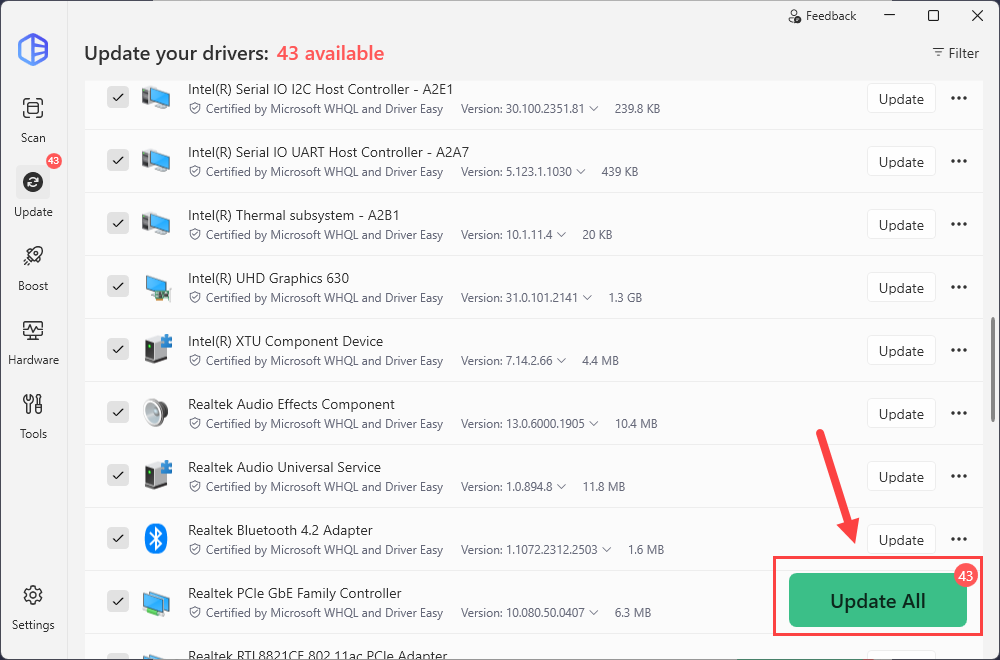
With Driver Easy Pro, you can update multiple drivers conveniently with one click and get additional features such as driver backup, rollback, Game Boost mode, and System Clean tool. Not sure if Pro is right for you? Start a 7-day trial to explore all the premium features for free!
Restart your computer after the installation and check whether the error disappears. If Windows continues to block the driver, move on to the next fix.
2. Update or reinstall the RGB/hardware-control software
If updating the driver doesn’t help, the problem may be caused by the RGB or hardware-control software that installed ene.sys, such as Armoury Crate, MSI Center, or G.Skill Lighting Control.
You can update the RGB or hardware-control software first. If that doesn’t work, try reinstalling it.
- Press the Windows key + I to open Settings.
- Go to Apps > Installed apps.
- Find the RGB or hardware-control software associated with the driver. Click the three dots next to it and select Uninstall.
- Restart your computer. Then download and install the latest version from the manufacturer’s official website.
Restart Windows again after installation and check whether the error has disappeared.
3. Uninstall the latest Windows update
If the ene.sys driver cannot load error appeared immediately after a Windows update, the update may have exposed a compatibility problem between Windows and an older driver. You can try uninstalling the most recent quality update to see if that helps.
- Press Windows + I to open Settings.
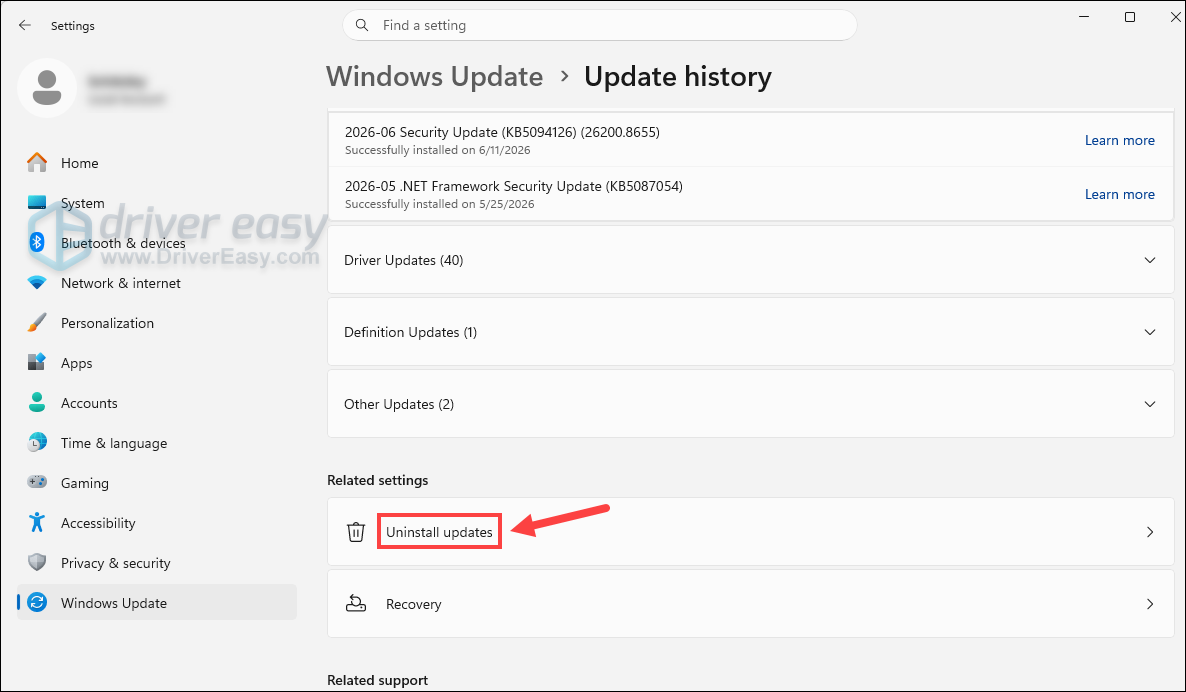
- Go to Windows Update > Update history. Scroll down and select Uninstall updates.
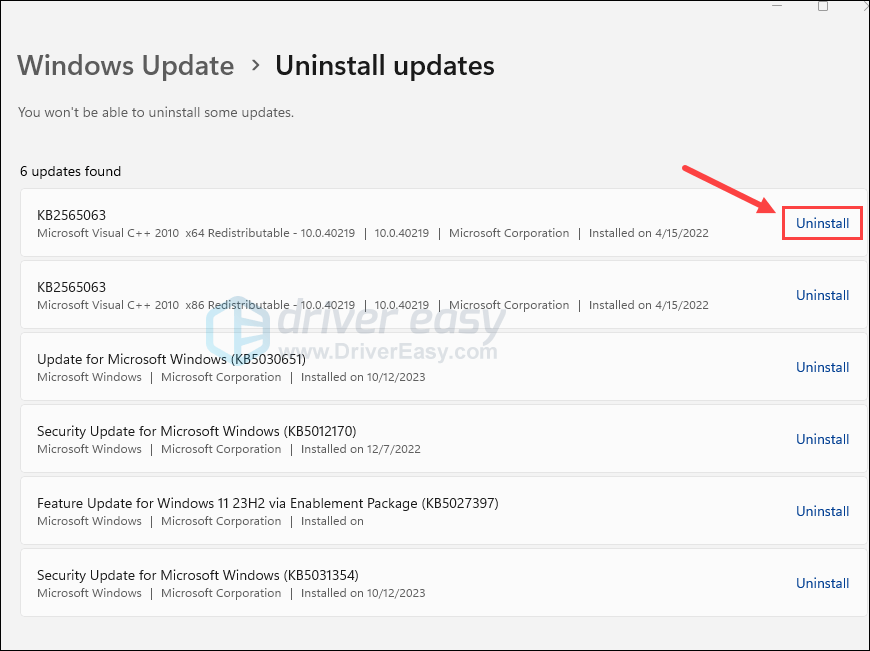
- Click the Uninstall button next to the most recently installed update to remove it. Follow the on-screen instructions to complete the process.
- Restart your computer afterward.
See if the ene.sys driver cannot load error still remains after uninstalling the last Windows update. If so, please move on.
4. Use the manufacturer’s ene.sys removal tool (for MSI notebook users)
If you have an MSI notebook and the exact ene.sys warning appears every time you sign in, MSI provides an ene.sys Driver Removal Tool specifically for this situation.
- Go to MSI’s official troubleshooting page and download the ene.sys Driver Removal Tool.
- Extract the downloaded RemoveDriver.zip file.
- Open the extracted folder and double-click the .exe file inside to run the tool.
Restart your computer and check for the issue.
5. Temporarily disable Microsoft Vulnerable Driver Blocklist
Windows 11 uses this blocklist to prevent drivers with known security vulnerabilities, drivers signed with certificates associated with malware, or drivers that can bypass Windows security protections from loading. If Windows is blocking ene.sys because it is vulnerable, you can temporarily turn off the vulnerable driver blocklist.
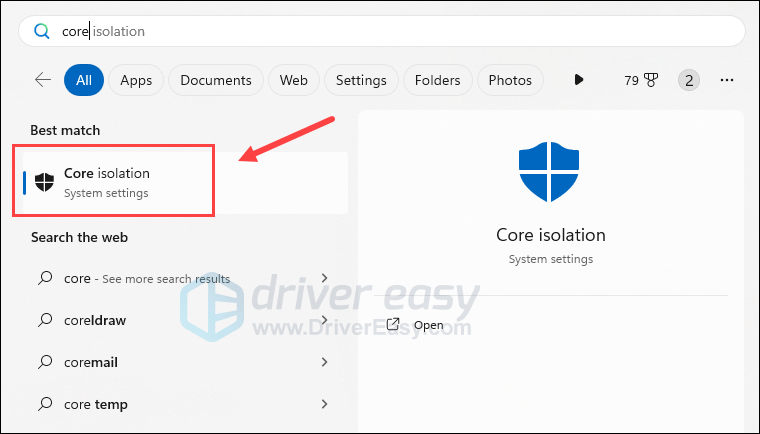
- On your keyboard, press the Windows key and type core isolation, then select Core Isolation from the list.
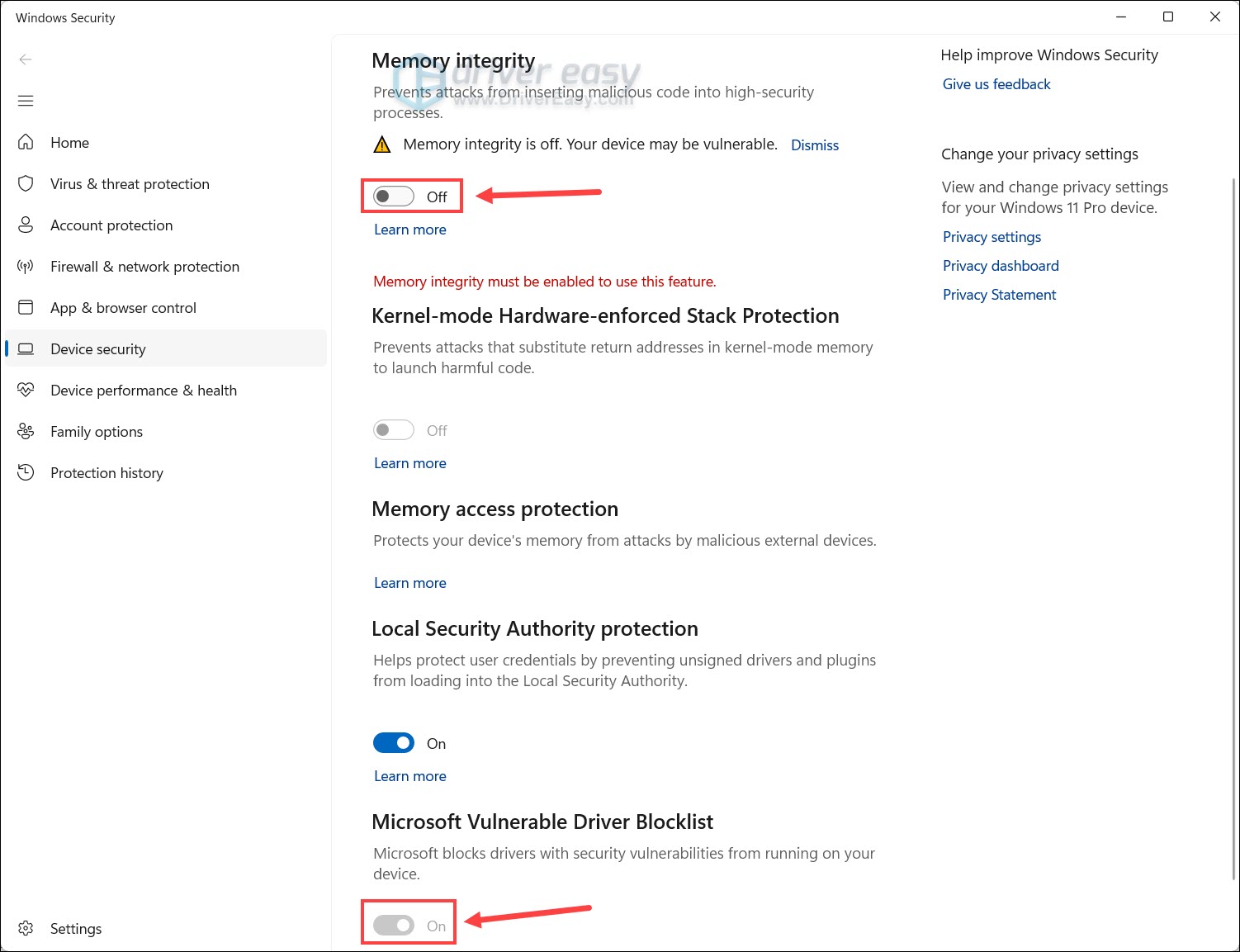
- Scroll down to find Microsoft Vulnerable Driver Blocklist. Turn it off. If the Microsoft Vulnerable Driver Blocklist option is unavailable or grayed out, you can try toggling off Memory integrity.
- Restart your computer for the change to take effect.
Then see if the ene.sys driver cannot load error still remains. If the error message is still seen, please repeat the above to toggle on the option for Memory Integrity, then move on to the next step.
6. Rename the ene.sys file
If the previous solutions don’t work and you simply want to stop Windows from attempting to load ene.sys, you can rename the driver file. However, this is a workaround, not a real fix. The RGB lighting or hardware-control software that depends on ene.sys may stop working.
- Because the driver may be in use during normal startup, start Windows in Safe Mode before trying to rename it. Follow this guide to start your computer in Safe Mode (the screenshots are from Windows 10, but the instructions work on Windows 11 as well).
- On your keyboard, press the Windows key and the E key at the same time to open File Explorer.
- Then go to
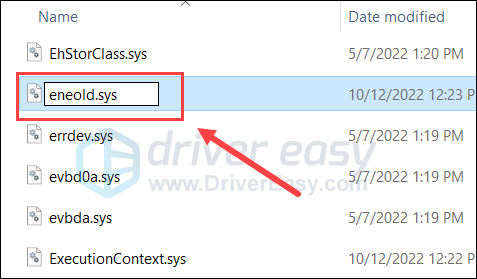
C:\Windows\System32\drivers, and find the ene.sys file there. - Right-click the file and select Rename. Rename it to something like eneold.sys.
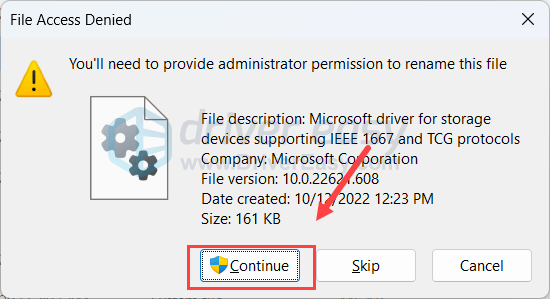
- When asked for permission, click Continue.
- When this is done, restart your computer into normal mode as instructed in the post shared in step 1.
Check whether the ene.sys driver cannot load notification is gone and test your RGB lighting and other hardware-control features. If a related application stops working, reinstall or update that application.
Hope one of the above methods helps to fix the ene.sys driver cannot load on this device error on Windows 11 for you. If you have other suggestions, please feel free to leave a comment.