






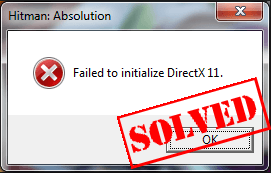
How do I fix the Fail to initialize DirectX error?
Before we start, let’s talk about what DirectX is. According to Microsoft, DirectX is “a set of components in Windows that allows software, primarily and especially games, to work directly with your video and audio hardware.” So if there’s any error with the DirectX on your Windows, your games couldn’t be running properly. In this small guide, we will be showing you two easy but helpful solutions to fix the Fail to initialize DirectX error. Follow the guide step by step to save your game.Solution 1: Update the DirectX on your Windows
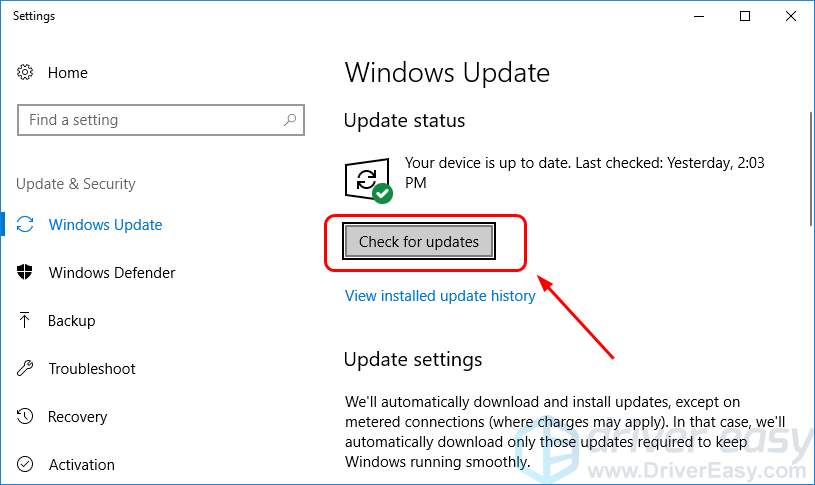
If there’s something wrong with the DirectX software, it will take the error happen. You can solve it through updating the DirectX. There is no stand-alone package for DirectX as it is included as part of Windows system. You can update it though installing Windows Update. 1) Type update in the search box from Start. Then click Check for updates (Windows 10) or Windows Update (Windows 7) from the result.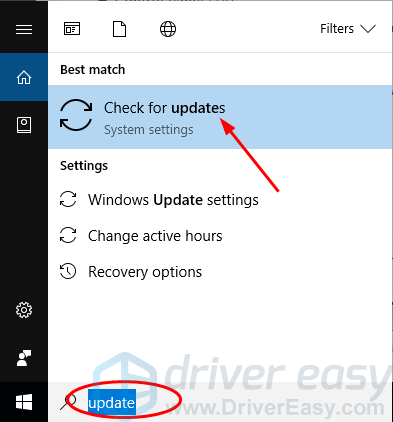 2) Click Check for updates .
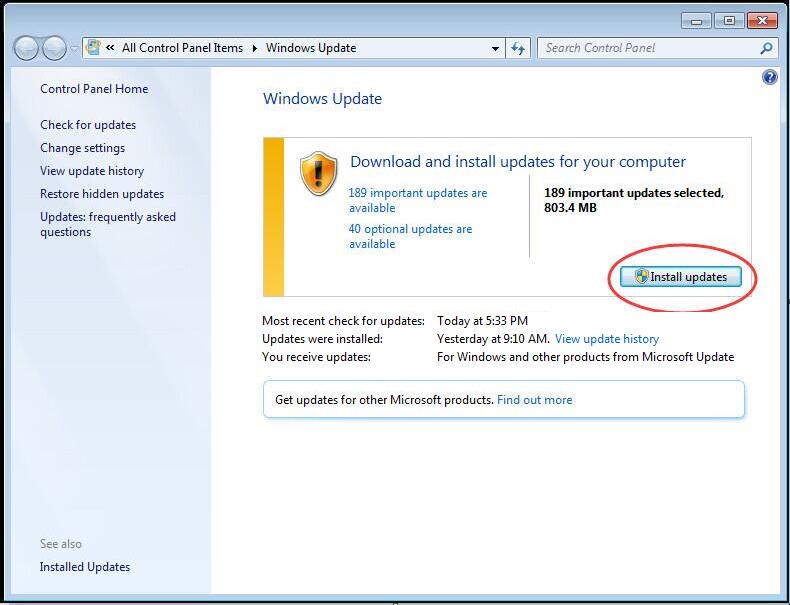 4) Restart your Windows and rerun you game to see if it works fine.
Solution 2: Do a fresh install of your video card and sound card driver
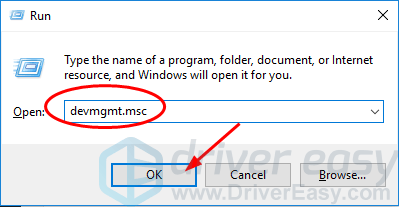
If your video card and/or sound card driver is outdated, missing or corrupted, this Failed to initialize DirectX error could also happen. So we recommend you do a fresh install of your video card and sound card drivers. What’s more, to keep your device drivers, video card and sound card drivers especially, up-to-date, can highly improve of your gaming performance. Firstly, uninstall your video card and sound card drivers through Device Manager: 1) On your keyboard, press the Windows logo key and R at the same time to invoke the Run box.
2) Type devmgmt.msc and click OK
and R at the same time to invoke the Run box.
2) Type devmgmt.msc and click OK
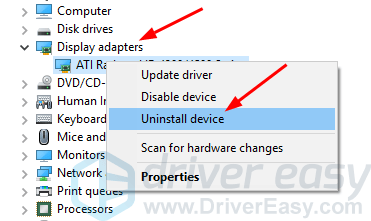 4) Double click Sound, video and game controllersand right-click on your sound card to select Uninstall device.
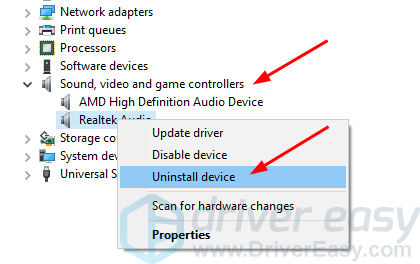 Then, install the latest drivers for your video card and sound card.
There’re two ways you can find and install the latest drivers for both your video card and sound card — manually or automatically.
Manual driver install – You can update your video and sound card drivers manually by going to the manufacturer’s website for both your video card and your sound card, and searching for the most recent correct driver for each. Be sure to choose only drivers that are compatible with your variant of Windows version.
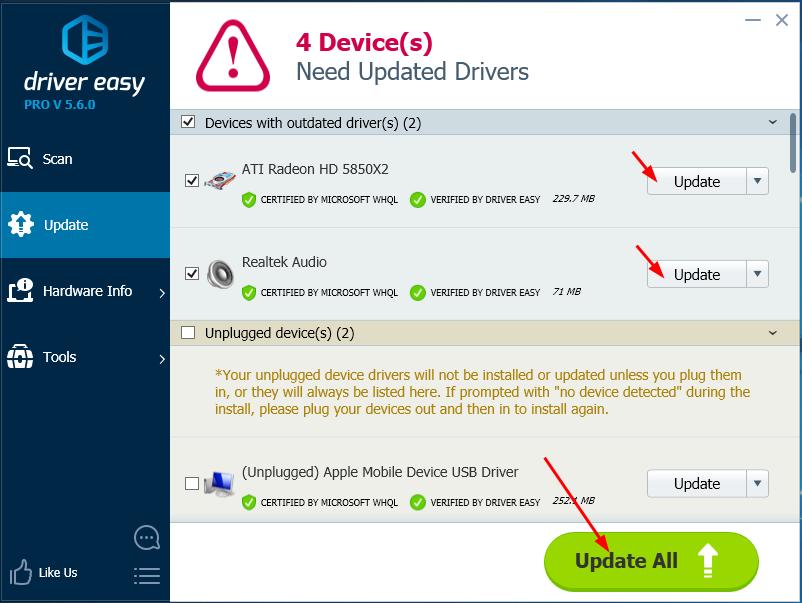
Automatic driver install – If you don’t have the time, patience or computer skills to update your video and sound card drivers manually, you can, instead, do it automatically with Driver Easy. Driver Easy will automatically recognize your system and find the correct drivers for your exact video card and sound card, and your variant of Windows version, and it will download and install them correctly:
1) Download and install Driver Easy.
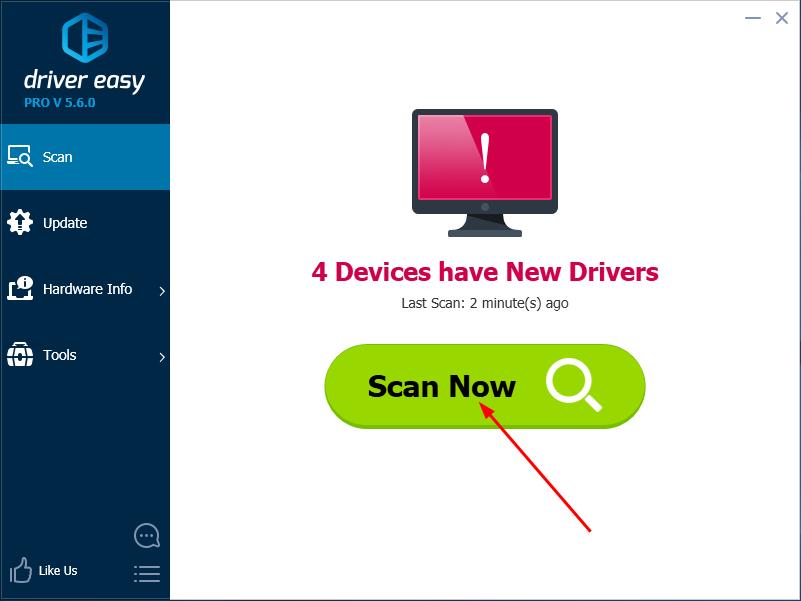
2) Run Driver Easy and click the Scan Now button. Driver Easy will then scan your computer and detect any problem drivers.
Then, install the latest drivers for your video card and sound card.
There’re two ways you can find and install the latest drivers for both your video card and sound card — manually or automatically.
Manual driver install – You can update your video and sound card drivers manually by going to the manufacturer’s website for both your video card and your sound card, and searching for the most recent correct driver for each. Be sure to choose only drivers that are compatible with your variant of Windows version.
Automatic driver install – If you don’t have the time, patience or computer skills to update your video and sound card drivers manually, you can, instead, do it automatically with Driver Easy. Driver Easy will automatically recognize your system and find the correct drivers for your exact video card and sound card, and your variant of Windows version, and it will download and install them correctly:
1) Download and install Driver Easy.
2) Run Driver Easy and click the Scan Now button. Driver Easy will then scan your computer and detect any problem drivers.
19
19 people found this helpful
3 Comments
Most Voted
