






If your computer suddenly stops recognizing your FTDI USB to serial adapter, or you see a yellow exclamation mark next to FT232R USB UART in Device Manager—don’t worry. This is one of the most common hardware connection glitches, and it usually stems from a missing, outdated, or misconfigured FTDI driver.
In this guide, we’ll walk you through the most reliable step-by-step solutions to get your COM port up and running smoothly.
Method 1: Update the driver via the official setup installer
Method 2: Update the FTDI USB to serial driver automatically
Do a quick hardware check first
Before tweaking drivers, let’s rule out simple physical connection hiccups:
- Unplug and replug your FTDI adapter directly into your computer (avoid unpowered USB hubs).
- Try a different USB port (preferably a USB 2.0 or USB 3.0 port on the back of a desktop or directly on your laptop’s chassis).
- If possible, test the cable on another PC to confirm the hardware itself isn’t physically damaged.
If the hardware is fine, the issue is almost certainly driver-related. Read on to fix it.
Method 1: Update the driver via the official setup installer
It’s easy to download FTDI’s official Virtual COM Port (VCP) setup executable. Here are the steps:
1. Go to the FTDI official website.
2. You may find several driver options like VCP, D2XX, and D3XX. For most users connecting devices like Arduino boards, routers, or 3D printers, you need the VCP (Virtual COM Port) driver. This driver tricks your computer into recognizing the USB connection as a standard COM port, which is exactly what most serial communication software requires.
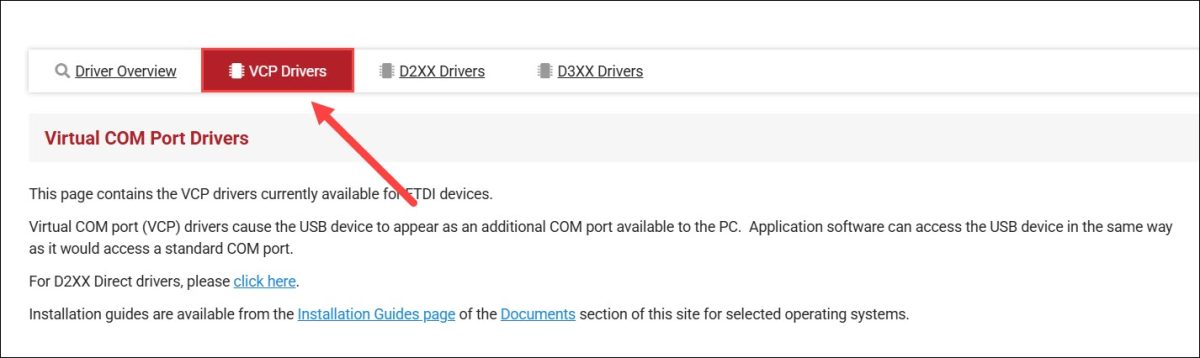
3. Scroll to the Currently Supported VCP Drivers section, and download the driver for your Windows operating system (32-bit or 64 bit).
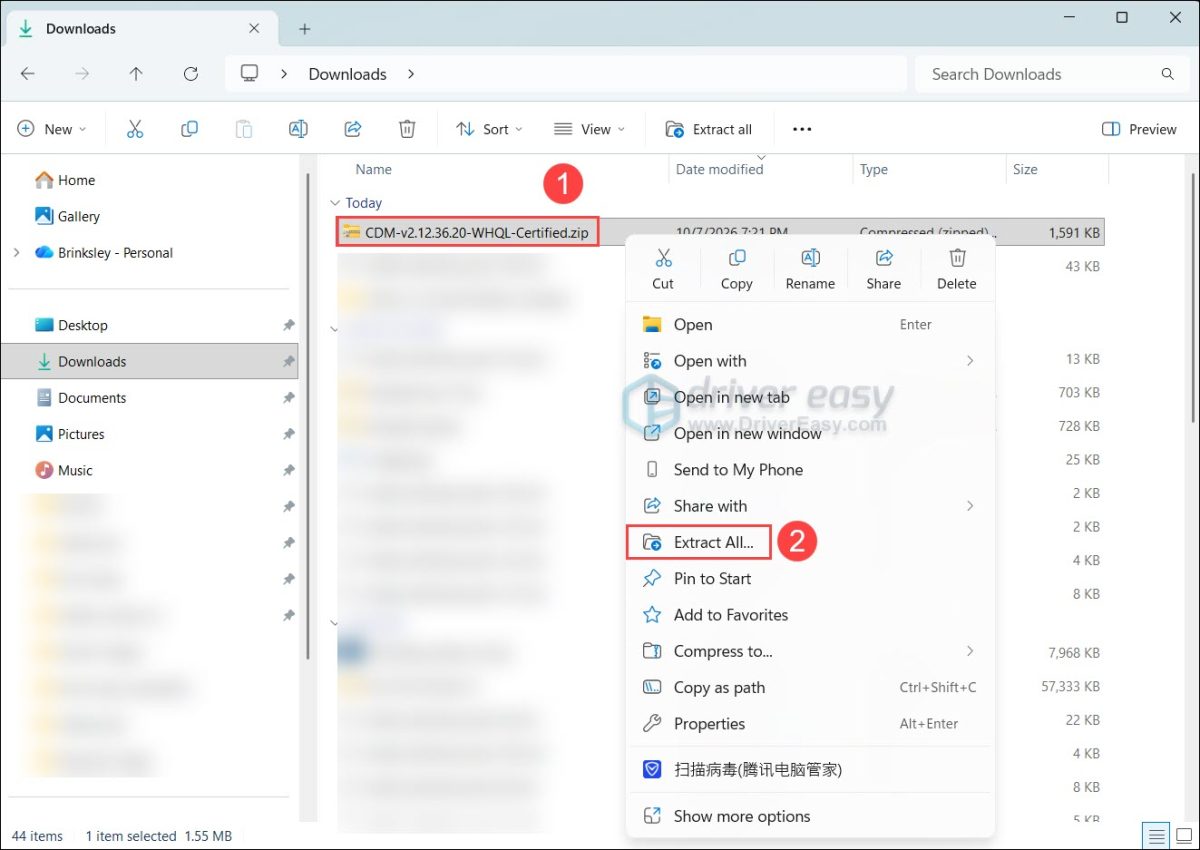
4. Right-click the downloaded .zip file, select Extract All…, and extract it to a folder on your Desktop.
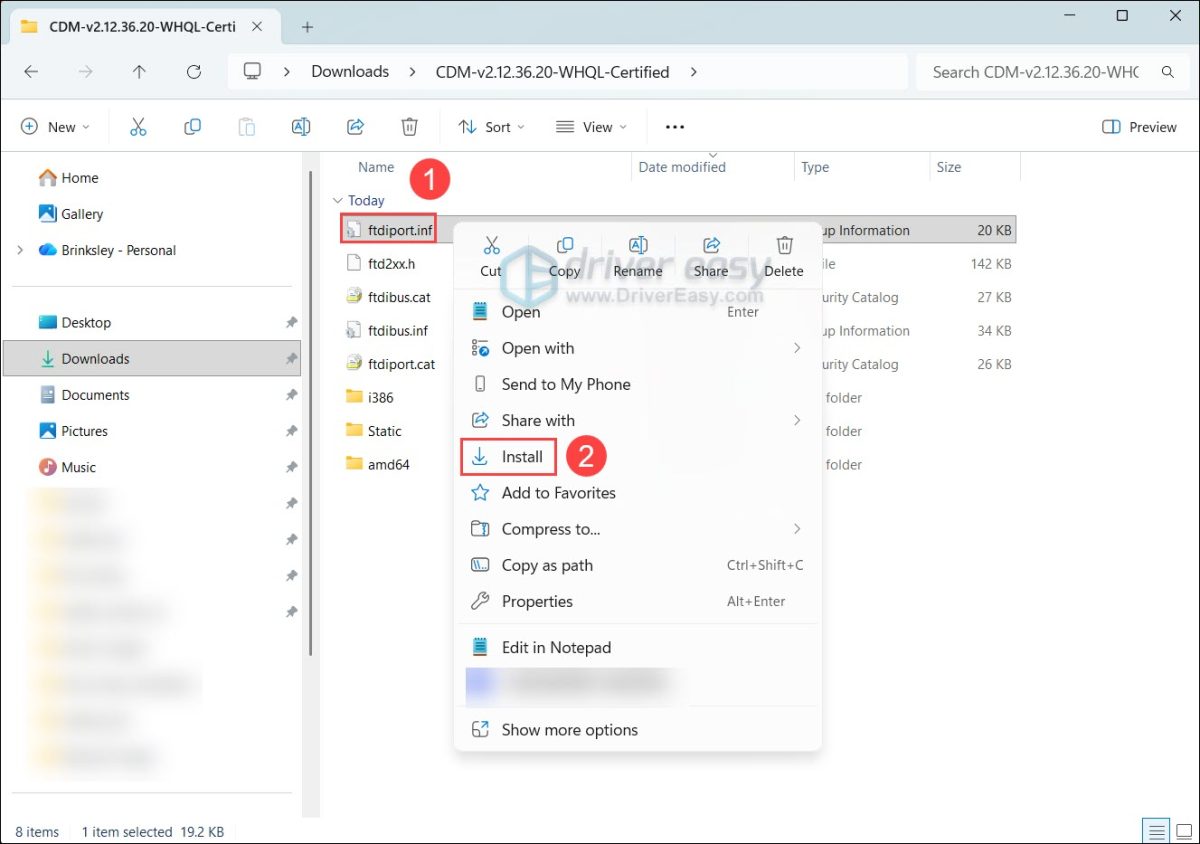
5. Right-click ftdiport.inf and select Install. If you don’t see the Install button, click Show more options > Install.
6. Click Yes when Windows User Account Control asks for administrator permission.
7. From the folder, right-click ftdibus.inf and select Install.
Once both files are installed, unplug your FTDI USB adapter and reconnect it. Press Windows + X and open Device Manager. Expand the Ports (COM & LPT) category. You should now see USB Serial Port (COMx) listed without any yellow exclamation marks, confirming your device is ready to use!
Method 2: Update the FTDI USB to serial driver manually (recommended)
If you don’t have the time or patience to manually download and install the FTDI USB to serial driver, you can do it automatically with Driver Easy.
Driver Easy will automatically recognize your system and find the correct drivers for it. You don’t need to know exactly what system your computer is running; you don’t need to risk downloading and installing the wrong driver, and you don’t need to worry about making mistakes when installing.
With Driver Easy, it takes just two clicks to update all the device drivers on your system:
1) Download and install Driver Easy.
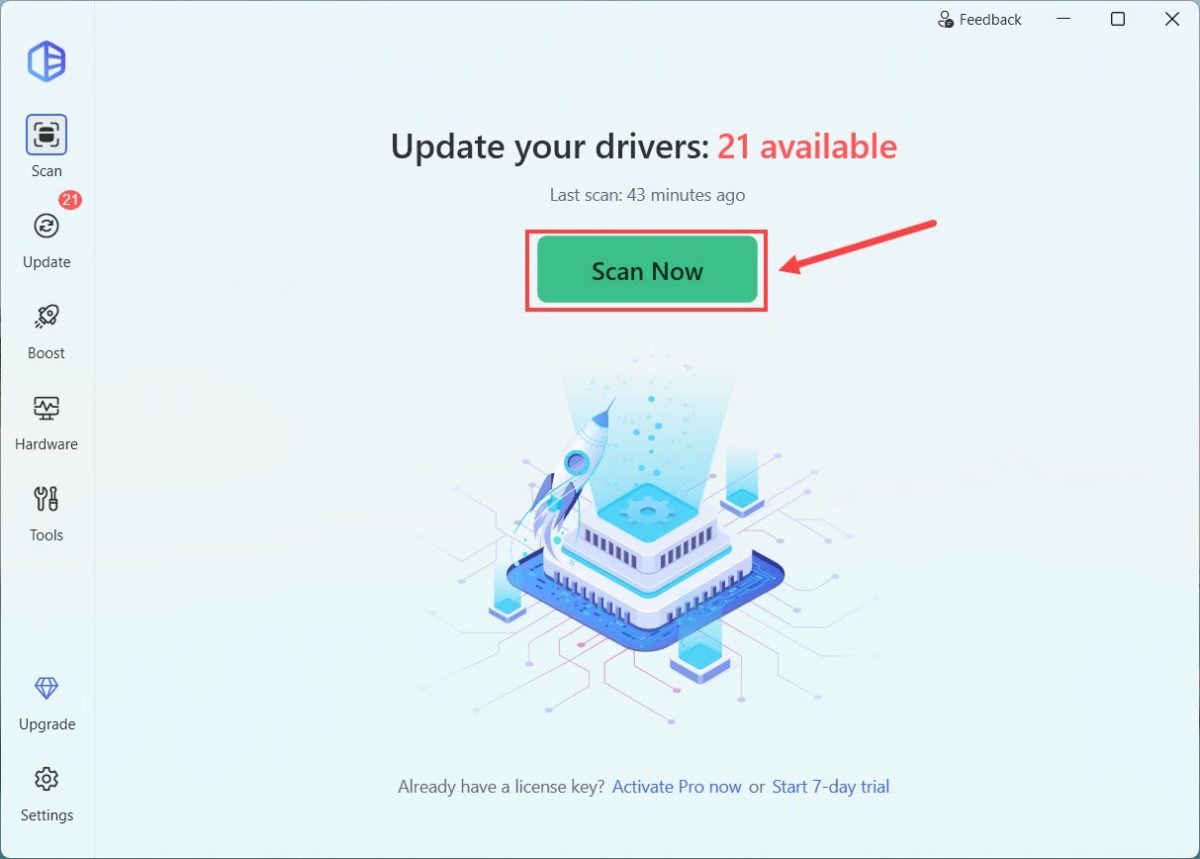
2) Run Driver Easy and click the Scan Now button. Driver Easy will then scan your computer and detect any problem drivers.
3) Click the Activate & Update button next to the flagged USB serial converter to automatically download the correct version of the driver, then you can manually install the driver. Or click Update All to automatically download and install the correct version of all the drivers that are missing or out of date on your system.
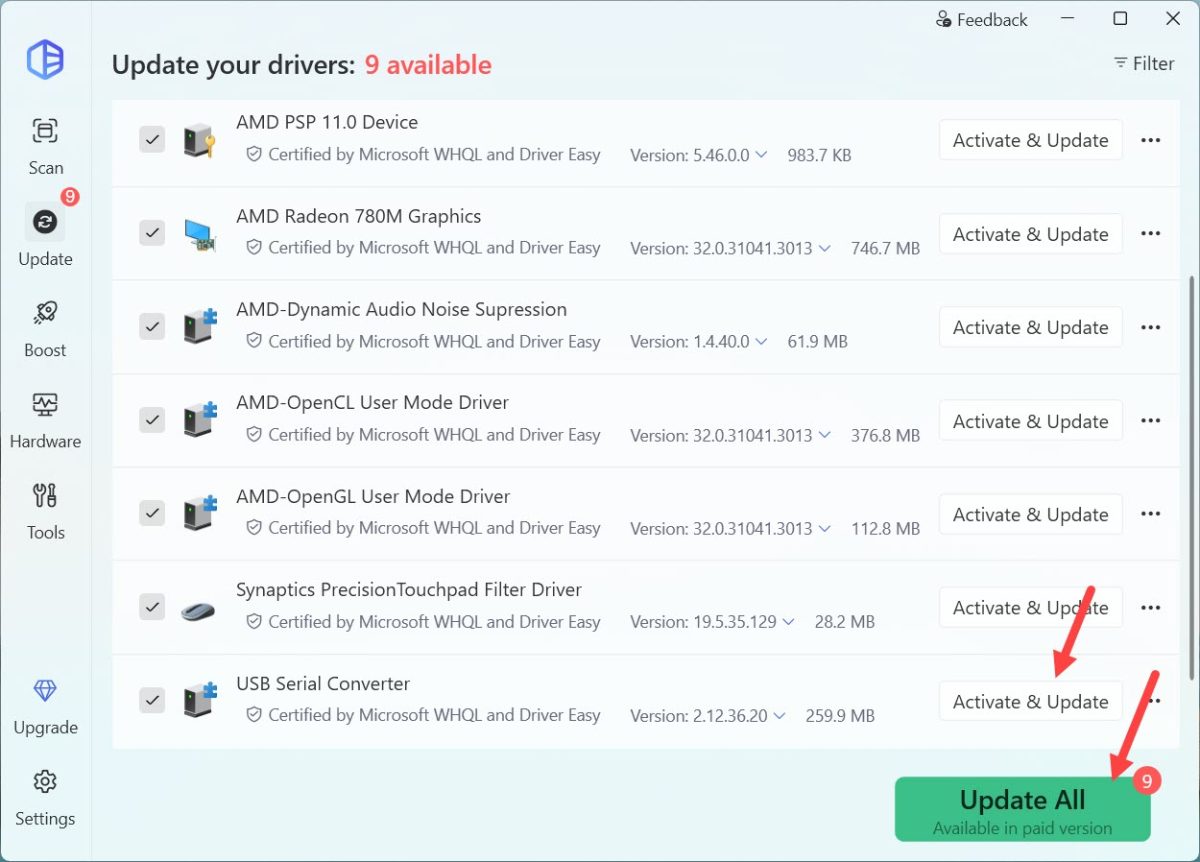
4) After updating the driver, restart your computer and check to see if the FTDI USB to serial driver issue is resolved.
Frequently Asked Questions
Why does Device Manager show “This device cannot start (Code 10)”?
A Code 10 error typically means Windows loaded a generic or corrupted driver state. In Device Manager, right-click the FTDI device, select Uninstall device (check Attempt to remove the driver for this device), restart your PC, and perform a clean driver installation using Method 1 or Method 2.
VCP vs D2XX Drivers: Which one do I need?
- VCP (Virtual COM Port): Standard choice. It makes your USB connection appear as a traditional RS-232 serial port.
- D2XX: Used primarily by proprietary software applications that communicate directly with FTDI chips via specialized APIs. Unless your hardware documentation specifically instructs you to use D2XX, stick with VCP.
Need extra help? If you used Driver Easy Pro and are still experiencing hardware connection issues, reach out to our support team at support@drivereasy.com. Attach the URL of this article and a brief description of your setup so our support specialists can assist you directly!