





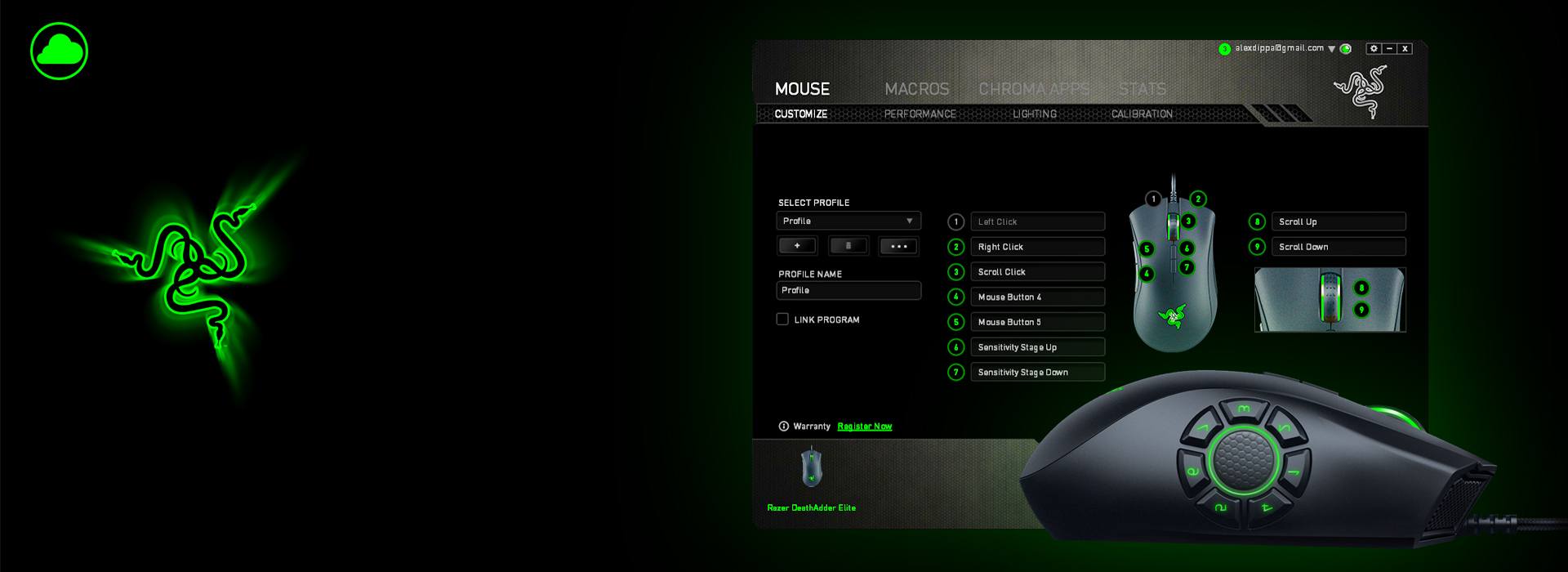

Razer Synapse is not detecting your mouse or other devices like keyboards is frustrating.
But don’t panic! Below are some troubleshooting steps you can take to address your issue. Before proceeding, it’s suggested you restart your computer. Your issue may be caused by temporary glitches that prevent your devices from being detected, and a simple restart can refresh system processes, which might be all that’s needed to restore proper functionality.
If the issue persists after restarting, here are some additional steps you can take:
- Ensure your device is supported by Razer Synapse
- Troubleshoot the hardware problem
- Reinstall Razer Synapse
- Update your device drivers
- Download and install all Windows updates
- Repair missing or corrupted system files
1. Ensure your device is supported by Razer Synapse
The very first step you should take is to check whether your device is supported by Razer Synapse 4, Razer Synapse 3 or Razer Synapse 2.
If your device is not supprted by Razer Synapse, then it is incompatible. However, if yours is among the list of Razer Synapse supported devices, take the steps below to troubleshoot your issue.
2. Troubleshoot the hardware problem
If your mouse is not detected by Razer Synapse, you should check the hardware connections to troubleshoot the problem.
Try another USB port
It’s likely that the damaged USB port prevents your mouse from being detected by your computer. So you can try different USB ports and connect again.
Test on another computer
To troubleshoot the issue, you can try connecting your mouse to another computer, and see if it works.
If your mouse can be detected by that computer, there should be something wrong in this computer that fails to detect, and you can try the other solutions below to fix it.
If Razer Synapse is still not detecting the mouse, it’s your mouse issue probably, and you can contact Razer Support to have your mouse repaired or replaced.
3. Reinstall Razer Synapse
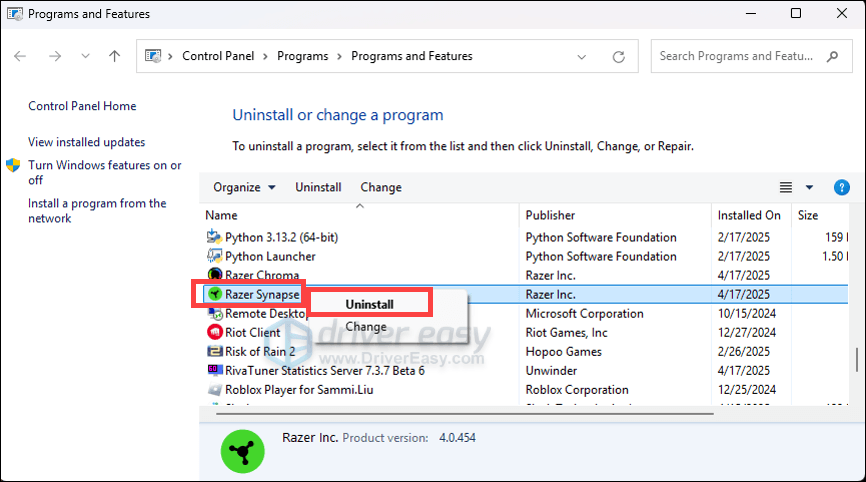
You can also try uninstalling Razer Synapse to fix the Razer Synapse not detecting mouse or keyboard issue. Follow these steps:
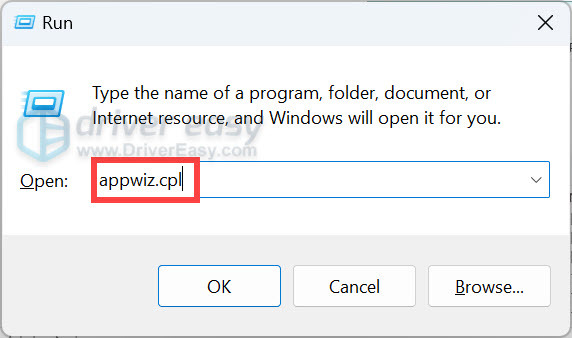
1) On your keyboard, press the Windows logo key and R at the same time to invoke the Run box.
2) Type appwiz.cpl and click OK.
3) Find Razer Synapse in the program list, right-click it and select Uninstall.
4) Then locate and remove all remnants of Razer Synapse from the PC:
Note that these folders are hidden by default, so be sure to unhide them by selecting Show hidden files
- C:\Program Files\Razer
- C:\Program Files (x86)\Razer
- C:\ProgramData\Razer
After deleting these files, restart the PC, then download and install the latest version of Razer Synapse from the official website.
4. Update your device drivers
Razer devices generally function as plug-and-play peripherals without requiring separate, model-specific drivers. They are recognized by Windows as standard Human Interface Devices (HID) and work immediately upon connection. To solve issues like Razer Synapse not detecting mouse, you can try updating your device drivers.
You can update your device drivers through the Device Manager. However, you may need to do this one by one and you may not be able to identify which are the ones with outdated drivers. If you don’t feel comfortable in doing this on your own, use Driver Easy, a handy tool designed to simplify the process of updating drivers. It will automatically detect the devices with outdated drivers, download and install the latest versions for your system, direct from the manufacturers.
1) Download and install Driver Easy.
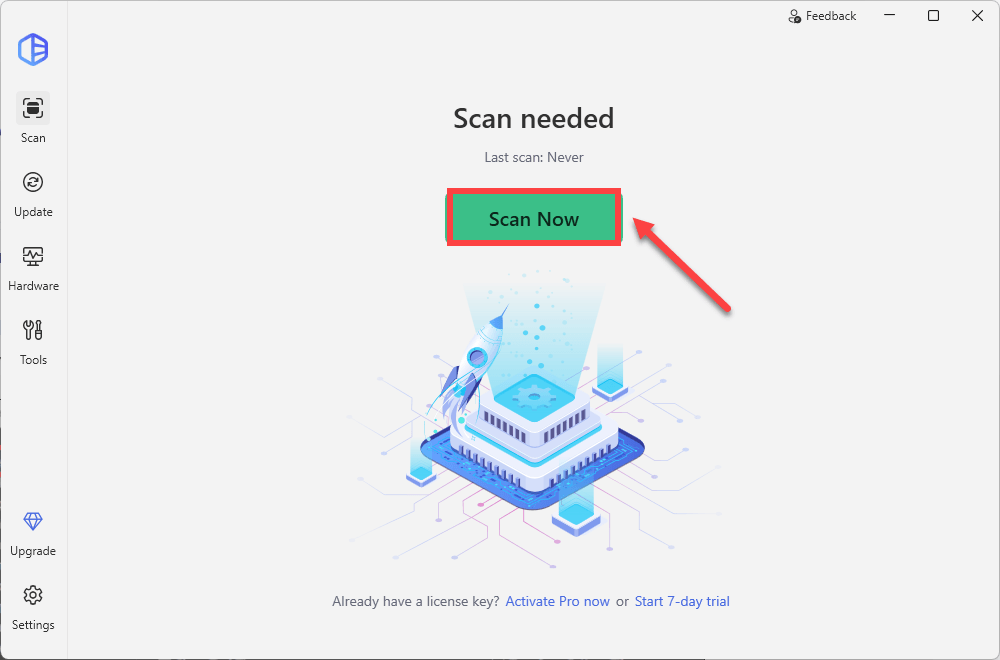
2) Run Driver Easy and click the Scan Now button. Driver Easy will then scan your computer and detect any problem drivers.
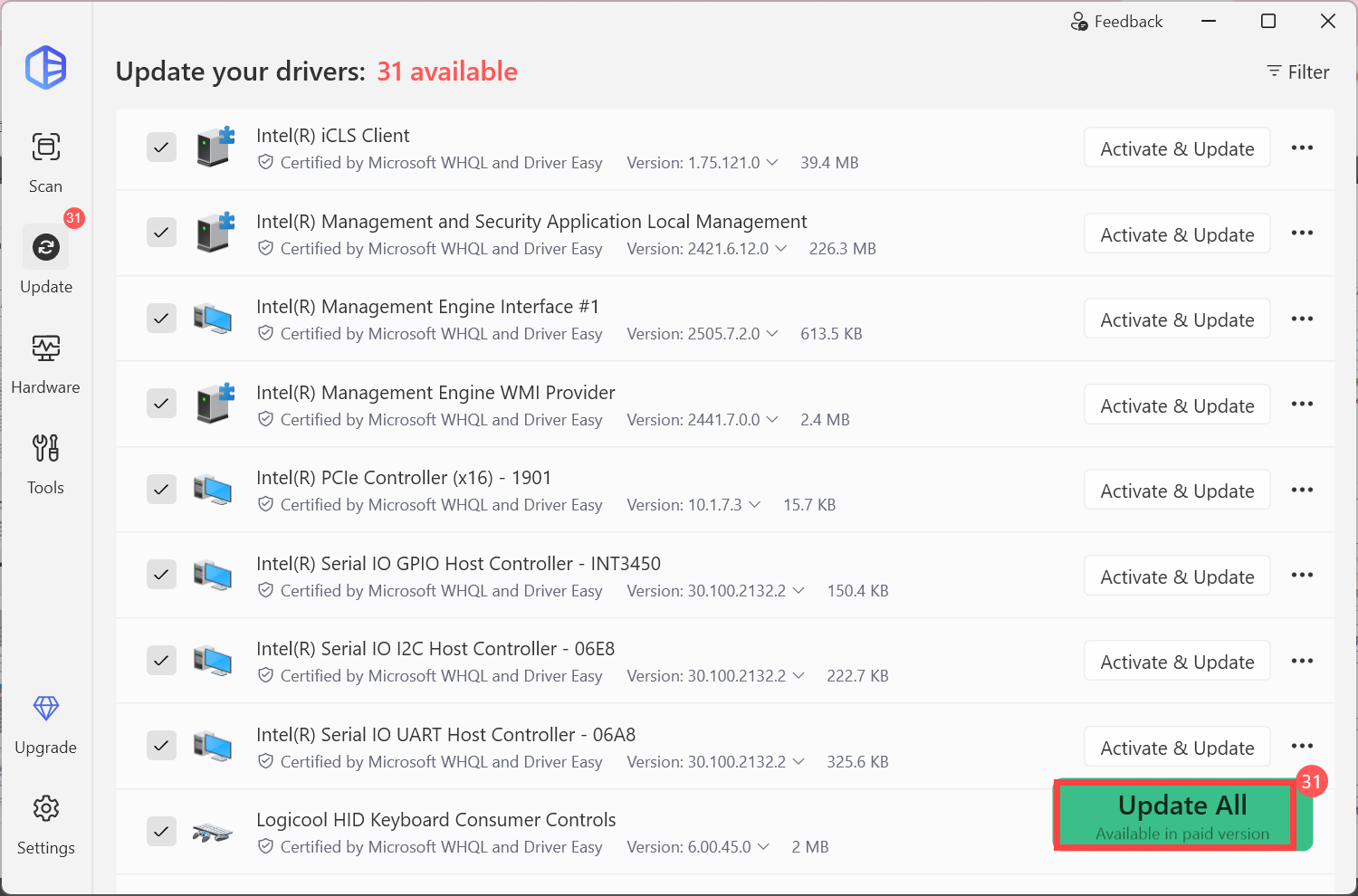
3) Click the Activate & Update button next to your device. Or click Update All to automatically download and install the correct version of all the drivers that are out of date on your system. By clicking on these buttons, you’ll be prompted to upgrade. If you’re not ready for your purchase, take the 7-day free trial to unlock all features.
4) Restart your computer to take effect.
Try connecting your Razer mouse again to see if Razer Synapse detects the mouse.
5. Download and install all Windows updates
It is important to keep your Windows OS up to date to ensure that you have the latest software, driver, and security updates for your system.
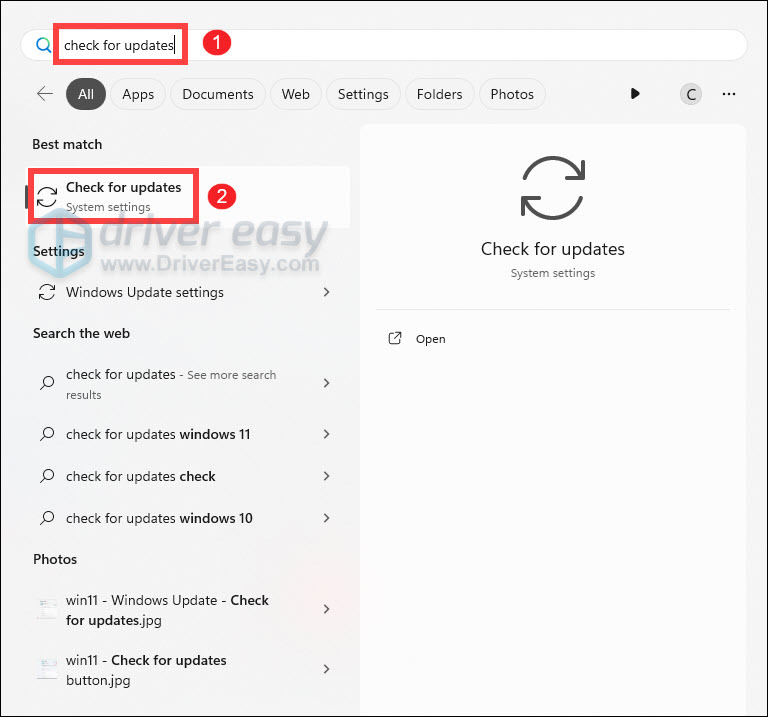
1) Press the Windows logo key to invoke the Search. Type check for updates, then click Check for updates from the list of results.
2) If you’re told that “Updates available to install”, simply click on the Install all button.
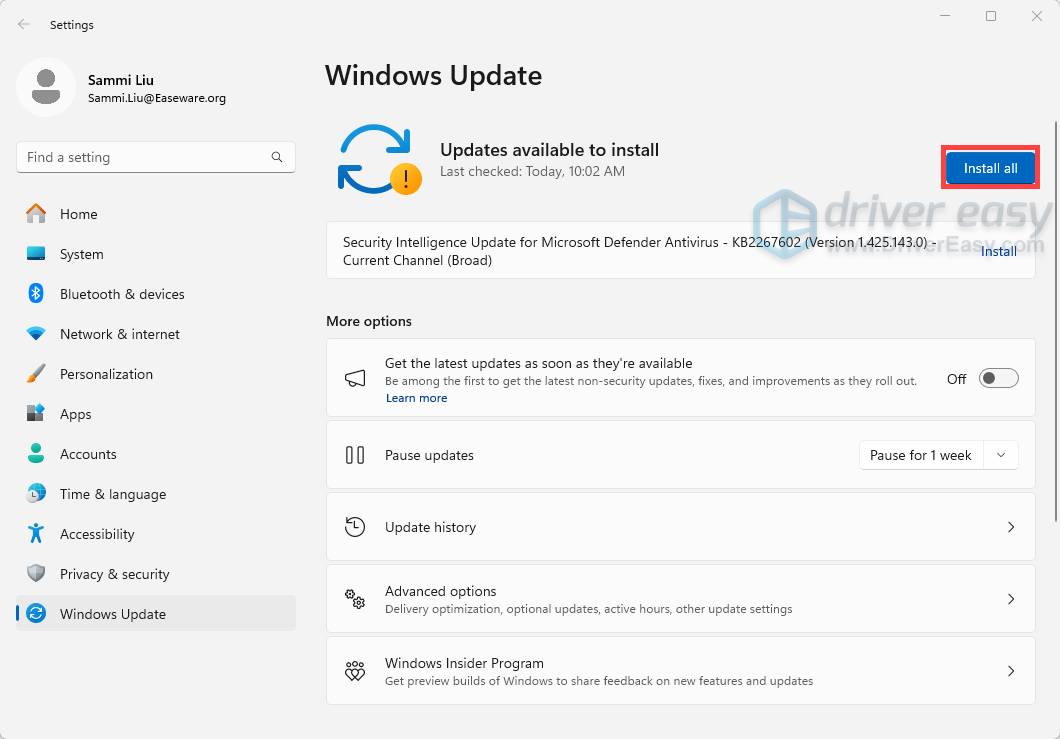
Or you can click on the button Check for updates to see if there are updates available and then follow the on-screen instructions to download and install them.
After the updates have been downloaded, you will be prompted to restart your system to complete the installation.
6. Repair missing or corrupted system files
Corrupted or missing system files can cause various issues, including programs like Razer Synapse not working properly. Use the System File Checker (SFC) tool to scan and repair them.
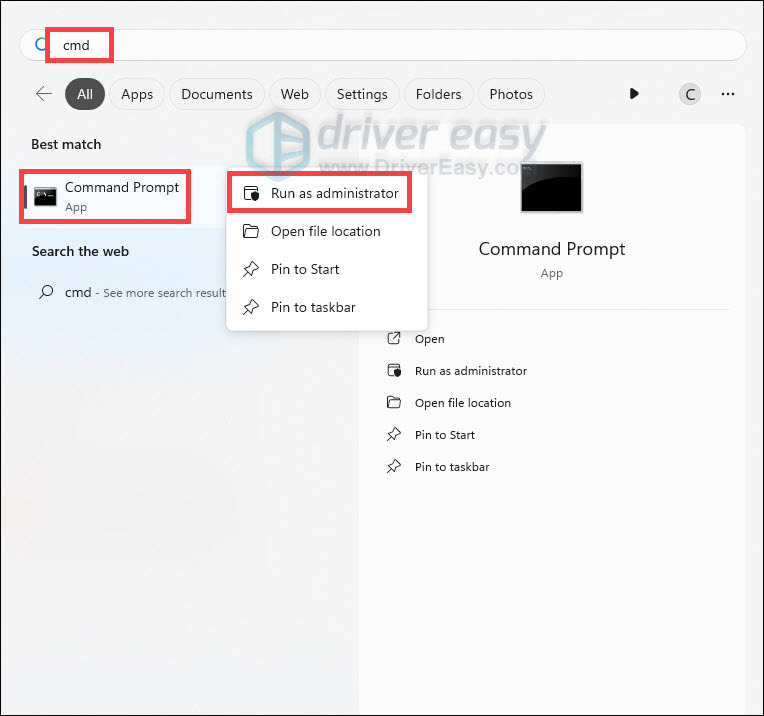
1) On your keyboard, press the Windows logo key to open the Search menu. Type cmd, right-click Command Prompt from the list of results, and select Run as administrator.
2) In the Command Prompt window, type sfc /scannow and hit Enter.
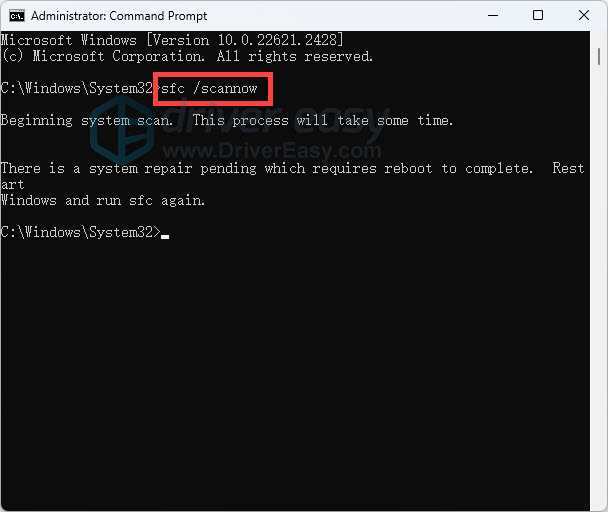
The sfc /scannow command scans and repairs protected system files using a cached copy. Do not close the Command Prompt window until the process is complete.
After the process is finished, you may receive one of the following messages:
| sfc /scannow result | What it means |
| Windows Resource Protection did not find any integrity violations. | The SFC tool did not detect any corrupted, missing, or damaged system files on your computer. This is a good sign! It indicates that your system files are intact and functioning as they should. |
| Windows Resource Protection could not perform the requested operation. | The SFC tool encountered an issue preventing it from completing the scan. Try rebooting into safe mode, running the DISM command, and running the sfc /scannow again. *To run the DISM command, you just need to execute the following commands sequentially: DISM /Online /Cleanup-Image /CheckHealth |
| Windows Resource Protection found corrupt files and successfully repaired them. | The operation was successful. |
| Windows Resource Protection found corrupt files but was unable to fix some of them. | It has detected corrupted system files but couldn’t repair them. To address this issue, view details of the System File Checker process to find the corrupted file, and then manually replace the corrupted file with a known good copy of the file. |
That wraps up our guide to troubleshooting your Razer Synpase not detecting mouse issue! We hope this was helpful. If you have any further questions or need additional assistance, feel free to leave a comment below, and we’ll get back to you as soon as possible.


