Want to print files through HP printer but don’t know how? Wonder how to connect your HP printer to a laptop, or even tablets or smartphones? Don’t worry. This post will walk you through the connection process step by step.
Option 1 – Connect printer to laptop via wired USB cable
HP printers usually come with a suitable USB printer cable. Depending on your PC’s operating system, the setup process may be slightly different. Here the following screenshots are taken from Windows 10, but it’s also applicable for other Windows systems.
Simply connect the printer to your laptop with the cable. Your computer will notify you that it detects a new device and a driver will be downloaded for it to complete the installation.
If you receive the notification
Just click the notification and follow the on-screen instructions. When it’s done, you should be able to use the printer on your computer.
If you don’t receive the notification
On Windows 10:
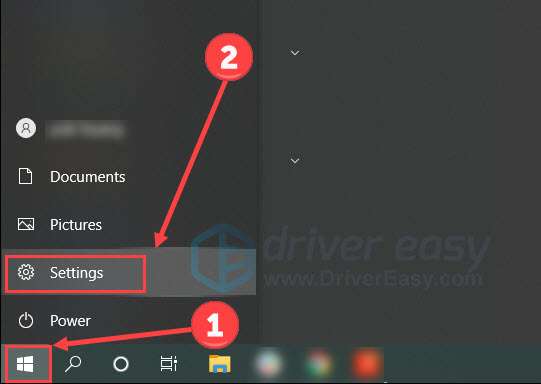
Click the Windows icon and select Settings.
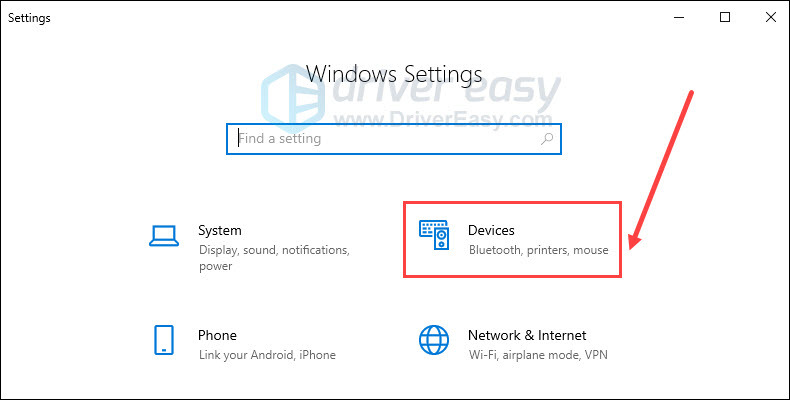
Click Devices.
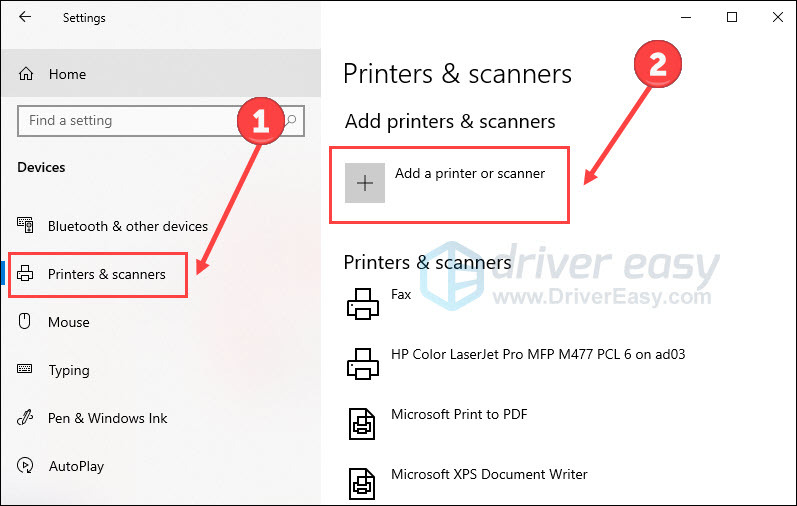
Choose the Printers & scanners tab on the left and then click Add a printer or scanner. Now Windows should be able to detect your printer.
Click the name (printer’s manufacturer name and model number) when it pops up. And complete the installation following the instructions.
On Windows 11:
On your keyboard, press the Windows logo key + I to open Settings.
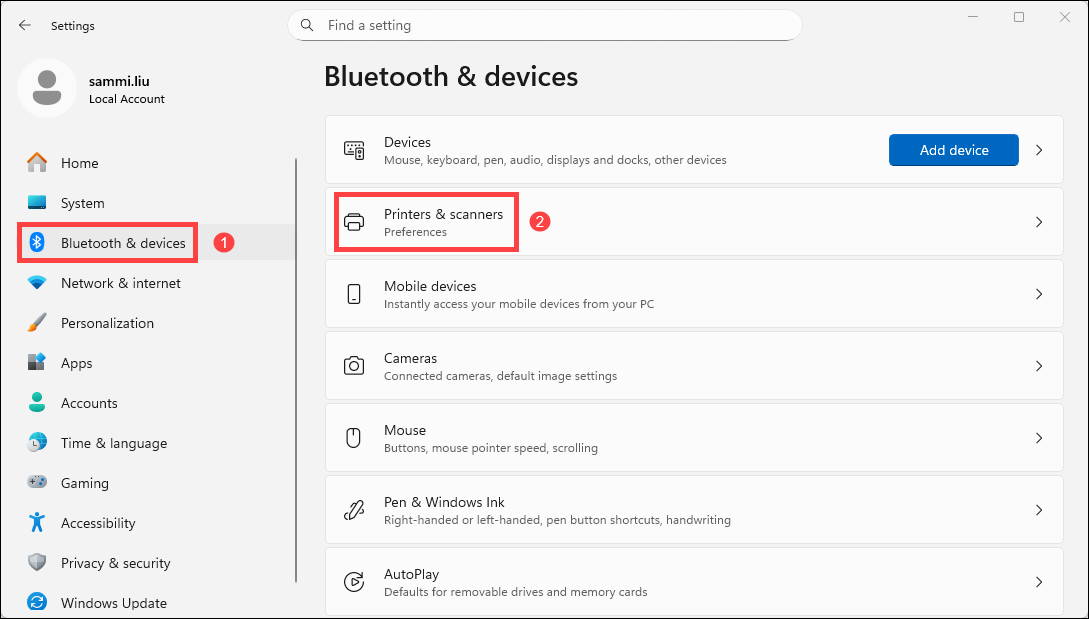
Select Bluetooth & devices > Printers & scanners.
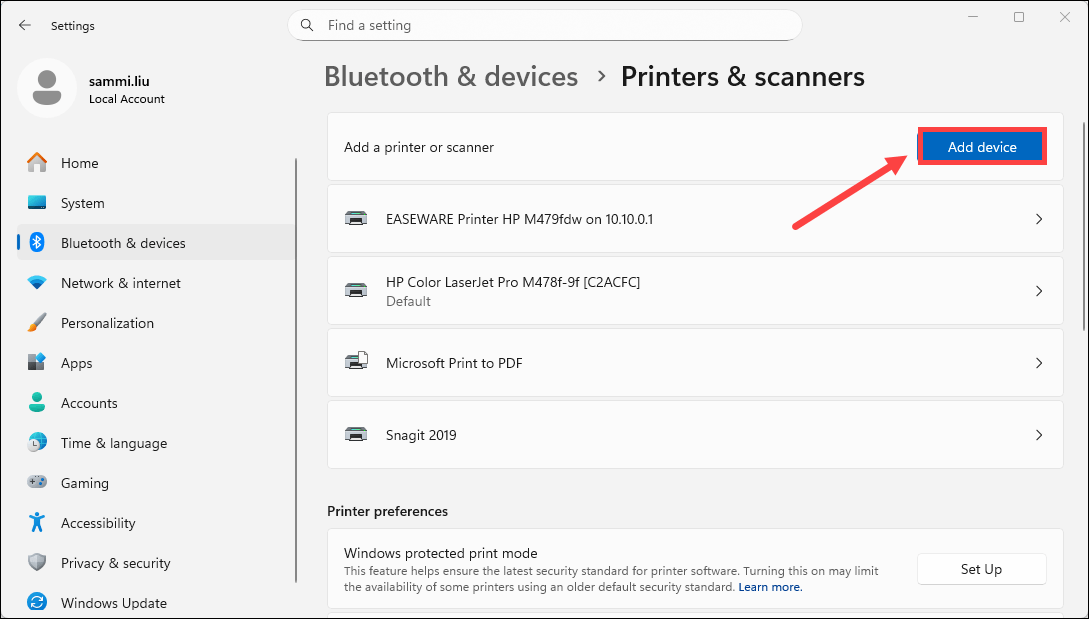
Click on the button Add device. Then follow the on-screen instructions to add your printer to the list.
Option 2 – Link HP printer to laptop via wireless network
Connecting HP printers wirelessly may seem more complicated, but you’ll find using printers more convenient and handy after that.
NOTE: The printer must connect to the same wireless network as the laptop.
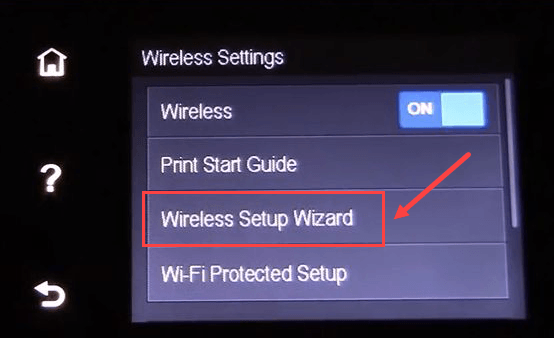
Navigate your printer control penal to Wireless Settings or Network. Choose Wireless Setup Wizard. Most modern printers have an LCD screen, though the display and steps may vary.
Locate your Wi-Fiand enter the network password. Now your printer should be connected to the network.
Open your laptop and make sure it connects to the same wireless network. Click the Windows icon and select Settings on your laptop.
Click Devices.
Choose the Printers & scanners tab and then click Add a printer or scanner.
Click the printer’s name, when it pops up, shown as the manufacturer name and model number. And your computer will do the rest to complete the configuration.
Windows 11
On your keyboard, press the Windows logo key + I to open Settings.
Select Bluetooth & devices > Printers & scanners.
Click on the button Add device. Then follow the on-screen instructions to add your printer to the list.
Click the printer’s name, when it pops up, shown as the manufacturer name and model number. And your computer will do the rest to complete the configuration.
Option 3 – Connect HP printer without Internet (applicable for handheld devices)
If you don’t have an internet connection, or if you want to print files from smartphones or tablets, you still can get your HP printer work as you wish. That’s because it has certain built-in features Wi-Fi Direct and HP Wireless Directfor most HP printers. By connecting one of them, you can print documents directly from your computer, smartphone or tablet, even if these devices can’t access the Internet.
What are Wi-Fi Direct and HP Wireless Direct, and their differences?
Wi-Fi Direct and HP Wireless Direct both provide direct wireless connections between your printer and a mobile device or computer without a router. While HP Wireless Direct is used in most wireless-capable printers released between late 2011 and mid-2014, most printers released since mid-2014 use Wi-Fi Direct.
How to print through Wi-Fi Direct or HP Wireless Direct?
Open the printer’s control panel and turn ON Wi-Fi Direct. (Note: it is turned on by default). Or touch the HP Wireless Direct icon () and then turn ON the connection.
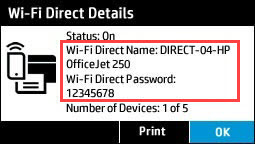
Get the security password from the printer control panel.
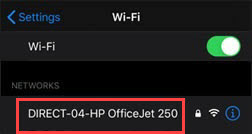
On your computer or mobile devices, connect to Wi-Fi Direct or Wireless Direct the same way you connect to any other wireless network.
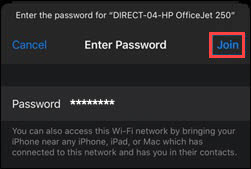
Fill in the password you get in step 2 when you’re prompted to enter it. Tap Join.
Open your files and select Print. Select your printer and then you can print the files you want from smartphones, laptops or tablets.
If your mobile apps don’t support printing, download and install HP Print Service Plugin before tapping print.
Outdated or faulty driver can cause malfunction and many other problems in your printer, since it’s the bridge connecting your printer and your computer system. Therefore, it’s necessary to keep your printer driver up-to-date.
There are two ways to update your HP printer driver on your computer: manually or automatically.
Manual driver update:
This method requires you to download and install the right driver manually from HP support website. You need to know your printer model, computer system version to get the latest right driver. It may be a little challenging and time-consuming if you don’t have much computing knowledge.
Auto driver update:
If you don’t want to waste your time, and prefer to update all of your drivers in one go, you can do it automatically with Driver Easy. It will recognize your system and find the correct drivers for your HP printer, and your Windows version, and it will download and install them correctly.
You don’t need to know exactly what system your computer is running, you don’t need to be troubled by the wrong driver you would be downloading, and you don’t need to worry about making a mistake when installing.
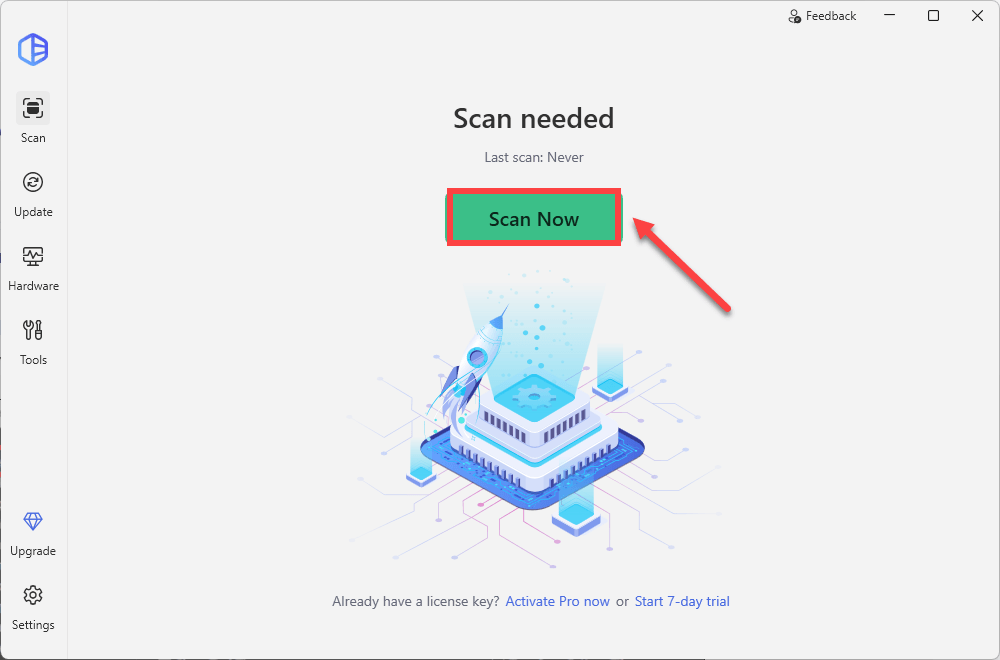
Run Driver Easy and click the Scan Now button. Driver Easy will then scan your computer and detect any problem drivers.
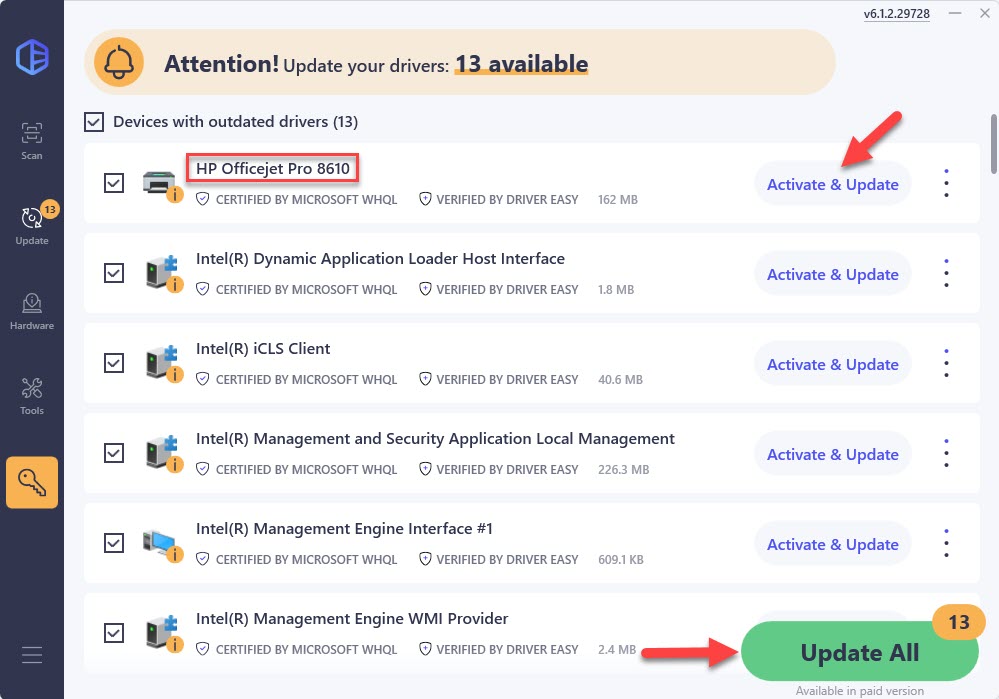
Click Activate & Update next to your device name. Or click Update All to update all drivers at once. You’ll be prompted to upgrade by clicking on these buttons. If you’re not ready for your purchase, sign up for the free trial to update drivers with no upfront cost.
If you need any assistance while using Driver Easy, please contact Driver Easy’s support team at support@drivereasy.com.
Hopefully, you can get your HP printer connected to laptops or other mobile devices with this article. If you have any questions or suggestions, please feel free to leave a comment below.
Yuki is a technical support specialist at Driver Easy, responsible for addressing customer inquiries related to orders, payments, and program usage. With training and experience, she has developed basic computer knowledge and skills, allowing her to assist customers with simple computer and driver-related issues.