





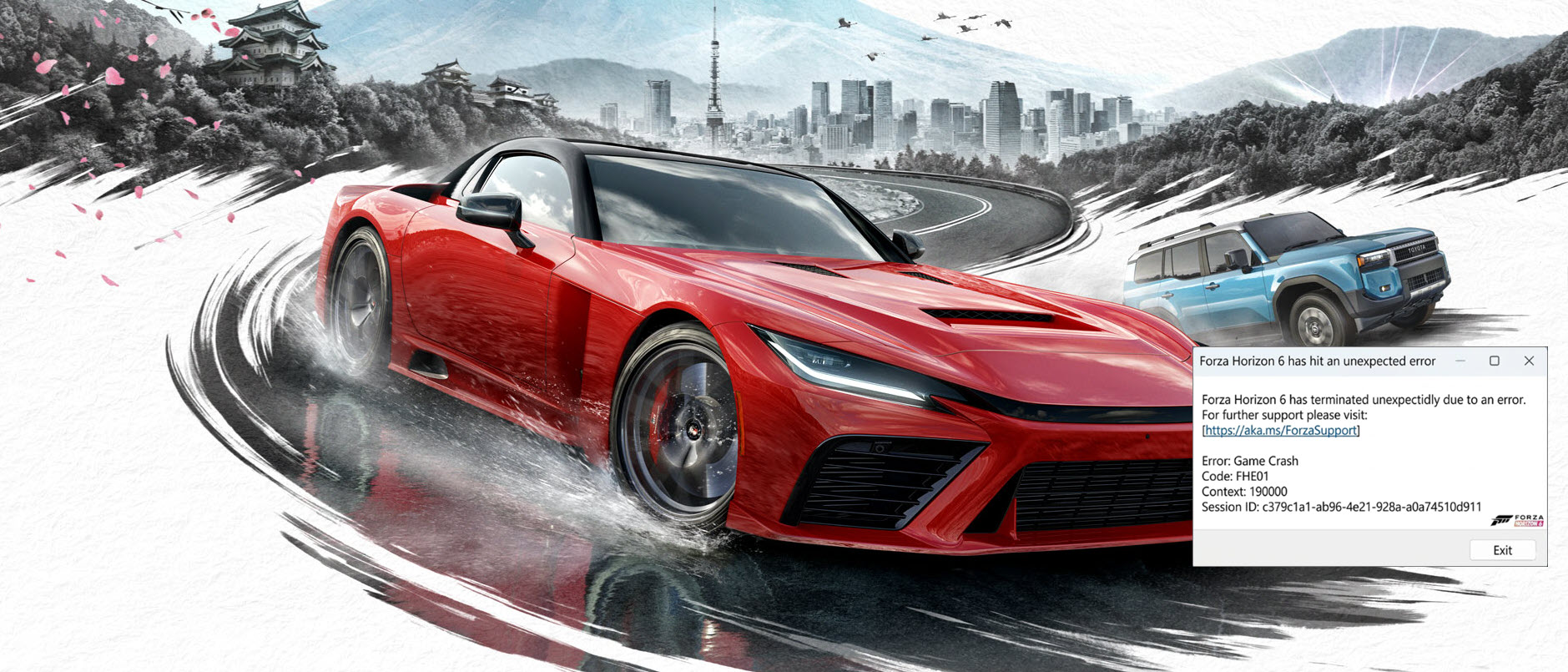

The Premium and Early Access launch of Forza Horizon 6 (FH6) has arrived, but for many PC drivers, the game has felt more like a crash simulator than an open-world racing masterpiece. Whether your game is not launching or constantly crashing with error codes like FHC01 or FHE01, you are not alone. In this comprehensive guide, we have gathered community-tested methods to help you troubleshoot and stop Forza Horizon 6 crashing issues easily and quickly.
Fixes to try:
Here are the 10 best fixes for FH6 crashing issues and errors. You don’t have to try them all. Just work your way down the list until you find the one that works.
- Fix 1 – Temporarily disconnect your peripherals
- Fix 2 – Verify the integrity of game files (Steam & Xbox)
- Fix 3 – Run the game as an administrator
- Fix 4 – Repair and reset Forza Horizon 6
- Fix 5 – Update or roll back your graphics driver
- Fix 6 – Update Microsoft Visual C++ Redistributables
- Fix 7 – Lower in-game graphics settings
- Fix 8 – Disable NVIDIA audio devices
- Fix 9 – Uninstall or disable Citrix
- Fix 10 – Turn off MSI Afterburner and RivaTuner
Fix 1 – Temporarily disconnect your peripherals
Many users report that hardware conflicts will cause Forza Horizon 6 to crash on launch, triggering the FHE01 specifically. Temporarily disconnect your racing wheel, pedals, shifter, secondary controllers, and any unnecessary USB devices except your primary mouse and keyboard. Then, launch FH6. Once you pass the main menu and enter free roam, plug your gaming gear back in and see if the FH6 works normally.
Fix 2 – Verify the integrity of game files
Corrupted or broken game files are one of the most common causes of crashes and launch failures in newly released games. If you haven’t tried verifying the game files, start here first.
For Steam users
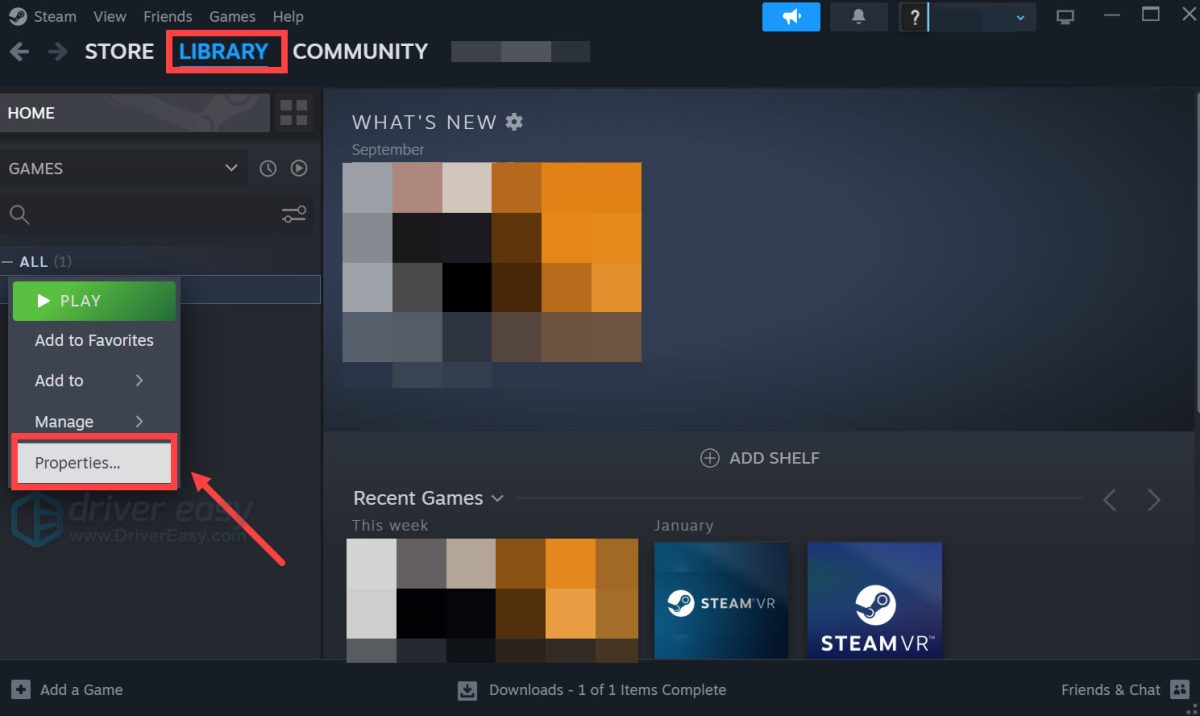
1) Launch Steam and go to the Library tab. Right-click Forza Horizon 6 and click Properties.
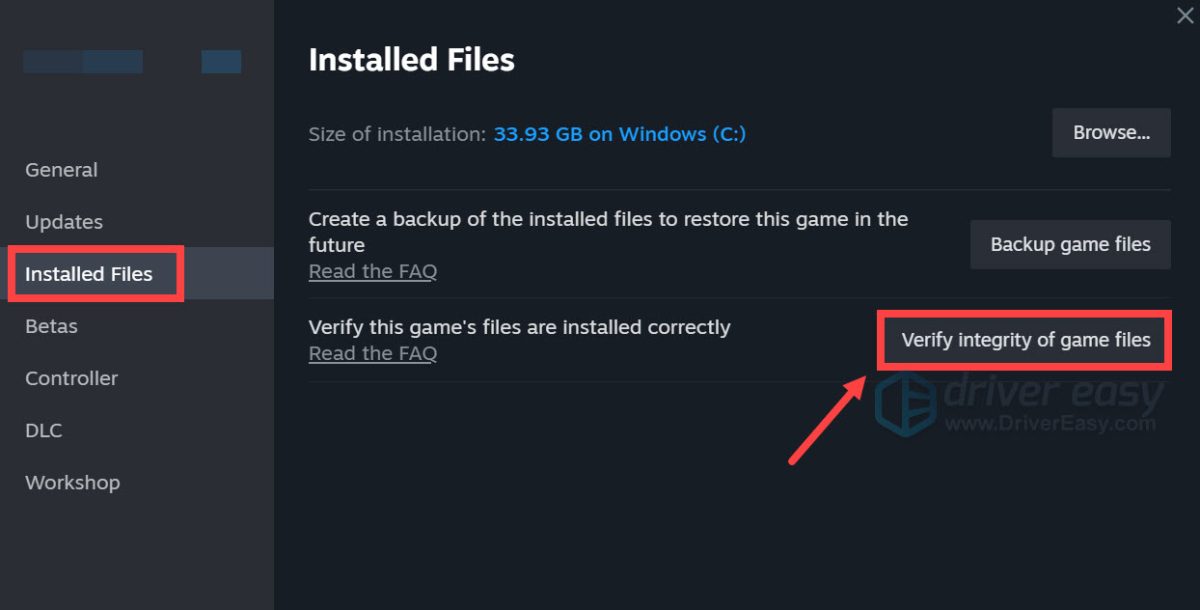
2) Select the Installed Files tab and click Verify integrity of game files.
For Xbox App / PC Game Pass users
1) Open the Xbox App. Select Forza Horizon 6 in My Library.
2) Select the More options (…) button next to the Play button, and choose Manage.
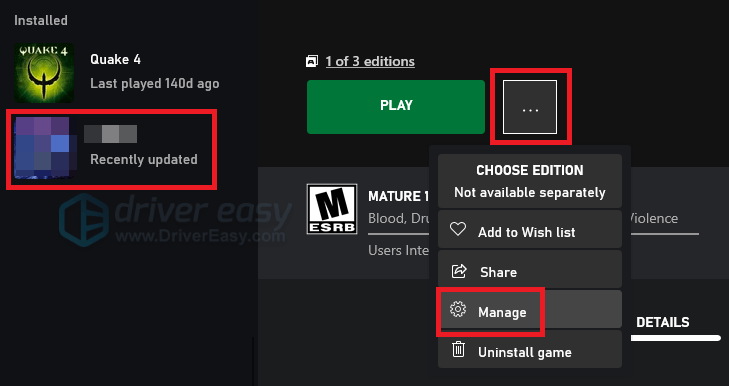
3) Select Files and then Verify and repair.
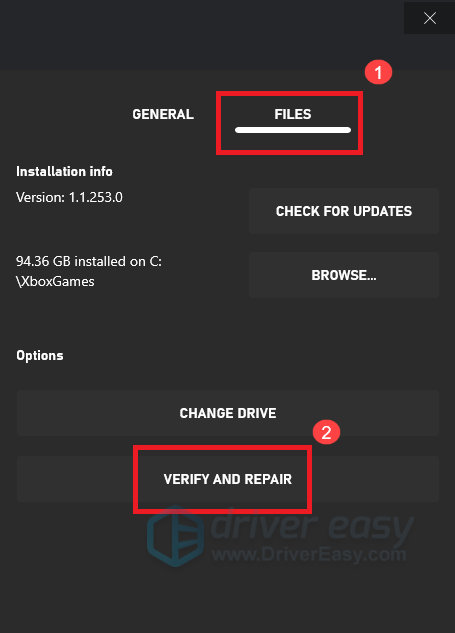
This will scan and automatically repair any corrupted or missing files. Once the process finishes, launch FH6 again and see if the crashes are resolved.
Fix 3 – Run the game as an administrator
Sometimes, Windows permission restrictions can prevent FH6 from accessing vital system storage files, resulting in an instant crash to the desktop upon booting. You can try running the game as an administrator.
1) Go to the game installation folder. (If you’re on Steam, navigate to Library. Right-click Forza Horizon 6, click Manage > Browse local files.)
2) In the File Explorer, right-click ForzaHorizon6.exe and click Properties.

3) Go to the Compatibility tab. Check Disable Fullscreen Optimizations as well as Run this program as an administrator, and click OK to apply the changes.

Fix 4 – Repair and reset Forza Horizon 6
If the game’s local cache or app data becomes corrupted, resetting the application may clear the bottleneck. You can do that easily in Windows.
1) On your keyboard, press the Windows logo key + I to open Windows Settings. Click Apps > Installed Apps.

2) Search for Forza Horizon 6 and click the three dots (…) next to it. Then, select Advanced Options.

4) Scroll down and click Repair.

If the game still crashes, return to the same menu and click Reset.
Fix 5 – Update or roll back your graphics driver
Driver problems are one of the most common causes of crashes in newly released games like Forza Horizon 6. If your graphics driver is outdated, corrupted, or incompatible with the latest game build, you may experience startup crashes, black screens, freezing, stuttering, or random crashes during gameplay.
It’s also worth noting that the graphics driver isn’t always the only culprit. Outdated chipset, audio, network, or other system drivers can sometimes contribute to game stability issues as well.
Option 1 – Update your graphics driver manually
You can manually download and install the latest graphics driver from your GPU manufacturer’s website: Intel, AMD, or NVIDIA.
If the crashes started shortly after updating your graphics driver, you may also want to roll back to a previously stable driver version and test the game again.
Option 2 – Automatically update all your device drivers
If you’d like a faster way to rule out driver-related issues, Driver Easy can scan your system and identify outdated, missing, or problematic drivers in just a few minutes. You don’t have to check individual hardware components and download drivers one by one. Driver Easy detects your hardware and system and ensures your PC drivers are always up-to-date.
In addition to updating drivers, Driver Easy enables you to roll back drivers easily if a recent update introduced compatibility issues, making it easier to test different driver versions without manually searching manufacturer archives.
1) Download and install Driver Easy.
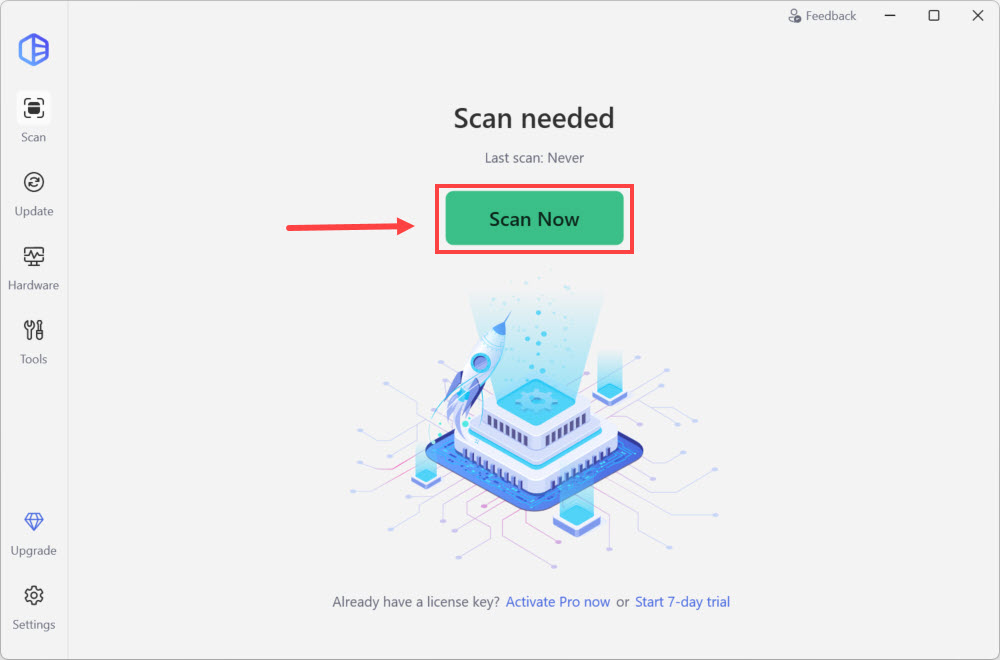
2) Run Driver Easy and click the Scan Now button. Driver Easy will then scan your computer and detect any problem drivers.
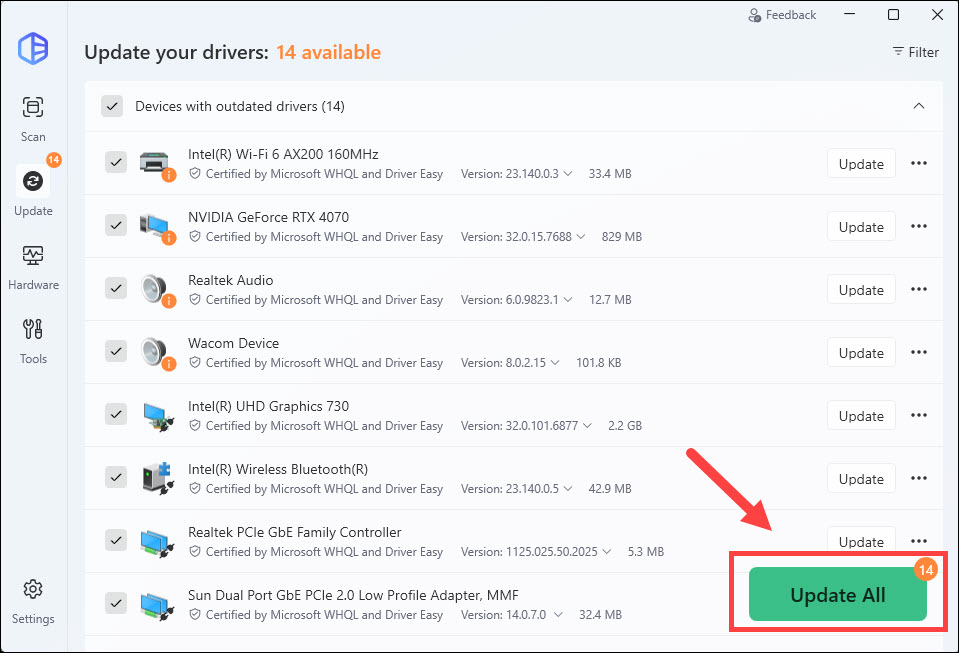
3) Click Update next to the flagged device to automatically download and install the correct version of this driver. Or click Update All to automatically download and install the correct version of all the drivers that are missing or out of date on your system.
If FH6 doesn’t launch after the update, try rolling back your graphics driver to an older stable version and test the game.
Fix 6 – Update Microsoft Visual C++ Redistributables
Many modern PC games rely on Microsoft Visual C++ runtime components. If these files are missing or corrupted, games may fail to launch properly.
1) Visit the official Microsoft Visual C++ Redistributable download page, and scroll to the latest supported redistributable version.
2) Download both the x86 and x64 packages.

3) Run and install the executables.
Once done, restart your PC. Relaunch FH6 and check how it works now. If the crashes persist or the game still fails to launch, try the next fix.
Fix 7 – Lower in-game graphics settings
If Forza Horizon 6 launches successfully but crashes after a few minutes, freezes during gameplay, or suffers from severe stuttering, the high graphics settings may be contributing to the problem. You can lower certain settings to see if that improves stability.
1) Launch Forza Horizon 6 and go to the in-game settings.
2) Scroll to the Video tab. For the Frame Rate, set it to Unlocked (variable). And turn off Vertical Synchronization.

If the game becomes stable after the changes, gradually raise the settings again until you find a stable configuration.
Fix 8 – Disable NVIDIA audio devices
Some players report that FH6’s spatial sound design and NVIDIA’s HDMI/Virtual audio streaming protocols, resulting in the FHC01 error crash. You can disable the NVIDIA audio devices to see if it helps reduce startup crashes or launch issues. Here’s how:
1) On your keyboard, press the Windows logo key + R. Type in devmgmt.msc, and click OK to open Device Manager.

2) Expand the Sound, video and game controllers category, right-click NVIDIA High Definition Audio and select Disable device.
3) Right-click NVIDIA Virtual Audio Device (Wave Extensible) (WDM) and select Disable device.
Restart the game and test again. If this doesn’t help, you can re-enable the devices and try the next fix.
Fix 9 – Uninstall or disable Citrix
The Citrix Workspace app utilizes kernel-level application monitoring for security. The Forza anti-cheat recognizes this behavior as a security breach, preventing the game from launching. To play the game, you can uninstall the app, or if uninstalling is not possible, disable the Citrix app protection service.
1) On the Windows search bar, type in msconfig and click System Configuration.

2) Go to the Services tab.

3) Uncheck the AppProtection Service from Citrix manufacturers. Then click Apply > OK.
Restart your PC and launch FH6 to see if this fix does the trick. If you use Citrix for work or remote access, remember to re-enable the service when needed.
Fix 10 – Turn off MSI Afterburner and RivaTuner
Some overlays, hardware monitoring tools, and background applications can interfere with game launches or trigger instability. Programs commonly reported include MSI Afterburner and RivaTuner Statistics Server (RTSS). To play the game, try completely disabling these apps.
1) On your keyboard, press Ctrl and Shift and Esc at the same time to open the Task Manager
2) Right-click MSI Afterburner and click End task.
3) Right-click RivaTuner Statistics Server and click End task.
Then relaunch FH6 and test the game again.
These are some of the most common causes of Forza Horizon 6 crashes, freezing, and launch issues on PC. Start with the simpler fixes first, then work your way toward the more advanced troubleshooting steps if needed. Hopefully, one of the methods above helped you get back into the game and back on the road.