






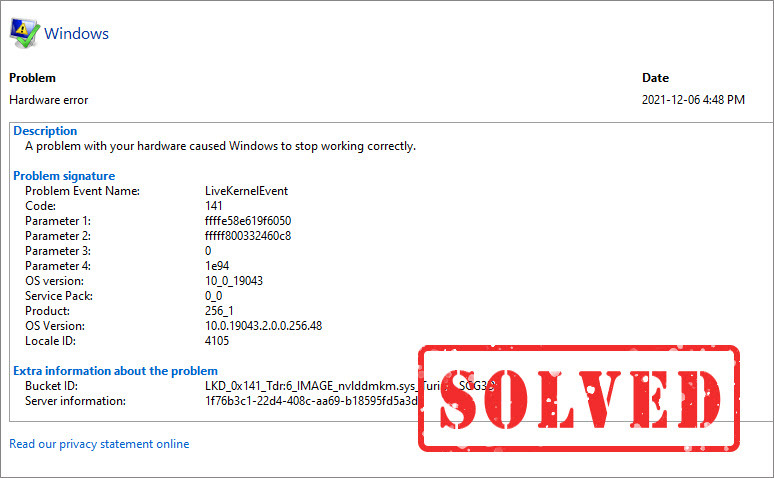
If you encountered a crash or black screen with a LiveKernelEvent 141 error on your PC, you’re not alone. This type of error usually occurs when you’re performing graphics-intensive tasks and suggests a hiccup between your operating system and computer components. But don’t worry. After reading this post, you’ll know how to troubleshoot this issue easily and quickly.
What is the LiveKernelEvent 141 error?
The LiveKernelEvent 141 error is usually tied to a TDR (Timeout Detection and Recovery) failure. When Windows detects that the graphics driver has stopped responding for too long, it attempts to reset the GPU without restarting the entire system. If the recovery attempt fails, Windows logs a LiveKernelEvent 141 error.
While this error is categorized as a hardware event, it doesn’t actually mean your GPU is defective. Instead, the issue may be caused by software, driver, firmware, or system instability.
How to fix LiveKernelEvent 141 Hardware error?
You may not try them all. Just work your way down the list until you find the one that solves the problem.
- Update your GPU driver
- Disable all GPU overclocking
- Disable MPO (Multi-Plane-Overlay)
- Check RGB and hardware monitoring software
- Diagnose your hardware
- Inspect the PSU and PCIe power connections
🔔 Before getting started, you can check the error details. If Event Viewer repeatedly reports amdkmdag.sys ((NVIDIA Graphics Driver), nvlddmkm.sys (AMD Graphics Driver), or igdkmd64.sys (Intel Graphics Driver), a graphics driver update can be the best place to start. vgk.sys indicates the Riot Vanguard (Valorant) anti-cheat has a software conflict, and you may need to repair or reinstall the game.
Fix 1 – Update your GPU driver
Your graphics processing unit (GPU) is the powerhouse behind your system’s visual performance. If the driver managing it is outdated, faulty, or incompatible, it can trigger the LiveKernelEvent 141 error. So before you try anything more complicated, make sure your graphics driver is up-to-date.
Here are two ways you can update the GPU driver: manually or automatically.
Option 1 – Manually: GPU manufacturers will regularly release new drivers. To get them, you need to go to their official websites (AMD, NVIDIA, or Intel), find the drivers corresponding to your specific flavor of Windows version (e.g., Windows 11 or Windows 10 64-bit), and download the driver manually.
Option 2 – Automatically: If you don’t have the time, patience or computer skills to update the graphics driver manually, you can do it automatically with Driver Easy.
Driver Easy will automatically recognize your system and find the correct drivers for it. You don’t need to know exactly what system your computer is running, you don’t need to risk downloading and installing the wrong driver, and you don’t need to worry about making a mistake when installing.
- Download and install Driver Easy.
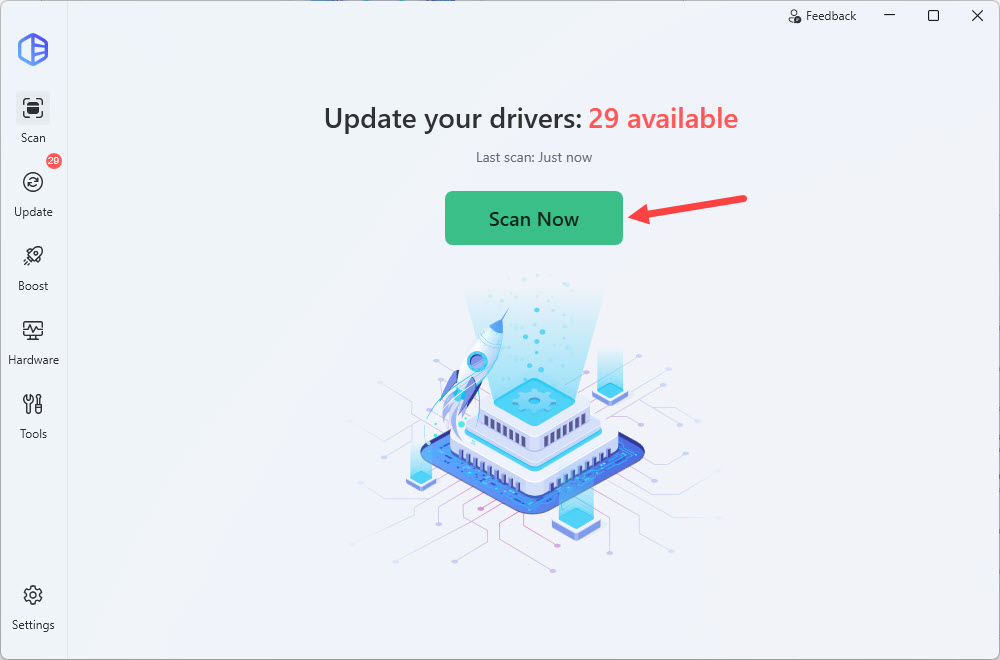
- Run Driver Easy and click the Scan Now button. Driver Easy will then scan your computer and detect any problem drivers.
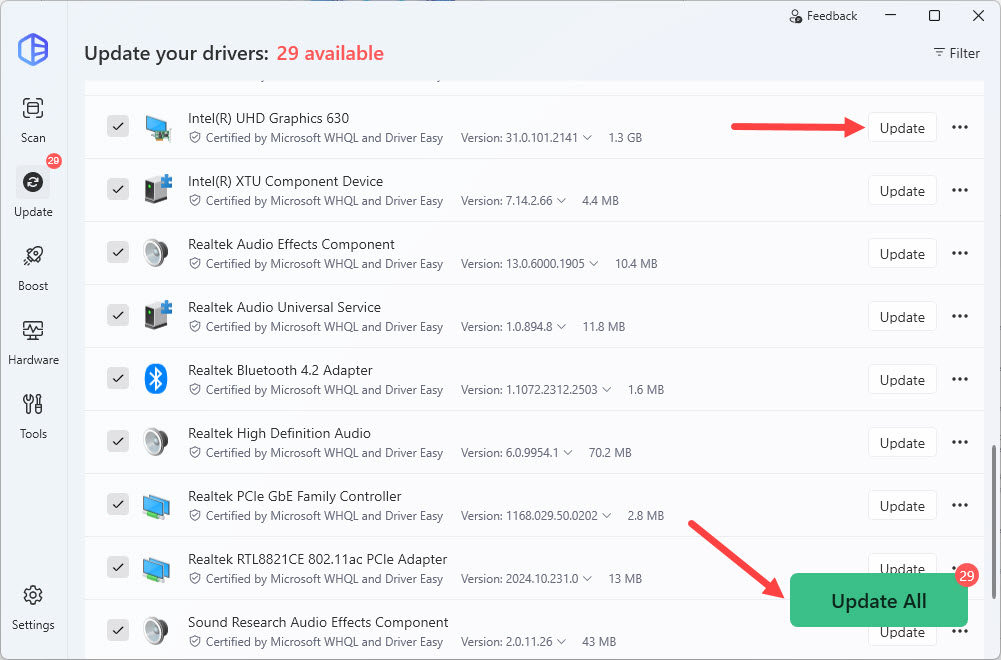
- Click Update to download and install the flagged driver. Or Update All to automatically download and install the correct version of all the drivers that are missing or out of date on your system.
The Driver Easy Pro version comes with high-speed downloads, one-click driver installation, and full technical support. If you prefer to test it first, Driver Easy offers a 7-day free trial that unlocks all Pro features, with no upfront charges.
Restart your computer to fully employ the changes and see if the error gets fixed. If not, continue to the next method below.
Fix 2 – Disable all GPU overclocking
While overclocking can squeeze extra performance out of your hardware, it often comes at a cost—reduced system stability. The LiveKernelEvent 141 error could be a direct result of pushing your components beyond their limits.
To rule this out, open your overclocking tools such as MSI Afterburner, AMD Adrenalin, or NVIDIA App, and reset all tuning settings to default values. Once reset, monitor your system to see if the error persists. If it does, move on to Fix 3 for further troubleshooting.
Fix 3 – Disable MPO (Multi-Plane Overlay)
If crashes primarily occur when you’re watching YouTube, browsing Chrome or Edge, or using Discord, MPO (Multi-Plane Overlay) may be involved. As NVIDIA and AMD users reported, MPO-related driver instability can cause the LiveKernelEvent 141. Here’s how to disable MPO.
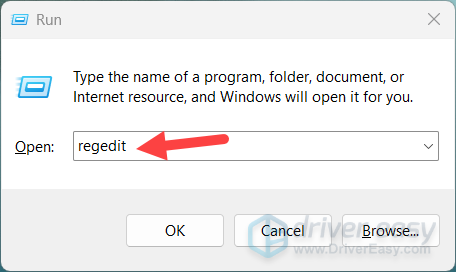
- Press Win + R to open the Run command.
- Type regedit, and hit Enter to open the Registry Editor.
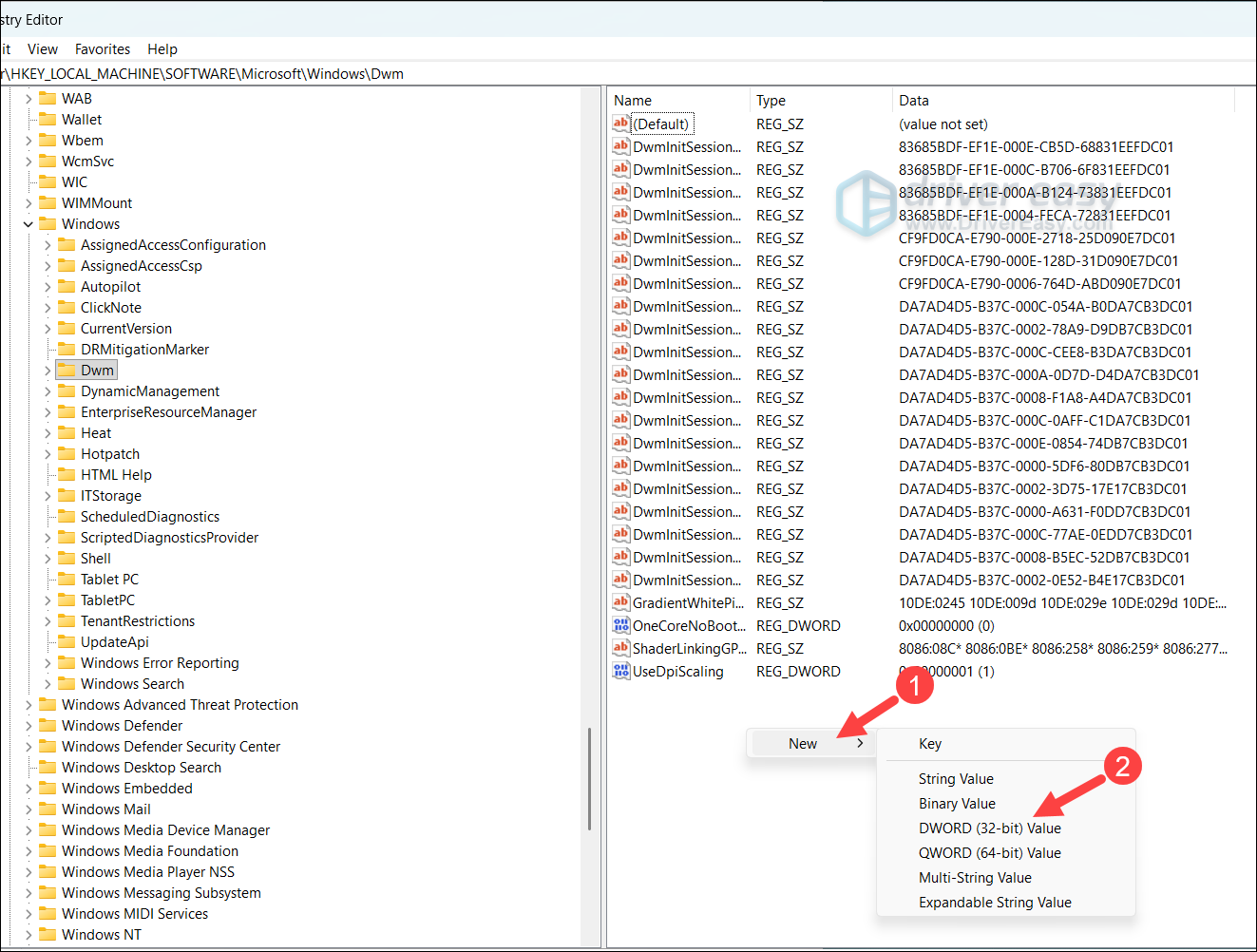
- Navigate to the following path: HKEY_LOCAL_MACHINE\SOFTWARE\Microsoft\Windows\Dwm
- Right-click on an empty space in the right pane, select New > DWORD (32-bit) Value.
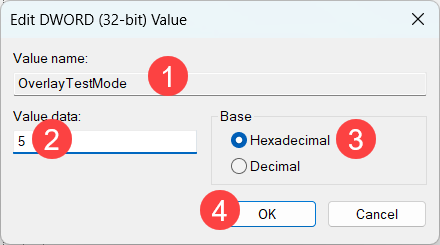
- Double-click the entry you’ve created, name it OverlayTestMode, and change its Value data to 5 (Hexadecimal) and click OK.
- Restart your PC.
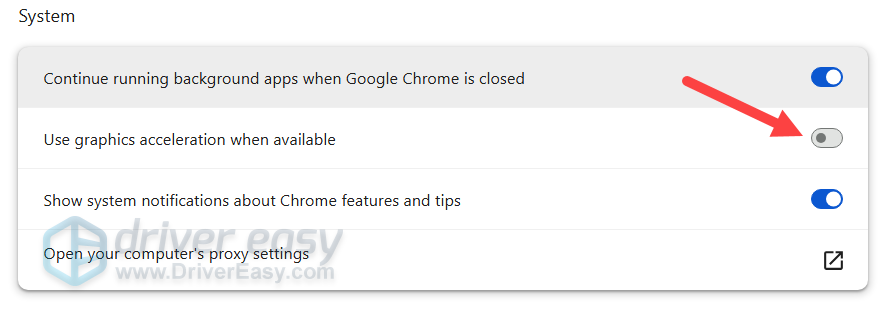
🔔 You can also consider temporarily disabling browser hardware acceleration in your Chrome/Edge settings while testing.
Fix 4 – Check RGB and hardware monitoring software
RGB synchronization and hardware monitoring applications such as OpenRGB, MSI Center, HWiNFO, and AIDA64 continuously query hardware sensors and may occasionally conflict with GPU drivers, triggering the LiveKernelEvent 141 error.
If you’re using any of these software, temporarily disable or uninstall them and see whether the crashes stop.
Fix 5 – Diagnose your hardware
If software fixes don’t help, begin checking hardware stability.
Check RAM
Faulty RAM can often be the hidden culprit behind errors like LiveKernelEvent 141. Many users have reported that replacing or reseating malfunctioning RAM sticks resolved the issue. To identify potential problems with your memory, you can run a diagnostic test using the Windows Memory Diagnostic tool or third-party software.
Here’s how to check your RAM for errors:
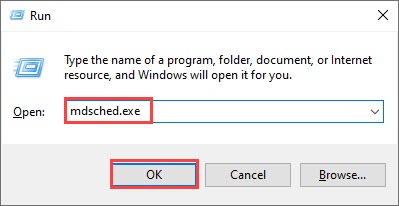
- Press the Windows logo key and R on your keyboard to invoke the Run box.
- Type mdsched.exe, then click OK.
- Click Restart now and check for problems (recommended).
IMPORTANT: Make sure to save all your work before restarting.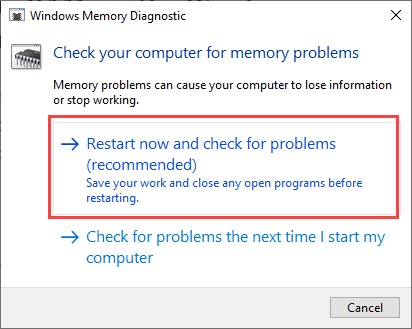
- Windows will run diagnosis automatically, which can take a few minutes. When it’s finished, your PC will reboot.
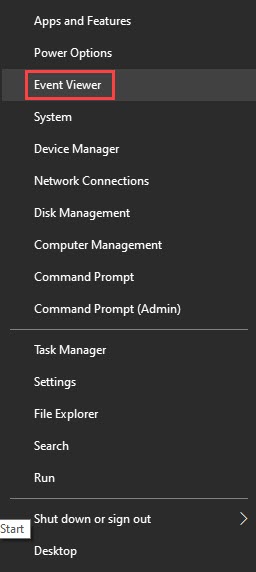
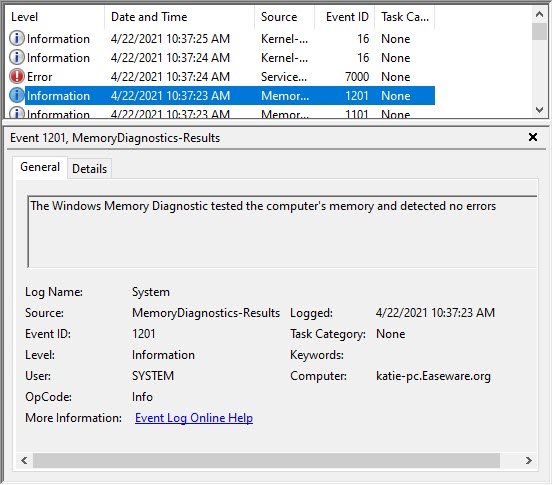
- The results will be shown on your desktop. If you don’t see any notification, right-click the Start menu then click Event Viewer.
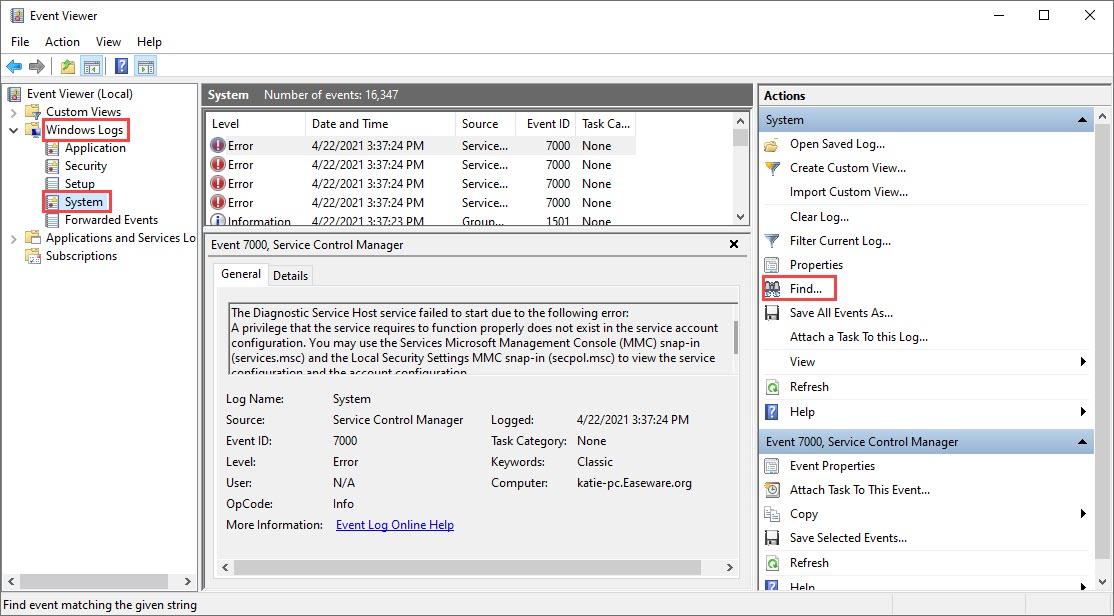
- Click Windows Logs >> System >> Find.
- Type memory diagnostic, then click Find Next.
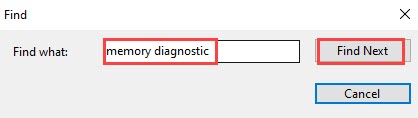
- If you see “no errors”, your RAM is functioning well and is not related to the LiveKernelEvent 141 error. If you do see an error, you may consider replacing your RAM sticks. You will need to check if your device is still under warranty or consult your machine’s manufacturer for assistance if you’re not tech-savvy enough to do this on your own.
Check the hard drive
Your hard drive plays a vital role in your computer’s performance and stability. If it’s corrupted or faulty, it could cause errors like LiveKernelEvent 141. To rule out issues with your hard drive, you can use the built-in CHKDSK tool to scan and repair any detected problems.
Here’s how to perform a quick disk check:
- Type cmd in the Windows search box. Then right-click Command Prompt and select Run as administrator.
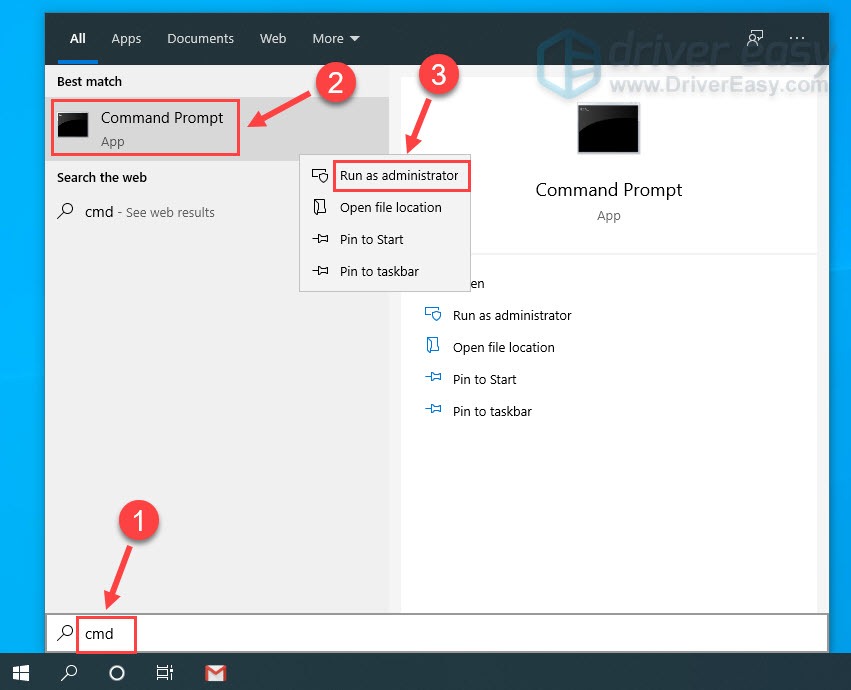
- Click Yes when you’re prompted.
- In the command prompt, type chkdsk C: /f /r /x and press Enter.
Since the C: drive is currently in use, Windows will prompt you with an alert asking to schedule the scan on the next reboot. Type Y and press Enter.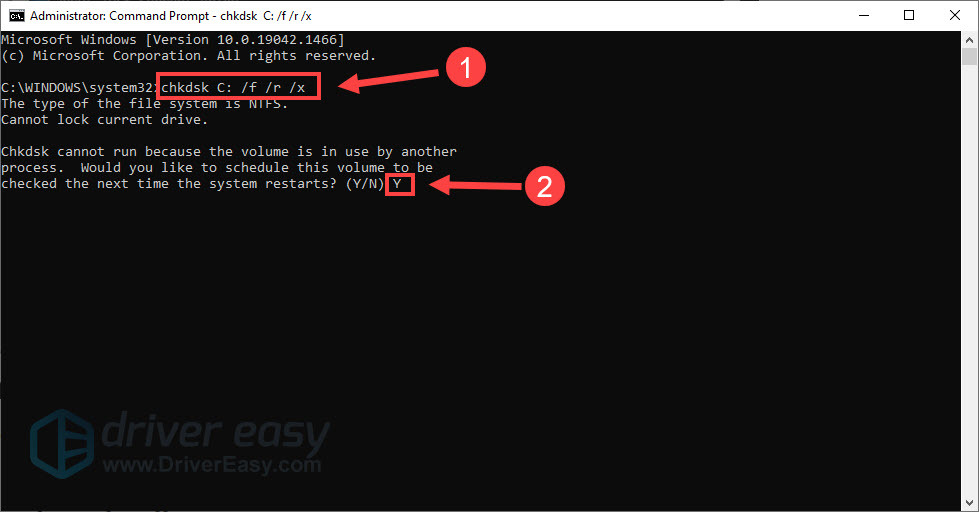
- Restart your computer to let Windows check for file-system and disk errors that may affect driver stability.
- You can open the command prompt again and enter the prompts below to run system file repairs.
sfc /scannow
DISM /Online /Cleanup-Image /RestoreHealth
This will scan the disk drive automatically and try to repair detected errors. Once done, test if the LiveKernelEvent 141 error reoccurs.
Check GPU temperatures
If your GPU keeps working under heavy load and extremely high temperatures, it might stop responding and trigger a TDR event. You can use a reliable, free hardware monitoring tool like HWMonitor or AIDA64 to check your GPU Temperature, GPU Hot Spot, and CPU Temperature.
If your GPU hot spot exceeds 90°C (194°F) or your CPU surpasses 85°C, your system might be crashing due to heat. To fix the overheating, try cleaning out any dust inside your PC case. Ensure your cooling fans are spinning properly, or consider re-pasting your GPU/CPU thermal interface.
Fix 6 – Inspect the PSU and PCIe power connections
If all the fixes above failed, it is worth checking your power delivery system. LiveKernelEvent 141 can sometimes occur when the graphics card experiences an unexpected power interruption or voltage drop.
- Make sure all PCIe power connectors are fully seated
For newer NVIDIA cards that use a 12VHPWR connector, verify that the cable is inserted completely and not bent sharply near the connector. - Use separate dedicated cables
If your power supply provides multiple PCIe cables, use separate dedicated cables whenever possible rather than a single split cable. This helps ensure stable power delivery under heavy GPU loads. - Verify PSU capacity and quality
A power supply that is undersized, aging, or unable to handle transient GPU power spikes may contribute to driver timeouts and system instability. If crashes consistently occur during gaming, rendering, or other GPU-intensive workloads, compare your PSU specifications against your GPU manufacturer’s recommendations.
LiveKernelEvent 141 is best thought of as a graphics driver timeout event, not a definitive hardware failure. A clean driver installation or stability-related fix can usually resolve the problem completely. If you have any questions or suggestions, feel free to share your comments below.
