






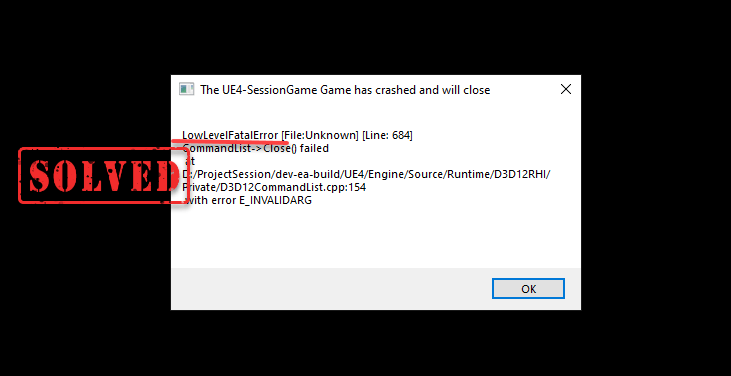
The LowLevelFatalError often shows up when a game (e.g. ARK or STALKER) crashes unexpectedly, mostly during load screens or when complex graphics are involved. Outdated graphics drivers or corrupted game files are frequent causes. This guide will walk you through some practical methods to fix it.
- Method 1: Update Graphics Driver
- Method 2: Verify Integrity of Game Files
- Method 3: Run the Game in Compatibility Mode
- Method 4: Close Unnecessary Background Applications
- Method 5: Repair Corrupted System Files
1. Update Graphics Driver
Out of the common causes, an outdated or mismatched graphics driver is one of the top triggers for low level crashes and shader compilation failures. Updating the driver ensures the GPU has the latest fixes for rendering and stability.
You can manually update your graphics driver by visiting the official support page for your GPU manufacturer, either NVIDIA or AMD, and download the latest compatible driver for your graphics card model and operating system.
However, manually updating drivers can be tedious, especially if you’re not tech-savvy. For hassle-free updates, try Driver Easy, a powerful tool that scans your system for outdated or missing drivers, then downloads and installs the latest versions automatically. All drivers are verified, sourced directly from manufacturers, and 100% safe.
All it takes is just a few mouse clicks:
- Download and install Driver Easy.
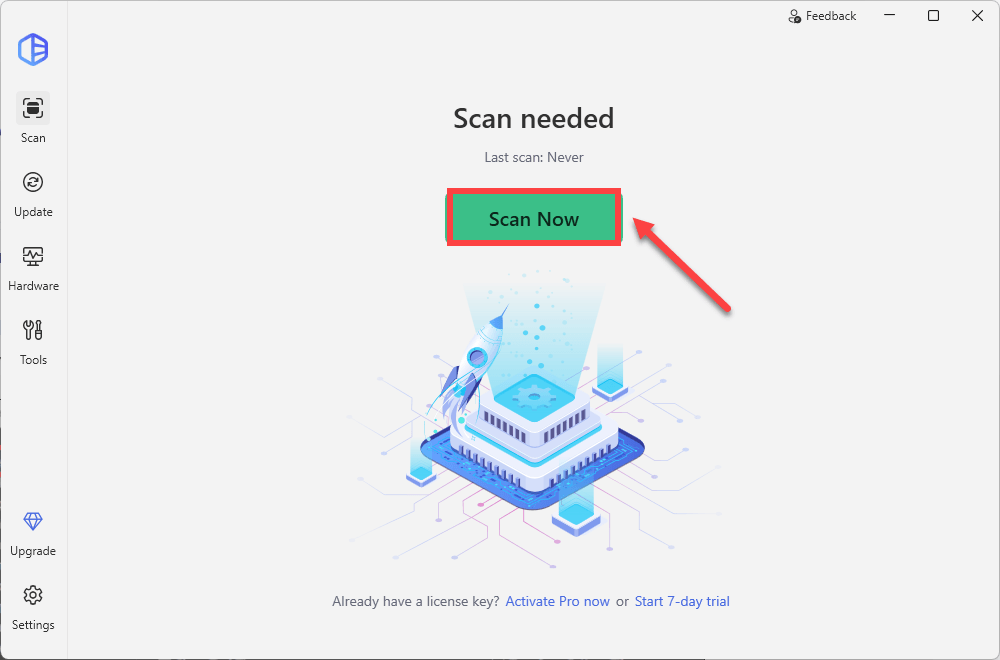
- Run Driver Easy and click the Scan Now button. Driver Easy will then scan your computer and detect any problem drivers.
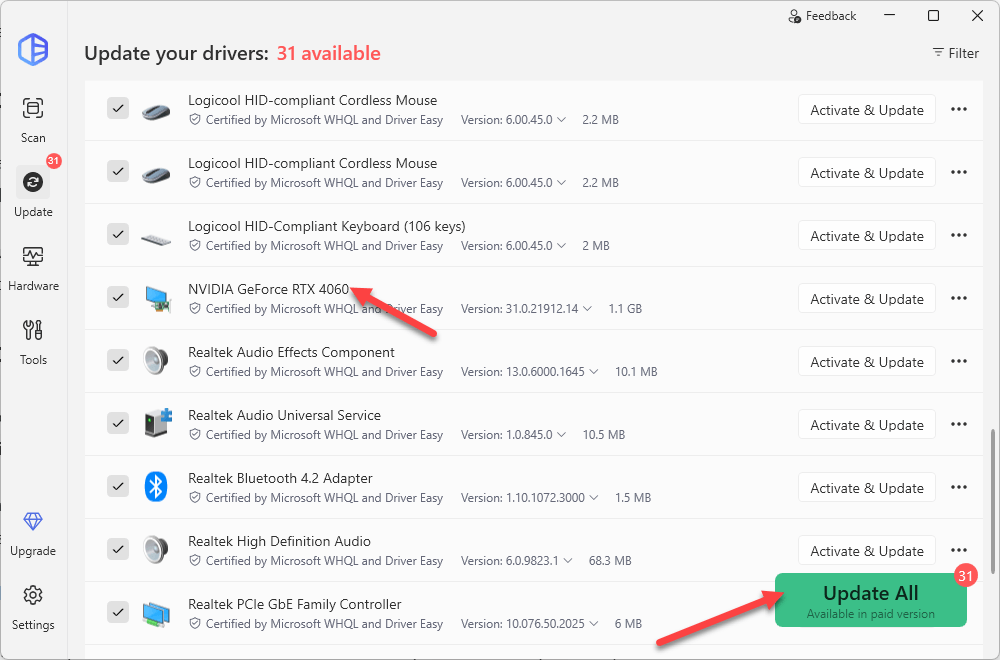
- Check if your graphics driver is flagged in the scan results. If it is, click Activate & Update to start a 7-day free trial or upgrade to Driver Easy Pro. Either option will automatically download and install the latest drivers for you.
- Restart your computer for the changes to take effect. If you need any assistance while using Driver Easy, feel free to contact our support team at support@drivereasy.com.
- Now check if you’re still greeted with the LowLevelFatalError. If your issue persists, try other fixes below.
2. Verify Integrity of Game Files
Corrupted, missing, or mismatched files inside a game or app install can cause crashes during load. Game platforms like Steam provide a verify or repair feature that checks files and replaces problems:
- On Steam, go to LIBRARY, right-click your game and select Properties.
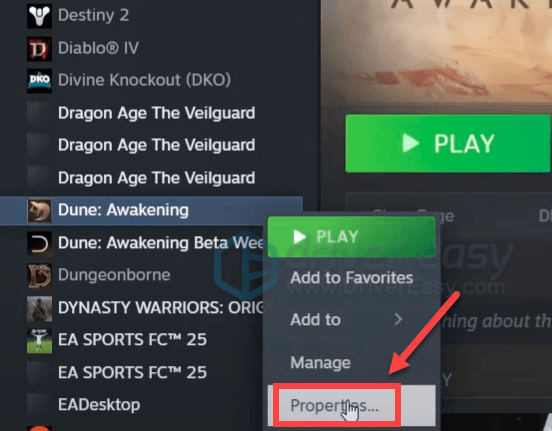
- Select Installed Files, then execute Verify Integrity of Game Files. Then wait for Steam to scan and repair your installation, which may take a few minutes.
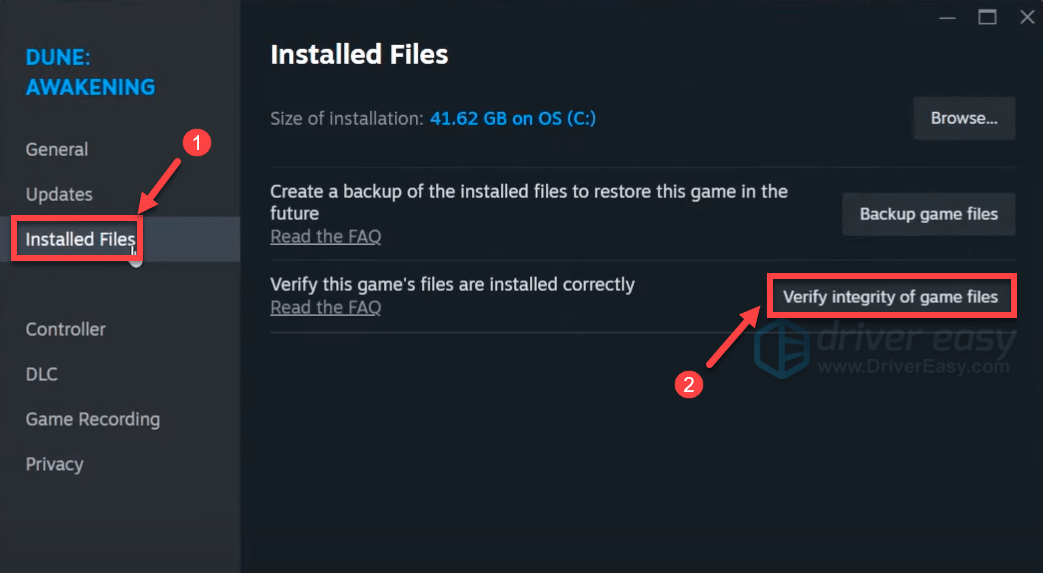
- When finished, relaunch Steam and your game, then test your gameplay. If you’re still having the issue, move on to the next fix.
3. Run the Game in Compatibility Mode
Some games react badly to certain Windows updates or newer system components. Compatibility mode tells Windows to run the game as if it were on an older version, which can sometimes bypass the conditions that trigger LowLevelFatalError. What you have to do is:
- Close the game completely.
- Right-click the game’s shortcut or .exe file, then choose Properties.
- Select the Compatibility tab, tick Run this program in compatibility mode for: and select an earlier Windows version. Then click Apply > OK.
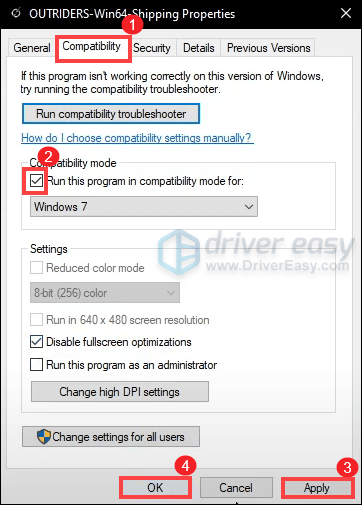
- Relaunch the game and see if it runs more smoothly. If it still crashes with the LowLevelFatalError, proceed to the next fix.
4. Close Unnecessary Background Applications
A busy system can make the LowLevelFatalError appear more often. Other programs running in the background, especially those with overlays or recording features, can use resources the game needs or conflict with its graphics rendering. On Reddit, players often point to apps like Discord, browser windows with heavy tabs, or streaming software as triggers. You can close those your need necessarily use while playing your game:
- Press Ctrl + Shift + Esc to open the Task Manager.
- Go to the Processes tab. Look for any non-essential or resource-intensive programs. Right-click on each of them and select End task. You can close cloud storage services like OneDrive, Google Drive, or Dropbox. Or you can disable Discord or other non-essential third-party software. Avoid disabling critical system processes or essential services, as this can lead to system instability.

- Launch your game and check if your problem has been solved.
5. Repair Corrupted System Files
Sometimes the crash isn’t just about the game or drivers, it can come from Windows itself. If essential system files are damaged or missing, your game might not get the stable environment it needs to run, leading to errors like LowLevelFatalError. Running the System File Checker tool (SFC) to scan and fix these problems:
- On your keyboard, press the Windows logo key to invoke Search.
- Type cmd, right-click Command Prompt from the list of results, and select Run as administrator.
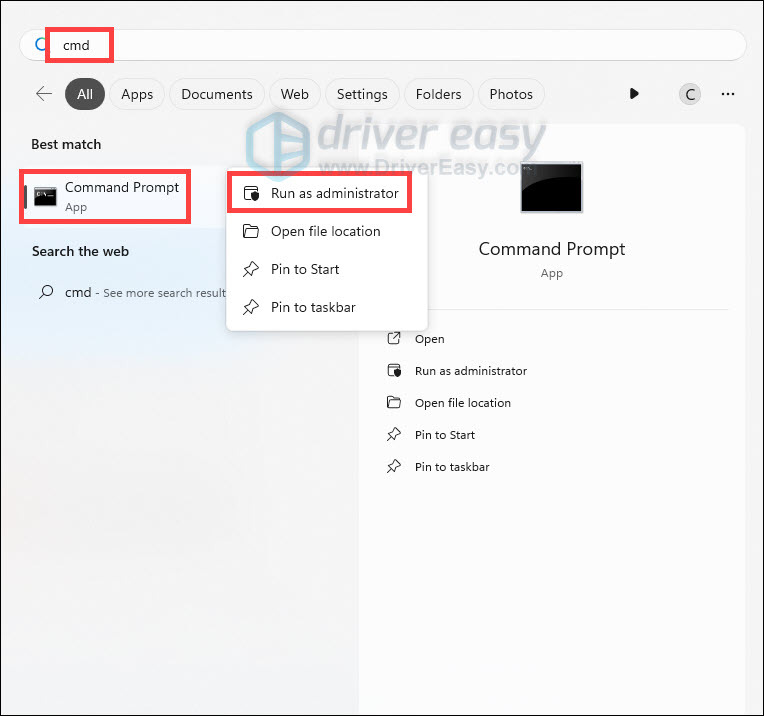
- In the Command Prompt window, type sfc /scannow and hit Enter.
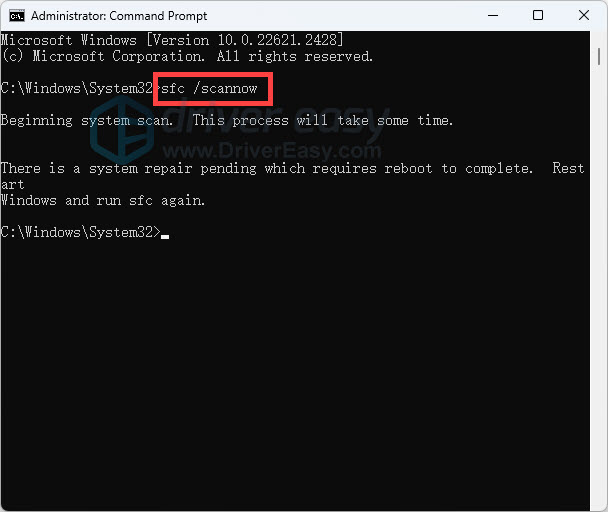
The sfc /scannow command will scan all protected system files and replace corrupted files with a cached copy. Note that you should not close this Command Prompt window until the verification is 100% complete.
After the process is finished, you may receive one of the following messages:
| sfc /scannow result | What it means |
| Windows Resource Protection did not find any integrity violations. | The SFC tool did not detect any corrupted, missing, or damaged system files on your computer. This is a good sign! It indicates that your system files are intact and functioning as they should. |
| Windows Resource Protection could not perform the requested operation. | The SFC tool encountered an issue preventing it from completing the scan. Try rebooting into safe mode, running the DISM command, and running the sfc /scannow again. *To run the DISM command, you just need to execute the following commands sequentially: DISM /Online /Cleanup-Image /CheckHealth |
| Windows Resource Protection found corrupt files and successfully repaired them. | The operation was successful. |
| Windows Resource Protection found corrupt files but was unable to fix some of them. | It has detected corrupted system files but couldn’t repair them. To address this issue, view details of the System File Checker process to find the corrupted file, and then manually replace the corrupted file with a known good copy of the file. |