






If you’re reading this, you’ve probably just been kicked out of an intense Battlefield 6 match, seen your PC freeze, or experienced a dreaded crash-to-desktop. You’re not alone. The internet is buzzing with stories of crashes happening at the most random times, and some NVIDIA/AMD users are also greeted with the DirectX function errors. It could happen on the main menu, during a loading screen, or right in the middle of a firefight. We’ve combed through countless forum posts on Reddit, EA’s community pages, and hardware manufacturer hubs. The good news? While there isn’t one magic bullet, there are several proven fixes and workarounds that have helped players get back into the action.
Try These Fixes
1. Update Graphics Driver
An old, corrupted, or incompatible driver can be the single biggest reason for crashes. The game’s release has prompted specific driver updates from all major manufacturers, so it’s crucial to make sure you have the right one. This is especially essentially if you are seeing a driver version error, which often looks like: “DirectX function “GetDeviceRemovedReason” failed with DXGI_ERROR_DEVICE_HUNG or “DirectX function “Colnitialize()” failed with HR”.
There’re mainly two ways you can update your drivers:
Option 1 – Update Drivers with Driver Easy in a Faster Way
Manual driver updates can be a lot of work. For a better, more convenient way to handle this, you can try Driver Easy. Instead of spending hours hunting down the right drivers, Driver Easy does all the heavy lifting for you. It automatically scans your entire computer to identify any outdated, missing, or incorrect drivers, not just for your graphics card, but for every single component. With a single click, it can update all your drivers from its massive database of certified, official drivers. Besides, you can always roll back or choose a specific version to install in case the latest one doesn’t work properly for you.
- Download and install Driver Easy.
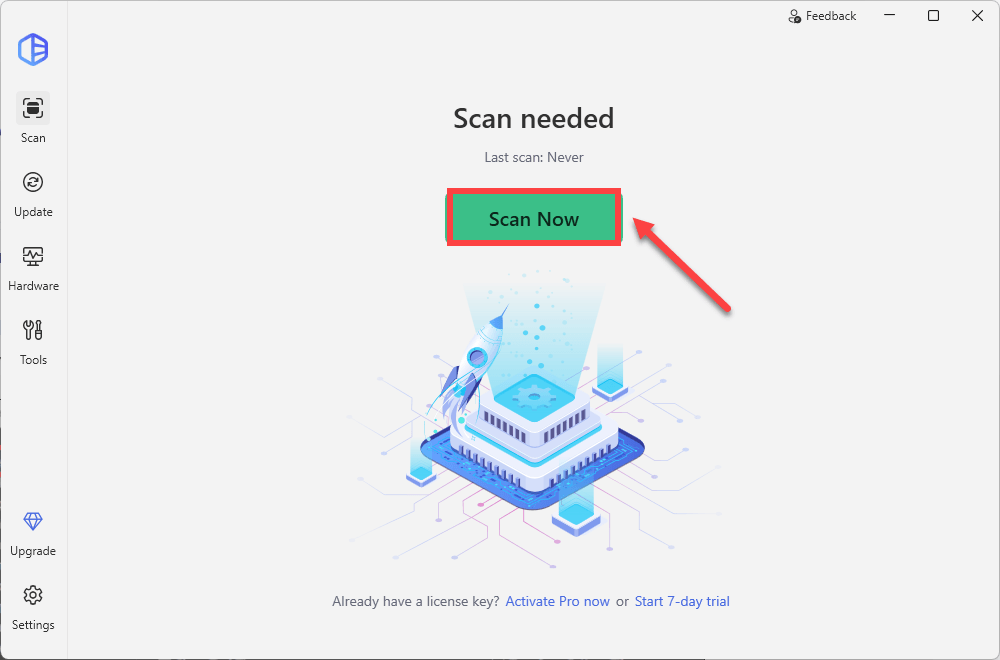
- Run Driver Easy and click the Scan Now button. Driver Easy will then scan your computer and detect any problem drivers.
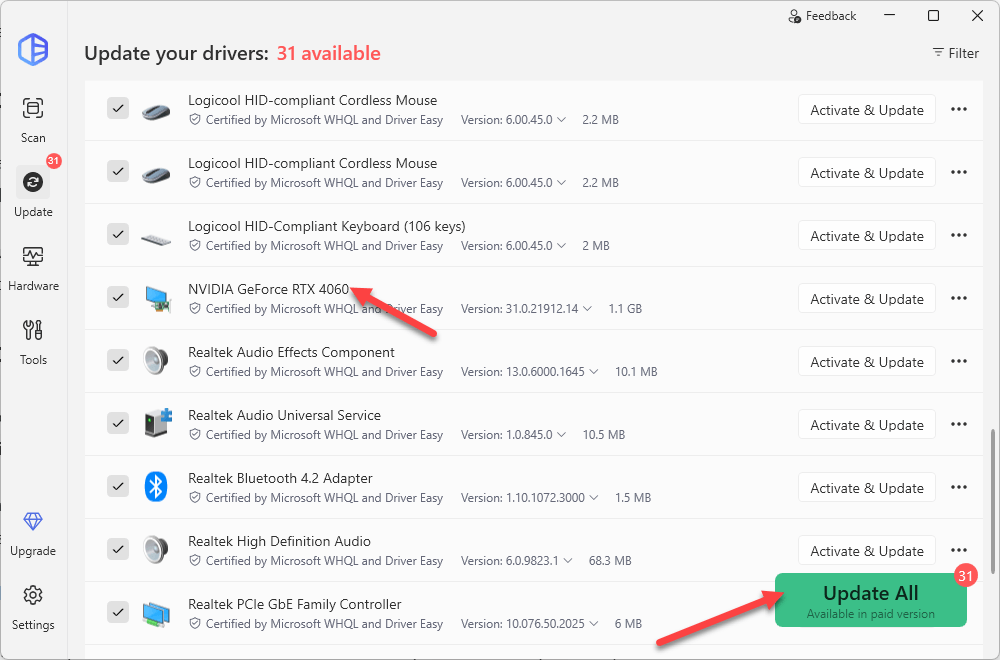
- Click Activate & Update next to your flagged device to start a 7-day free trial or upgrade to Driver Easy Pro. Or you can click Update All to update all drivers. Either option will automatically download and install the latest drivers for you.
- Restart your computer for the changes to take effect. If you need any assistance while using Driver Easy, feel free to contact our support team at support@drivereasy.com.
Option 2 – Manually Update Your Graphics Driver
If you’re comfortable with updating graphics driver manually, follow the instructions below depending on the specific GPU model you’re running:
NVIDIA (You can also get the latest driver updates from the NVIDIA App. )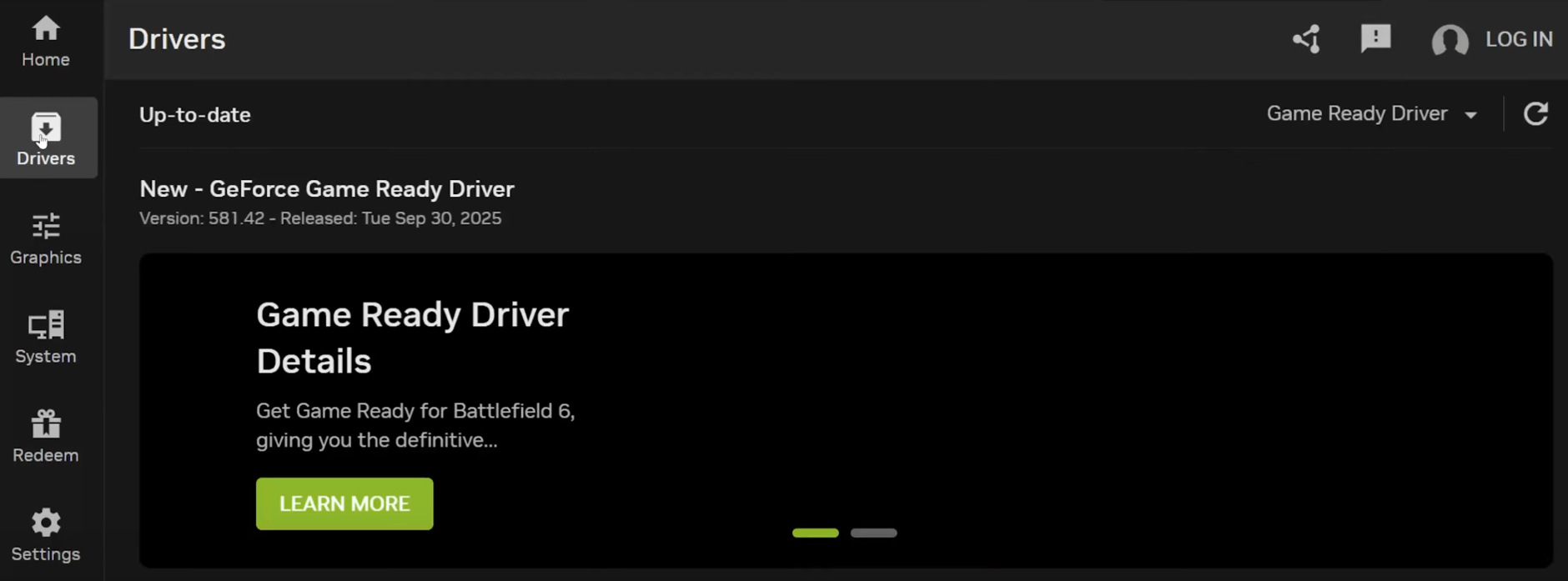
AMD
Intel
If updating the graphics driver doesn’t work, try other fixes below.
2. Repair Game Files
Sometimes, the game files can become corrupted or go missing. This can cause all sorts of problems, from minor visual glitches to immediate crashes. The good news is, both the EA app and Steam have a built-in tool to check for this and fix it automatically.
For EA App Users:
- Launch the EA app and go to your Installed games.
- Find Battlefield, click on it and select MANAGE.
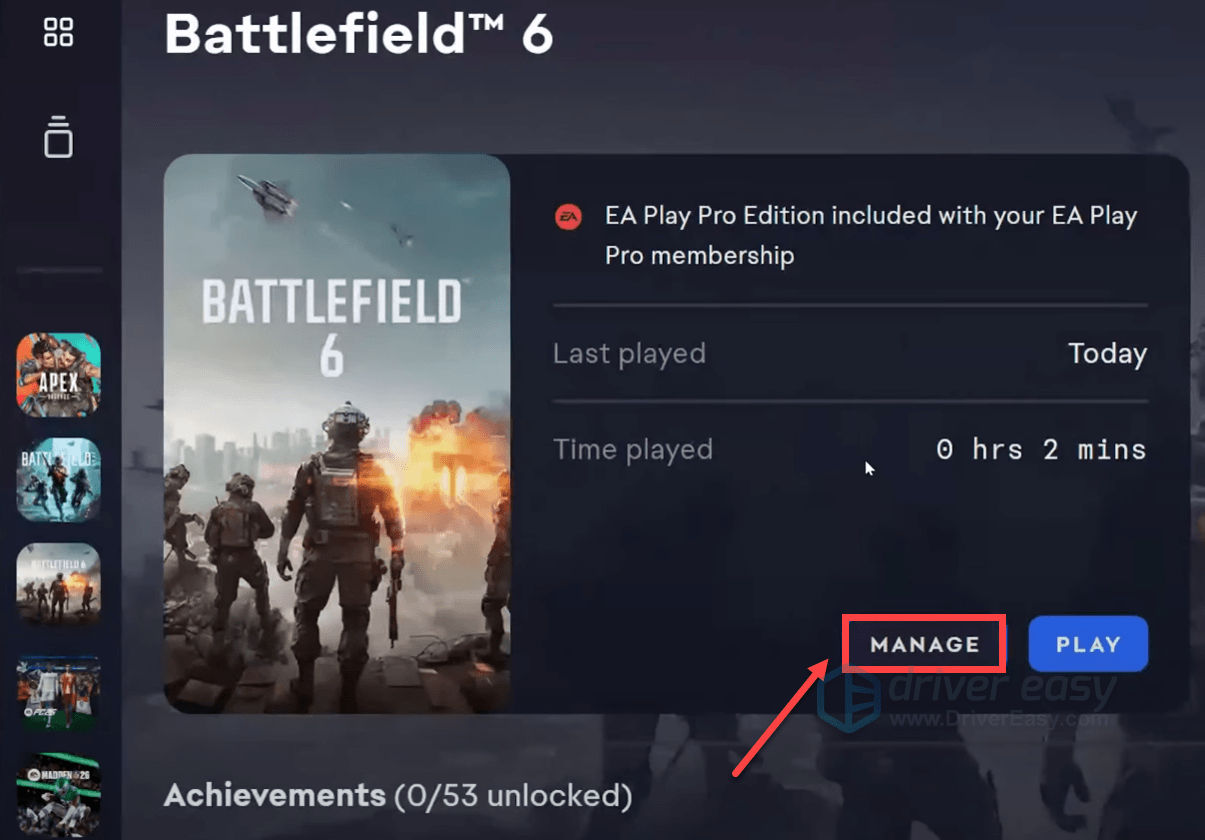
Then click Repair.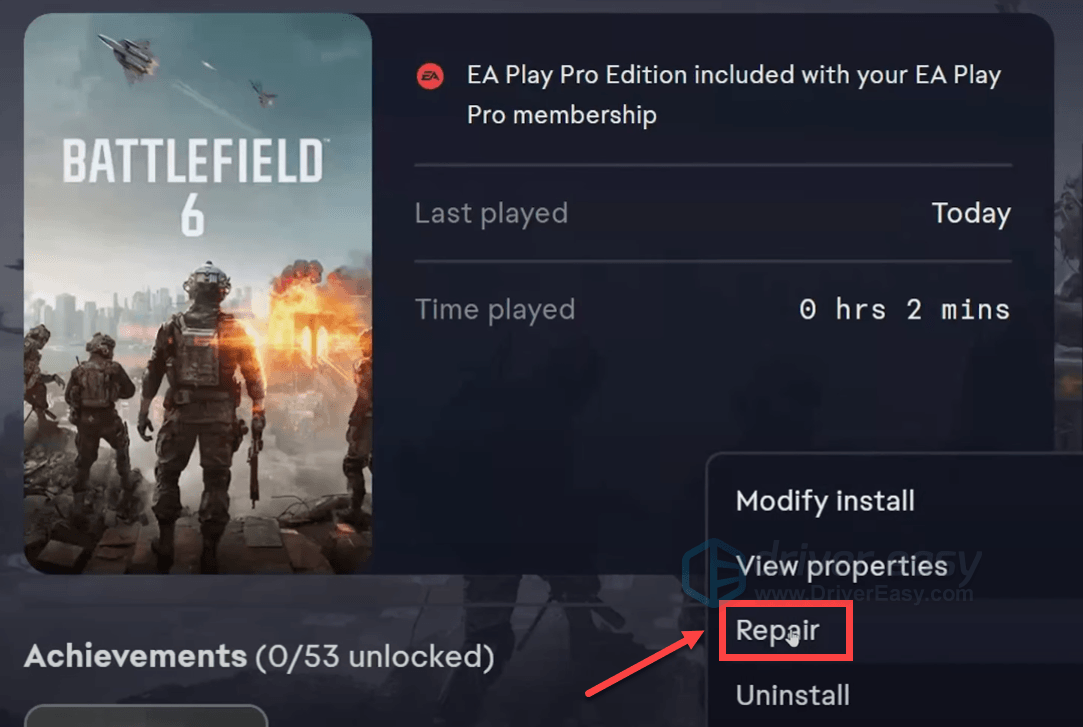
- When the game has finished repairing, try launching it again.
For Steam Users:
- Open Steam and go to your Library.
- Right-click on your game and select Properties.
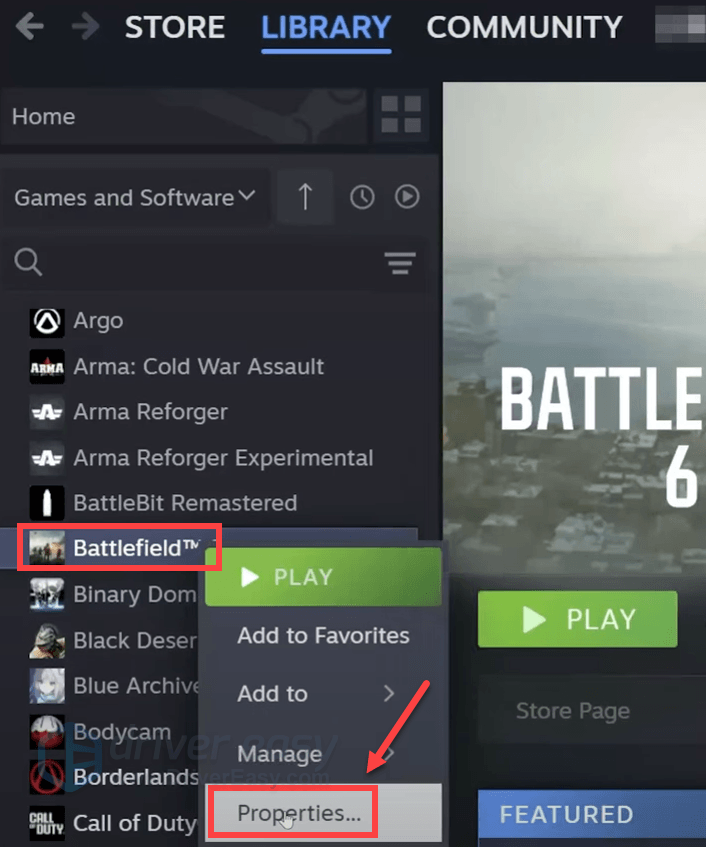
- Go to the Installed Files tab and click Verify integrity of game files….
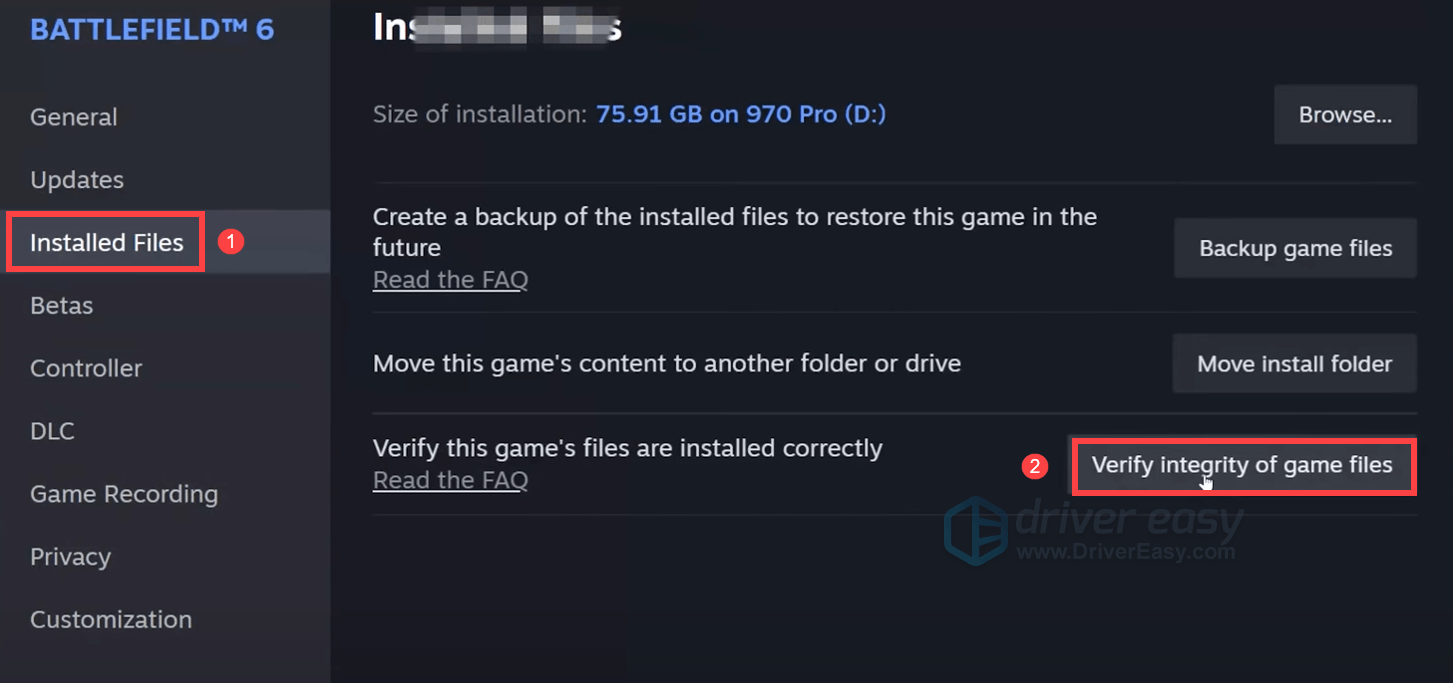
- Steam will verify the game’s files, and this process may take several minutes. When you play Battlefield 6 on Steam, you may also want to disable Steam overlay, which can be located from the General tab.
- Once done, relaunch Steam and your game to check if your problem has been solved. If the error persists, proceed to the next fix below.
3. Close Unnecessary Background App
Your computer’s memory is a shared resource. Running too many applications in the background, especially resource-intensive ones like web browsers with dozens of tabs or overclocking utilities like MSI Afterburner, can compete with Battlefield 6 and cause it to crash. A clean system environment also helps prevent conflicts with the game’s anti-cheat service, which can be very sensitive. Follow the steps below to do this:
- Press Ctrl + Shift + Esc to open the Task Manager.
- Go to the Processes tab. Look for any non-essential or resource-intensive programs. Right-click on each of them and select End task. Note: Avoid disabling critical system processes or essential services, as this can lead to system instability.

If this doesn’t make a difference, try the next fix below.
4. Adjust In-Game and OS Settings
Some simple tweaks to game settings have worked wonders for others.
- Change Your Display Mode: For players with Intel Arc GPUs, a common fix is to switch the game’s display mode from Borderless to either Fullscreen or Windowed. This has been reported to fix crashes that happen during map loading.
- Lower Graphics Settings: Lowering graphics settings may resolve crashes, as this reduces the load on your GPU and prevents it from failing under stress.
- Disable ASLR: ASLR (Address Space Layout Randomization) is a Windows security feature. While it’s generally good to have on, it can sometimes conflict with a game’s engine or anti-cheat. Some users found that disabling it for the
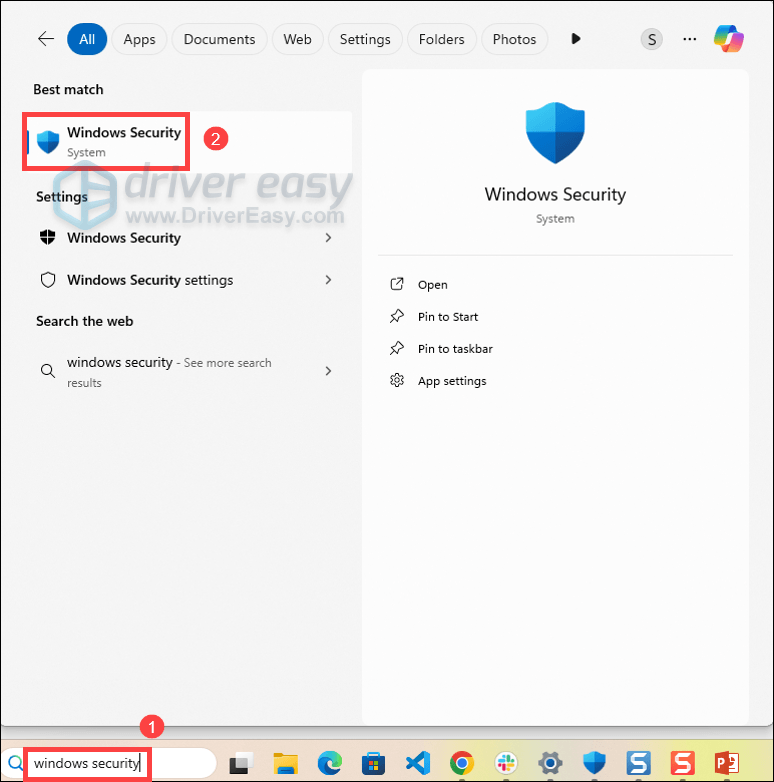
bf6event.exefile fixed their crashes. Be aware that this is a security risk, so only do it for troubleshooting and be sure to re-enable it later if it doesn’t solve your issue.- Step 1: In the Search box on the taskbar, type windows security, then click Windows Security from the list of results.
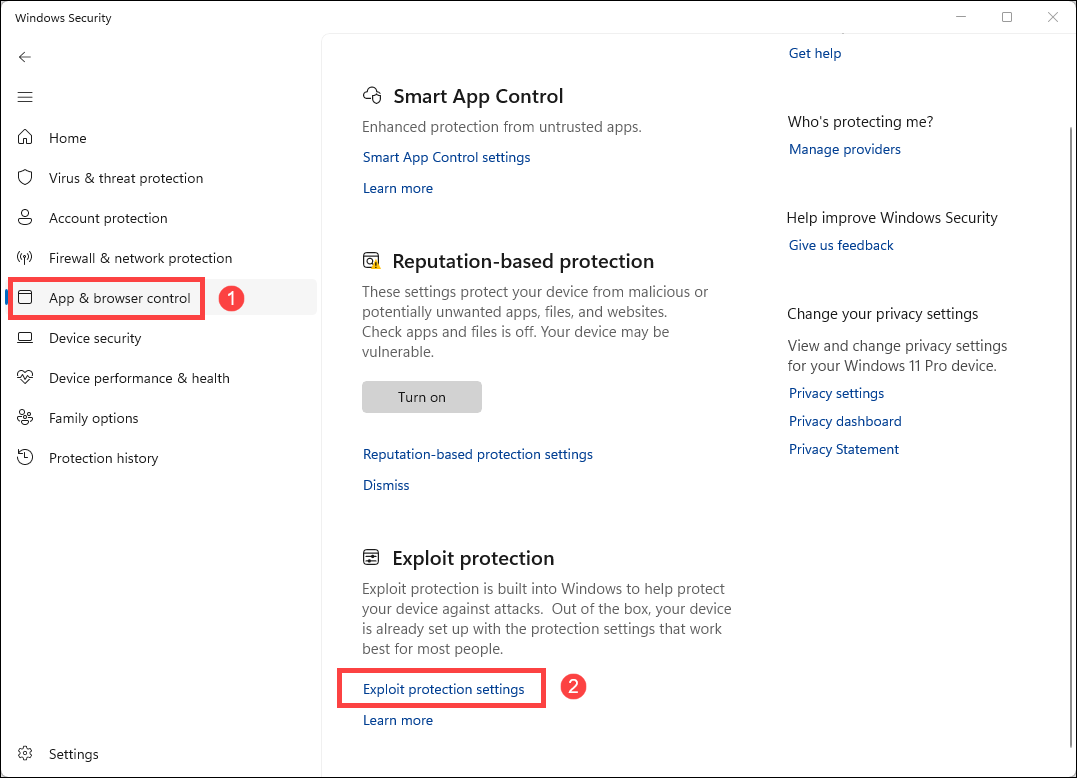
- Step 2: From the left navigation panel, click App & browser control. Scroll down and click Exploit protection settings.
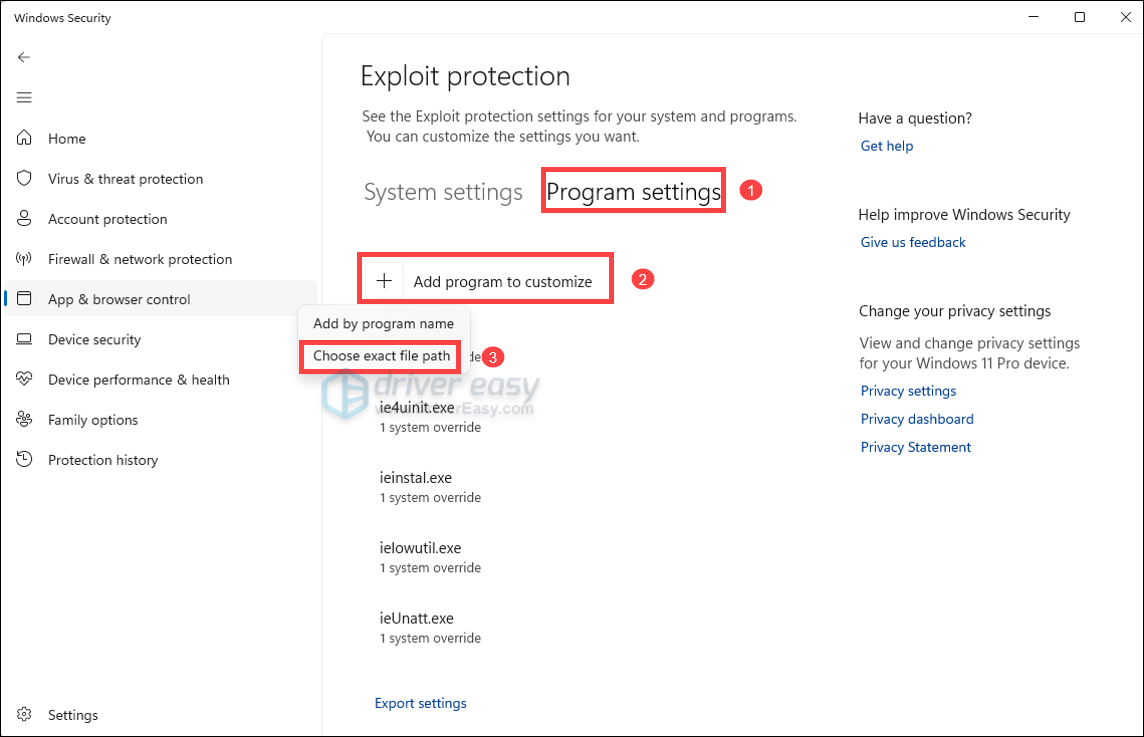
- Step 3: Click Program settings < Add program to customize > Choose exact file path.
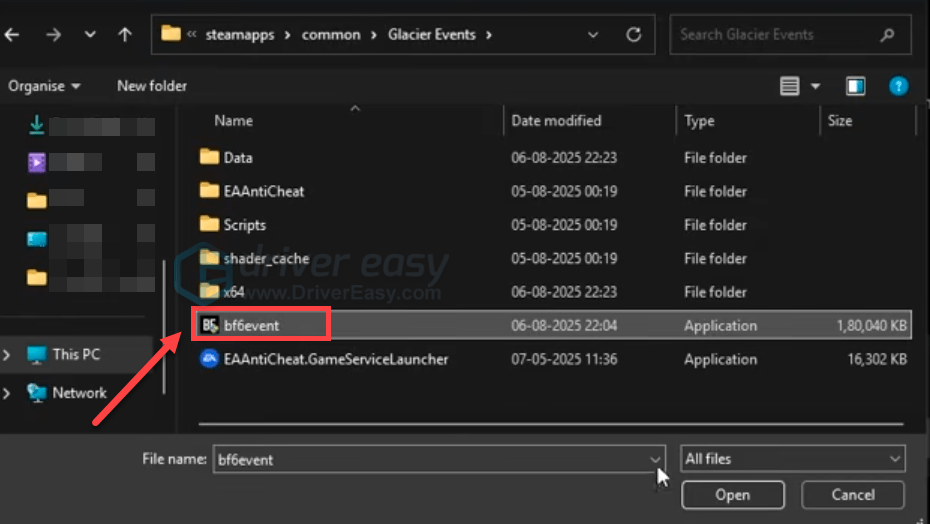
- Step 4: Navigate to the game’s installation folder, then find bf6event.exe and open it.
- Step 5: After adding it to the list, restart your computer.
- Step 1: In the Search box on the taskbar, type windows security, then click Windows Security from the list of results.
If these changes don’t work for you, proceed to the next fix below.
5. Underclock Your CPU
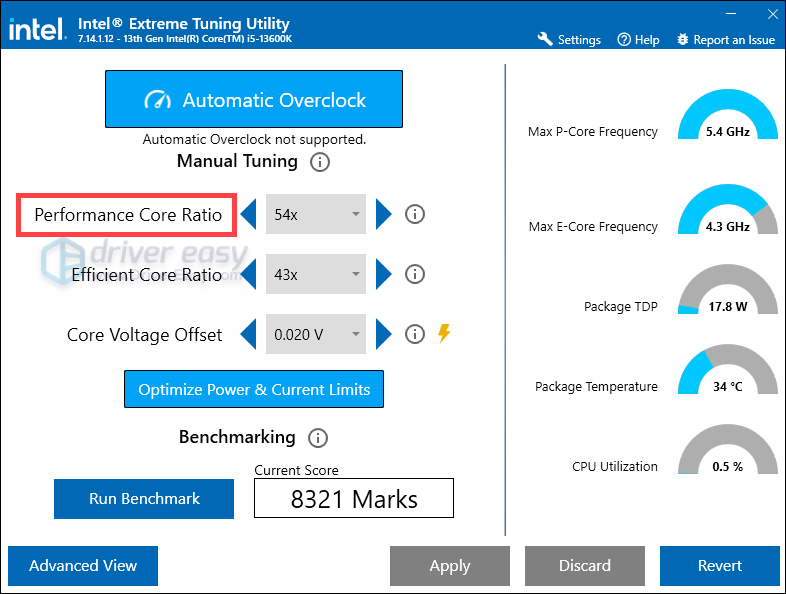
This is for players with Intel’s 13th and 14th generation GPUs. The crashes can be due to a known instability issue with the processors. Slightly underclocking their CPU with Intel’s Extreme Tuning Utility can be an effective workaround. To do this:
- Download and install Intel Extreme Tuning Utility (XTU).
- Run the application and find the Performance Core Ratio setting. Lower this ratio by a few ticks, for example, from 57 to 54. This reduces the CPU’s frequency, which can increase stability and prevent crashes, particularly when overheating is a factor.
If you have no idea of the generation of your Intel Core processor, follow these steps to identify it:
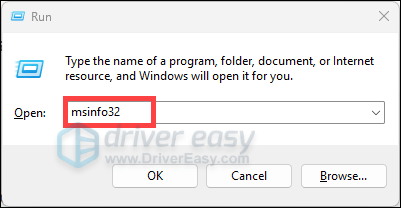
- On your keyboard, press the Windows logo key + R at the same time to invoke the Run box.
- Type msinfo32 and hit Enter. This will open the System Information window.
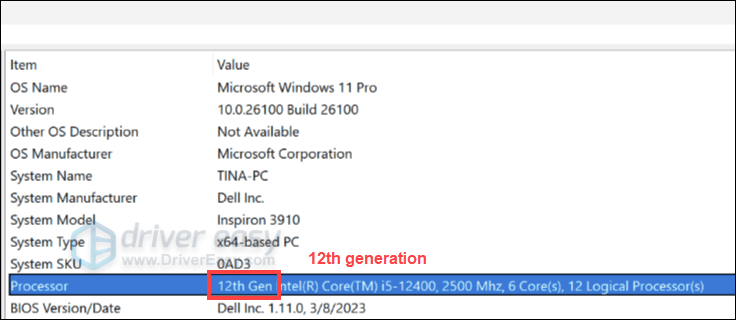
- In the System Summary section, find the information on Processor. For newer processors, it will show you the generation in a straightforward way, just like what it shows in the screenshot below.
If it does not explicitly show you the generation, you can check the number (or two numbers) after the i9, i7, i5, or i3. As shown in the example below, Intel® Core™ processor i9-14900K is 14th Gen because number 14 is listed after i9.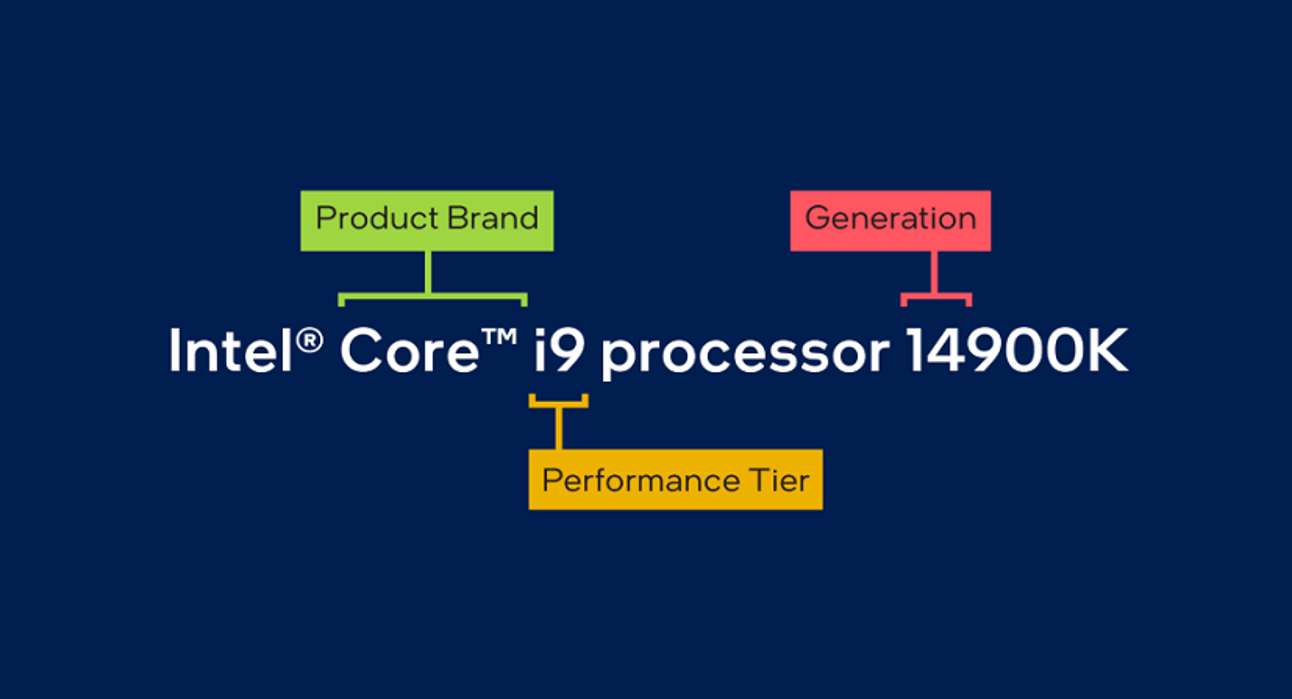
After adjusting the changes, relaunch your game and test the gameplay. If the problem persists, move on to the next fix below.
6. Repair Corrupted System Files
Corrupted Windows files can also cause instability. You can use two built-in Windows tools to automatically find and fix them.
- Open Command Prompt as an administrator. You can do this by searching for cmd in the Start menu, right-clicking on it, and selecting Run as administrator.
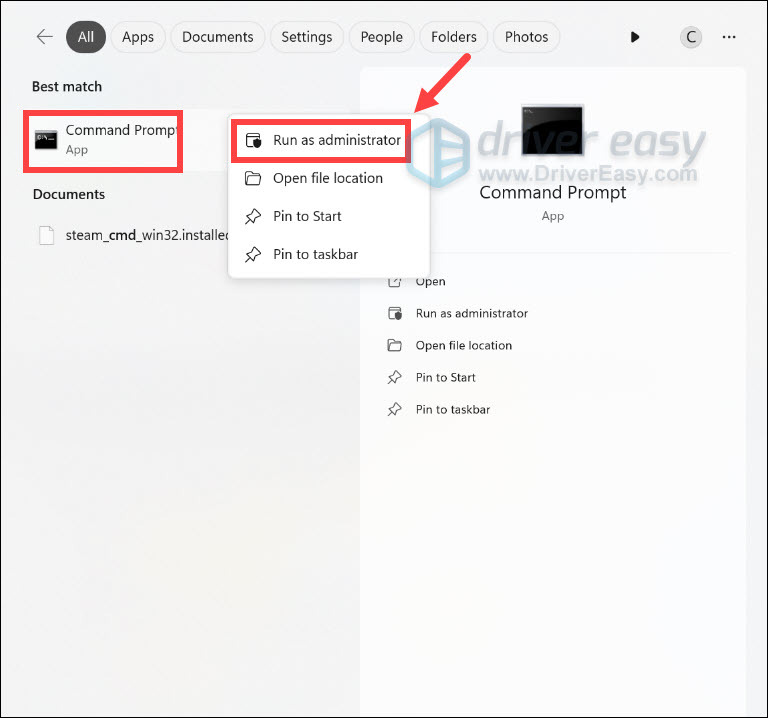
- First, run this command:
DISM.exe /Online /Cleanup-image /Restorehealth. This prepares the system for the repair. - After that’s finished, run this one:
sfc /scannow. This will scan and replace any corrupted system files. - Restart your computer and launch BF 6 to see if your problem has been solved. If your issue persists, proceed to the next fix.
7. Increase Virtual Memory
If you’ve tried the aforementioned methods and BF6 is still crashing, adjusting your virtual memory settings might help. Essentially, virtual memory uses a portion of your storage drive to supplement your physical RAM, which can prevent crashes when your system runs out of available memory. However, this is an advanced step and should only be attempted if you’re comfortable making system-level changes.
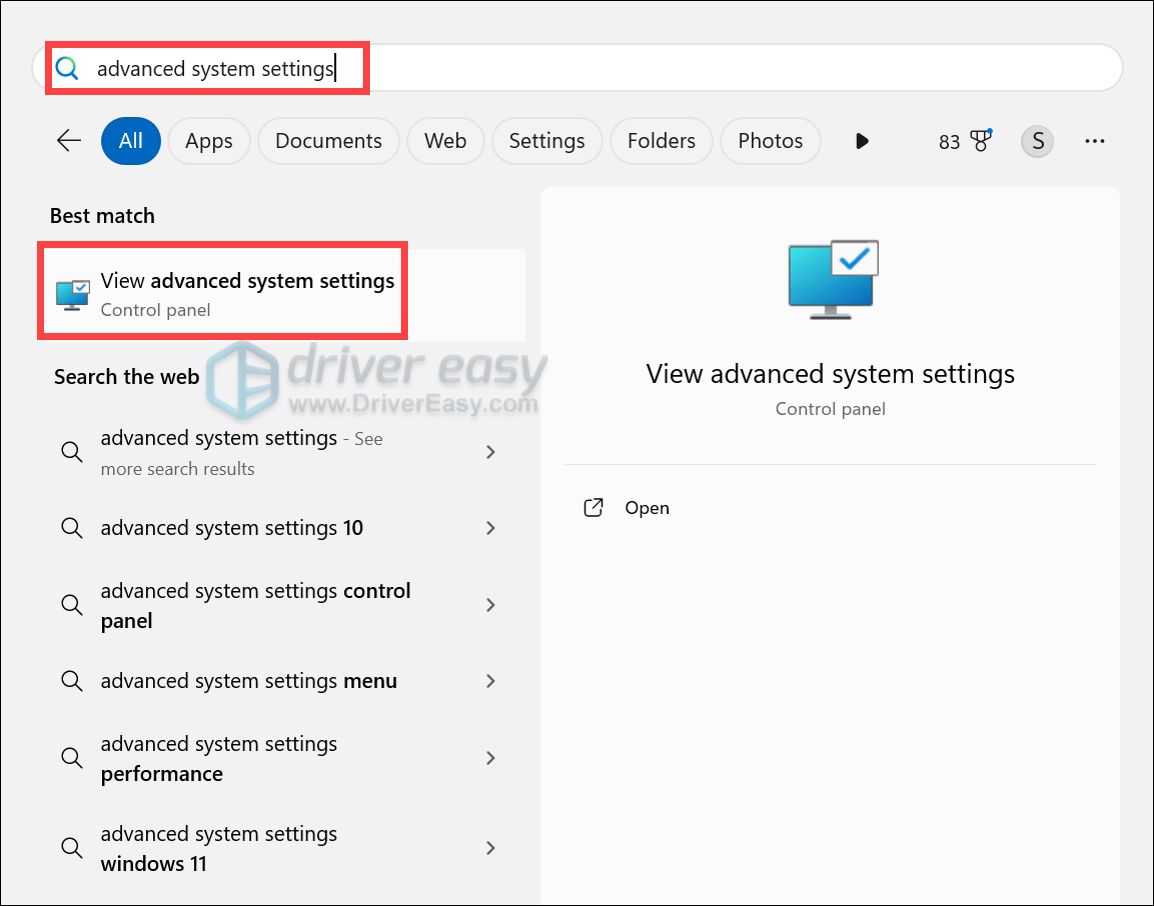
- Press the Windows logo key to invoke Search. Then type advanced system settings, and click View advanced system settings from the list of results.
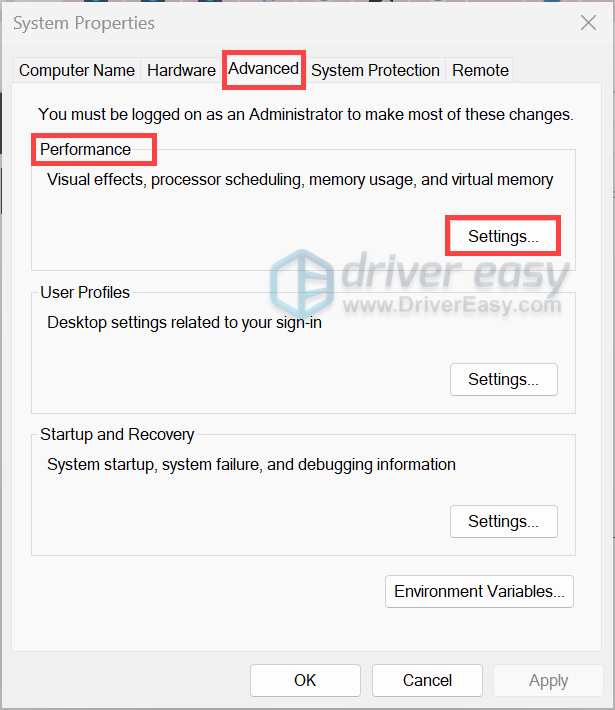
- Select the Advanced tab. Under the Performance section, click on Settings….
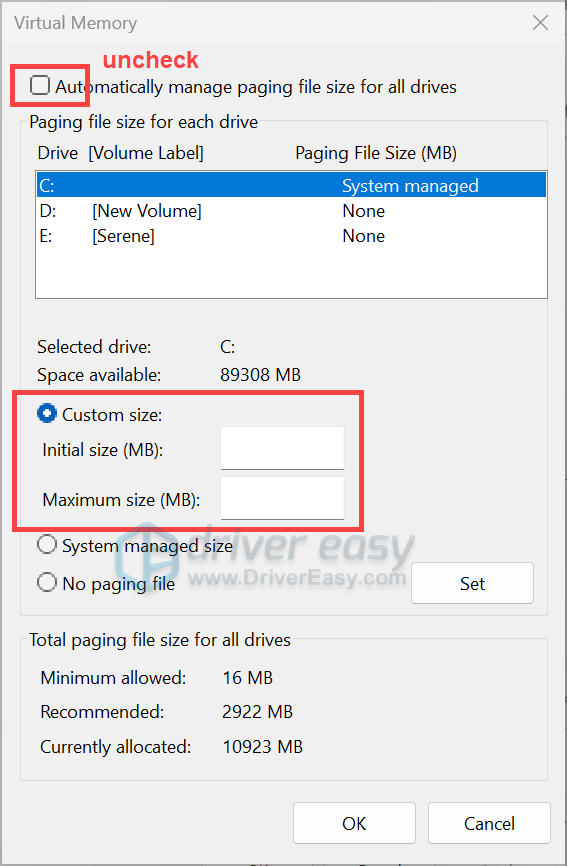
- Under the Advanced tab, find the Virtual memory section and click on Change….
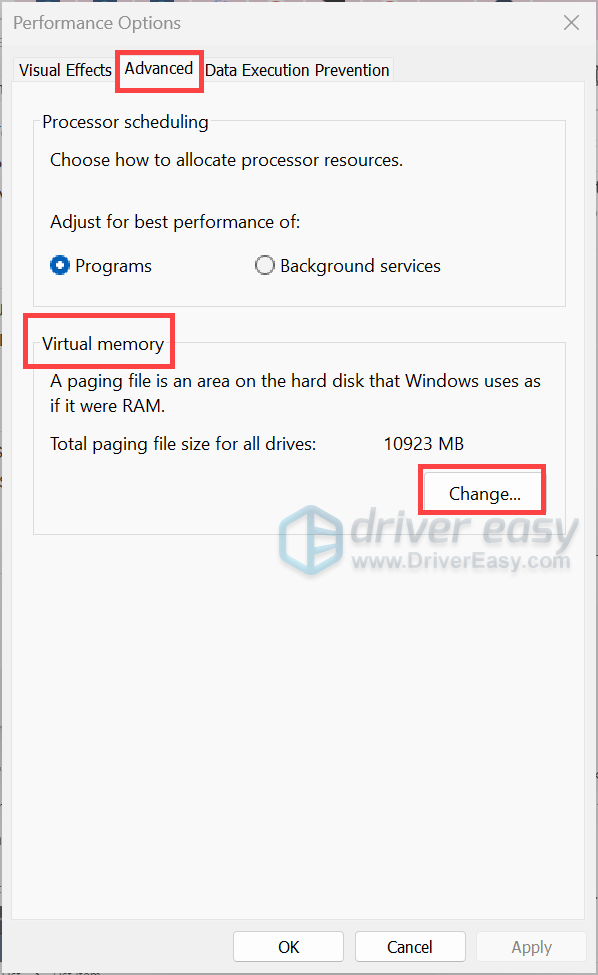
- Uncheck the box labeled Automatically manage paging file size for all drives. Select the drive where your operating system is installed (usually C:). Tick the option Custom size, then enter an Initial size (MB) and a Maximum size (MB). The paging file should be a minimum of 1.5 times the size of your installed RAM, and a maximum of 3 times your RAM size.
If you don’t know how much RAM is installed on your computer, press Win + R to open the Run box, then type msinfo32 to open the System Information window. From the System Summary category, locate Installed Physical Memory (RAM), where it shows you the amount of RAM installed on your computer.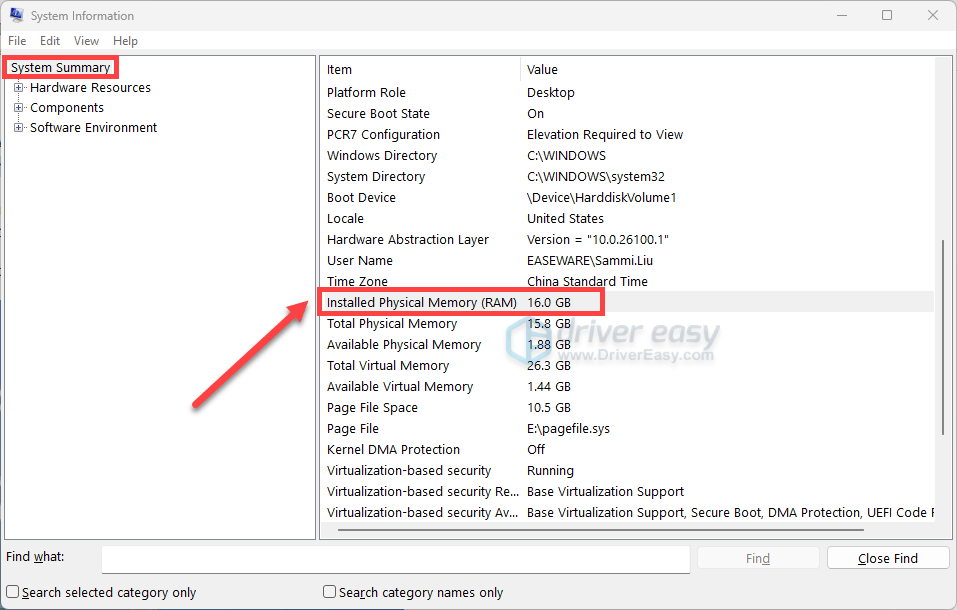
This wraps up our guide to troubleshooting the Battlefield 6 crashing issues. We hope you’ve found a solution and are back in the game!
If you’re still running into problems, please don’t give up. The Battlefield 6 community is a great resource, and we’re all here to help. Feel free to share your experience in the comments below. To give yourself and others the best chance at a fix, it’s best to include the following details:
- System Specifications: What’s inside your rig? (Your GPU model, CPU, RAM, etc.)
- Troubleshooting Steps: Which solutions from this guide have you already tried?
- Specific Scenarios: When and where the issue occurs (e.g., “the crash happens when I try to load a map,” or “my PC freezes mid-match”).
- Error Messages: Any specific error codes or messages you’ve received.