






Ever get frustrated when a game just won’t run right? You’re not alone. One of the most common and confusing problems is the DXGI_ERROR_DEVICE_REMOVED error. It can happen on any game, regardless of how high-end your PC is. This issue was recently highlighted by the open beta for Battlefield 6. You may also find it on Baldur’s Gate 3.
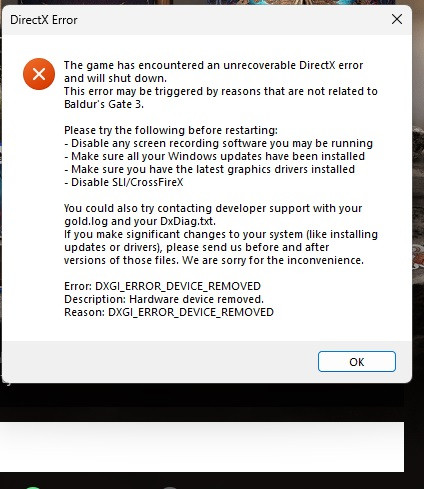
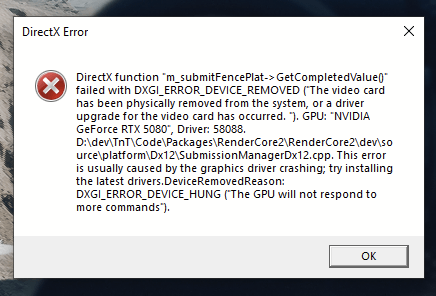
The DXGI_ERROR_DEVICE_REMOVED is a DirectX error that happens when your graphics card loses contact with your computer. The DXGI in the error code stands for DirectX Graphics Infrastructure, which is a core component of Windows that manages graphics tasks. This can be caused by a driver crash, overclocking, or even outdated drivers. When you see an error like DirectX function “…” failed with DXGI_ERROR_DEVICE_REMOVED, it’s telling you something went wrong with your graphics hardware or its software. We’ve put together a detailed, easy-to-follow guide to help you fix this problem.
Method 1: Update Your Graphics Driver
Outdated drivers are one of the most common causes of crashes and performance problems. Graphics card manufacturers like NVIDIA, AMD and Intel regularly release “Game Ready” drivers specifically optimized for new titles. It is crucial to ensure you are running the latest version, as this can provide a real boost in FPS and stability.
Manual driver updates can be a lot of work. For a better, more convenient way to handle this, you can try Driver Easy. Instead of spending hours hunting down the right drivers, Driver Easy does all the heavy lifting for you. It automatically scans your entire computer to identify any outdated, missing, or incorrect drivers, not just for your graphics card, but for every single component. With a single click, it can update all your drivers from its massive database of certified, official drivers. Besides, you can always roll back or choose a specific version to install in case the latest one doesn’t work properly for you.
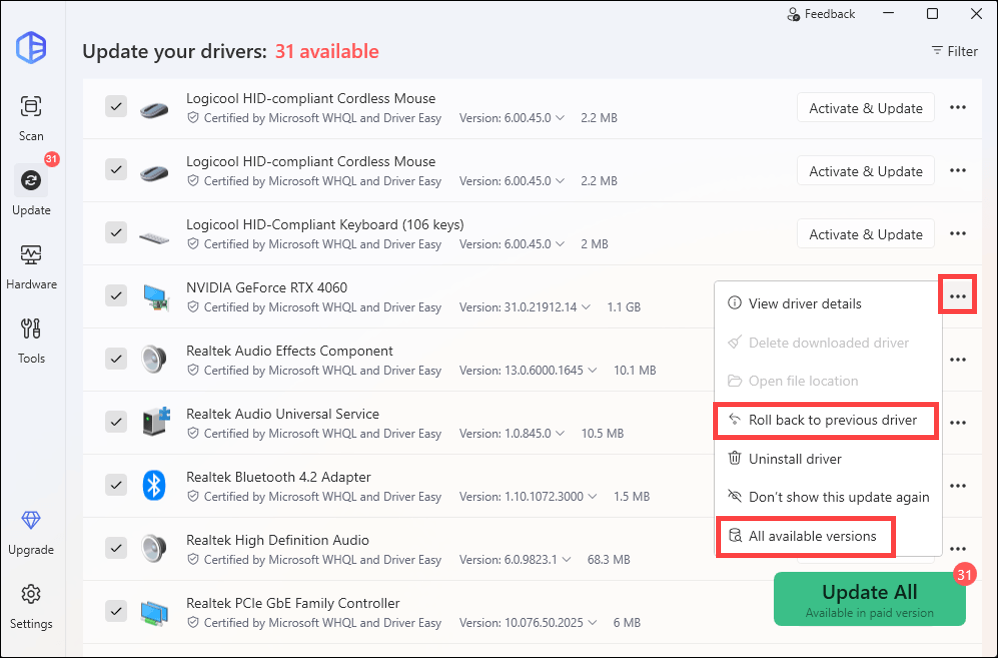
Below is how you can update drivers iwth Driver Easy:
- Download and install Driver Easy.
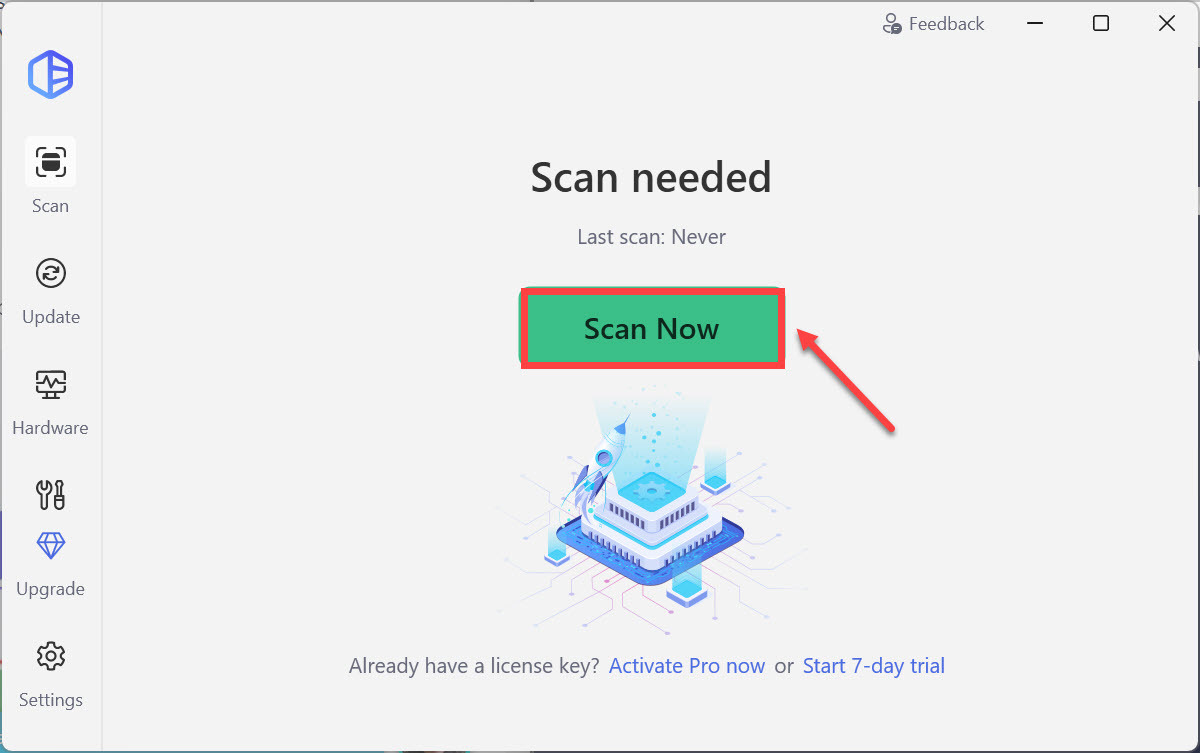
- Run Driver Easy and click the Scan Now button. Driver Easy will then scan your computer and detect any problem drivers.
- Click Activate & Update next to your flagged device to start a 7-day free trial or upgrade to Driver Easy Pro. Or you can click Update All to update all drivers. Either option will automatically download and install the latest drivers for you.
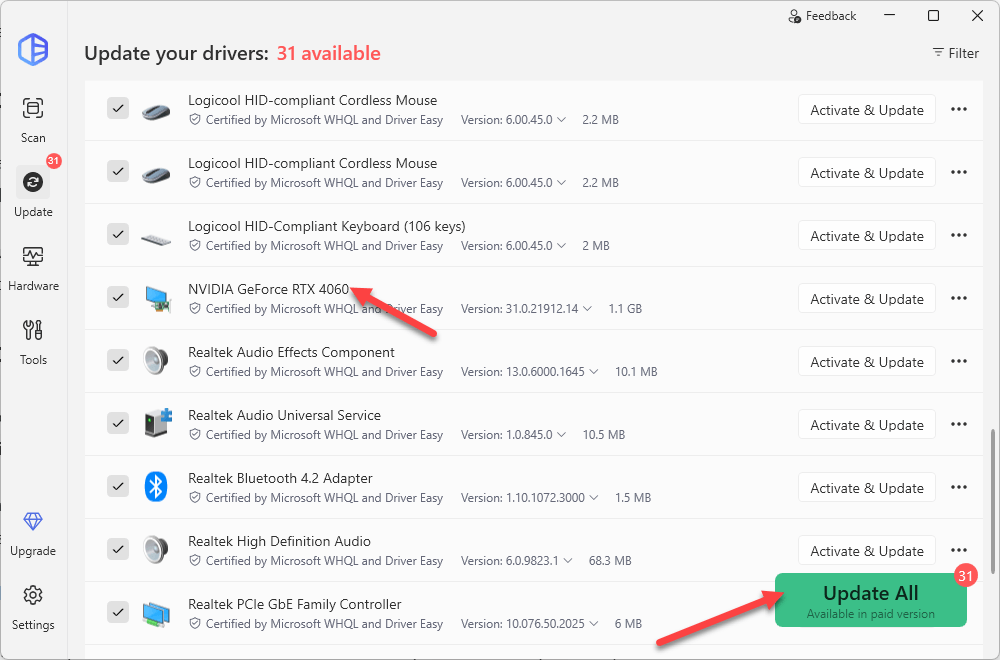
- Restart your computer for the changes to take effect. If you need any assistance while using Driver Easy, feel free to contact our support team at support@drivereasy.com.
Method 2: Download & Install all Windows Updates
Just like with your graphics drivers, keeping your Windows operating system up-to-date is a non-negotiable step. Windows updates often include vital DirectX library files and other optimizations that are necessary for game stability and performance. To check for updates:
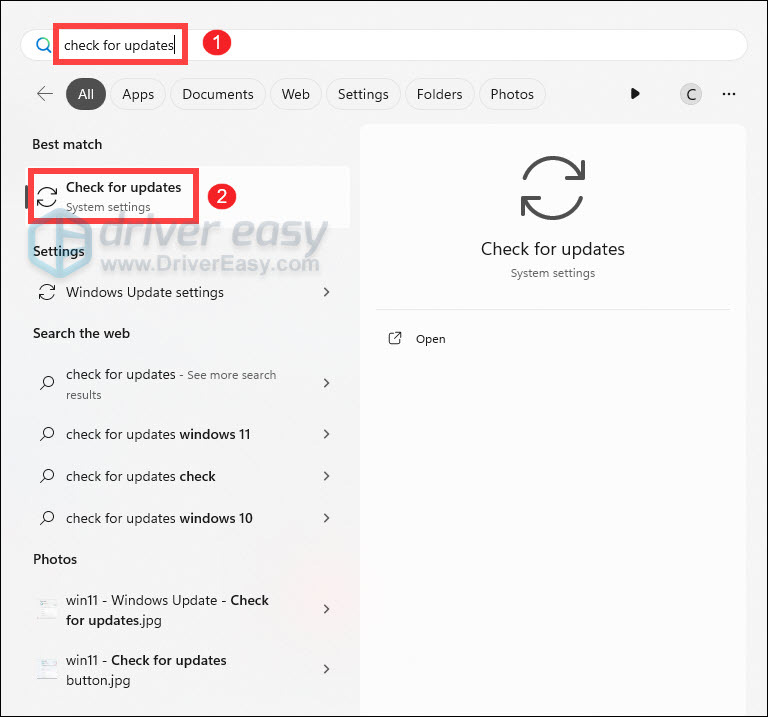
- Press the Windows logo key to invoke Search. Type check for updates, and select it from the list of results.
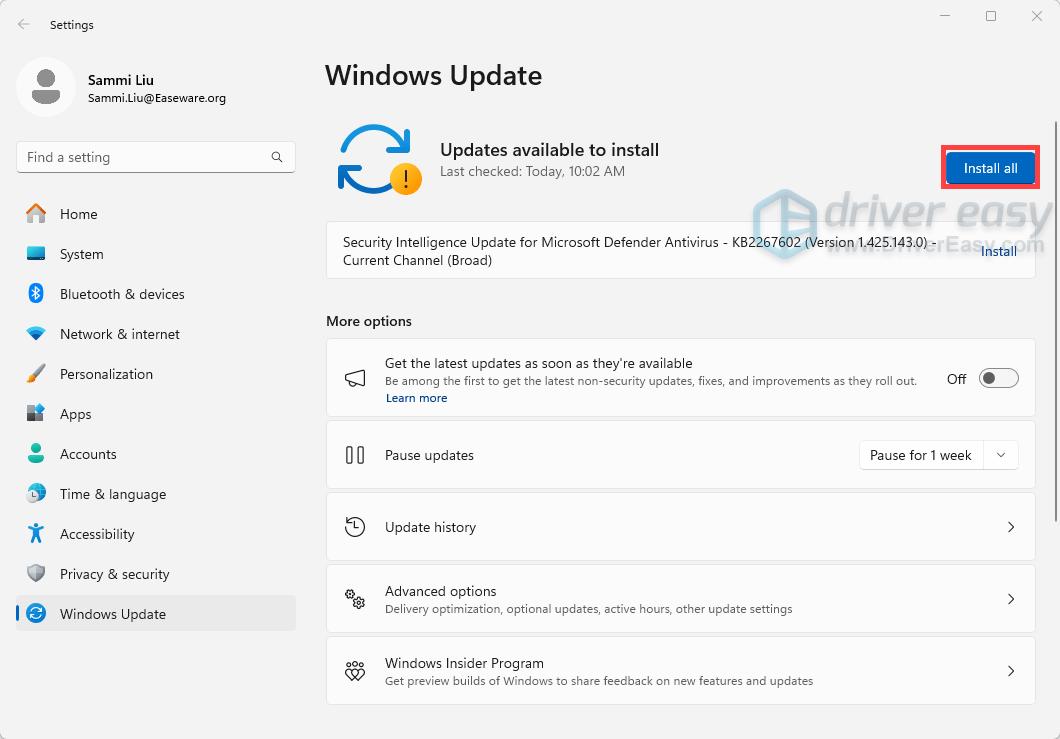
- If you’re told that “Updates available to install”, simply click on the Install all button.
Or you can click on the button Check for updates to see if there are updates available.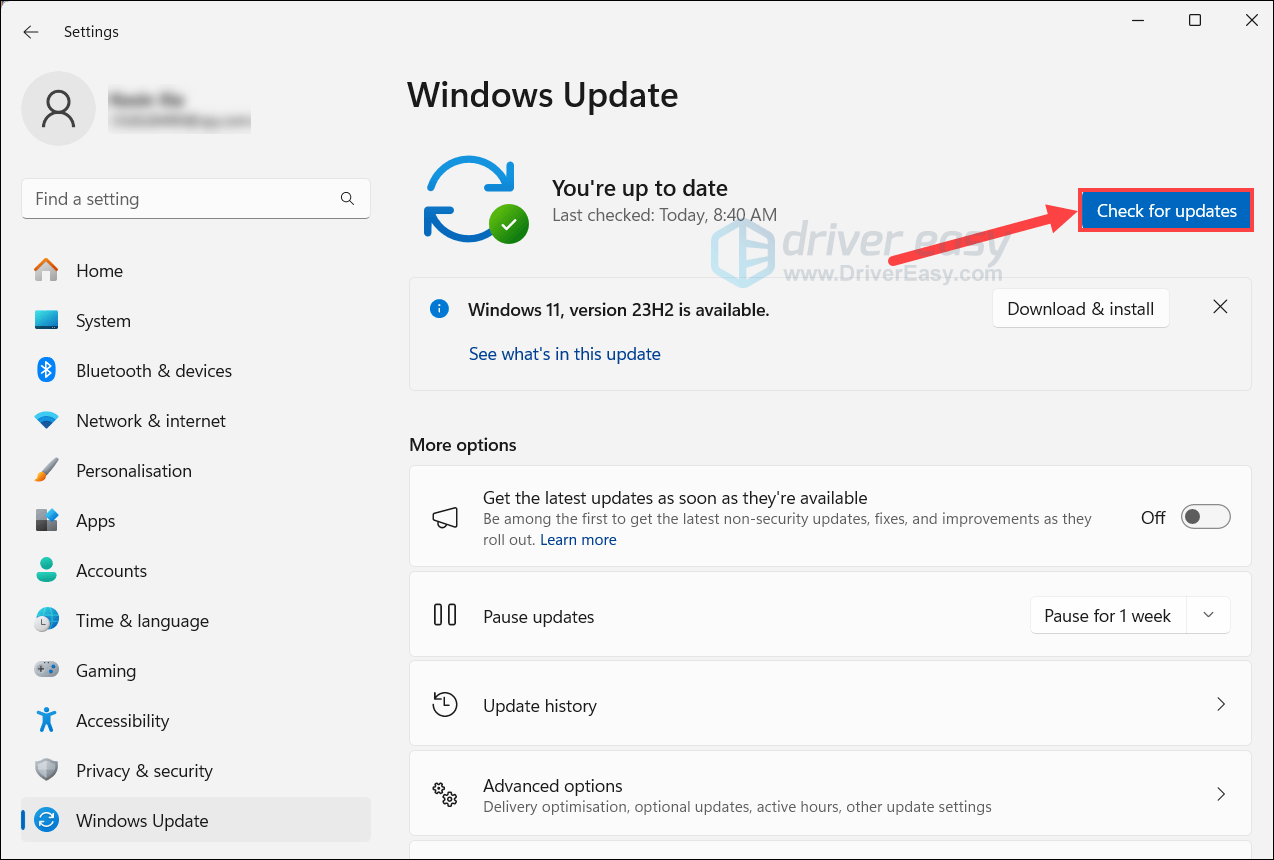
- Then follow the on-screen instructions to download and install the latest Windows updates. You should be prompted to restart your device upon completion. If your issue persists, try the next fix below.
Method 3: Reset Overclocking Settings
Overclocking your graphics card or CPU pushes them to perform faster than their factory-set speeds. While this can provide a performance boost, it’s a common cause of instability and can lead to the DXGI_ERROR_DEVICE_REMOVED error. A simple fix is to revert all your overclocking settings back to their defaults.
- If you’re using a third-party tool like MSI Afterburner, open the program and reset any changes you’ve made to your clock speeds or voltage.
- If you’ve overclocked your CPU through the BIOS, restart your PC and go into the BIOS to restore the default settings.
In addition, it’s also essential to check if your CPU and GPU are overheating, which can cause a system to throttle performance or, in severe cases, shut down entirely.
Method 4: Turn off In-Game Overlays
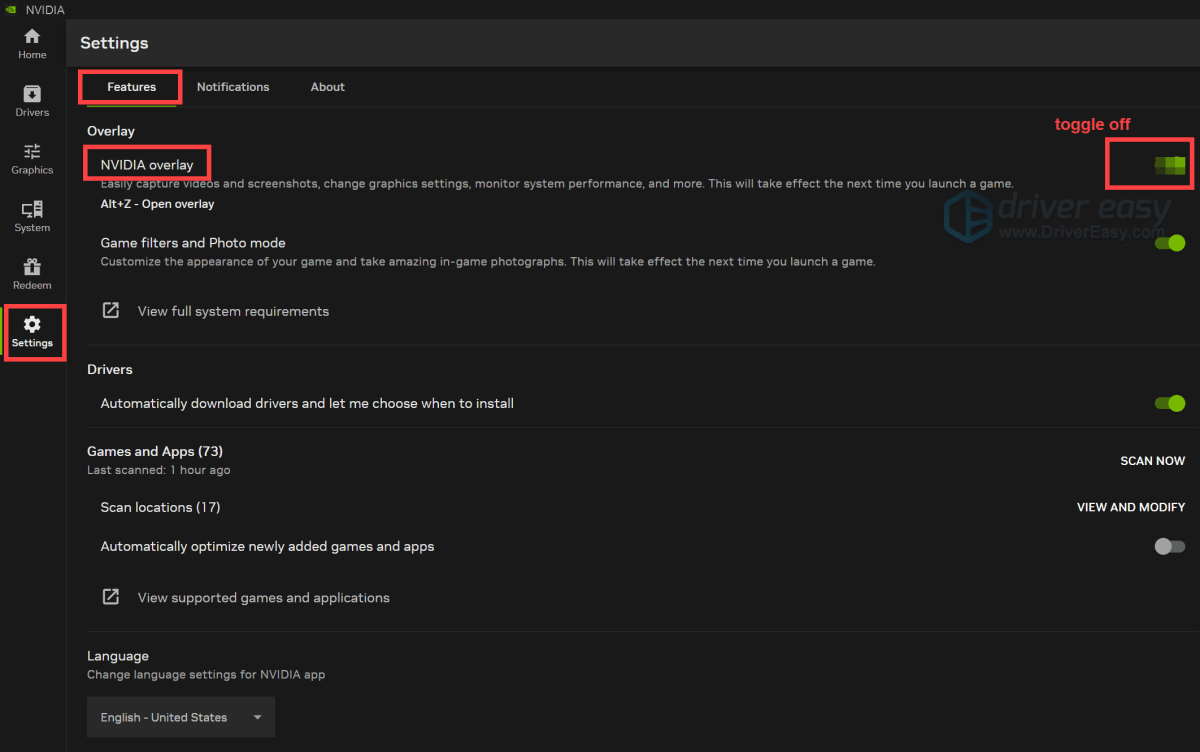
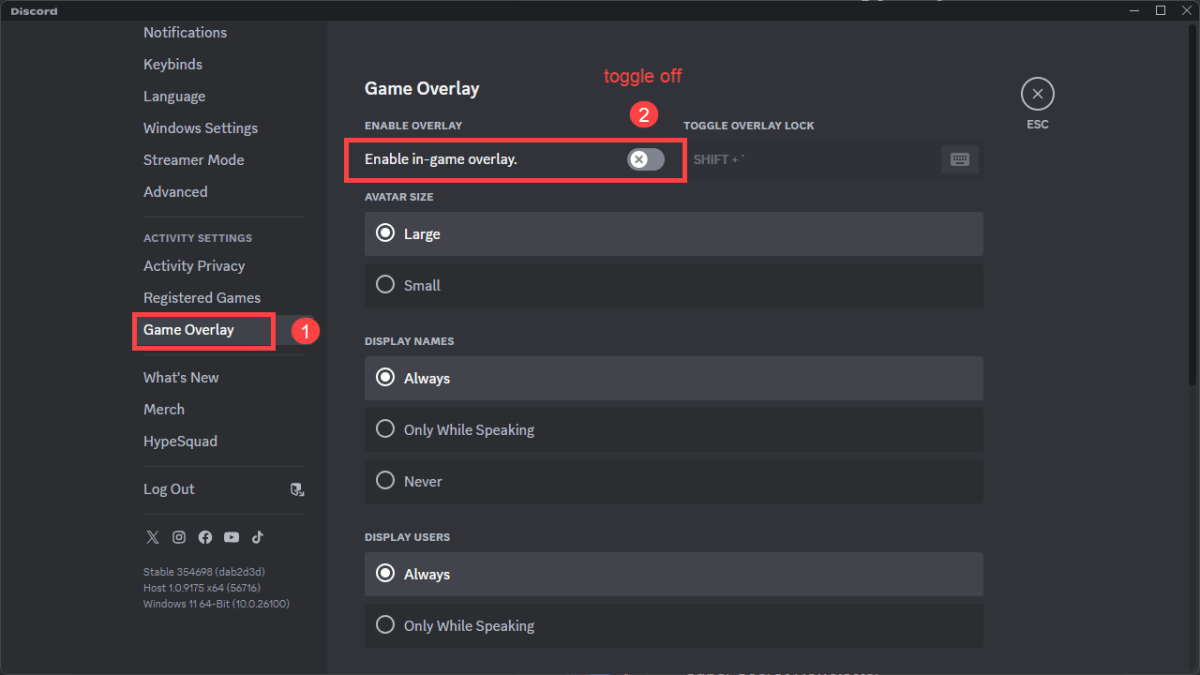
For certain games and for the DXGI_ERROR_DEVICE_REMOVED error, overlays can cause problems. You should disable them:
Steam:
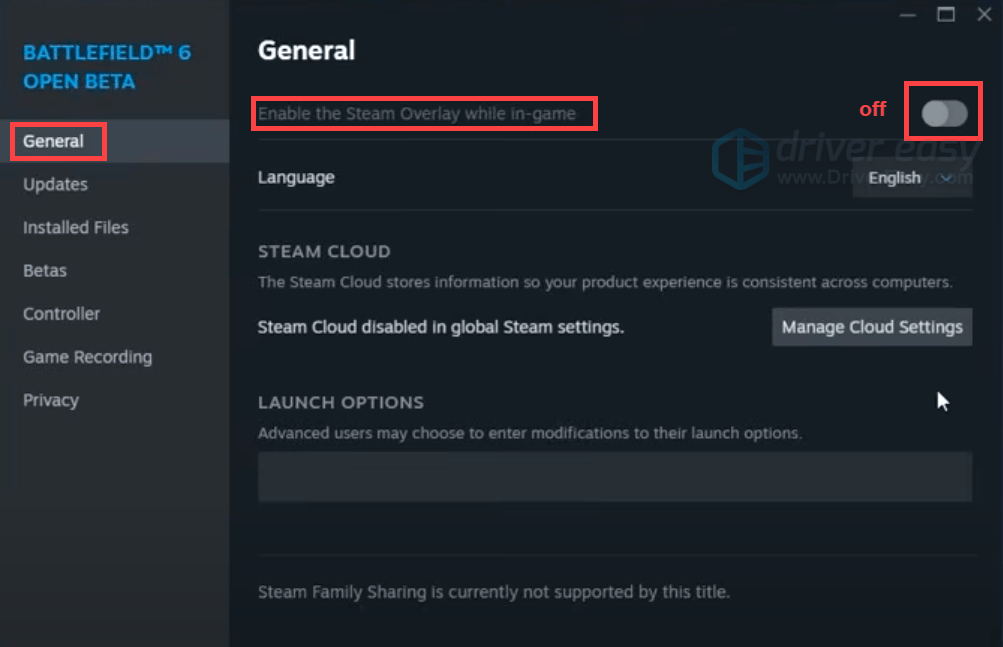
Right-click on your game title and select Properties. In the General tab, toggle off the option Enable the Steam Overlay while in-game.
NVIDIA App:
Discord:
If your issue persists, move on to the next fix.
Method 5: Verify Game Files
Sometimes, a game’s files can become corrupted or go missing, which can lead to crashes or other performance issues. Verifying the integrity of your game files is a quick way to check for and fix this problem.
For Steam users:
- Open Steam and go to your Library.
- Right-click on your game and select Properties.
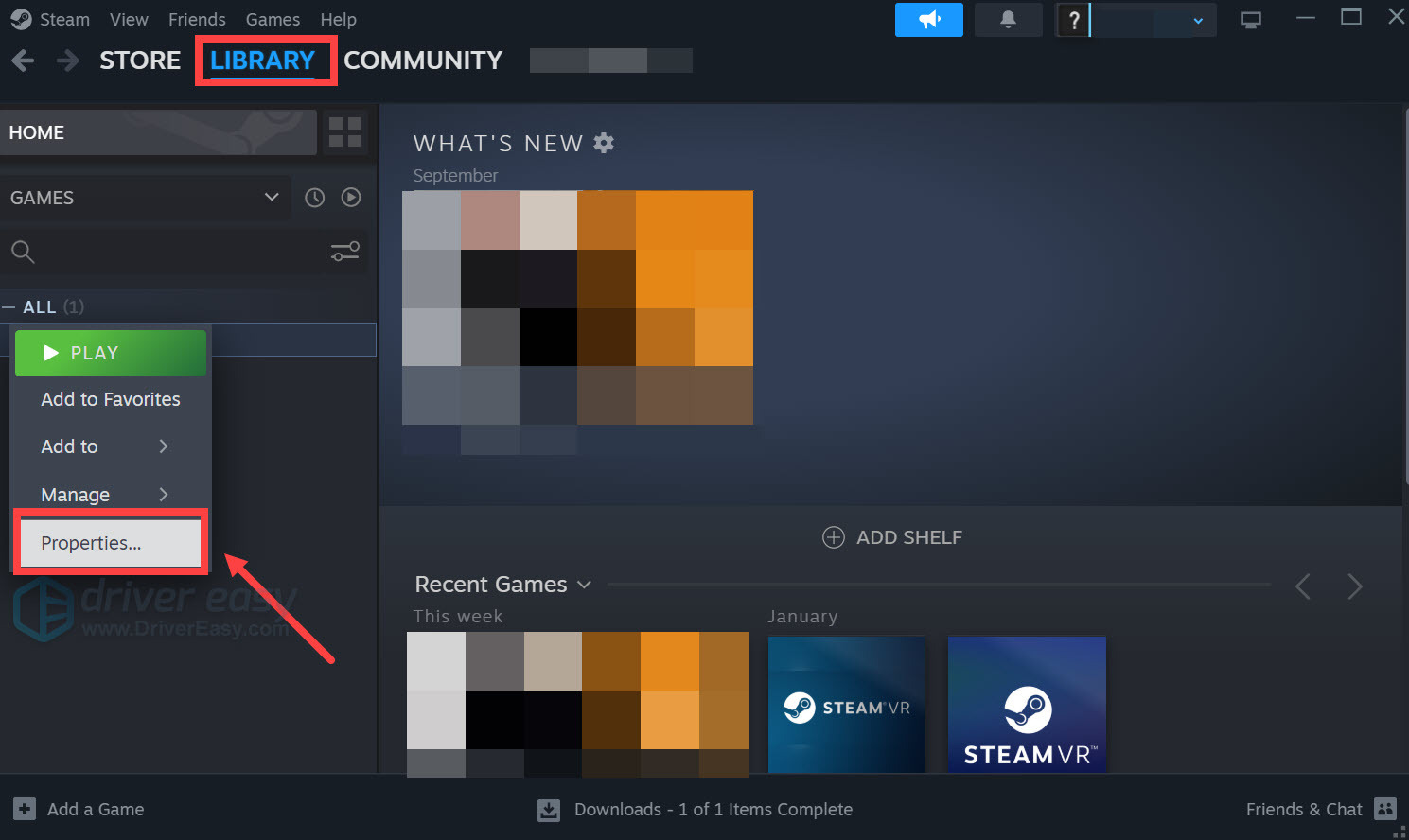
- Go to the Installed Files tab and click Verify integrity of game files….
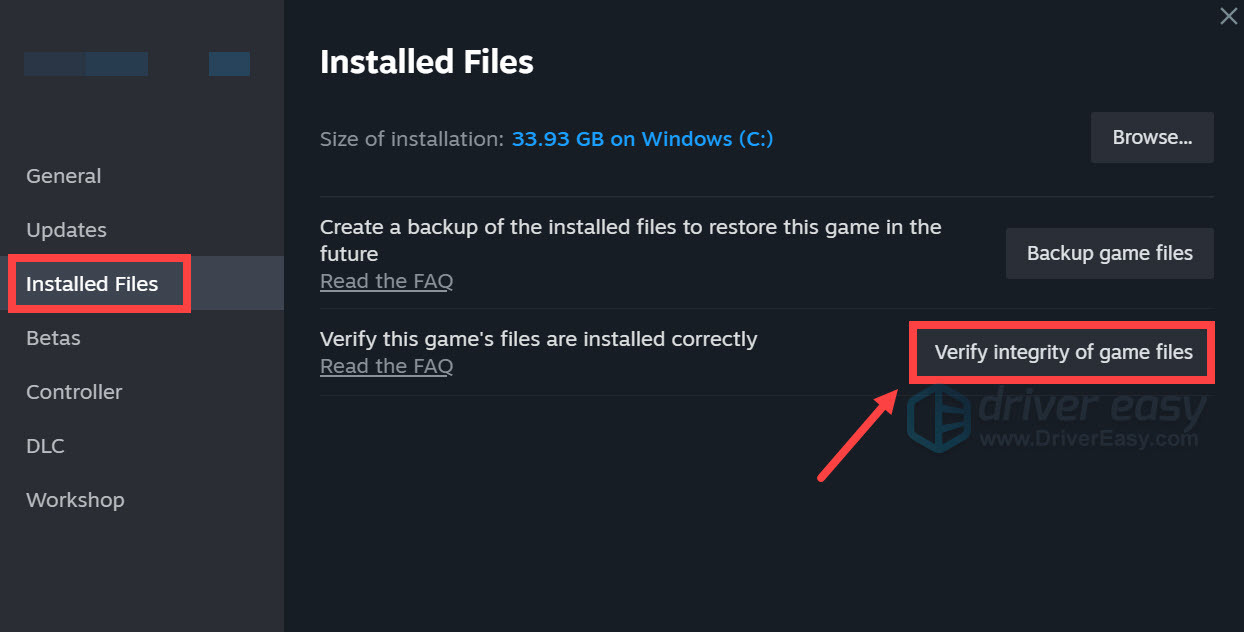
- Steam will verify the game’s files, and this process may take several minutes.
For EA App users:
- Launch the EA app and go to your Installed games.
- Find your game, then click MANAGE > Repair.

After verifying your game files, a highly recommended troubleshooting step is to check the game’s graphics settings for AI-powered upscaling technologies like DLSS (Deep Learning Super Sampling), FSR (FidelityFX Super Resolution), or XeSS (Xe Super Sampling).
Try disabling them to see if it resolves the crash. While these features are excellent for boosting performance, they place unique demands on your GPU and its drivers. In some games or with certain driver versions, they can be a primary cause of instability that leads to the DEVICE_REMOVED error
If the above won’t help, proceed to the next fix.
Method 6: Close Background Applications
Unnecessary applications running in the background can consume valuable network bandwidth and system resources, which can directly impact your game’s performance and stability.
- Press Ctrl + Shift + Esc at the same time to open the Task Manager.
- In the Processes tab, right-click any resource-hogging apps and click End task to close them. Note: Avoid disabling critical system processes or essential services, as this can lead to system instability.

If your issue persists, move on to the next fix.
Method 7: Modify the Registry
This fix targets the Timeout Detection and Recovery (TDR) feature. When Windows detects your graphics card is frozen for more than a few seconds, it resets the driver to prevent a full system crash, which triggers the DXGI_ERROR_DEVICE_REMOVED error. The steps below tell Windows to skip this recovery process.
Note: This is an advanced, last-ditch troubleshooting step. Modifying the Windows Registry can cause serious system instability, crashes, or even make Windows unbootable if done incorrectly. This fix does not address the root cause of the problem (like a faulty driver or unstable hardware). So proceed with caution.
- Press the Windows logo key + R to open the Run dialog.
- Type regedit and press Enter to open the Registry Editor.
- In the address bar, paste the following location and press Enter:
HKEY_LOCAL_MACHINE\SYSTEM\CurrentControlSet\Control\GraphicsDrivers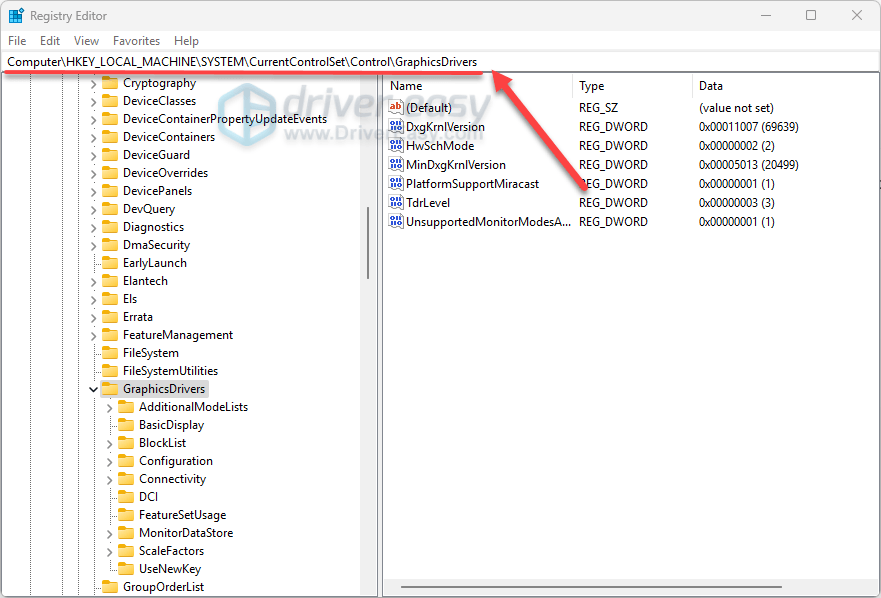
- If the TdrLevel folder exists, double-click to open it.
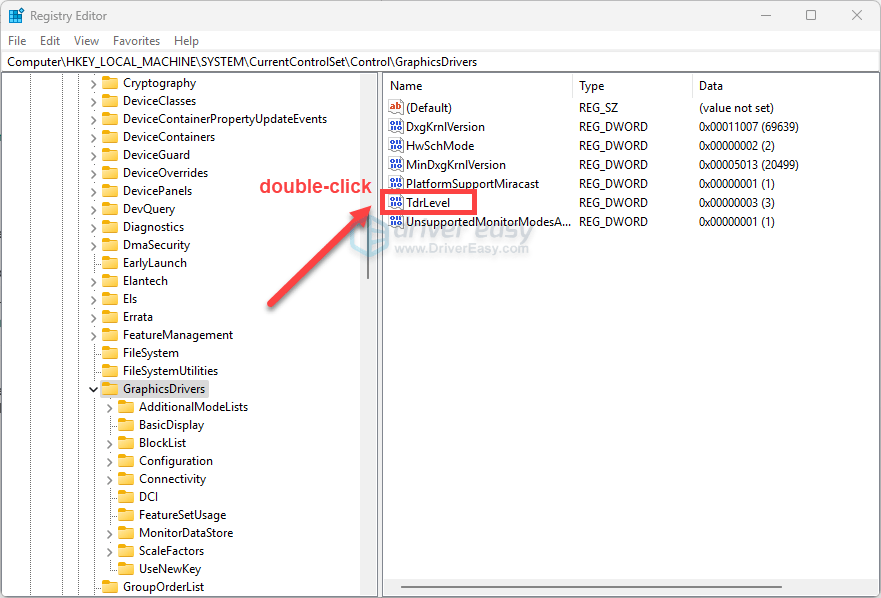
Adjust the Value data to 0, then click OK.
If the folder doesn’t exist, right-click on the empty space and click New > DWORD (32-bit) Value. Rename the folder as TdrLevel, then double-click to open it. Make sure the Value data is 0.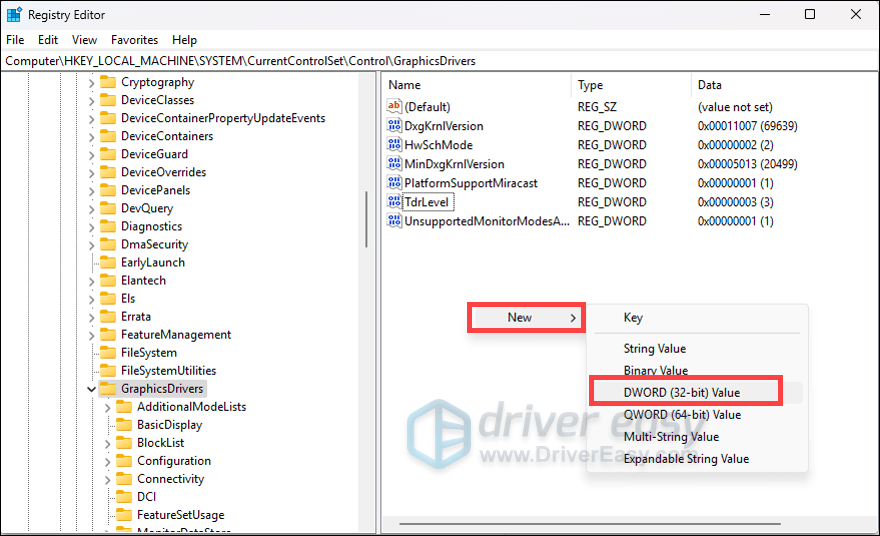
- Close the Registry Editor and restart your computer.
Important: If this does not resolve the issue, or if your system becomes unstable, you must revert this change immediately. Simply return to the GraphicsDrivers key, double-click the TdrLevel value, and change the data back to its original value (often it’s blank or doesn’t exist by default). If you created the value new, you can simply right-click it and select Delete.
We hope this guide helped you fix the DXGI_ERROR_DEVICE_REMOVED error.
This error occurs when the graphics driver encounters a severe problem. To protect your system from instability or data corruption, Windows’s safety mechanism steps in and purposely stops the connection to the graphics card, effectively telling the game or application that the device has been “removed”.
It’s different from a “hung” error, where the card simply freezes for a moment. A “removed” error is more serious because it signifies a full driver crash and restart.
If the problem continues, please share the details in the comments below. To help the community and us figure out what’s going on, it’s a great idea to provide information like the specific error message you see (a screenshot is very helpful), the game you were playing, and your PC’s hardware specs (CPU, GPU, RAM).