






Struggling with Illustrator crashing while you’re in the middle of a project can be incredibly frustrating. Adobe Illustrator is a powerful industry-standard vector design tool, but even pros run into unexpected freezes or shutdowns.
The good news? This guide will walk you through simple, effective steps so you can get back to creating with confidence and no more disruptions. For users who are prompted with error messages like “Adobe Illustrator exit unexpectedly”, you may also find this guide helpful. Without further ado, let’s dive in.
Update Your Software and Windows
Adobe frequently releases performance-focused patches, among which improve effect processing while also resolving bugs that could cause crashes. Windows updates, on the other hand, ensure that critical system files match what Illustrator needs. If those files are corrupted or outdated, conflicts can occur and cause apps to crash unexpectedly. Below are the steps you can follow:
To update Illustrator to the latest version
To download and install all Windows updates
Update Illustrator
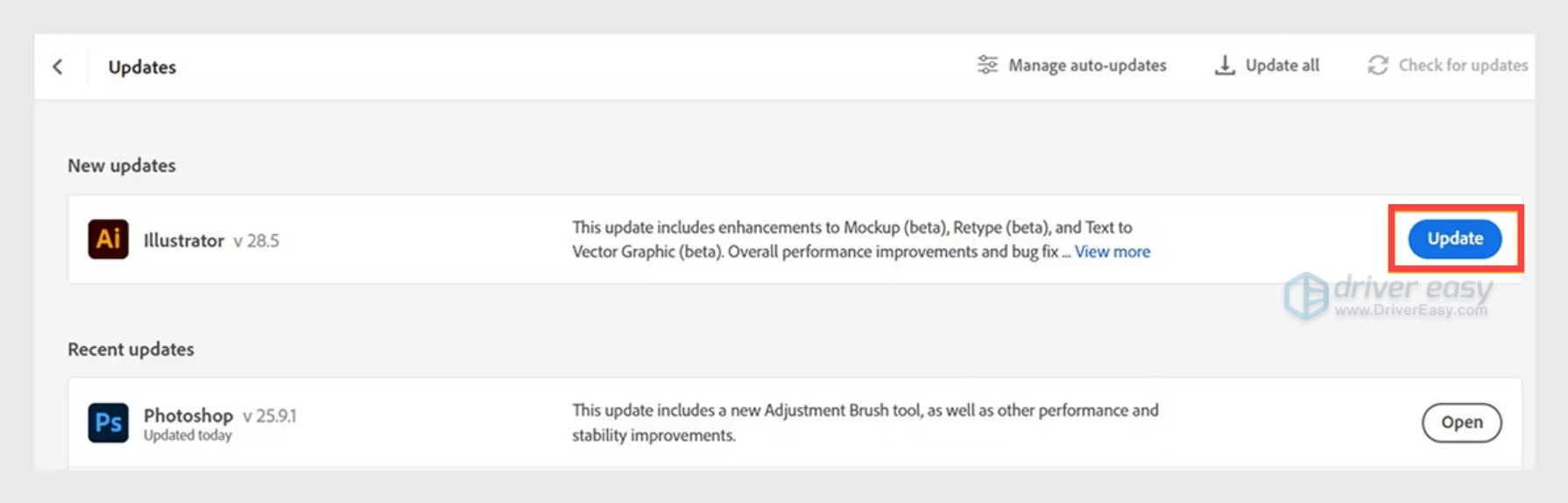
- Open the Creative Cloud desktop app.
- Select the Update option displayed next to Illustrator.
Update Your Windows
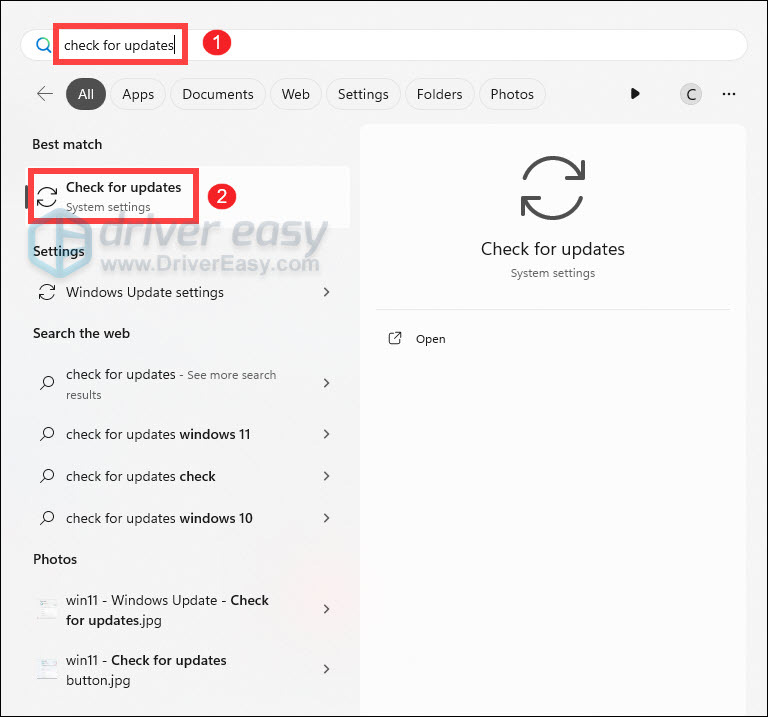
- Press the Windows logo key to invoke Search. Then type check for updates, and select it from the list of results.
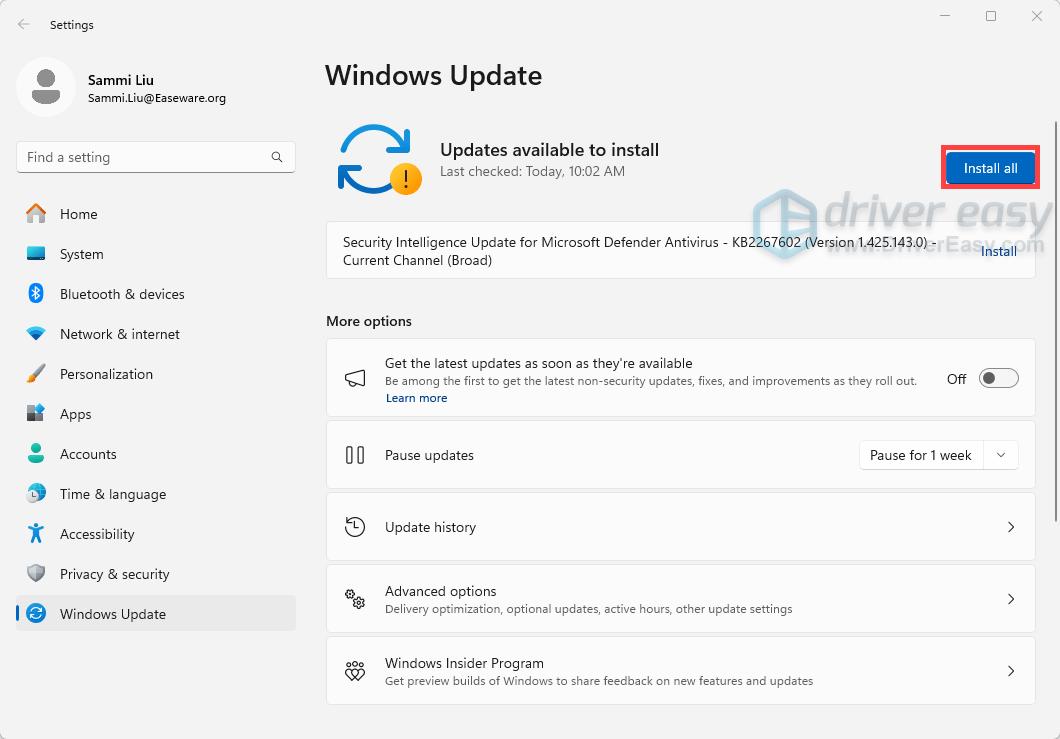
- If you’re told that “Updates available to install”, simply click on the Install all button.
Or you can click on the button Check for updates to see if there are updates available.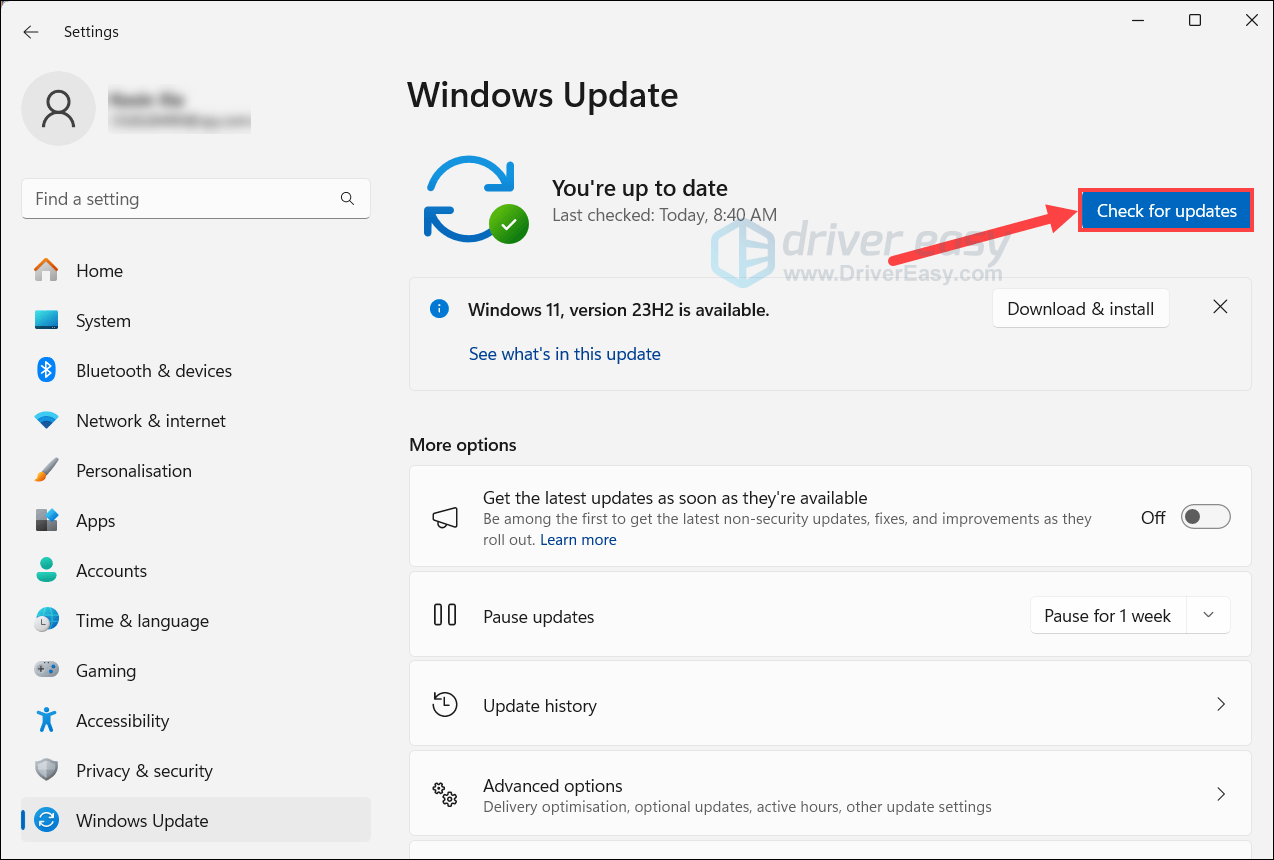
- Then follow the on-screen instructions to download and install the latest Windows updates. You should be prompted to restart your device upon completion. Till then, you can test if your issue has been resolved.
If you’ve already had the latest version but your problem persists, try the next fix below.
Update Your Graphics Driver
Illustrator relies on your graphics card for rendering and visual previews. If the driver software for that card is outdated, incompatible, or contains defects, Illustrator may freeze or crash mid‑session.
You can go to NVIDIA, AMD, or Intel‘s official driver download page, search for, download and install the latest compatible driver. If you’re using an NVIDIA GPU, a tip that’s often overlooked but widely reported in user forums is switching from the Game Ready driver to the Studio driver. The Studio driver is tested more rigorously with creative apps like Adobe Illustrator, Premiere Pro, and Photoshop.
But for many users who’d rather skip the manual hunt, Driver Easy offers a smooth alternative. It automatically scans and identifies any device with outdated or faulty drivers, and installs the correct latest versions with minimal effort.
- Download and install Driver Easy.
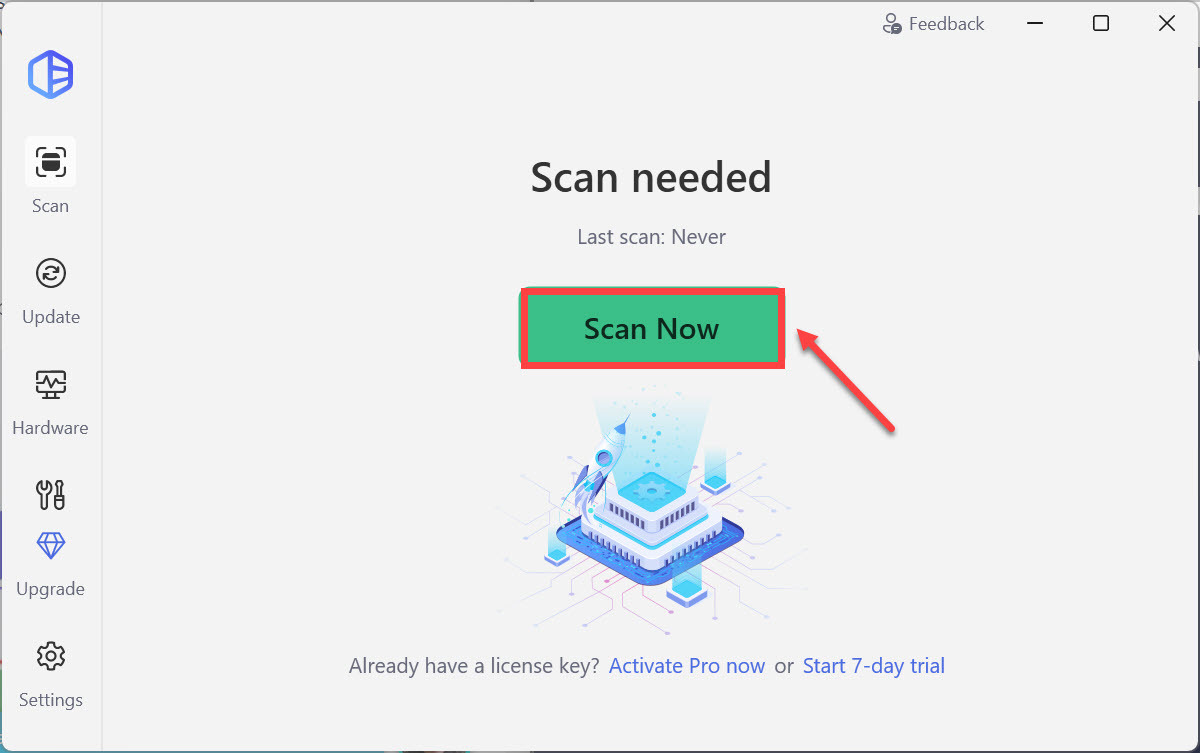
- Run Driver Easy and click the Scan Now button. Driver Easy will then scan your computer and detect any problem drivers.
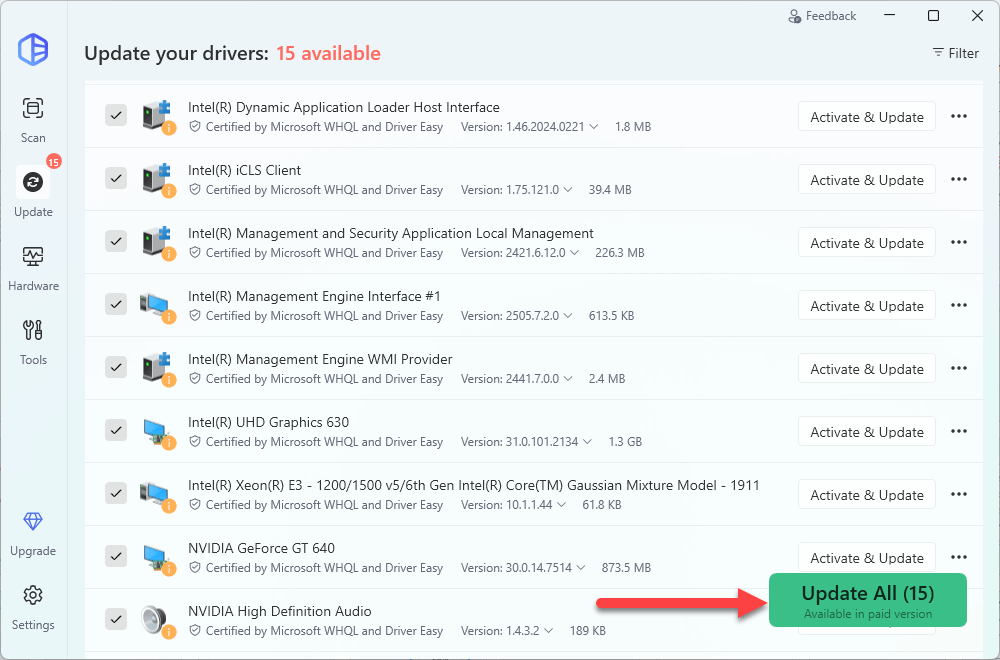
- Click Activate & Update next to your flagged device to start a 7-day free trial or upgrade to Driver Easy Pro. Or you can click Update All to update all drivers. Either option will automatically download and install the latest drivers for you.
- Restart your computer for the changes to take effect. If you need any assistance while using Driver Easy, feel free to contact our support team at support@drivereasy.com.
Reset Illustrator Preferences
Over time, the preferences file can become corrupted, which can confuse Illustrator and lead to crashes or unusual slowdowns. Resetting restores clean settings and often clears whatever was causing the glitch. Here’s how to reset preferences on Windows:
- In Illustrator, go to Edit > Preferences > General. Click Reset Preferences and then Click Ok.
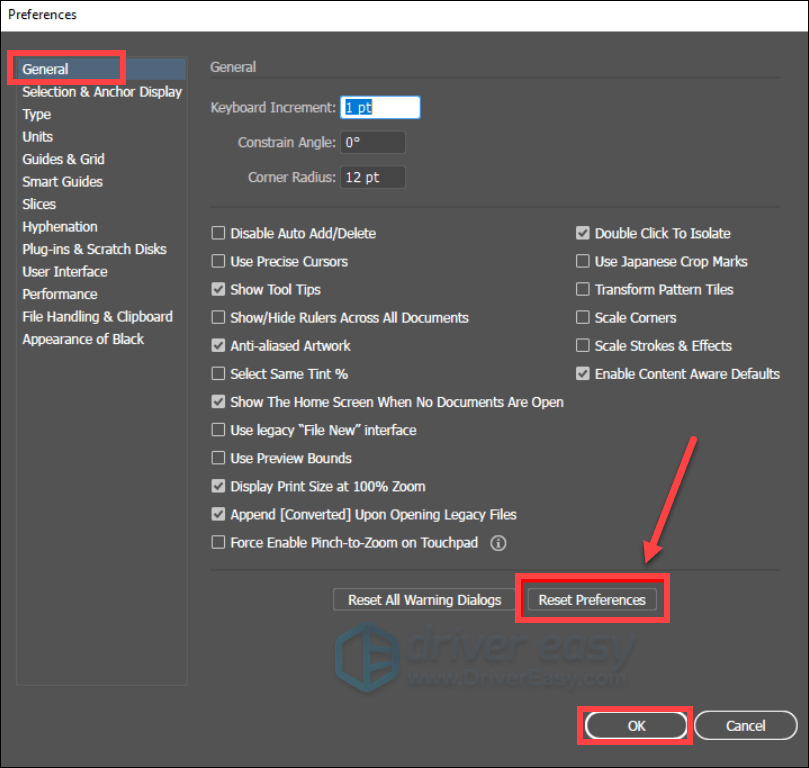
- Restart Illustrator. When you start Illustrator, press Alt + Ctrl + Shift.
If you’re unable to get to the above settings, delete the preferences folder and relaunch Illustrator:
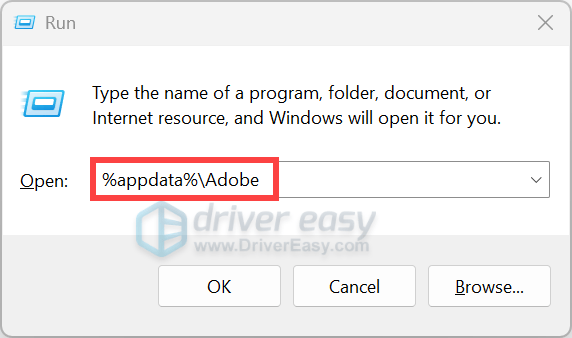
- Press Win + R to open the Run box. Type or paste %appdata\Adobe and hit Enter.
- Delete the folder Adobe Illustrator <version> Settings. For instance, Adobe Illustrator 24 Settings.
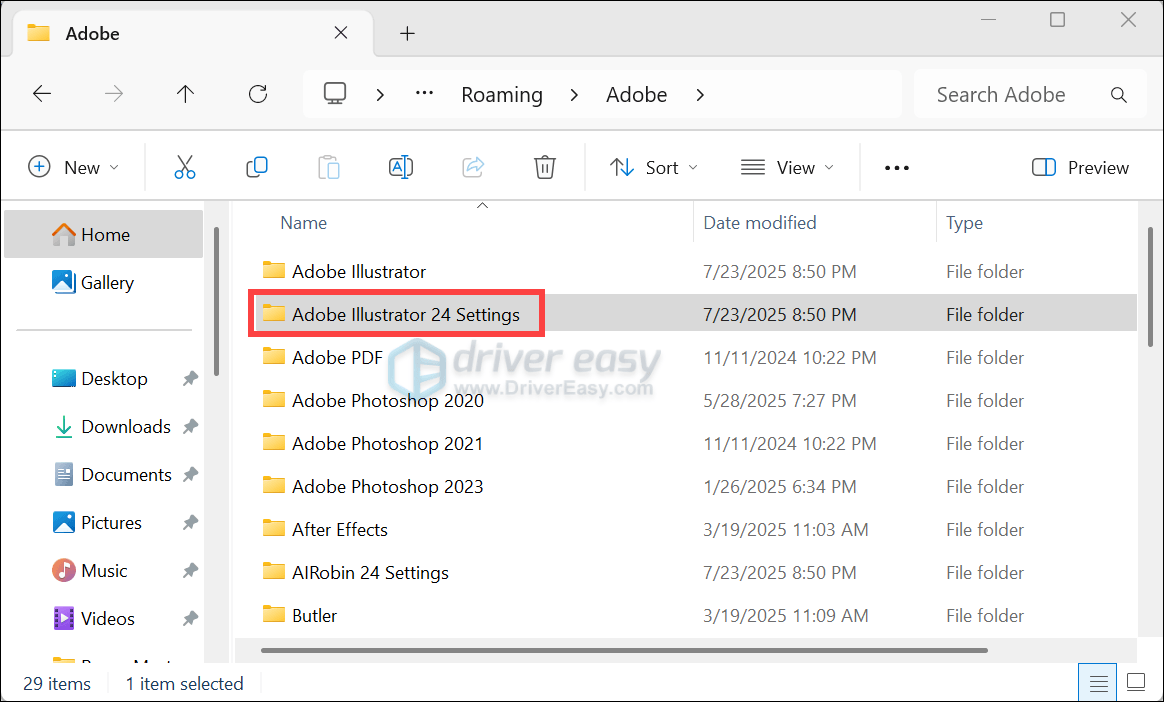
If your issue persists, move on to the next fix.
Disable Unnecessary Background Programs
Too many applications running in the background can consume a significant amount of system resources and cause conflicts. You can disable the ones that you do not necessarily use:
- Press Ctrl + Shift + Esc to open the Task Manager.
- Go to the Processes tab. Look for any non-essential or resource-intensive programs. Right-click on each of them and select End task. You can close cloud storage services like OneDrive, Google Drive, or Dropbox. Or you can disable Discord or other non-essential third-party software. Avoid disabling critical system processes or essential services, as this can lead to system instability.

- Launch Illustrator and check if this works for you.
Insufficient memory can strain Illustrator, especially with complex documents or large images. Aside from closing unnecessary apps, you can try to use a fast SSD with plenty of free space for scratch disk or increase the virtual memory. But before that, you should check and verify if your system setup meets those minimum requirements (8 GB of RAM, 16 GB recommended):
- Press Ctrl + Shift + Esc at the same time to open the Task Manager.
- Go to the Performance tab and click Memory. It’ll show your total installed RAM (e.g., 8 GB, 16 GB).
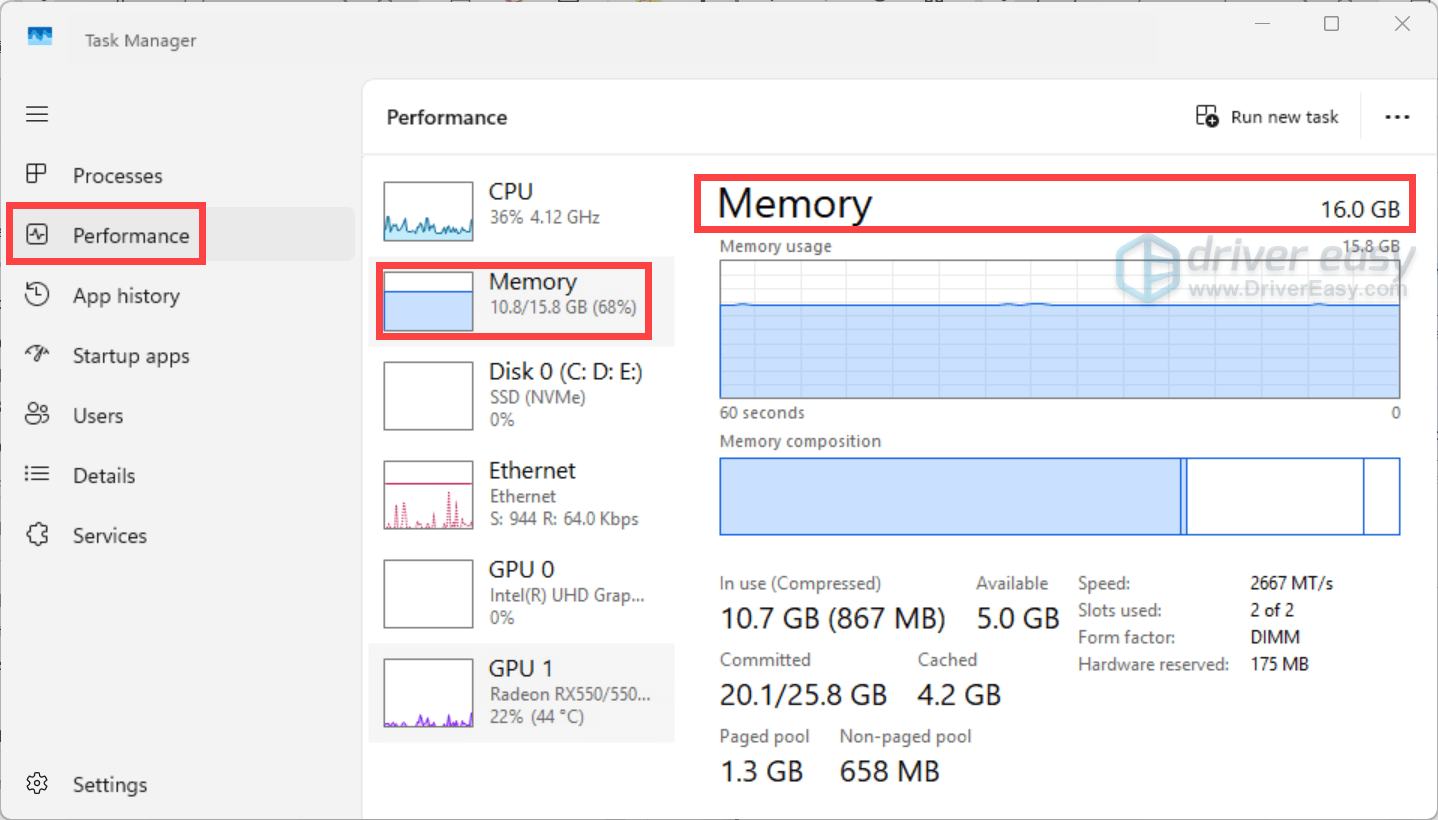
If your system falls short of the recommended specs, say, less than 16 GB of RAM, you can increase the virtual memory:
Press the Windows logo key to invoke Search. Then type check for updates, and Check for updates from the list of results.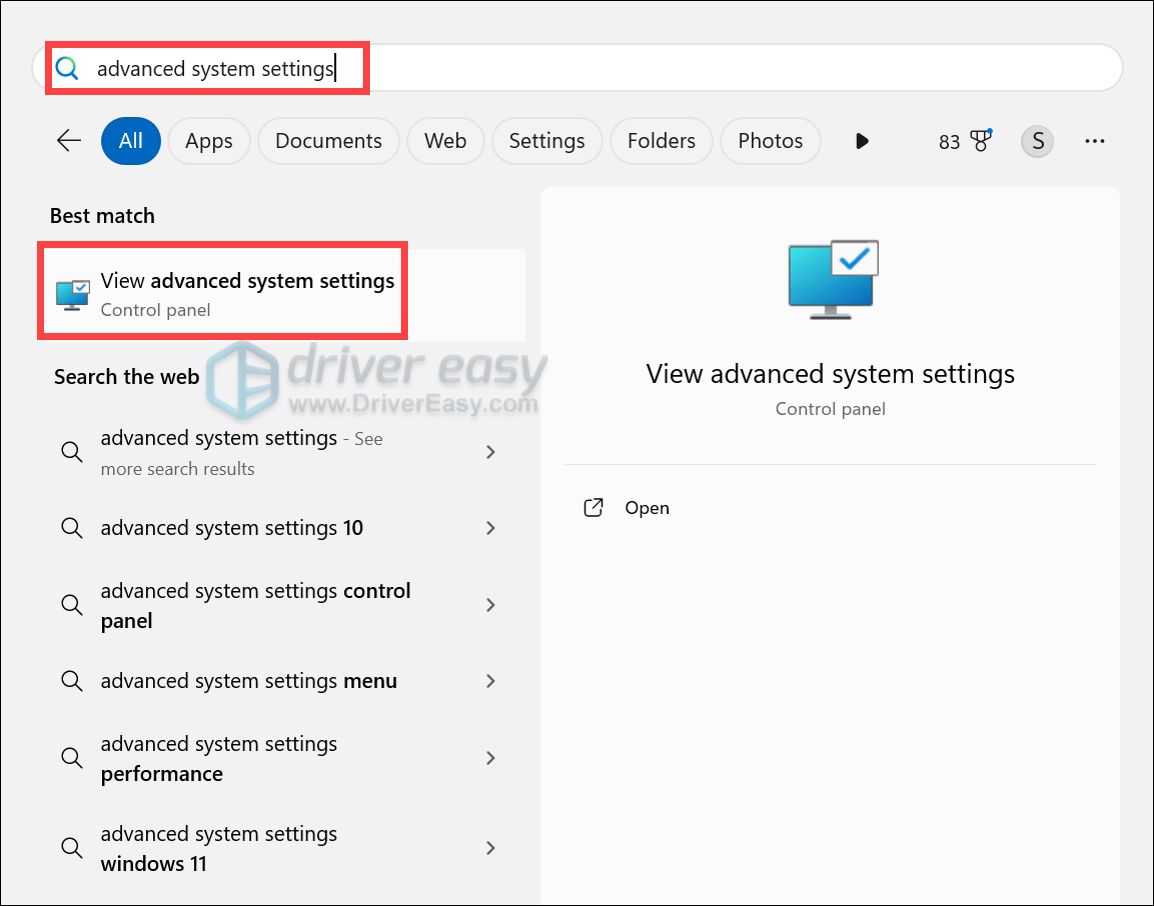
Select the Advanced tab. Under the Performance section, click on Settings….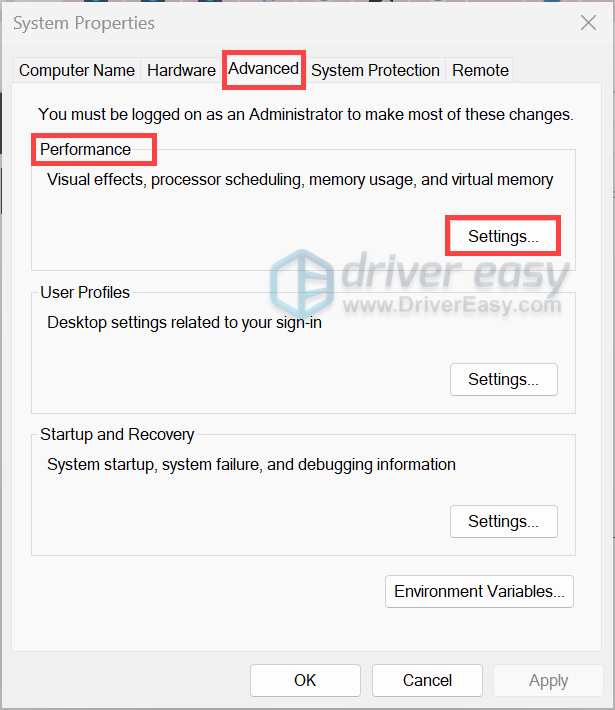
Uncheck the box labeled Automatically manage paging file size for all drives. Select the drive where your operating system is installed (usually C:). Tick the option Custom size, then enter an Initial size (MB) and a Maximum size (MB). The paging file should be a minimum of 1.5 times the size of your installed RAM, and a maximum of 3 times your RAM size.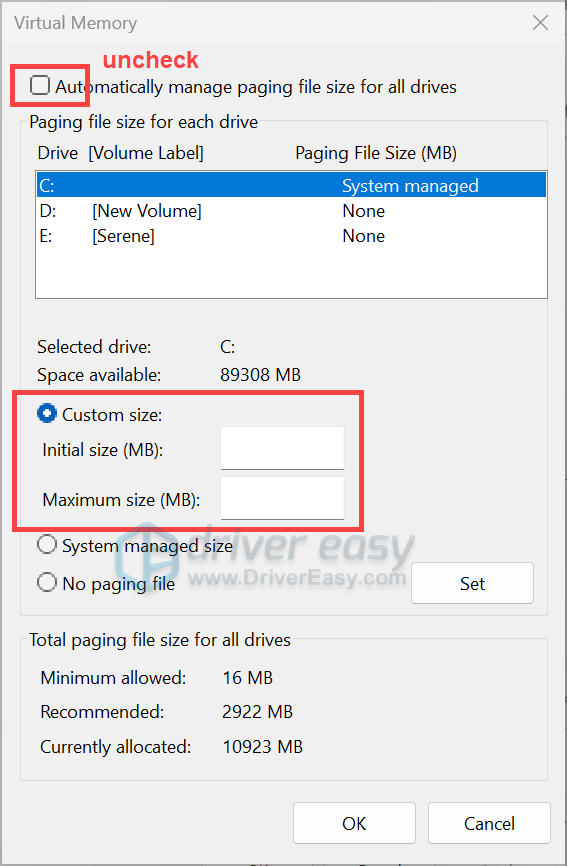
After making these changes, restart your PC. Then follow the steps below to confirm that Illustrator is using a fast SSD with plenty of free space. - Press Windows logo key + E to open the File Explorer, then look under This PC to see how much free space the drive which Illustrator uses as a scratch disk has. Ideally, keep at least 50% free space for your scratch disk. Users posted on forums that having ample free internal scratch disk space is going to speed you up significantly.
If your scratch disk is nearly full, Illustrator may crash. So make sure this scratch disk is a fast SSD with several gigabytes of free space. You can change the machine by navigating to Illustrator Preference > Plug-ins & Scratch Disk. In the Primary and Secondary lists, choose disks with enough space.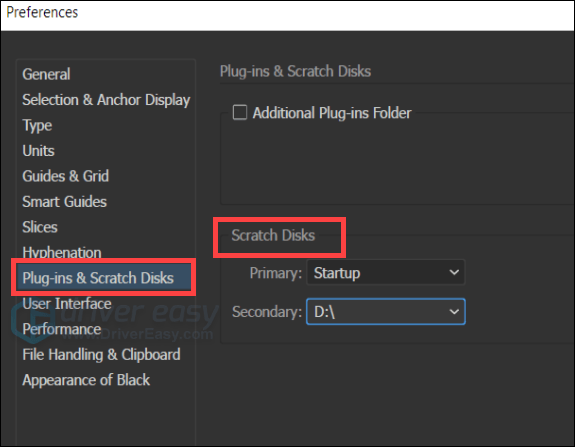
If you’re still experiencing crashes or want long-term stability, consider adding physical RAM or upgrading your hardware. If you’re not comfortable tinkering with computer components, it’s best to ask a technician for help.