






Many Windows users playing PEAK have experienced abrupt crashes, whether shortly after a campfire, during entry into the Tropics biome, or without warning on startup. If you’re in the same boat, don’t worry. The root causes can vary, but this guide walks you through proven, community-verified strategies to restore stability and bring your PEAK experience crashing to an end.
Try These Fixes
You may not need to try them all; simply work your way down the list until you find the one that works for you.
- Run the Game in DirectX12
- Update Graphics Driver
- Update Windows
- Verify Integrity of Game Files
- Disable Steam Overlay
- Run the Game as Administrator
- Run the Game on the Dedicated GPU
- Reset Display Settings via Registry

1. Run the Game in DirectX12
Many users confirm that forcing PEAK to use DirectX 12 improves stability. Rendering APIs like Vulkan can be prone to instability in certain builds or hardware combinations, especially during intense early-game scenes. In contrast, DX12 offers more consistent performance across a wider range of Windows setups and graphics configurations.
To run PEAK using DX12:
- Click the PLAY button. When a prompt appears at launch, select Play PEAK using DX12.
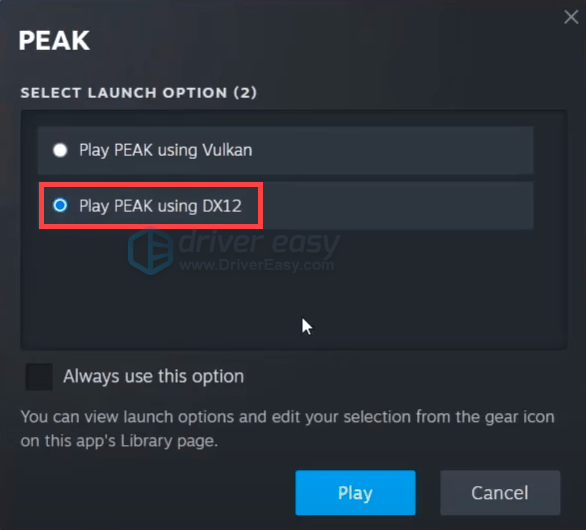
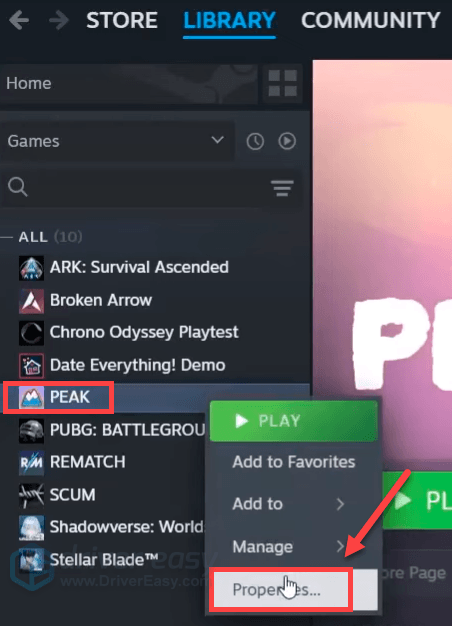
You can also check the box next to Always use this option. Then click Play. If you’re still having constant crashes, you can force PEAK to run on DX12 by modifying the launch option. Follow the steps below. - Right-click PEAK, and select Properties.
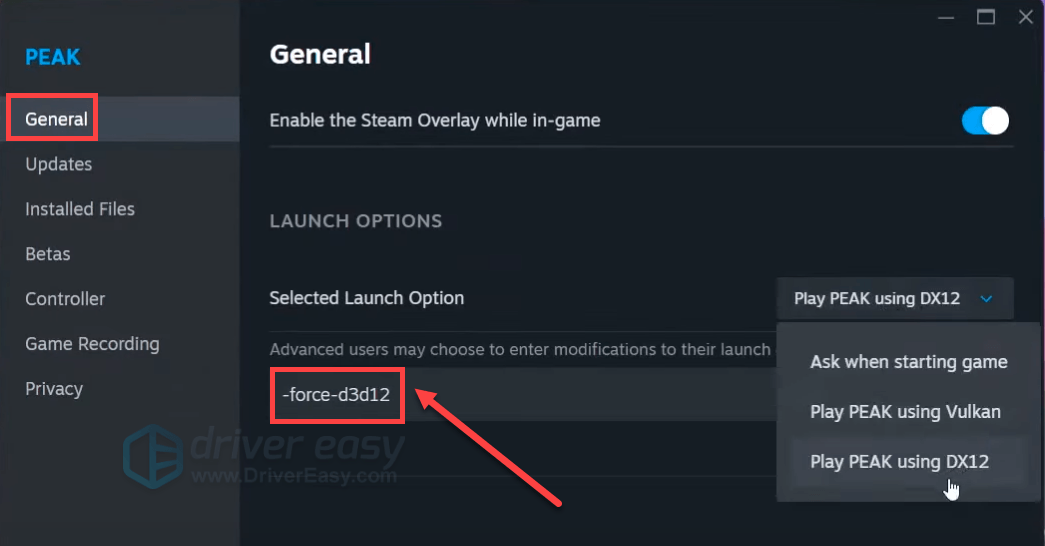
- In the General tab, locate the LAUNCH OPTIONS section, and type or paste the command line -force-d3d13 into the text field.
- Close the window and test your gameplay. If the crashes still happen to you, try other fixes below.
2. Update Graphics Driver
A fully up-to-date graphics driver can dramatically reduce crashes, black screens, or sudden shutdowns when playing PEAK. The game’s performance relies on stable rendering support, which may break if your GPU driver is outdated, missing essential optimizations, or incompatible with new game patches or Windows updates. Ensuring your driver is current helps stabilize graphics rendering, especially during demanding gameplay moments.
You can manually update your graphics driver by visiting the official support page for your GPU manufacturer, either NVIDIA or AMD, and download the latest compatible driver for your graphics card model and operating system.
However, manually updating drivers can be tedious, especially if you’re not tech-savvy. For hassle-free updates, try Driver Easy, a powerful tool that scans your system for outdated or missing drivers, then downloads and installs the latest versions automatically. All drivers are verified, sourced directly from manufacturers, and 100% safe. You can even choose specific versions to install or roll back problematic updates with a single click.
- Download and install Driver Easy.
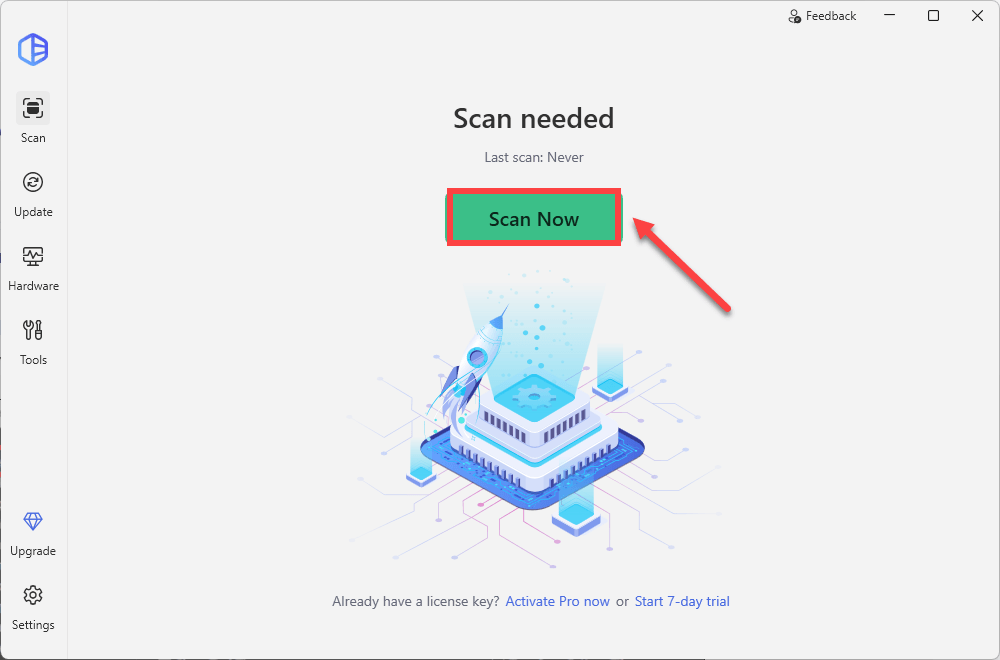
- Run Driver Easy and click the Scan Now button. Driver Easy will then scan your computer and detect any problem drivers.
- Check if your graphics driver is flagged in the scan results. If it is, click Activate & Update to start a 7-day free trial or upgrade to Driver Easy Pro. Either option will automatically download and install the latest drivers for you.
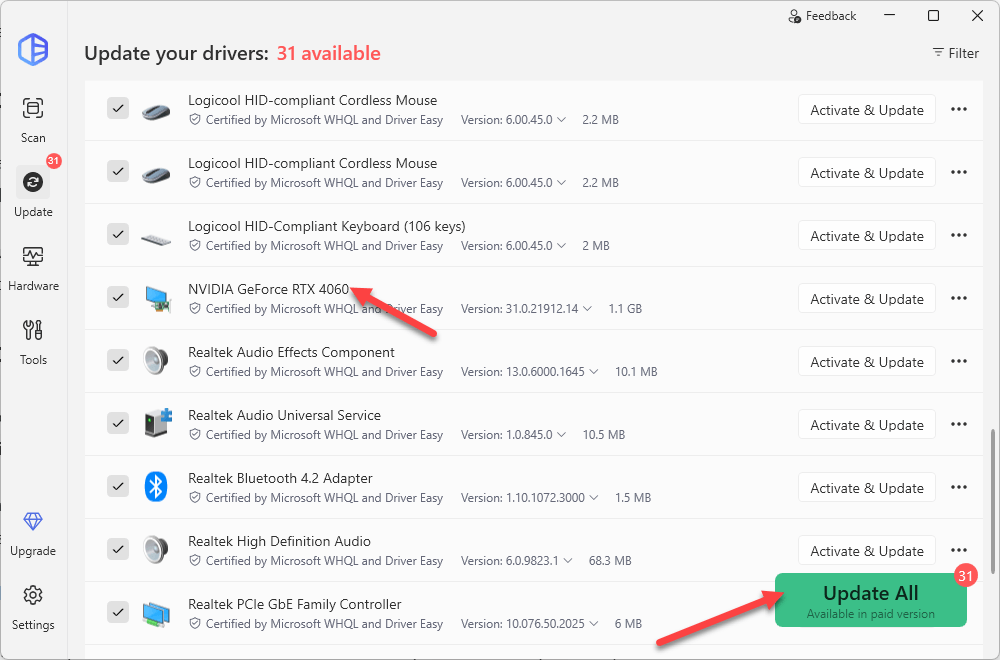
- Restart your computer for the changes to take effect. If you need any assistance while using Driver Easy, feel free to contact our support team at support@drivereasy.com.
- Check if you can start the game. If it still crashes, try the next fix below.
3. Update Windows
Keeping your Windows operating system up to date is essential for maintaining system stability and compatibility with applications like PEAK. Outdated system files can lead to conflicts, resulting in game crashes or performance issues. To troubleshoot your issues, ensure that all Windows updates are installed.
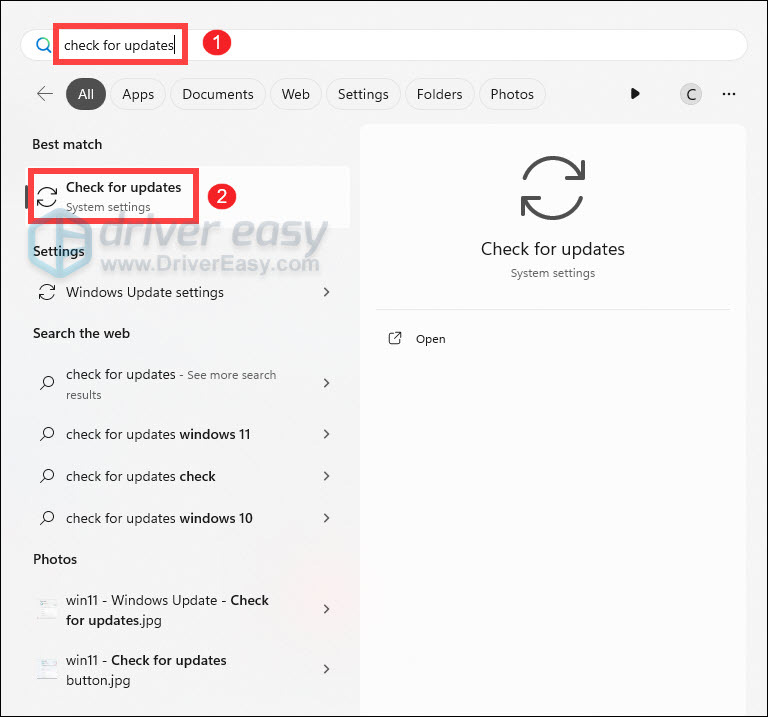
- Press the Windows logo key to invoke Search, type check for updates, then click Check for updates from the list of results.
- If you’re told that “Updates available to install”, simply click on the Install all button.
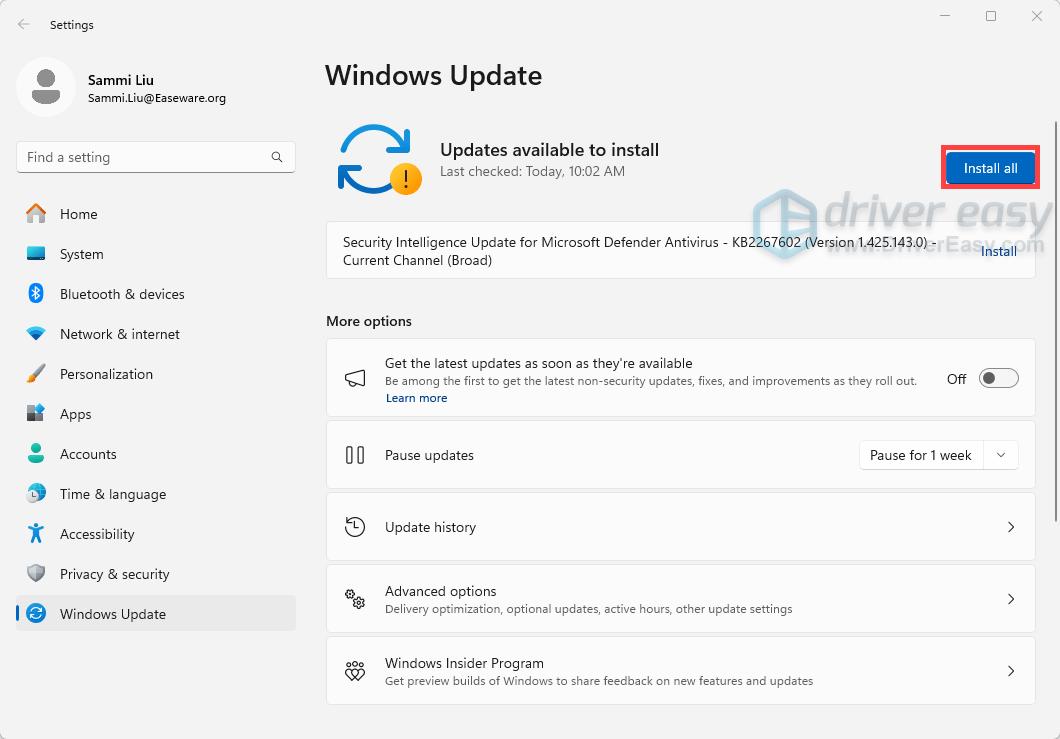
Or you can click on the button Check for updates to see if there are updates available. - Then follow the on-screen instructions to download and install the latest Windows updates. You should be prompted to restart your device upon completion. If your issue persists after installing all the updates, try the next fix below.
4. Verify Integrity of Game Files
Corrupted or missing game files are a common culprit behind errors or crashes in PEAK. When game files become damaged, the game may struggle to run properly. Fortunately, verifying the integrity of game files is a straightforward process that can help identify and repair these issues.
- From the LIBRARY, right-click your game and select Properties.
- Select the Installed Files tab on the left, then click the Verify integrity of game files button.
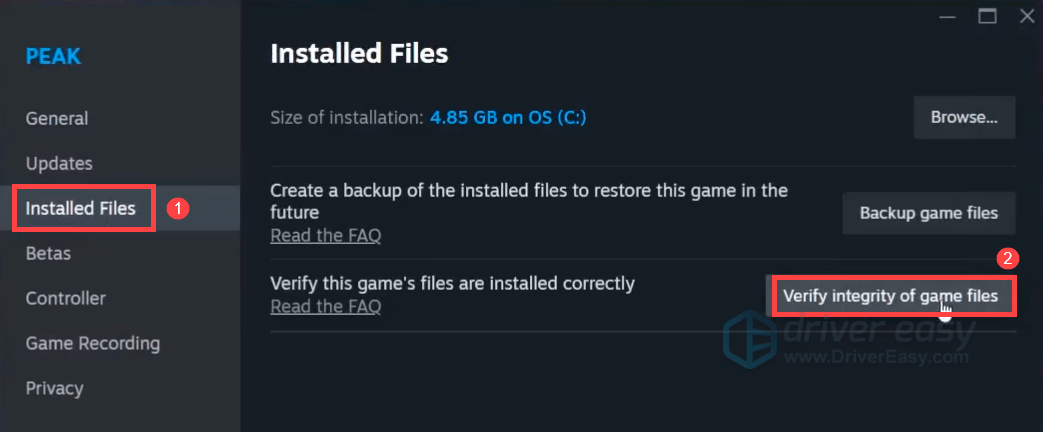
- Steam will verify the game’s files, and this process may take several minutes. Once done, relaunch Steam and your game to check if your problem has been solved. If the error persists, proceed to the next fix below.
5. Disable Steam Overlay
Occasionally, the Steam in‑game overlay can interfere with graphics rendering or game stability, leading to crashes, freezes, or even GPU driver errors. Disabling it can eliminate these conflicts.
- From the LIBRARY, right-click your game and select Properties.
- In the General tab, uncheck Enable the Steam Overlay while in-game.
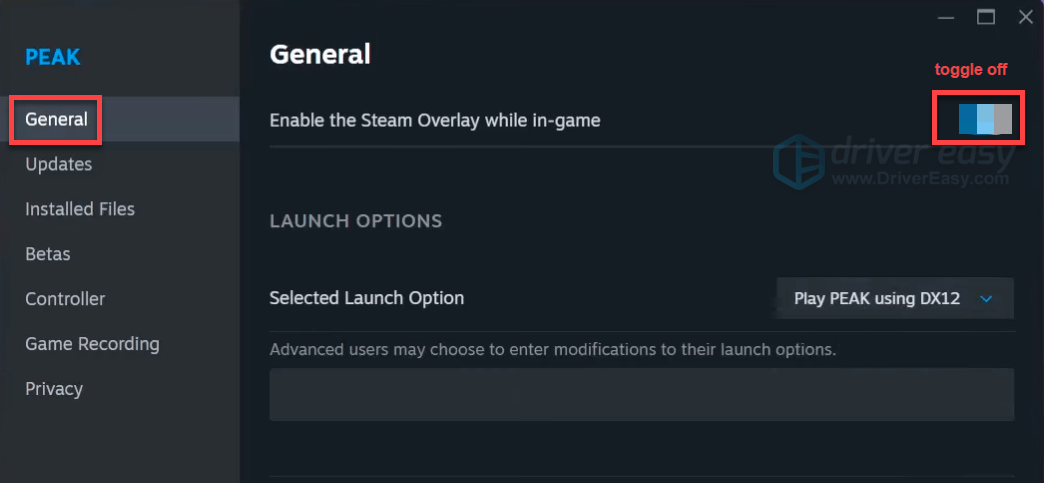
- Relaunch Steam and your game. If your issue persists, move on to the next fix below.
6. Run the Game as Administrator
Launching PEAK with administrator privileges can resolve crashes caused by insufficient file or system access, particularly if the game is unable to modify config files, save shaders, or access GPU resources. This is a simple but effective workaround when facing sudden exits, or crashes at launch.
- From the LIBRARY, right-click your game and select Manage > Browse local files. You’ll be navigated to the game’s installation folder.
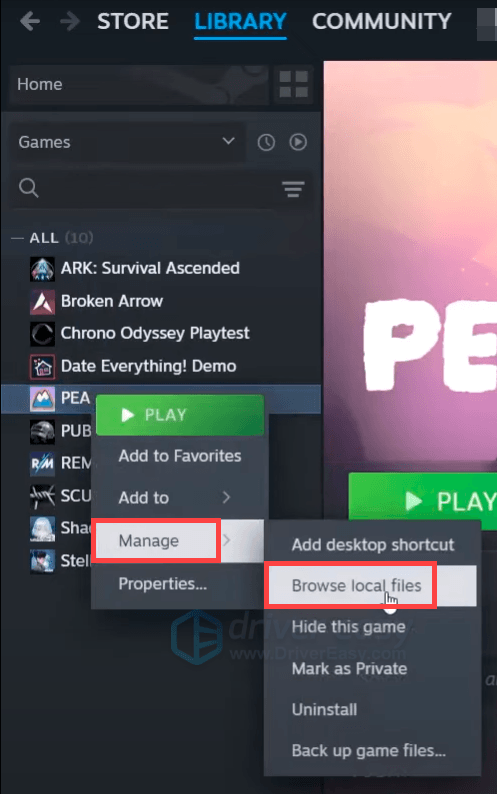
- Right-click PEAK.exe, choose Properties.
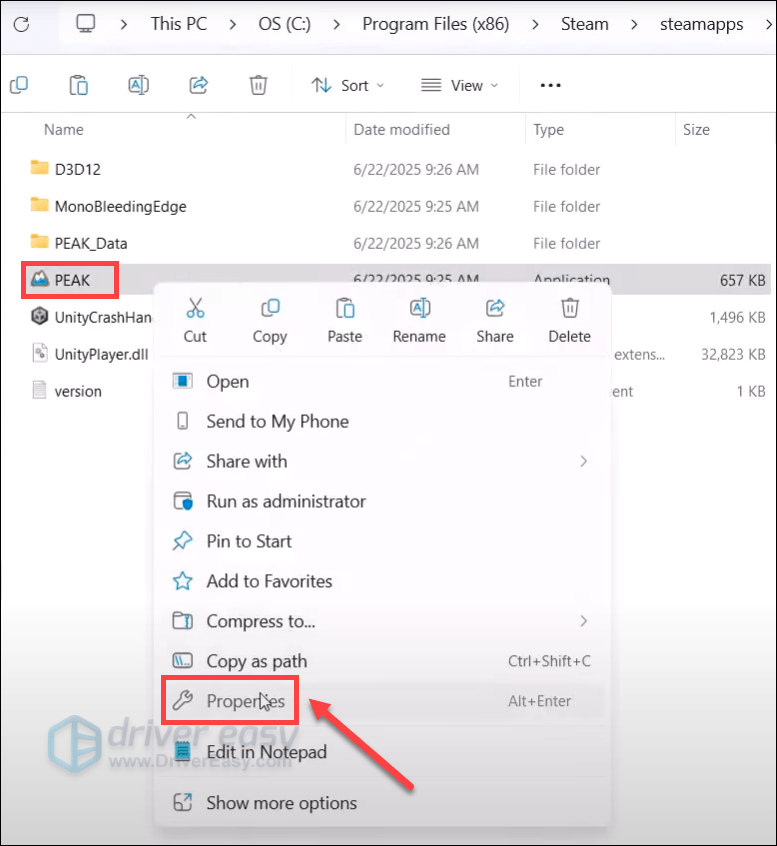
- Open the Compatibility tab. Check Run this program as an administrator and click Apply > OK.
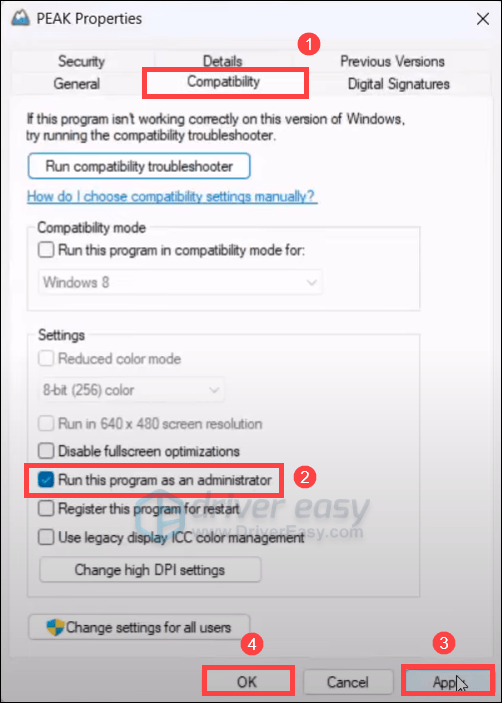
- Launch the game normally via Steam and it should start in the admin mode. The game still constantly crashes? No frets! Below are some other fixes you can try.
7. Run the Game on the Dedicated GPU
For systems with both integrated and dedicated graphics, forcing PEAK to use the dedicated GPU ensures maximum performance and helps prevent crashes caused by rendering fallback to the weaker integrated GPU, especially during graphically demanding scenes or biomes.
How to Check if Your PC Has Both Integrated and Dedicated Graphics
- Press Ctrl + Shift + Esc to open the Task Manager.
- Go to the Performance tab and look for GPU 0 and GPU 1 entries, which indicate multiple graphics adapters.
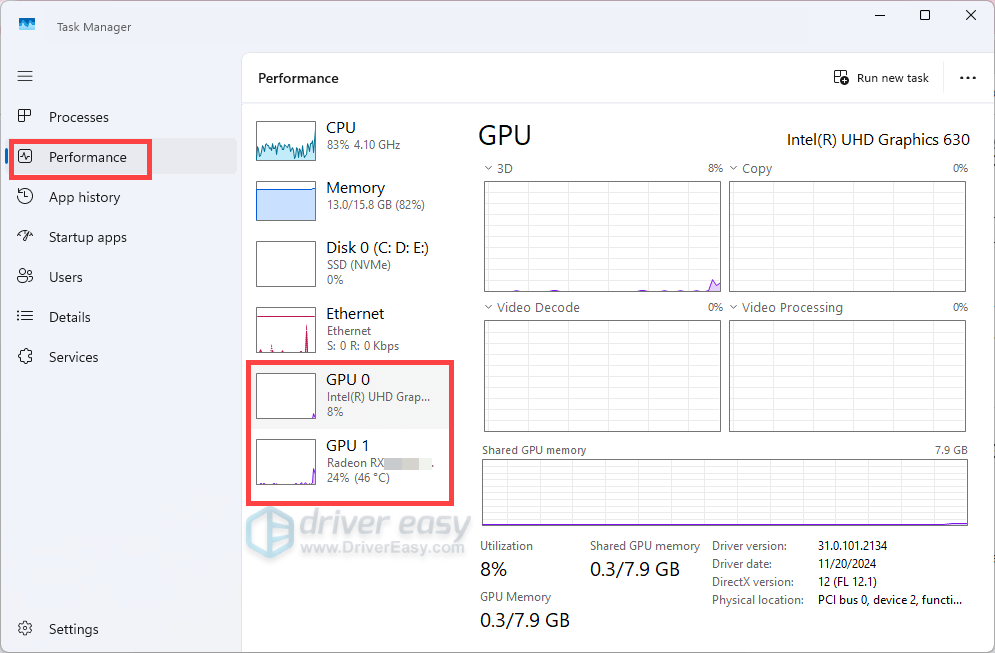
- If you see two GPUS, one integrated (e.g. “Intel HD Graphics”, “AMD Vega 8”) and one dedicated (e.g. “NVIDIA RTX 4060 Ti”, “AMD Radeon RX 6600”), your system supports switchable graphics and is likely defaulting to the less powerful option.
Assign PEAK to the Dedicated GPU
After you’ve confirmed that you have both integrated and dedicated graphics, take the steps below to make sure your game is using the dedicated GPU:
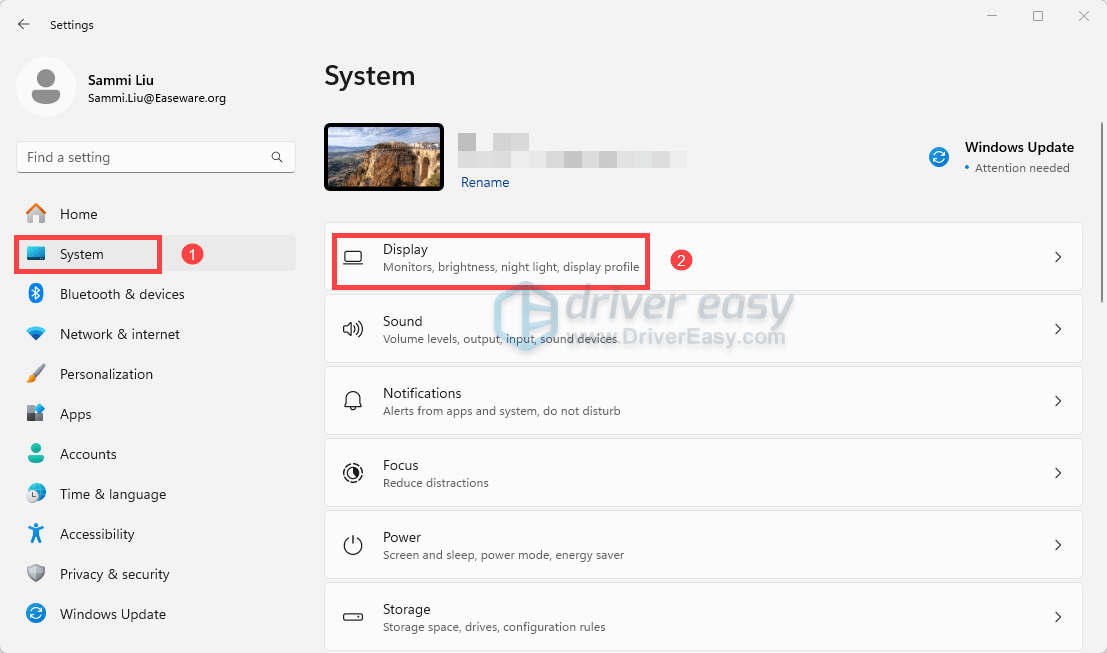
- Press Win + I to open Settings.
- Go to System > Display.
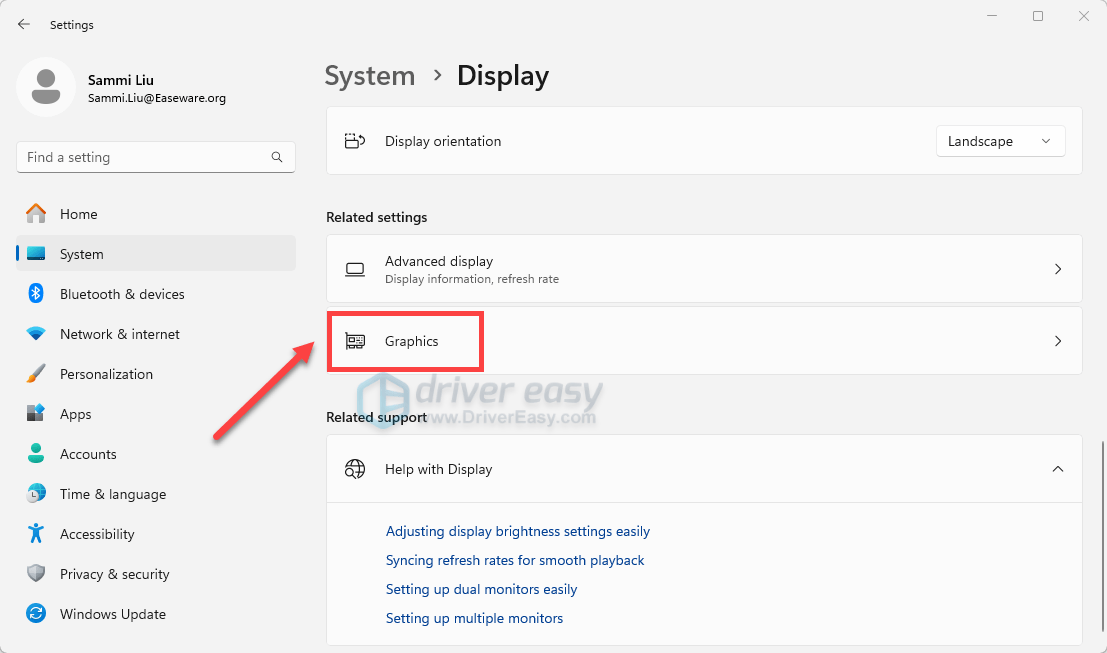
- Click Graphics.
- Click on the Add desktop app button.
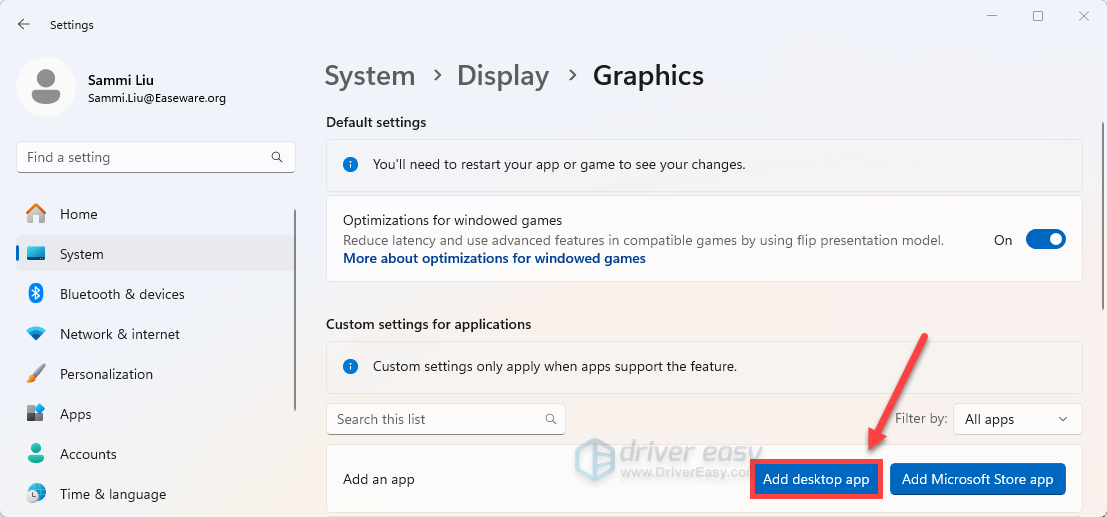
- Head to the game’s installation folder and add PEAK.exe to the list.
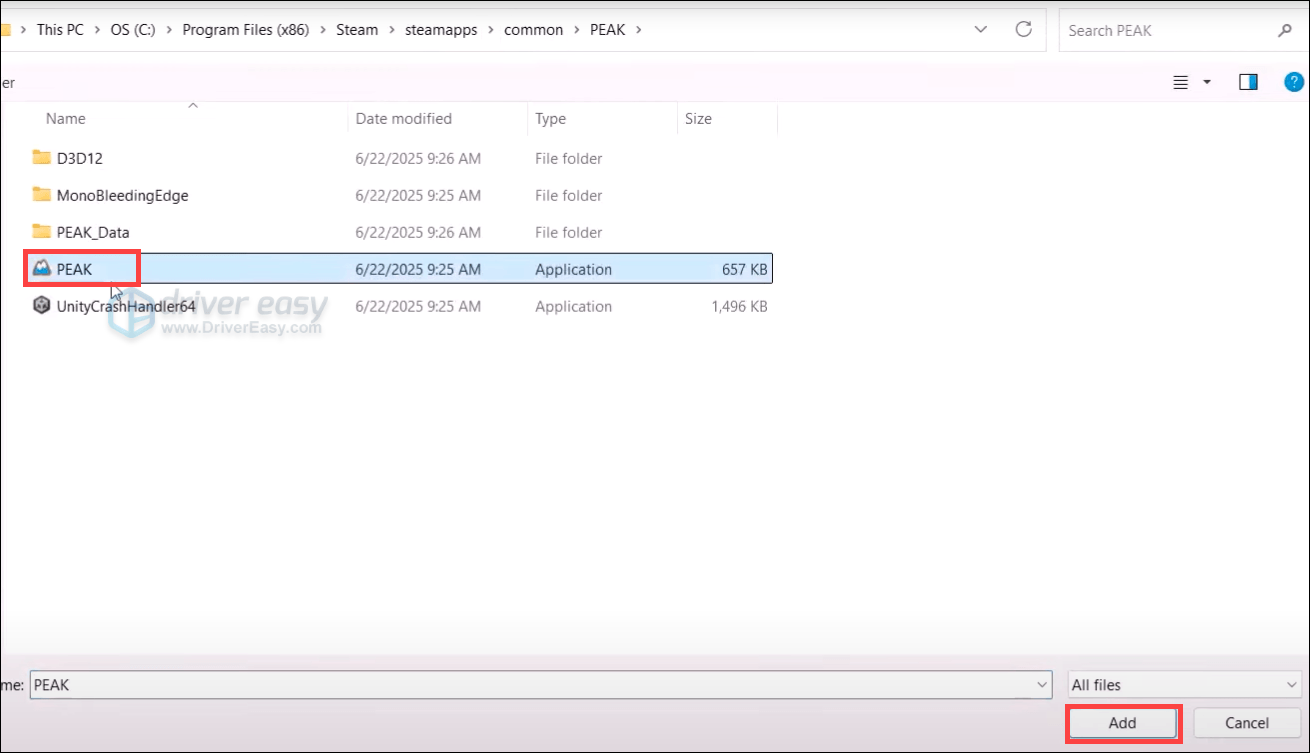
- Select High performance to designate the dedicated GPU and save the changes.
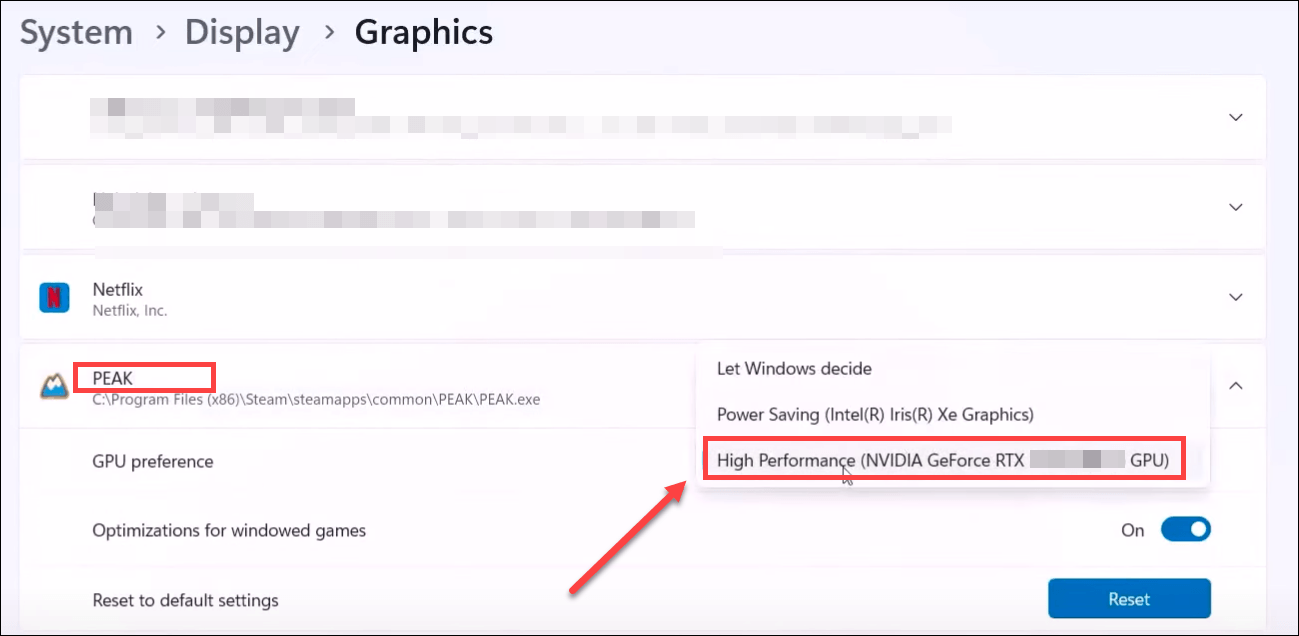
- After applying the changes, restart your PC and launch PEAK to test whether performance has improved. If issues persist, proceed to the next fix below.
8. Reset Display Settings via Registry
If PEAK crashes immediately on launch or shows persistent resolution crashes, the game’s saved display settings could be corrupted. Resetting them via the registry often restores proper display configuration and allows the game to launch successfully.
(Note that this action removes all saved displayed settings, such as resolution, and fullscreen mode. )
- Press Win + R, type regedit, and press Enter to open the Registry Editor.
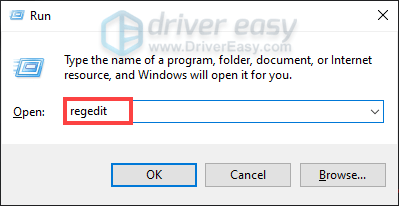
- Navigate to:
Computer\HKEY_CURRENT_USER\SOFTWARE\Landcrab\PEAK - Within that folder, delete all entries whose names begin with Screenmanager.
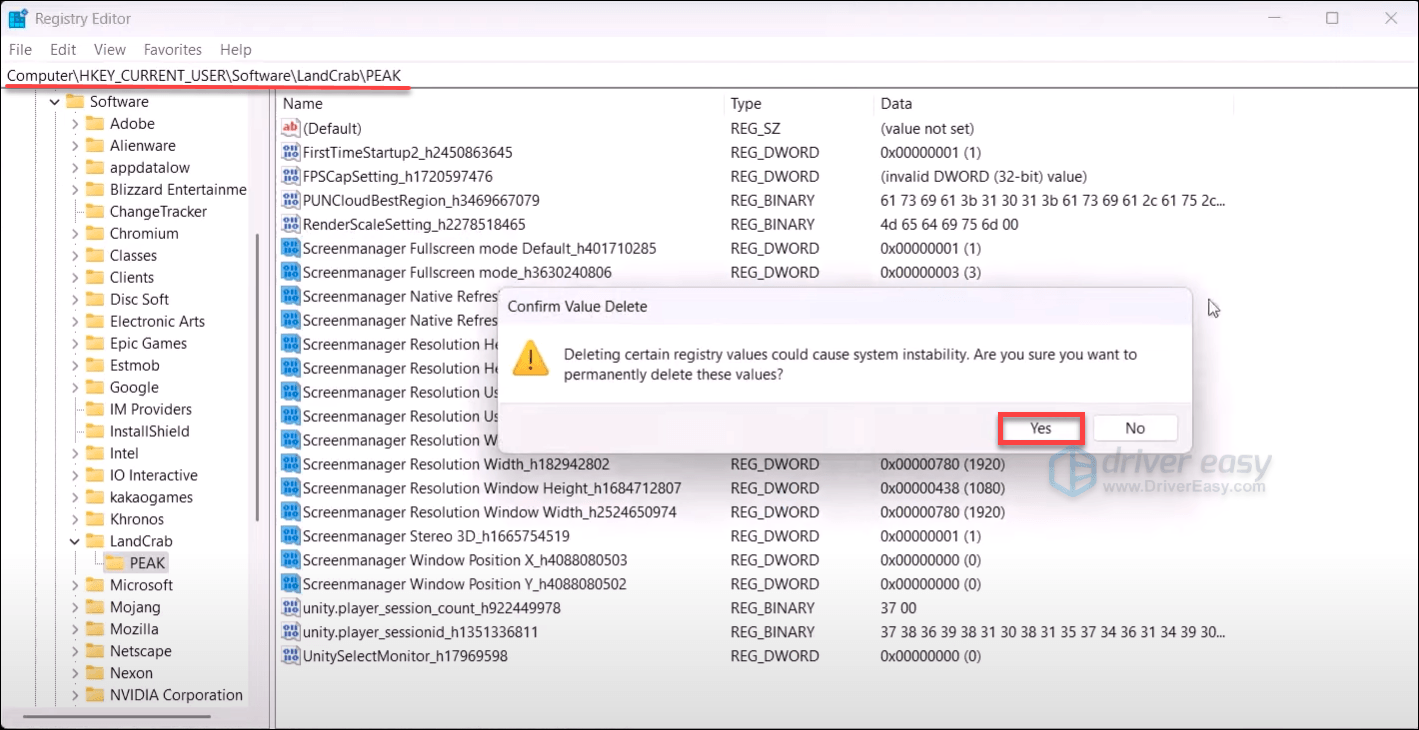
- Close Registry Editor, then restart Steam and your PC.
- Launch PEAK, and fresh default display settings will be applied.
This wraps up our comprehensive guide on resolving the PEAK game crashing issue. We hope you found it helpful. If you need further assistance or have additional questions, feel free to leave a comment below.
To help us assist you more effectively, please include the following information in your comment:
- System Specifications: Such as your GPU model and operating system version.
- Troubleshooting Steps Already Taken: Any solutions you’ve attempted so far.
- Specific Scenarios: When and where the issues occur (e.g., at startup).
Providing these details will enable us and the community to offer more accurate and tailored support.