






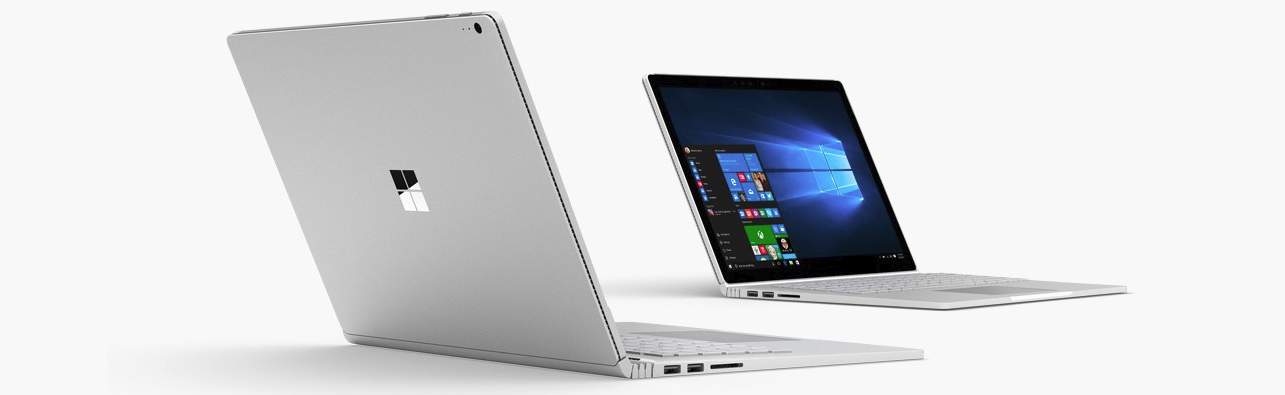
Solution 1: Update your Surface camera driver
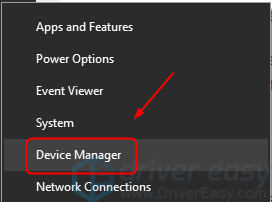
This problem could be caused by an old or incorrect camera driver on your Surface. You can solve it through updating your camera driver. Follow these: 1) On your keyboard, press the Windows logo key and X at the same time to open the quick-access menu.
2) Click Device Manager.
and X at the same time to open the quick-access menu.
2) Click Device Manager.
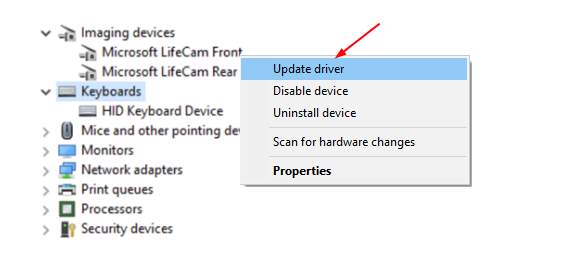
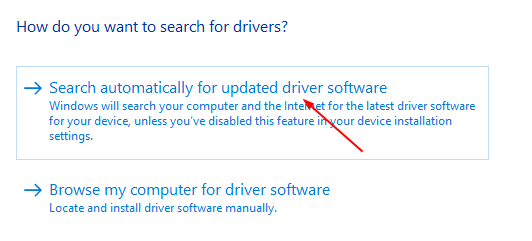 5) Windows should then detect the update for your camera. Follow the on-screen instructions to finish the update.
IMPORTANT: For some reasons, sometime Microsoft cannot detect the update for you. Instead, you can download the latest drivers from the official Microsoft website.
Or
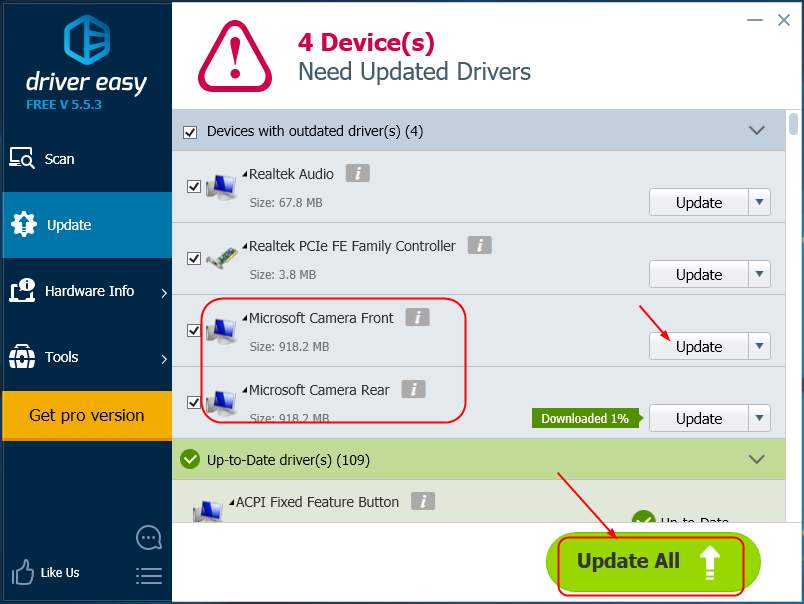
If you’re not confident playing around with drivers manually, you can do it automatically with Driver Easy.
It’s a tool that detects, downloads and (if you go Pro) installs any driver updates your computer needs.
To update your drivers with Driver Easy, just click the Scan Now button, then when it lists the drivers you need to update, click Update. The correct drivers will be downloaded, and you can install them – either manually through Windows or all automatically with Driver Easy Pro.
5) Windows should then detect the update for your camera. Follow the on-screen instructions to finish the update.
IMPORTANT: For some reasons, sometime Microsoft cannot detect the update for you. Instead, you can download the latest drivers from the official Microsoft website.
Or
If you’re not confident playing around with drivers manually, you can do it automatically with Driver Easy.
It’s a tool that detects, downloads and (if you go Pro) installs any driver updates your computer needs.
To update your drivers with Driver Easy, just click the Scan Now button, then when it lists the drivers you need to update, click Update. The correct drivers will be downloaded, and you can install them – either manually through Windows or all automatically with Driver Easy Pro.
Solution 2: Update your Surface camera app in Microsoft Store
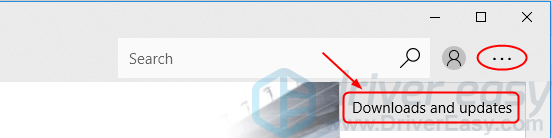
This problem could also be caused by the bug of your Surface camera. You can solve it through updating your camera app in Microsoft Store. Follow these: 1) Type store in the search box and click Store from the top.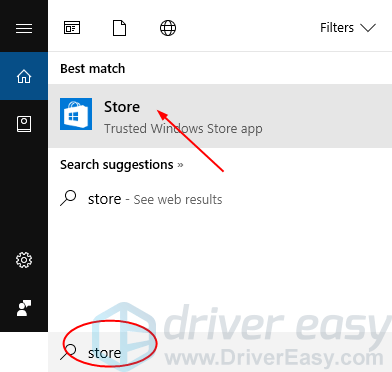


28
28 people found this helpful
5 Comments
Most Voted
