






You’re in the middle of a game or a creative app, and suddenly:
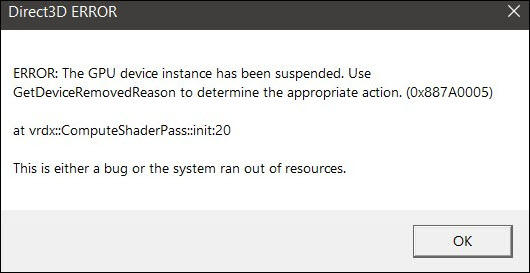
- “Direct3D ERROR: The GPU device instance has been suspended. Use GetDeviceRemovedReason to determine the appropriate action. (0x887A0005)”
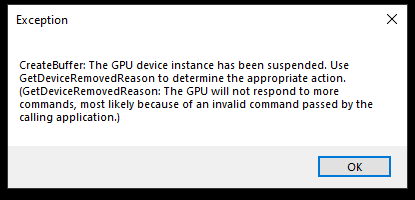
- “Exception CreateBuffer: The GPU device instance has been suspended. Use GetDeviceRemovedReason… (most likely because of an invalid command passed by the application.)”
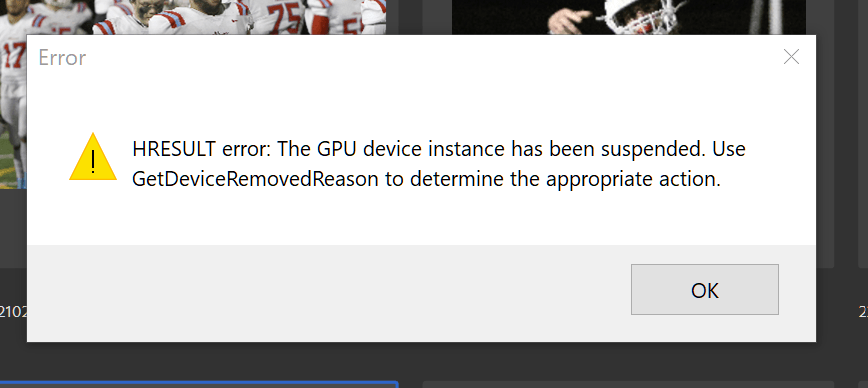
- “HRESULT error: The GPU device instance has been suspended. Use GetDeviceRemovedReason…”
Sound familiar? You’re definitely not alone. It crops up in games like Path of Exile, Shadow of War, Bannerlord, as well as in rendering software and other 3D apps. In this article, we’ll walk you through what causes it and how you can fix it step by step.
Table of contents
What Triggers the Error
Windows monitors GPU responsiveness using a system called Timeout Detection and Recovery (TDR). If the GPU fails to respond within 2 seconds, Windows attempts to reset the display/graphics driver. If that reset fails, the system suspends GPU activity and prompts users with errors like 0x887A0005. This can usually be caused by the following factors:
- Heavy scenes or shader operations in games.
- Outdated or corrupted GPU driver.
- Overclocked GPUs. Even factory-overclocked cards can be causing crashes. Reverting to stock helps stabilize performance.
- Overheating. GPU temperatures above 80℃ frequently can cause hangs and driver failures.
- Software bugs or invalid GPU commands in apps or rendering tools.
How to Solve the Issue
After having a basic understanding of the underlying causes, you can try the fixes below to troubleshoot your issue:
1. Update or Roll Back Your GPU Driver
A faulty or outdated graphics driver often lies at the heart of the “GPU device instance has been suspended” (0x887A0005) crash. According to Microsoft support forums and gaming communities, this error is frequently linked to driver failures or incompatibilities, which cause the GPU to stall during rendering or memory allocation. Drivers may also crash during DirectX calls with errors like DXGI_ERROR_DEVICE_REMOVED, further causing GPU suspension. Updating ensures that you’re using a stable driver that better supports your hardware and applications.
You can go to your GPU manufacturer’s support page (NVIDIA, AMD, Intel), search for, download, and install the latest driver for your system. If manually finding the right driver seems confusing, Driver Easy can simplify it. It’s a driver updater tool that automatically detects any outdated driver on your system, then downloads, and installs the latest version for you.
- Download and install Driver Easy.
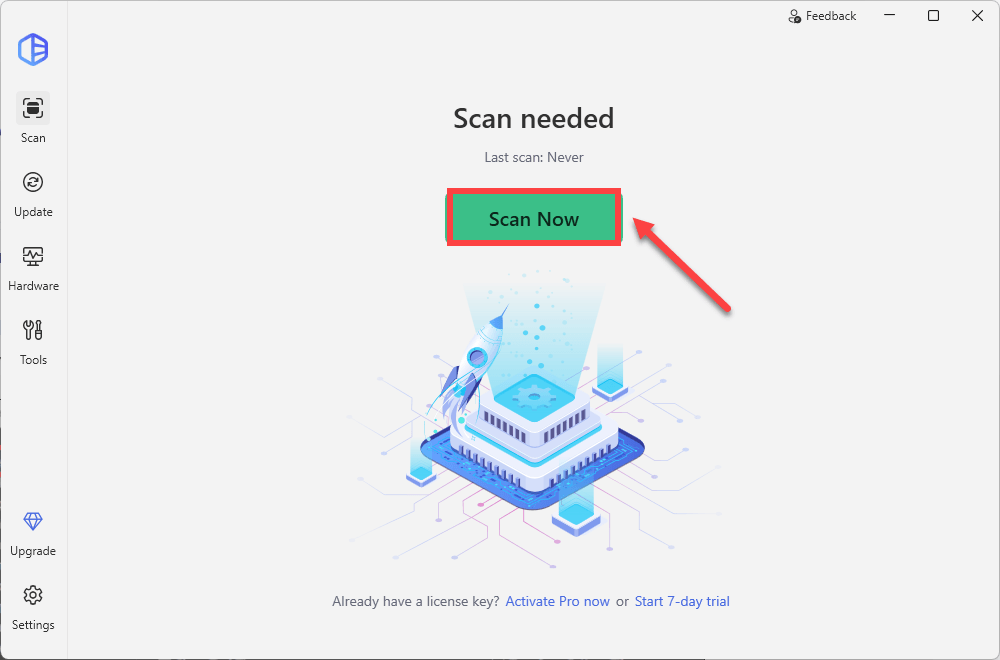
- Run Driver Easy and click the Scan Now button. Driver Easy will then scan your computer and detect any problem drivers.
- Click Activate & Update next to your flagged device to start a 7-day free trial or upgrade to Driver Easy Pro. Or you can click Update All to update all drivers. Either option will automatically download and install the latest drivers for you.
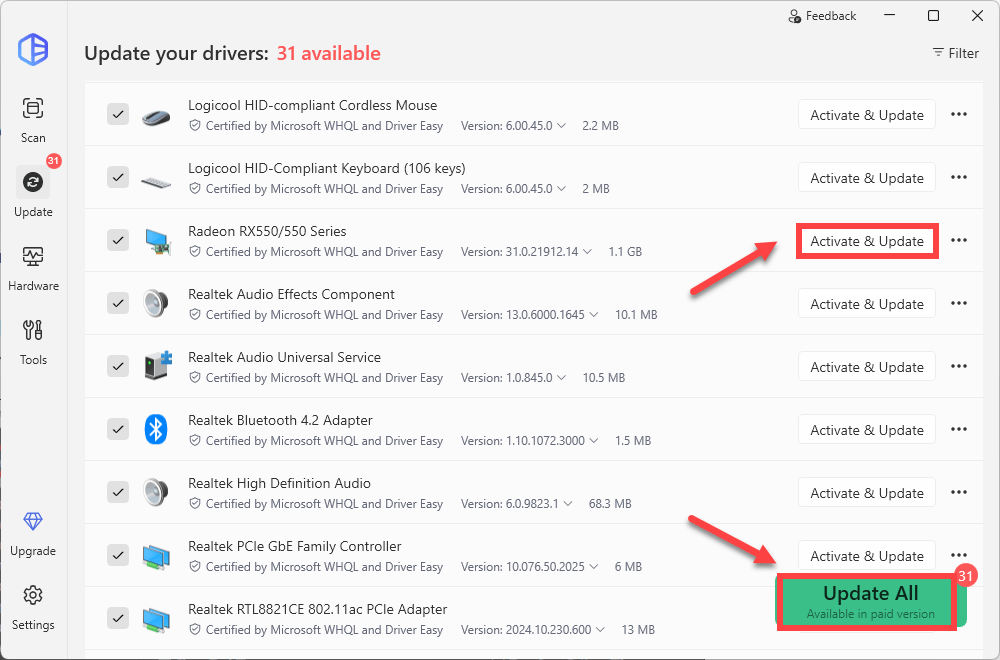
- Restart your computer for the changes to take effect. If you need any assistance while using Driver Easy, feel free to contact our support team at support@drivereasy.com.
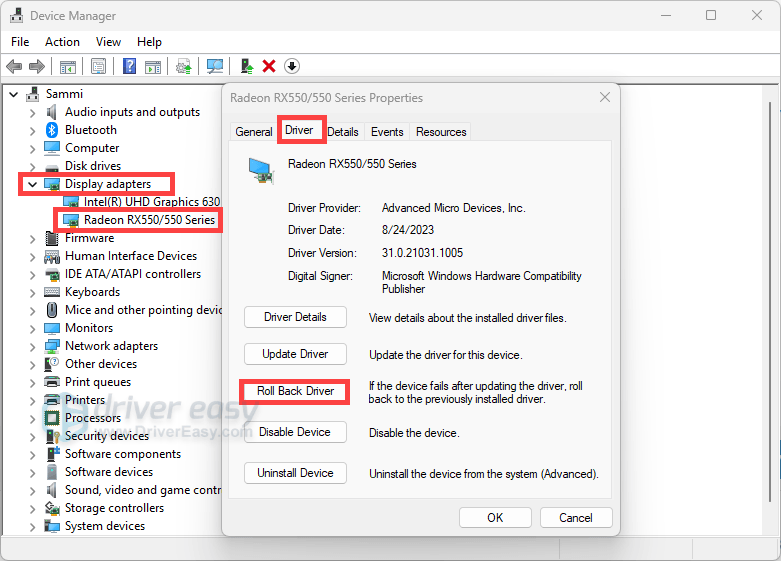
If the error begins after an update, rolling back may restore stability. Users also report immediate fixes by reverting to older versions. You can manually roll back via the Device Manager. Just Expand Display adapters, double-click on your GPU, click on the Driver tab, and click Roll Back Driver.
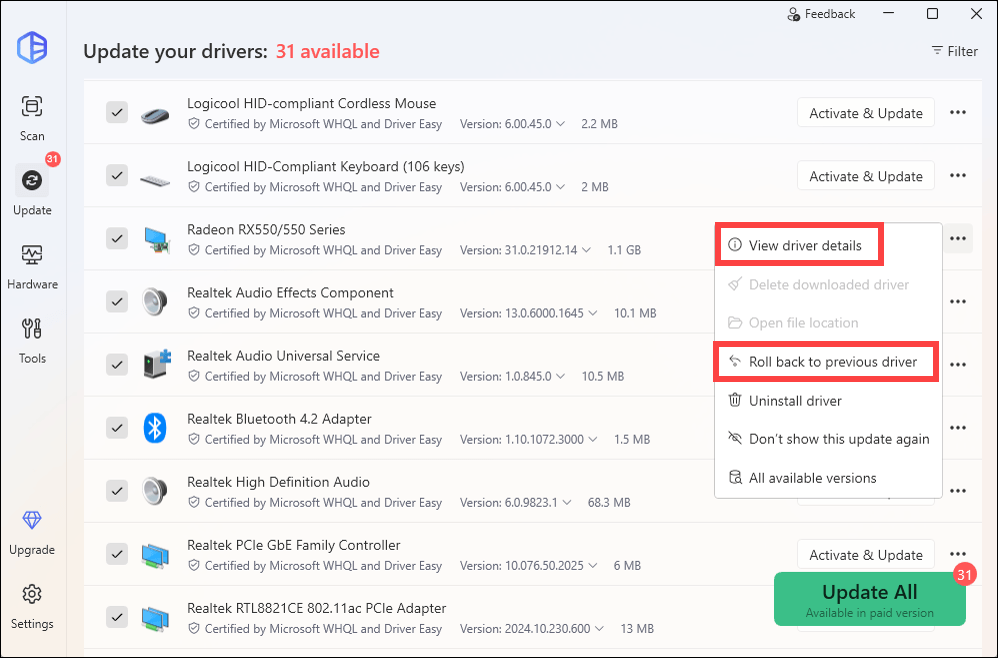
You can also roll back to a previous version from Driver Easy. To install a specific version, simply click on View driver details.
If you’re still having crashes with the error “The gpu device instance has been suspended”, move on to the next fix below.
2. Update Your Windows and DirectX
Keeping your Windows OS and DirectX components current is essential to avoid issues like the “GPU device instance has been suspended” error. Many times, outdated system libraries cause GPU hangs and crashes. Follow the steps below to download and install the updates.
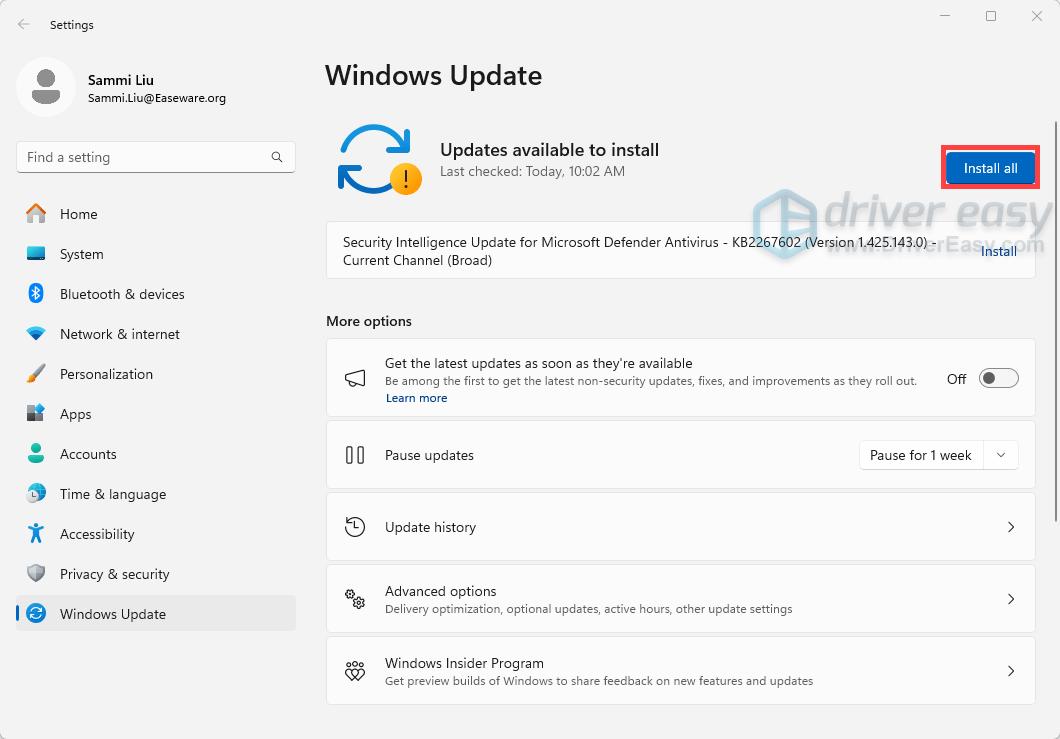
- Press the Windows logo key to invoke Search. Then type check for updates, and select it from the list of results.
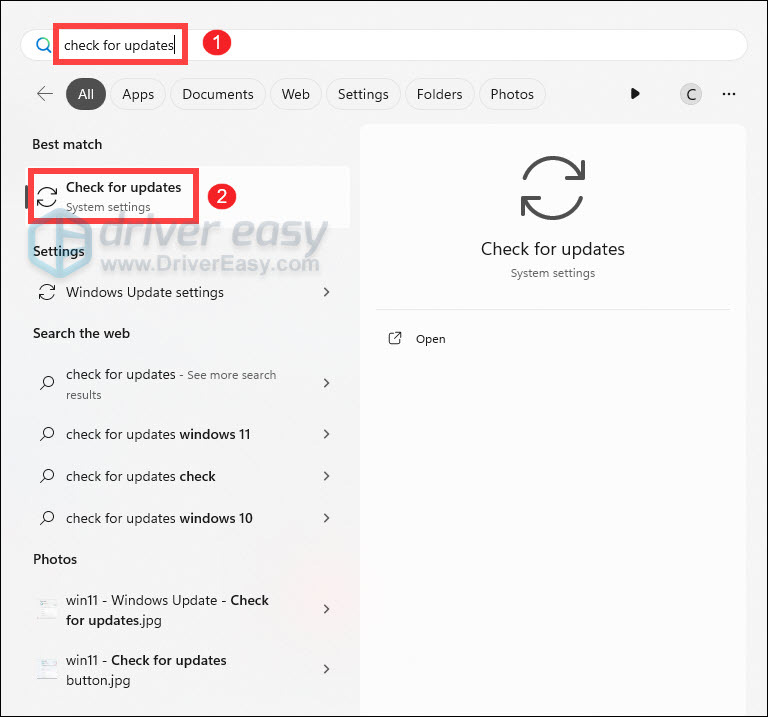
- If you’re told that “Updates available to install”, simply click on the Install all button.
Or you can click on the button Check for updates to see if there are updates available.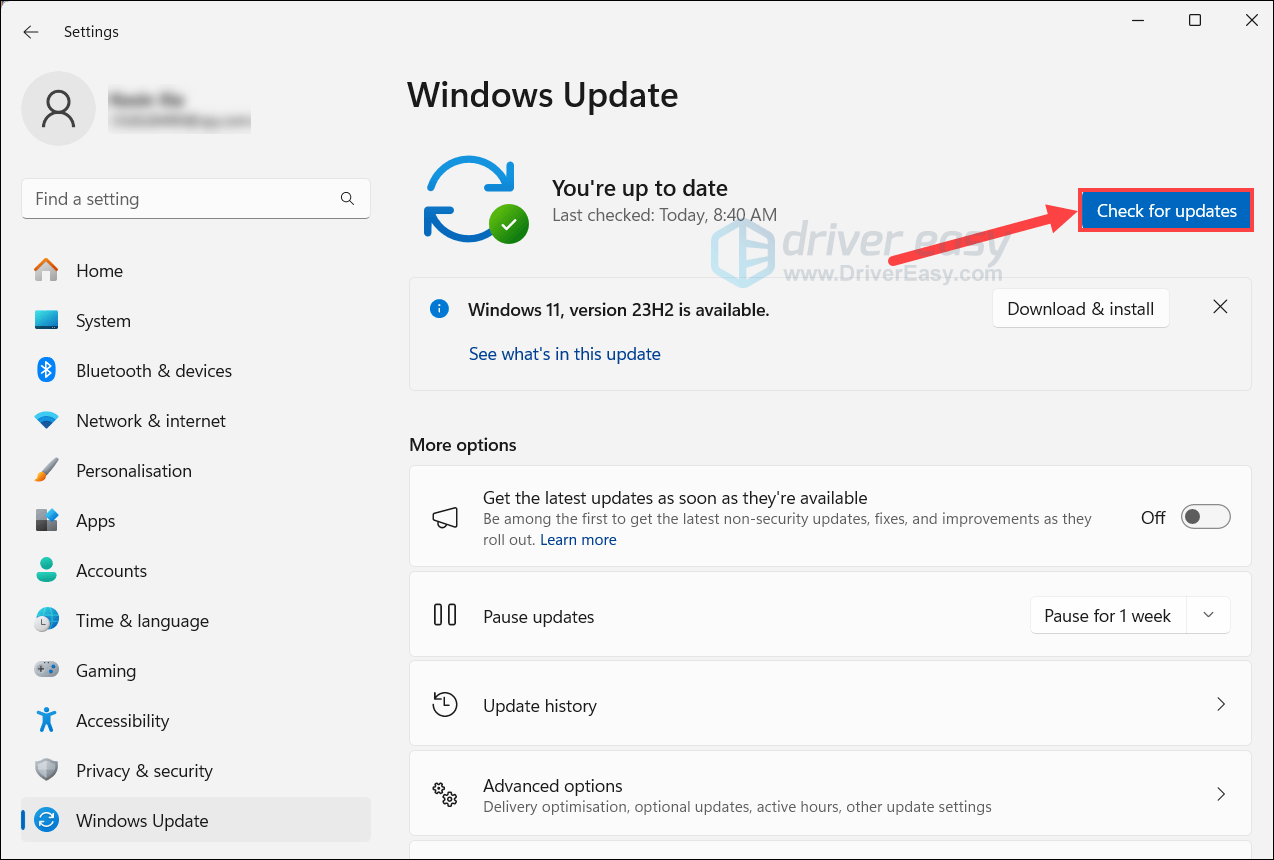
- Then follow the on-screen instructions to download and install the latest Windows updates. You should be prompted to restart your device upon completion. Till then, you can test if your issue has been resolved.
If you’ve already had the latest version but your problem persists, try the next fix below.
3. Extend the Timeout Detection and Recovery (TDR) Delay
The default 2-second allowance may be too short for heavy GPU tasks, triggering premature driver resets. You can manually extend it and see how it works.
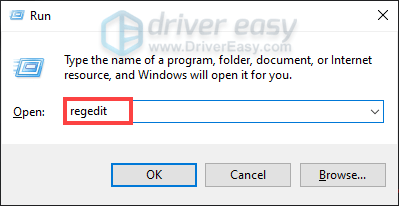
- Press the Windows + R keys at the same time to open the Run window.
- Type regedit in the text field and hit Enter to open the Registry Editor
- In the left pane, navigate in the tree to the GraphicsDrivers key by going into:
Computer\HKEY_LOCAL_MACHINE\SYSTEM\CurrentControlSet\Control\GraphicsDrivers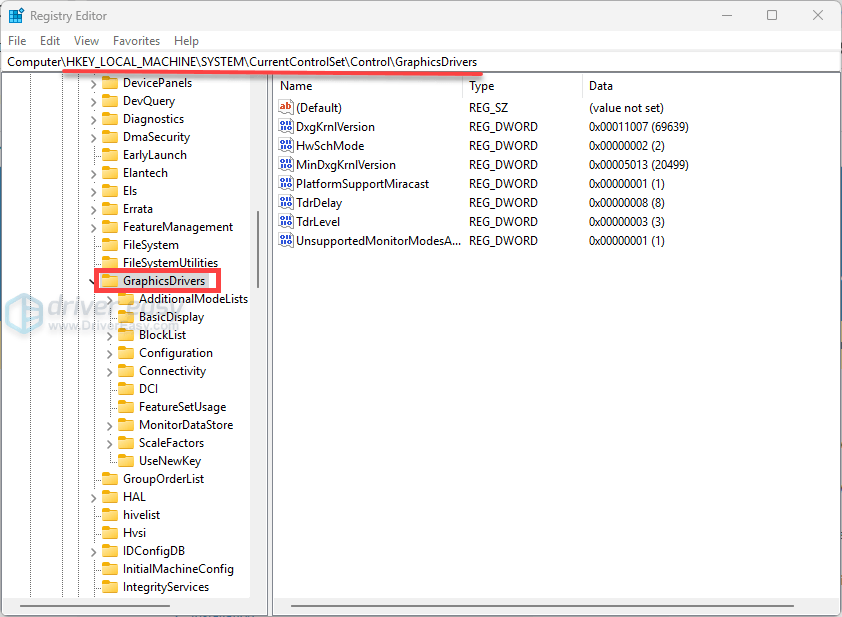
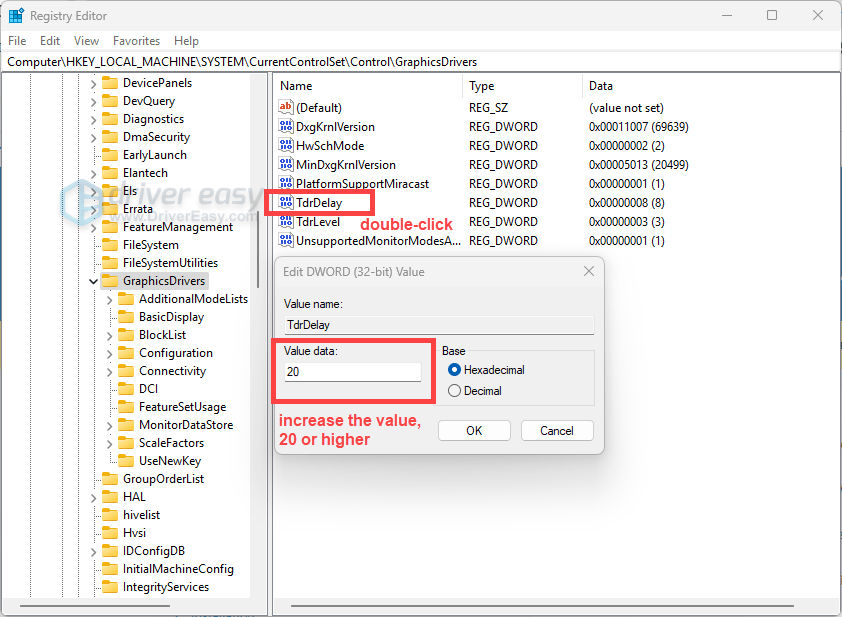
- If the TdrDelay key exists, double-click it and increase the value in the Value data field (such as 20 seconds or higher). Then click OK to save the changes.
If the TdrDelay key does not exist, click on an empty space on the right pane and select New > DWORD (32-bit) Value.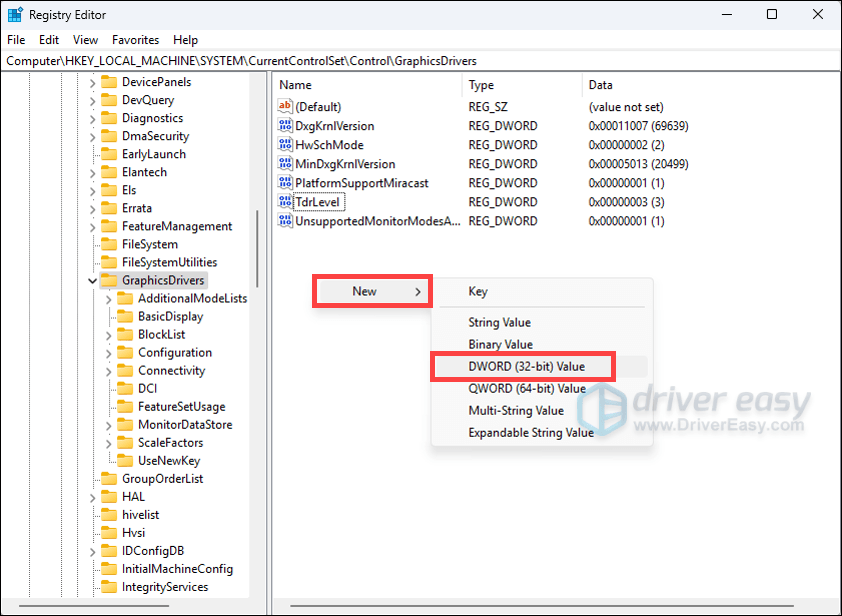
Name the key TdrDelay. Double-click the key and enter a desired value in the Value data field (such as 20 seconds or higher). Then click OK to save the changes. - Close the Registry Editor and restart your computer for the changes to take effect. Now check if your issue has been solved. If yes, congrats! If not, try the next fix below.
4. Repair Windows System File Using SFC
In most cases, running a system file repair via the System File Checker tool (SFC) is a painless step that can resolve the underlying cause of DirectX-related GPU suspension crashes. If you still experience issues after updating drivers and Windows, try to use the System File Checker tool to repair missing or corrupted system files:
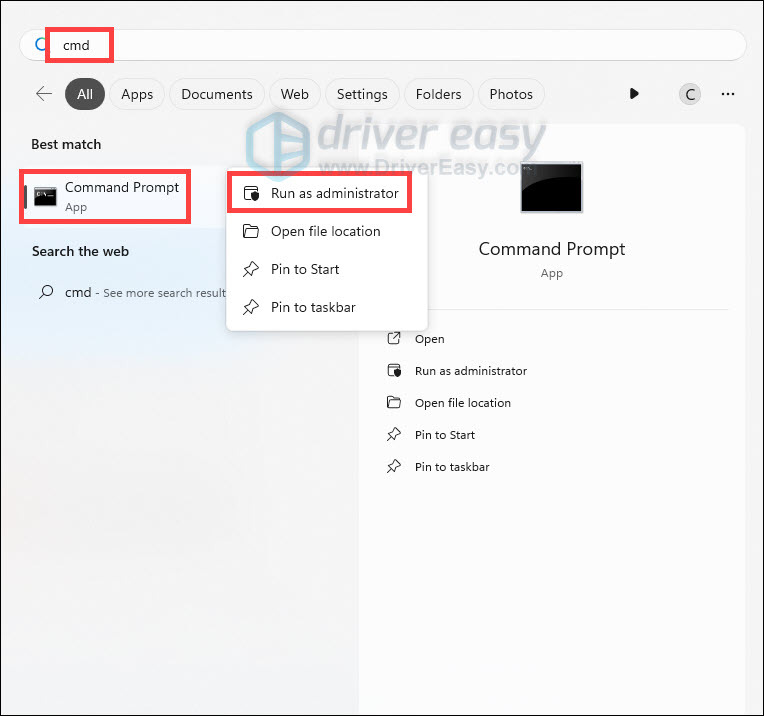
- Press the Windows logo key to invoke Search. Type cmd, right-click Command Prompt from the list of results, and select Run as administrator.
- In the Command Prompt window, type sfc /scannow and hit Enter.
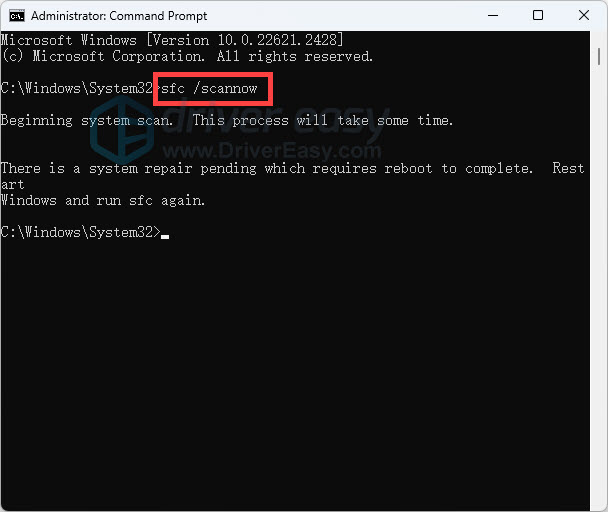
The sfc /scannow command will scan all protected system files and replace corrupted files with a cached copy. Note that you should not close this Command Prompt window until the verification is 100% complete.
Once finished, launch your game or software. If it still constantly crashes, proceed to the next fix.
5. Reset Overclocks and Improve Cooling
Even factory-overclocked GPUs can become unstable under heavy rendering workloads. Excessive heat, especially sustained temperatures above approximately 80 °C, frequently contributes to GPU hangs or driver failures. To maintain stability and avoid crashes like the 0x887A0005 error:
- Use a tool such as MSI Afterburner to reset GPU clocks to default or slightly underclock if your card runs hot.
- Monitor GPU temperature and aim to keep it below 80 °C during extended use. If it exceeds 80 °C—or spikes to 85–90 °C—take action to lower it:
- Clean dust buildup from GPU fans and heatsink.
- Improve case airflow through better fan placement or cable management.
- Lower graphics settings or cap frame rate (FPS) to reduce workload.
- Avoid gaming in hot environments, and consider enhanced cooling or adjusting your fan curve.
Hope you can solve your issue by following the steps we’ve outlined above. If you’re still running into trouble, feel free to write them down in the comment section below. We and the community are here to help. Just drop a comment below with:
- The exact error message and what game or software it appeared in
- Any screenshots or crash logs you have
- Debug steps you’ve already tried
This helps us support you faster and more effectively. Looking forward to helping you get back to smooth gameplay or creative work!