






Getting stuck at the Loading user data.. screen when launching a game from Steam can be frustrating. But you’re not the only one! Many users have been plagued by this issue. In this guide, we’ll walk you through the steps to fix it.
Table of contents

1. Check if Steam Service is Down
Before diving into more complex fixes, it’s always smart to make sure Steam isn’t undergoing a shechuled maintenance or experiencing a service-wide outage. If the servers are down, anything from loading your profile to launching games might hang indefinitely. You can quickly see if Steam is down by checking on sites like Downdetector, or you can follow official updates from @Steam_Support on X for server announcements.
If they show Steam is offline, the issue isn’t on your end and there’s nothing you can do about that and patience is the only fix in this issue.
If the service is running smoothly, check your internet connection next to rule out any connection issues. If your network is working fine, go ahead and try the troubleshooting steps listed below.
2. Clear Download Cache
When you’re stuck at this infinite “Loading user data” screen, clearing your download cache can probably fix the issue. Some cached account data or download files might be corrupted and causing temporary glitches. Below is how you can clear download cache:
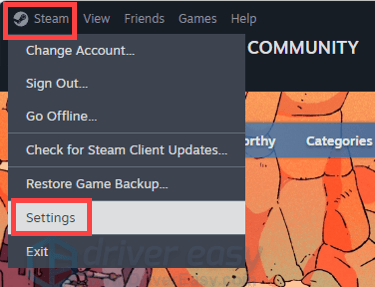
- Open your Steam client. From the top left client menu, click on Steam > Settings.
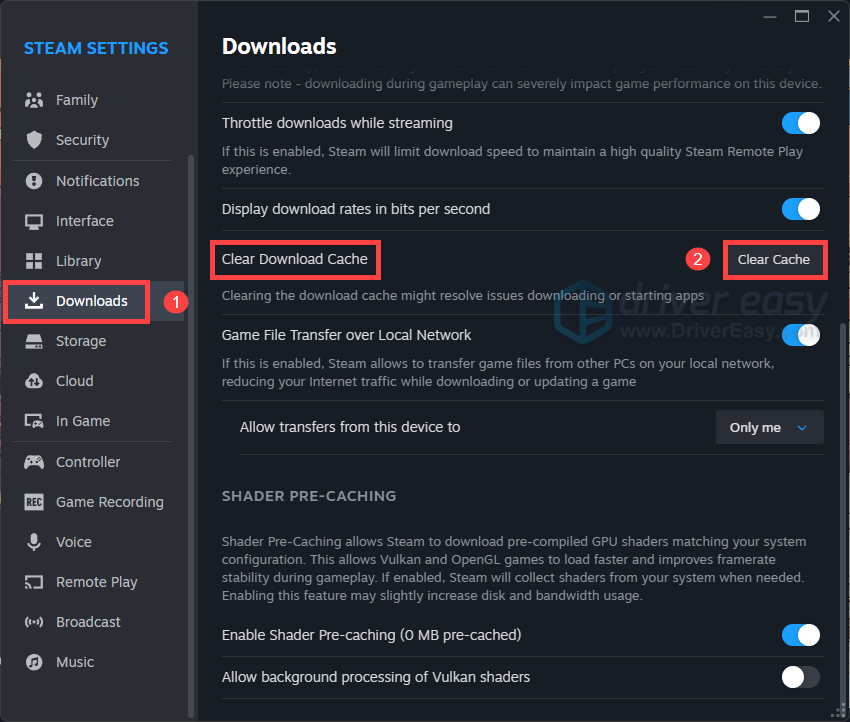
- Select the Downloads tab, scroll your way down and you’ll find the Clear Download Cache button. Click on it.
- Click Confirm to proceed.
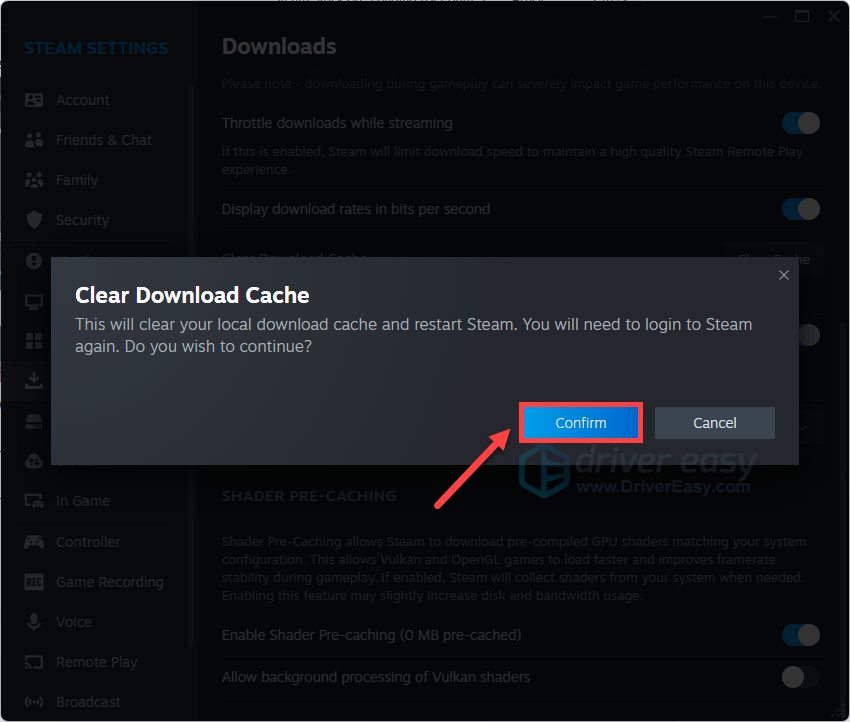
- Once finished, you’ll need to login to Steam again.
3. Change Server Region
If you’ve cleared the cache and still get stuck on the Loading user data screen, another easy fix is to change your Steam download region. Sometimes Steam connects to a congested server, causing logins and data to hang. Using a different server could resolve the issue within seconds:
- Open your Steam client. From the top left client menu, click on Steam > Settings.
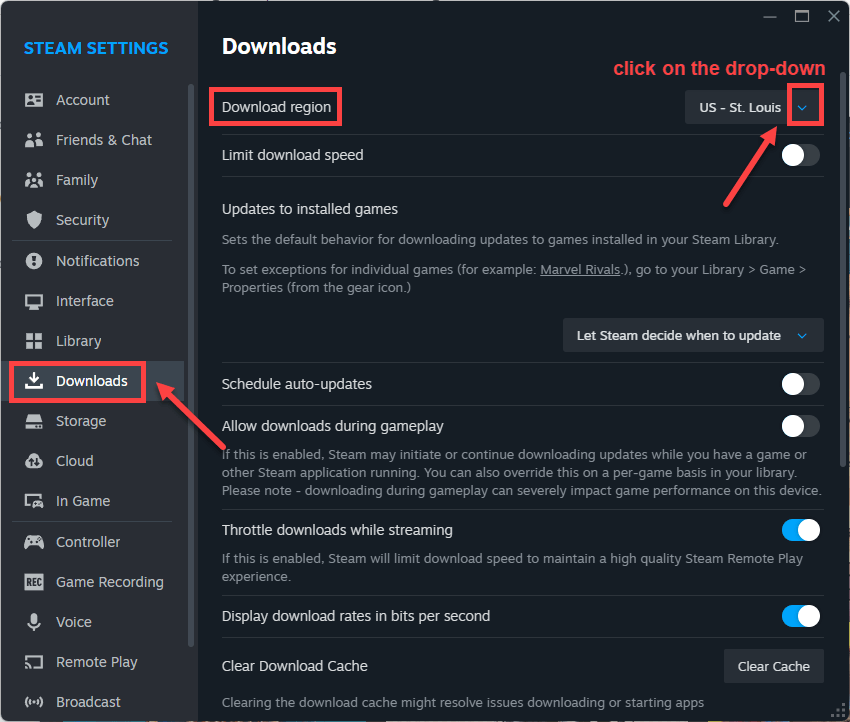
- Select the Downloads tab, then click on the drop-down menu next to Download region and select another region.
- Relaunch Steam and try to play your game to check if it works. If the issue persists, move on to the next fix.
4. Update Your Graphics Driver
If Steam still freezes on the Loading user data screen, updating your graphics driver is a great next step. A faulty or outdated graphics driver may struggle to render Steam’s interface or communicate with your hardware, causing the client to stall when syncing your account. Installing the latest driver from NVIDIA, AMD, or Intel often solves this.
Manually updating graphics driver can be time-consuming or tricky. If you’d rather skip the hassle, Driver Easy offers a smart solution: it automatically scans your system, detects any device with outdated or missing drivers, including your GPU, and installs the correct, certified versions with a few mouse clicks.
- Download and install Driver Easy.
- Run Driver Easy and click the Scan Now button. Driver Easy will then scan your computer and detect any problem drivers.
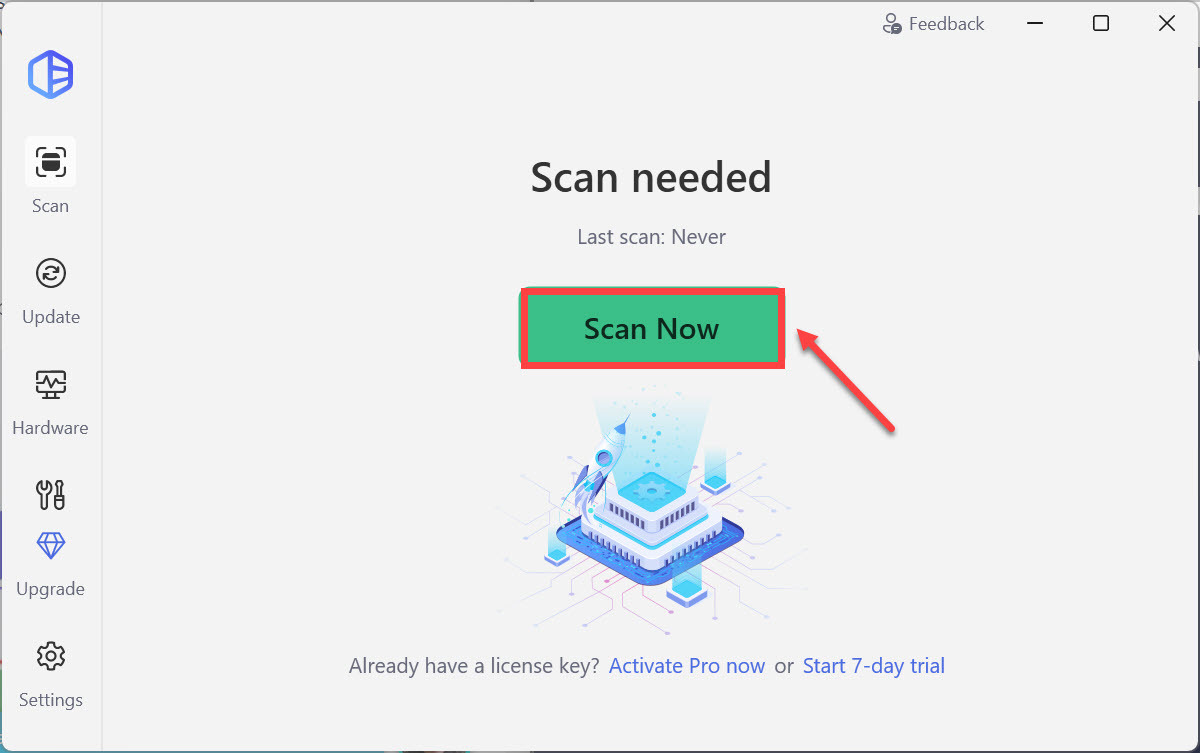
- Check if your GPU is flagged in the scan results. If it is, click Update all to start a 7-day free trial or upgrade to Driver Easy Pro. Either option will automatically download and install the latest graphics driver for you.

- Restart your computer for the changes to take effect.
- Launch your game to see if it’s still showing the Loading user data… loop. If your issue persists, try the next fix below.
5. Run Steam as an Administrator
Steam needs permission to access certain files, folders, and system components during launch. When it freezes while attempting to load your account data, running it as administrator can help it bypass any permission barriers.
Begin with right-clicking the desktop icon and selecting Run as administrator.
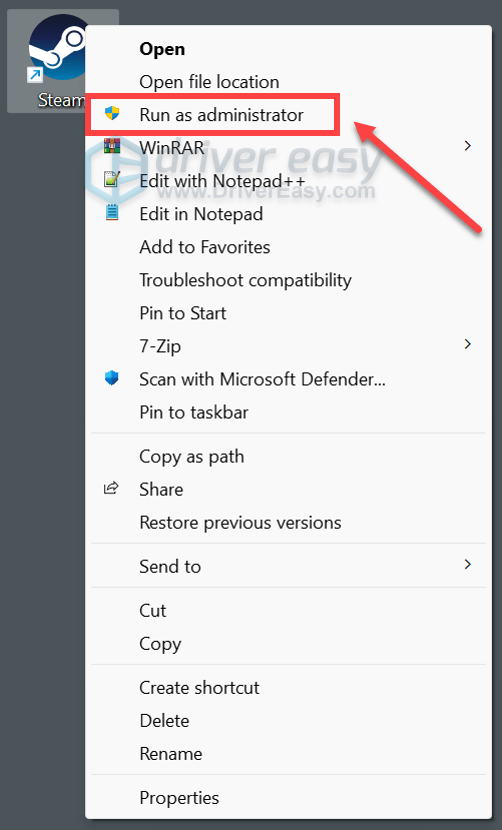
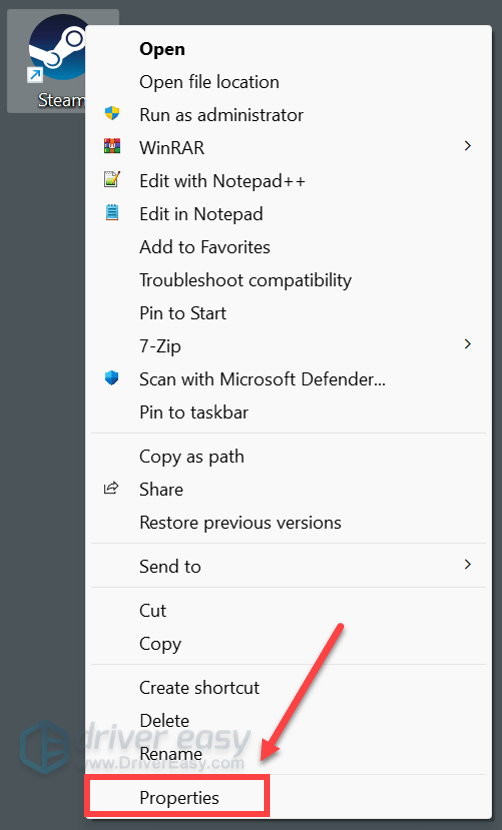
If that works for you, you can always configure to run it as an administrator every time you launch it. What you have to do is right-click the desktop icon, then select Properties.
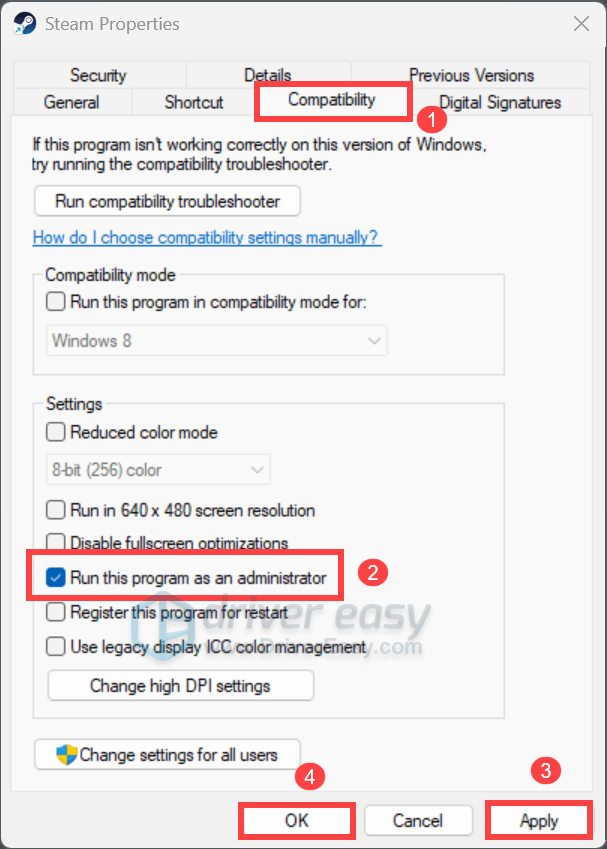
Click on the Compatibility tab, check the box next to Run this program as an administrator, then click Apply > OK.
Some Workarounds
When you use GeForce NOW with Steam and get stuck on the infinite Loading user data… screen, several community-tested steps have helped solved the issue, and you may want to give them a try:
1. Add a Game to your Steam LIBRARY
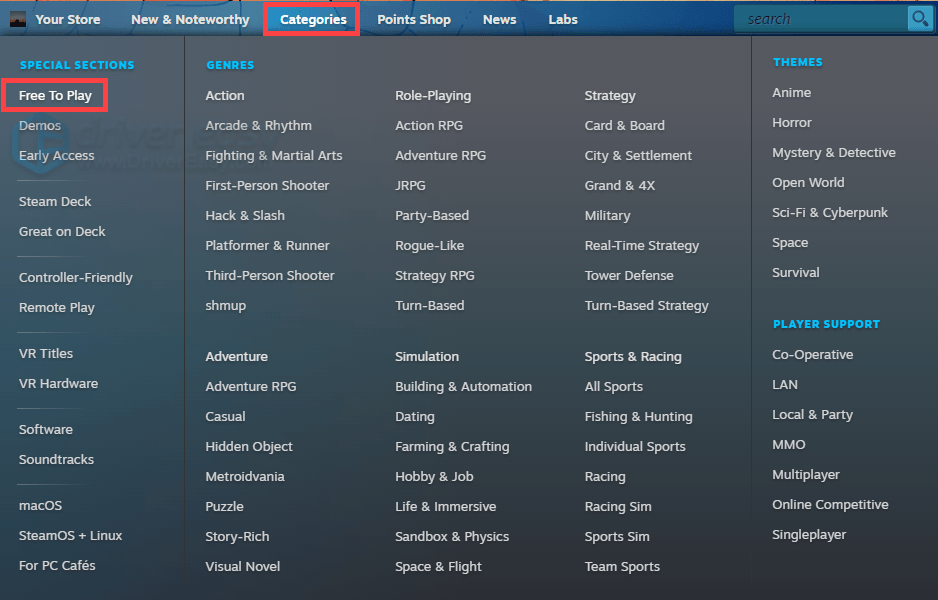
Okay, that might seem a bit obscure, but it worked for many users! That you can add a free game into your Steam LIBRARY while GeForce NOW is hanging. You can find titles that are Free To Play from Category > Free To Play. However, you may need to do that repeatedly every time you try to launch a game.

2. Reinstall GeForce NOW Completely
If you’re still having this loading loop, a clean reinstall of GeForce NOW may fix it immediately. It wipes out all cached data and replaces the files, including those tied to account-sync and Steam authentication. So you can try reinstall GeForce NOW to check if it works for you.
3. Delete Certain Files
The stuck loop you’re seeing may be caused by corrupted login or user settings. Deleting those files from the Steam folder may resolve it.
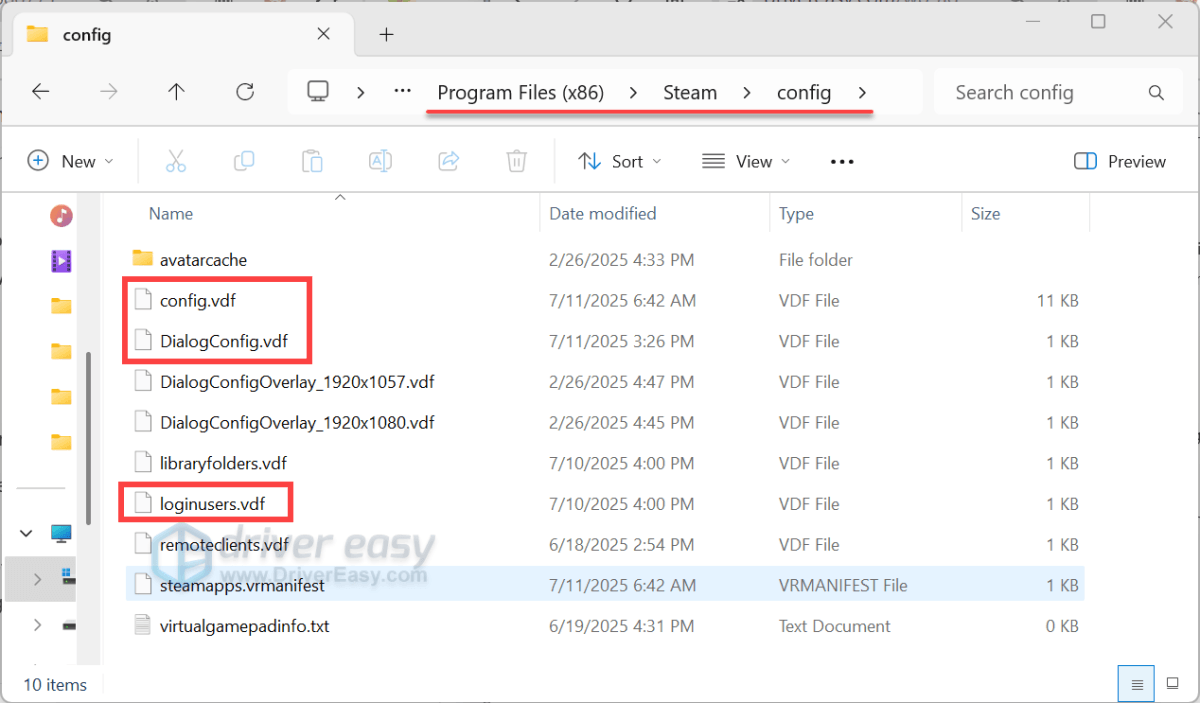
What you have to do is open the File Explorer by pressing the Windows logo key + E simultaneously, then head to Steam’s installation folder (usually can be found from C:\Program Files (x86)\Steam), and open the Config folder. Delete files like config.vdf, loginusers.vdf, or DialogConfig.vdf. Next time you start Steam, it’ll regenerate them.
That wraps up our complete guide to fixing the Loading user data.. loop. If you still have questions, feel free to leave us a comment below. We’ll get back to you ASAP, and our community may have some insights too!