






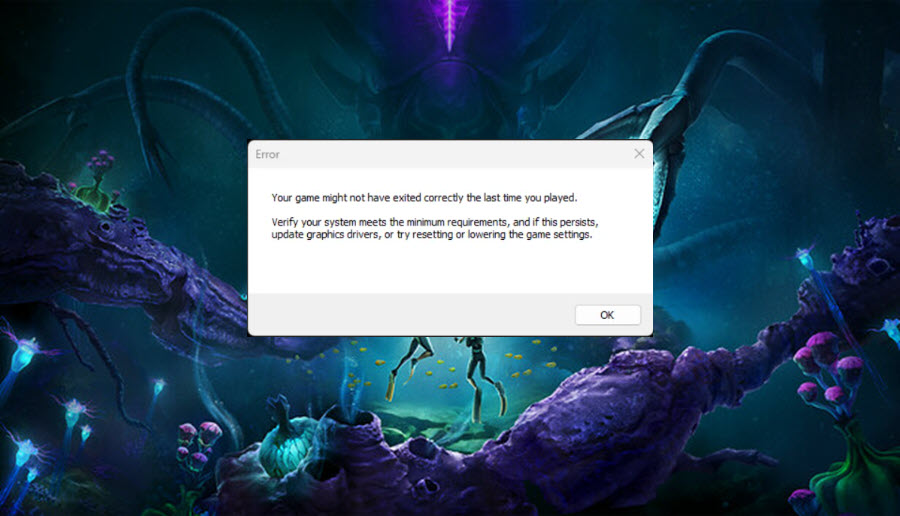
The long-awaited descent into the depths of Subnautica 2 is finally here, but for many pioneers, the journey is ending before it even begins. Whether you’re experiencing immediate crashes on launch or getting a DirectX 12 error, you aren’t alone. In this guide, we’ll walk you through the real, player-tested fixes to get you back into the water right away.
Try these fixes
You might not need to try them all. Simply work your way down the list until you find the one that gets the game running.
- Fix 1 – Ensure your PC meets the minimum system requirements
- Fix 2 – Update your graphics driver
- Fix 3 – Roll back driver version (for AMD users)
- Fix 4 – Turn off Hardware-accelerated GPU scheduling
- Fix 5 – Verify the integrity of game files
Fix 1 – Ensure your PC meets the minimum system requirements
If Subnautica 2 refuses to launch, the first step is ensuring your system can handle Unreal Engine 5’s hardware requirements. If you are using an older laptop with integrated graphics, the game likely will not launch.
Here are Subnautica 2’s system requirements. For the best performance, go for the recommended specs.
Minimum requirements
| OS | Windows 10/11, 64-bit |
| Processor | Intel Core i5-8400 / AMD Ryzen 5 2600 |
| Memory | 12 GB RAM |
| Graphics | GeForce GTX 1660 6GB / RX 5500 XT 6GB |
| DirectX | Version 12 |
| Storage | 50 GB available space |
Recommended requirements
| OS | Windows 11, 64-bit |
| Processor | Intel Core i7-13700 / AMD Ryzen 7 7700X |
| Memory | 16 GB RAM |
| Graphics | Geforce RTX 3070 8GB / RX 6700 XT 8GB |
| DirectX | Version 12 |
| Storage | 50 GB available space |
You can follow this guide to check your PC’s specifications. If your PC doesn’t meet the baseline specs, you’ll need to upgrade your hardware for Sabnautica 2 to run smoothly. Alternatively, you can opt for a cloud gaming service like NVIDIA GeForce Now or Amazon Luna to stream the game.
If you’re seeing errors like “DirectX 12 not supported” or “Feature Level 12.0 is required,” it usually indicates your GPU doesn’t support DirectX 12, and you’ll need to upgrade to a more recent graphics card.
If you’re confident your hardware is up to par, move on to the next fix.
Fix 2 – Update your graphics driver
When a brand-new game crashes or won’t launch, outdated or corrupted device drivers are the usual suspects. Graphics card manufacturers frequently release day-one patches specifically optimized for major game releases like Subnautica 2.
There are two ways to update the graphics driver: manually or automatically.
Option 1 – Manually
If you are familiar with PC hardware, you can visit the official website of your graphics card manufacturer: NVIDIA, AMD, and Intel.
Then search for your exact graphics card model, download the latest correct driver installer compatible with your operating system, and follow the on-screen prompts to install it.
Option 2 – Automatically
If you don’t have the time, patience, or computer skills to do it manually, you can update your graphics driver automatically with Driver Easy.
Driver Easy will automatically recognize your system and find the correct drivers for your exact graphics card and your Windows version. You don’t need to risk downloading the wrong file or making a mistake during installation.
1. Download and install Driver Easy.
2. Run Driver Easy and click the Scan Now button. Driver Easy will then scan your computer and detect any problem drivers.
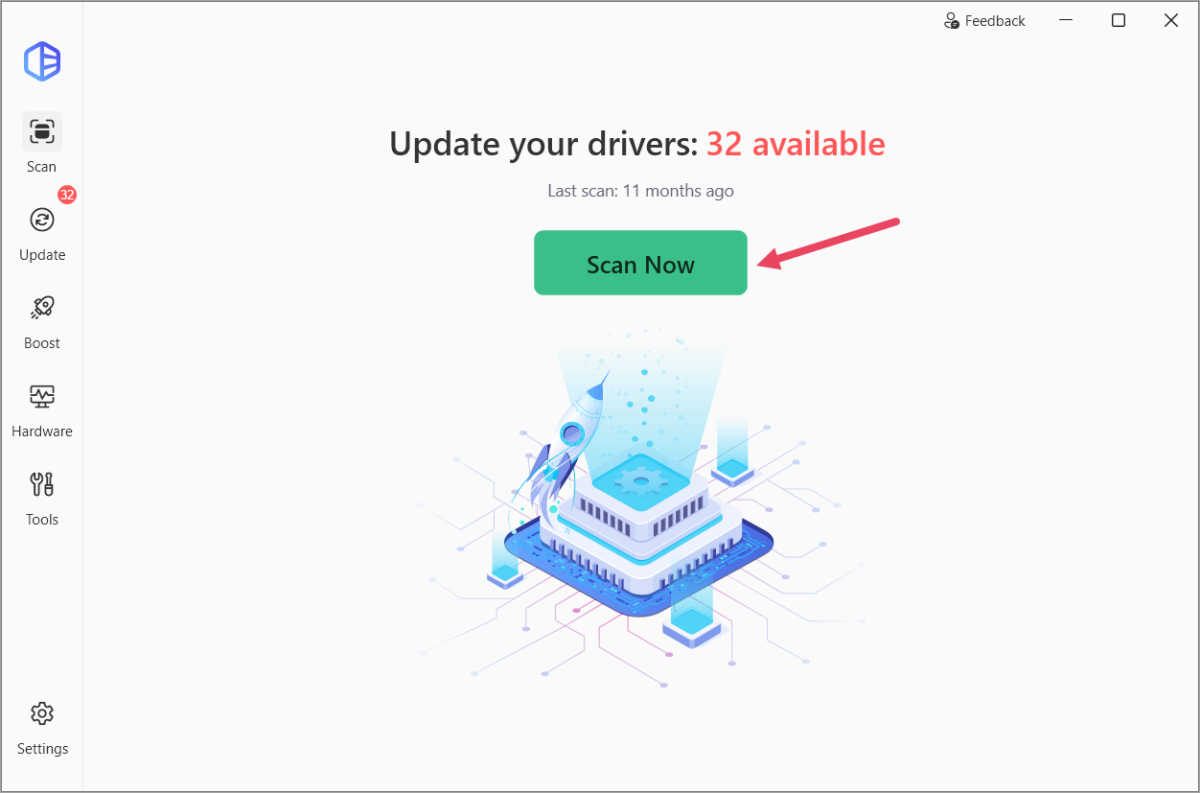
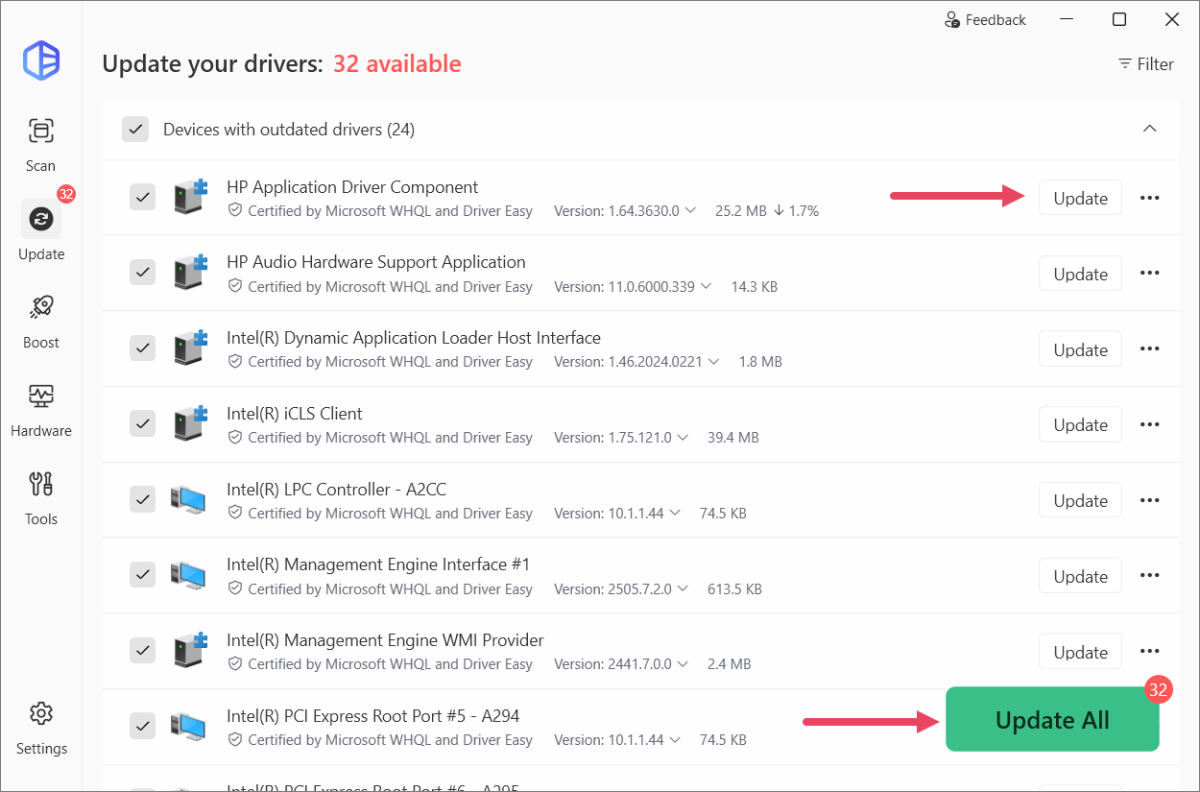
3. Click the Update button next to the flagged device to automatically download and install the correct version of this driver.
Or click Update All to automatically download and install the correct version of all the drivers that are missing or out of date on your system.
You’ll need the Pro version for the driver update. If you’re not prepared to purchase the Pro version yet, Driver Easy offers a 7-day trial at no cost, granting full access to all Pro features like high-speed downloads. No charges will occur if you cancel before the trial period ends.
After updating, restart your computer and try launching Subnautica 2. If it still fails to run, try the next method below.
Fix 3 – Roll back the driver version (for AMD users)
If you are running an AMD 9000 series card (like the 9070XT) and the game won’t launch, the latest AMD release probably conflicts with Subnautica 2 at launch, causing immediate black screens. If updating the driver didn’t work, you can try rolling back to a previous stable version.
1. Head to the AMD website and download a previous stable release.
2. Run the installer and choose to overwrite the existing software.
3. After the installation is complete, restart your PC.
Launch the game to see if the startup crash is resolved. If the issue persists, move on to the next solution.
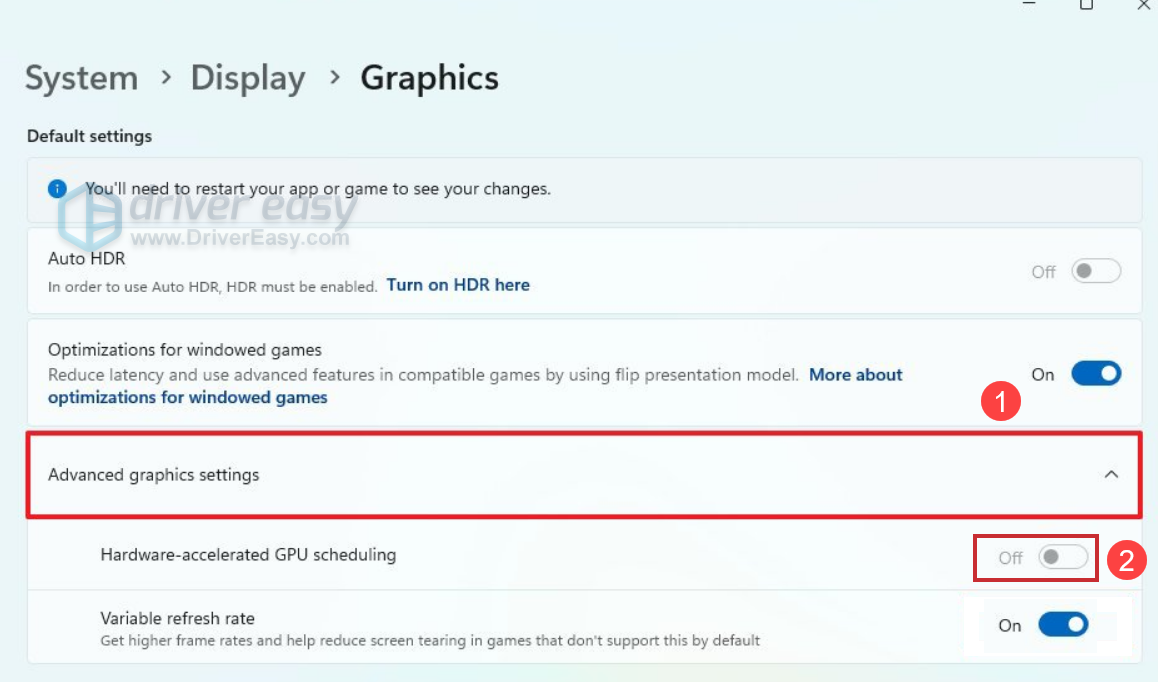
Fix 4 – Turn off Hardware-Accelerated GPU Scheduling (HAGS)
Hardware-Accelerated GPU Scheduling (HAGS) may cause game crashes and instability. You can easily disable this feature on Windows to see if the issue is resolved.
1. On your keyboard, press the Windows logo key and I at the same time to open Windows settings.
2. Select System > Display.
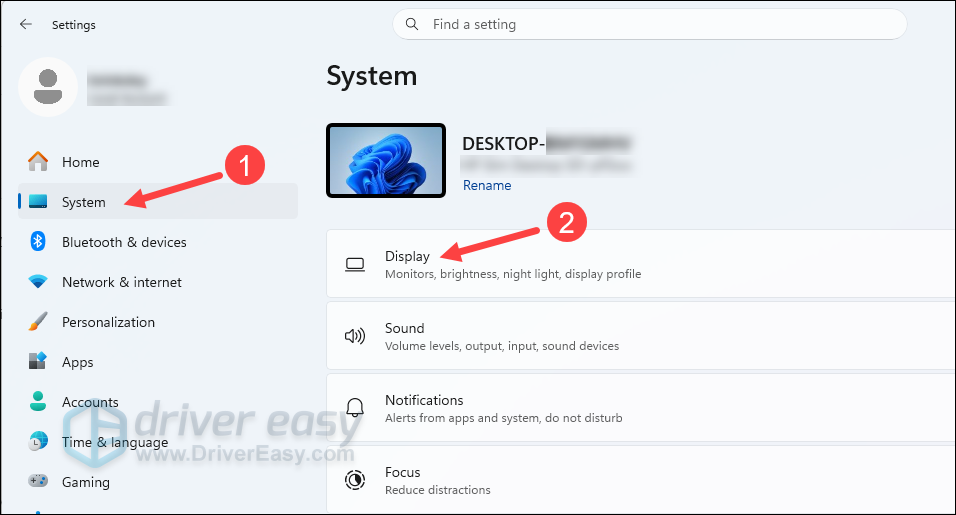
3. Click Advanced graphics settings, turn off Hardware-accelerated GPU scheduling.
Run Subnautic 2 and see how it works.
Fix 5 – Verify the integrity of game files
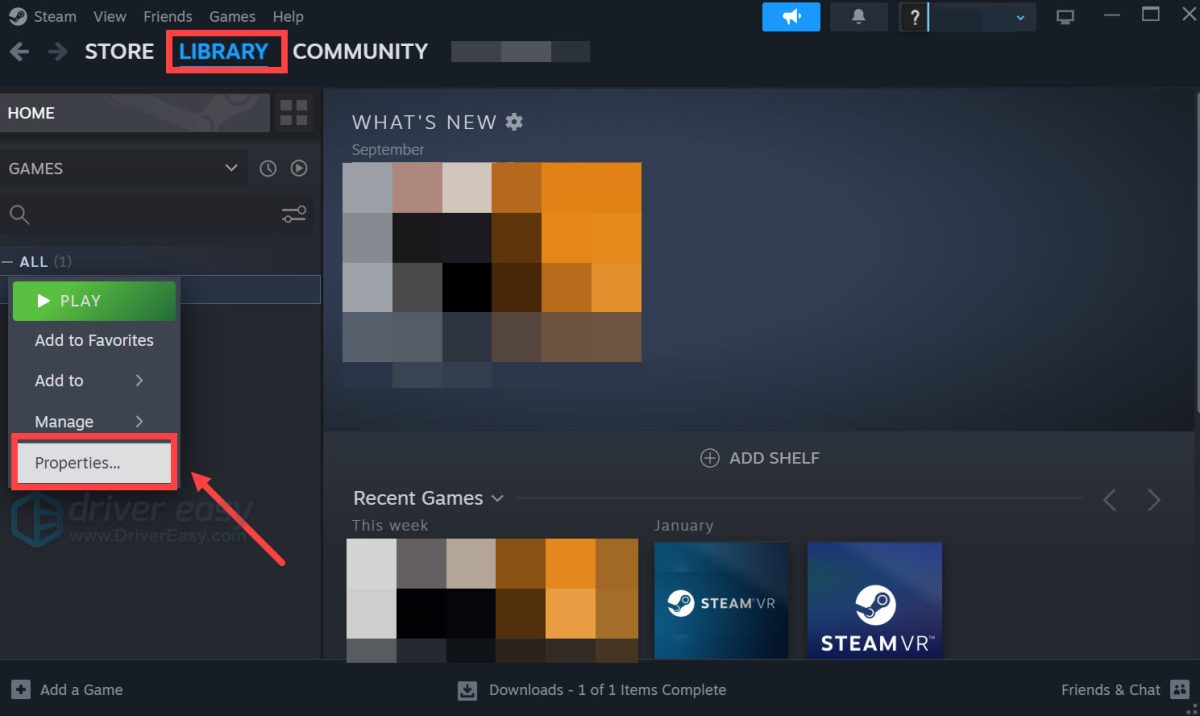
Corrupted or missing game files during installation are a common cause of startup crashes and severe stuttering. Fortunately, Steam’s built-in tool allows you to compare your local files with the official server data with ease and repair any errors. Here’s how:
1. Open Steam and navigate to your LIBRARY. From the game list, right-click Subnautica 2 and select Properties.
2. Click the Installed Files tab and click Verify integrity of game files.
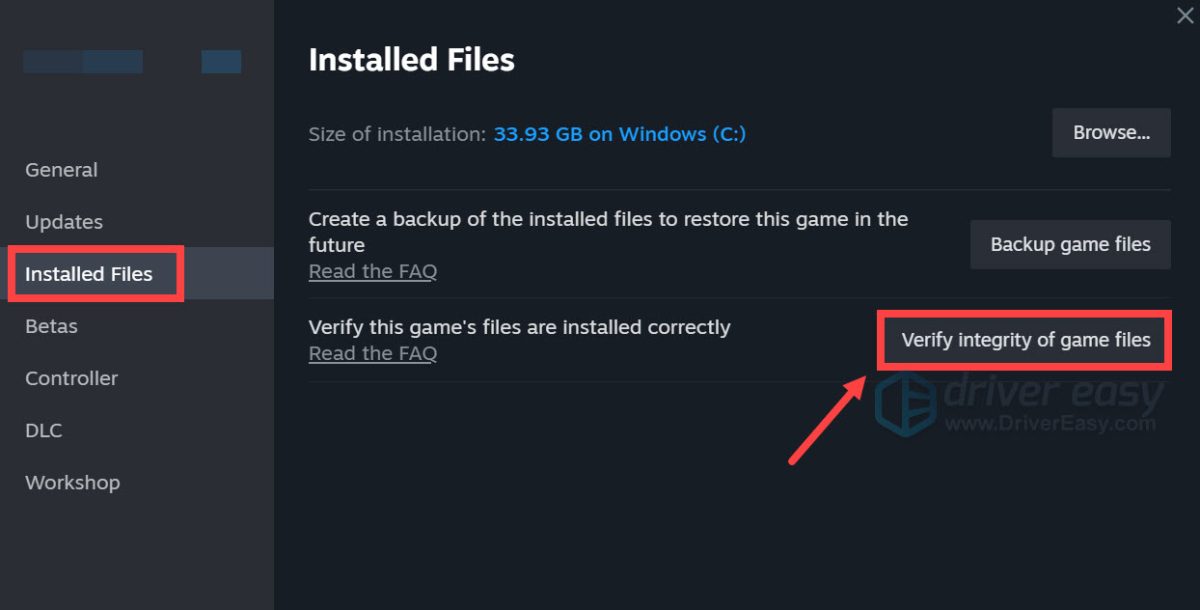
Wait a few minutes for Steam to verify the game’s files. Once done, relaunch Steam and Subnautica 2 to check if the problem has been resolved.
Did one of these fixes work for you? Or did you find a different way to dive in? Let us know in the comments below! If you’ve spent several hours troubleshooting and still can’t launch the game, do not force your system through it. Consider requesting a refund, and come back in when the developers deploy the first major performance stability patches.