






Keeping your Intel Arc graphics driver up to date is one of the easiest ways to improve game performance, fix graphical bugs, and ensure compatibility with the latest releases.
In this guide, you’ll learn two ways to update your Intel Arc graphics driver to fix GPU-related bugs, how to stop Windows Update from replacing it with an older version, and what to do if the latest driver doesn’t work properly.
How to keep your Intel Arc graphics driver updated
Here are two ways for you to download and install the Intel Arc driver: manually or automatically.
Option 1 – Update Intel Arc graphics driver manually
You can always download the latest Intel Arc graphics driver directly from Intel’s official website.
- Visit the Intel Download Center and select Graphics.
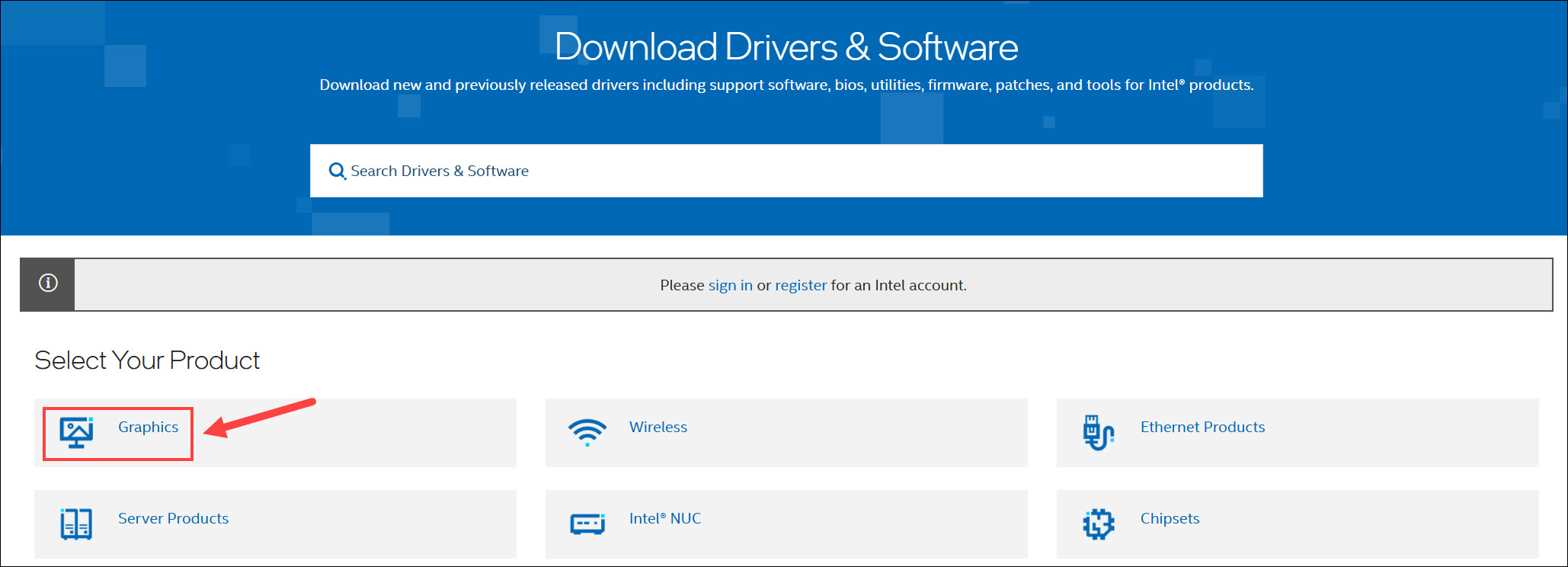
- Choose the correct Intel Arc driver depending on your GPU mode and click Download.
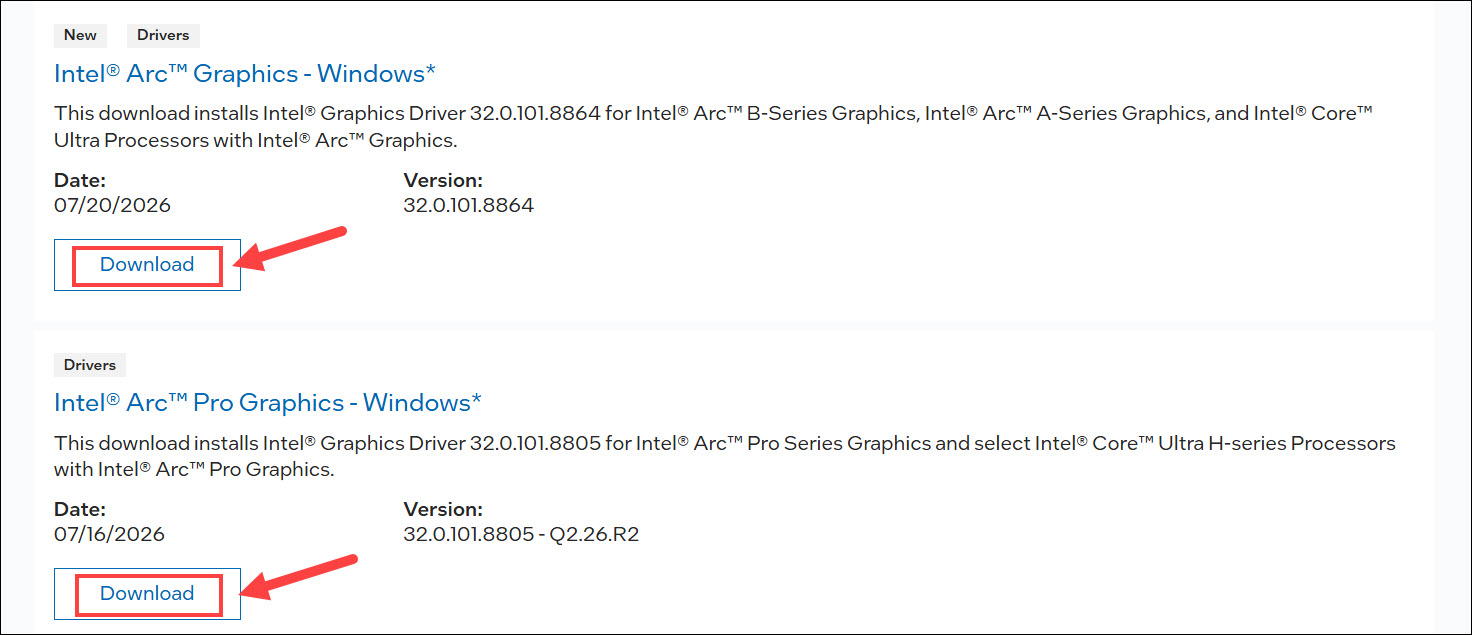
- Check the introduction to make sure the driver supports your graphics card.
- Click Download.
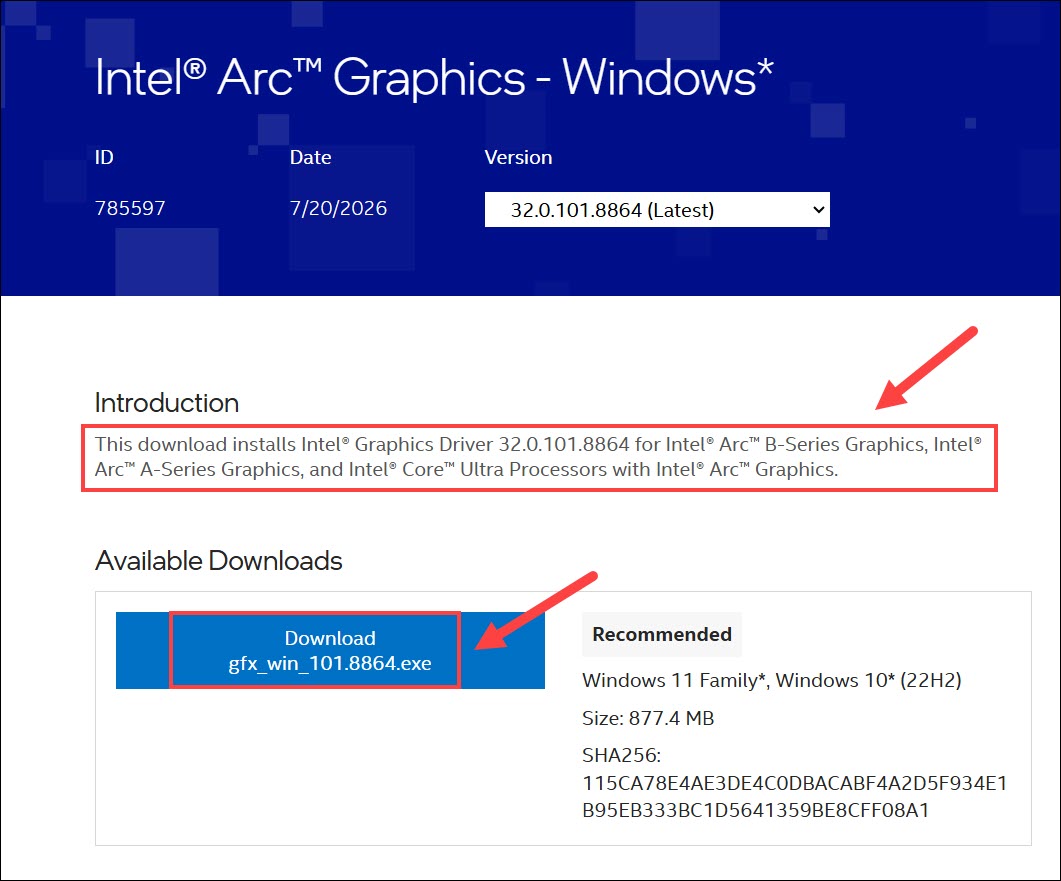
If you need to install an older version instead, open the version drop-down list and select the release you want. In most cases, it’s recommended to install the latest WHQL-certified driver for the best combination of performance and stability.
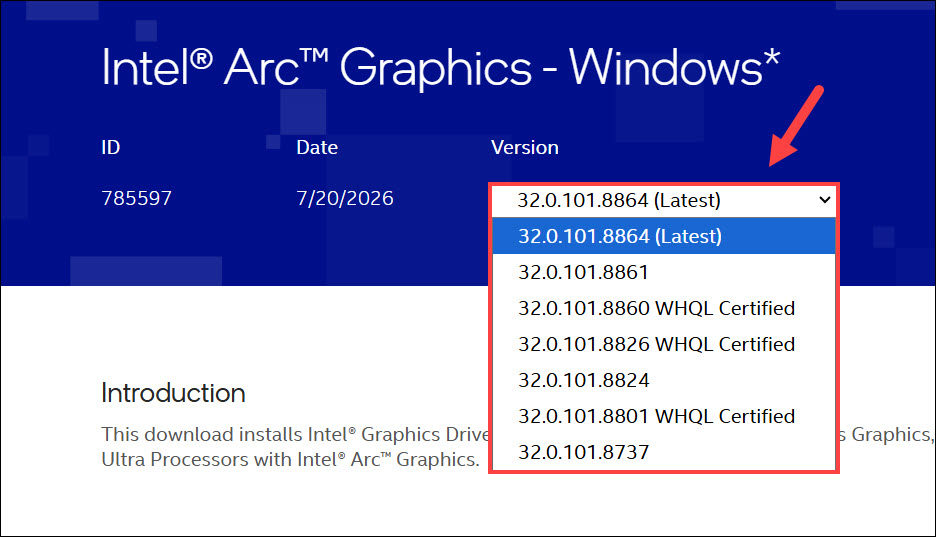
Once the download is complete, double-click the installer and follow the on-screen instructions. Restart your PC after the installation finishes.
Option 2 – Update your device drivers automatically
If you’d rather not search for new driver releases manually, you can use Driver Easy to automatically detect your Intel Arc GPU and install the latest compatible driver.
Driver Easy will scan your system for outdated, missing, or incompatible drivers, then install the correct versions for your hardware. Besides your Intel Arc graphics driver, it can also update other drivers, including chipset, CPU-related components, Bluetooth, Wi-Fi, audio, and network drivers, in one place. All drivers come directly from the hardware manufacturers and are thoroughly tested to ensure they’re safe, stable, and compatible with your system.
With Driver Easy, updating your drivers takes just a couple of clicks. No searching manufacturer websites, downloading the wrong package, or installing drivers one by one.
- Download and install Driver Easy.
- Run Driver Easy and click the Scan Now button. Driver Easy will then scan your computer and detect any problem drivers.
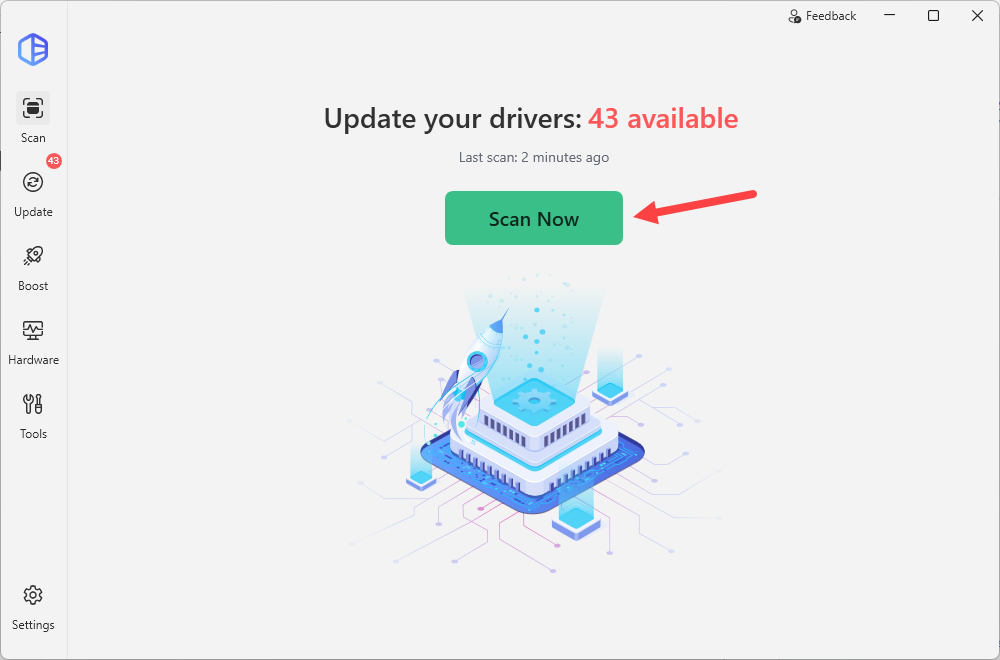
- Click the Activate & Update button next to the flagged device to automatically download and install the correct version of this driver. Or click Update All to automatically download and install the correct version of all the drivers that are missing or out of date on your system.
🔔 When you select Update All, you’ll get a prompt to upgrade. The Pro version provides hassle-free driver updates and a variety of helpful features like driver backup & restore, game boost, and so on. You can also sign up for the 7-day trial to explore all the Pro features.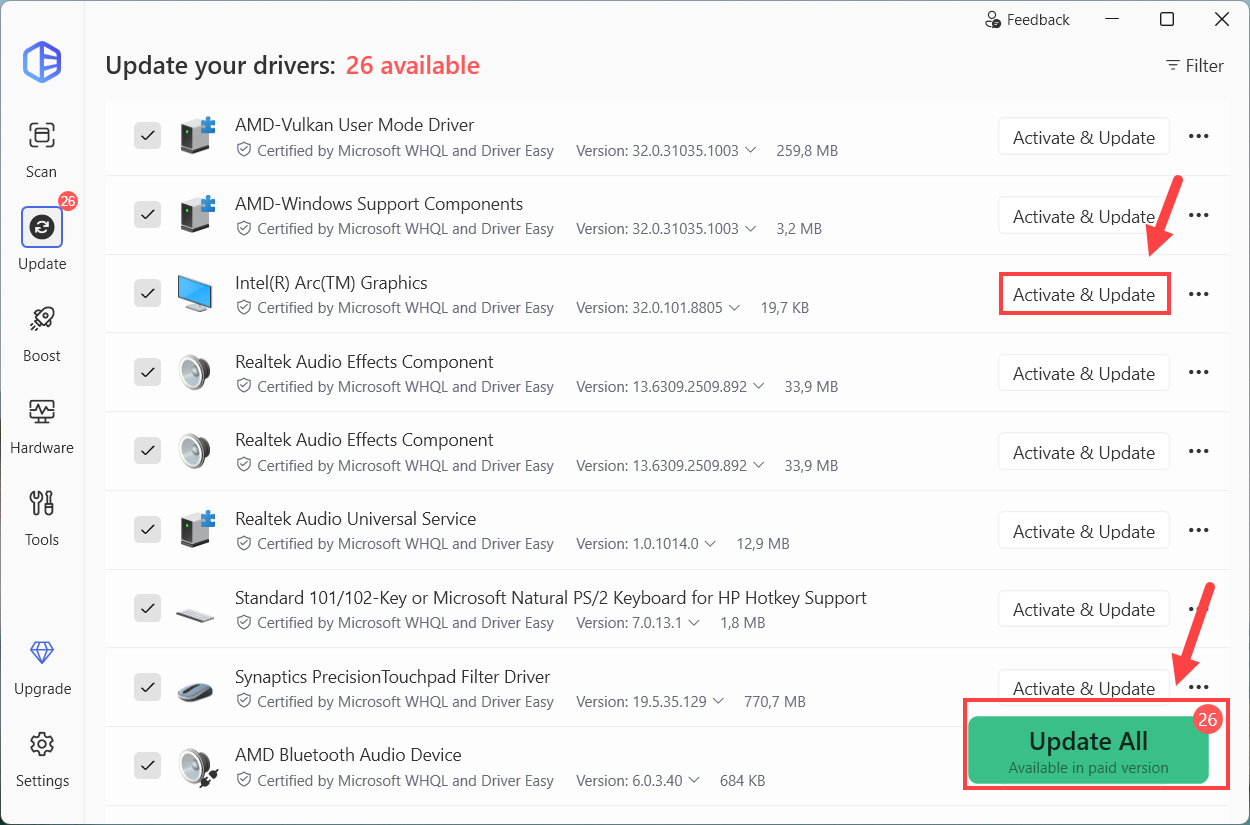
- Restart your computer for the change to take effect.
How to stop Windows from replacing your Intel Arc driver
Here’s the scenario that keeps coming up on the Intel community: you install the latest driver, everything works perfectly, but a few days later you launch a game and notice stuttering, lower FPS, or new graphical glitches.
The reason? Windows Update may have silently replaced your newer Intel Arc driver with an older version from Microsoft’s driver catalog. This can happen because Windows considers its own driver version a compatible match, even if it is not the latest release from Intel.
You can fix this by simply disabling the automatic driver updates in Windows.
Method 1 – Use Registry Editor (Windows Home users)
Windows Home does not include the Group Policy Editor, but you can disable automatic driver updates through Registry Editor.
- Press Windows + R on your keyboard to open the Run dialog box.
- Type regedit and press Enter.
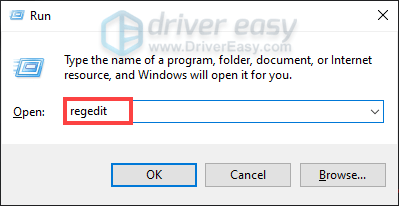
- Click Yes when User Account Control asks for permission.
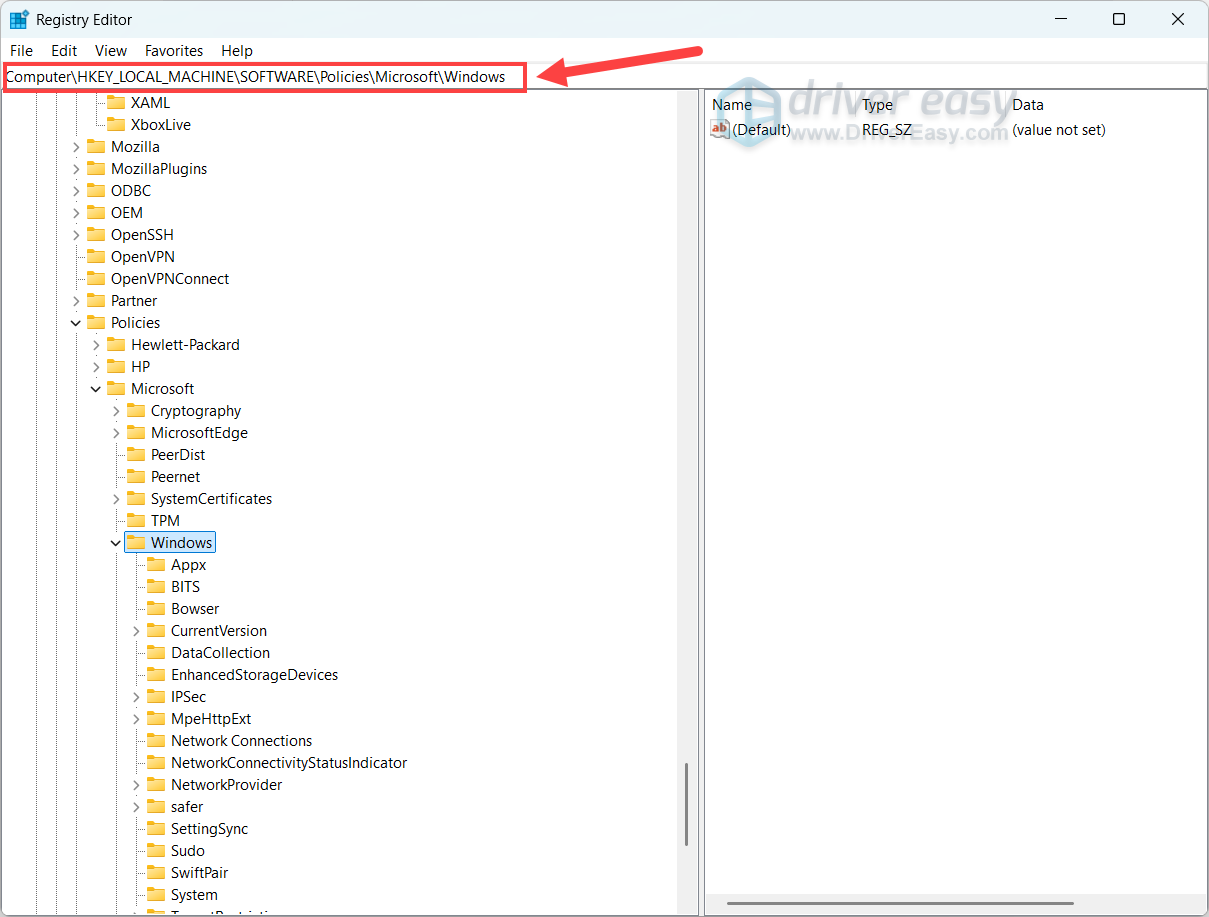
- In the left pane, navigate to HKEY_LOCAL_MACHINE\SOFTWARE\Policies\Microsoft\Windows. Or you can paste HKEY_LOCAL_MACHINE\SOFTWARE\Policies\Microsoft\Windows into the address bar at the top to directly reach the key destination.
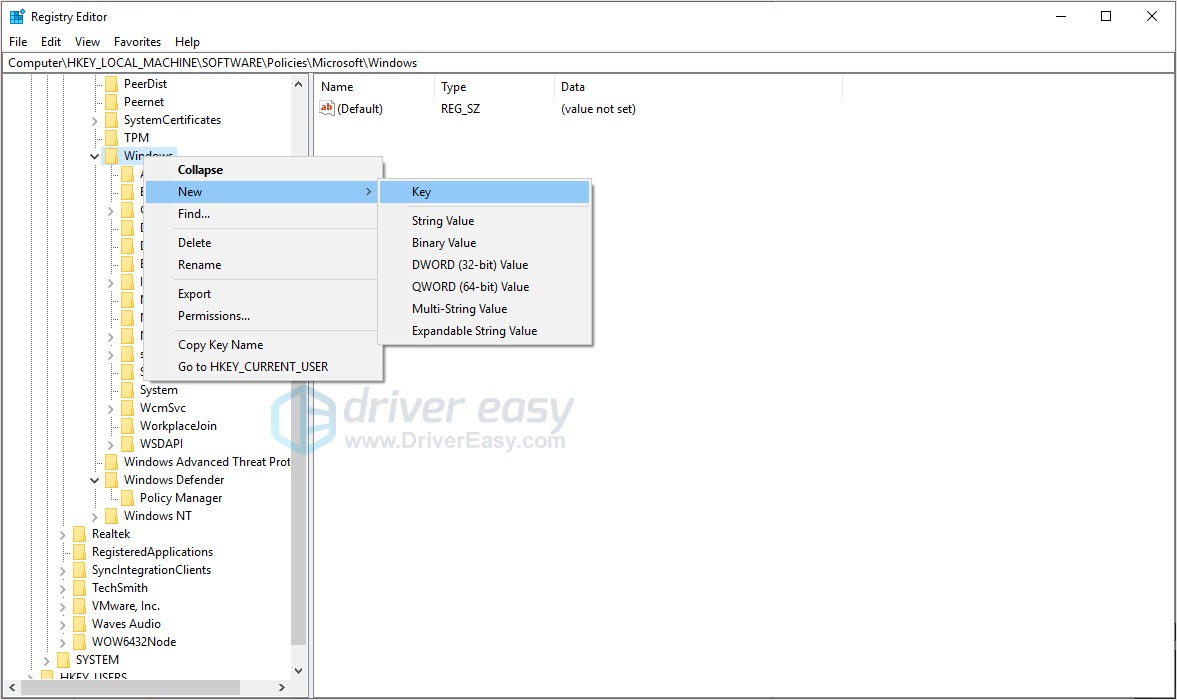
- Right-click the Windows folder, choose New > Key, and name it WindowsUpdate.
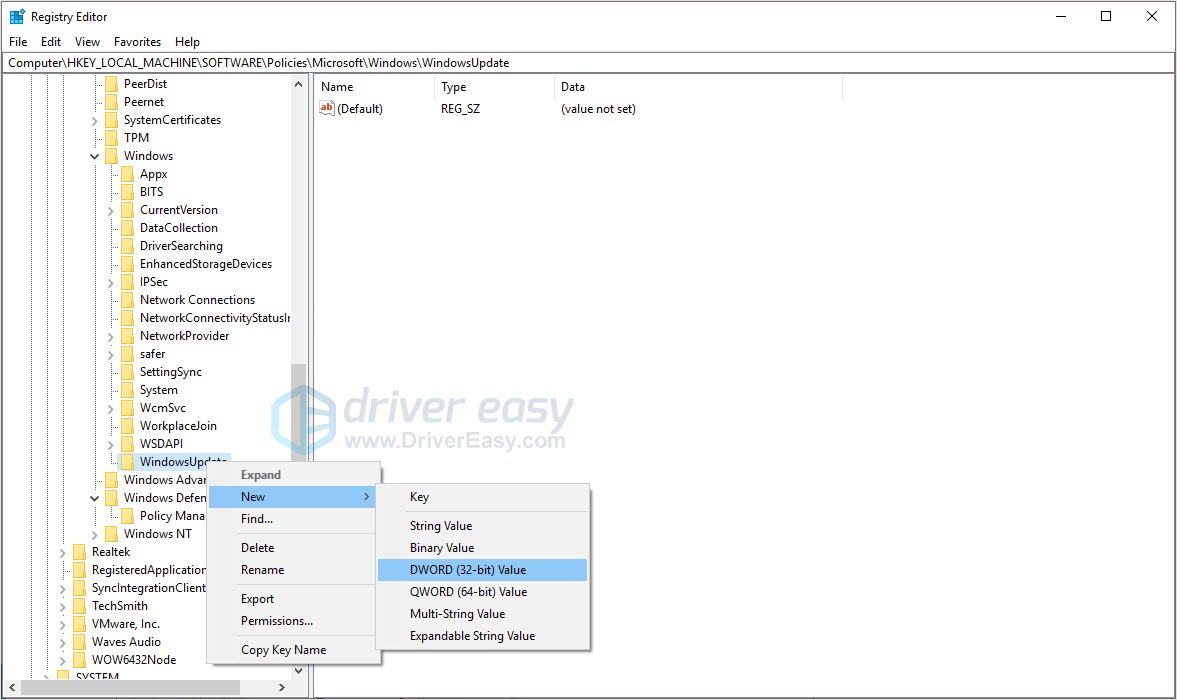
- Right-click in the WindowsUpdate folder and choose New > DWORD (32-bit value).
- Name it ExcludeWUDriversInQualityUpdate.
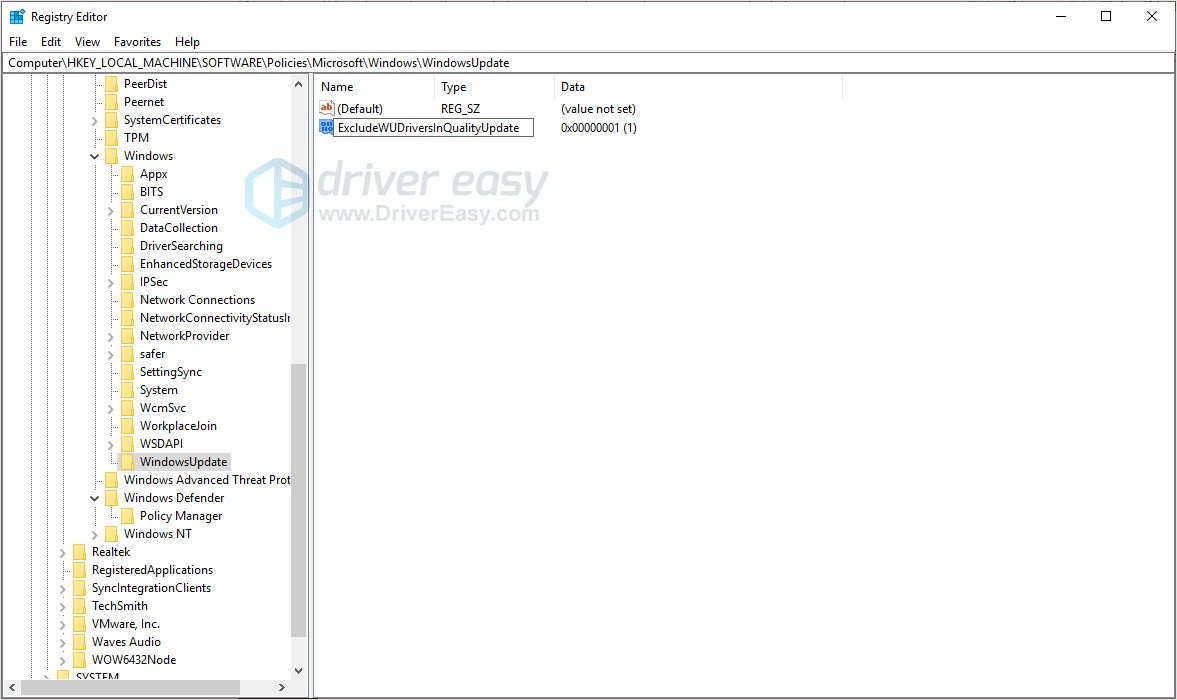
- Double-click ExcludeWUDriversInQualityUpdate and change the Value data to 1. Click OK.
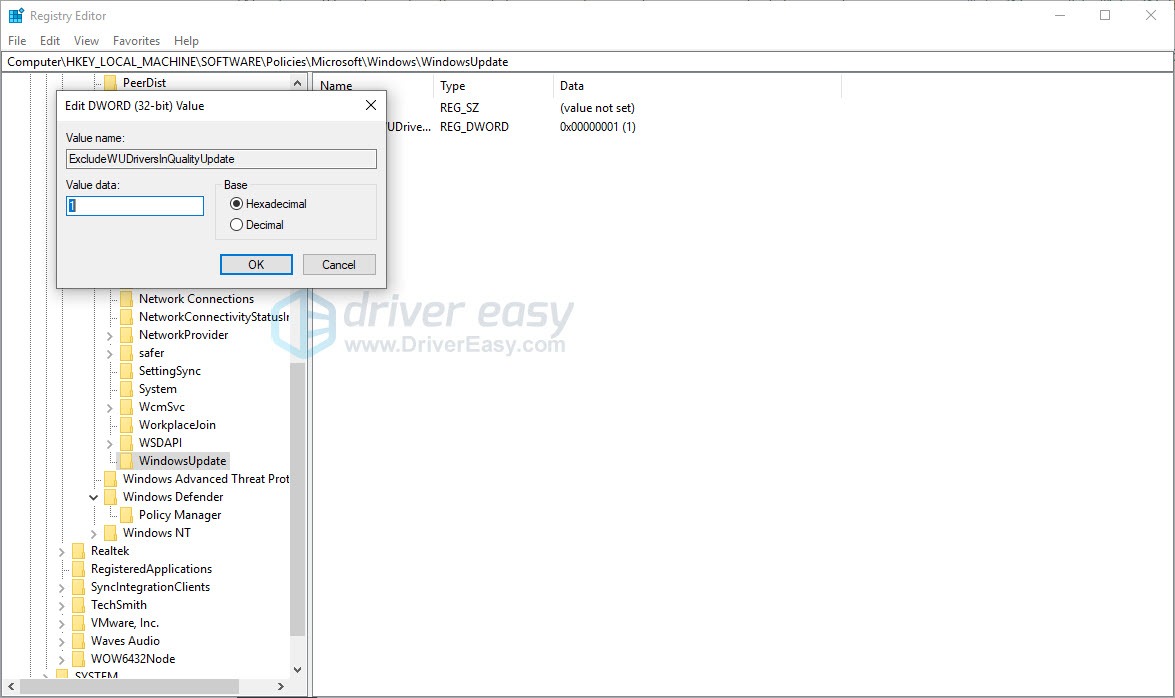
Restart your computer. After this change, Windows Update will stop automatically searching for and installing device drivers. You will need to manually update drivers through Intel’s website or a driver updater tool when new versions are released.
Method 2 – Use Group Policy Editor (Windows Pro, Enterprise, and Education users)
If you are running Windows Pro, Enterprise, or Education, you can disable driver updates through Group Policy Editor.
- Press the Windows logo key + R together to open the Run box.
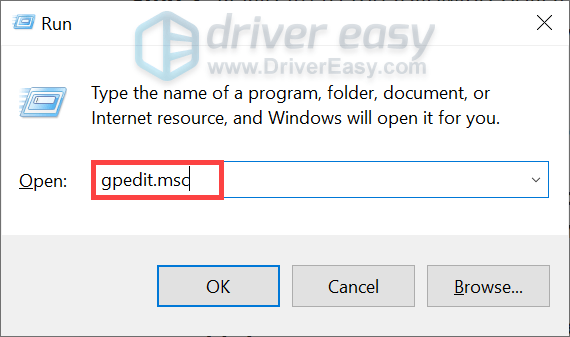
- Type gpedit.msc and press Enter.
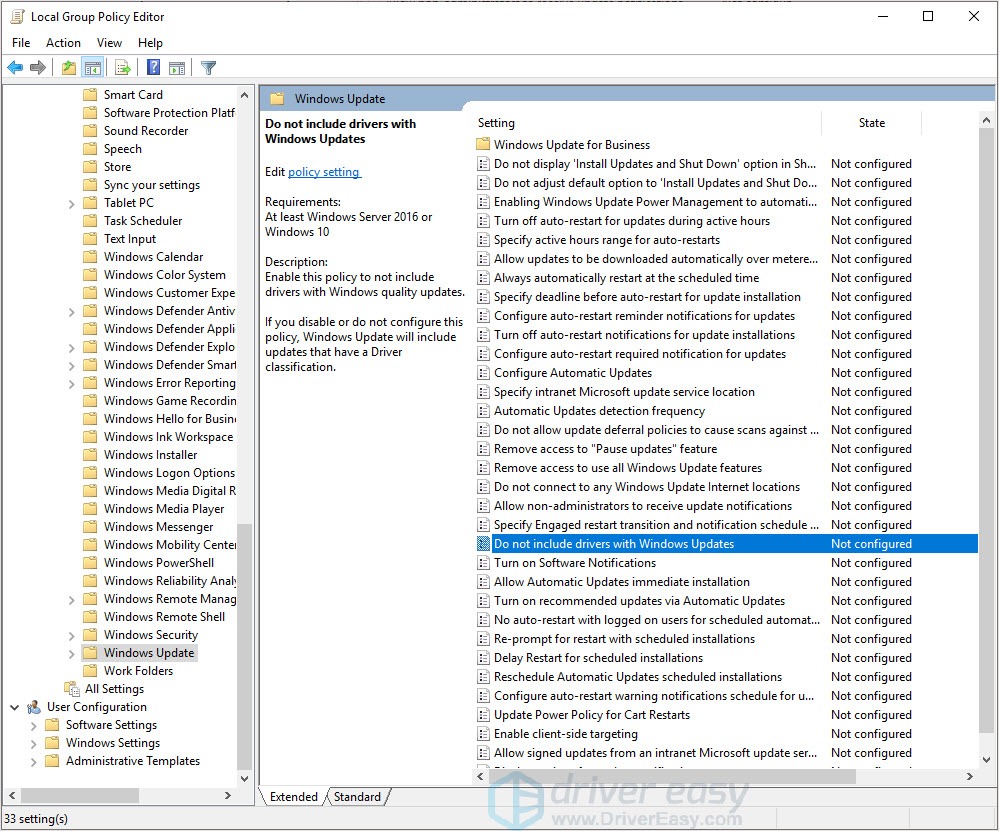
- In the left path, navigate to Computer Configuration > Administrative Templates > Windows Components > Windows Update > Manage updates offered from Windows Update. Double-click Do not include drivers with Windows Updates in the right pane.
- Click Enabled and click OK.
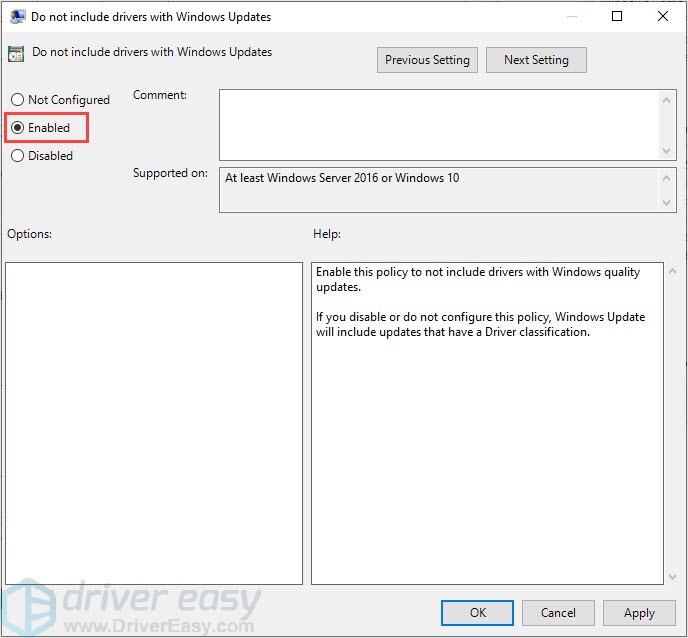
Restart your PC. Windows Update will continue installing security and feature updates but will no longer automatically install drivers.
What if the latest Intel Arc driver causes problems?
While Intel regularly releases new Arc drivers to improve performance and compatibility, a new driver update can occasionally introduce unexpected issues. You may experience problems such as game crashes or freezes, lower FPS or sudden stuttering, and compatibility issues with certain games or applications.
If this happens after installing a new Intel Arc driver, try these solutions.
Option 1 – Roll back driver via Device Manager
You can simply revert to the last stable driver through Windows Device Manager.
- Press Windows + X and select Device Manager.
- Expand Display adapters.
- Right-click your Intel Arc Graphics card and select Properties.
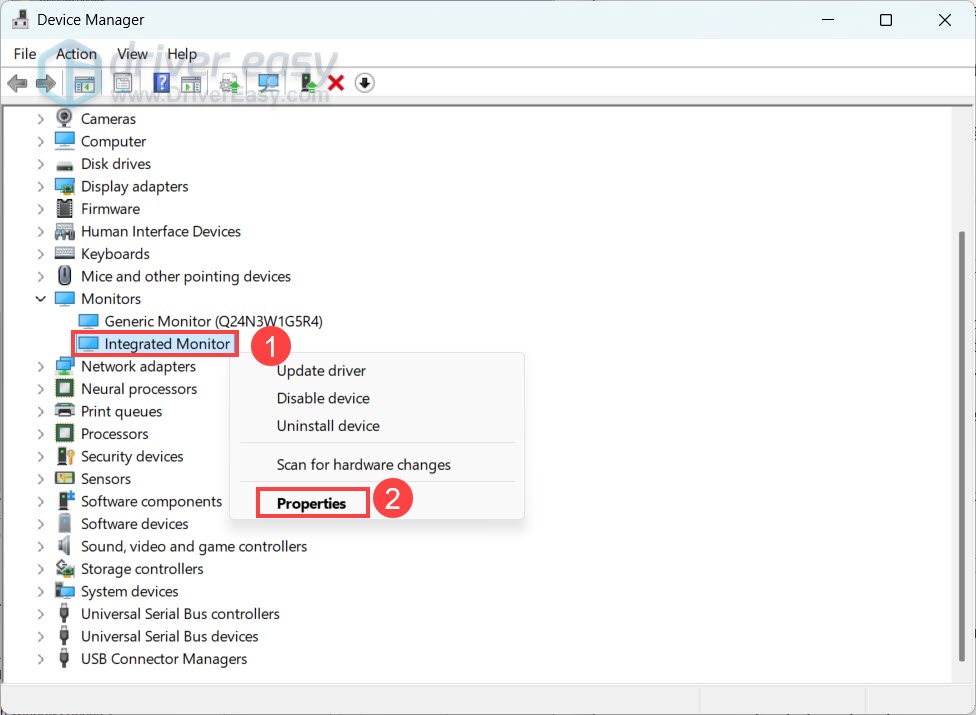
- Go to the Driver tab. Click Roll Back Driver and follow the instructions.
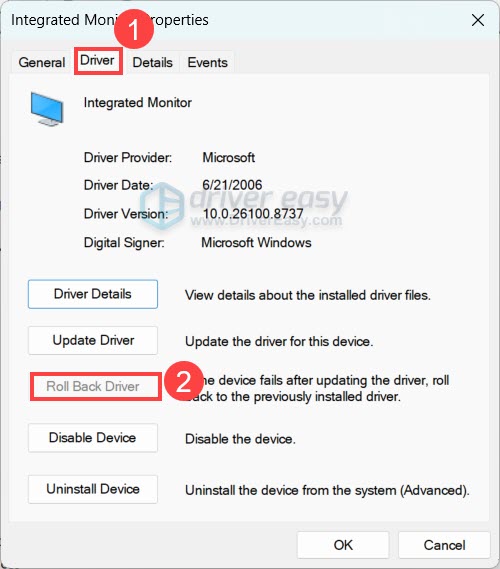
- Restart your PC.
If the Roll Back Driver option is unavailable, you can manually install an older Intel Arc driver from Intel’s driver download page.
Option 2 – Use Driver Easy to roll back the driver
If you regularly update drivers with Driver Easy, you can quickly install a previous driver version without searching through Intel’s archive.
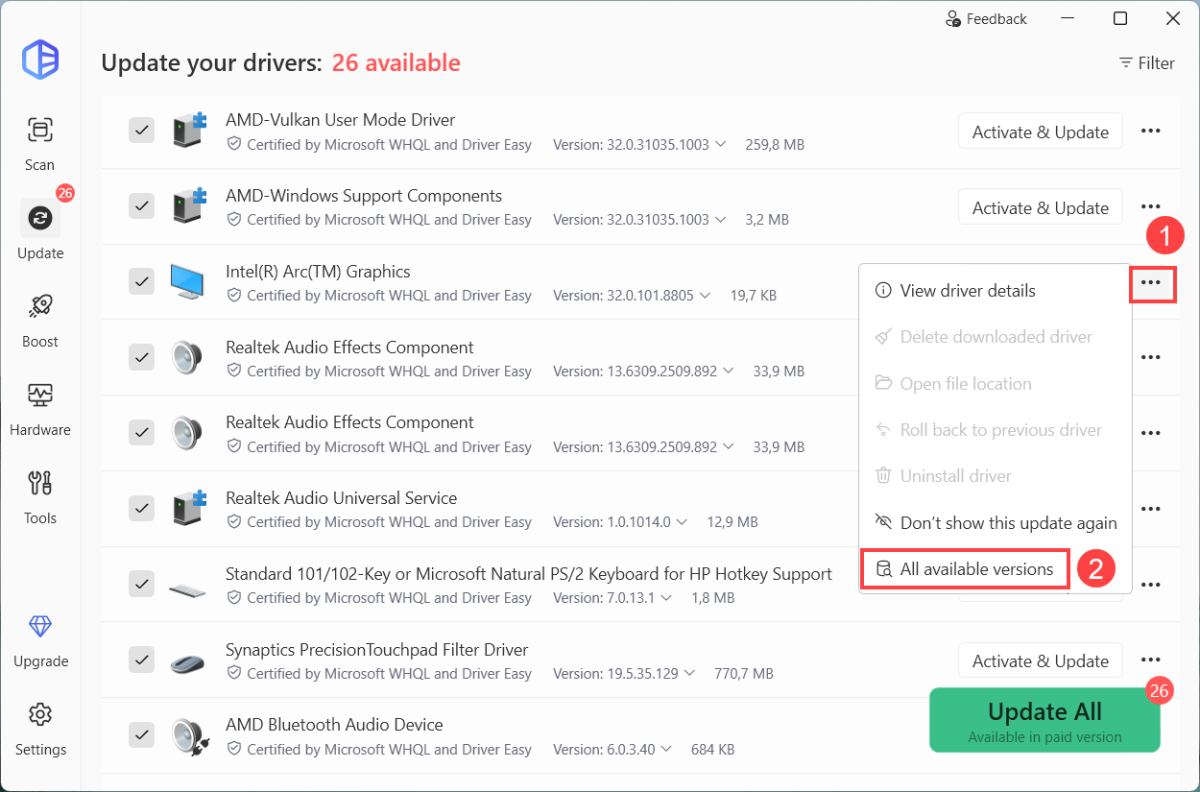
Simply launch Driver Easy. Click the three-dot button next to the graphics driver and select All available versions.
From the list, you can install the previous version or other older versions.
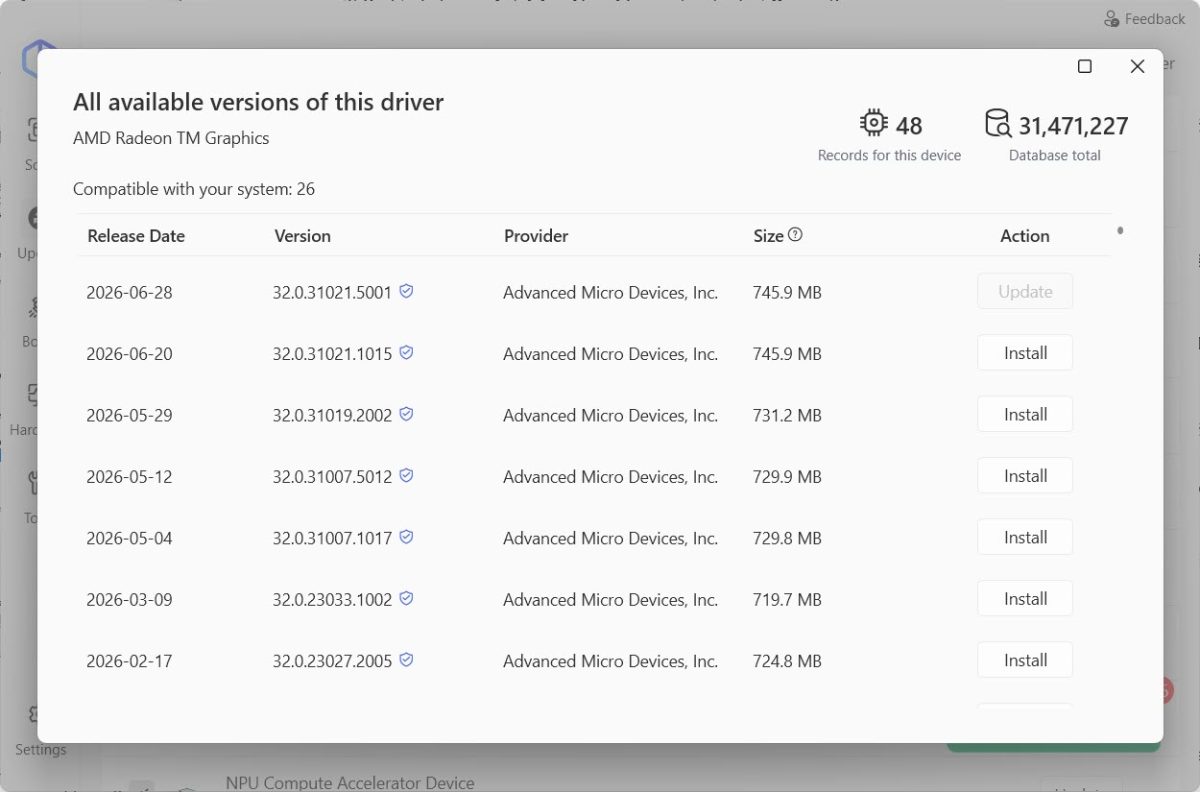
This can save time when a new driver causes problems, especially if you are unsure which previous version worked correctly.
Sometimes driver conflicts occur because remnants of an older driver remain on your system. You can perform a clean installation to remove corrupted files and give you a fresh start.
FAQs
Should I update my Intel Arc graphics driver?
Yes. Driver updates often improve game compatibility, fix bugs, and optimize performance for newly released titles.
If your PC is running smoothly and you don’t play the latest games or use newly released software, you don’t necessarily need to install every optional driver update immediately. However, keeping your drivers reasonably up to date is still recommended for the best overall experience.
How often does Intel release Arc drivers?
Intel typically releases new Arc graphics drivers every few weeks. Game On drivers are often published around major game launches, while additional releases may include bug fixes, security improvements, and performance optimizations.
Does Windows automatically update Intel Arc drivers?
Windows Update may install or even replace your Intel Arc graphics driver with a version from Microsoft’s driver catalog, but it may not always be the latest version.
If you want the latest Game On features, bug fixes, and performance improvements, it’s best to download the latest driver directly from Intel or use a trusted driver updater like Driver Easy.
Should I use Intel Driver & Support Assistant?
Yes. Intel Driver & Support Assistant is a convenient tool for checking and installing Intel driver updates. However, newly released Game On or WHQL-certified drivers sometimes appear on Intel’s Download Center before they are available through Intel Driver & Support Assistant.
If it doesn’t detect a newer driver or causes problems, you can install the driver manually from Intel’s website or use Driver Easy to automatically find and install the latest compatible version.
Updating your Intel Arc graphics driver is usually straightforward. Most users can simply install the latest driver from Intel’s website or use Driver Easy to automate the process.
If Windows keeps replacing your driver, you can simply disable the automatic driver updates. And if a new release introduces issues, rolling back to a previous stable version is often the quickest fix.