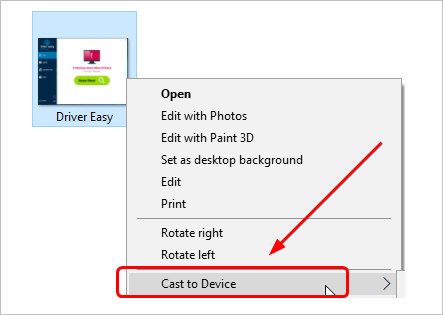
If the Cast to Device feature on your Windows 10 PC can’t work, you will be annoyed and frustrated as you can’t use Windows Media Player to stream any content, like videos, images, and songs to other devices. Don’t panic. Usually, this is an easy problem to fix.
Read on and find out how to fix the Cast to Device stops working problem…
Try these fixes:
Here are 3 solutions you can try to fix this problem. You may not have to try them all; just work your way down the list until you find the one that works.
Note: Before performing the solutions, please make sure the device you want to cast to and Windows 10 both are connected to the same network connection.
Fix 1: Make sure the network sharing feature is enabled on your computer
The Cast to Device feature requires the network sharing feature turned on your computer. See how to check if you turn on the network sharing feature on your computer:
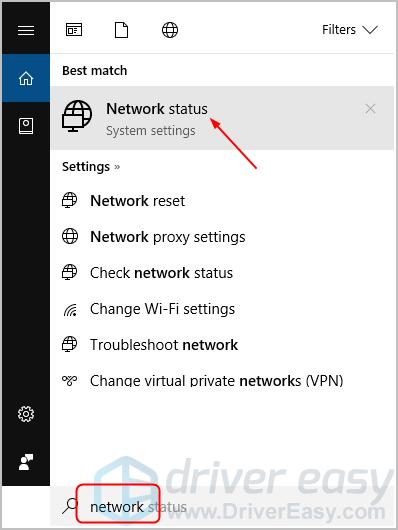
Type network in the search box from Start. Then click Network status from the top.
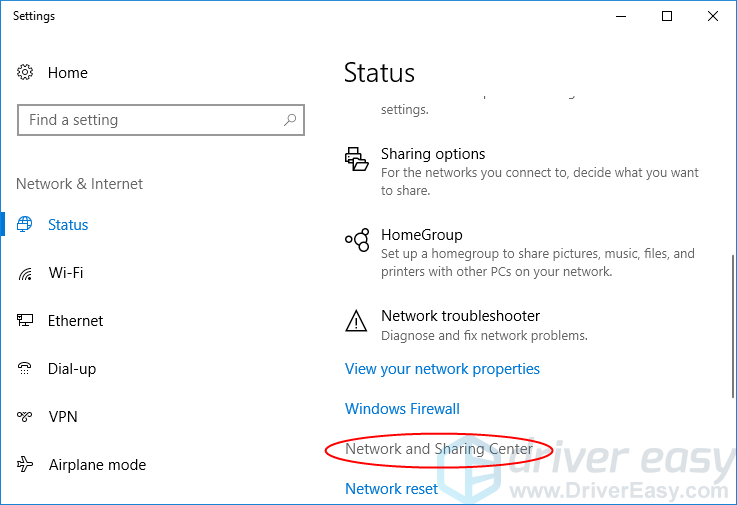
Click Network and Sharing Center.
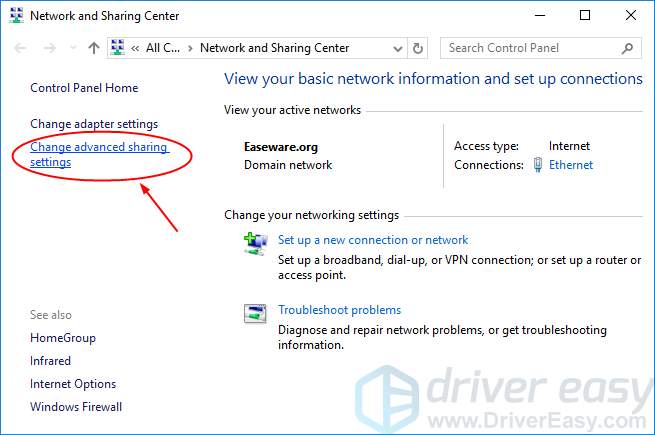
Click Change advanced sharing settings.
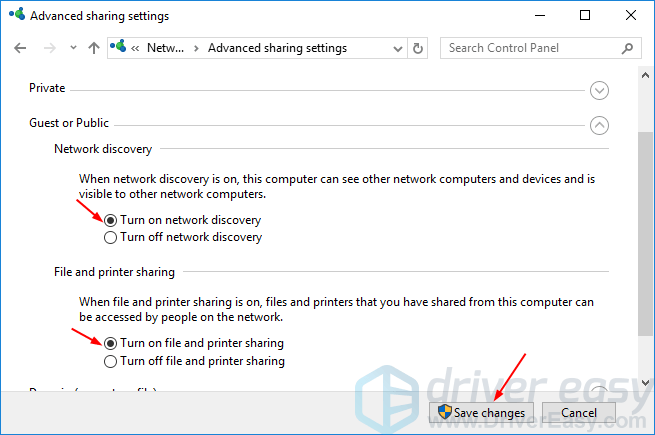
Make sure these two items are checked: Turn on network discovery and Turn on file and printer sharing. Then click Save changes.\
Try the Cast to Device feature again to see if it succeeds.
Fix 2: Reset the Stream Permissions on your Windows 10 computer
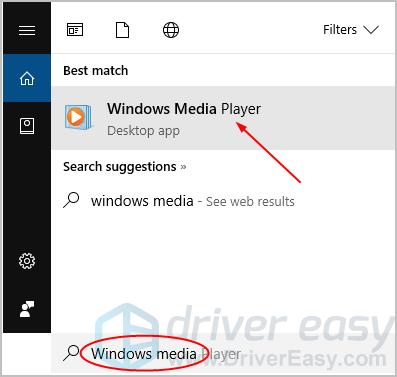
Type media in the search box from Start. Then click Windows Media Player on the top.
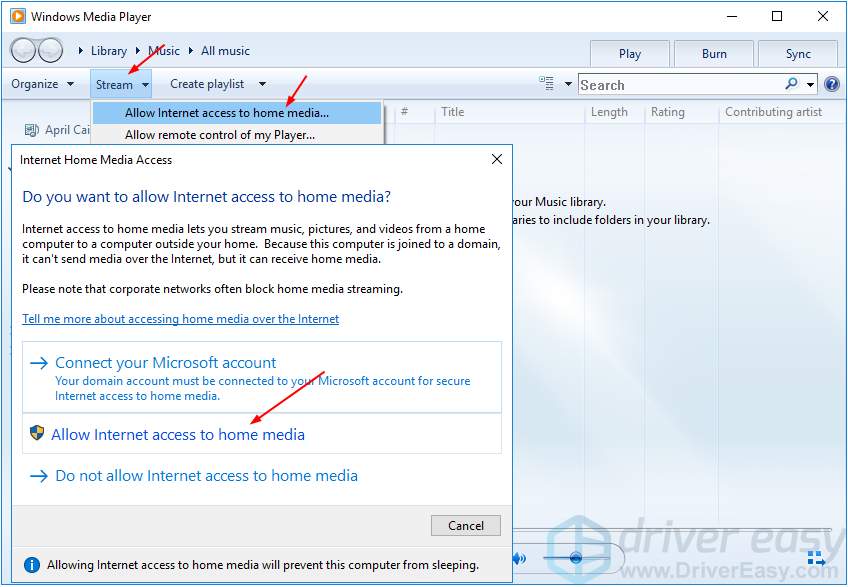
Click Stream > Allow Internet access to home media…Then click Allow Internet access to home media on the pop-up window.Click YES when prompted by User Account Control.
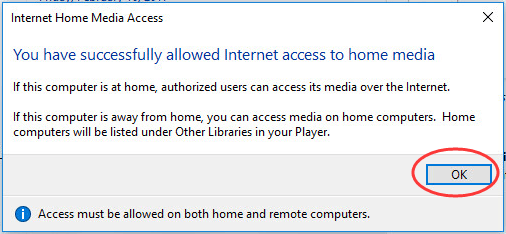
Click OK.
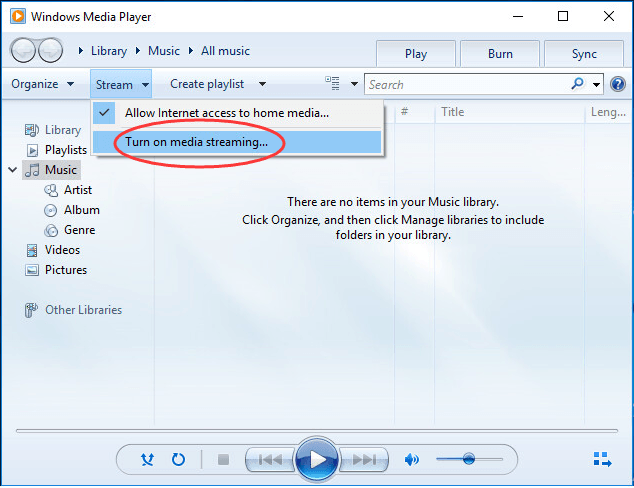
You should then see the Windows Media Player window again. Click Stream > Turn on media streaming…
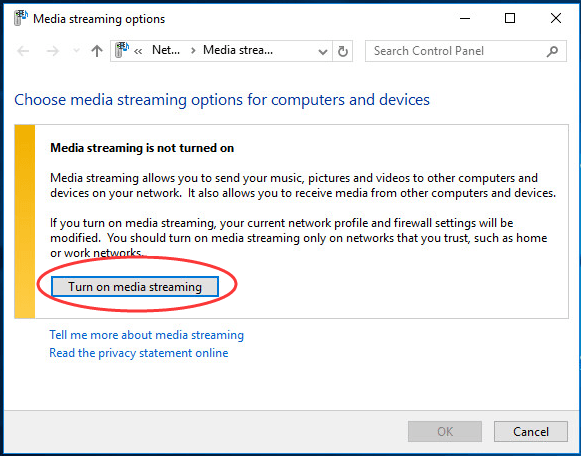
Click Turn on media streaming.
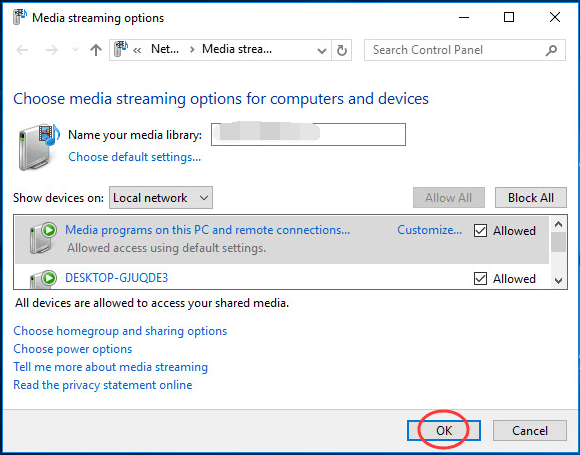
Click OK.
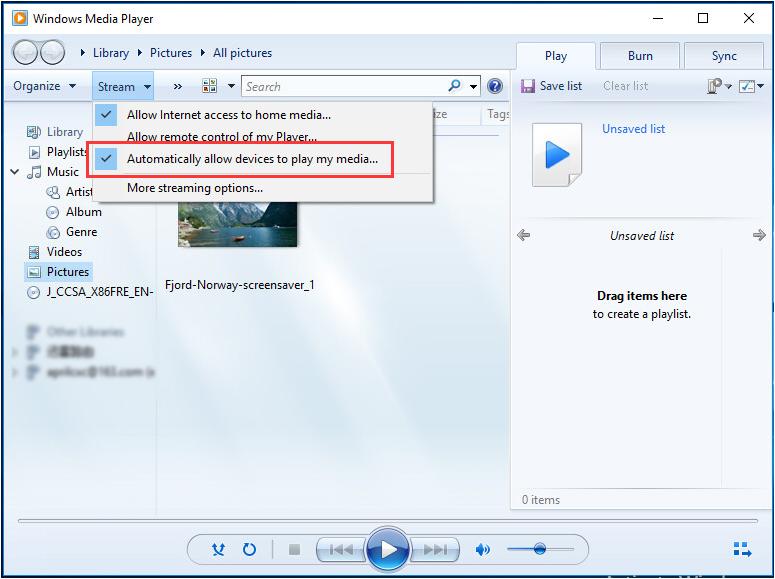
It should then be back on the Windows Media Player window. Click Stream. You should then see Automatically allow devices to play my media... is ticked on. If not, tick on it.
Close the Windows Media Player window.
Try the Cast to Device feature again to see if it succeeds.
Fix 3: Update your network card driver
This problem could be also due to an old network card driver. You can update your network card driver manually or, if you’re not confident playing around with drivers, you can do it automatically with Driver Easy.
Driver Easy will automatically recognize your system and find the correct drivers for it. You don’t need to know exactly what system your computer is running, you don’t need to risk downloading and installing the wrong driver, and you don’t need to worry about making a mistake when installing.
You can update your drivers automatically with either the 7-day free trial or the Pro version of Driver Easy. It takes just 2 clicks, and you get full support and a 30-day money-back guarantee with the Pro version:
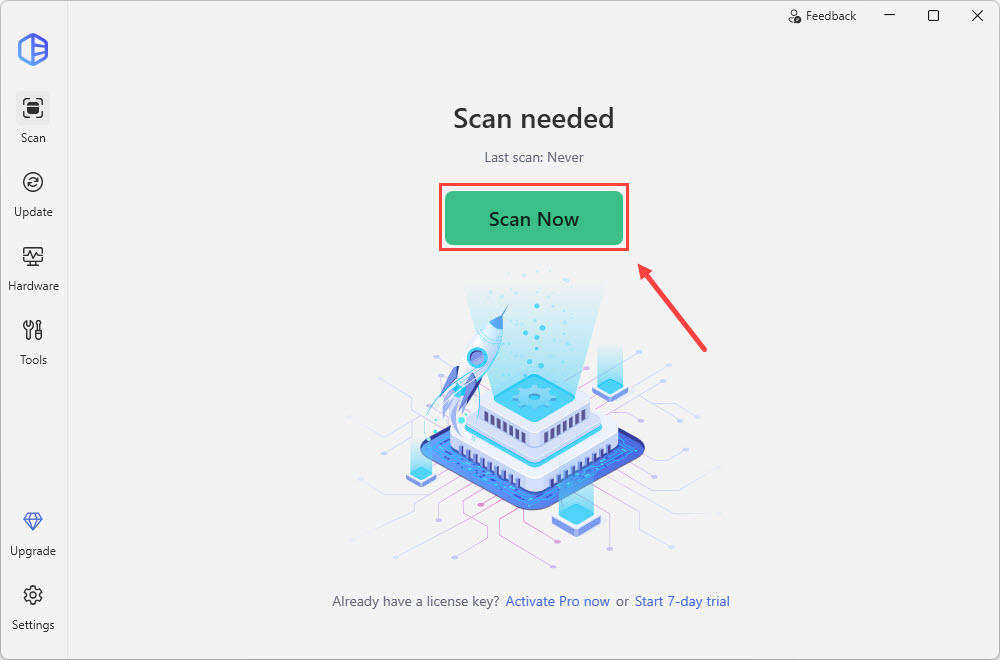
Run Driver Easy and click the Scan Now button. Driver Easy will then scan your computer and detect any problematic drivers.
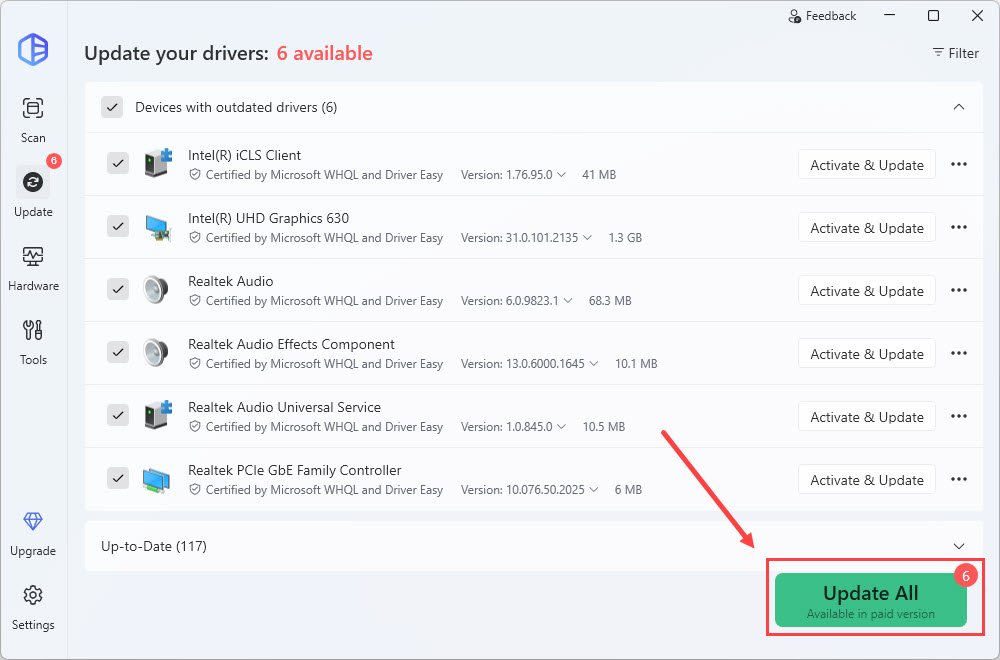
Click Update All to automatically download and install the correct version of all the drivers that are missing or out of date on your system (this requires the Pro version – you’ll be prompted to upgrade when you click Update All).
Reboot your Windows 10.
Try the Cast to Device feature again to see if it succeeds.
Have you ever fixed the Cast to Device stops working problem? What method helps you? Feel free to comment below with your own experience or for any questions.
As a technical writer for Driver Easy, April writes articles related to various tech issues, including Windows computer problems and game errors. She's never happier than when her articles help people solve their problems - whether they're Windows errors and blue screens to network errors and faulty hardware. As a Microsoft Certified Professional (MCP), she focuses on Windows system problems and daily tips and tricks. When she's not writing, she likes reading literary novels and poetry.