






Many Windows 11 or 10 users are having an issue with Windows Update. They can’t download or install updates for their operating system because Windows Update is not working properly.
This is a very frustrating issue. And trying to fix it can be just as annoying, because you’ll spend a lot of time reading suggestions on the Internet, and most won’t work.
But don’t worry! The following are a few methods that have helped many other Windows 10 users fix Windows Update.
Try these fixes:
You don’t have to try them all; just work your way down the list until you find the one that works for you.
- Run the Windows Update troubleshooter
- Reset Windows Update components
- Install the updates for your system manually
Method 1: Run the Windows Update troubleshooter
You should first try running the built-in troubleshooter for Windows Update to fix the error. To do so:
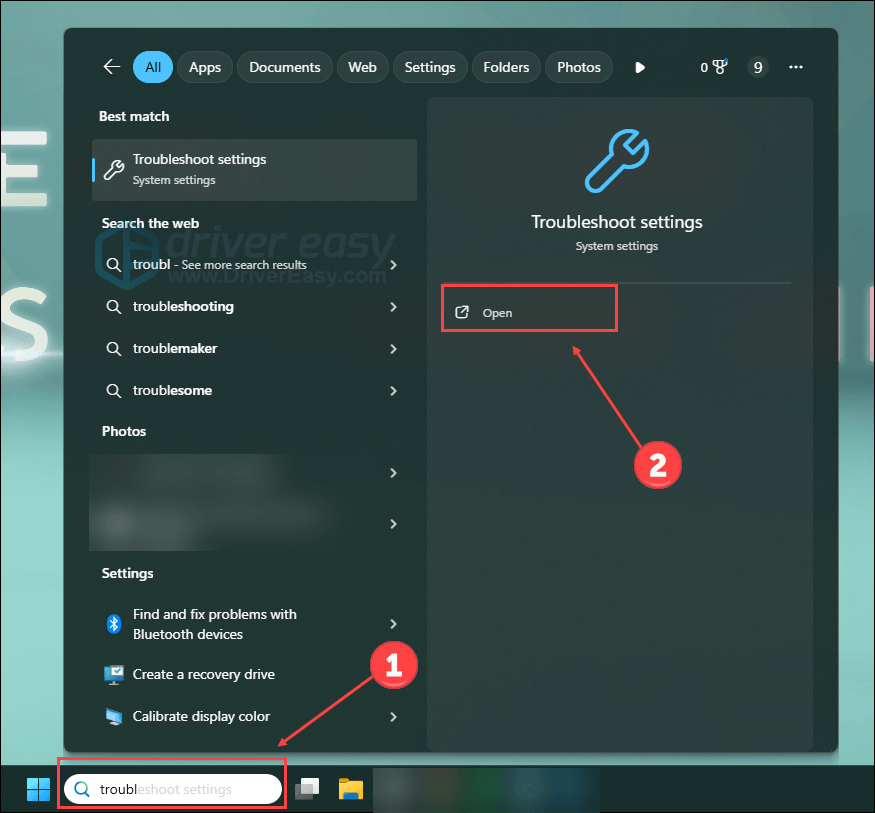
- Type Troubleshoot in the Windows search box, and click Open.
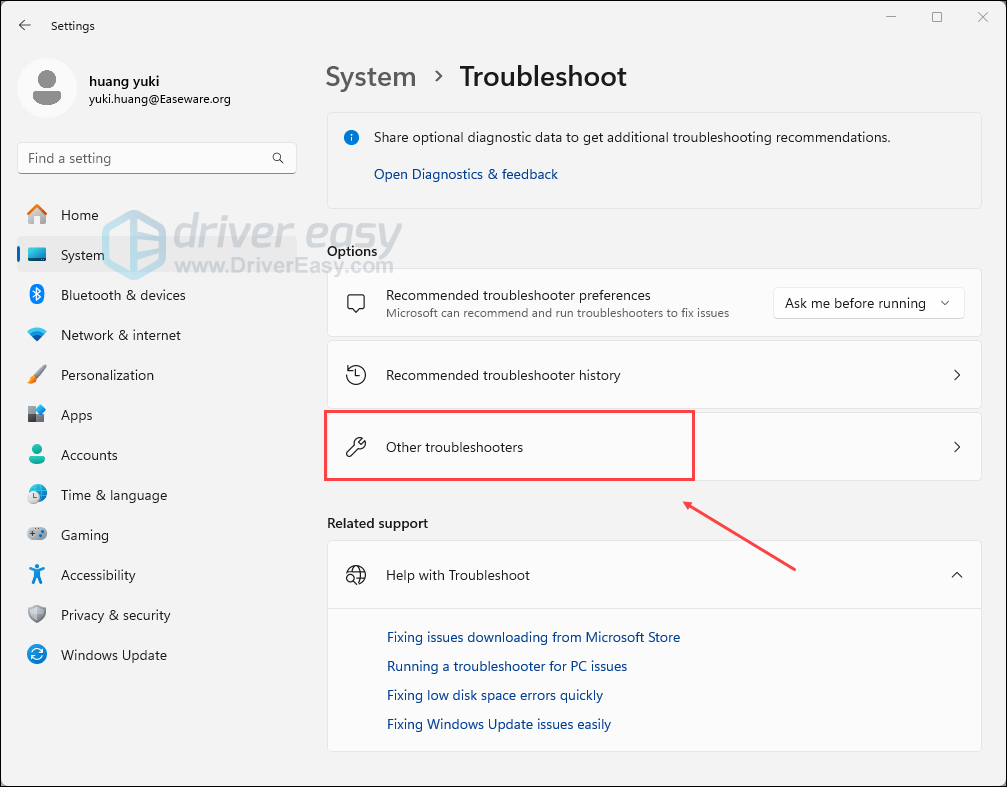
- Click Other troubleshooters.
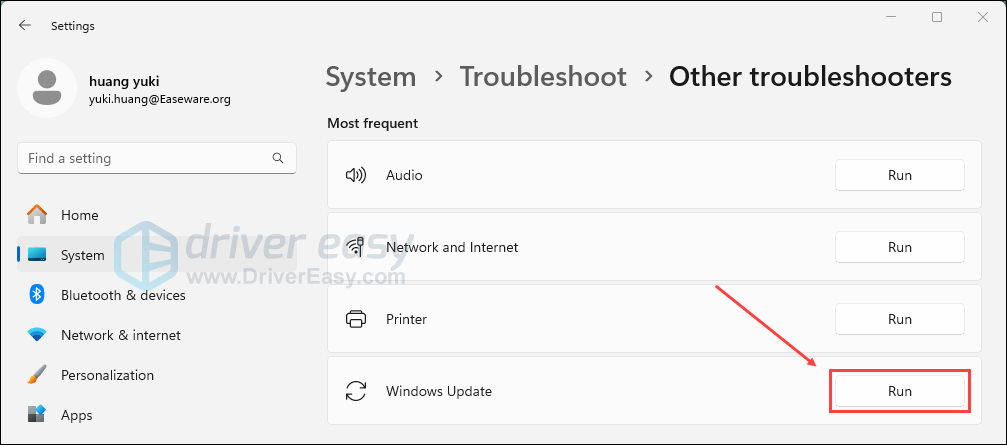
- Click Run next to the Windows Update.
- Follow the on-screen instructions to complete the troubleshooting process.
If the troubleshooter fixes your Windows Update utility, great! But if not, there are two more fixes to try…
Method 2: Reset Windows Update components
Windows Update may not be working properly because your Windows Update components are corrupted. You should reset those components and see if this fixes your problem. Here’s how to do it.
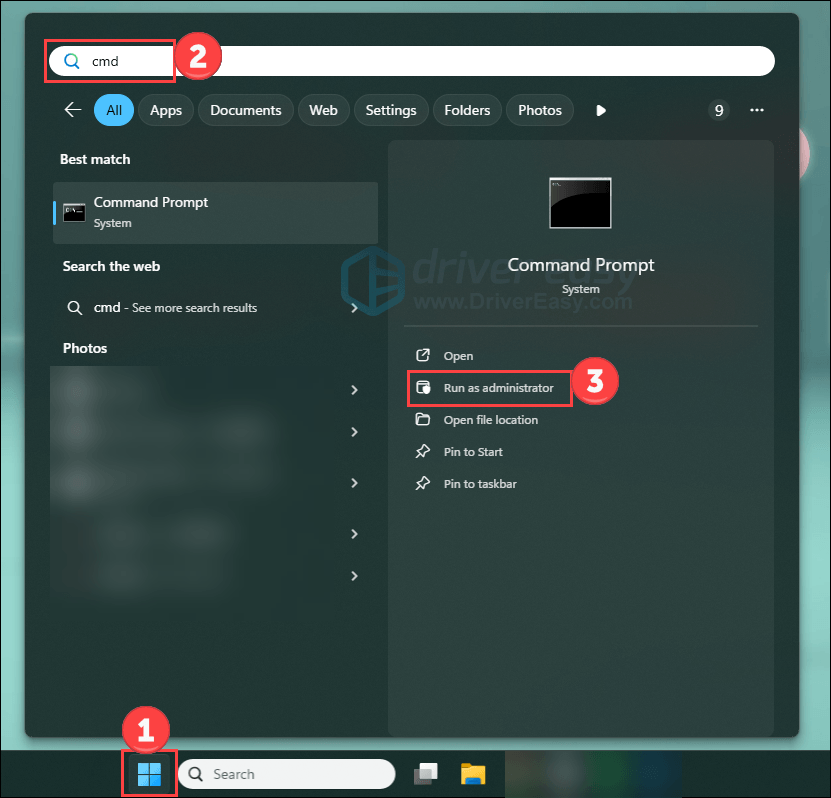
1) Click the Windows logo at the bottom of your screen, then type cmd. Click Run as administrator.
2) In Command Prompt, type the following four lines of command and press Enter on your keyboard after typing each:
net stop bits
net stop wuauserv
net stop appidsvc
net stop cryptsvc
3) Copy and paste these lines of command and press Enter after typing each in Command Prompt:
Ren %systemroot%\SoftwareDistribution SoftwareDistribution.old
Ren %systemroot%\system32\catroot2 catroot2.old
4) Finally, in Command Prompt, type these commands and press Enter after each to restart the services:
net start bits
net start wuauserv
net start appidsvc
net start cryptsvc
Hopefully, this works for you. But if not, you may need to…
Method 3: Install the updates for your system manually
You can also download and install the update manually if Windows Update fails to do it for you. To install the update manually:
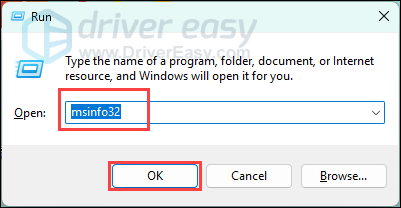
1) Press the Windows logo key and R on your keyboard at the same time. Copy and paste msinfo32 and click OK to open System Information.
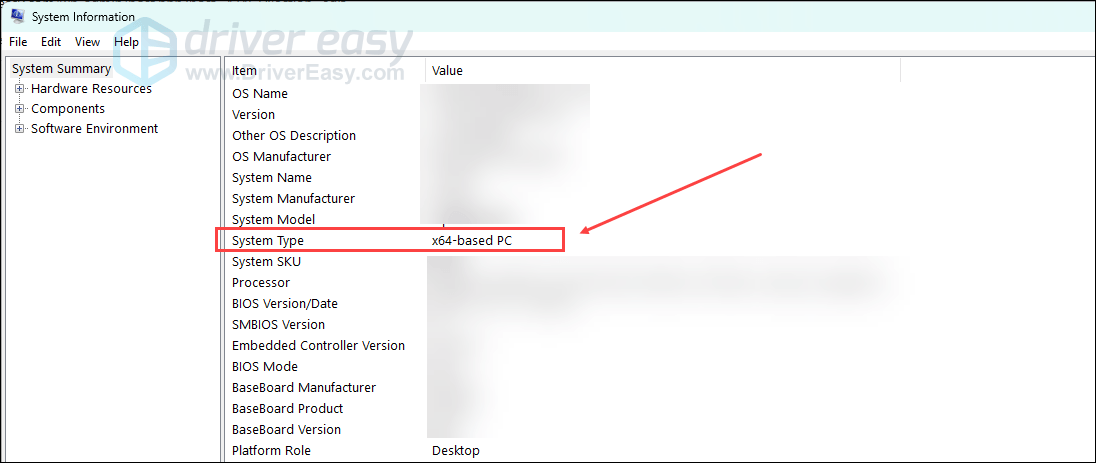
2) In the System Information window, check System Type. Its value is usually x64-based or x86-based (or sometimes ARM64-based).
3) On Windows Update, note down the system updates that failed to install. (You may need to get the information from the update history.)

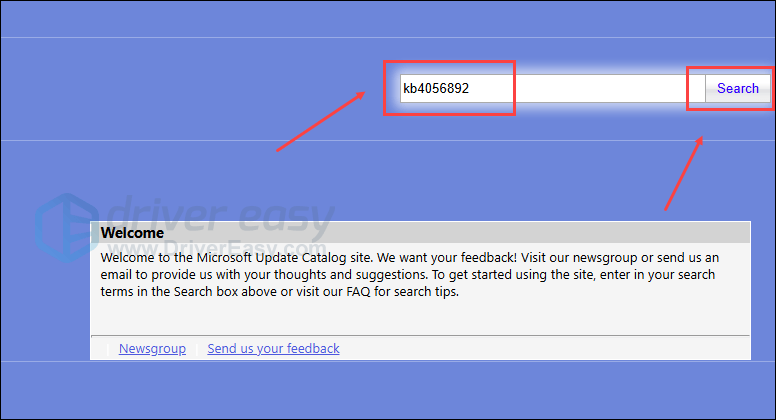
4) Go to Microsoft Update Catalog. Then search for the updates you have failed to install.
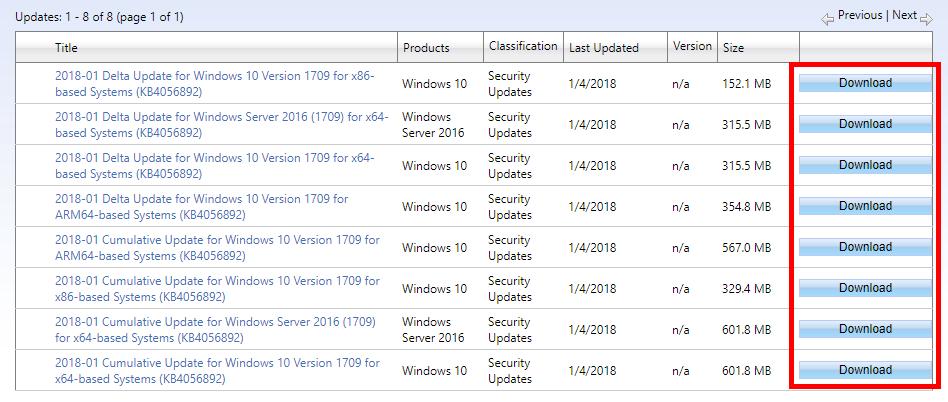
5) In the search results, find the update that matches your system type (x86-, x64- or ARM64-based). Then click Download next to the update.
6) Click the link on the new window to download the update.
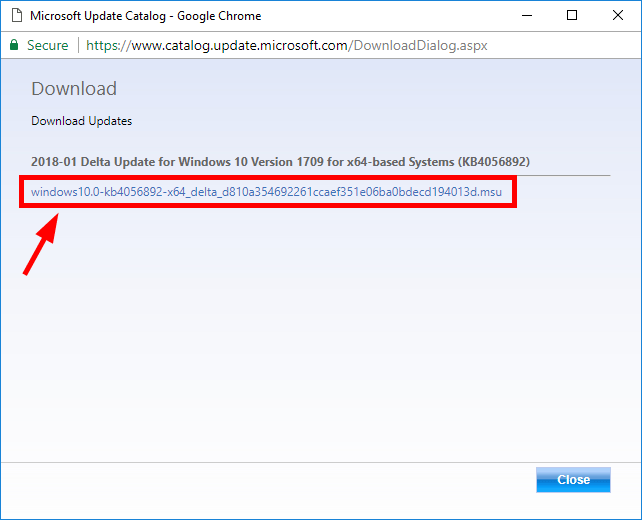
7) Open the file you’ve just downloaded and follow the on-screen instructions to install the update.
