






Your graphics card isn’t detected by your computer? This is quite irritating and you’re certainly not the only one who faces this issue. Many Windows users are reporting it. But the good news is you can fix it. This article gives you 5 solutions to try.
Try these fixes:
You don’t have to try them all. Just work your way down the list until you find the one that works for you.
- Refresh Device Manager
- Update your graphics driver
- Uninstall recent Windows updates
- Reinstall your graphics card
- Update your BIOS
Fix 1: Refresh Device Manager
One quick fix that works for many Windows users is refreshing Device Manager. Follow the instructions below to see how to do it:
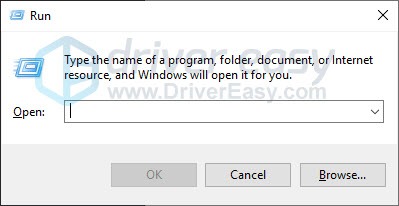
- On your keyboard, press the Windows logo key and R at the same time to open the Run dialog.
On your keyboard, press the Windows logo key and R at the same time to open the Run dialog.
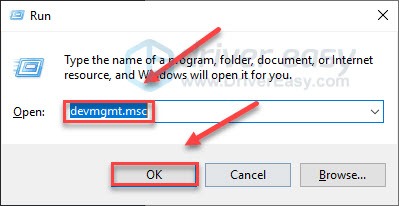
- Type devmgmt.msc and click OK to open Device Manager.
Type devmgmt.msc and click OK to open Device Manager.
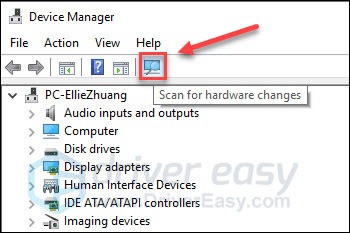
- Click the Scan button.
Click the Scan button.
- Check if your graphics card shows up under Display adapters.
Check if your graphics card shows up under Display adapters.
If it doesn’t, don’t worry. Read on and check the fix below.
Fix 2: Update your graphics driver
This problem may occur if you are using the wrong graphics driver or it’s out of date. So you should update your graphics driver to see if it fixes your problem. If you don’t have the time, patience or skills to update the driver manually, you can do it automatically with Driver Easy.
Driver Easy will automatically recognize your system and find the correct drivers for it. You don’t need to know exactly what system your computer is running, you don’t need to be troubled by the wrong driver you would be downloading, and you don’t need to worry about making a mistake when installing.
Updating drivers with Driver Easy only taks a few mouse clicks:
1) Download and install Driver Easy.
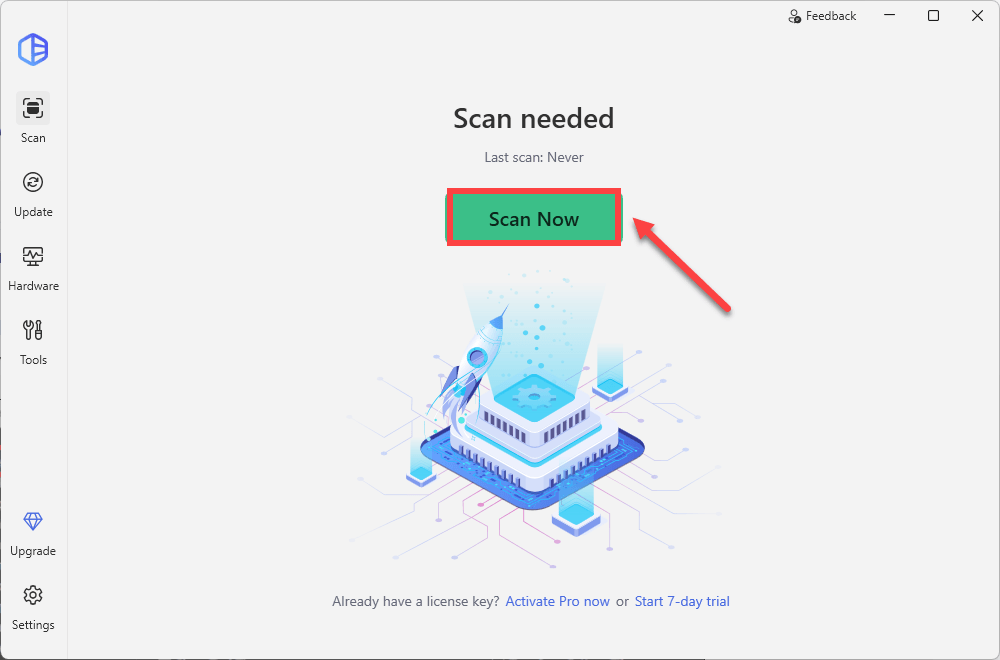
2) Run Driver Easy and click the Scan Now button. Driver Easy will then scan your computer and detect any problem drivers.
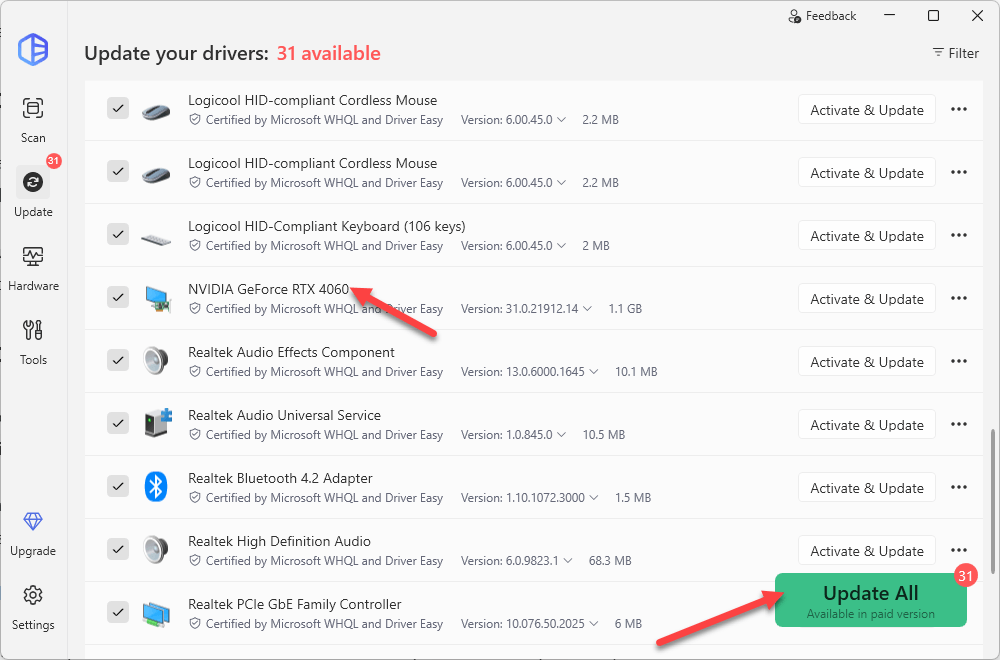
3) Click Update All to automatically download and install the correct version of all the drivers that are missing or out of date on your system.
(This requires the Pro version which comes with full support and a 30-day money-back guarantee. You’ll be prompted to upgrade when you click Update All. If you’re not ready to buy the Pro version, Driver Easy offers a 7-day free trial which includes access to all the Pro features such as high-speed download and one-click install. You won’t be charged anything until your 7-day trial has ended.)
Fix 3: Uninstall recent Windows updates
Sometimes, Windows updates may conflict with your graphics card resulting in this problem. To fix it, you need to remove recent updates. Here is how to do it:
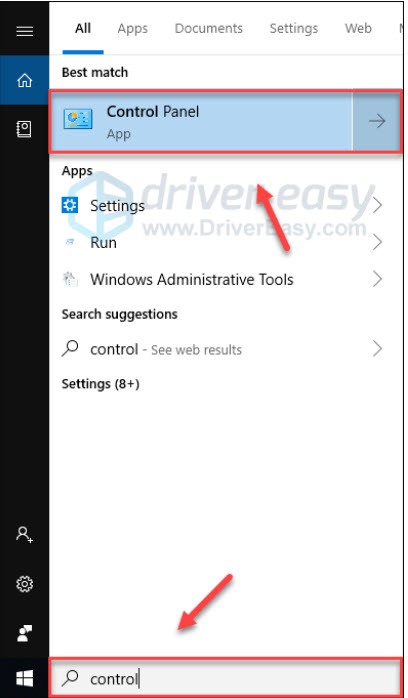
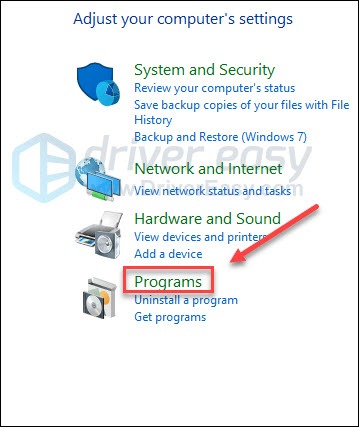
1) On your keyboard, press the Windows logo key and type control. Then, click Control Panel.
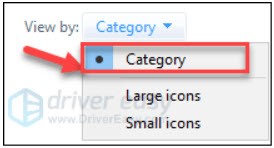
2) Under View by, select Category.
3) Click Programs.
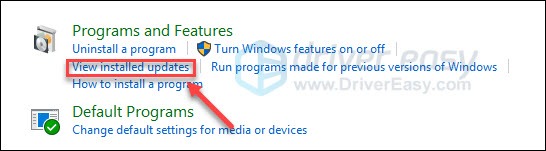
4) Click View installed updates.
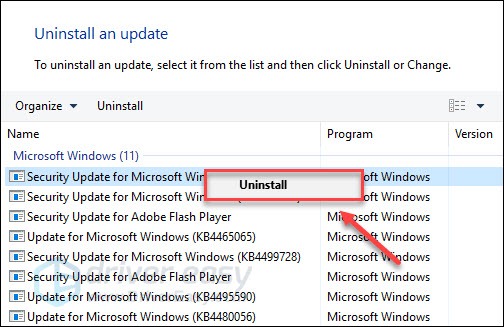
5) Right-click a recent update, and then click Uninstall.
If your problem persists, check the fix below.
Fix 4: Reinstall your graphics card
If you’re using a desktop, your issue is probably caused by a poor connection between your graphics card and motherboard. To fix it, you need to reinstall your graphics card. Here is how to do it:
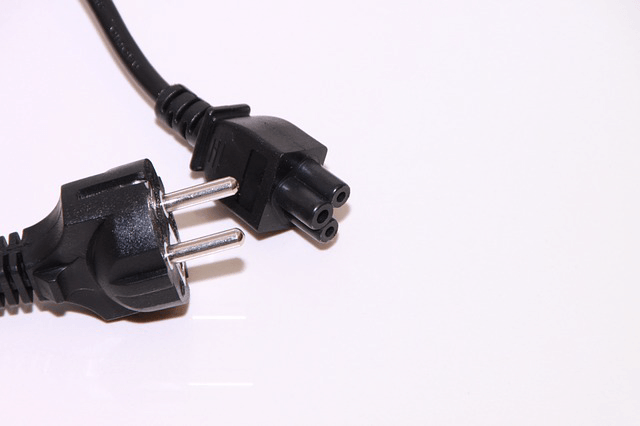
1) Turn off your computer, and then disconnect the power cord from the power supply.
2) Open your computer case.
3) Remove your graphics card and reinstall it.
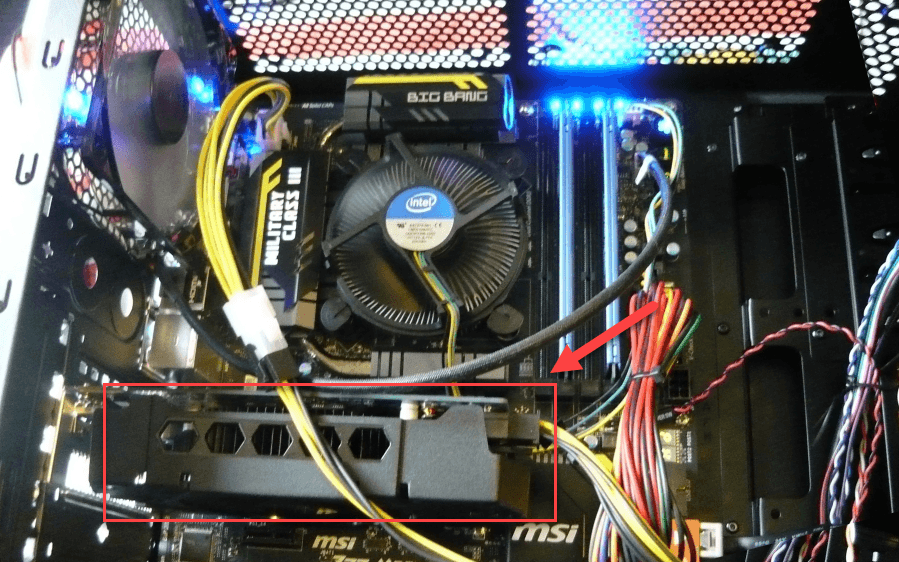
4) Plug the power cord back into the power outlet, and then turn on your computer.
Check if this worked for you. If your problem still exists, don’t fret. There is still 1 more fix to try.
Fix 5: Update your BIOS
An outdated BIOS can also cause this problem. If that’s the problem for you, updating your BIOS is very likely the solution to it. Here is how to do it:
1) On your keyboard, press the Windows logo key and R at the same time to open the run dialog.
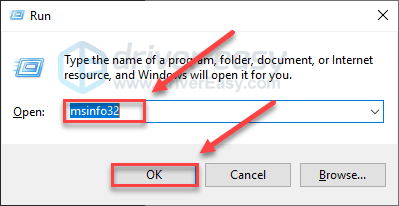
2) Type msinfo32 and click OK.
3) Check the BIOS Version/Date to know your BIOS manufacturer.
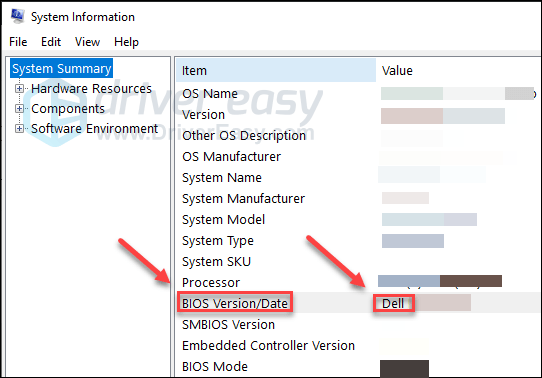
4) Go to the manufacturer’s support website and search for the latest update for your BIOS.
5) Download the update file and follow the on-screen instructions to install it.
6) After the update is complete, restart your computer to see if your computer is able to detect your graphics card.
Hopefully, one of the fixes above helped in resolving your problem. Please feel free to leave a comment below if you have any suggestions or questions.

