





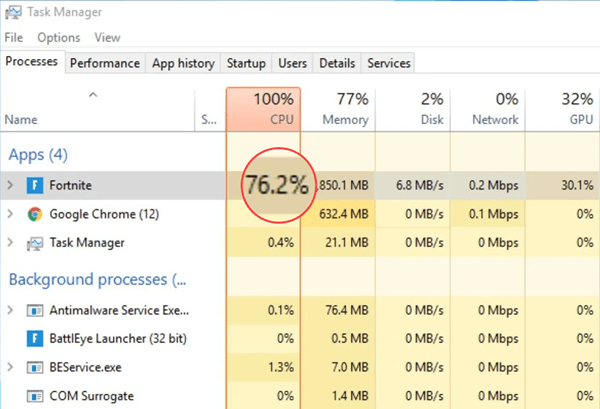

Fortnite runs great—until it doesn’t. If your CPU usage suddenly spikes, your system might start lagging or heating up fast. It’s a common issue that can affect even well-equipped PCs. The good news? You can fix it. In this article, we’ll show you the 6 most effective ways to reduce Fortnite’s high CPU and get the game up and running. Read on!
6 best fixes for the high CPU usage in Fortnite issue
Fix 1: Update your graphics driver
Fortnite relies heavily on your GPU to handle the complex graphics rendering required for its fast-paced gameplay. When your graphics driver is outdated or faulty, it can cause communication issues between the game and your GPU, leading the CPU to take over some of the graphics processing tasks. This unexpected extra workload drives your CPU usage up, often to 100%, resulting in lag, stuttering, and overheating. So you should update your graphics driver to see if it fixes the high CPU usage in Fortnite problem.
You can update your drivers manually by visiting your GPU manufacturer’s website (such as NVIDIA, AMD, or Intel) and downloading the latest compatible driver for your specific graphics card model. However, manual updates can be time-consuming and risky if you install the wrong driver or miss important updates. If you’d rather avoid the hassle — and the potential risks involved, you can do it automatically with Driver Easy.
Driver Easy is a trusted driver update tool that can automatically detect your hardware and find the most up-to-date, compatible drivers for you. It also gives you the option to choose which driver version to install, so you can select the most stable or the latest release depending on your preference. With Driver Easy, you don’t have to worry about downloading incorrect drivers, manual installation errors, or missing important updates. Driver Easy handles it all.
All it takes is just a few clicks:
- Download and install Driver Easy.
- Run Driver Easy and click the Scan Now button. Driver Easy will then scan your computer and detect any problem drivers.
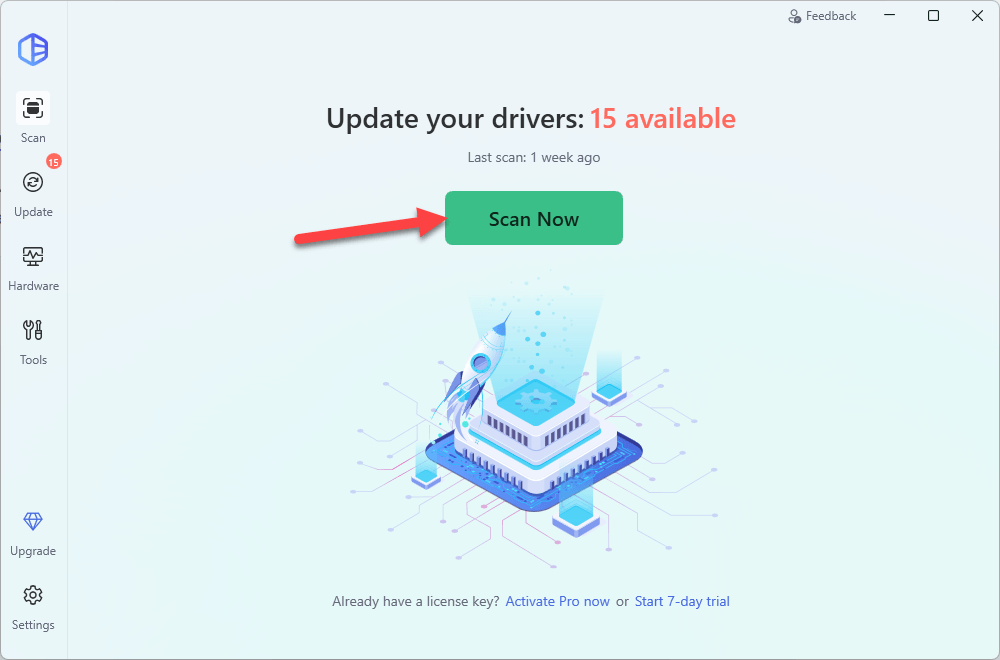
- Check if your graphics driver is flagged in the scan results. If it is, click Activate & Update to start a 7-day free trial or upgrade to Driver Easy Pro. Either option will automatically download and install the latest drivers for you.

- Restart your computer for the changes to take effect.
- Once updated, launch Fortnite again and keep an eye on CPU usage. It should now be noticeably lower and more stable. However, However, if you’re still seeing high CPU usage, the issue is likely caused by something else. Please move on to Fix 2, below.
Fix 2: Optimize in-game settings
Fortnite’s visual settings can have a huge impact on how your CPU is used. If your graphics settings are too high or unoptimized, the game may overload your CPU, even if your GPU isn’t fully maxed out. Thankfully, Fortnite includes several built-in options that can help offload work from the CPU and stabilize performance.
Here’s what to adjust:
- Launch Fortnite.
- Navigate to Settings.
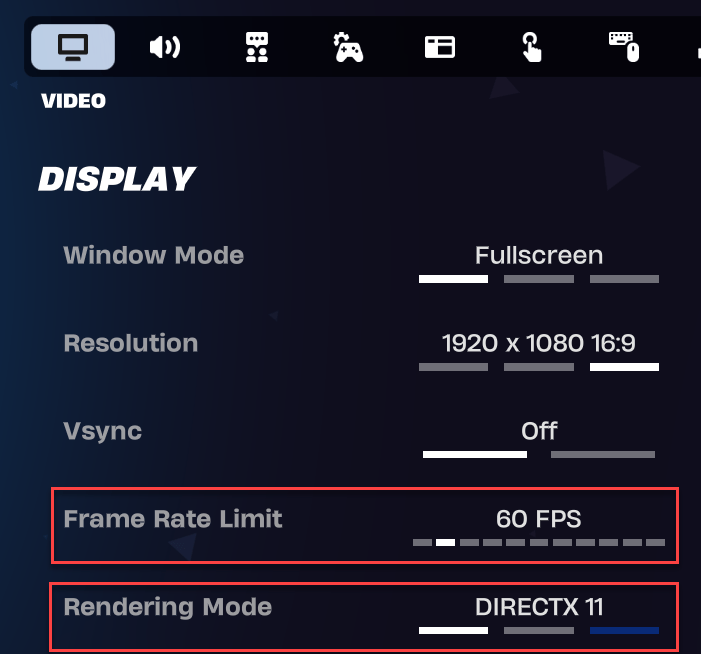
- Under the Display tab:
- Set Frame Rate Limit to match your monitor’s refresh rate (e.g. 60 FPS for 60Hz, 144 FPS for 144Hz).
- Set Rendering Mode to DirectX 11 or Performance (Alpha).
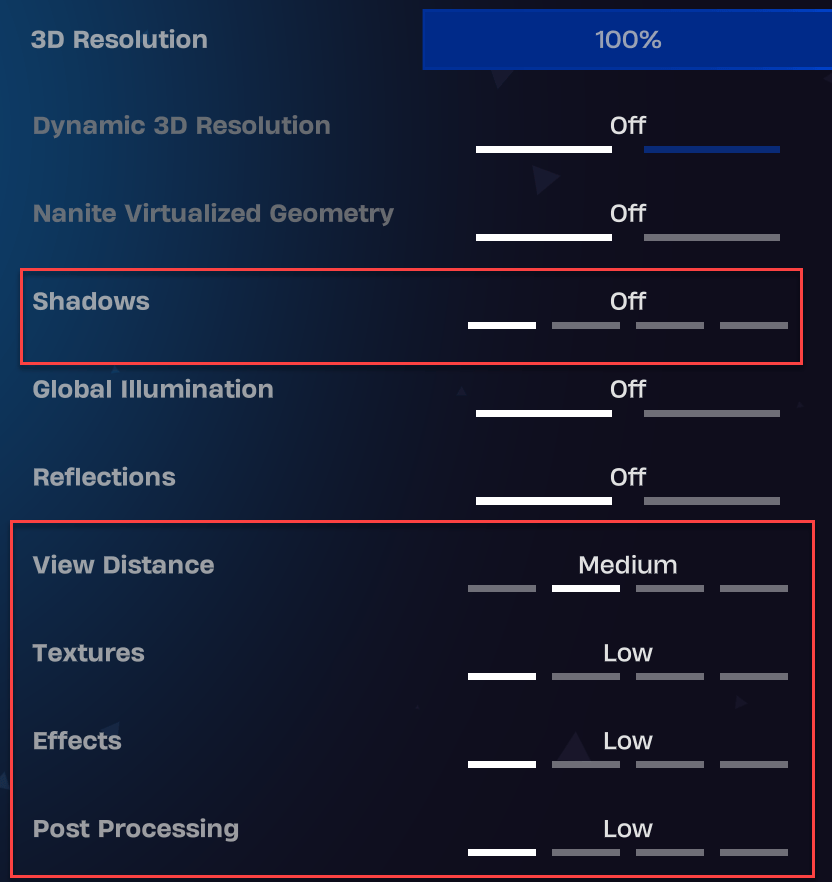
- Under GRAPHICS QUALITY:
- Set Shadows to Off.
- Set View Distance to Near or Medium (optional, depending on visibility preference).
- Set Textures, Effects, and Post Processing to Low.
Fix 3: Close background applications and disable overlays
Even if Fortnite itself is well-optimized, background apps can quietly eat up CPU resources. Programs like Discord, GeForce Experience, Windows Xbox game bar, or even a web browser often stay running in the background without you noticing. On top of that, many of these apps enable in-game overlays by default, which adds even more strain to your CPU while you play.
By closing unnecessary background processes and disabling overlays, you can free up valuable system resources, and so there is more breathing room for Fortnite to run smoothly.
How to close background apps:
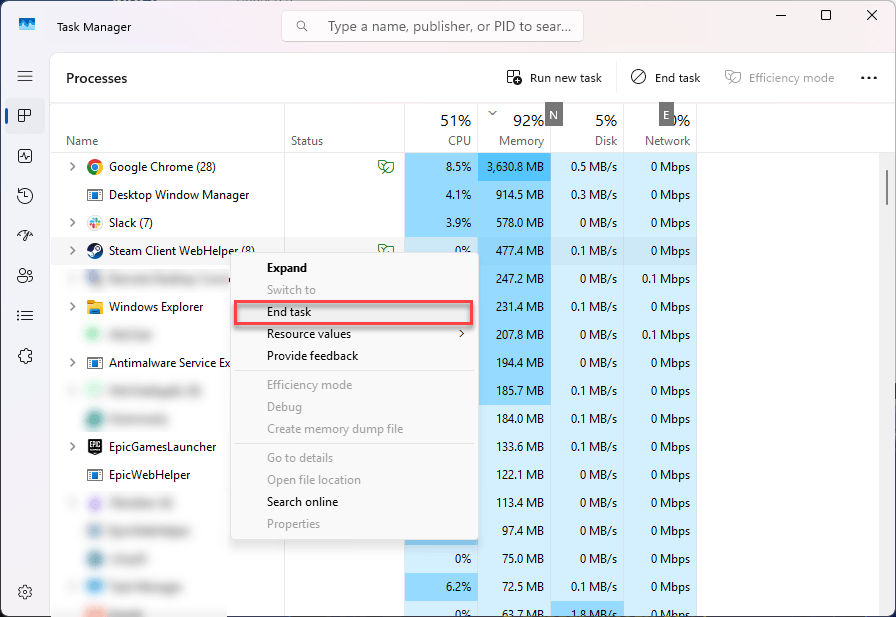
- On your keyboard, press Ctrl + Shift + Esc to open Task Manager.
- Under the Processes tab, look for any apps you don’t need while gaming (like Chrome, Spotify, Steam, etc.). Then right-click on each of them and choose End task to shut them down.
How to disable in-game overlays:
Disable Discord Overlay:
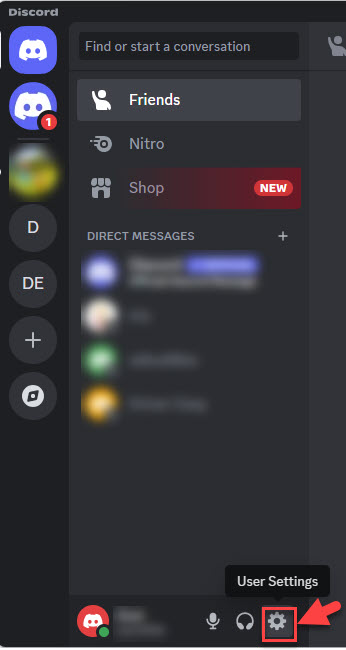
- Click on the Users Settings icon.
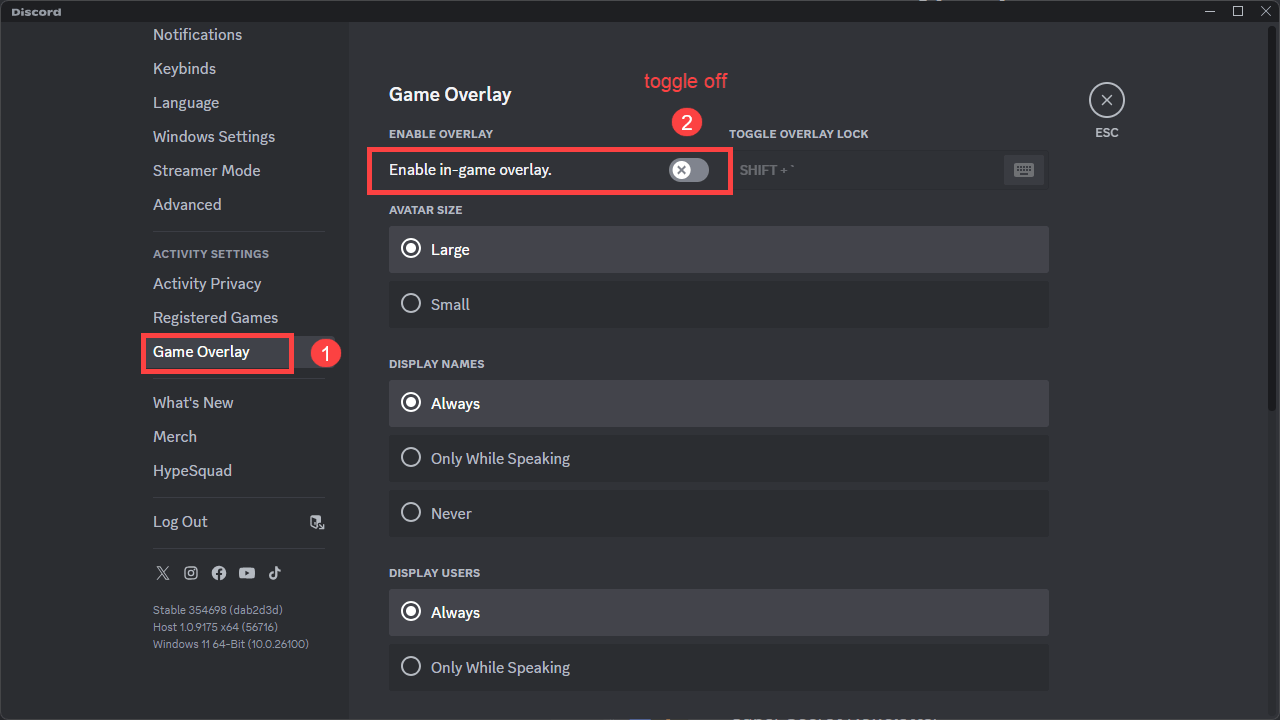
- Locate and click on Game Overlay. Then toggle off the option Enable in-game overlay.
- Apply the changes and exit Discord.
Disable Geforce Experience in-game overlay:
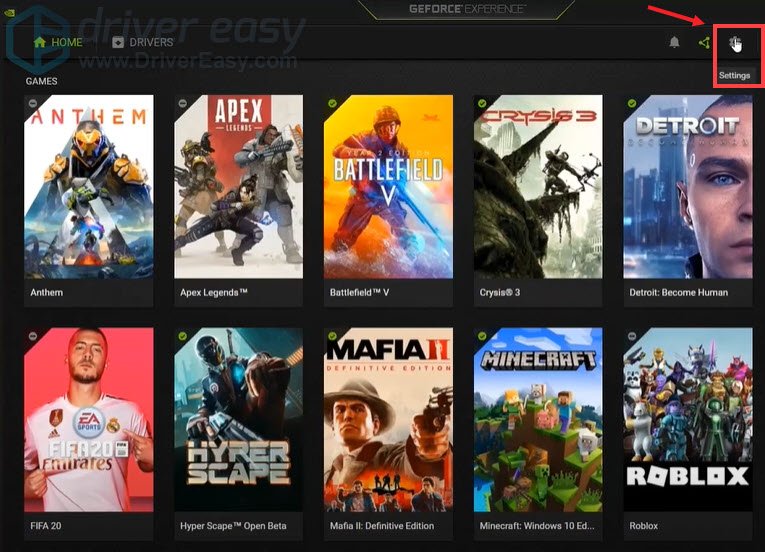
- Click on the Settings icon.
- Under the GENERAL tab, scroll down and switch IN-GAME OVERLAY to OFF.
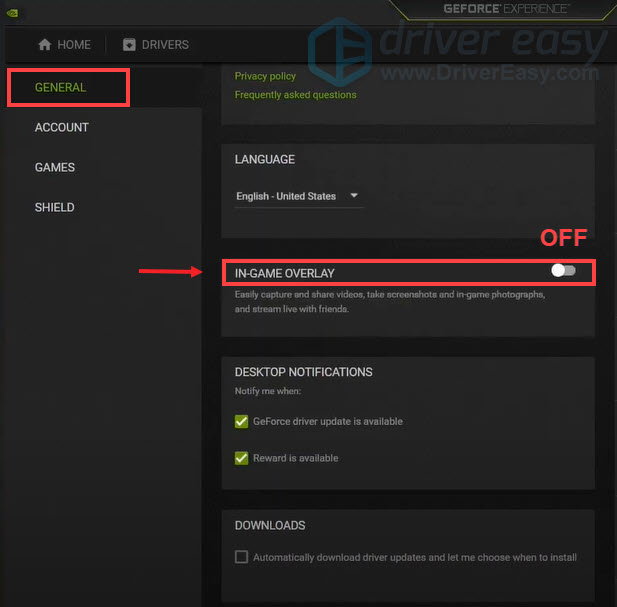
- Apply the changes and exit GeForce.
Disable Windows Xbox Game Bar:
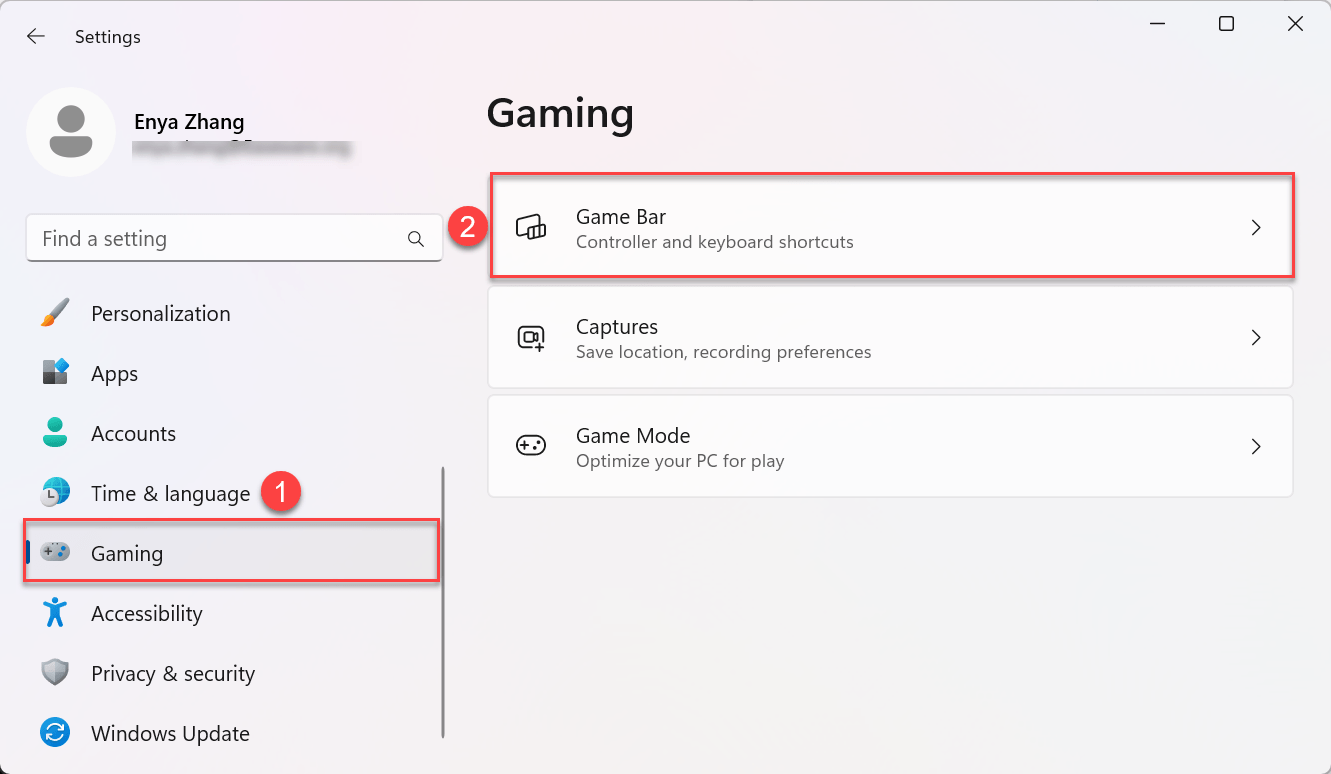
- On your keyboard, press the Windows logo key and I at the same time to open Settings.
- Select Gaming > Game Bar.
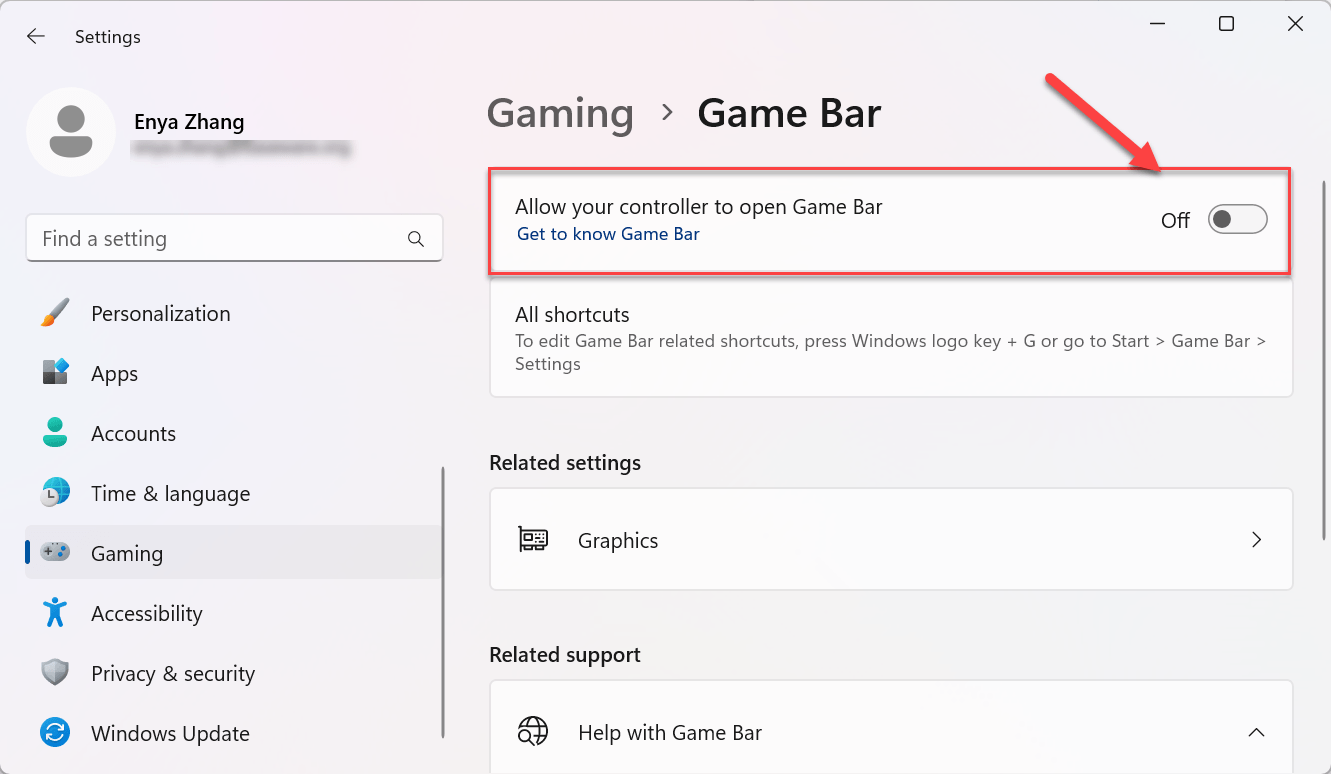
- Disable the Allow your controller to open Game Bar toggle.
After disabling overlays, fire up Fortnite and see if it plays smoothly. If it does, you’ve found your culprit!
Fix 4: Tweak your power plan settings
Your Windows power plan directly affects how your CPU behaves: how fast it ramps up, how hot it gets, and how much power it consumes. The wrong settings can keep your CPU running at unnecessarily high speeds or throttle it inefficiently, both of which can cause Fortnite to stutter or spike to 100% usage.
By tweaking your power plan and processor states, you can make your CPU run more efficiently:
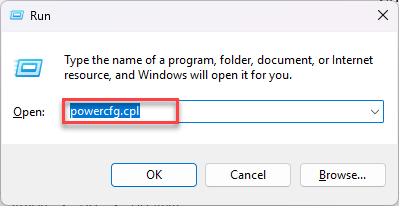
- On your keyboard, press the Windows logo key and R at the same time, type powercfg.cpl, and hit Enter.
- Choose Balanced or High performance as your preferred power plan and click on Change plan settings. You may want to avoid Power Saver mode as it restricts performance too aggressively.
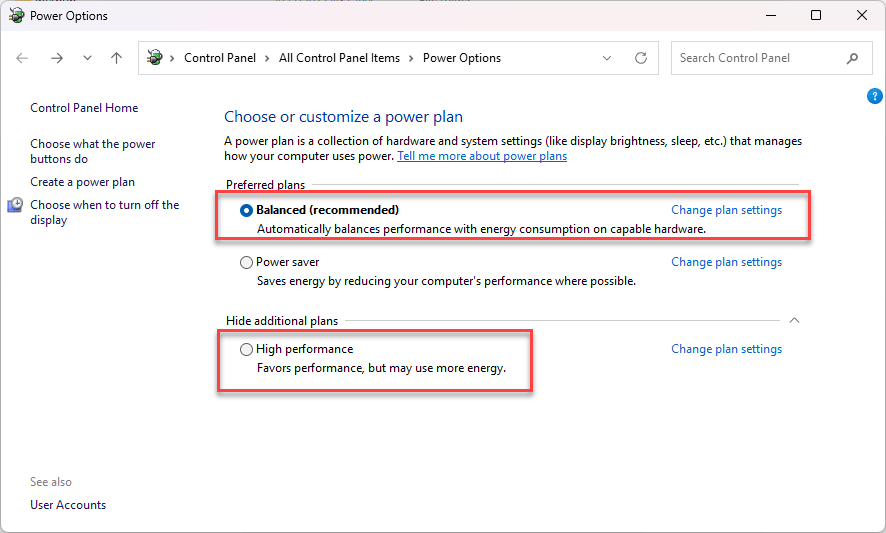
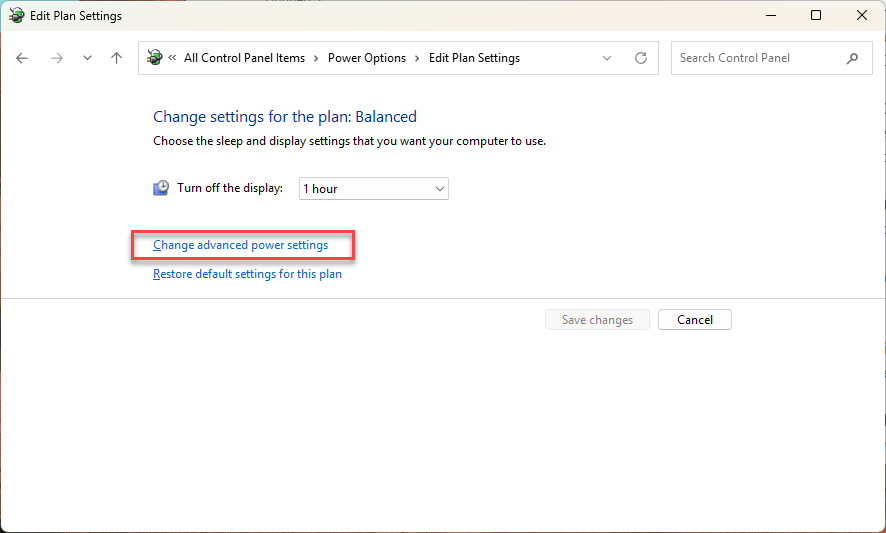
- Click Change advanced power settings.
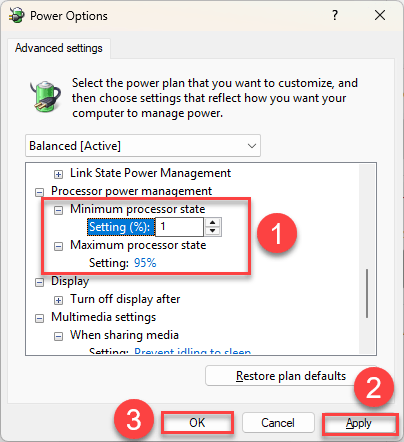
- In the Power Options window, expand Processor power management.
- Set Minimum processor state to 1–5% (this allows your CPU to idle properly).
- Set Maximum processor state to 95–99% (this prevents your CPU from maxing out constantly).
- Click Apply, then OK.
Fix 5: Disable hardware-accelerated GPU scheduling
Hardware-accelerated GPU scheduling is a Windows feature designed to reduce GPU latency by offloading tasks directly to the GPU. But on some systems (especially older or mid-tier CPUs), it can backfire, increasing CPU overhead and causing stutters in games like Fortnite.
Disabling it has helped many users lower CPU usage and improve stability.
To disable Hardware-Accelerated GPU Scheduling:
- On your keyboard, press the Windows logo key + I to open Settings.
- Go to System > Display, and then scroll down and click Graphics settings.
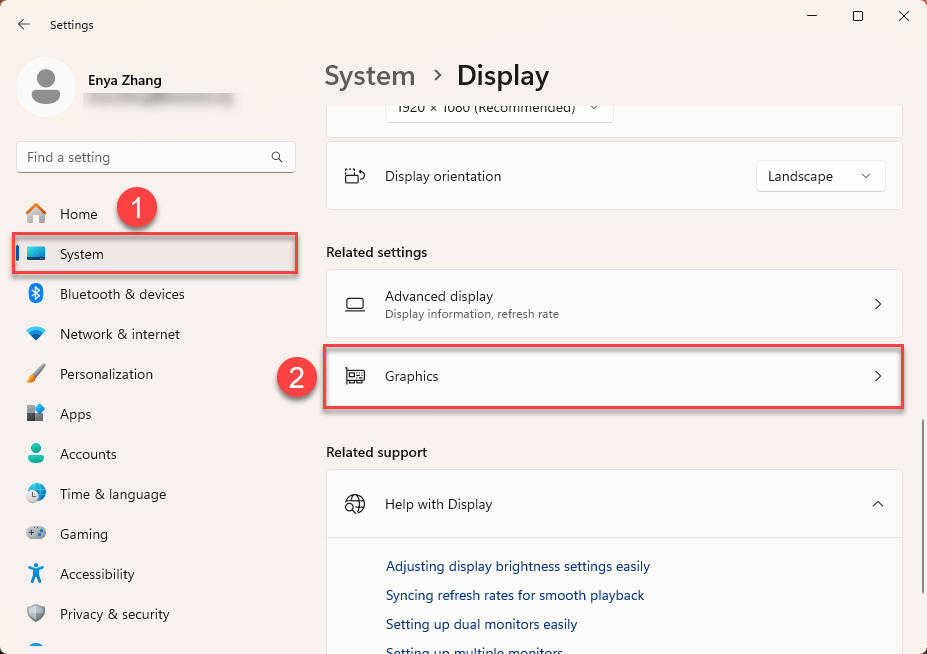
- Under Default graphics settings, toggle Hardware-accelerated GPU scheduling off.
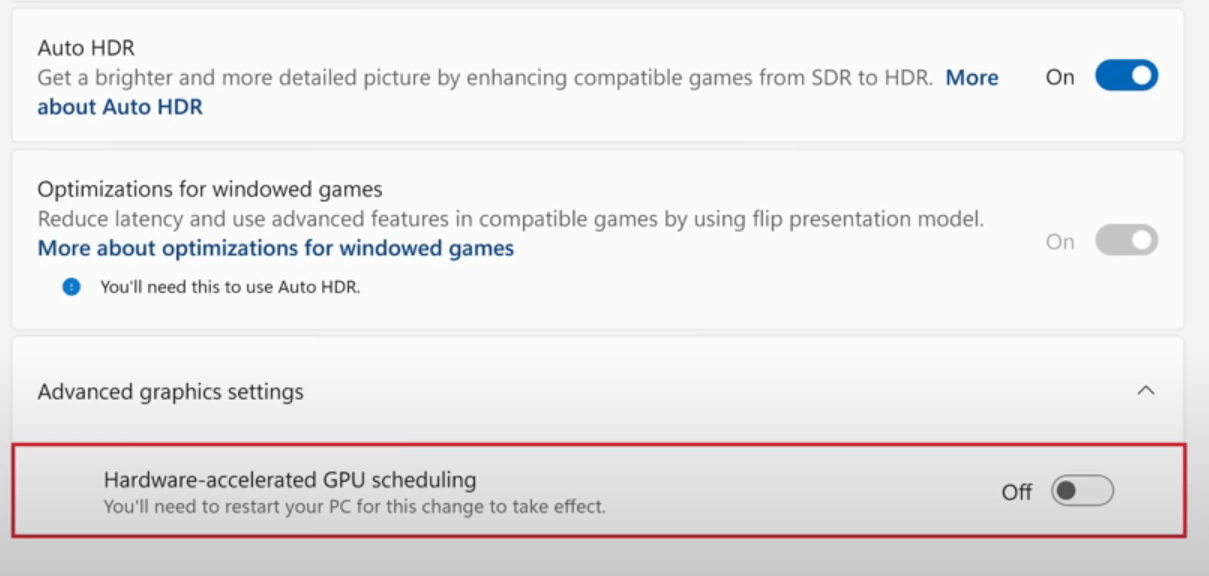
- Restart your PC for the change to take effect.
If you notice smoother gameplay and reduced CPU usage afterward, this tweak may have been the missing piece.
Fix 6: Perform a clean boot
If you’ve tried closing visible apps but Fortnite still maxes out your CPU, something deeper might be running in the background, such as third-party services, startup utilities, or hidden processes. A clean boot starts Windows with only essential services and drivers, letting you isolate what’s eating CPU resources behind the scenes.
Here’s how to do a clean boot:
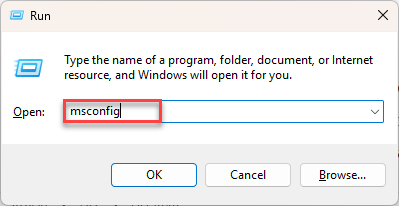
- On your keyboard, press the Windows logo key + R, type msconfig, and hit Enter.
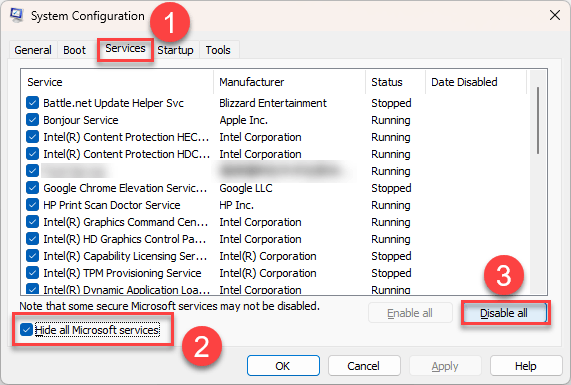
- In the System Configuration window, go to the Services tab, check Hide all Microsoft services (this prevents disabling anything critical), and click Disable all to turn off third-party services.
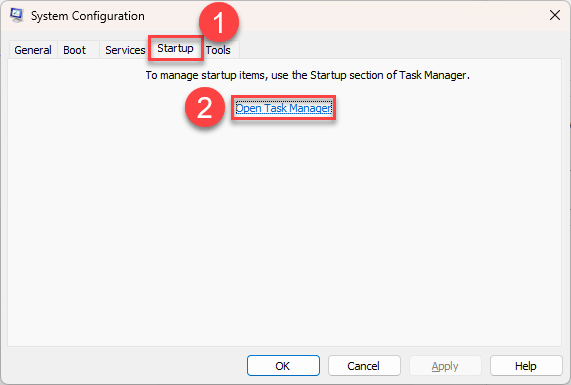
- Go to the Startup tab and click Open Task Manager.
- (Optional) Close unnecessary start-up apps: In Task Manager, navigate to the Startup tab, right-click on any app you don’t need right away (like Spotify, Discord, or game launchers), and select Disable.
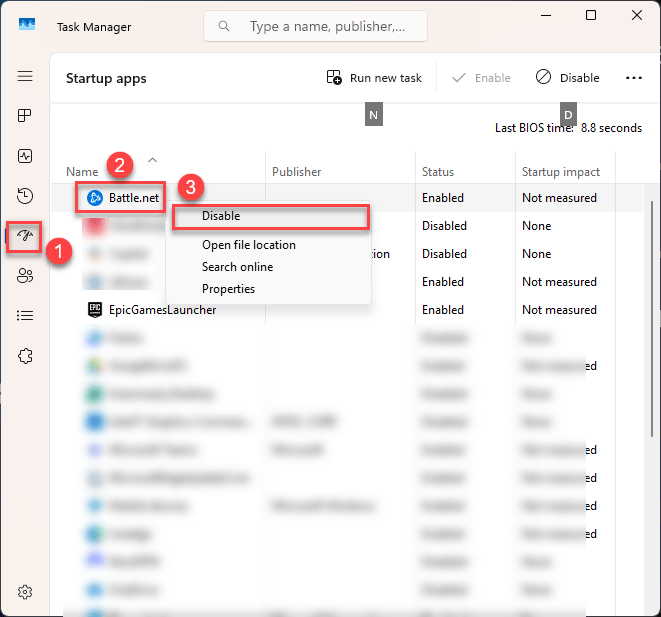
- Close everything and restart your PC.
- Launch Fortnite and check your CPU usage. If the spikes are gone, you’ve confirmed something in the background was the cause. To find out what it is, re-enable half of the services, restart, and test again.
- If the error comes back, then the problematic service is in the group you just re-enabled. If the error doesn’t appear, the problematic service is likely in the other group you left disabled.
- Keep repeating this process. Re-enabling or disabling half of the remaining services each time, until you pinpoint the exact program or service causing the conflict.
msconfig and selecting “Normal startup” under the General tab.High CPU usage in Fortnite can be frustrating, especially when it tanks your performance mid-match. But with the right combination of driver updates, system tweaks, and in-game optimizations, you can bring your CPU load back down and keep the game running smoothly. Hopefully, these fixes helped you get things under control. If you’ve got a tip that worked for you, feel free to drop it in the comments!