






If you find your computer screen is blurry, don’t worry. You can fix the blurry screen issues quickly and easily.
Quick check ups before troubleshooting
Before diving into troubleshooting, first you should identify which of the following is your case: are you seeing unclear or fuzzy text and icons, OR is it just a blurry software interface?
If only a specific application looks blurry, chances are you can fix it by simply allowing Windows to adjust the app scaling for you.
Also, if you have multiple monitors with different resolution, apps or text might get blurry if you move them from one display to another. You just need to find the correct resolution for your monitor.
If the overall display looks hazy, you can continue to the following fixes.
Try these fixes:
Before you try, ensure to keep your monitor screen clean and dry. If you’re using multiple displays, remember to adjust all the monitor screen resolutions to the same.
- Check the monitor connection
- Reset your monitor
- Enable Let Windows try to fix apps so they’re not blurry
- Reinstall your graphics card driver
- Change DPI settings for your monitor
- Set graphics performance to high for certain apps
- Change DPI scaling settings for your app
Fix 1: Check the monitor connection
Sometimes your monitor cables may be loose or damaged, and that can affect the monitor signal and lead to a blurry display. So first be sure to check both the display and power cables to make sure they are working properly.
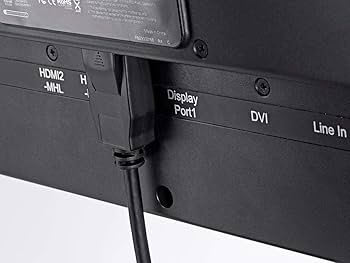
You can simply unplug and re-plug your monitor and see if it fixes the problem.
If your hardware is perfect and the blurry screen problem still persists, don’t worry. You can try the following solutions.
Fix 2: Reset your monitor
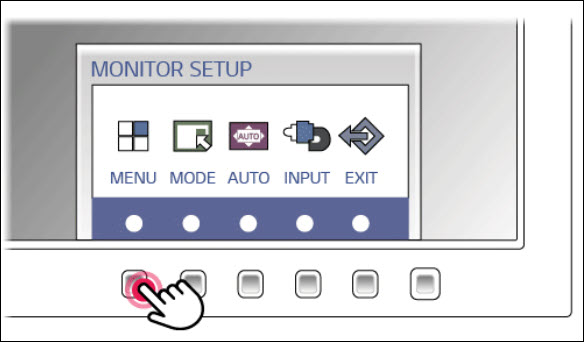
After checking the connection, next you need to make sure the monitor is configured properly. The quickest way is to factory reset the monitor.
You can start by locating the buttons on your monitor, as you need to access the monitor OSD (On Screen Display) menu in order to reset. Typically you can find the buttons (or joysticks) on the bezel or the back of the monitor. Engaing with the buttons or joysticks will allow you to invoke the monitor setup menu, where you can perform a quick factory reset.
If resetting the monitor doesn’t work for you, take a look at the next fix.
Fix 3: Enable Let Windows try to fix apps so they’re not blurry
When you see the blurriness happen to your computer, usually you’ll see a notification popup saying “Let Windows try to fix apps so they’re not blurry“. If you see this notification, agree to let Windows fix the blurry issues. Or you can use the following steps to configure it manually.
Windows 10
- On your keyboard, press the Windows logo key and I at the same time. Then click System in Windows Settings.
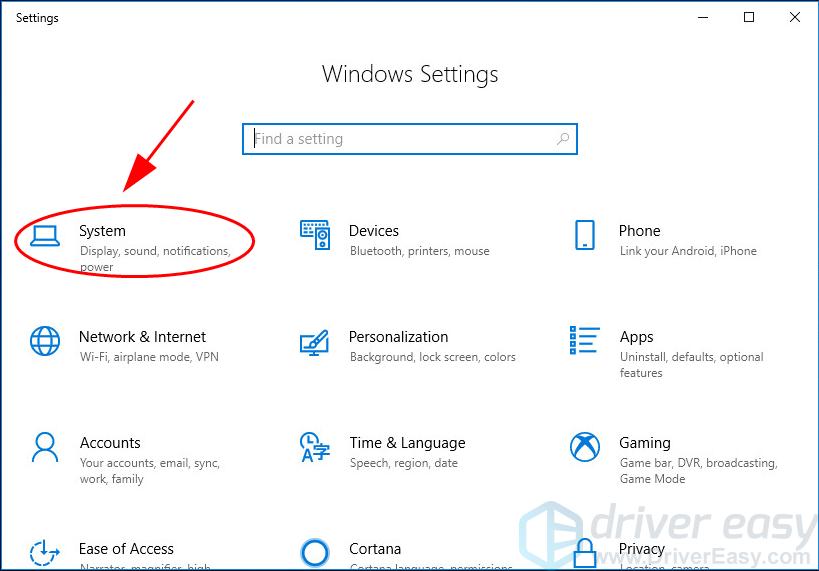
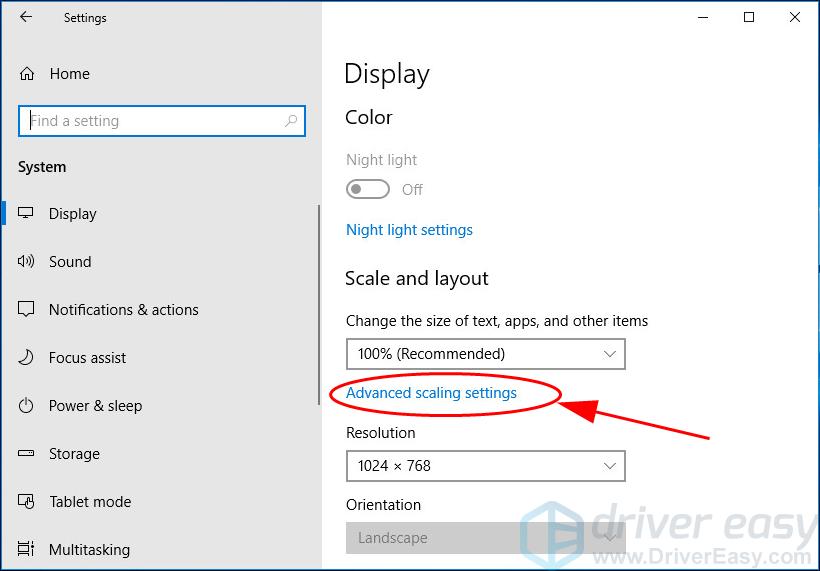
- In the Display section, click Advanced scaling settings.
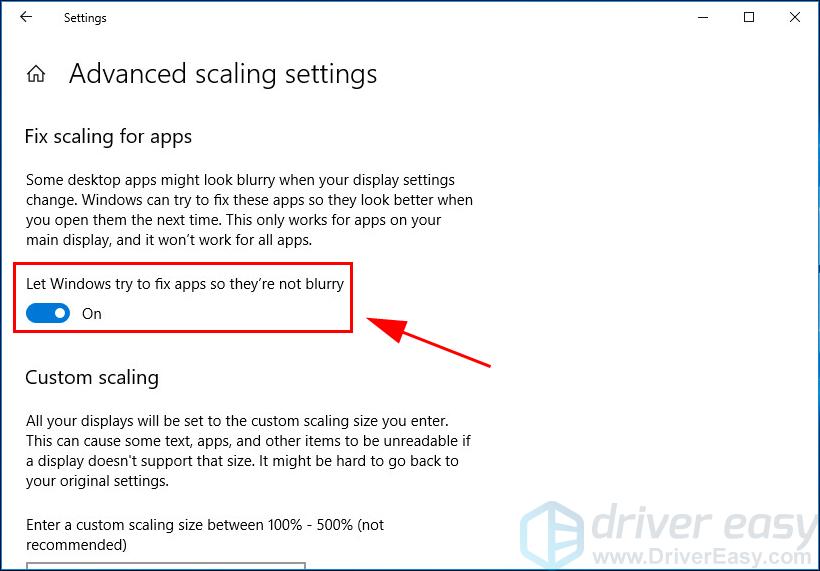
- Toggle to turn on Let Windows try to fix apps so they’re not blurry.
- Restart your computer and see if it fixes the blurry screen.
Fix 4: Update your graphics card driver
A faulty or oudated graphics driver can also cause the blurry screen, so you can try to update your graphics card driver and see if it fixes the problem. Generally speaking, updating drivers is similar to reinstalling, but the old drivers will be replaced by newer versions that are usually more stable.
There are two ways to update your graphics card driver: manually and automatically.
Manually update the driver – you need to find the latest version of your video card from the manufacturer’s website, download and install it in your computer.
Automatically reinstall the driver – If you don’t have time or patience, you can do it automatically with Driver Easy.
Driver Easy will automatically recognize your system and find the correct drivers for it. You don’t need to know exactly what system your computer is running, you don’t need to risk downloading and installing the wrong driver, and you don’t need to worry about making a mistake when installing.
- Download and install Driver Easy.
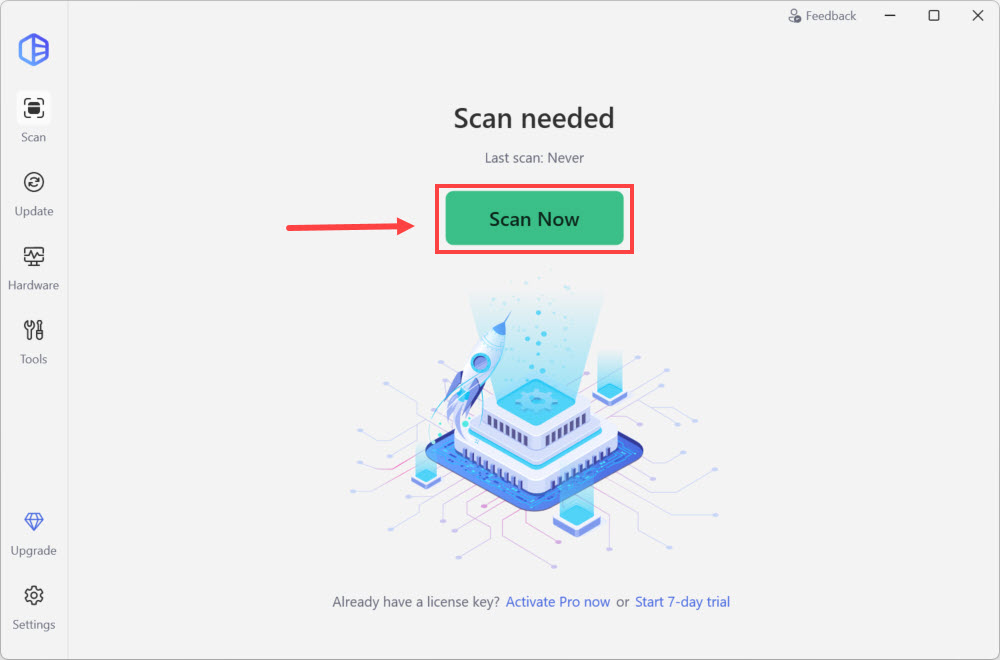
- Run Driver Easy and click the Scan Now button. Driver Easy will then scan your computer and detect any problem drivers.
- Click the Activate & Update button next to the flagged device to automatically download and install the correct version of this driver.
Or click Update All to automatically download and install the correct version of all the drivers that are missing or out of date on your system (You’ll need the Pro version for this – when you select Update All, you’ll get a prompt to upgrade. If you’re not prepared to purchase the Pro version yet, Driver Easy provides a 7-day trial at no cost, granting access to all Pro features like fast downloads and easy installation. No charges will occur until after your 7-day trial period ends.)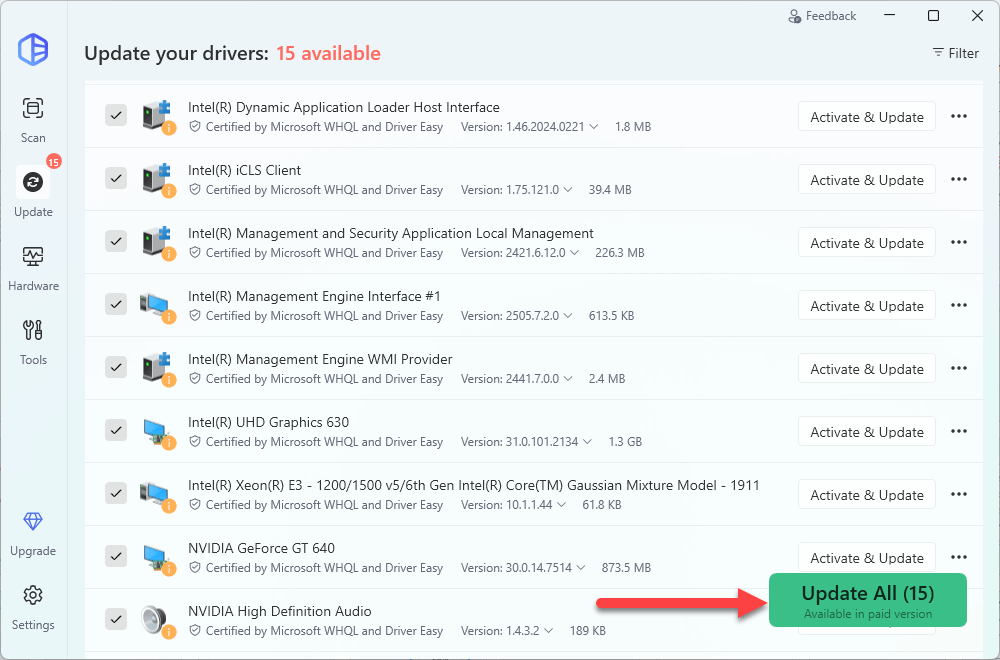
After updating the graphics driver, check if your screen becomes normal.
Fix 5: Change DPI scaling settings for your monitor
You can also change the DPI scaling settings to fix the blurry screen or blurry apps.
If your screen is blurry, you can modify the monitor’s DPI settings.
Windows 11
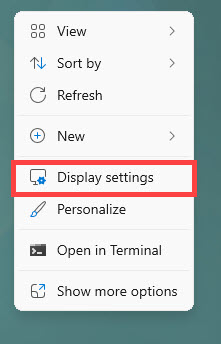
1) Right click the blank area of your computer desktop and select Display settings.
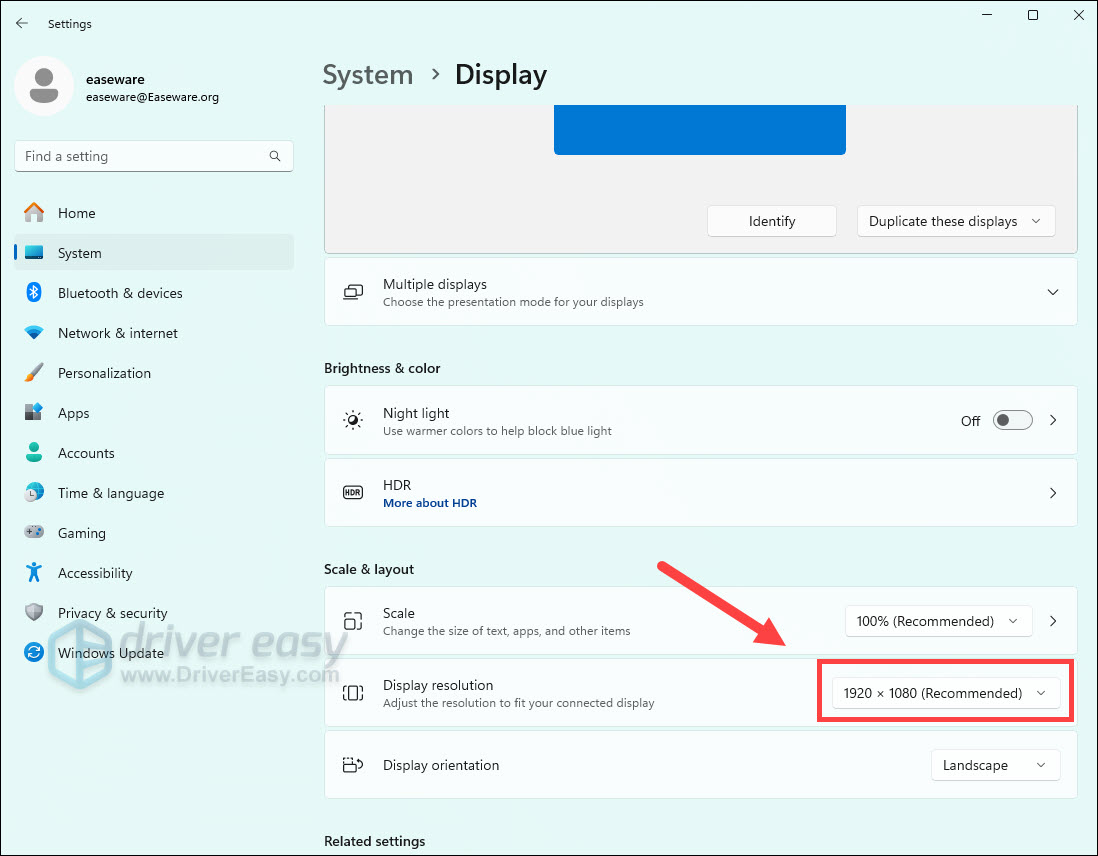
2) Change the Display resolution to the recommened one.
Windows 10
- Press the Windows logo key and I at the same time on your keyboard.
- Click System in the Settings pane.
- In the Display section, ensure to select 100% for Scale and layout.
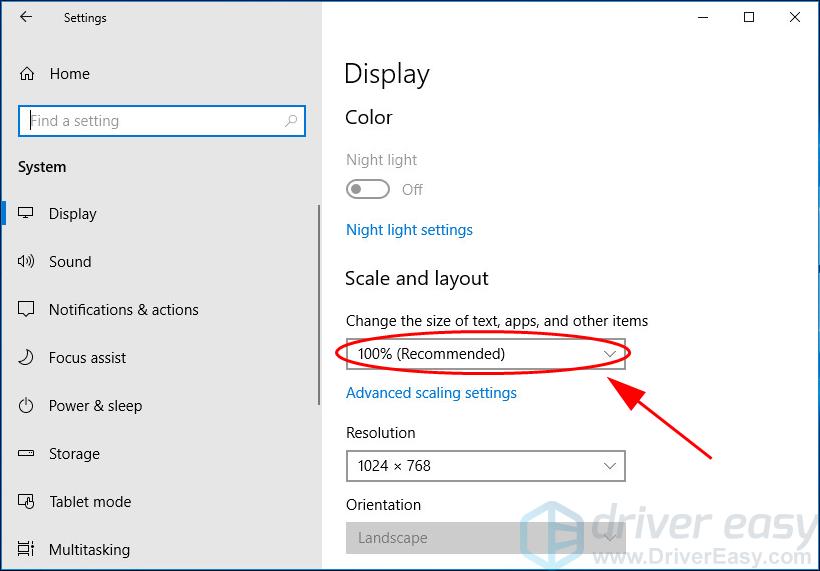
Then Windows will apply the changes. Check and see if your screen gets clear.
If you’re using Windows 8 and Windows 7:
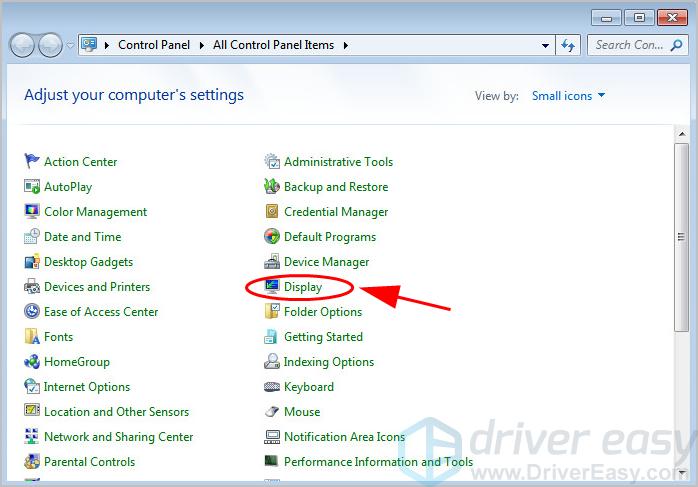
- Open Control Panel in your computer, and view by small icons or large icons.
- Click Display.
- Choose 100% for the size of text and other items on your screen, then click Apply.
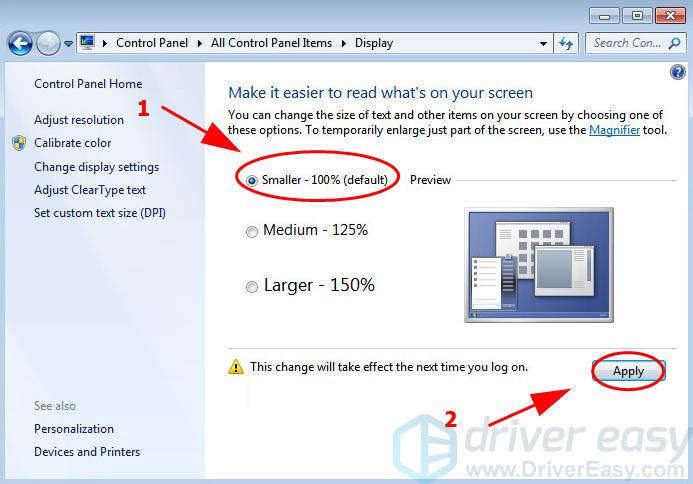
- Restart your computer to take effect.
Check if your screen is still blurry.
Fix 6: Set graphics performance to high for certain apps
Some users reported that setting the graphics performance manually can stop apps from being blurry. While this would be more effective if your computer has multiple graphics card, you can give it a shot and see how things go.
Windows 11
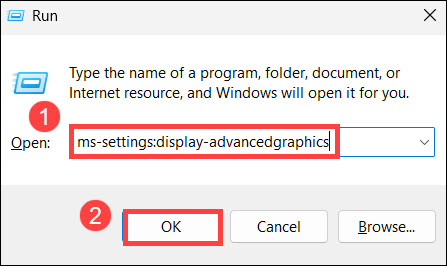
1) On your keyboard, press Win+R together to invoke the Run box. Type or paste ms-settings:display-advancedgraphics in the input box and click OK.
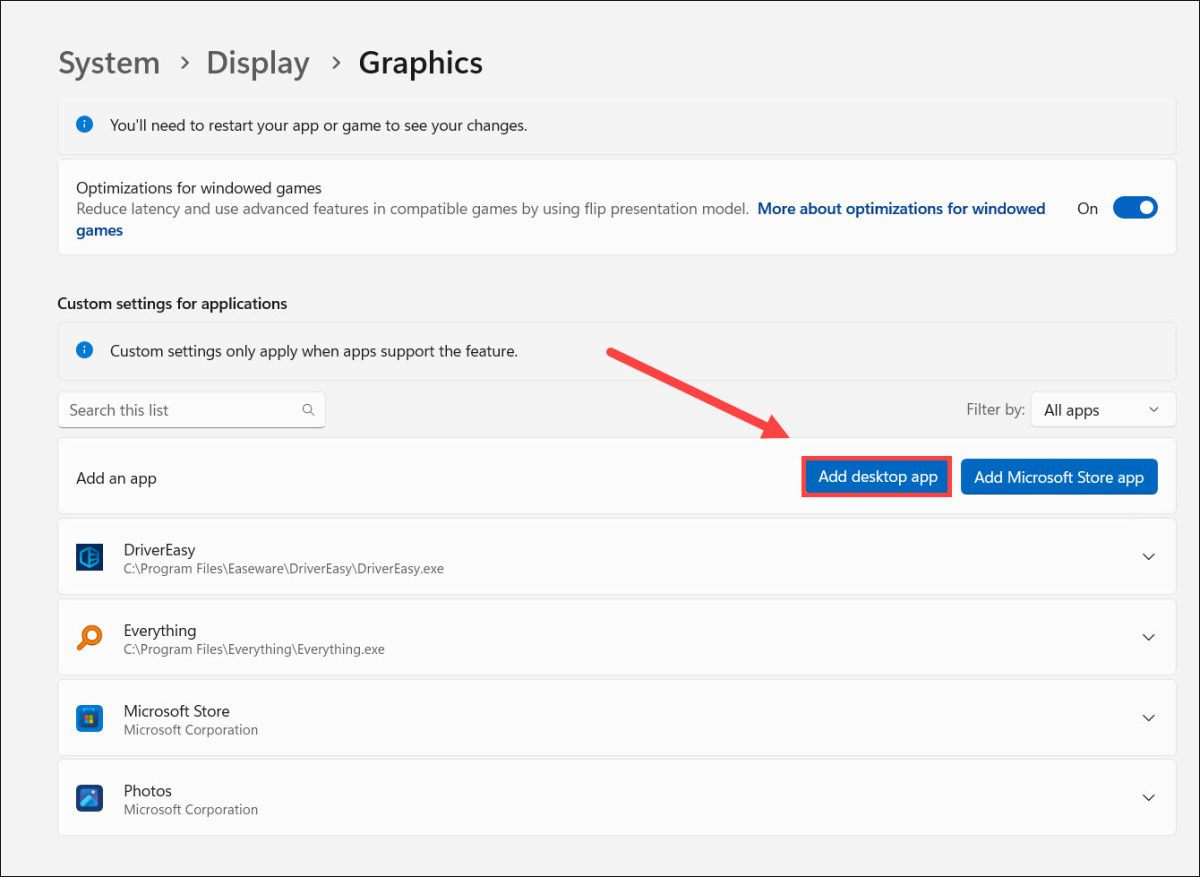
2) Click Add desktop app and locate the .exe file.
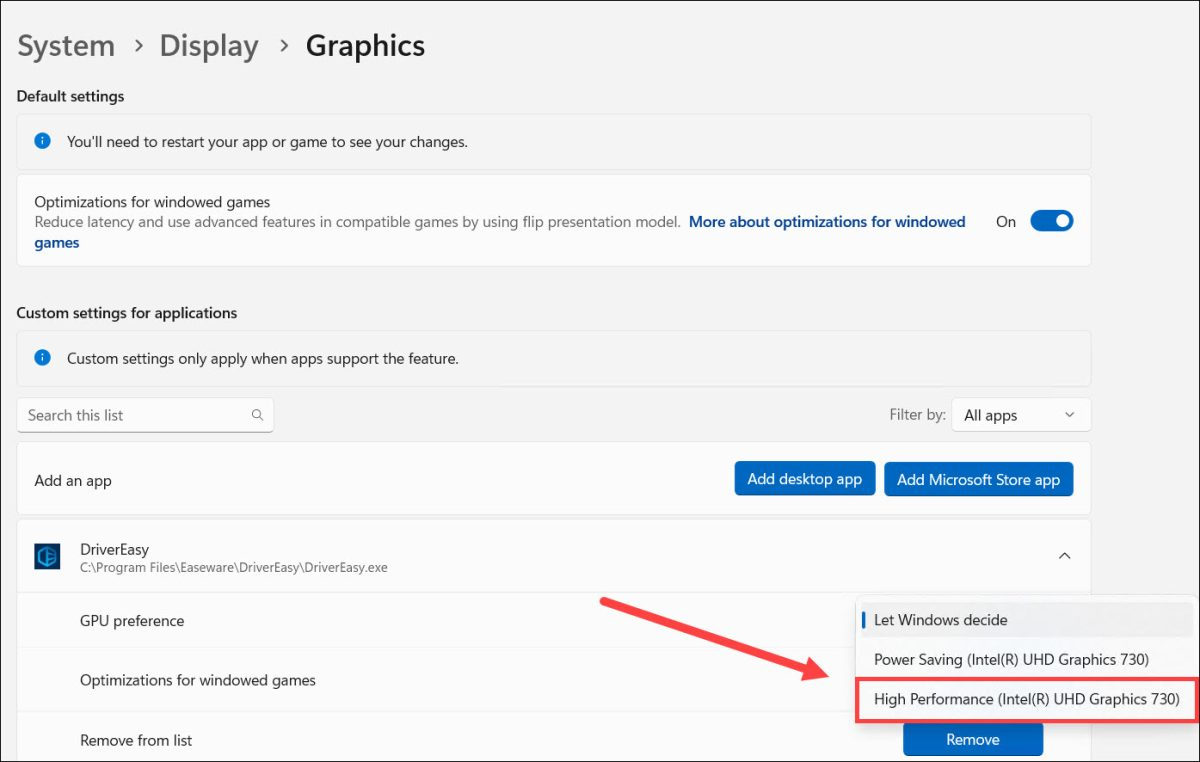
3) Select an application. Under GPU preference, select High Performance. Then restart the application.
Windows 10
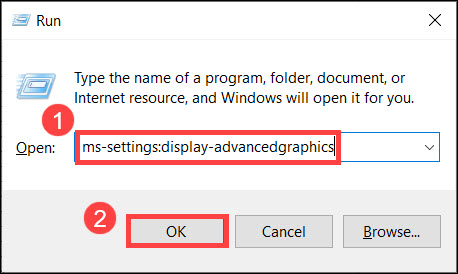
1) On your keyboard, press Win+R together to invoke the Run box. Type or paste ms-settings:display-advancedgraphics in the input box and click OK.
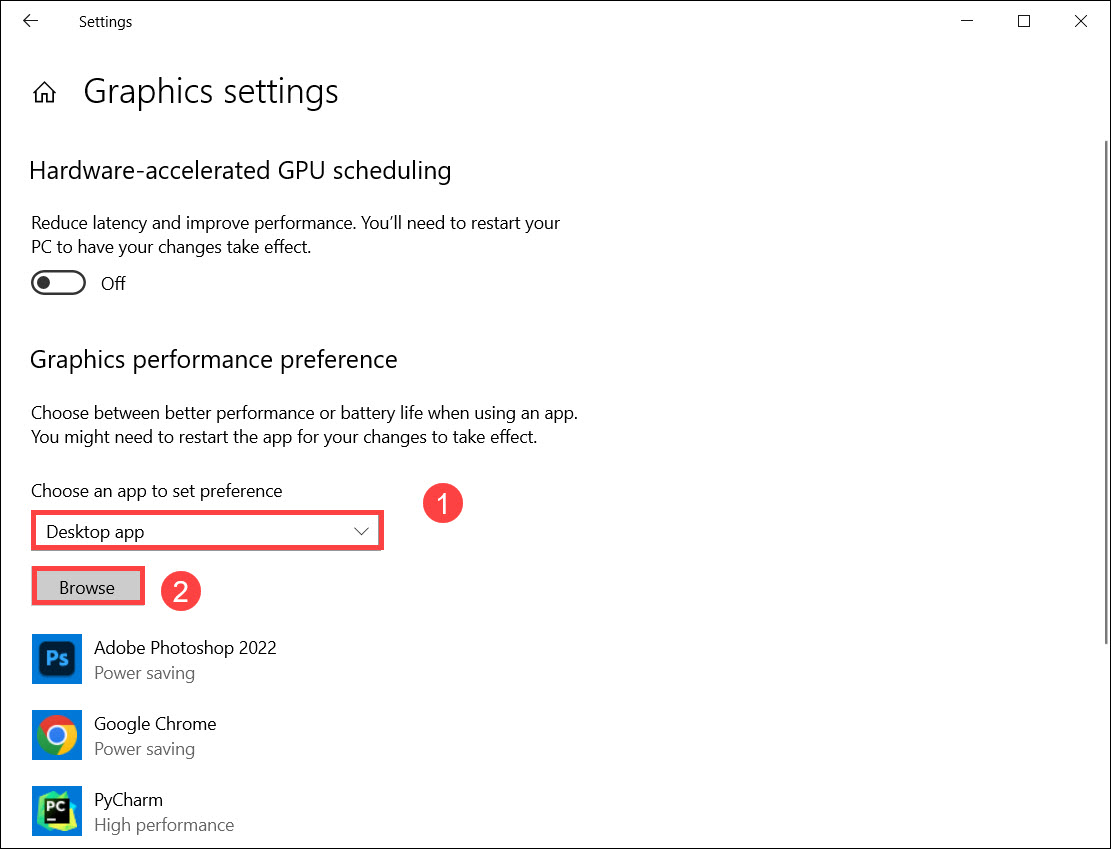
2) Under Graphics performance preference, select Desktop app in Choose an app to set preference and click Browse to locate the .exe file.
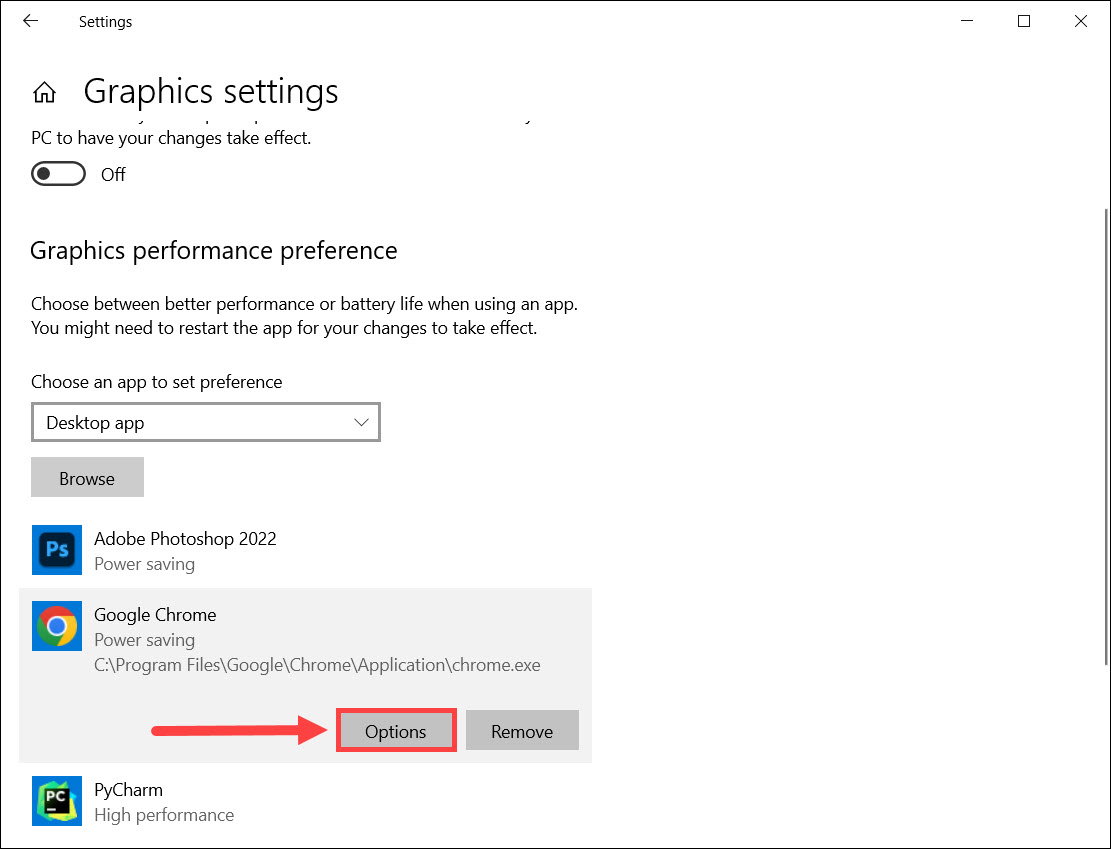
3) Click the target application and click Options.
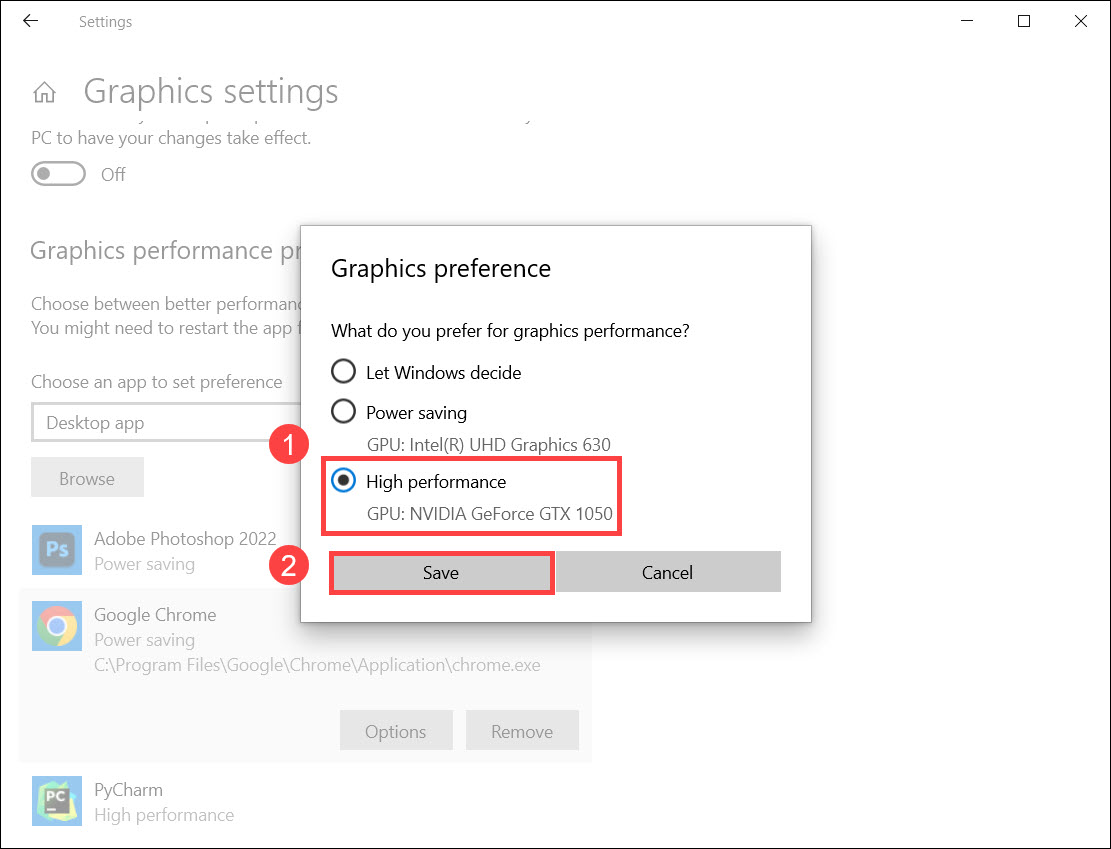
4) In the pop-up window, select High performance and click Save. Then restart the application.
Fix 7: Change DPI scaling settings for your app
A program may look blurry if the DPI for your main display changes. So you can enable Windows to fix the scaling problem for this program. Here’s how to do it:
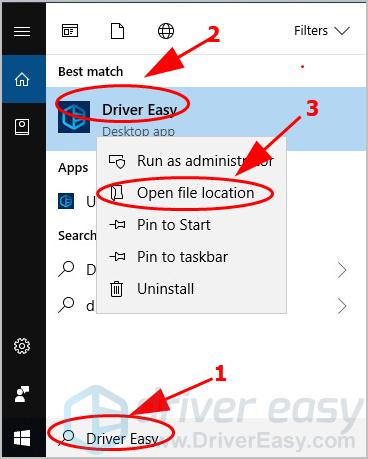
- Type the name of the app in the search box on your desktop, right-click on the app and select Open file location.
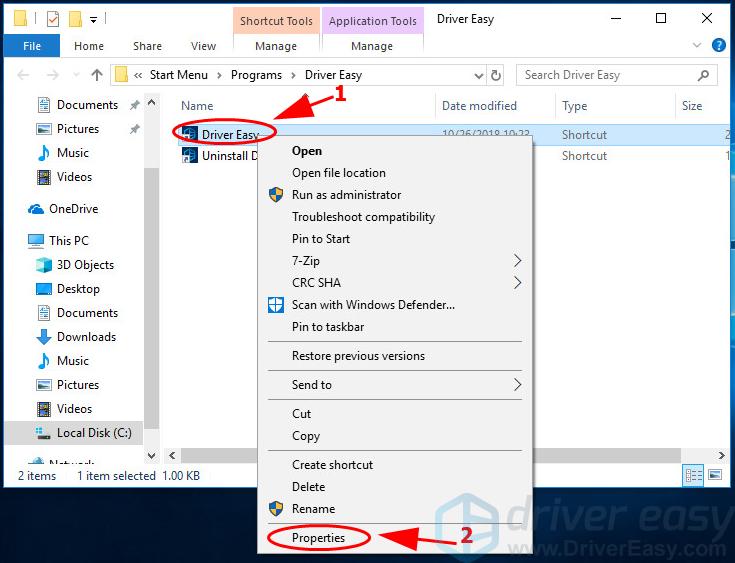
- Right click on the application setup file, and select Properties.
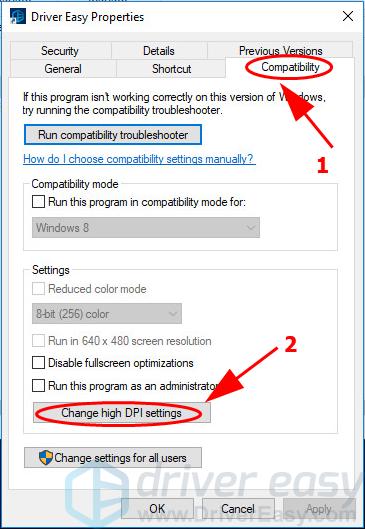
- Click the Compatibility tab, and click Change high DPI settings.
- Check the box next to Use this setting to fix scaling problems for this program instead of the one in Settings.
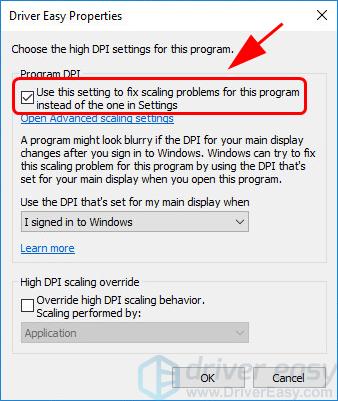
- In the same pane, make sure to check the box next to Override high DPI scaling behavior. And choose Scaling performed by Application.
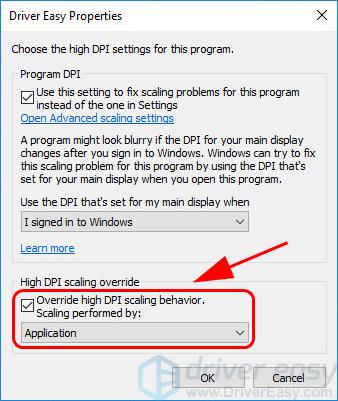
- Click OK to save the changes and restart your computer.
Check if the blurry problem has been fixed.
So there you have it – Five easy methods to fix blurry screen problems. If you have any questions, feel free to leave a comment below.


