







When Ctrl + C, Ctrl + V, Ctrl + Z, or other keyboard shortcuts suddenly stop working, the Ctrl key is usually either being blocked by Windows/software or failing at the hardware level.
Try testing the left and right Ctrl keys separately and then try another keyboard to narrow down the issue. If only one Ctrl key fails, hardware is more likely. If both fail, focus first on Windows settings, remapping software, drivers, and recent system changes. In this guide, we’ll show you how to troubleshoot and fix the issue easily and quickly.
Quick workarounds for copy and paste
If you need to copy and paste before fixing the keyboard, here are some alternatives.
- Use the right Ctrl Key – If only the left Ctrl key is broken, use the right Ctrl key for shortcuts.
- Use the on-screen keyboard – Press Win + R, type osk, and press Enter. Then click Ctrl with your mouse.
- Use clipboard history – Press Win + V to open Clipboard history. If it isn’t enabled, click Turn on. From the clipboard history, click the text to paste it.
This won’t replace every Ctrl shortcut, but it can make copying and pasting easier while you troubleshoot the keyboard.
🔗 For more specific fixes, read our guide on Copy & Paste Not Working on Windows 11/10.
7 fixes for Ctrl Key not working
We’ve put together 7 fixes for the Ctrl key not working problem in the most practical order. You don’t have to try them all; just start with the corresponding fixes depending on your situation.
| Situation | What to try |
|---|---|
| Ctrl behaves strangely or shortcuts work inconsistently | Fix 1 |
| Both Ctrl keys fail or the problem starts after a system change | Fix 2 – Fix 4 |
| Ctrl works in some apps but not others | Fix 5 |
| One Ctrl key is intermittent or completely dead | Fix 6 |
| Hardware cannot be repaired immediately | Fix 7 |
Fix 1 – Turn off Sticky Keys and Filter keys
Windows accessibility settings can change how modifier keys such as Ctrl behave. Sticky Keys lets you press multi-key shortcuts one key at a time, while Filter Keys can ignore brief or repeated keystrokes.
If Ctrl is behaving inconsistently, check these settings first.
- Open Settings with Win + I.
- Go to Accessibility > Keyboard. (On Windows 10, go to Ease of Access > Keyboard).
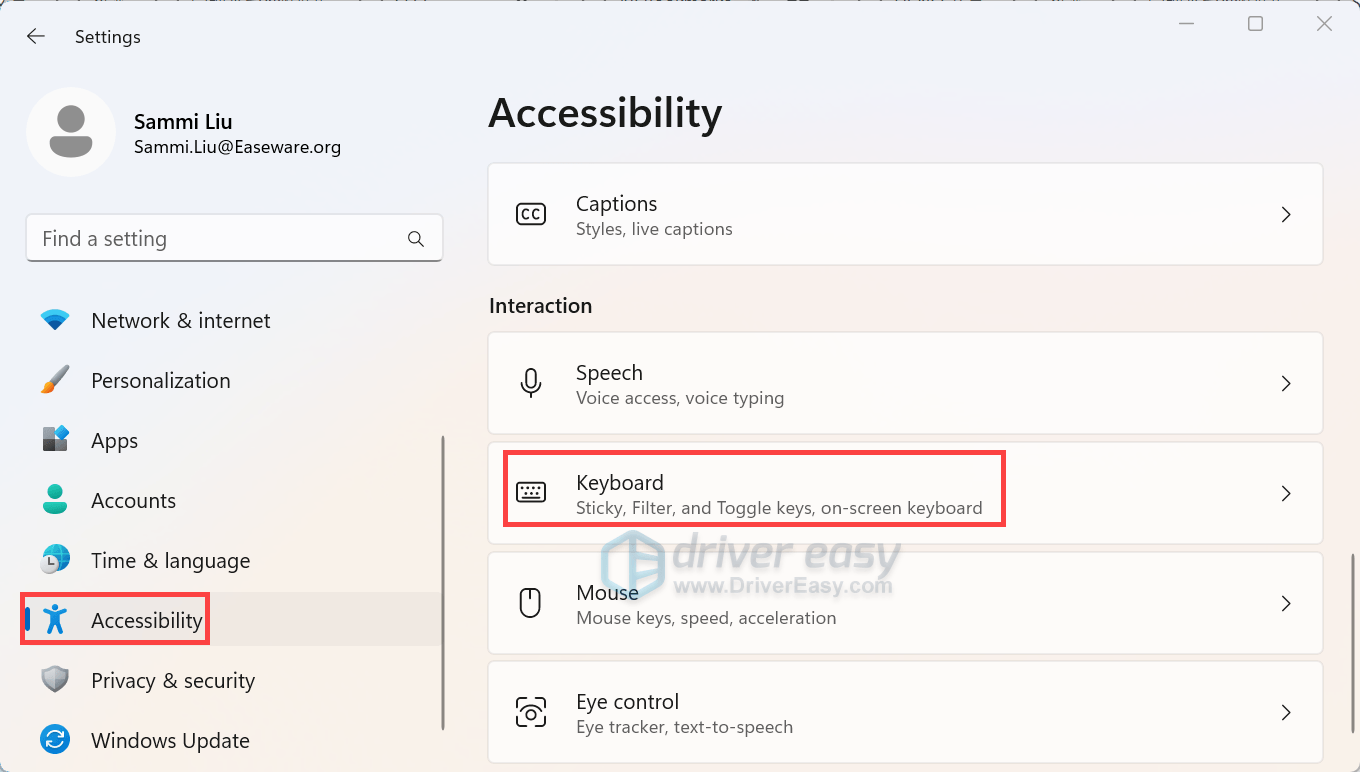
- Turn off Sticky keys and Filter keys.
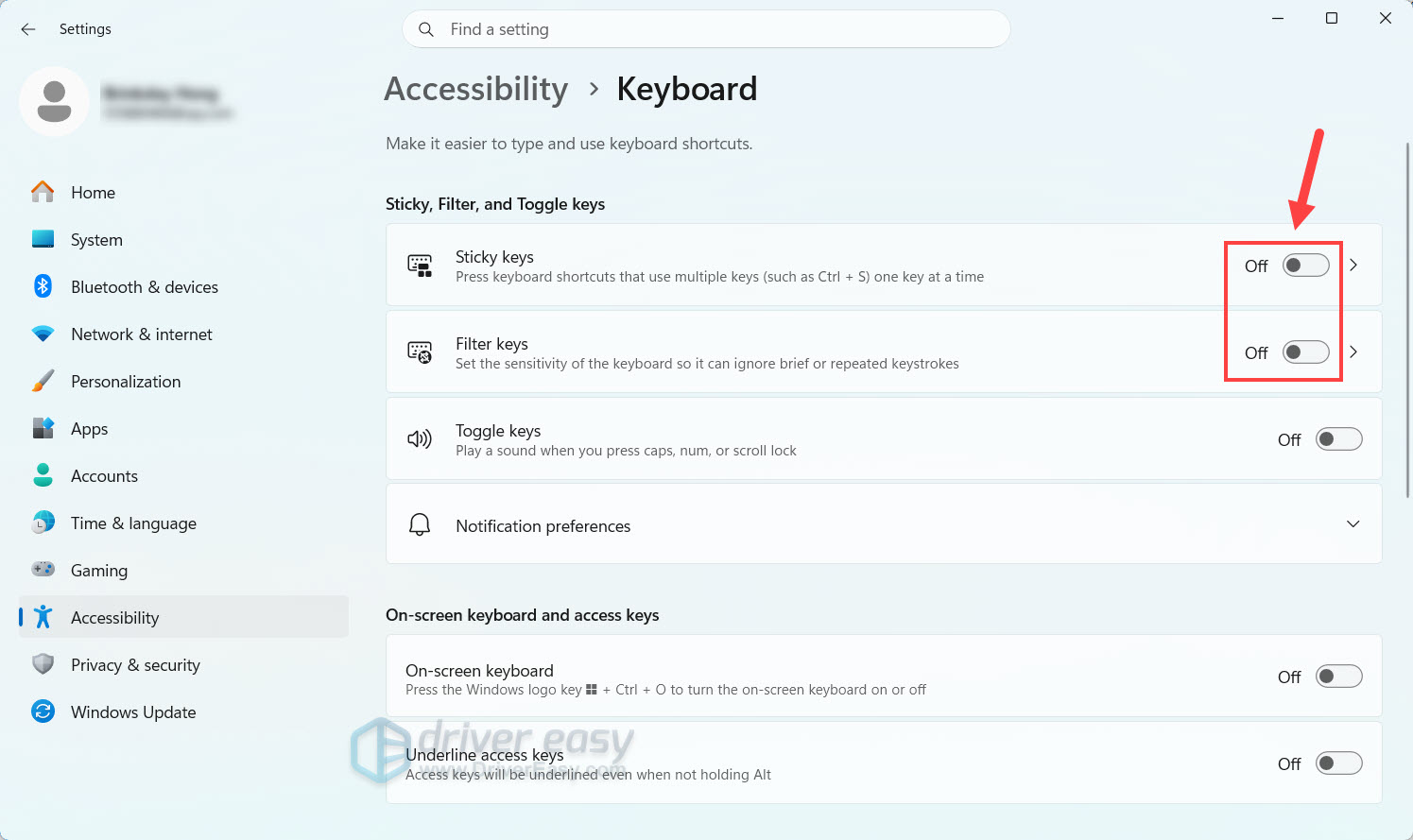
Test Ctrl + C and Ctrl + V in Notepad to see how they work.
Fix 2 – Update or reinstall the keyboard driver
Your keyboard driver is the software layer that allows Windows to communicate with your physical keyboard. If that driver is corrupted, outdated, or incompatible after a Windows or system update, Windows may fail to register certain key presses correctly – including Ctrl.
Option 1 – Reinstall the keyboard device
- Right-click the Windows Start button and select Device Manager.
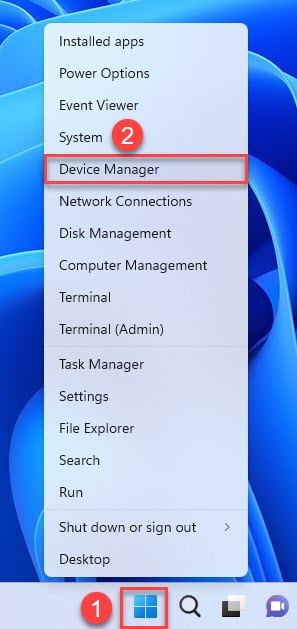
- Expand Keyboards.
- Right-click your keyboard device and select Uninstall device.
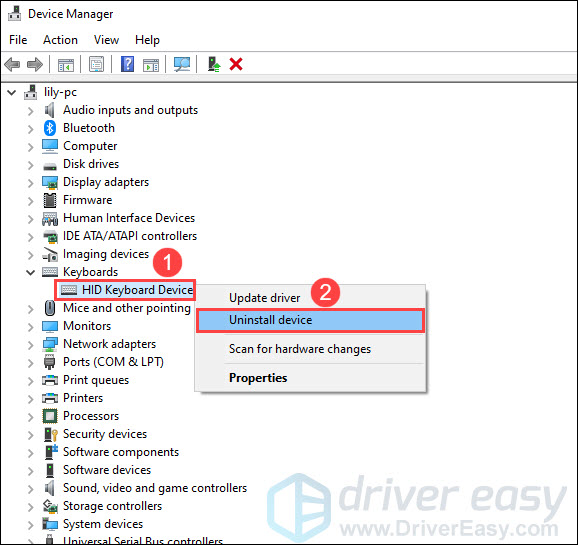
- Click Uninstall to confirm.
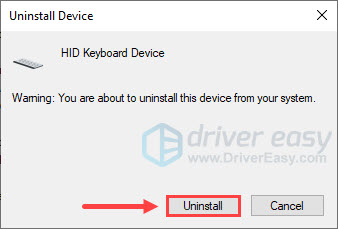
- Restart your PC.
Windows should detect the keyboard again after the restart. If the keyboard still isn’t working correctly, follow the steps below:
- Open Device Manager again.
- Select Action and click Scan for hardware changes.
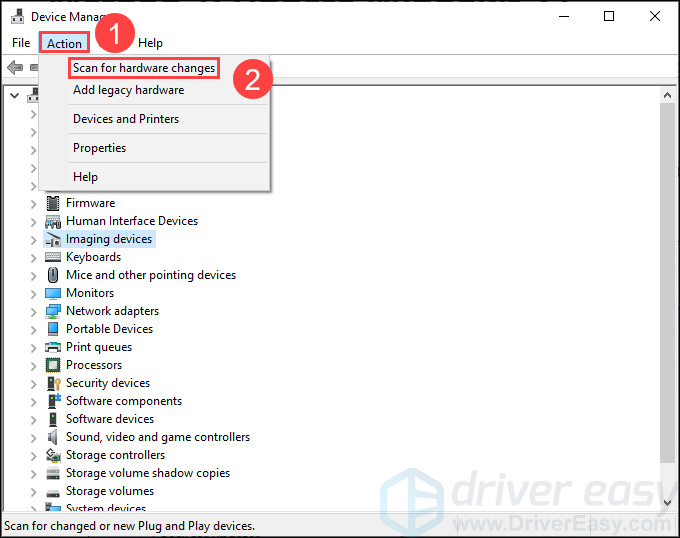
- Windows should detect the keyboard. Then, test the Ctrl key.
⚠️ Avoid randomly uninstalling devices under Human Interface Devices. If you are unsure which device belongs to your keyboard, start with the entry under Keyboards.
Option 2 – Update the device driver automatically
If reinstalling the keyboard device doesn’t solve the problem, the driver itself may need an update.
Windows’ Device Manager may tell you that the best driver is already installed even when a newer driver is available from the device manufacturer. If you don’t want to search for the driver manually, Driver Easy can do the job for you. It automatically scans your PC, identifies outdated or problematic drivers, and installs the appropriate updated driver. You don’t need to know which keyboard driver is causing the problem or hunt through drivers from different manufacturers.
- Download and install Driver Easy.
- Run Driver Easy and click the Scan Now button. Driver Easy will then scan your computer and detect any problem drivers.

- You can click the Activate & Update button next to the flagged devices to update their drivers, or click the Update All button to update all outdated drivers.
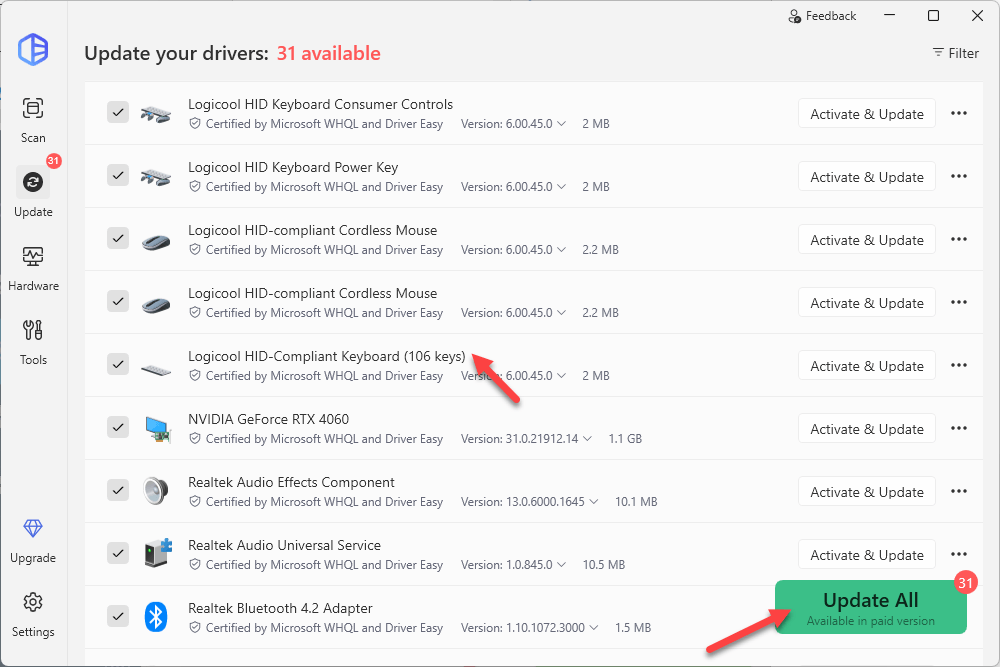
You’ll be prompted to upgrade to Driver Easy Pro when you install drivers. The Pro version provides hassle-free driver updates, advanced technical features, plus full support. If you’re not ready to purchase now, you can try all the Pro features with the 7-day free trial.
Restart your computer after the update finishes, and then test Ctrl. If Ctrl works everywhere, the driver reinstall/update likely resolved the issue.
Fix 3 – Uninstall the most recent Windows updates
If the problem clearly started with a specific update and other troubleshooting has failed, you can consider uninstalling that update.
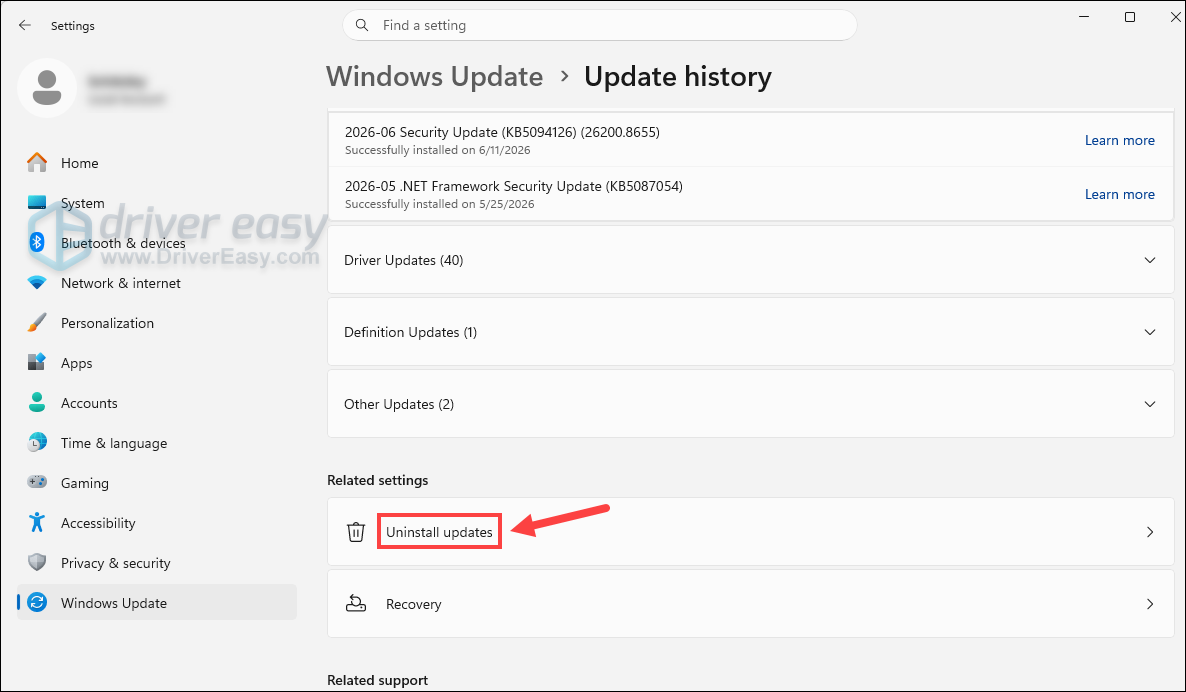
- Press the Windows key + I to open Settings.
- Go to Windows Update > Update history.
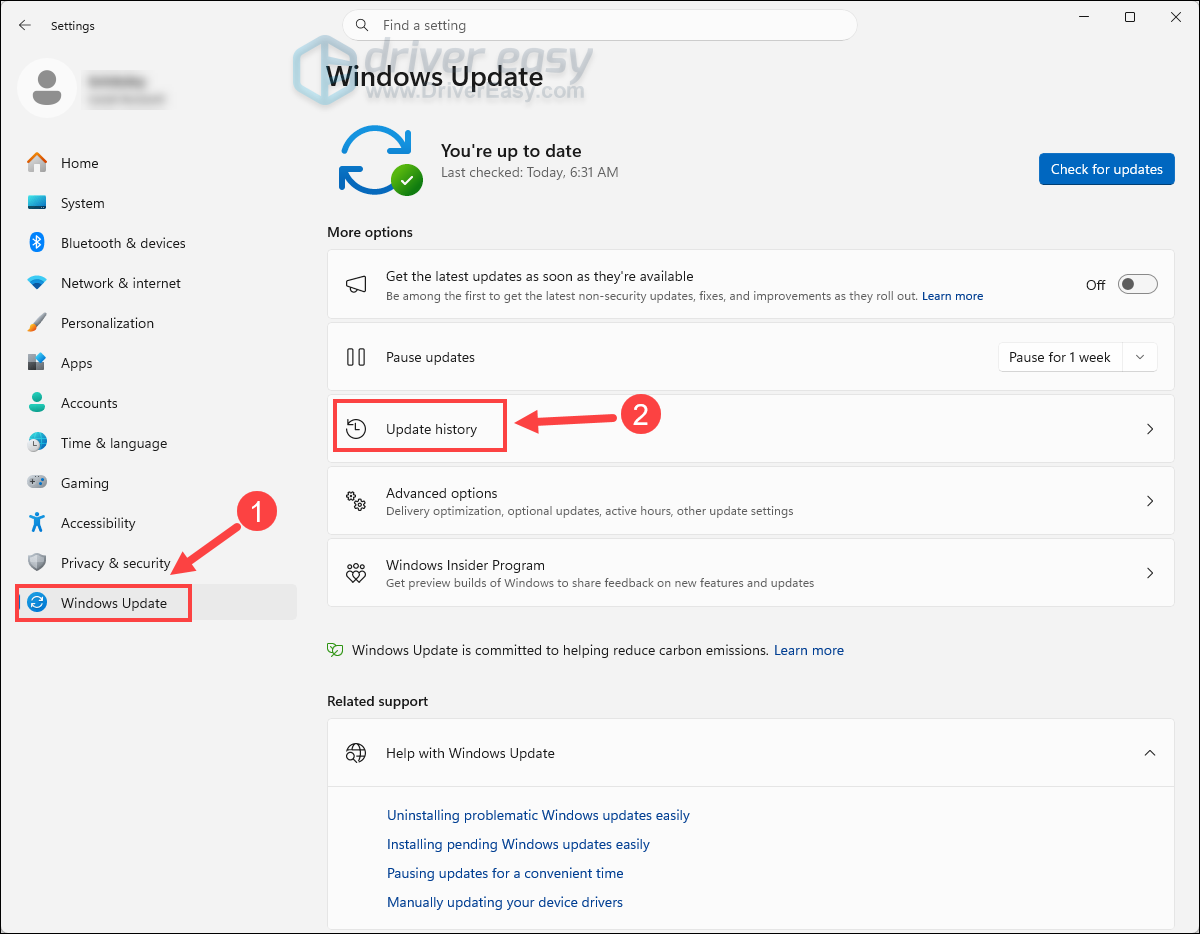
- Select Uninstall updates.
- Find the relevant update and select Uninstall.
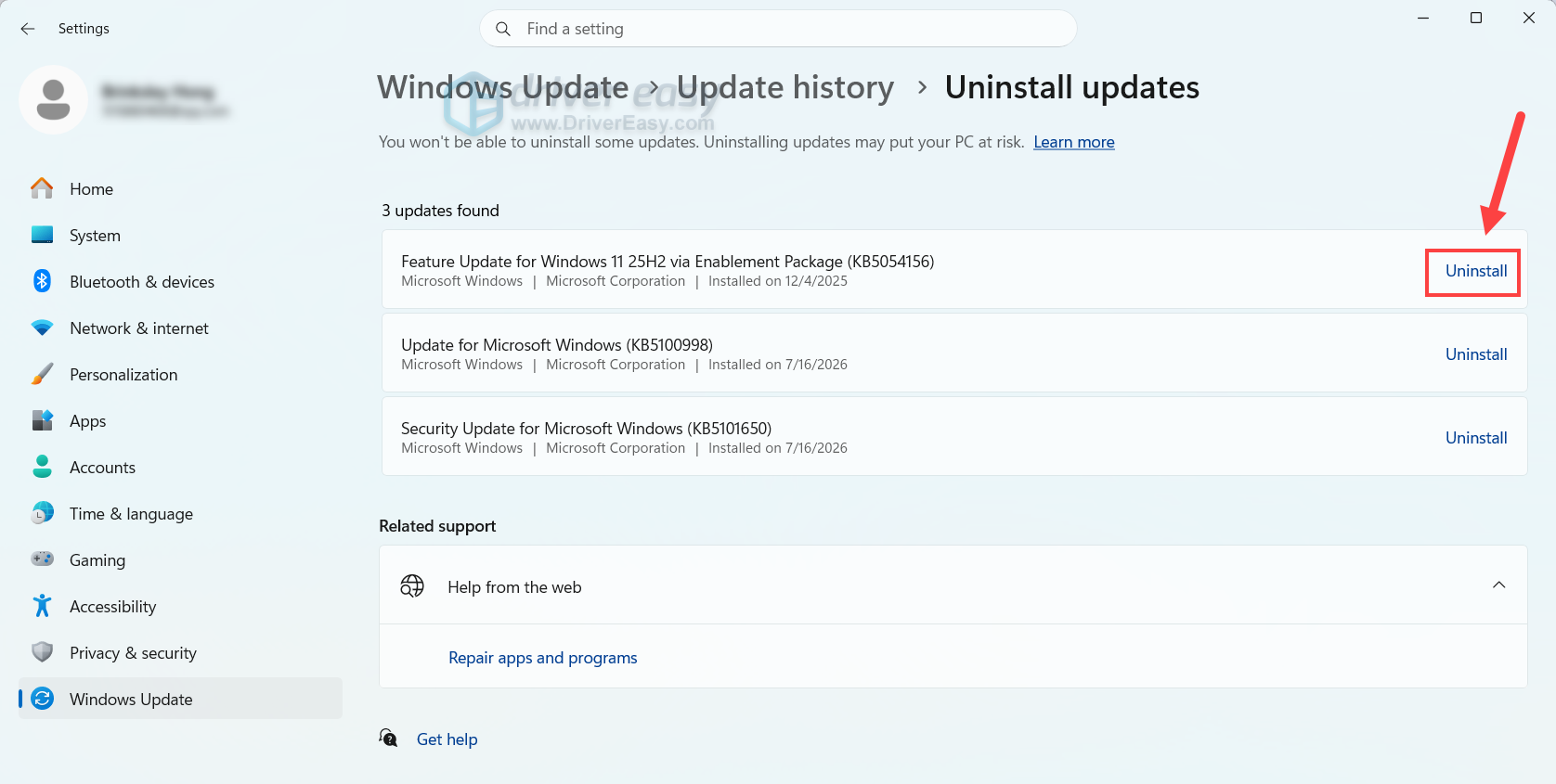
Restart Windows and test Ctrl in several applications. If the problem persists, check out the next fix below.
Fix 4 – Disable keyboard remapping software
Keyboard utilities can intentionally or accidentally change what a key sends and may cause the Ctrl key to malfunction.
Common examples include:
- Microsoft PowerToys Keyboard Manager
- AutoHotkey
- Gaming keyboard software
- Manufacturer utilities
- Custom Registry scancode mappings
You can temporarily disable these applications and test Ctrl. If the issue is resolved, check out the software and remove the remapping rule related to Ctrl.
If the problem remains, you’ll also need to check if a registry-based keyboard remap is created. Some keyboard remapping utilities can create a registry value called Scancode Map, which allows Windows keys to be remapped or completely disabled.
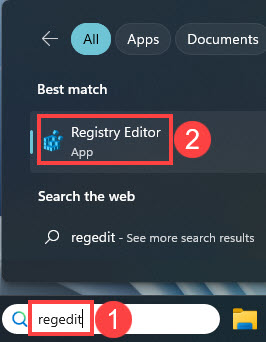
- Type regedit into the Windows search bar and click Registry Editor.
- Navigate to HKEY_LOCAL_MACHINE\SYSTEM\CurrentControlSet\Control\Keyboard Layout.
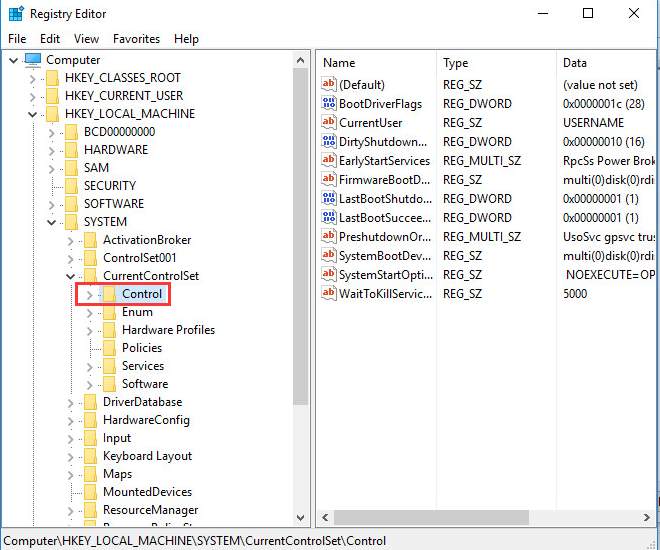
- In the right pane, look for a value named Scancode Map. If it’s not there, which is common for most users, this fix doesn’t apply to your PC. If it exists, right-click it, select Delete, and confirm with Yes.
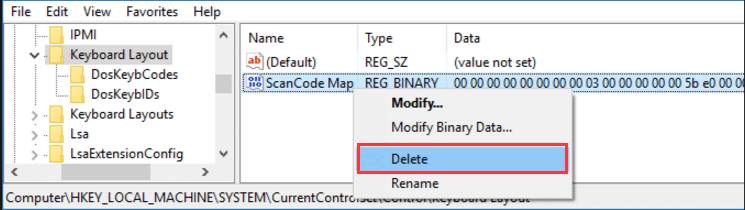
After undoing a known keyboard remap, restart Windows and test Ctrl again.
Fix 5 – Check whether Ctrl works in other apps
If Ctrl works normally in some programs but not others, your keyboard may be fine. The problem is more likely to be application-specific.
Here are some troubleshooting steps:
- Restarting the affected application.
- Disabling its extensions or add-ins.
- Checking its keyboard shortcuts.
- Disabling overlays or remapping software.
- Resetting the application’s settings if necessary.
Test the same Ctrl shortcut in Notepad, your browser, and the application where the problem originally occurred.
Fix 6 – Clean the Ctrl key
If one Ctrl key is intermittent, requires excessive pressure, or only works when pressed at a particular angle, inspect it for dirt or physical damage.
For a desktop mechanical or membrane keyboard:
- Disconnect the keyboard.
- Use compressed air to remove loose dust and debris.
- If the keycap is designed to be removable, use a proper keycap puller.
- Clean the area carefully.
- Reconnect the keyboard and test it.
Test the affected Ctrl key repeatedly with Ctrl + C, Ctrl + V, and another shortcut such as Ctrl + A.
Fix 7 – Remap a working key to Ctrl
If your Ctrl key is physically dead but the rest of the keyboard works, remapping can give you a practical workaround without replacing the keyboard immediately.
For example, you can use Microsoft’s PowerToys Keyboard Manager to remap one key to another. If you use PowerToys for gaming, test carefully. Microsoft specifically notes that Keyboard Manager may not work correctly with some games and can affect performance.
If all the methods above don’t work, you’ll need to confirm whether the keyboard is broken and a replacement is required.
For a laptop, you can consider using a USB or Bluetooth keyboard. If the built-in keyboard is damaged, check your laptop manufacturer’s service documentation for the replacement procedure.
To fix the Ctrl key not working issue, you’ll need to first identify whether it’s caused by software problems or hardware problems. Start with Windows’ accessibility settings, keyboard driver update or reinstallation, then move to application checks. If those changes don’t help, you may consider a hardware failure and replacing your keyboard.
If you have any questions or suggestions, feel free to drop a comment below.