






OBS not capturing your game? Maybe it’s just a black screen. Perhaps there’s audio but no video. Or OBS doesn’t seem to recognize the game at all. Whatever the case, it’s a common issue – and thankfully, one that’s usually easy to fix.
In this article, we’ll show you 8 effective methods to get OBS Game Capture working again. Just work your way down the list until you find the one that solves it.
8 best fixes for OBS game capture not working
- Fix 1: Running OBS as administrator
- Fix 2: Update your graphics driver
- Fix 3: Delete the Hook folder and reinstall OBS
- Fix 4: Switch the game to Windowed or Borderless mode
- Fix 5: Disable game overlays
- Fix 6: Make sure OBS and the game are using the same GPU (on laptops)
- Fix 7: Upload a clean OBS log file
- Fix 8: Use Window or Display Capture instead
Fix 1: Running OBS as administrator
One of the most common reasons OBS Game Capture fails — especially when you’re seeing a black screen — comes down to permissions. On Windows, if OBS is running with normal user privileges but the game is running as administrator (which many games do by default), Windows will block OBS from hooking into the game. To fix this, you can run OBS as administrator to give it the necessary system access.
To run OBS as administrator, first make sure it’s completely closed. Then, locate the OBS shortcut on your desktop or in the Start menu, right-click on it, and select Run as administrator. If Windows prompts you for permission, just click Yes to allow it.
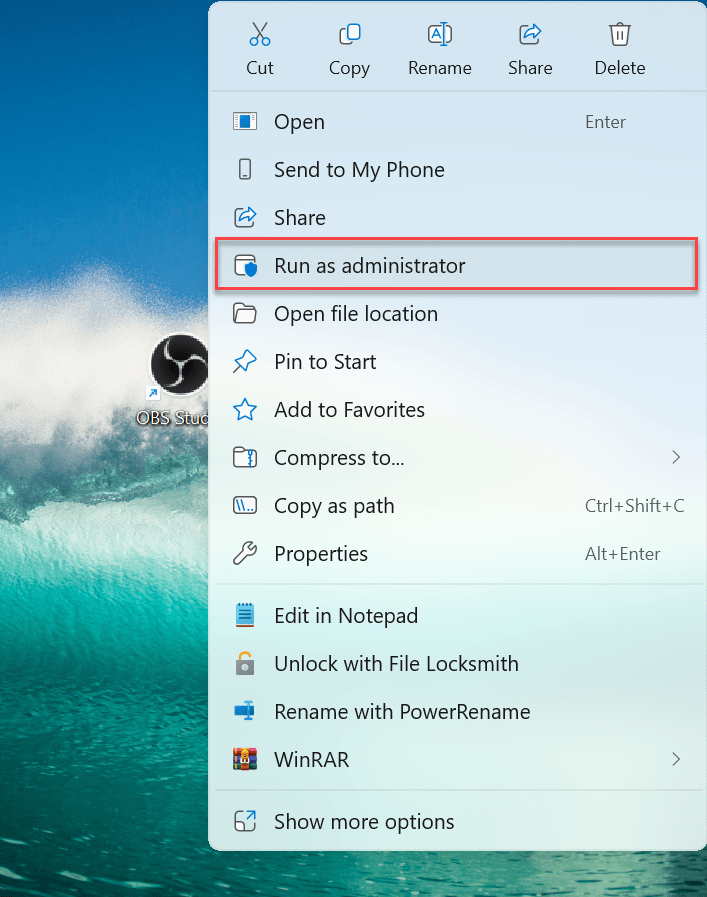
Once OBS is open again, try launching your game and starting a new Game Capture source. If everything’s working, you should now see your gameplay showing up in the OBS preview window without any black screen. If not, move on to Fix 2, below.
Fix 2: Update your graphics driver
Outdated or corrupted graphics drivers are a frequent cause of OBS Game Capture problems, especially when you’re seeing a black screen or getting video but no image. Since OBS relies heavily on your GPU to capture gameplay, any driver issues can prevent OBS from accessing the feed properly.
If you’re unsure or just want to avoid the hassle, you can do it automatically with Driver Easy. Driver Easy is a trusted driver update tool that automatically detects your hardware, matches it with the latest manufacturer-recommended driver, and lets you install it in just a few clicks.
Here’s how:
- Download and install Driver Easy.
- Run Driver Easy and click the Scan Now button. Driver Easy will then scan your computer and detect any problem drivers.
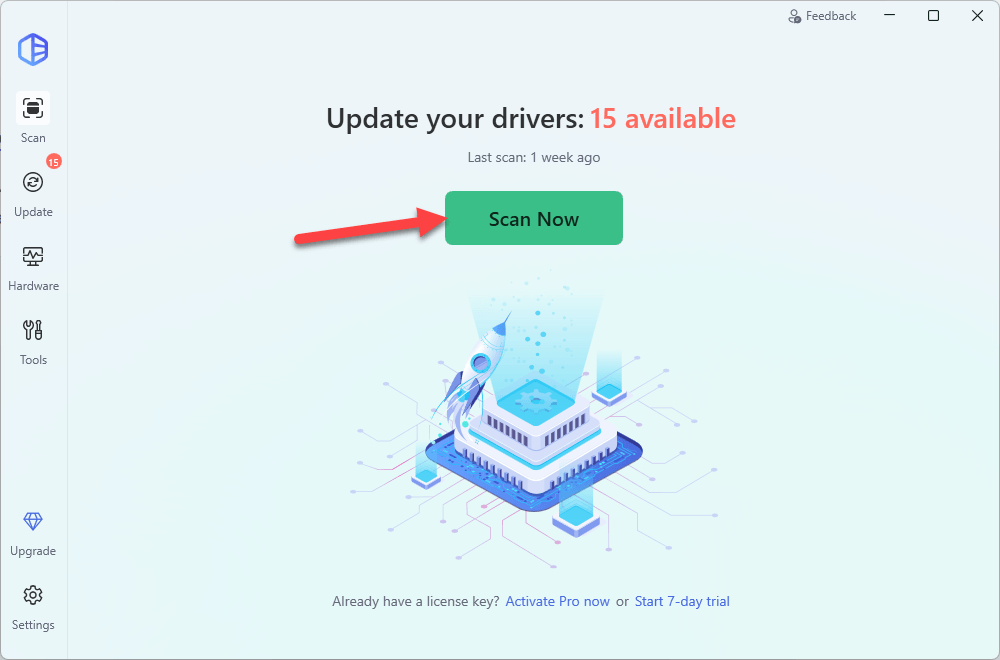
- Check if your graphics driver is flagged in the scan results. If it is, click Activate & Update to start a 7-day free trial or upgrade to Driver Easy Pro. Either option will automatically download and install the latest drivers for you.

- Restart your computer for the changes to take effect.
- Launch OBS and try capturing your game again to see if the issue is resolved.
Fix 3: Delete the Hook folder and reinstall OBS
If OBS Game Capture used to work but suddenly stopped (often after an update to OBS or your system), leftover files could be the culprit. In particular, the obs-studio-hook folder may contain outdated or conflicting data that interferes with how OBS captures games. Deleting this folder and then reinstalling OBS can often clear out those conflicts and restore Game Capture functionality.
Here’s how:
- Exit OBS.
- On your keyboard, press the Windows logo key and R, type in %programdata%, and press Enter.
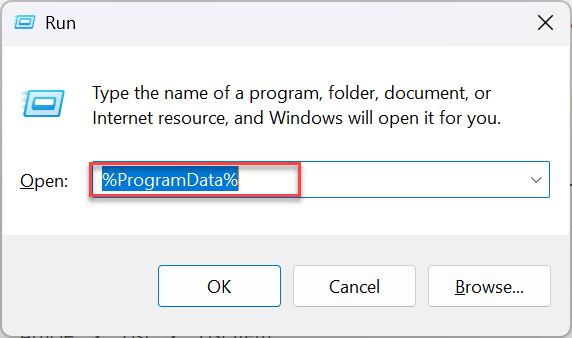
- In the folder that opens, locate the folder named
obs-studio-hookand delete it.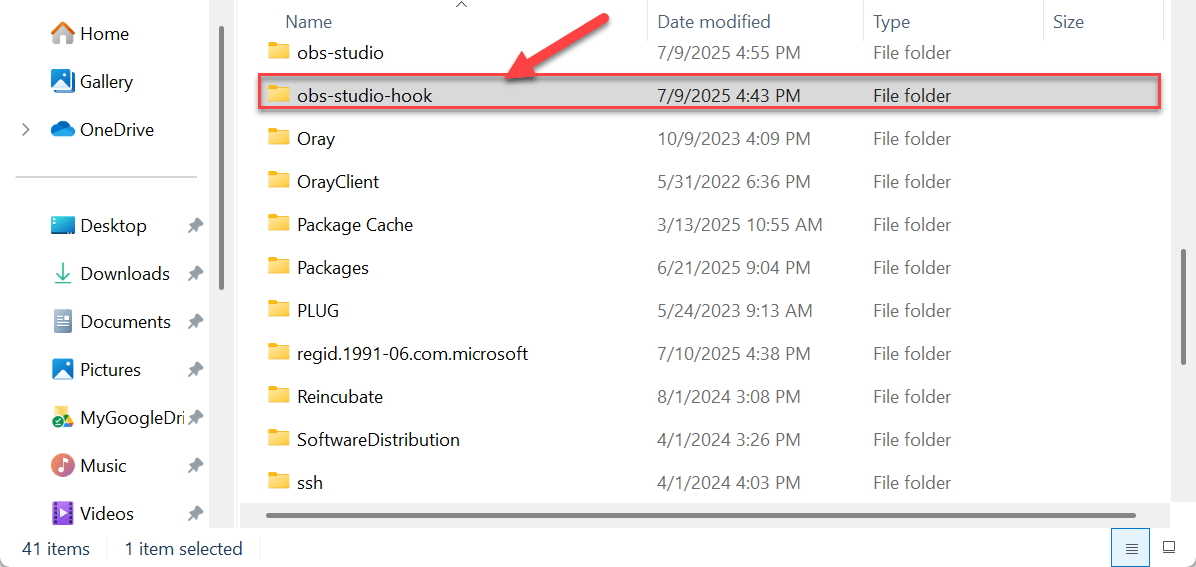
- Head to the official OBS Studio website and download the latest stable version for your system.
- Run the installer and follow the prompts to reinstall OBS.
- Restart your computer, then try capturing your game again.
Still not working? Try rolling back OBS.
Some users have reported Game Capture issues when using anti-cheat systems like Riot Vanguard or Battleye, especially after a recent OBS update. If the latest version isn’t compatible with your setup, try installing an older but stable release.
- Visit the OBS GitHub Releases Page.
- Scroll down to find version 30.2.3 or another stable build.
- Download the Windows Installer
.exe(or appropriate file for your OS).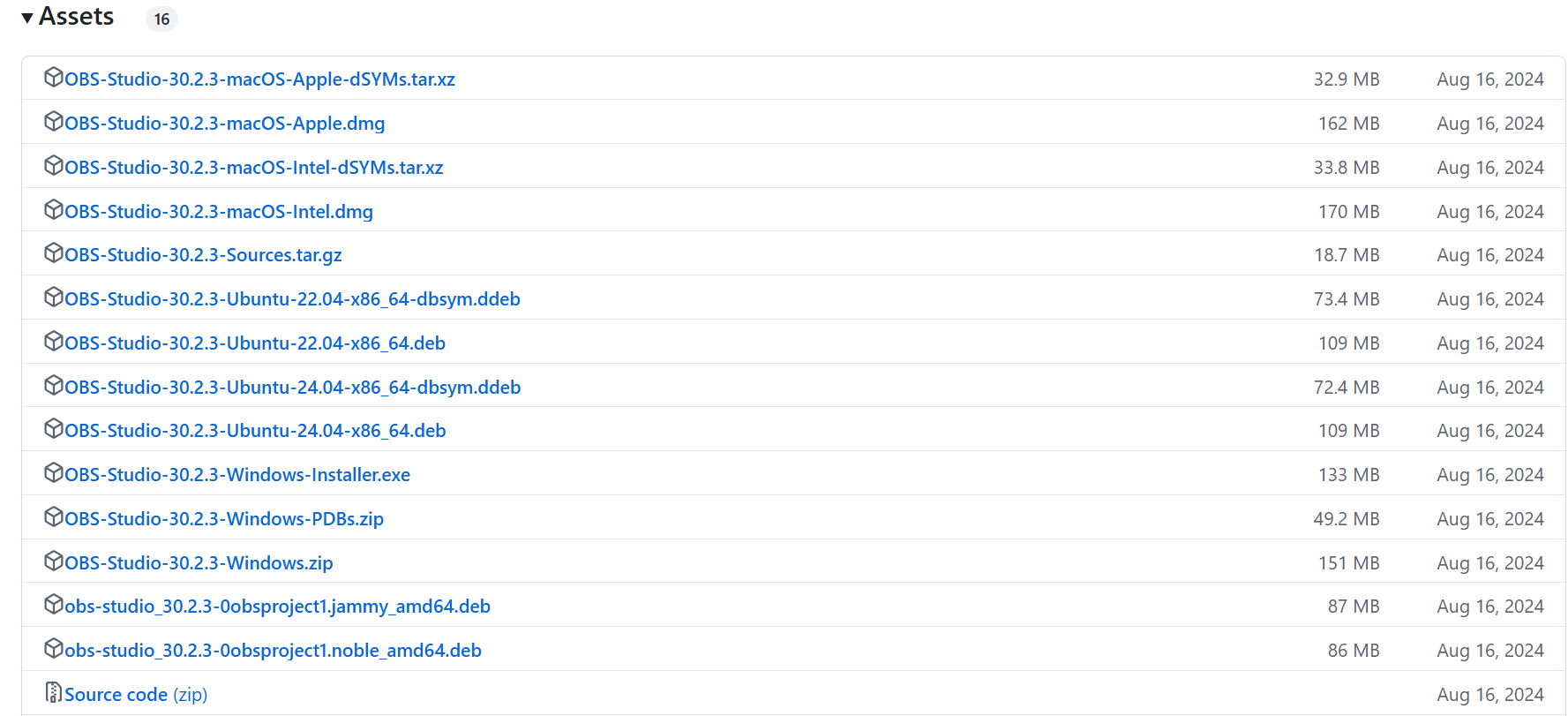
- Run the installer and follow the prompts.
- Do not update OBS automatically until compatibility issues are resolved.
You can check for updates here: OBS Capture Hook Certificate Update
This fix has helped many users (especially those encountering a black screen after updating) get Game Capture working again without changing any other settings.
Fix 4: Switch the game to Windowed or Borderless mode
Some games, when running in Fullscreen Exclusive mode, may block OBS from rendering the game footage correctly. This can lead to a black screen or the game not appearing in the OBS preview at all. Switching the game’s display mode to Windowed or Borderless Windowed often helps resolve the issue by making the game more accessible to OBS’s capture process.
To try this, open your game and head into its graphics or video settings. Look for a setting labeled “Display Mode” or “Screen Mode” and change it from “Fullscreen” to “Windowed” or “Borderless Windowed” (sometimes called “Borderless Fullscreen”). Save your changes and return to OBS to see if the capture is now working.
If the game still doesn’t show up after switching modes, continue to the next fix.
Fix 5: Disable game overlays
Game overlays such as those from Steam, Discord, Nvidia GeForce Experience, or Xbox Game Bar can sometimes interfere with OBS, Game Capture to fail or show a black screen.
To resolve this, try disabling any active game overlays while you use OBS. Here’s how for some common overlays:
- Disable Ubisoft overlay
- Disable Discord overlay
- Disable GeForce overlay
- Disable Steam overlay
- Disable Windows Xbox Game Bar
Disable Ubisoft Connect Overlay:
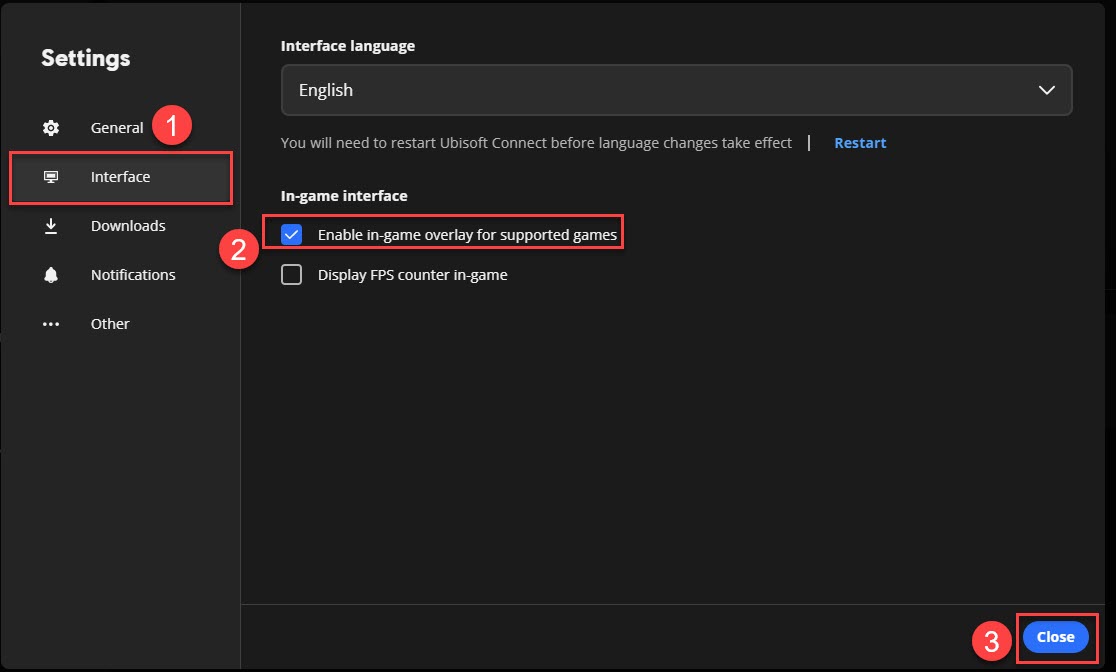
- Open Ubisoft Connect and go to Settings.
- Under General, uncheck Enable in-game overlay for supported games and click Close.
Disable Discord Overlay:
- Click on the Users Settings icon.
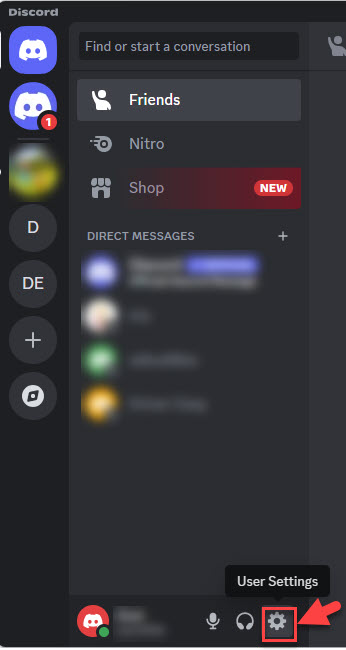
- Locate and click on Game Overlay. Then toggle off the option Enable in-game overlay.
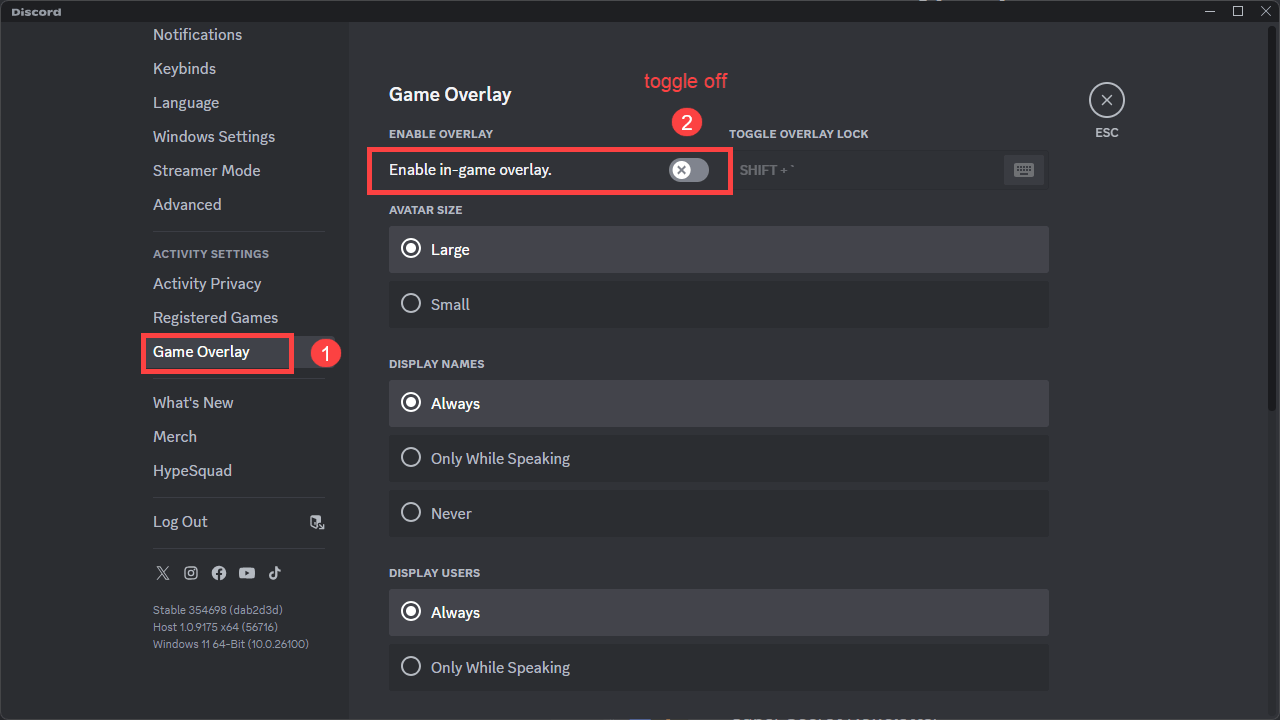
- Apply the changes and exit Discord.
Disable Geforce Experience in-game overlay:
- Click on the Settings icon.
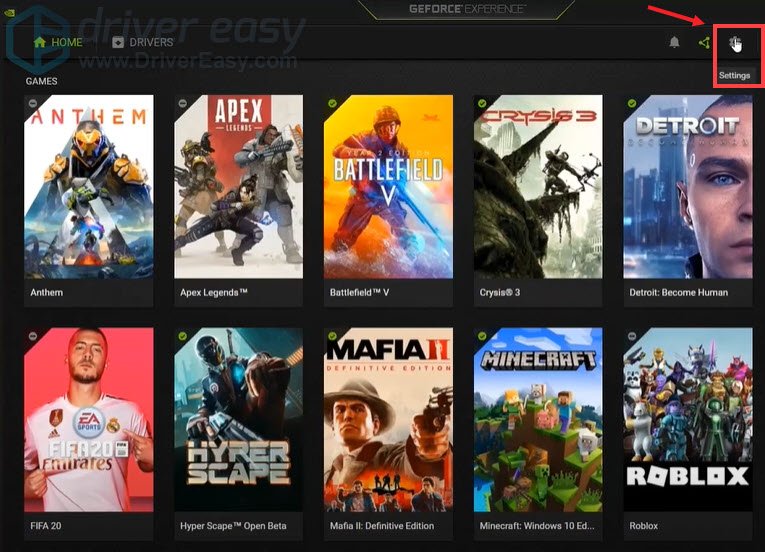
- Under the GENERAL tab, scroll down and switch IN-GAME OVERLAY to OFF.
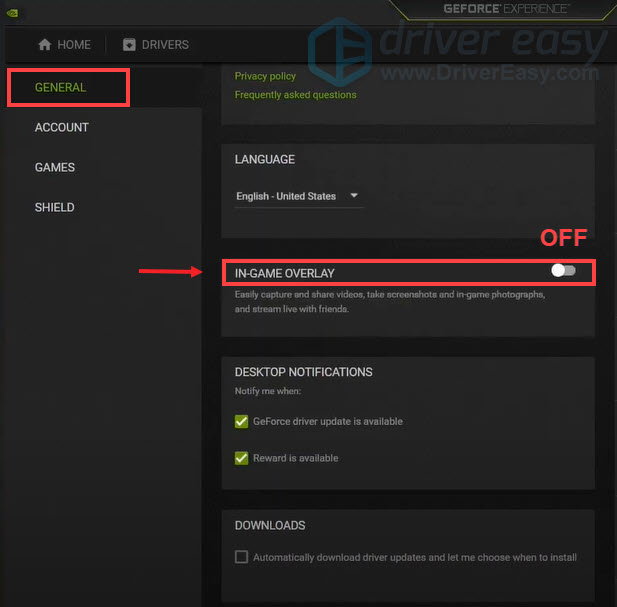
- Apply the changes and exit GeForce.
Disable Steam overlay:
- Launch the Steam client and select the tab LIBRARY.
- Right-click on Assassin’s Creed Shadows and select Properties.
- Select GENERAL and uncheck the box Enable the Steam Overlay while in-game.
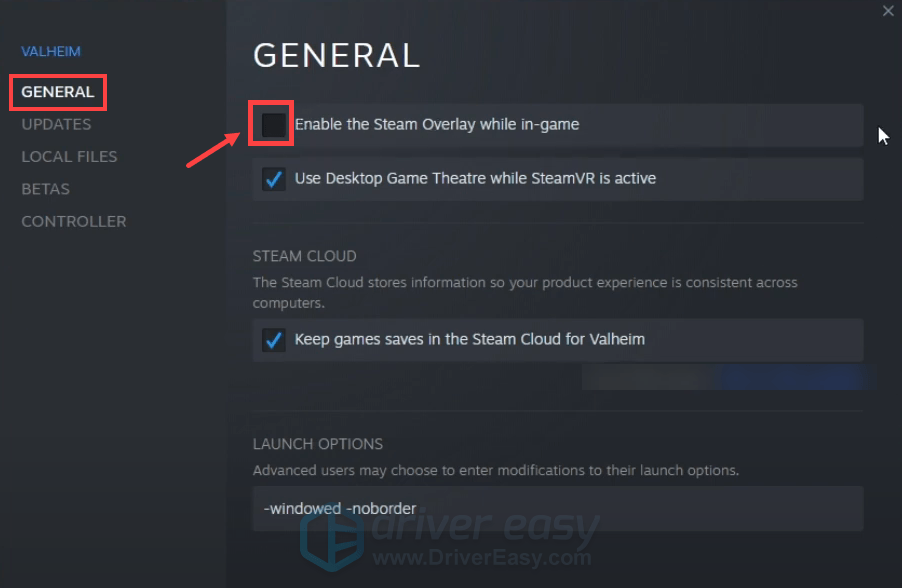
- Apply the changes and exit Steam.
Disable Windows Xbox Game Bar:
- On your keyboard, press the Windows logo key and I at the same time to open Settings.
- Select Gaming > Game Bar.
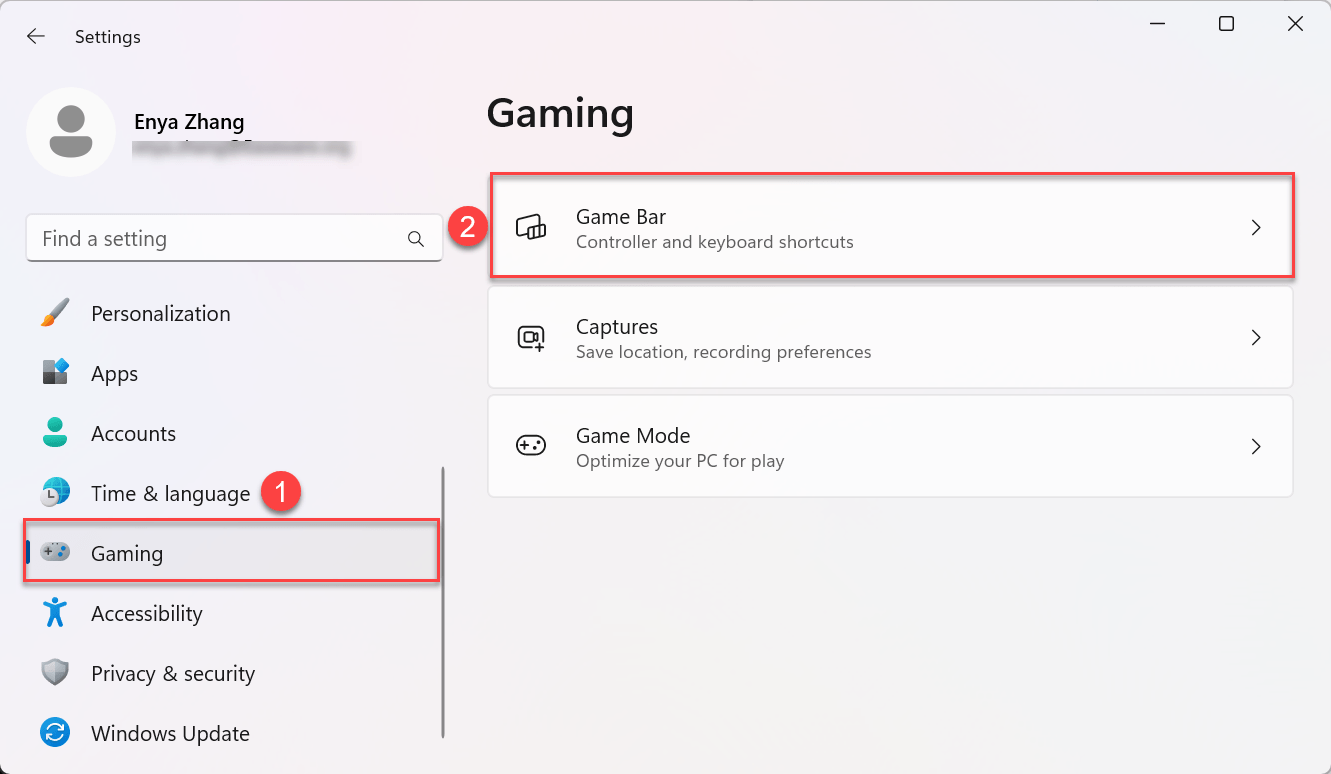
- Disable the Allow your controller to open Game Bar toggle.
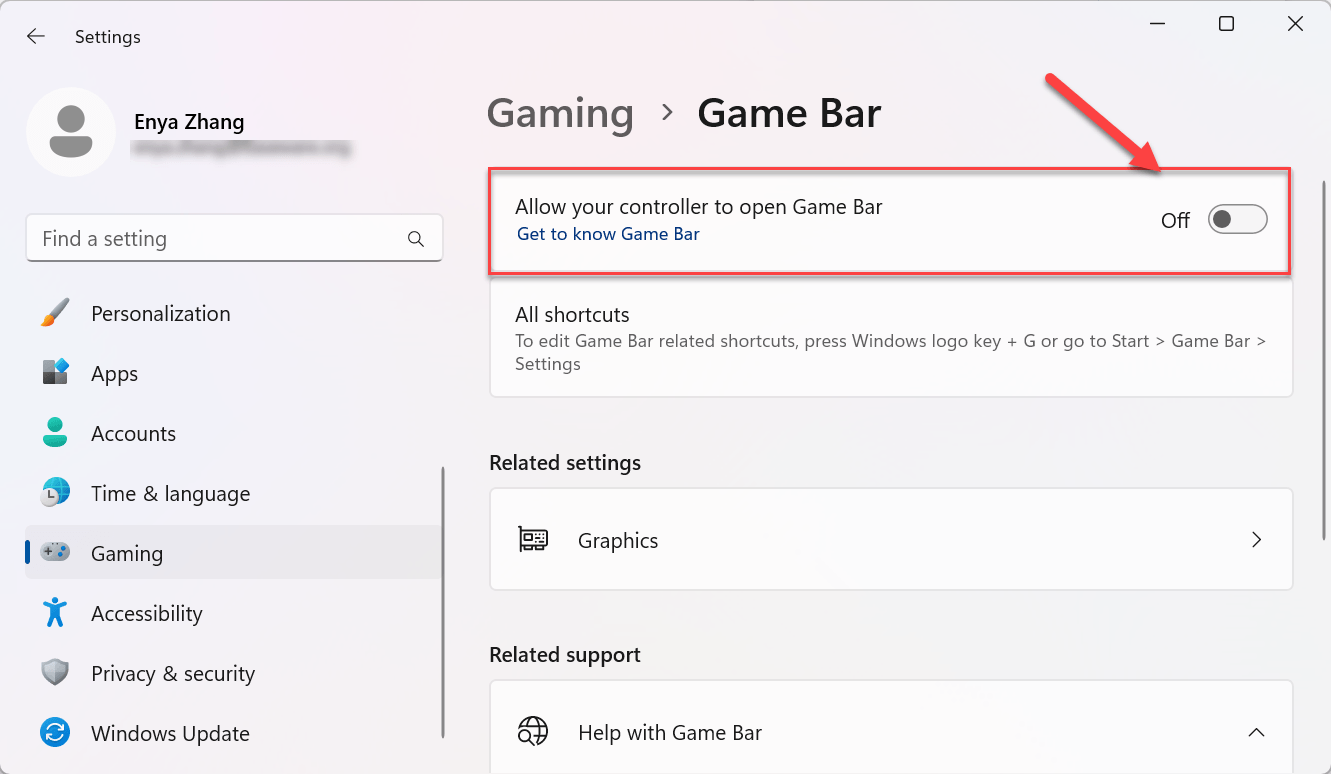
After disabling overlays, restart your game and OBS, then test if Game Capture works correctly. If it does, you’ve found your culprit!
Fix 6: Make sure OBS and the game are using the same GPU (on laptops)
If you’re using a laptop with both integrated graphics (like Intel UHD) and a dedicated GPU (like NVIDIA or AMD), OBS and your game might be running on different graphics processors—and that can prevent OBS Game Capture from working properly. In particular, Game Capture won’t work if OBS is using the integrated GPU while the game is running on the dedicated GPU (or vice versa), because they’re essentially running in separate environments that can’t see each other.
To fix this, you need to make sure both OBS and the game are running on the same GPU, ideally the dedicated GPU for best performance.
Here’s how to do it:
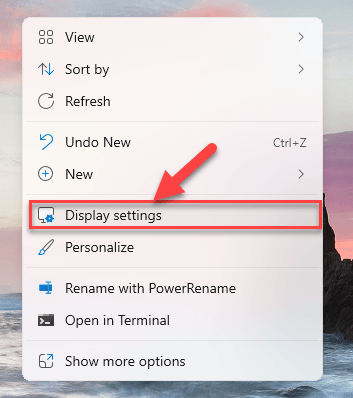
- Right-click on your desktop and select Display settings.
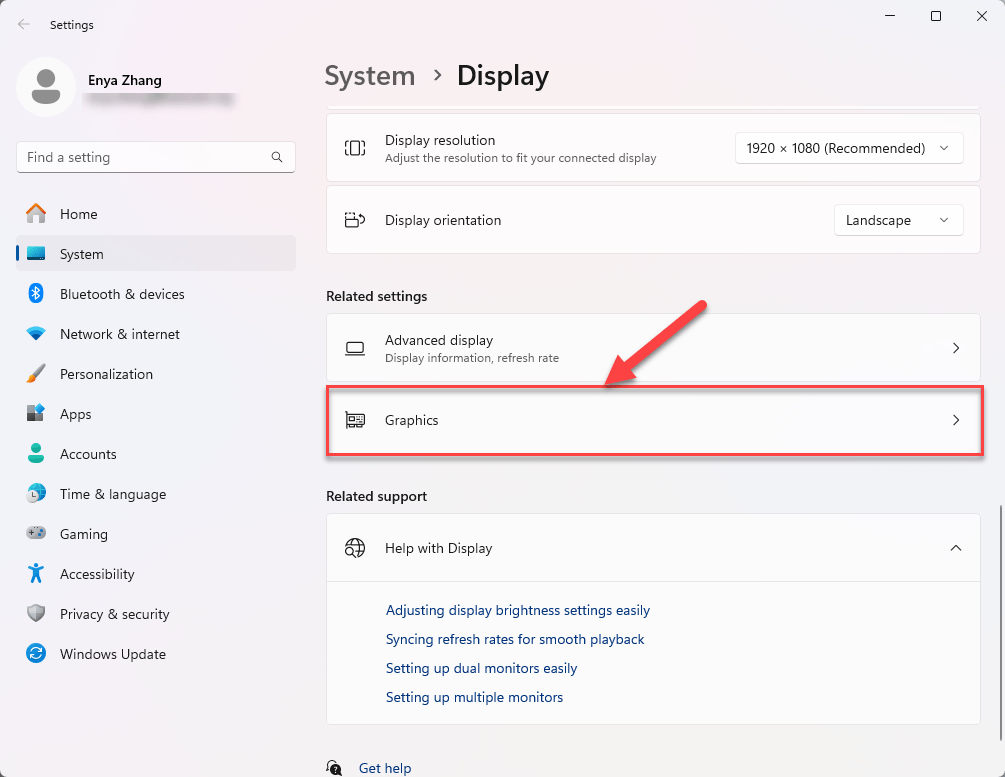
- Scroll down to Graphics and click on it.
- Under “Custom options for apps,” click Add desktop app, then click Browse to locate the app manually.
- Can’t find the file location?
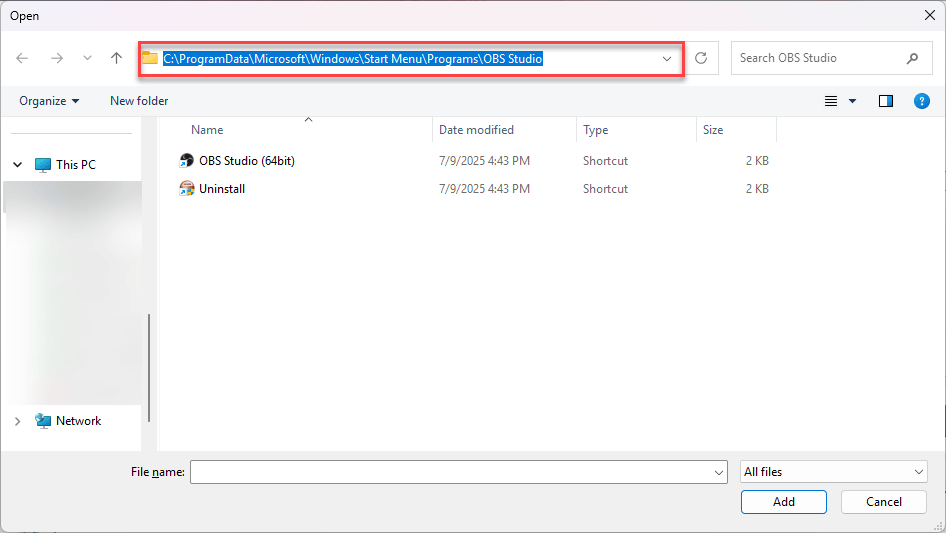
Just right-click the app’s shortcut (e.g., OBS or your game) on the desktop or Start menu, choose Open file location, then copy the path from the address bar.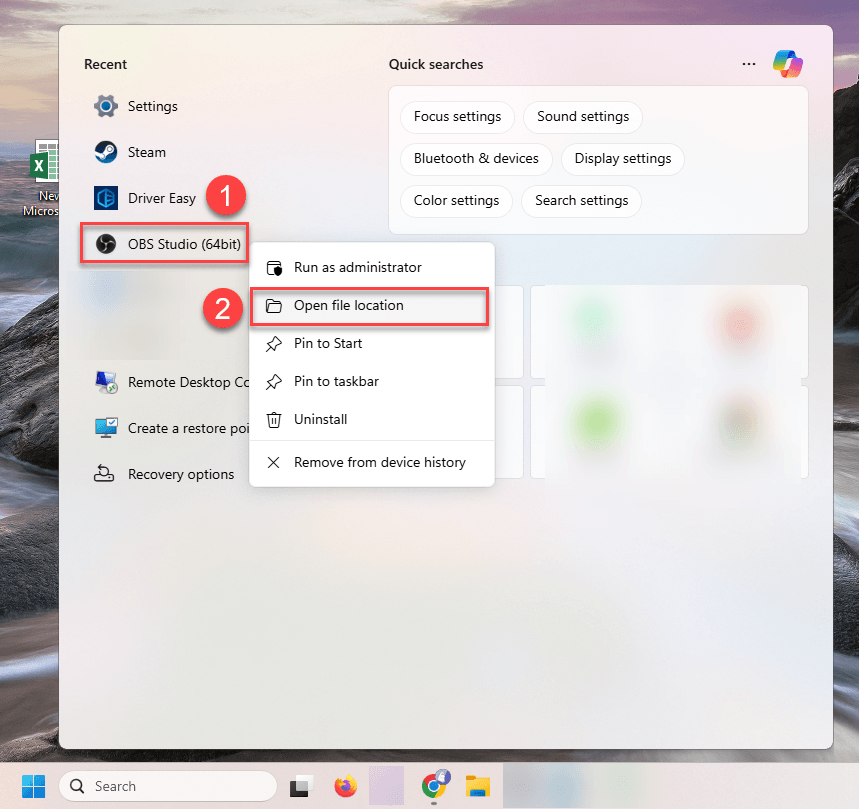
- Paste it into the file browser window when adding the app.
- Can’t find the file location?
- Once added, click Options next to OBS.
- Select High performance (this uses your dedicated GPU), then click Save.
Repeat the same steps for the game you’re trying to capture.
After this, restart both OBS and your game, and try Game Capture again. If GPU mismatch was the issue, this should fix it.
Fix 7: Upload a clean OBS log file
If none of the usual fixes are working, uploading a clean OBS log file can help identify what’s going wrong under the hood. OBS logs capture detailed information about your setup (e.g.graphics, capture sources, rendering issues, etc.) and these can often reveal problems that aren’t obvious on the surface.
You don’t have to dig through it yourself; you can upload the file and share the link on the OBS Forums or Discord to get help from experienced users or support staff. But first, it’s important to generate a clean, relevant log.
How to upload a clean log file:
- Restart OBS.
- Try to capture your game using Game Capture, and let it run for at least 30 seconds to reproduce the situation.
- Stop the capture.
- Go to Help > Log Files > Upload Current Log File.
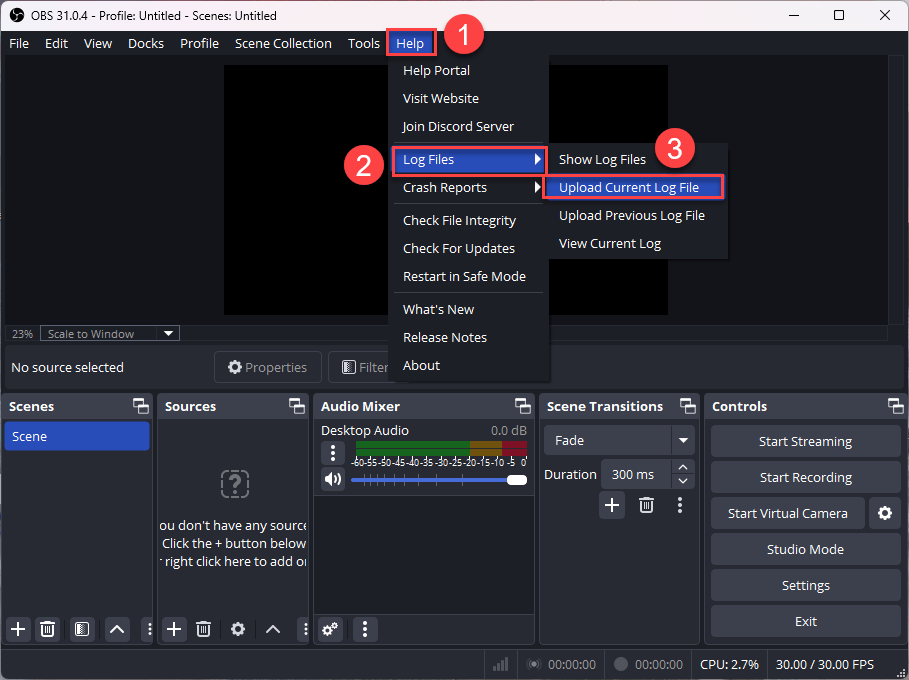
- Copy the generated URL and share it when asking for help.
This step won’t fix the issue by itself, but it’s often the fastest way to get targeted help, especially if you’re completely stuck.
Fix 8: Use Window or Display Capture instead
If Game Capture just refuses to work no matter what you try, consider switching to Window Capture or Display Capture as a workaround. These options are less selective than Game Capture and don’t rely on hooking into the game directly, so they tend to work more reliably, especially with older games, certain launchers, or games using custom anti-cheat software.
Window Capture works best when the game is running in windowed or borderless mode, while Display Capture simply captures whatever’s on your screen.
To switch:
- In OBS, click + under the Sources panel and select Window Capture or Display Capture.
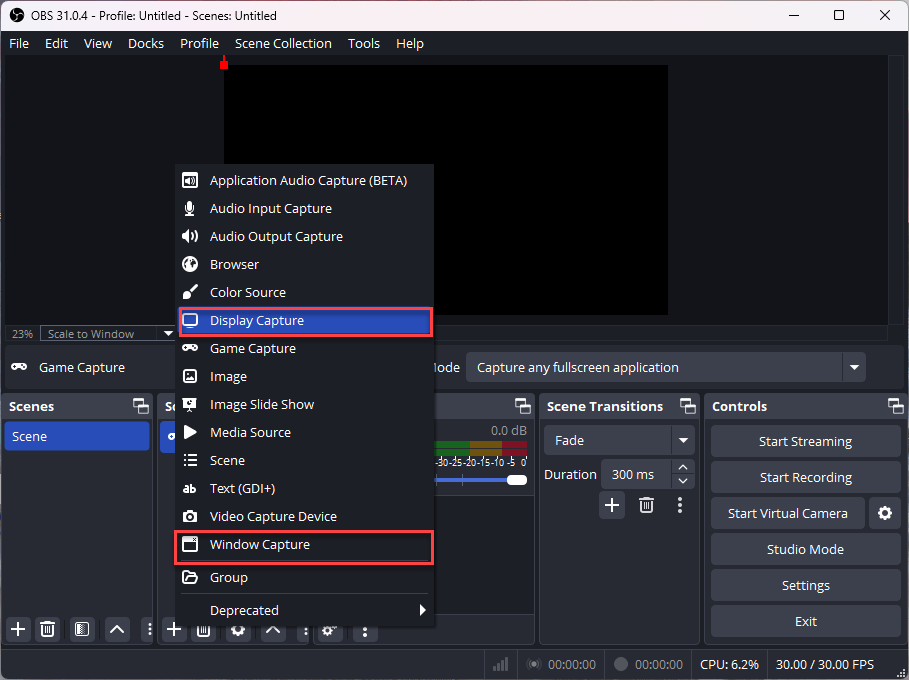
- Choose the correct window or display from the list.
- Resize or position it as needed in your scene.
While this method may not offer the same performance or flexibility as Game Capture (e.g. no cursor hiding, potential for screen-tearing), it’s a dependable fallback when all else fails.
Hopefully, one of these fixes got your OBS Game Capture working again. If you’re still having trouble or have a question about a specific step, feel free to leave a comment below. We’re happy to help!