






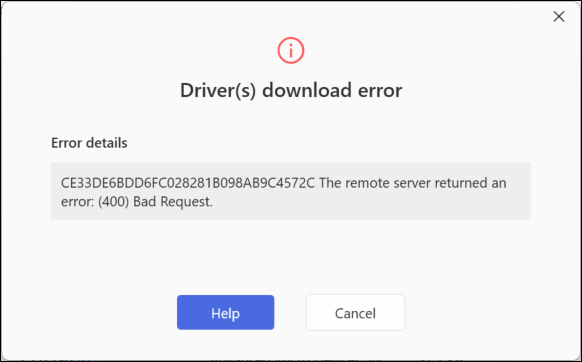
Try the steps below to troubleshoot and fix the scan error that you have met.
Ping Checking
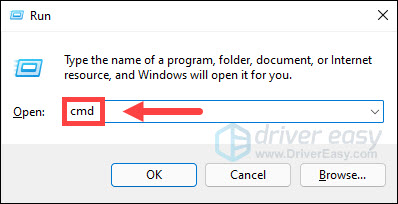
- Press Win+R (Windows key and R key)at the same time. A Run dialog box will open.
- Type cmd in the run box and click OK.
- Type ping app1.drivereasy.com and press the Enter button.
If the ping command runs successfully, the Execute Ping result screen will display like following.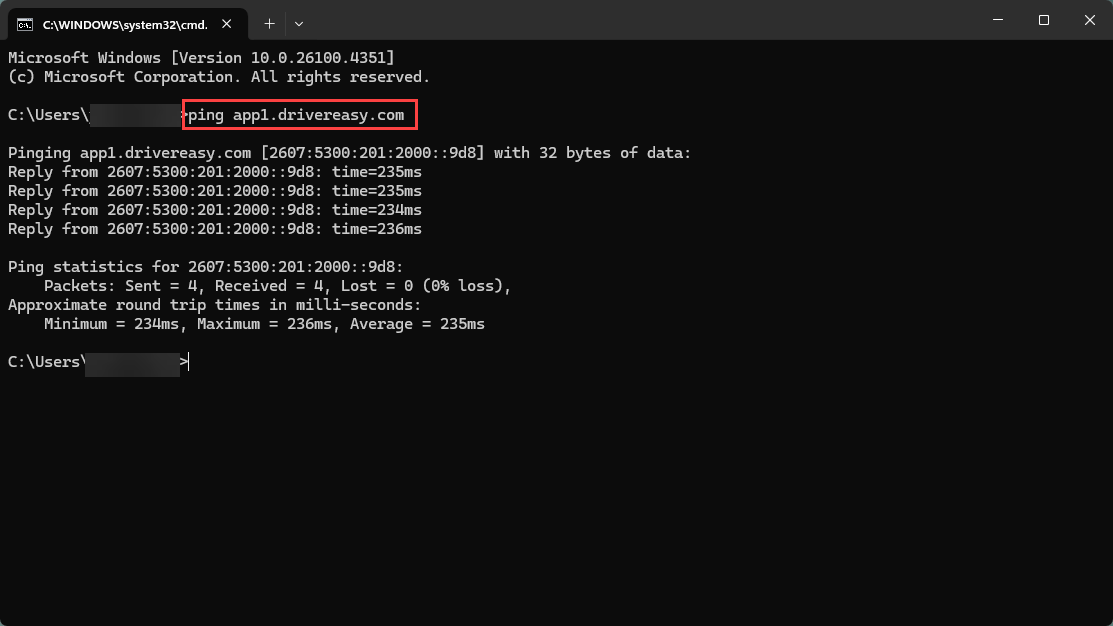
If the ping command does not run successfully, the Execute Ping result screen won’t display any data. In this case, your PC can’t be connected to the Driver Easy scan server. Wait minutes (up to 5 minutes)and try again. If the problem persists, read on and follow the instructions.
Check the Internet Connection Setting
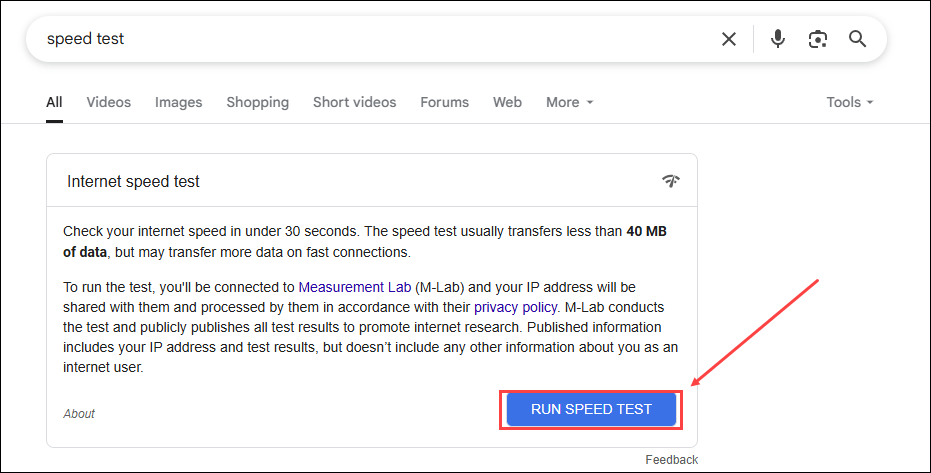
Firstly, open a browser to make sure you can access the Internet successfully. You can run a speed test to check your connection status.
If you’re using Proxy / VPN on your computer, please check if the Proxy / VPN has the correct settings and make sure your computer can visit website after using Proxy / VPN.
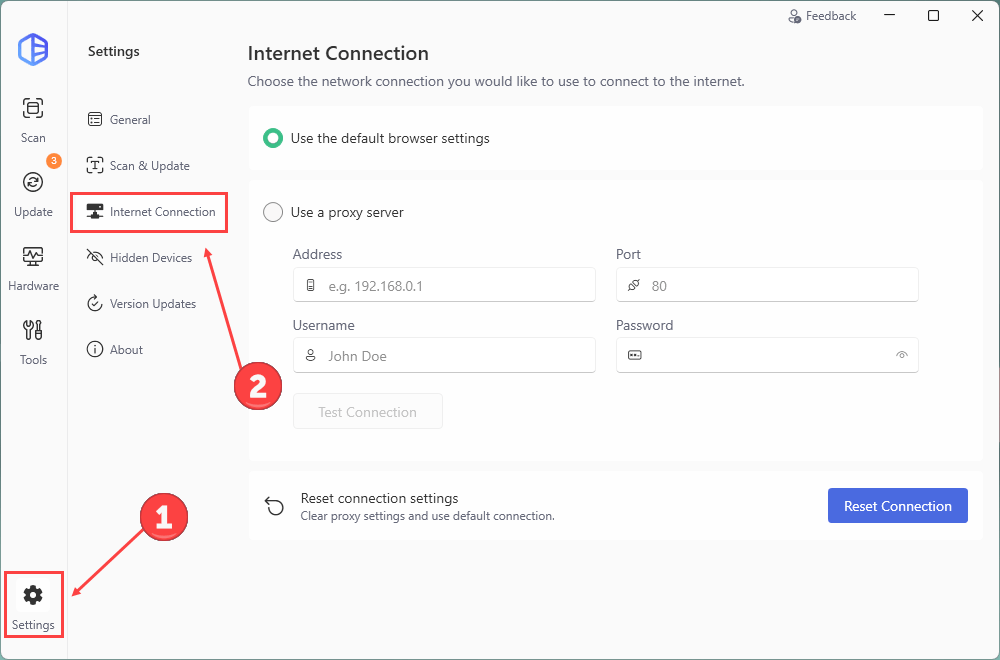
- Open Driver Easy, click Settings in the bottom-left corner and click Internet Connection from the left panel.
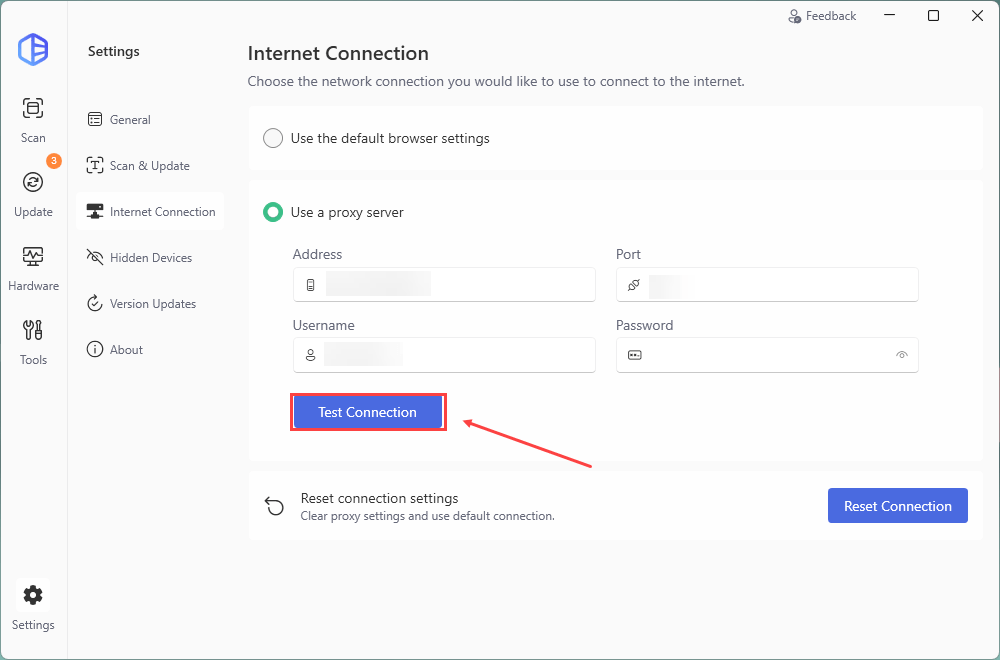
- Click Test Connection to check your proxy connection.
- If the test failed, please check the settings or set it to Use the default browser settings.
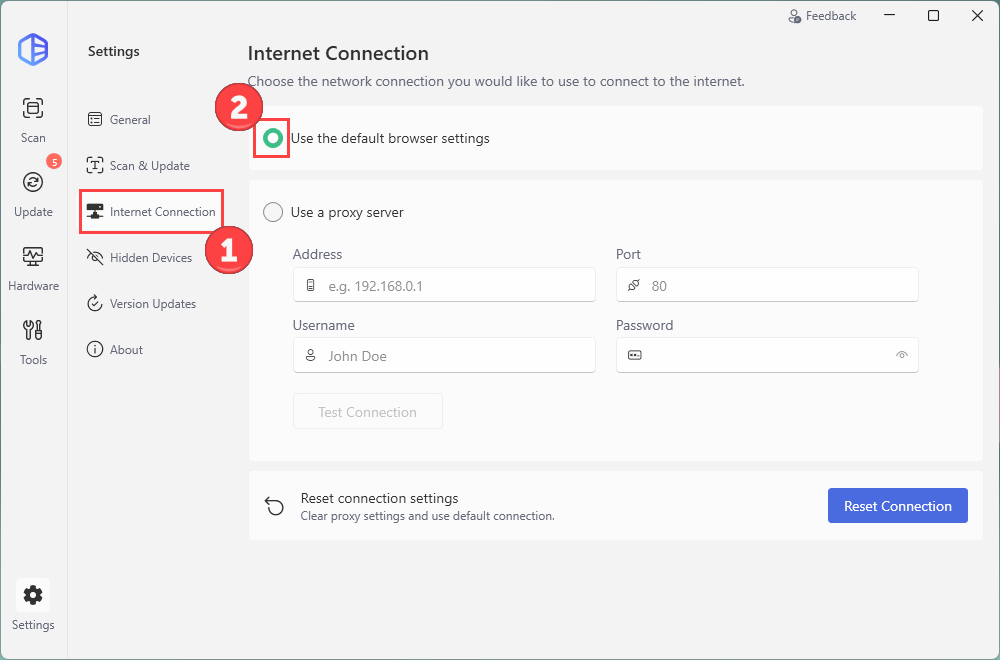
The changes will be saved automatically.
Antivirus / Firewall/VPN Checking
Some AntiVirus, Firewall programs and VPN may block the connection between Driver Easy and the driver database server or driver download server.
If you are using any Antivirus or Firewall or VPN, please temporarily disable them and then try again. Once you can confirm the cause, please add Driver Easy to its whitelist.
If the problem cannot be resolved, please send us further information using the Driver Easy Feedback tool so we can assist you in resolving the problem.
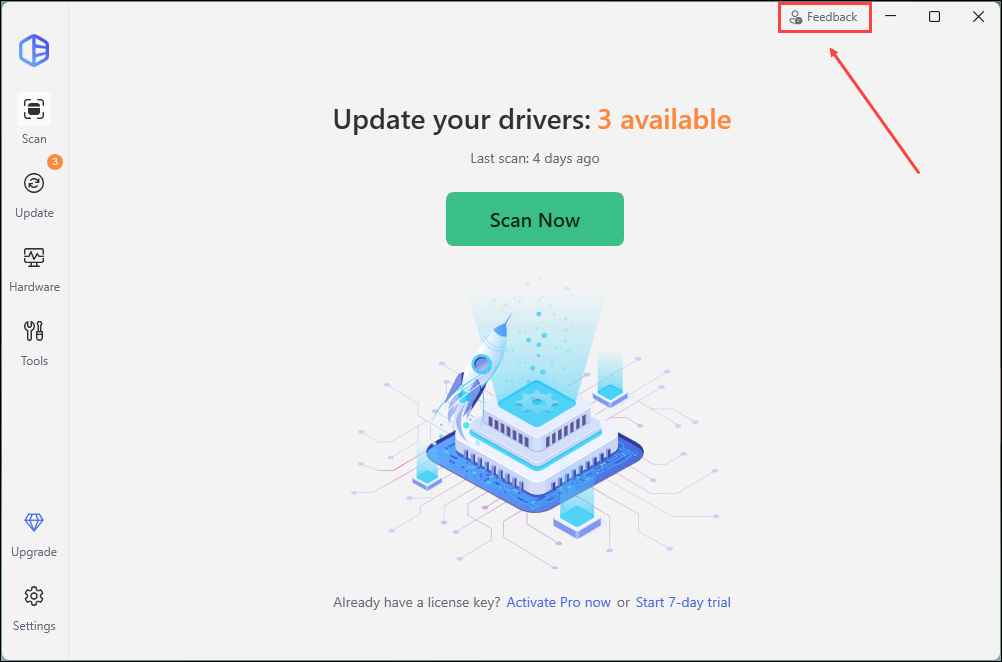
The following information is required so we can locate the problem more precisely.
– The screenshot of the error message
If you are not sure how to take a screenshot, click here to learn how to take a screenshot.
– The screenshot of the ping result
Please refer to Ping Checking above to get the ping result.
If you also fail to use the Driver Easy Feedback tool, please send the information to our support email address support@drivereasy.com. We will reply to you within 2 working days.
