






Discord stream has no sound when you share your screen or an application? Your viewers may hear nothing at all, or they may hear music and sound effects but not dialogue.
You’re not alone. This issue has been reported by many Discord users, and the standard support checklist rarely touches the real cause. The good news is that most cases have a straightforward fix. In this guide, we’ll walk you through 9 tested fixes for Discord stream no sound to get your stream session back on track.
How to fix Discord stream audio not working
You may not have to try them all. Just start with the quickest checks and move toward more involved solutions.
Fix 1 – Restart Discord and Test Another App
Start with the simplest checks. This helps determine whether the problem is specific to Discord, the application you’re sharing, or your Windows/macOS audio system.
- Play a YouTube video, music file, or another application and confirm that you can hear its audio locally.
- Check Discord’s server status for an active incident affecting voice or streaming. You can also follow @Discordapp on Twitter to see if there are any ongoing issues.
- Completely quit Discord. On Windows, right-click the Discord icon in the system tray and select Quit Discord. Then, reopen Discord, join your voice channel, and start a new screen share to see if the viewers can hear the shared audio.
If the problem still appears, try the next method below.
Fix 2 – Switch the Source Audio to Stereo
If music and sound effects work but dialogue is missing, check whether the movie, game, or media player is outputting 5.1/surround audio.
This is one of the most useful fixes for the specific “everything except voices” symptom. A 5.1 soundtrack may place much of the dialogue in the center channel. If your setup or capture path doesn’t downmix that channel correctly to stereo, Discord viewers may miss the dialogue.
- Start playing the movie, game, or video.
- Open the application’s audio settings.
- Look for an option such as Audio Channels, Output Mode, Stereo, or Surround. If the source is set to 5.1, 7.1, Surround, or Original, switch it to Stereo.
- Restart the Discord stream and ask your viewer whether the dialogue is audible.
For example, in VLC, check the available audio/output options while the video is playing. Other players such as PotPlayer and MPC-HC may expose similar channel or output controls.
If the problem affects multiple games or media players, check your Windows speaker configuration as well.
If you’re using stereo headphones or speakers, make sure Windows isn’t configured for 5.1/7.1 surround sound unless your hardware actually supports it. You can check this under Settings > System > Sound > More sound settings, then select your playback device and choose Configure. If you’re using a standard two-channel headset or speaker setup, set it to Stereo.
Open Discord to test. If the audio issue persists, move on to the next method.
Fix 3 – Disable Hardware Acceleration
Hardware acceleration can sometimes interfere with screen sharing or media capture. If you’re streaming a browser or another application, try disabling hardware acceleration in both Discord and the application where appropriate.
On Discord
- Open User Settings.
- Scroll down to find System under the Experience tab. Turn off Hardware Acceleration.

- Click Change & Restart to confirm.

- Restart Discord and test the stream again.
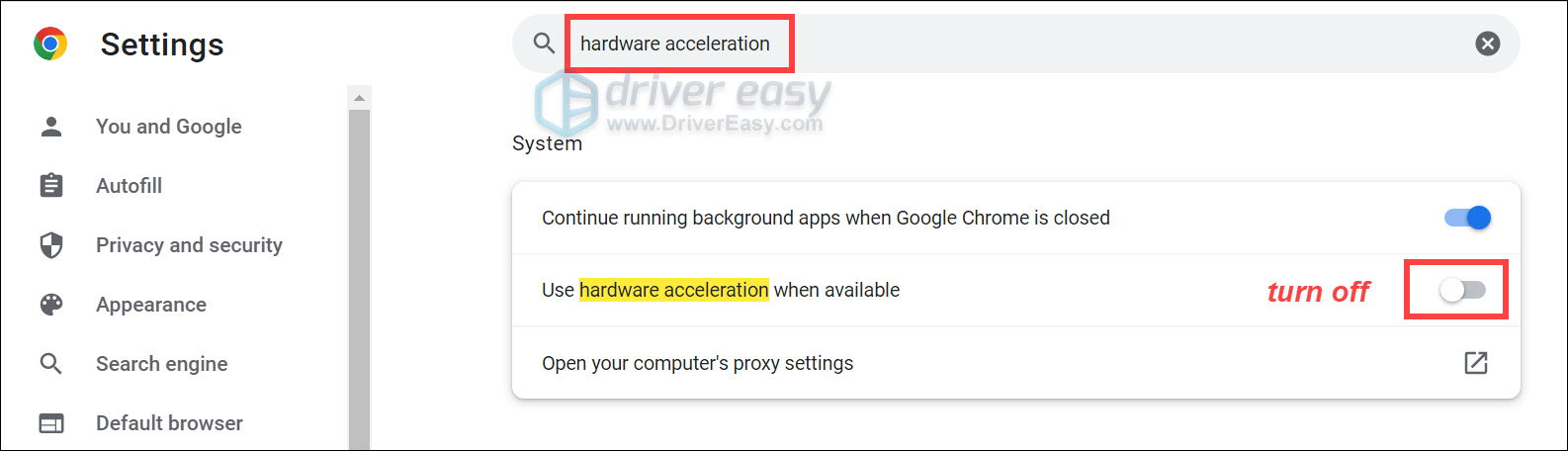
If you’re streaming from Chrome or Edge, you can also test with hardware acceleration disabled in the browser:
- Chrome: Settings > System > Use graphics acceleration when available.
- Edge: Settings > System and performance > Use graphics acceleration when available.
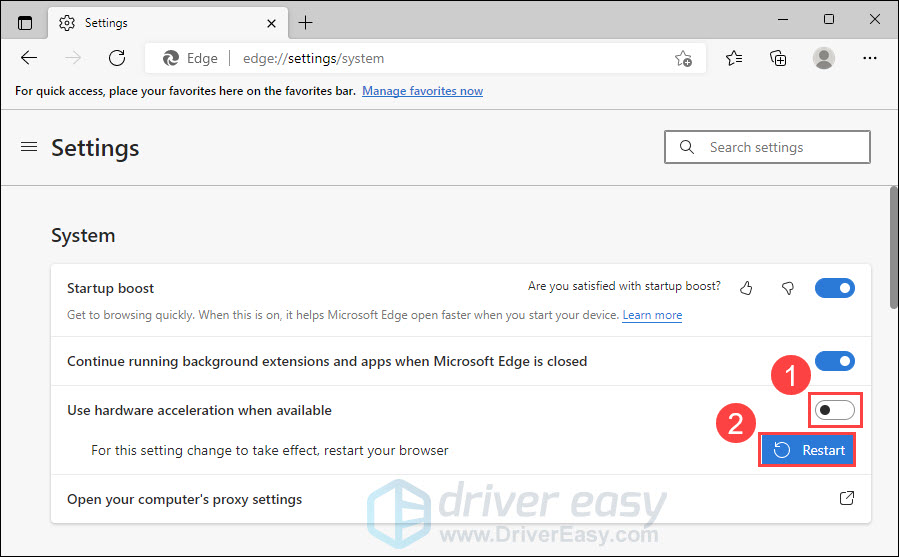
Restart the browser completely after changing the setting.
Start a new stream instead of simply continuing the existing one and see if the audio works. If not, check out the next solution.
Fix 4 – Temporarily Disable Echo Cancellation and Noise Suppression
Discord’s voice-processing features are designed primarily for voice communication, so they can occasionally interfere with unusual audio setups, particularly when you’re using an external audio interface or other specialized hardware. You can temporarily turn them off to see if they’re the cause.
- Open Discord. Navigate to User Settings > Voice & Video. Find Noise Suppression and set it to None and disable Echo Cancellation.

- Restart the stream and test the audio.
If stream audio returns after disabling these options, re-enable the settings one at a time to identify the setting causing the conflict. If this trick doesn’t help, keep reading the fixes below.
Fix 5 – Reset Discord Voice Settings
Improper Discord voice settings can cause errors like this. If you’ve recently altered Discord settings and the audio isn’t working after then. Try resetting the voice settings to default to see if it fixes the issue. Here is how:
- Run Discord, and then click the Settings icon.
- Click Voice & Video, then scroll to the bottom and click Reset all Voice & Video Settings.
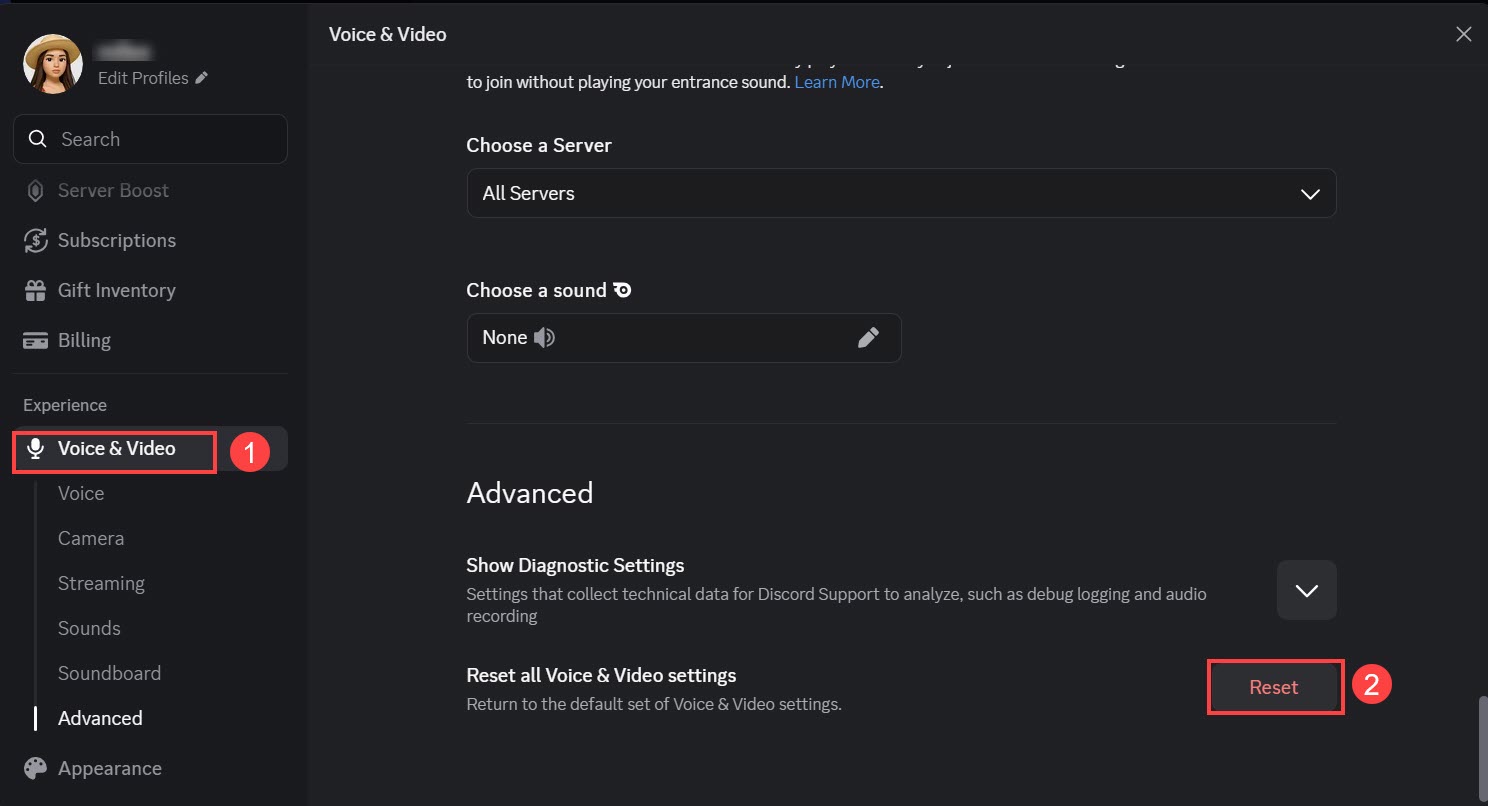
- Click Okay.
If there’s still no audio when you’re sharing the screen, try the next fix.
Fix 6 – Switch to Legacy Audio Subsystem
The audio issues occur when your hardware is incompatible with Discord’s latest audio subsystem. In this case, switching to the legacy Audio subsystem may fix it. Here’s how:
- Run Discord and click the Settings icon at the bottom left corner.
- Navigate to the Audio & Video tab. Then, under AUDIO SUBSYSTEM, select Legacy. If you don’t find this option, click Show Advanced Audio Settings and turn off Bypass System Audio Input Processing.

Check to see if the audio works now. If not, try the next fix below.
Fix 7 – Update Your Audio Driver
If Discord and Windows are struggling to access or route your audio device correctly, an outdated, corrupted, or incompatible audio driver can be part of the problem. Your audio driver acts as the essential bridge between your hardware and software – when it’s not working properly, your system simply cannot process audio properly, hence missing sound in Discord.
You can update your device drivers in the Windows Device Manager or download the latest driver manually from your sound card manufacturer‘s website. Once you find the driver you need, just download the file and install it. If you don’t have the time, patience or computer skills to update the driver manually, you can do it automatically with Driver Easy.
Driver Easy will automatically recognize your system and find the correct drivers for it. You don’t need to know exactly what system your computer is running, you don’t need to risk downloading and installing the wrong driver, and you don’t need to worry about making a mistake when installing.
- Download and install Driver Easy.
- Run Driver Easy and click the Scan Now button. Driver Easy will then scan your computer and detect any problem drivers.
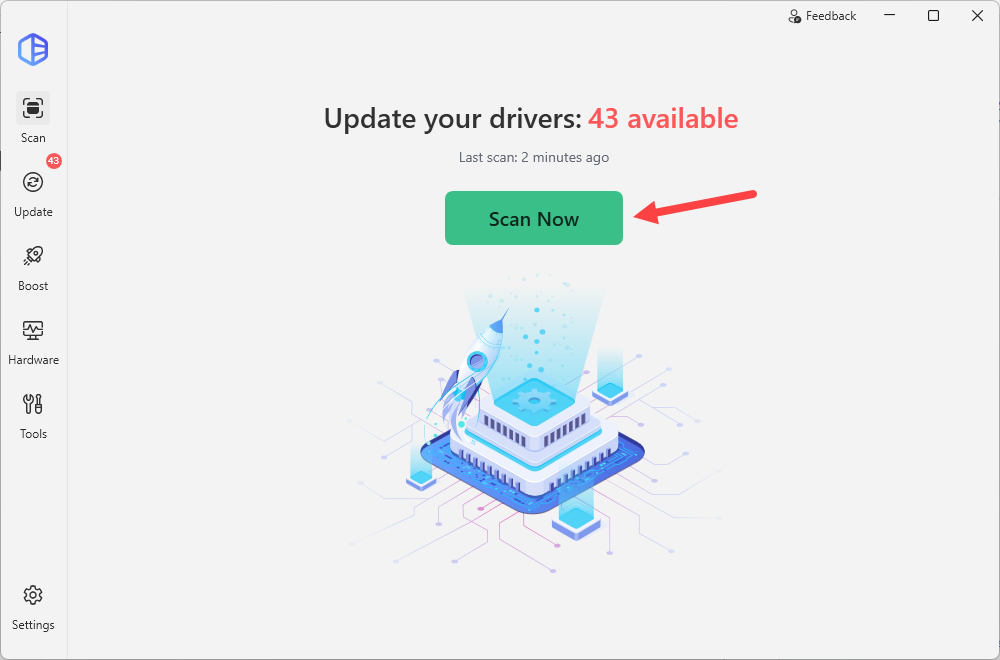
- Click the Activate & Update button next to the audio driver to automatically update the correct version of that driver. Or click Update All to automatically download and install the correct version of all the drivers that are missing or out of date on your system.

This requires the Pro version – which comes with high-speed and automatic driver updates, advanced driver restore tools, plus full technical support. If you’re not sure whether Driver Easy is right for you, start a free trial to try out the full Pro features for 7 days. You won’t be charged before your trial ends.)
Restart your computer after the driver update. Play the same application you were previously unable to stream and ask a viewer to confirm whether the audio now comes through. If the audio isn’t coming back, try the next method below.
Fix 8 – Share the Application Instead of the Entire Screen
Discord lets you share an individual application window or your entire screen. If audio isn’t being captured correctly, try switching between these two modes.
- Join your voice channel.
- Select the Screen Share icon. Instead of selecting your entire screen, choose Applications or the specific application/window you want to share.
- Select the movie player, game, or browser window.
Start the stream and check if the audio is now audible. If you were already sharing an application, try the opposite approach and share the entire screen.
Fix 9 – Check Windows Audio Routing and Output Format
Having incorrect Windows audio settings can cause Discord screen share audio problems. Here’s how to properly configure your audio settings:
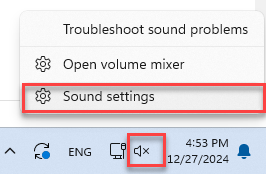
- In the bottom right corner of your screen, right-click the speaker icon in your taskbar and select Sound settings.
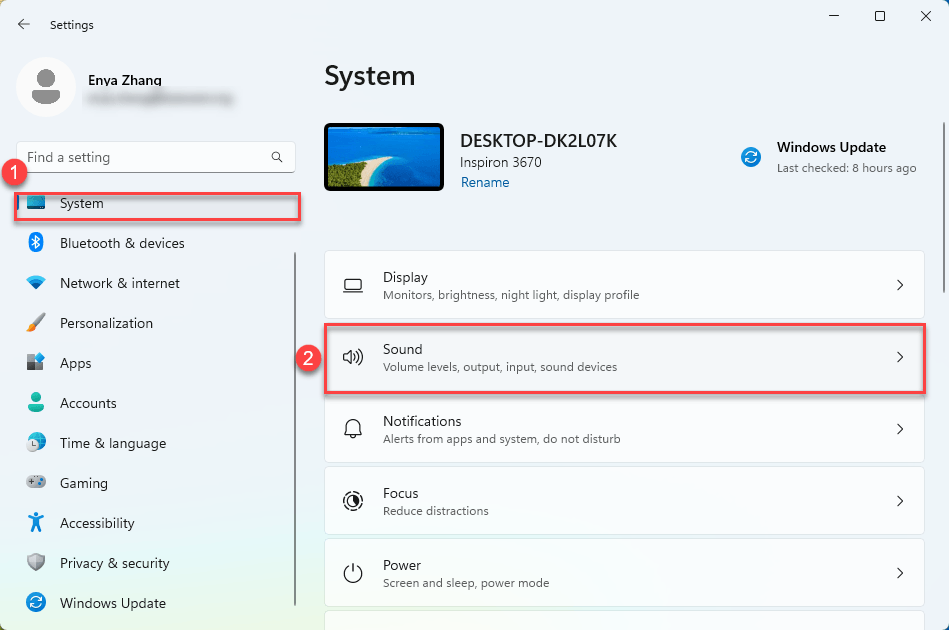
- In the window that pops up, select System > Sound.
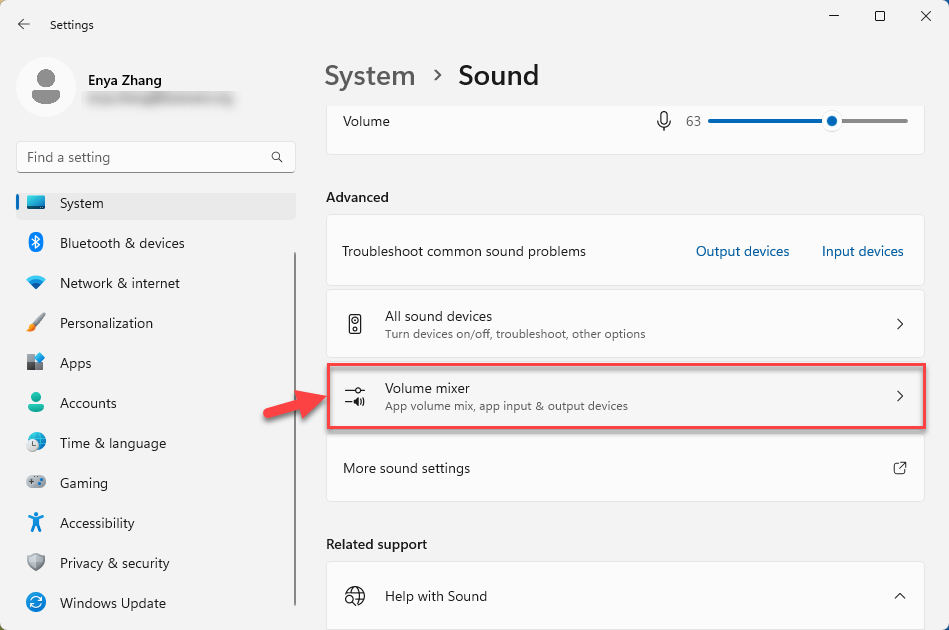
- Scroll down to the Advanced section and click Volume mixer.
- Under Apps, make sure the application you’re streaming isn’t muted.
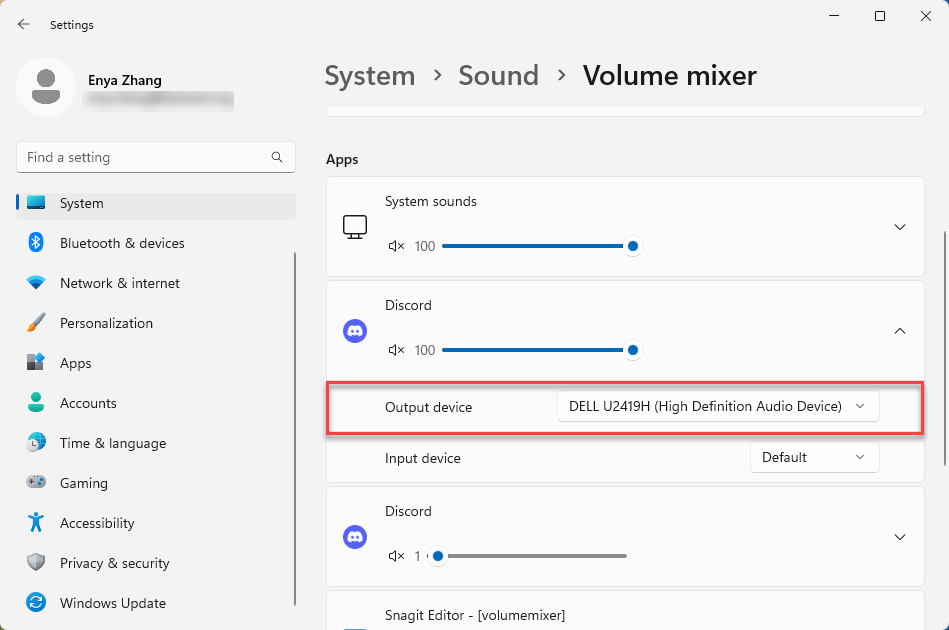
- Check that the application’s Output device is the one you’re actually using.
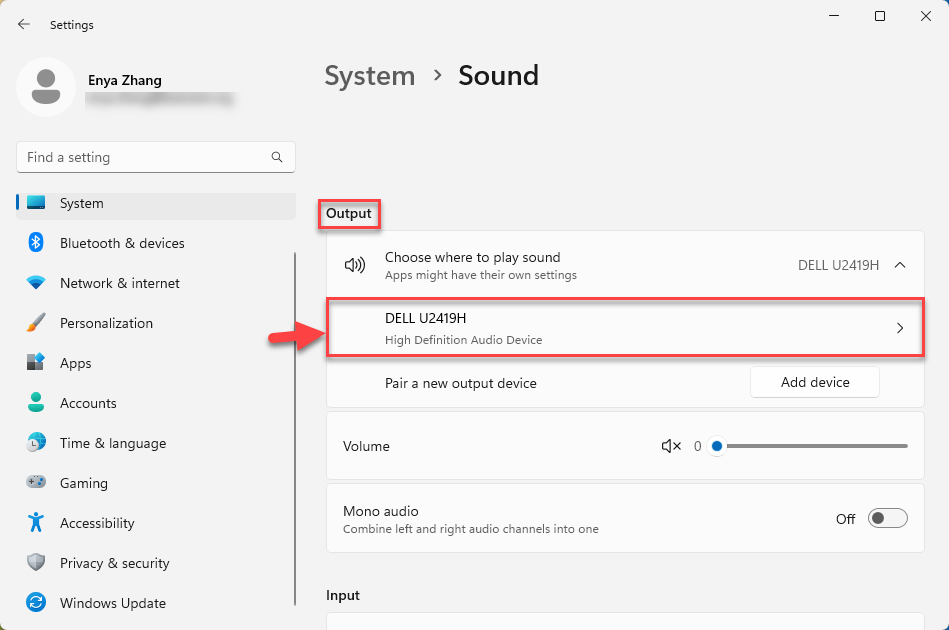
- Select your output device and check Format. Try another available format and test the Discord stream again. You don’t need to force a specific sample rate or bit depth unless your hardware or driver requires it.

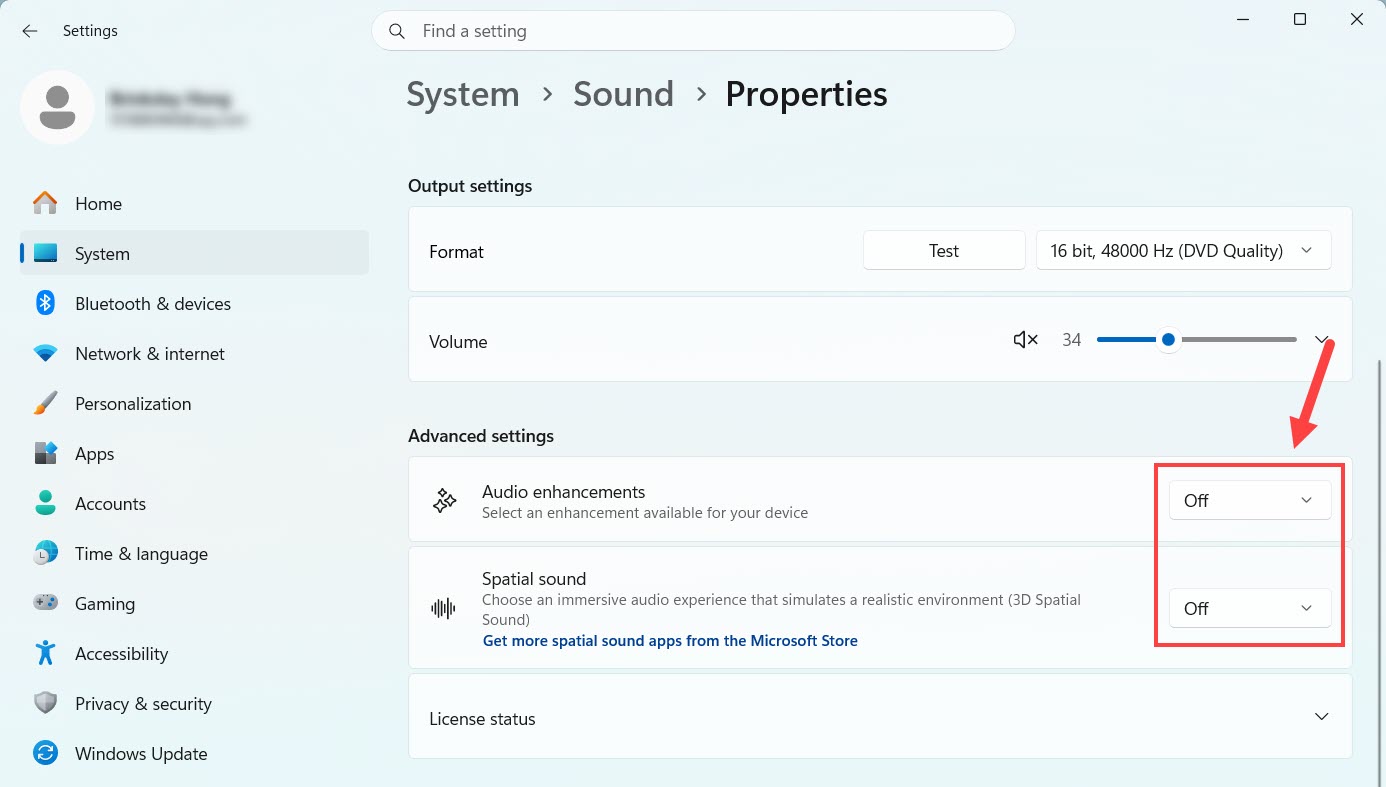
- On the same screen, temporarily turn off Audio enhancements and Spatial sound to see if Discord audio works.
Fix 10 – Clean Reinstall Discord
If none of the previous fixes work, corrupted Discord app data or an installation problem may be responsible. Consider a clean reinstall at this point because you’ve already ruled out the more common audio-routing and configuration issues.
Before you start: Make sure you know your Discord login details.
Step 1 – Clear Discord’s App Data
- Completely quit Discord.
- On your keyboard, press the Windows logo key and type %appdata%. Then, press the Enter key.
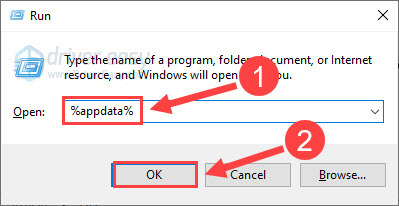
- Right-click the discord folder and then select Delete.
- Relaunch Discord to test your issue.
Step 2 – Reinstall Discord
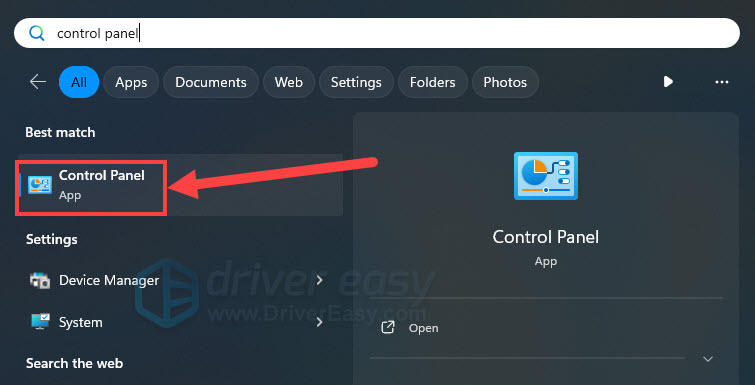
- On your keyboard, press the Windows logo key. Then, type control panel and click Control Panel.
- Select Uninstall a program.

- Right-click Discord and click Uninstall.

- Download Discord. Then, open the downloaded file and follow the on-screen instructions to reinstall Discord.
Hopefully, one of the fixes above helped in resolving your problem. Please feel free to leave a comment below if you have any questions and suggestions.
