






There’s nothing more frustrating than getting ready to play a game and having it crash before you can even get started. If you’re dealing with constant crashes in Grounded 2, you’re not alone. Luckily, we’ve put together a comprehensive guide to help you get back into the game. Go through the list below and try each method until your crashing issue is resolved.
Table of contents
Method 1: Make Sure Your PC is Capable
To run the game, your PC must meet the minimum requirements. For the best performance, however, we recommend aiming for the recommended specifications.
- MINIMUM:
- Requires a 64-bit processor and operating system
- OS: Windows 10/11 with updates
- Processor: AMD Ryzen 5 2600 / Intel i5-8400
- Memory: 16 GB RAM
- Graphics: AMD RX 5700 / Nvidia GTX 1070 / Intel Arc A580
- DirectX: Version 12
- Storage: 40 GB available space
- RECOMMENDED:
- Requires a 64-bit processor and operating system
- OS: Windows 10/11 with updates
- Processor: AMD Ryzen 5 5600X / Intel i7-10700K
- Memory: 16 GB RAM
- Graphics: AMD RX 6800 XT / Nvidia RTX 3080
- DirectX: Version 12
- Storage: 40 GB available space
To check your system specifications, you can do it via the System Information tool. What you have to do is:
- Press Win + R to open the Run dialog. Type msinfo32 and hit Enter.
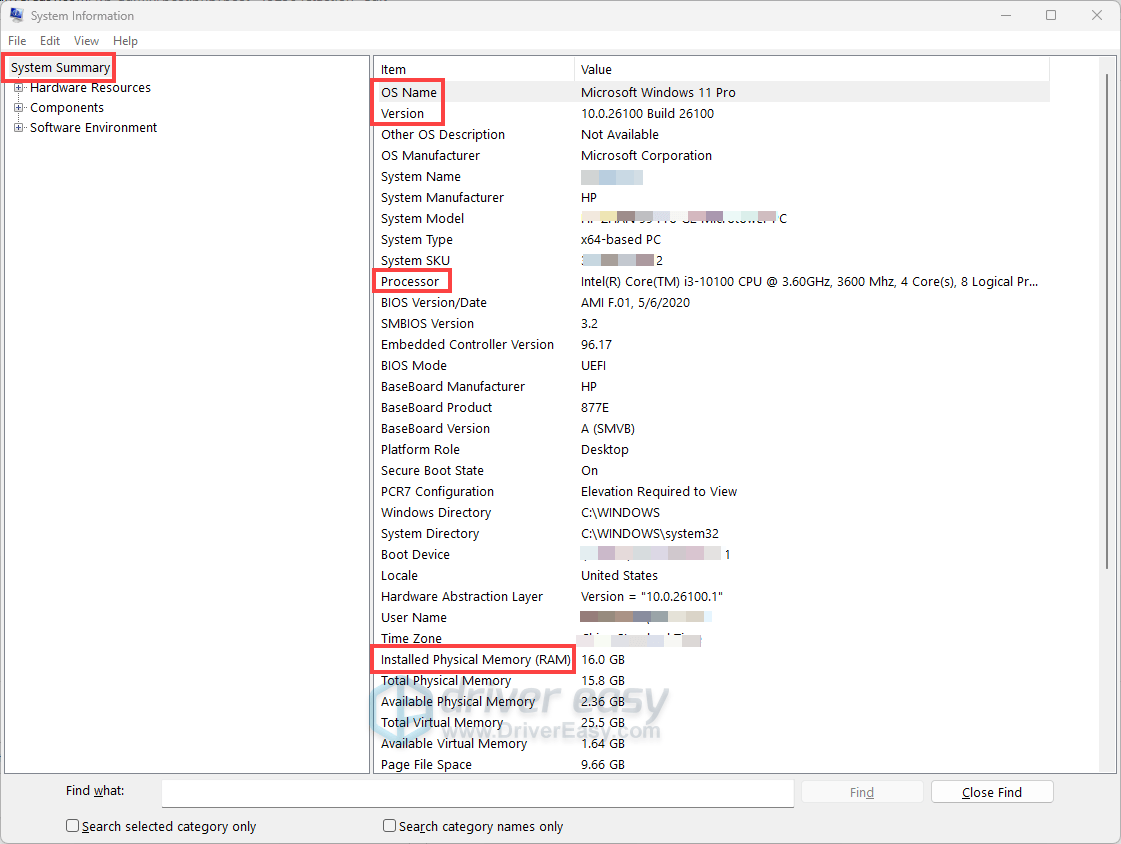
- In the System Information window, select System Summary from the left navigation panel. Here you’ll find details about your operating system, processor, installed RAM, and other essential components.
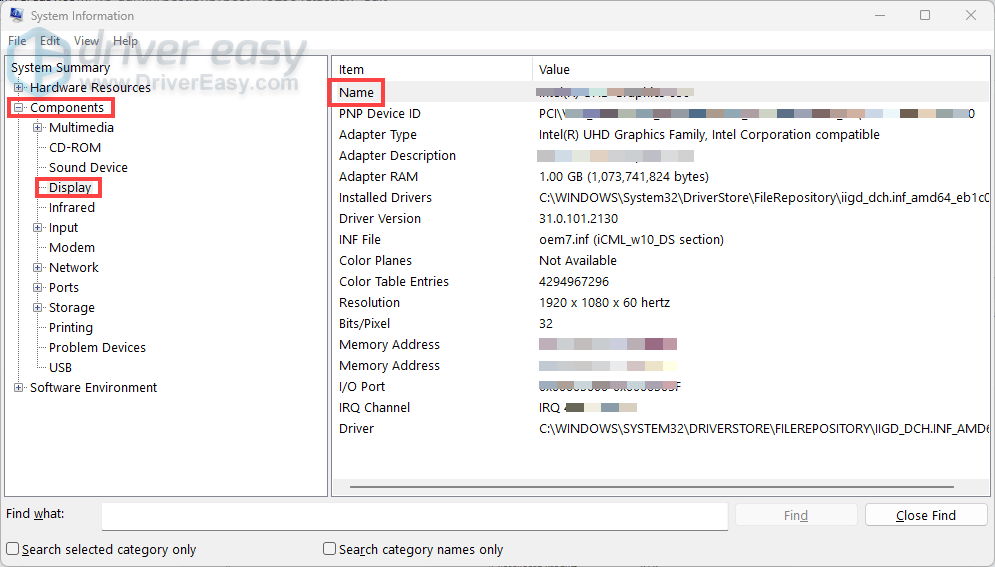
- In the left navigation panel, expand Components and then select Display. This section will provide information about your graphics card.
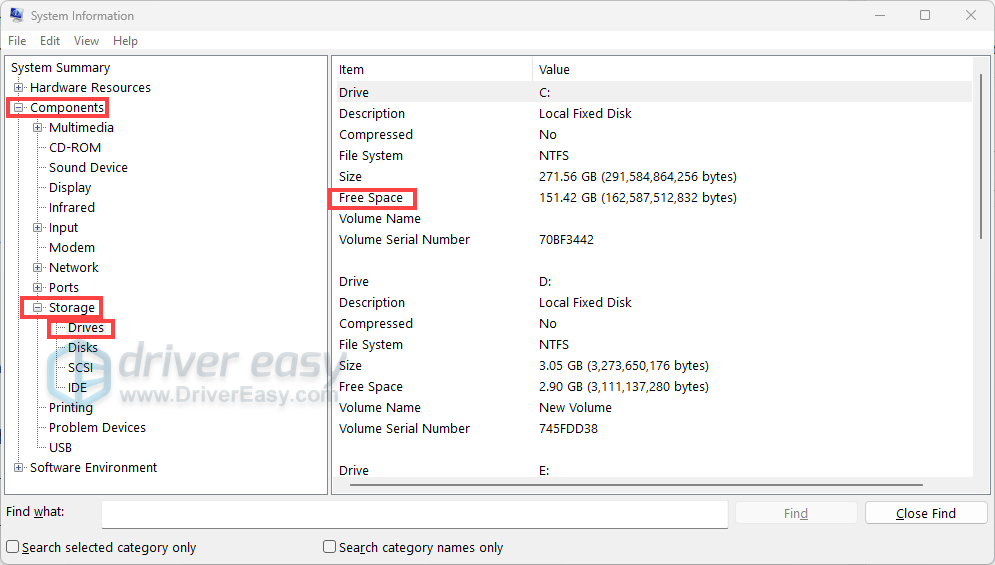
- In the left navigation panel, expand Components, then click on Storage > Drives. You’ll see a list of your drives, for each drive, you’ll find information such as Free Space: The amount of available free space on the drive.
If your PC meets or exceeds the game’s system requirements but you still have constant crashes, try the other fixes below.
Method 2: Update Your Graphics Driver
Outdated or corrupted graphics drivers are a frequent cause of game crashes. Major manufacturers like NVIDIA and AMD regularly release game-ready drivers that are optimized for new titles and improve stability.
To get the latest drivers, visit their official website (NVIDIA/AMD). While the Windows Device Manager can also update drivers, it may not provide the most recent versions.
For a simplified process of getting driver updates, you can try Driver Easy, a handy driver updater tool that will automatically detect any missing or outdated drivers on your system, then download and install the latest versions corresponding with your system version. You can also choose the specific version you want to install or roll back to a previous one in case the latest one doesn’t work as expected. Moreover, it will automatically create a restore point, allowing you to go back to a previous state in case something unusual happens.
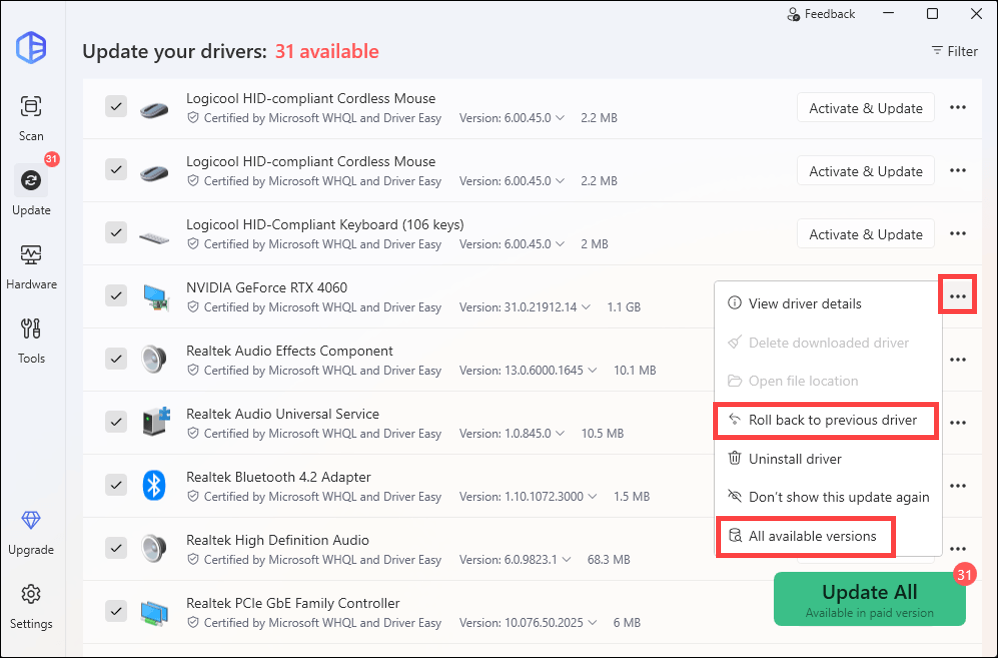
With Driver Easy, updating your drivers is as simple as a few clicks:
- Download and install Driver Easy.
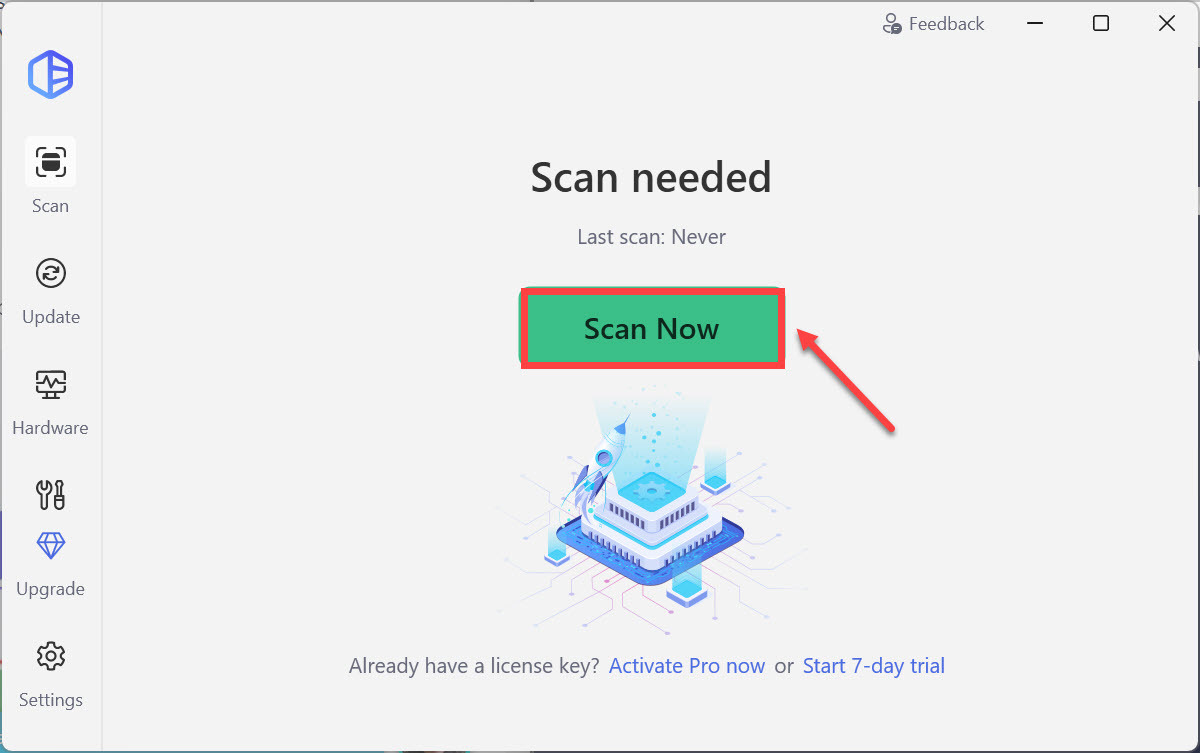
- Launch Driver Easy and click the Scan Now button. It will then scan your computer and detect any devices with missing or outdated drivers.
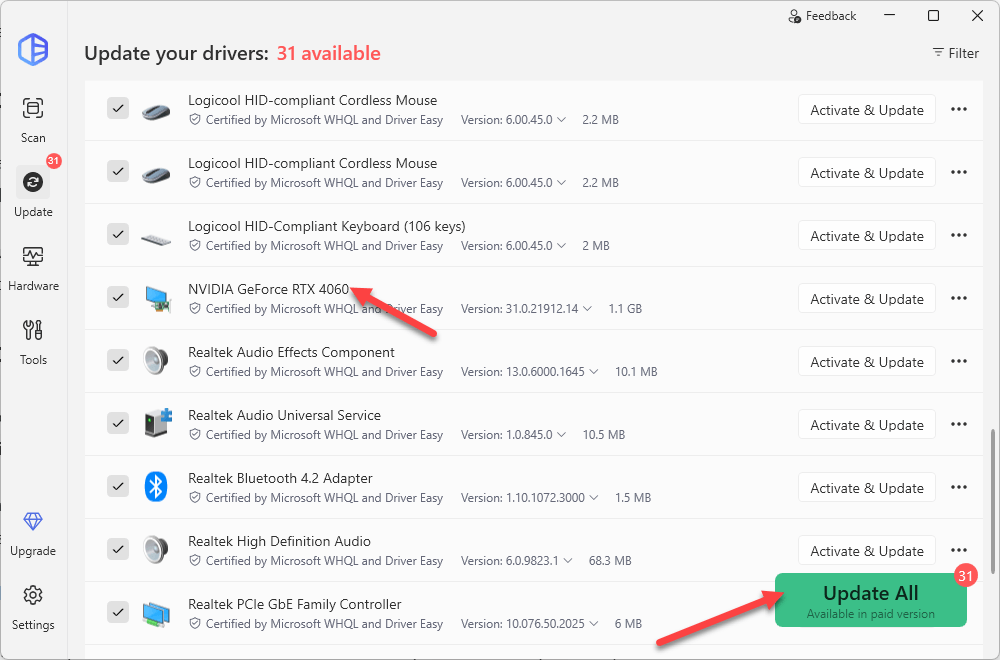
- Under Devices with outdated drivers, find your graphics card, then click Activate & Update. Or click Update All. Driver Easy will then download and update all your outdated device drivers, giving you the latest version of each, direct from the manufacturer.
- Restart your computer for the changes to take effect. If you need any assistance while using Driver Easy, feel free to contact our support team at support@drivereasy.com.
Method 3: Download & Install all Windows Updates
An outdated version of Windows can lead to compatibility problems with modern games like Grounded 2, which can cause crashes. Ensuring your system is fully up to date with the latest Windows updates can resolve these conflicts, as these updates often contain important fixes and performance improvements. Follow the steps below to download and install all available updates.
- Press the Windows logo key to invoke Search. Type check for updates, and select it from the list of results.
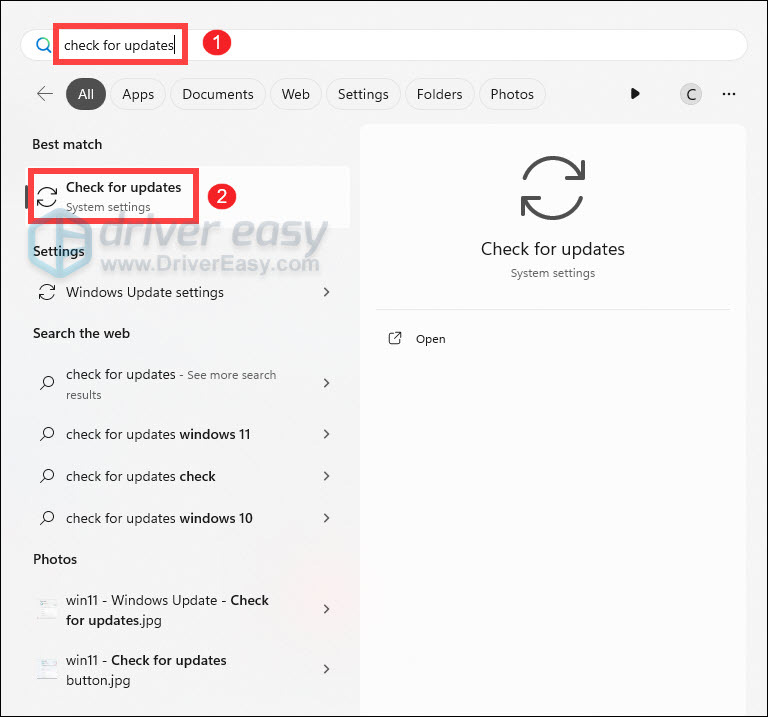
- If any updates are available for you, select Download & install. Your device will download and install the updates. If prompted to do so, restart your device to apply the updates.
If your issue persists, try the next fix below.
Method 4: Verify Integrity of Game Files
Sometimes, the game files can become corrupted or go missing. This can cause all sorts of problems, from minor visual glitches to constant crashes. The good news is, there’s a built-in tool to check for and repair them automatically.
For Steam Users:
- Open Steam and go to your LIBRARY.
- Right-click on your game and select Properties.
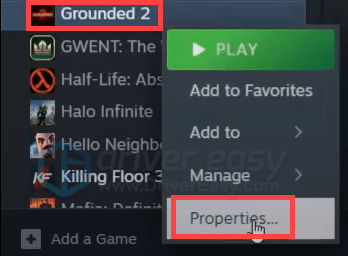
- Go to the Installed Files tab and click Verify integrity of game files….
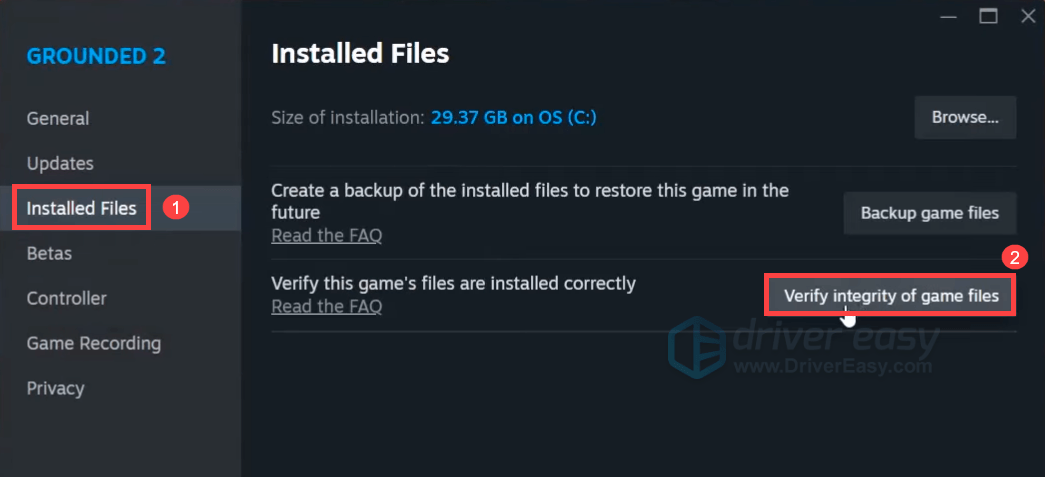
- Steam will verify the game’s files, and this process may take several minutes. Once done, relaunch Steam and your game to check if your problem has been solved.
For Xbox Users:
- Open the Xbox app for Windows.
- Select the [⋯] button next to the PLAY button of your game title, then choose Manage.
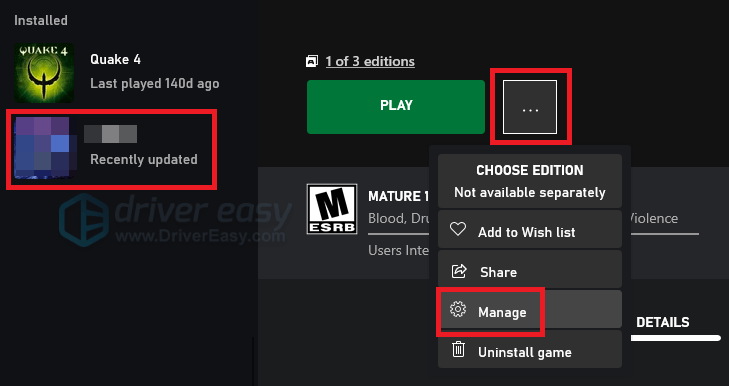
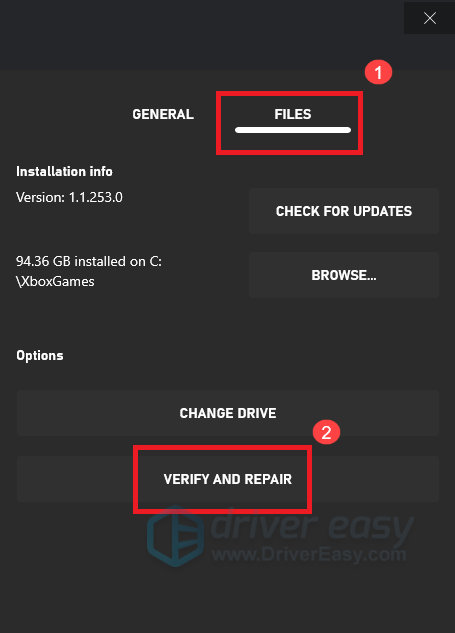
- Click the Files tab > Verify and Repair to repair the game. Then try to launch it again.
Still encountering constant crashes? Try the next fix below!
Method 5: Disable Overlays
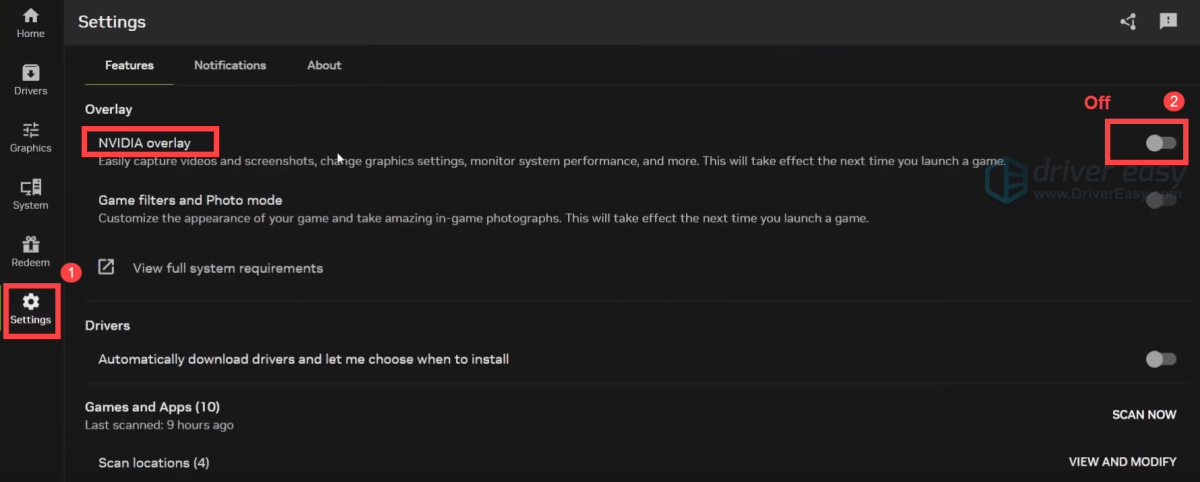
While convenient, overlays can sometimes cause conflicts with resource-intensive titles. To free up system resources and prevent these conflicts, you may want to disable them:
Steam
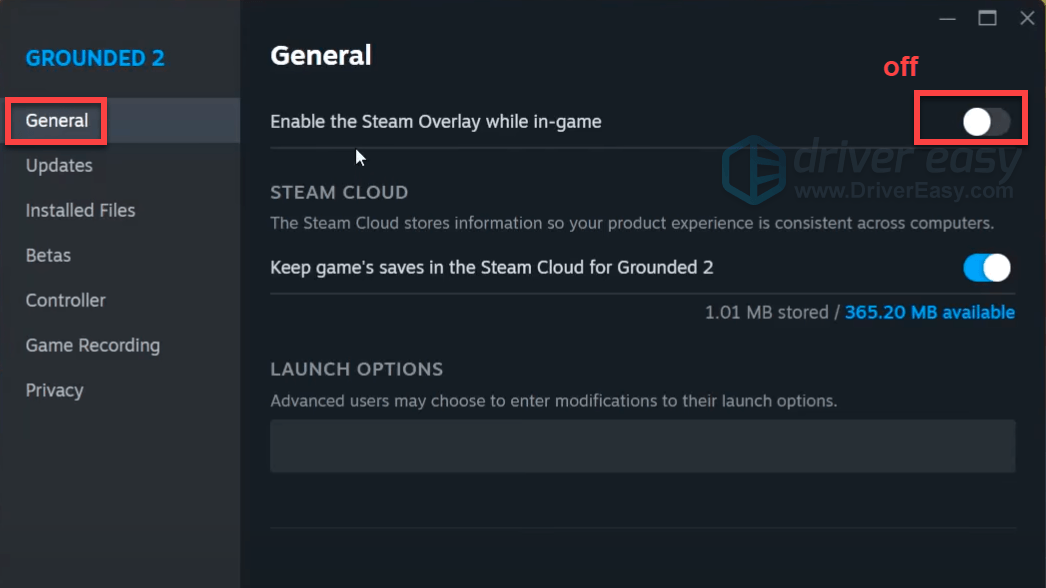
Go to your Steam LIBRARY, right-click on your game and select Properties. In the General tab, toggle off the option “Enable the Steam Overlay while in-game”.
NVIDIA App
Discord
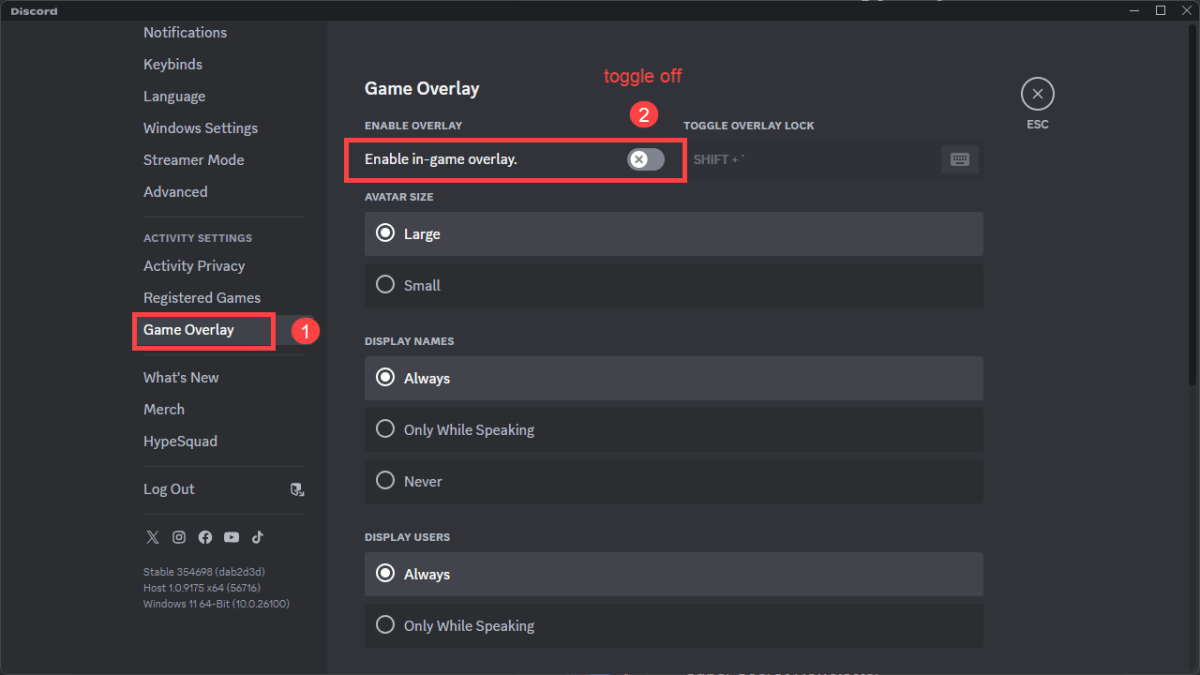
Go to Settings. Select Game Overlay from the left navigation panel, then toggle off the option “Enable in-game overlay”.
Method 6: Reset Xbox without Losing Games
If the previous methods haven’t worked, a system reset can often resolve underlying software issues on your Xbox. This process will refresh the console’s operating system while keeping your games and apps installed, so you won’t have to re-download them.
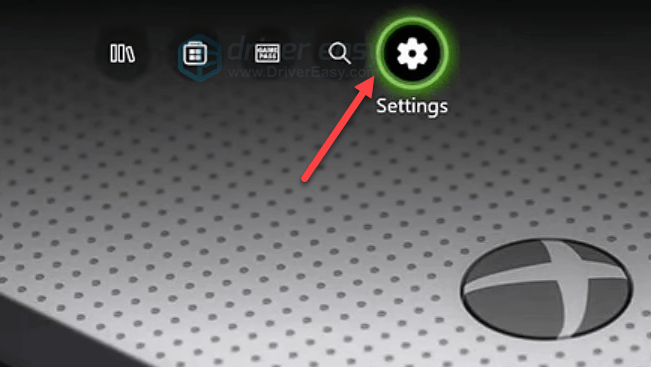
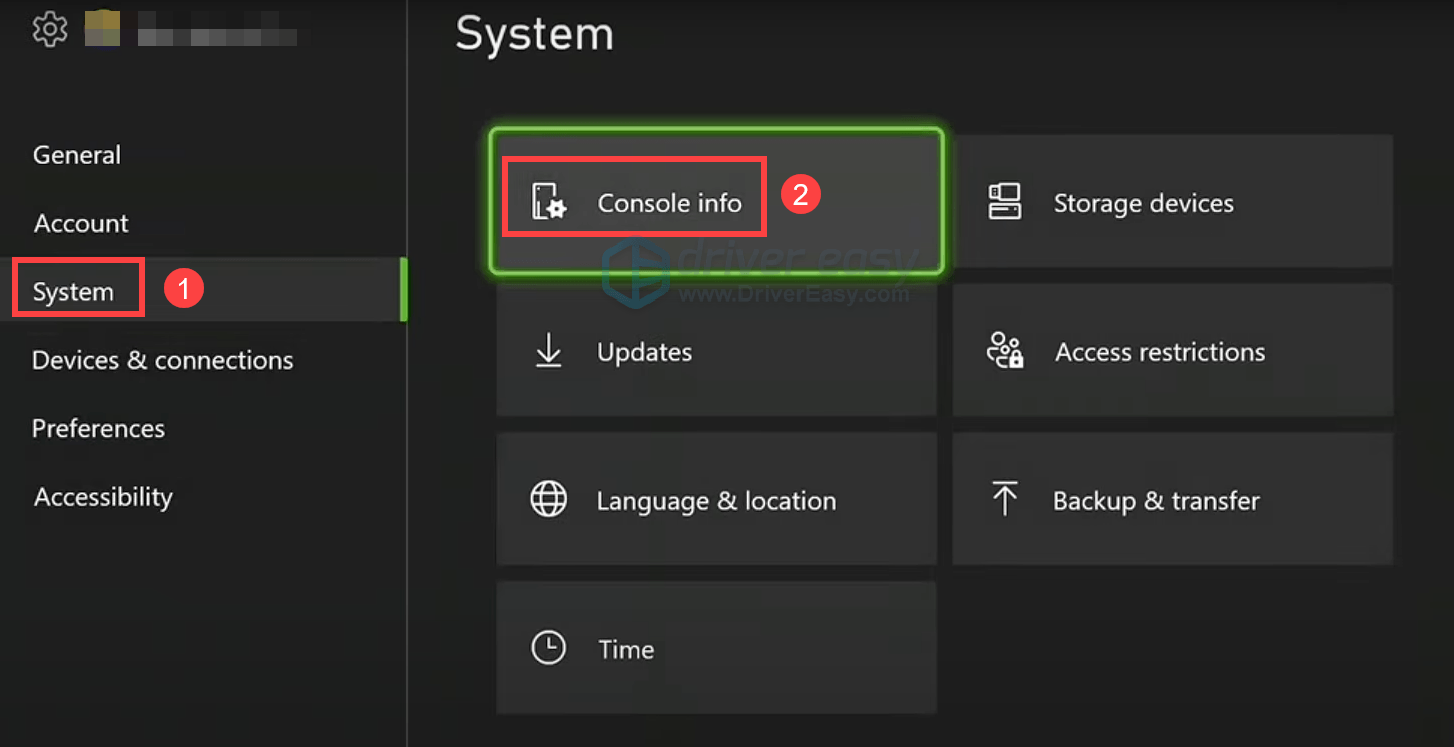
- Go to Settings.
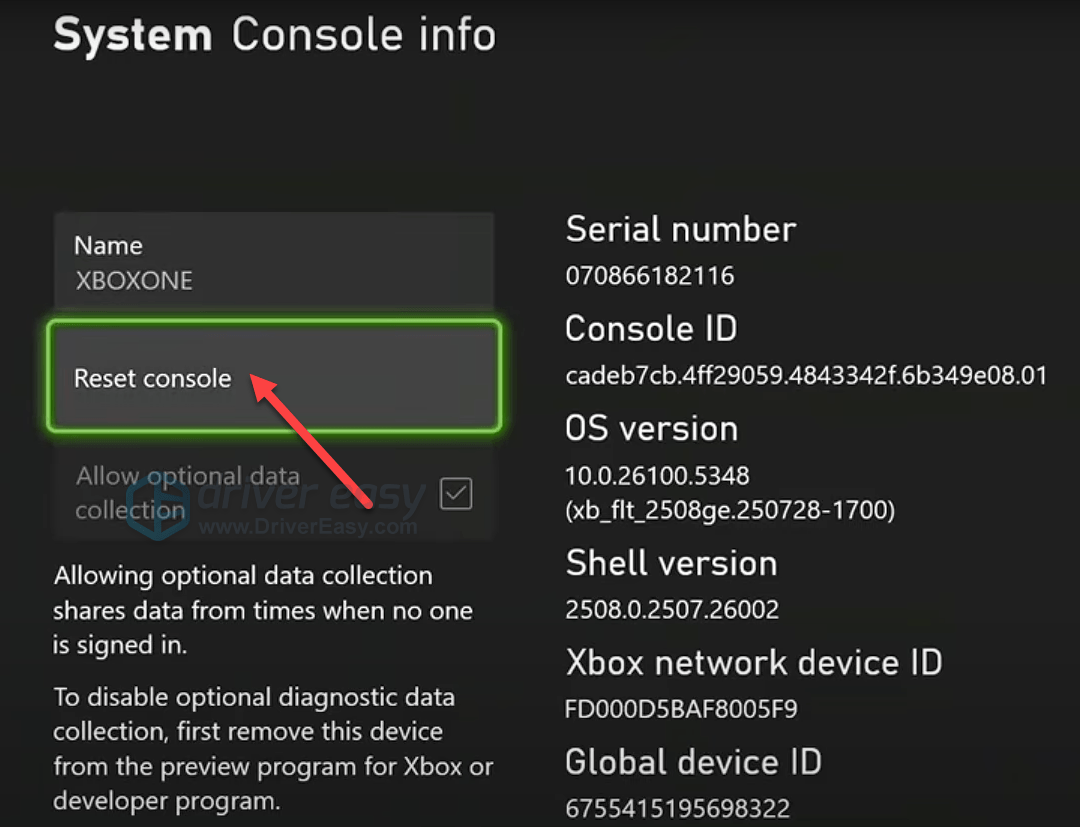
- Select System > Console info.
- Select Reset console.
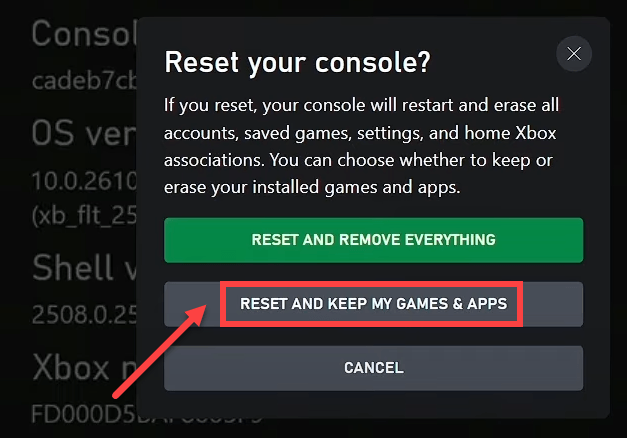
- Select RESET AND KEEP MY GAMES & APPS, then follow the on-screen instructions to proceed.
If You’re Using an Intel 13th or 14th Gen Processor
If you’re using an Intel 13th or 14th generation processor, you probably receive the error message “Grounded2-WinGDK-Shipping.exe has detected your computer is using an Intel 13th or 14th generation processor that does not have the proper updates installed to address potential processor instability issues. “
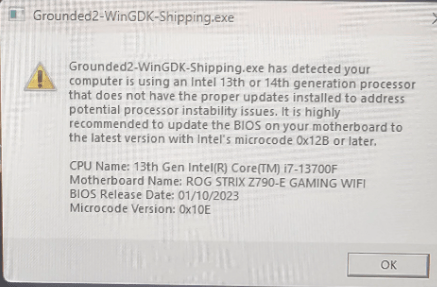
You’re not alone. These CPUs have been prone to instability issues with many modern, high-performance games. To address them, you should update BIOS and also try running it as an administrator:
To update BIOS, refer to this guide: How to Update BIOS.
To run the Grounded2-WinGDK-Shipping.exe as an administrator:
- Open Steam and go to your LIBRARY.
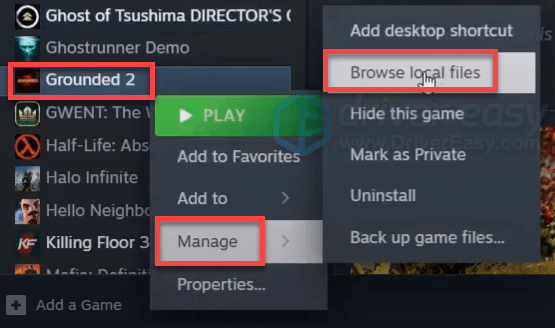
- Right-click on your game and select Manage > Browse local files.
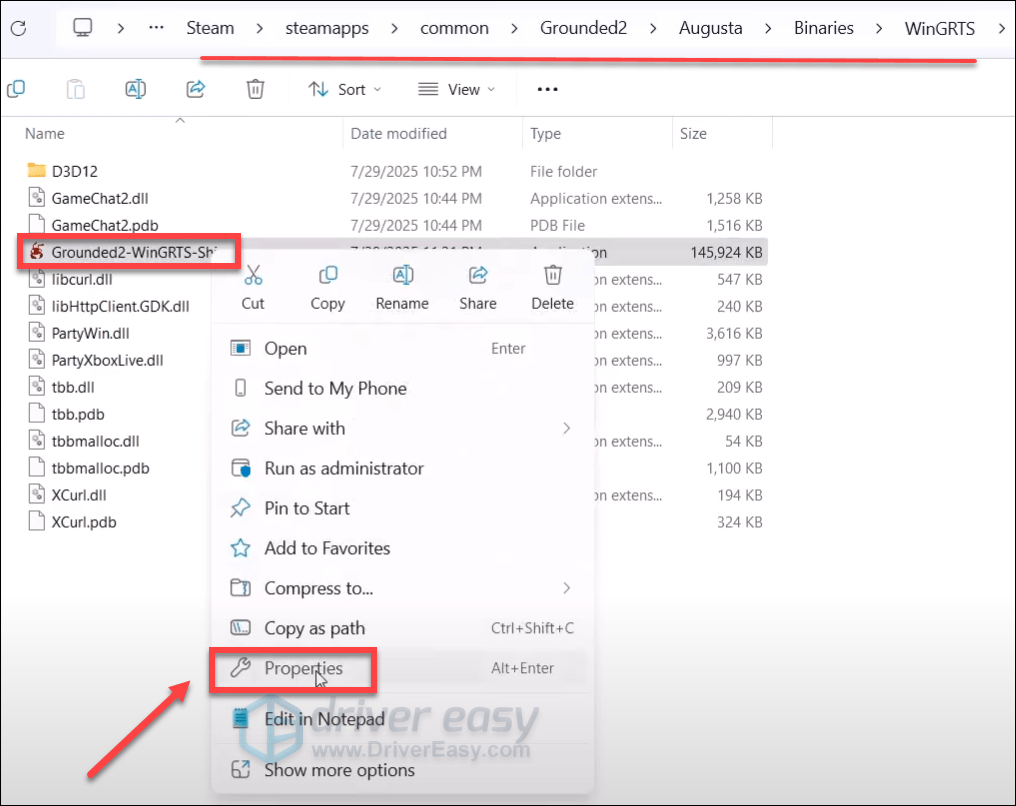
- Navigate to Grounded 2> Augusta > Binaries > WinGRTS. Find the Grounded2-WinGRTS-Shippingb executable file, right-click it and select Properties.
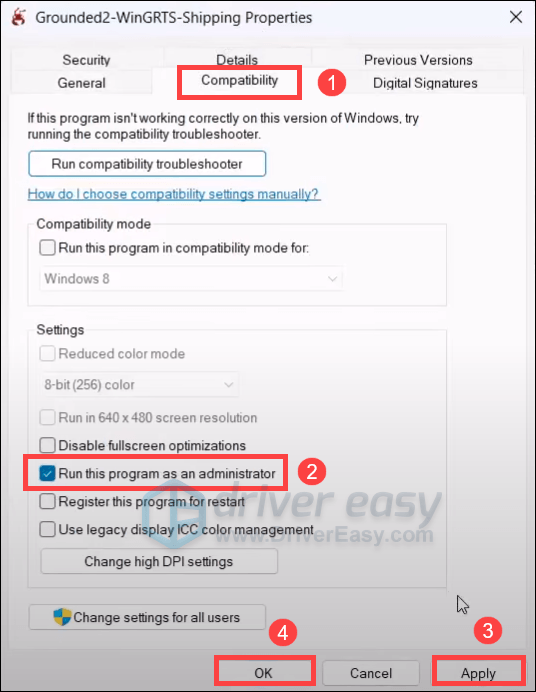
- Select the Compatability tab, check the box nex to Run this program as an administrator, then click Apply > OK.
Then try to launch Steam and the game.