






Try these fixes:
Fix 1: Delete your wirless profile
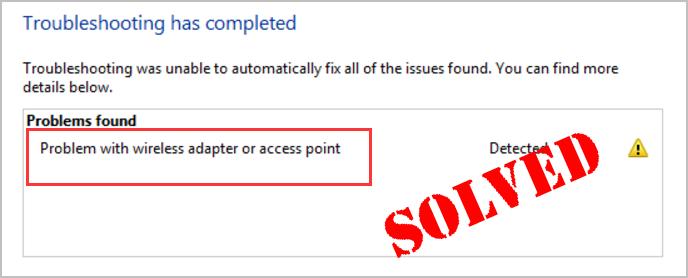
You may encounter the “Problem with wireless adapter or access point” problem probably due to your corrupted Wi-Fi configuration profile. In this case, you can delete your wireless profile and then reconnect your wireless network to fix the issue. Here you can learn two ways to delete your wireless profile:Way 1: Using network list
1) Click the Wi-Fi icon on the taskbar.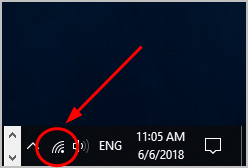
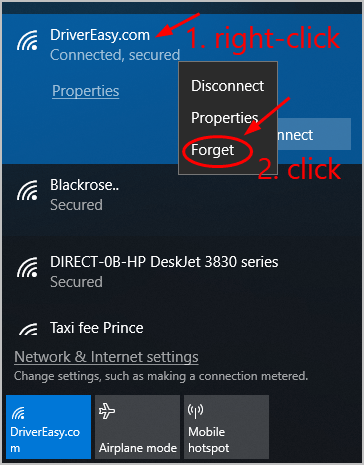
Way 2: Using command prompt
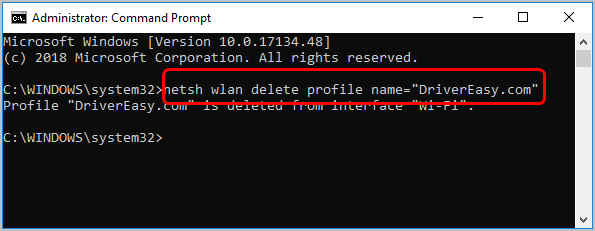
1) Type cmd in the search box from the Start menu. Then right-click on Command Prompt to select Run as administrator.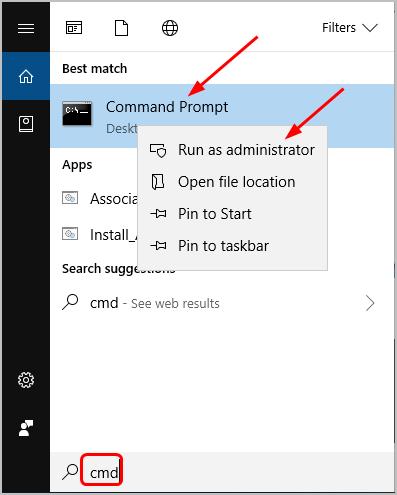
netsh wlan delete profile name="wireless profile name"
Fix 2: Update your wireless network adapter driver
You may also face this problem due to the wrong wireless network adapter driver on your Windows 10 computer. You can easily solve it through updating the driver. You can automatically update your network adapter driver to the latest version with Driver Easy. Driver Easy will automatically recognize your system and find the correct drivers for it. You don’t need to know exactly what system your computer is running, you don’t need to risk downloading and installing the wrong driver, and you don’t need to worry about making a mistake when installing. You can update your drivers automatically with either the FREE or the Pro version of Driver Easy. But with the Pro version it takes just 2 clicks (and you get full support and a 30-day money back guarantee): Note: You need to access the Internet to update your network adapter driver. You can temporary connect your computer to a wired network or use the Offline Scan feature of Driver Easy. 1) Download and install Driver Easy. 2) Run Driver Easy and click Scan Now button. Driver Easy will then scan your computer and detect any problem drivers. Your wrong wireless adapter driver is no exception.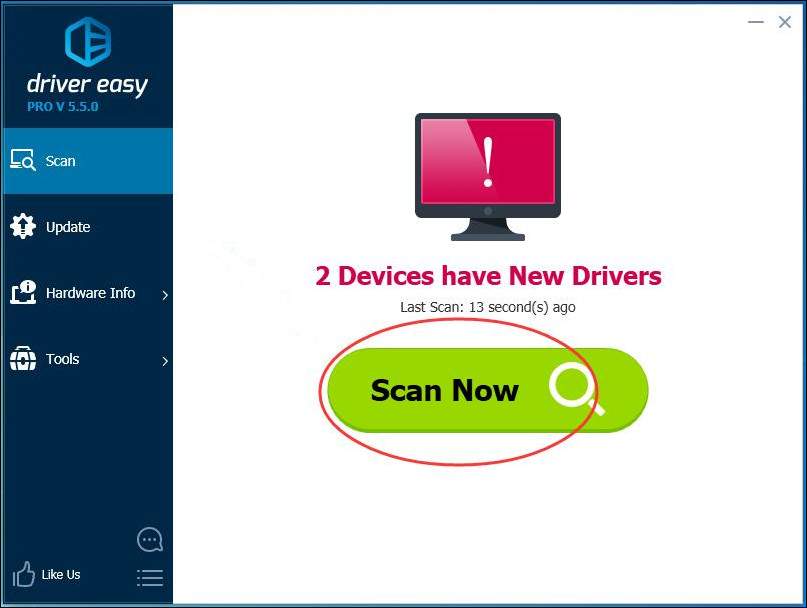 3) Click the Update button next to the fagged network driver to automatically download and install the correct version of that driver (you can do this with the FREE version).
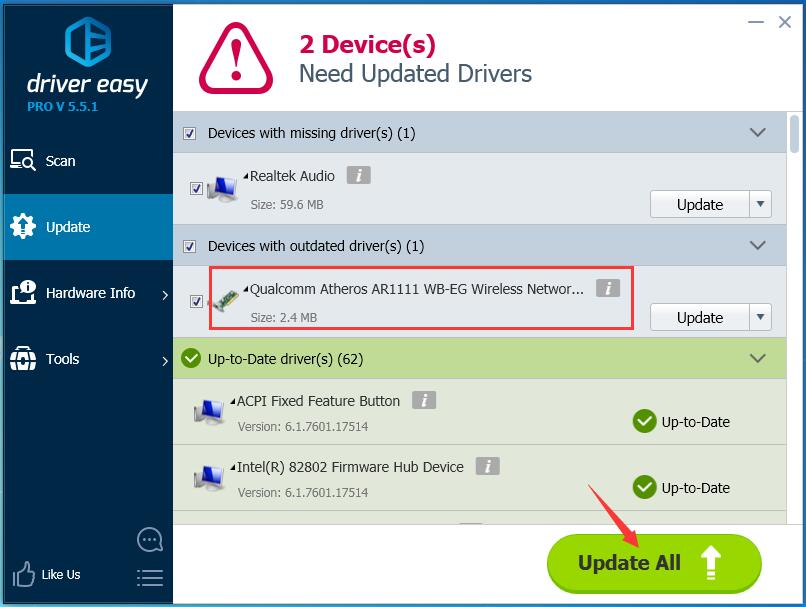
Or click Update All to automatically download and install the correct version of all the drivers that are missing or out of date on your system (this requires the Pro version – you’ll be prompted to upgrade when you click Update All).
3) Click the Update button next to the fagged network driver to automatically download and install the correct version of that driver (you can do this with the FREE version).
Or click Update All to automatically download and install the correct version of all the drivers that are missing or out of date on your system (this requires the Pro version – you’ll be prompted to upgrade when you click Update All).
 4) Restart your computer and reconnect to your wireless network. Then check to see if you could access the Internet.
37
37 people found this helpful
1 Comment
Most Voted
